> ## Documentation Index
> Fetch the complete documentation index at: https://notes.kodekloud.com/llms.txt
> Use this file to discover all available pages before exploring further.
# Work on the Command Line Part 1 Log into remote and graphical consoles demo
> This tutorial explains how to log into CentOS using local GUI, RDP, and SSH methods.
In this tutorial, you will learn how to:
* Perform a local graphical login on a CentOS VM
* Connect remotely via Remote Desktop Protocol (RDP)
* Access the shell in text mode using SSH
## Table of Contents
1. [Local Graphical Login on CentOS](#local-graphical-login-on-centos)
2. [Remote Graphical Login via RDP](#remote-graphical-login-via-rdp)
3. [Text-Mode Login via SSH](#text-mode-login-via-ssh)
4. [Summary and References](#summary-and-references)
***
## Local Graphical Login on CentOS
First, verify that your CentOS VM is set to boot into the graphical target with GNOME installed:
```bash theme={null}
sudo dnf groupinstall "Server with GUI"
sudo systemctl set-default graphical.target
sudo reboot
```
If the VM defaults to text mode, start the graphical login with `sudo systemctl start gdm` or install the necessary GNOME packages.
Once the GNOME login screen appears:
1. Select your username.
2. Enter your password.
3. Click **Sign In**.
After GNOME loads, use the top-right menu to log out and prepare for the remote login demonstration.
***
## Remote Graphical Login via RDP
To enable RDP access on a CentOS server, install and configure the xrdp service:
```bash theme={null}
sudo dnf install xrdp
sudo systemctl enable --now xrdp
sudo firewall-cmd --add-service=rdp --permanent
sudo firewall-cmd --reload
```
Exposing RDP (port 3389) on public networks may introduce security vulnerabilities. Use a VPN or SSH tunnel when possible.
Next, open your preferred RDP client (e.g., Microsoft Remote Desktop) and enter the server’s IP address:
1. Launch the RDP client application.
2. Input the IP address (for example, `192.168.0.18`) and click **Connect**.
3. At the login prompt, the username field may auto-fill with `student`. Enter the password and proceed.
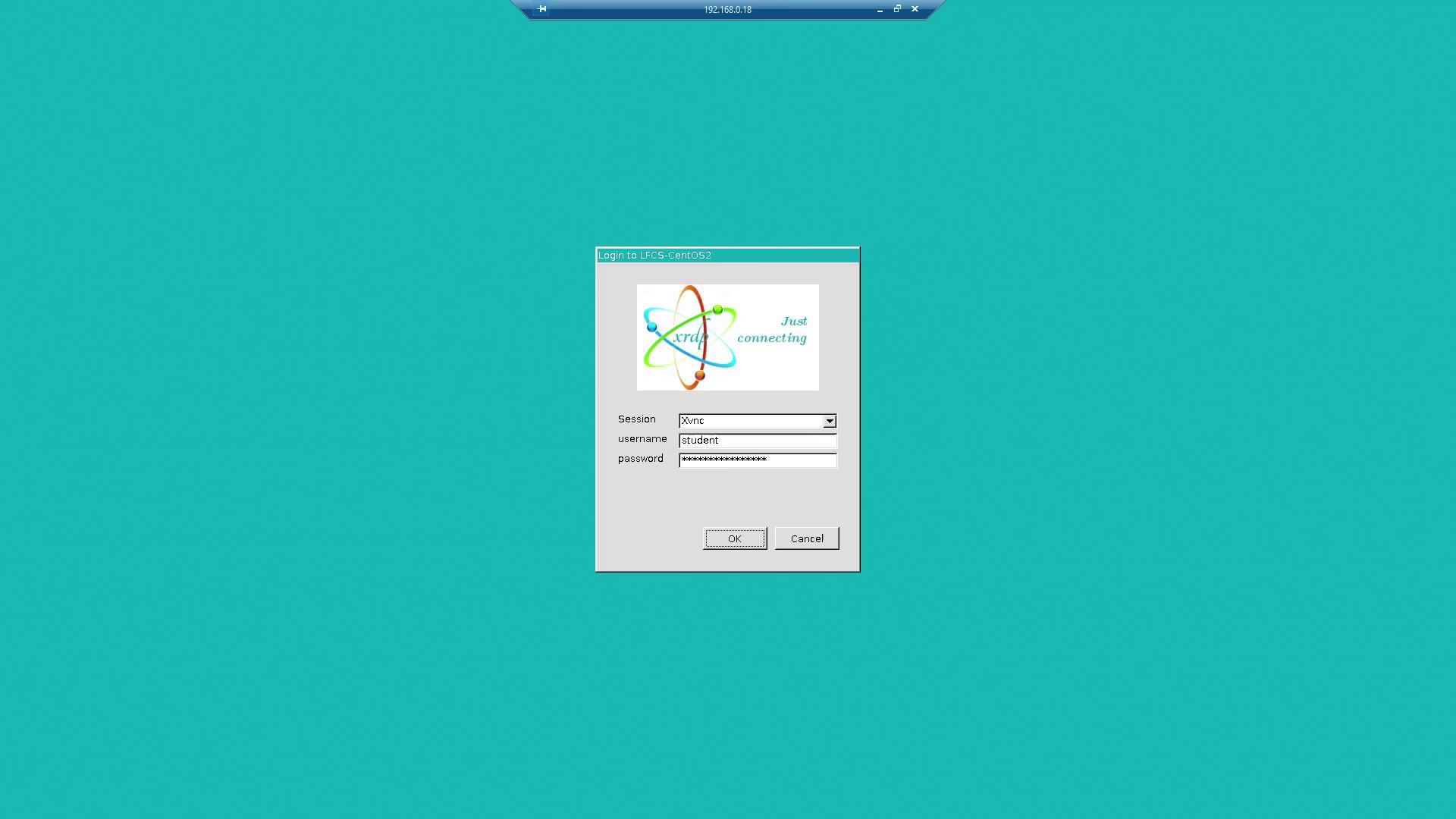
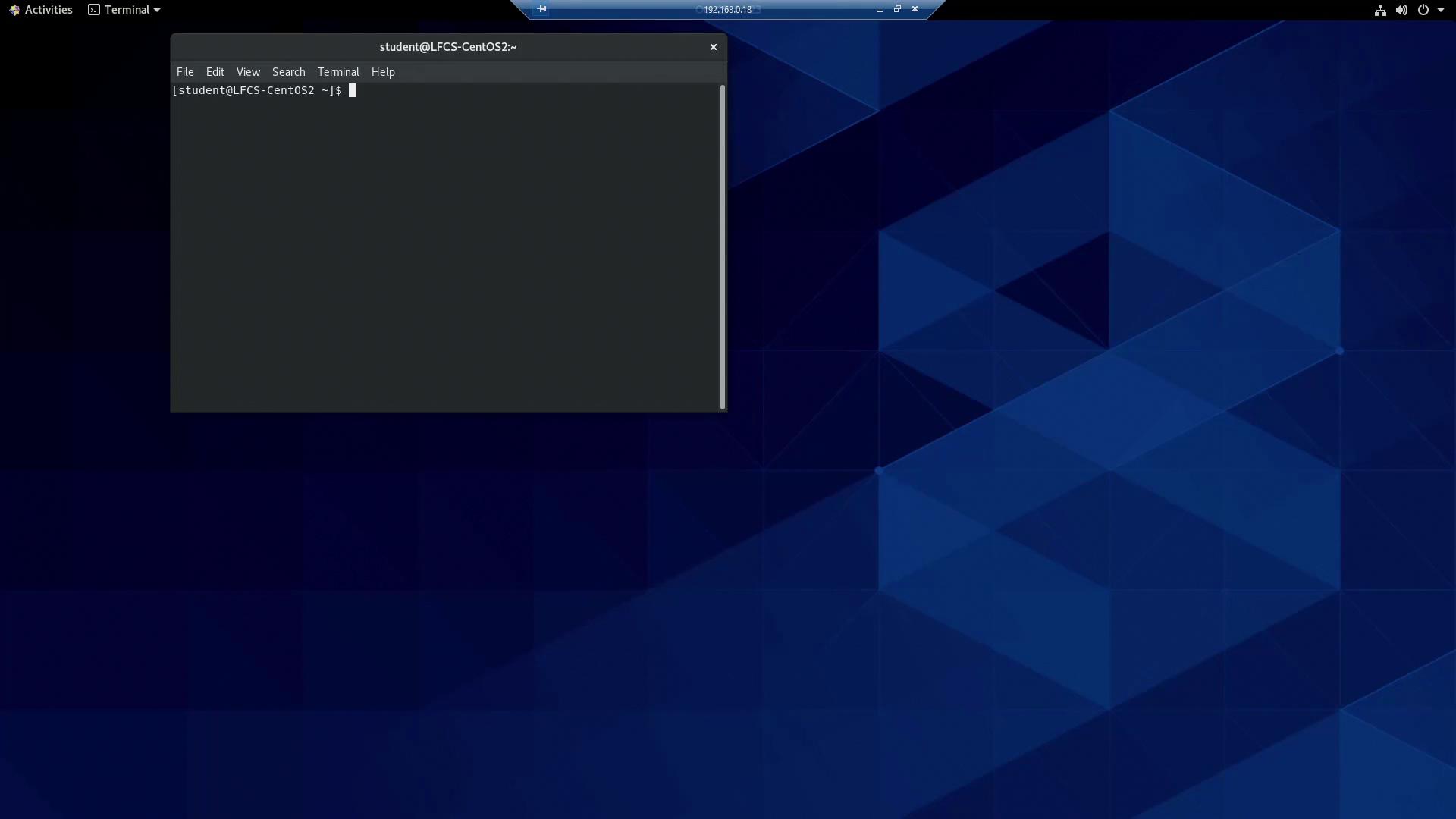
Once authenticated, verify the connection by checking the IP address in the RDP window’s title bar. Then, navigate to **Activities** → **GNOME Terminal** to open a terminal session.
***
## Text-Mode Login via SSH
From the GNOME Terminal in the RDP session, initiate an SSH connection to your CentOS VM at `192.168.0.17` with the `aaron` account:
```bash theme={null}
[student@LFCS-CentOS2 ~]$ ssh aaron@192.168.0.17
aaron@192.168.0.17's password:
Activate the web console with: systemctl enable --now cockpit.socket
Last login: Tue Oct 19 04:22:38 2021
[aaron@LFCS-CentOS ~]$ exit
logout
Connection to 192.168.0.17 closed.
[student@LFCS-CentOS2 ~]$
```
When finished, close the terminal emulator and end your RDP session.
***
## Summary and References
This lesson covered three login methods for CentOS:
| Login Method | Description | How to Access |
| ---------------- | ------------------------------- | -------------------------------- |
| Local GUI | GNOME desktop on local VM | Select user → Enter password |
| Remote GUI (RDP) | GNOME desktop via RDP client | Use RDP client → Connect → Login |
| SSH Text Mode | Command-line interface over SSH | `ssh user@host` |
Further reading:
* [GNOME Project][GNOME]
* [Microsoft RDP Documentation][RDP]
* [OpenSSH Manual][SSH]
[GNOME]: https://www.gnome.org/
[RDP]: https://learn.microsoft.com/en-us/windows-server/remote/remote-desktop-services/clients/remote-desktop-clients
[SSH]: https://www.openssh.com/manual.html