> ## Documentation Index
> Fetch the complete documentation index at: https://notes.kodekloud.com/llms.txt
> Use this file to discover all available pages before exploring further.
# tmux
> Practical guide to tmux covering sessions, windows, panes, copy paste, key bindings, and basic configuration for terminal multiplexing.
This lesson covers tmux fundamentals: what tmux is, how to start it, and how to work with sessions, windows, panes, copy/paste, and basic configuration.
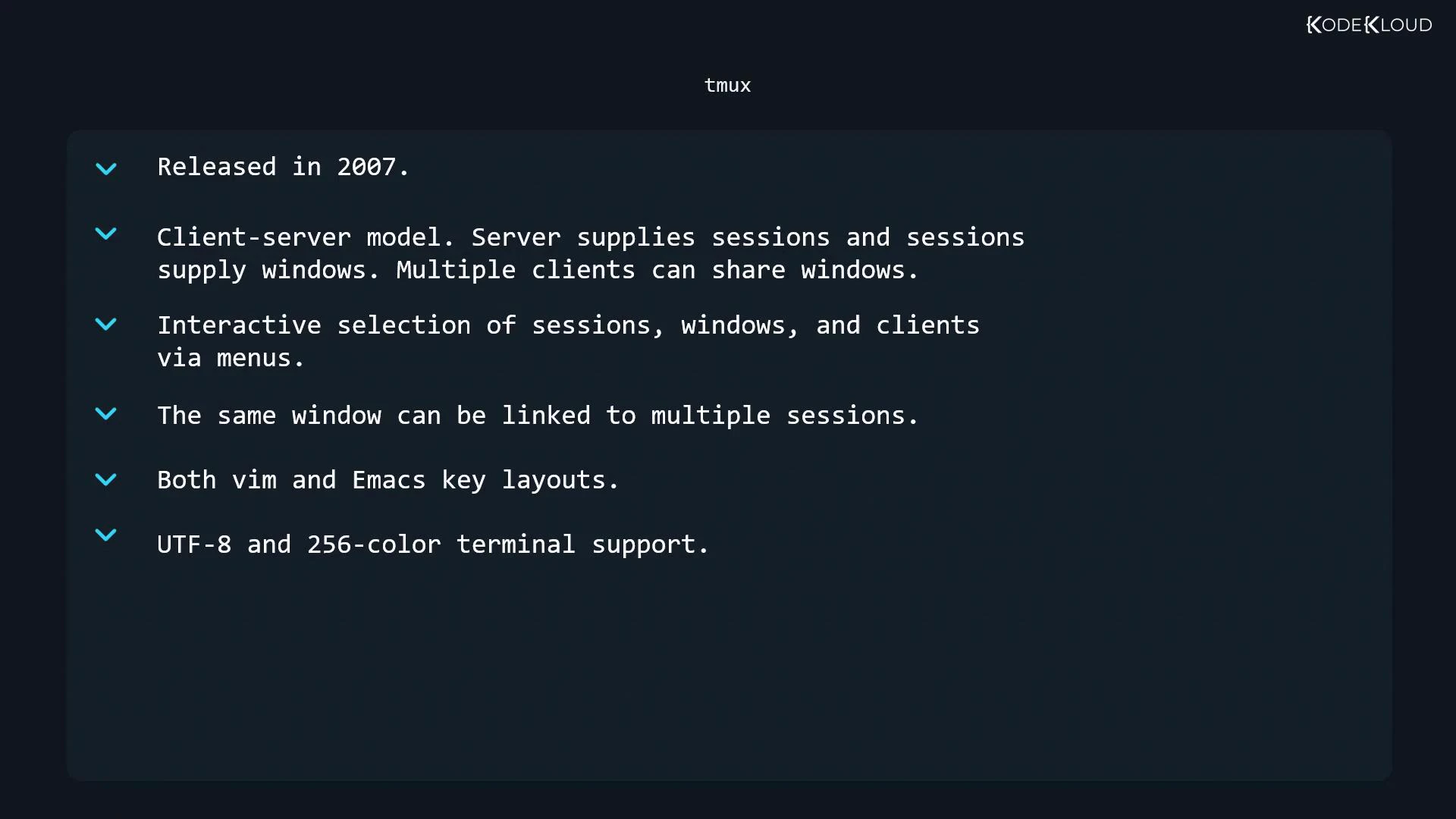
tmux (first released in 2007) is a modern terminal multiplexer similar to GNU Screen but with several enhancements:
* Client–server model: a single server manages multiple sessions; each session contains windows, and windows can be shared between clients.
* Interactive menus for selecting sessions, windows, and clients.
* The same window can be linked to multiple sessions.
* Supports both Vim and GNU Emacs key layouts.
* Full UTF-8 and 256-color terminal support.
 Getting started
* Start tmux from your shell:
```bash theme={null}
$ tmux
```
This opens a shell inside tmux and shows a status bar along the bottom of the terminal. The default command prefix (leader key) is Ctrl+b (referred to below as "prefix").
Status bar contents
* Session name
* Window index (tmux counts windows from 0)
* Window name (by default tmux shows the running program name and updates it automatically)
* An asterisk (\*) indicates the currently visible window
* Host name, time, date, etc.
Example: start tmux and create a named session and window
```bash theme={null}
# Start tmux (interactive)
$ tmux
# Start tmux with a named session and named window (from shell)
$ tmux new -s "LPI" -n "Window zero"
# tmux status line (illustrative)
# [LPI] 0:Window zero* "debian" 19:01
# 27-Aug-19
```
Windows
Windows are top-level workspaces inside a session. Each window can contain multiple panes.
Common window operations
| Action | Keys / Command |
| ---------------------- | ------------------------------------------------------------------ |
| New window | prefix + c (Ctrl+b then c) |
| Rename current window | prefix + , (Ctrl+b then ,), type name, Enter |
| List windows (chooser) | prefix + w (Ctrl+b then w) — navigate with arrows, Enter to select |
| Next window | prefix + n |
| Previous window | prefix + p |
| Jump to window N | prefix + N (e.g., prefix + 0) |
| Kill current window | prefix + & (confirmation asked) |
Quick reference (text)
```text theme={null}
New window: Ctrl + b, c
Rename window: Ctrl + b, ,
List windows: Ctrl + b, w
Next window: Ctrl + b, n
Previous window: Ctrl + b, p
Go to window #N: Ctrl + b, N (N = window number)
Kill window: Ctrl + b, &
```
Panes (splitting windows)
Panes are subdivisions of a window; each pane is a full pseudo-terminal.
Basic pane operations
| Action | Keys |
| ------------------------------ | ------------------------------- |
| Split horizontally | prefix + " (Ctrl+b then ") |
| Split vertically | prefix + % |
| Kill current pane | prefix + x (confirmation asked) |
| Move between panes | prefix + Arrow keys |
| Last active pane | prefix + ; |
| Resize by 1 line | prefix + Ctrl + Arrow |
| Resize by 5 lines | prefix + Alt + Arrow |
| Swap with previous pane | prefix + \{ |
| Swap with next pane | prefix + } |
| Toggle zoom for a pane | prefix + z |
| Show clock in pane | prefix + t (quit with q) |
| Convert pane to its own window | prefix + ! |
Quick reference (text)
```text theme={null}
Split horizontally: Ctrl + b, "
Split vertically: Ctrl + b, %
Kill pane: Ctrl + b, x
Move pane focus: Ctrl + b, ARROW
Last active pane: Ctrl + b, ;
Resize by 1 line: Ctrl + b, Ctrl + ARROW
Resize by 5 lines: Ctrl + b, Alt + ARROW
Swap with previous: Ctrl + b, {
Swap with next: Ctrl + b, }
Zoom pane: Ctrl + b, z
Clock: Ctrl + b, t (quit with q)
Pane -> Window: Ctrl + b, !
```
Sessions
A session is a collection of windows. Sessions allow you to organize work and attach/detach clients.
Session commands
| Action | Command / Keys |
| ----------------------------- | ------------------------------------------------ |
| List sessions (chooser) | prefix + s (inside tmux), OR from shell: tmux ls |
| Create a new session (shell) | tmux new -s NAME |
| Create session (inside tmux) | prefix + : then type new or new -s NAME |
| Rename session | prefix + \$ |
| Attach to session | tmux attach -t NAME (short: tmux a) |
| Detach from session | prefix + d |
| Select which client to detach | prefix + D |
| Kill a session | tmux kill-session -t "SessionName" |
| Refresh client terminal | prefix + r |
Examples
```bash theme={null}
# List sessions
$ tmux ls
LPI: 2 windows (created Tue Aug 27 19:01:49 2019) [158x39] (attached)
# Attach to a session (when only one exists)
$ tmux attach
# Kill a session from the shell
$ tmux kill-session -t "Second Session"
```
Be careful: killing a pane, window, or session terminates processes running
inside it. Save work before confirming any kill operation.
Copy / paste and scrollback
tmux provides its own copy/scrollback mode that allows selecting text, copying to an internal buffer, and pasting between panes.
Steps to copy and paste
1. Enter copy/scrollback mode: prefix + \[
2. Navigate with arrow keys, PageUp/PageDown, or vi-style keys (if configured).
3. Start selection with Space.
4. Move to the end of selection.
5. Copy selection with Enter (puts it into tmux buffer).
6. Paste into the current pane with: prefix + ]
Manage buffers from shell
```bash theme={null}
# List tmux buffers
$ tmux list-buffers
# Show a buffer by index
$ tmux show-buffer -b 0
# Save a buffer to a file
$ tmux save-buffer -b 0 /tmp/tmux-buffer.txt
```
Configuration
* System-wide config: /etc/tmux.conf
* Per-user config: \~/.tmux.conf
* Start tmux with an alternate config file: tmux -f /path/to/config
Common \~/.tmux.conf examples
Change prefix to Ctrl+a and unbind default Ctrl+b:
```conf theme={null}
# ~/.tmux.conf
unbind C-b
set -g prefix C-a
bind C-a send-prefix
```
Bind keys to select windows beyond 9 (example: Alt-0..Alt-2 → windows 10..12)
```conf theme={null}
# Select window 10 with Alt-0
bind -n M-0 select-window -t :10
# Select window 11 with Alt-1
bind -n M-1 select-window -t :11
# Select window 12 with Alt-2
bind -n M-2 select-window -t :12
```
Note: tmux has a rich set of options and bindings — consult the manual or use the built-in command prompt (prefix + :) to explore commands.
Tip: For the complete list of commands and detailed options, read the manual:
[man tmux](https://man.openbsd.org/tmux)
Links and references
* tmux manual: [https://man.openbsd.org/tmux](https://man.openbsd.org/tmux)
* tmux GitHub: [https://github.com/tmux/tmux](https://github.com/tmux/tmux)
* Vim: [https://www.vim.org/](https://www.vim.org/)
* GNU Emacs: [https://www.gnu.org/software/emacs/](https://www.gnu.org/software/emacs/)
That covers the essentials: starting tmux, working with sessions, windows, and panes, using the copy/paste buffer, and adding simple configuration. Use the tables and command summaries above as a quick reference while you practice.
Getting started
* Start tmux from your shell:
```bash theme={null}
$ tmux
```
This opens a shell inside tmux and shows a status bar along the bottom of the terminal. The default command prefix (leader key) is Ctrl+b (referred to below as "prefix").
Status bar contents
* Session name
* Window index (tmux counts windows from 0)
* Window name (by default tmux shows the running program name and updates it automatically)
* An asterisk (\*) indicates the currently visible window
* Host name, time, date, etc.
Example: start tmux and create a named session and window
```bash theme={null}
# Start tmux (interactive)
$ tmux
# Start tmux with a named session and named window (from shell)
$ tmux new -s "LPI" -n "Window zero"
# tmux status line (illustrative)
# [LPI] 0:Window zero* "debian" 19:01
# 27-Aug-19
```
Windows
Windows are top-level workspaces inside a session. Each window can contain multiple panes.
Common window operations
| Action | Keys / Command |
| ---------------------- | ------------------------------------------------------------------ |
| New window | prefix + c (Ctrl+b then c) |
| Rename current window | prefix + , (Ctrl+b then ,), type name, Enter |
| List windows (chooser) | prefix + w (Ctrl+b then w) — navigate with arrows, Enter to select |
| Next window | prefix + n |
| Previous window | prefix + p |
| Jump to window N | prefix + N (e.g., prefix + 0) |
| Kill current window | prefix + & (confirmation asked) |
Quick reference (text)
```text theme={null}
New window: Ctrl + b, c
Rename window: Ctrl + b, ,
List windows: Ctrl + b, w
Next window: Ctrl + b, n
Previous window: Ctrl + b, p
Go to window #N: Ctrl + b, N (N = window number)
Kill window: Ctrl + b, &
```
Panes (splitting windows)
Panes are subdivisions of a window; each pane is a full pseudo-terminal.
Basic pane operations
| Action | Keys |
| ------------------------------ | ------------------------------- |
| Split horizontally | prefix + " (Ctrl+b then ") |
| Split vertically | prefix + % |
| Kill current pane | prefix + x (confirmation asked) |
| Move between panes | prefix + Arrow keys |
| Last active pane | prefix + ; |
| Resize by 1 line | prefix + Ctrl + Arrow |
| Resize by 5 lines | prefix + Alt + Arrow |
| Swap with previous pane | prefix + \{ |
| Swap with next pane | prefix + } |
| Toggle zoom for a pane | prefix + z |
| Show clock in pane | prefix + t (quit with q) |
| Convert pane to its own window | prefix + ! |
Quick reference (text)
```text theme={null}
Split horizontally: Ctrl + b, "
Split vertically: Ctrl + b, %
Kill pane: Ctrl + b, x
Move pane focus: Ctrl + b, ARROW
Last active pane: Ctrl + b, ;
Resize by 1 line: Ctrl + b, Ctrl + ARROW
Resize by 5 lines: Ctrl + b, Alt + ARROW
Swap with previous: Ctrl + b, {
Swap with next: Ctrl + b, }
Zoom pane: Ctrl + b, z
Clock: Ctrl + b, t (quit with q)
Pane -> Window: Ctrl + b, !
```
Sessions
A session is a collection of windows. Sessions allow you to organize work and attach/detach clients.
Session commands
| Action | Command / Keys |
| ----------------------------- | ------------------------------------------------ |
| List sessions (chooser) | prefix + s (inside tmux), OR from shell: tmux ls |
| Create a new session (shell) | tmux new -s NAME |
| Create session (inside tmux) | prefix + : then type new or new -s NAME |
| Rename session | prefix + \$ |
| Attach to session | tmux attach -t NAME (short: tmux a) |
| Detach from session | prefix + d |
| Select which client to detach | prefix + D |
| Kill a session | tmux kill-session -t "SessionName" |
| Refresh client terminal | prefix + r |
Examples
```bash theme={null}
# List sessions
$ tmux ls
LPI: 2 windows (created Tue Aug 27 19:01:49 2019) [158x39] (attached)
# Attach to a session (when only one exists)
$ tmux attach
# Kill a session from the shell
$ tmux kill-session -t "Second Session"
```
Be careful: killing a pane, window, or session terminates processes running
inside it. Save work before confirming any kill operation.
Copy / paste and scrollback
tmux provides its own copy/scrollback mode that allows selecting text, copying to an internal buffer, and pasting between panes.
Steps to copy and paste
1. Enter copy/scrollback mode: prefix + \[
2. Navigate with arrow keys, PageUp/PageDown, or vi-style keys (if configured).
3. Start selection with Space.
4. Move to the end of selection.
5. Copy selection with Enter (puts it into tmux buffer).
6. Paste into the current pane with: prefix + ]
Manage buffers from shell
```bash theme={null}
# List tmux buffers
$ tmux list-buffers
# Show a buffer by index
$ tmux show-buffer -b 0
# Save a buffer to a file
$ tmux save-buffer -b 0 /tmp/tmux-buffer.txt
```
Configuration
* System-wide config: /etc/tmux.conf
* Per-user config: \~/.tmux.conf
* Start tmux with an alternate config file: tmux -f /path/to/config
Common \~/.tmux.conf examples
Change prefix to Ctrl+a and unbind default Ctrl+b:
```conf theme={null}
# ~/.tmux.conf
unbind C-b
set -g prefix C-a
bind C-a send-prefix
```
Bind keys to select windows beyond 9 (example: Alt-0..Alt-2 → windows 10..12)
```conf theme={null}
# Select window 10 with Alt-0
bind -n M-0 select-window -t :10
# Select window 11 with Alt-1
bind -n M-1 select-window -t :11
# Select window 12 with Alt-2
bind -n M-2 select-window -t :12
```
Note: tmux has a rich set of options and bindings — consult the manual or use the built-in command prompt (prefix + :) to explore commands.
Tip: For the complete list of commands and detailed options, read the manual:
[man tmux](https://man.openbsd.org/tmux)
Links and references
* tmux manual: [https://man.openbsd.org/tmux](https://man.openbsd.org/tmux)
* tmux GitHub: [https://github.com/tmux/tmux](https://github.com/tmux/tmux)
* Vim: [https://www.vim.org/](https://www.vim.org/)
* GNU Emacs: [https://www.gnu.org/software/emacs/](https://www.gnu.org/software/emacs/)
That covers the essentials: starting tmux, working with sessions, windows, and panes, using the copy/paste buffer, and adding simple configuration. Use the tables and command summaries above as a quick reference while you practice.