> ## Documentation Index
> Fetch the complete documentation index at: https://notes.kodekloud.com/llms.txt
> Use this file to discover all available pages before exploring further.
# Design Hard Disk Layout Manage Swap Space
> This article explains how to configure and manage swap space in Linux, covering swap partitions and files with step-by-step examples.
In this lesson we’ll explore how to configure and manage swap space in Linux. Swap is a dedicated area on disk where the kernel moves inactive pages from RAM when physical memory is exhausted. We’ll cover both swap partitions and swap files, with step-by-step examples.
## Understanding Swap with a Simple Scenario
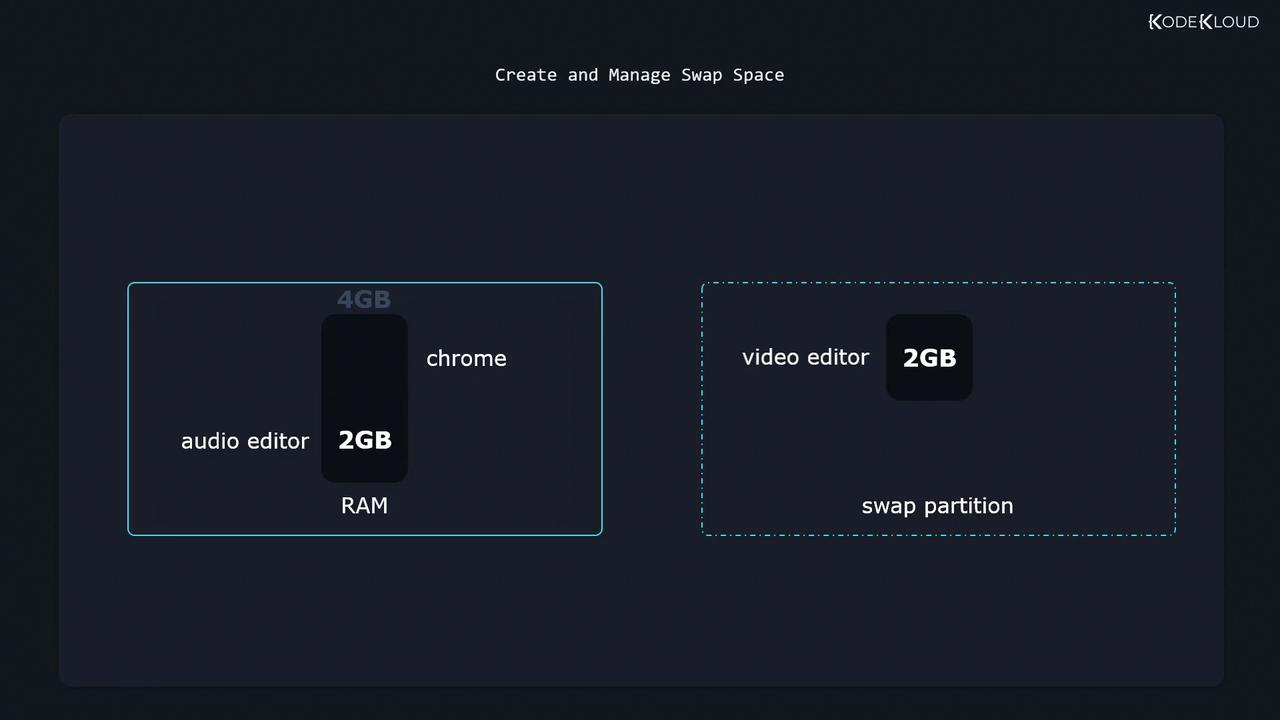
Imagine a system with 4 GiB of RAM:
* A video editor consumes 2 GiB.
* An audio editor consumes another 2 GiB.
At this point, RAM is full. With a 2 GiB swap partition, Linux can relocate the idle video editor’s memory pages to swap, freeing up 2 GiB of RAM for a new application such as Chrome.
Swap space is much slower than RAM. Use it as overflow memory, not as a substitute for adequate physical RAM.
## Checking Existing Swap
List active swap areas:
```bash theme={null}
swapon --show
```
Inspect block devices and partitions:
```bash theme={null}
lsblk
```
Example output:
```bash theme={null}
NAME MAJ:MIN RM SIZE RO TYPE MOUNTPOINT
vda 8:0 0 20G 0 disk
├─vda1 8:1 0 1G 0 part /boot
├─vda2 8:2 0 19G 0 part
│ ├─cs-root 253:0 0 17G 0 lvm /
│ └─cs-swap 253:1 0 2G 0 lvm [SWAP]
vdb 8:16 0 10G 0 disk
├─vdb1 8:17 0 1G 0 part
├─vdb2 8:18 0 4G 0 part
└─vdb3 8:19 0 2G 0 part
```
In this example, `/dev/vdb3` is reserved for swap but not yet active.
## Command Reference
| Task | Command |
| ---------------------------- | ------------------------------------------------ |
| List active swap | `swapon --show` |
| List block devices | `lsblk` |
| Format a swap partition | `sudo mkswap /dev/vdb3` |
| Enable a swap area | `sudo swapon --verbose /dev/vdb3` |
| Disable a swap area | `sudo swapoff /dev/vdb3` |
| Create a swap file (2 GiB) | `sudo dd if=/dev/zero of=/swap bs=1M count=2048` |
| Secure swap file permissions | `sudo chmod 600 /swap` |
| Format a swap file | `sudo mkswap /swap` |
| Enable swap file | `sudo swapon --verbose /swap` |
## Creating and Enabling a Swap Partition
1. Format the partition:
```bash theme={null}
sudo mkswap /dev/vdb3
```
2. Activate it immediately:
```bash theme={null}
sudo swapon --verbose /dev/vdb3
```
3. Verify it’s active:
```bash theme={null}
swapon --show
```
4. Make it persistent by adding to `/etc/fstab`:
```text theme={null}
/dev/vdb3 none swap sw 0 0
```
## Disabling Swap
To turn off a swap partition or file:
```bash theme={null}
sudo swapoff /dev/vdb3
```
## Creating and Using a Swap File
If you cannot repartition the disk, create a swap file instead:
1. Create a zero-filled file (2 GiB):
```bash theme={null}
sudo dd if=/dev/zero of=/swap bs=1M count=2048 status=progress
```
2. Restrict permissions:
```bash theme={null}
sudo chmod 600 /swap
```
3. Format the file as swap:
```bash theme={null}
sudo mkswap /swap
```
4. Enable the swap file:
```bash theme={null}
sudo swapon --verbose /swap
```
5. Persist across reboots by adding to `/etc/fstab`:
```text theme={null}
/swap none swap sw 0 0
```
Excessive swapping (thrashing) can severely degrade performance. Monitor swap usage with `free -h`, `vmstat`, or `htop`.
## Links and References
* [Linux Swap FAQs](https://tldp.org/LDP/swap-guide/)
* [swapon(8) Manual](https://man7.org/linux/man-pages/man8/swapon.8.html)
* [lsblk(8) Manual](https://man7.org/linux/man-pages/man8/lsblk.8.html)
* [Filesystem Hierarchy Standard](https://refspecs.linuxfoundation.org/FHS_3.0/fhs/index.html)
Practice these commands to master swap space management on Linux.