> ## Documentation Index
> Fetch the complete documentation index at: https://notes.kodekloud.com/llms.txt
> Use this file to discover all available pages before exploring further.
# Use Debian Package Management Part 2
> This guide explores advanced Debian package management using APT, covering installation, upgrades, removals, and repository configuration.
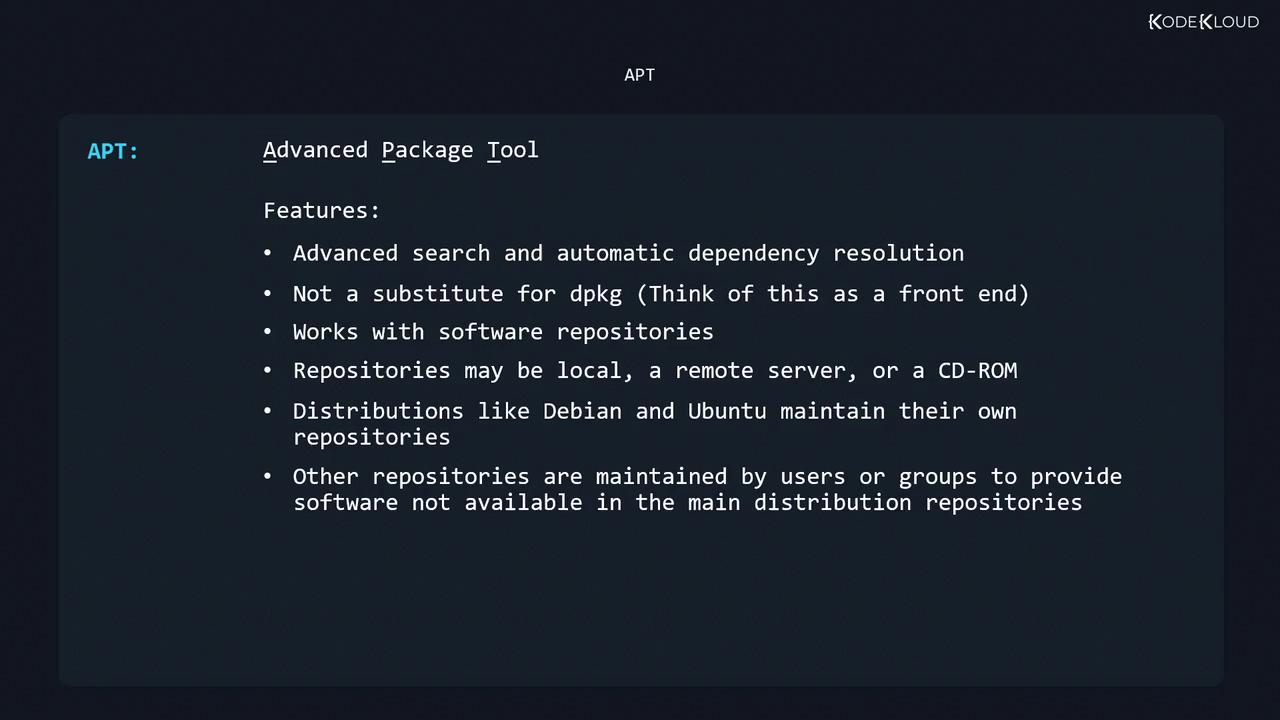
In this guide, we’ll dive deeper into Debian package management using APT (Advanced Package Tool). APT is a powerful front-end to `dpkg` that automates dependency resolution, offers advanced search capabilities, and simplifies package installation, upgrades, and removals. It works with software repositories—which can be remote servers, local mirrors, or even CD-ROMs. Official repositories are maintained by distributions like [Debian](https://www.debian.org/) and [Ubuntu](https://ubuntu.com/), and you can add third-party or custom repos as needed.
## APT Command-Line Utilities
| Command | Purpose |
| -------------------------- | ------------------------------------------------ |
| `sudo apt-get [options]` | Install, upgrade, or remove packages |
| `sudo apt-cache [options]` | Search and display package information |
| `sudo apt-file [options]` | Search for files within packages (inst./uninst.) |
| `sudo apt [options]` | Unified interface combining apt-get & apt-cache |
The `apt` command is more user-friendly, but it may not be installed on older systems. Always know how to use both `apt-get` and `apt-cache`.
***
## 1. Updating the Package Index
Before installing or upgrading any software, refresh your local package index:
```bash theme={null}
sudo apt-get update
```
This fetches the latest package lists from all configured repositories.
***
## 2. Installing and Upgrading Packages
To install a new package—or upgrade it if already present—use:
```bash theme={null}
sudo apt-get install xournal
```
Sample output:
```bash theme={null}
Reading package lists... Done
Building dependency tree
Reading state information... Done
The following NEW packages will be installed:
xournal
0 upgraded, 1 newly installed, 0 to remove and 75 not upgraded.
Need to get 285 kB of archives.
After this operation, 1041 kB of additional disk space will be used.
```
You can install multiple packages at once, for example:\
`sudo apt-get install git curl vim`
***
## 3. Removing and Purging Packages
* **Remove (keep config files):**
```bash theme={null}
sudo apt-get remove xournal
```
* **Purge (remove config files too):**
```bash theme={null}
sudo apt-get purge p7zip
# or equivalently:
sudo apt-get remove --purge p7zip
```
APT will list affected packages and ask for confirmation before proceeding.
***
## 4. Fixing Broken Dependencies
When a manual `.deb` install triggers unmet dependencies:
```bash theme={null}
sudo dpkg -i --force openshot-qt_2.4.3+dfsg1-1_all.deb
# ... dpkg: dependency problems prevent configuration of openshot-qt: ...
```
Restore consistency by installing missing dependencies:
```bash theme={null}
sudo apt-get install -f
```
This will automatically fetch and install the required packages.
***
## 5. Upgrading All Packages
1. Refresh your index:
```bash theme={null}
sudo apt-get update
```
2. Upgrade upgradable packages:
```bash theme={null}
sudo apt-get upgrade
```
Example summary:
```bash theme={null}
Reading package lists... Done
Building dependency tree
Reading state information... Done
Calculating upgrade... Done
The following packages have been kept back:
gnome-control-center
The following packages will be upgraded:
cups cups-bsd cups-client cups-common cups-core-drivers cups-daemon ...
74 upgraded, 0 newly installed, 0 to remove and 1 not upgraded.
Need to get 243 MB of archives.
After this operation, 30.7 kB of additional disk space will be used.
Do you want to continue? [Y/n]
```
To upgrade one package without affecting others, use:
```bash theme={null}
sudo apt-get install --only-upgrade unrar
```
***
## 6. Cleaning the Package Cache
APT caches downloaded `.deb` files in `/var/cache/apt/archives`. Free up disk space by running:
```bash theme={null}
sudo apt-get clean
```
***
## 7. Searching Packages with `apt-cache`
* **Search by keyword:**
```bash theme={null}
sudo apt-cache search p7zip
```
Sample output:
```bash theme={null}
liblzma-dev - XZ-format compression library - development files
liblzma5 - XZ-format compression library
forensics-extra - Forensics Environment - extra console components (metapackage)
p7zip - 7zr file archiver with high compression ratio
p7zip-full - 7z and 7za file archivers with high compression ratio
p7zip-rar - non-free rar module for p7zip
```
* **Show package details:**
```bash theme={null}
sudo apt-cache show liblzma5
```
Key fields:
```text theme={null}
Package: liblzma5
Version: 5.2.4-1
Depends: libc6 (>= 2.17)
Description-en: XZ-formatted compression library
LZMA is the successor to the Lempel-Ziv-Markov-chain Algorithm...
```
***
## 8. Configuring Software Repositories
Repository entries reside in `/etc/apt/sources.list` or under `/etc/apt/sources.list.d/`. Each line follows:
```text theme={null}
```
Example (Ubuntu “disco”):
```bash theme={null}
deb http://us.archive.ubuntu.com/ubuntu/ disco main restricted universe multiverse
```
| Component | Description |
| ---------- | --------------------------------------------------------------- |
| main | Officially supported open-source packages |
| restricted | Supported closed-source software (e.g., proprietary drivers) |
| universe | Community-maintained open-source packages |
| multiverse | Unsupported closed-source or patented software |
| contrib | DFSG-compliant packages depending on non-main components |
| non-free | Packages not compliant with the Debian Free Software Guidelines |
| security | Security updates |
| backports | Newer versions backported from testing or unstable branches |
After editing or adding a `.list` file, always run:
```bash theme={null}
sudo apt-get update
```
### Example: Adding Debian Buster Backports
```bash theme={null}
sudo vi /etc/apt/sources.list.d/buster-backports.list
```
Append:
```text theme={null}
deb http://deb.debian.org/debian buster-backports main contrib non-free
deb-src http://deb.debian.org/debian buster-backports main contrib non-free
```
***
## 9. Using `apt-file`
The `apt-file` tool lets you search for individual files within packages, even if they aren’t installed.
1. Install and initialize:
```bash theme={null}
sudo apt-get install apt-file
sudo apt-file update
```
2. List package contents:
```bash theme={null}
sudo apt-file list unrar
# unrar: /usr/bin/unrar-nonfree
# unrar: /usr/share/doc/unrar/changelog.Debian.gz
```
3. Search for a specific file:
```bash theme={null}
sudo apt-file search libsdl2.so
```
Unlike `dpkg-query`, `apt-file` can search across all available (but not yet installed) packages.
***
Test your knowledge with the included quiz!