> ## Documentation Index
> Fetch the complete documentation index at: https://notes.kodekloud.com/llms.txt
> Use this file to discover all available pages before exploring further.
# Change Runlevels systemd
> Learn to control system services and targets using systemd, the modern init system for Linux, managing resources through units identified by name, type, and configuration file.
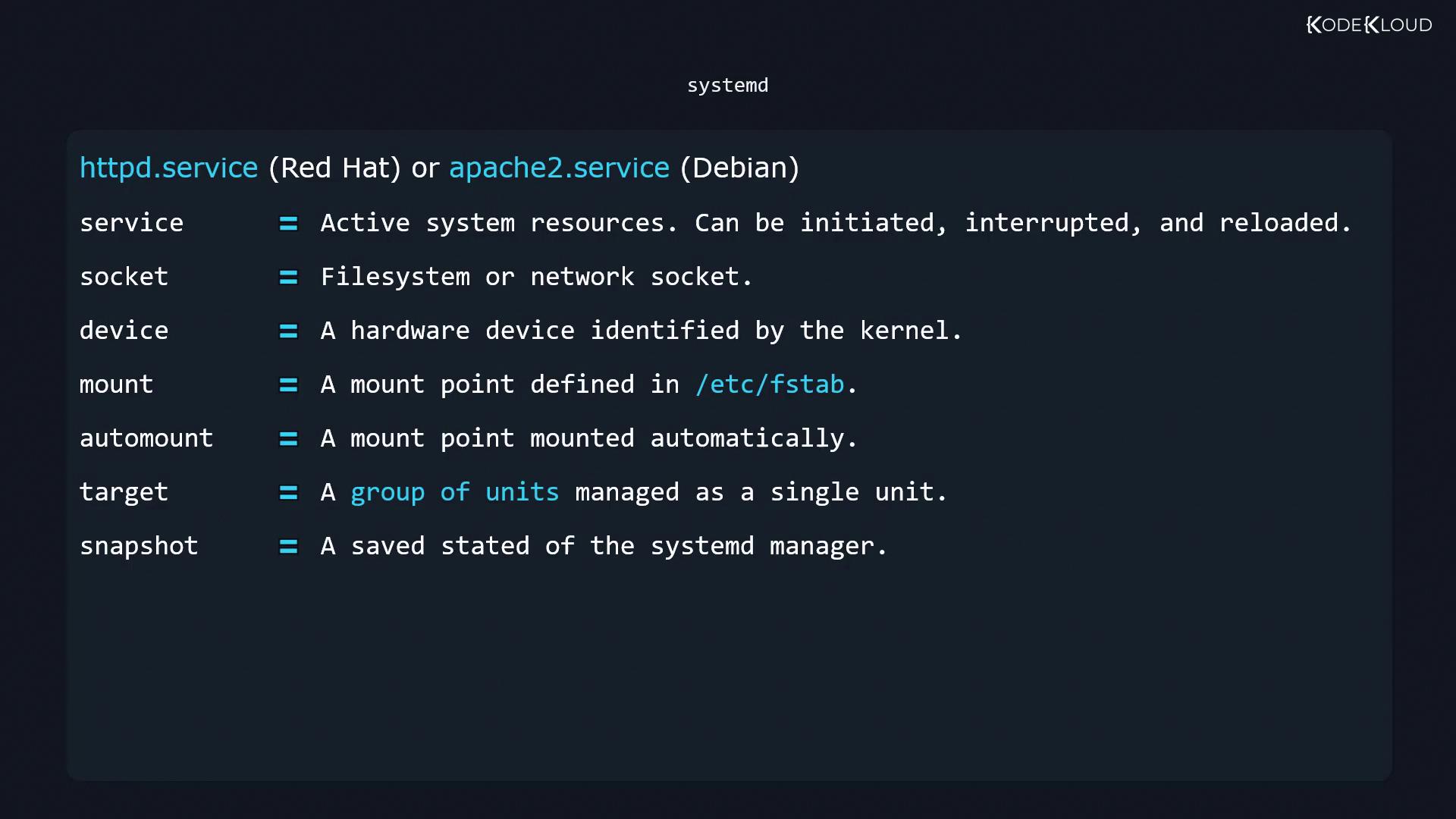
In this lesson, you’ll learn how to control system services and targets (runlevels) using **systemd**, the modern init system for Linux. Systemd manages resources through *units*, each identified by a name, type, and configuration file. For instance, the Apache HTTP server appears as `httpd.service` on RHEL-based distributions and `apache2.service` on Debian-based systems.
## Understanding systemd Units
Systemd supports seven primary unit types:
| Unit Type | Description |
| --------- | ------------------------------------------------------------------------------------------ |
| service | Manages daemons and background services (e.g., `nginx.service`, `httpd.service`). |
| socket | Defines file or network sockets and activates a service when a connection arrives. |
| device | Represents a kernel-recognized hardware device via a matching udev rule. |
| mount | Describes a filesystem mount point (equivalent to an entry in `/etc/fstab`). |
| automount | Mounts filesystems on first access; pairs with a mount unit for configuration. |
| target | Groups units for collective management (analogous to SysVinit runlevels). |
| snapshot | Captures the current state of systemd’s unit manager (not available on all distributions). |
## Managing Units with systemctl
The `systemctl` command is your primary interface to start, stop, reload, and query units. Replace `unit.service` with your target unit name.
### Starting, Stopping, and Restarting Services
```bash theme={null}
sudo systemctl start unit.service # Start the service
sudo systemctl stop unit.service # Stop the service
sudo systemctl restart unit.service # Restart the service
sudo systemctl status unit.service # Show status and recent logs
```
### Checking Active State
```bash theme={null}
systemctl is-active unit.service # Outputs 'active' or 'inactive'
```
### Enabling and Disabling Services at Boot
```bash theme={null}
sudo systemctl enable unit.service # Enable at boot
sudo systemctl disable unit.service # Disable at boot
systemctl is-enabled unit.service # Outputs 'enabled' or 'disabled'
```
## Working with Targets (Runlevels)
Systemd targets correspond to traditional runlevels. For example, `multi-user.target` is like runlevel 3, while `graphical.target` maps to runlevel 5.
```bash theme={null}
sudo systemctl isolate multi-user.target # Switch immediately to runlevel 3
sudo systemctl set-default multi-user.target # Persist default target across reboots
systemctl get-default # Display the current default target
```
Never set the default target to `shutdown.target`, as it will power off the system immediately after boot.
## Listing Unit Files and Active Units
* **All unit files** and their boot-time enablement state:
```bash theme={null}
systemctl list-unit-files
systemctl list-unit-files --type=service
systemctl list-unit-files --type=target
```
* **Currently active units** in this session:
```bash theme={null}
systemctl list-units
systemctl list-units --type=service
systemctl list-units --type=target
```
## Power Management with systemctl
Systemd can handle suspend and hibernate when no other power manager is running:
```bash theme={null}
sudo systemctl suspend # Enter low-power mode; RAM remains powered
sudo systemctl hibernate # Save RAM to disk, then power off
```
Power-related settings live in `/etc/systemd/logind.conf` and any drop-in files under `/etc/systemd/logind.conf.d/`. For finer control over ACPI events (lid close, battery thresholds, etc.), consider using the `acpid` daemon.
***
## Links and References
* [systemctl Manual](https://www.freedesktop.org/software/systemd/man/systemctl.html)
* [systemd Official Documentation](https://www.freedesktop.org/wiki/Software/systemd/)
* [Red Hat Enterprise Linux systemd Guide](https://access.redhat.com/documentation/en-us/red_hat_enterprise_linux/)
* [Debian systemd FAQ](https://wiki.debian.org/systemd)