> ## Documentation Index
> Fetch the complete documentation index at: https://notes.kodekloud.com/llms.txt
> Use this file to discover all available pages before exploring further.
# Analyze text using basic regular expressions
> This article explains how to use basic regular expressions in Linux for text analysis and filtering with `grep`.
Regular expressions (regex) let you define complex search patterns that go beyond simple `grep` queries. For instance, when you need to extract all IP addresses (e.g., 203.102.3.5) from hundreds of scattered files, a basic search for numbers and dots may yield invalid matches like `1.2`. Regex allows you to impose precise conditions—just as you specify “x > 3” and “x \< 8” in a math puzzle to limit x to 4, 5, 6, or 7.
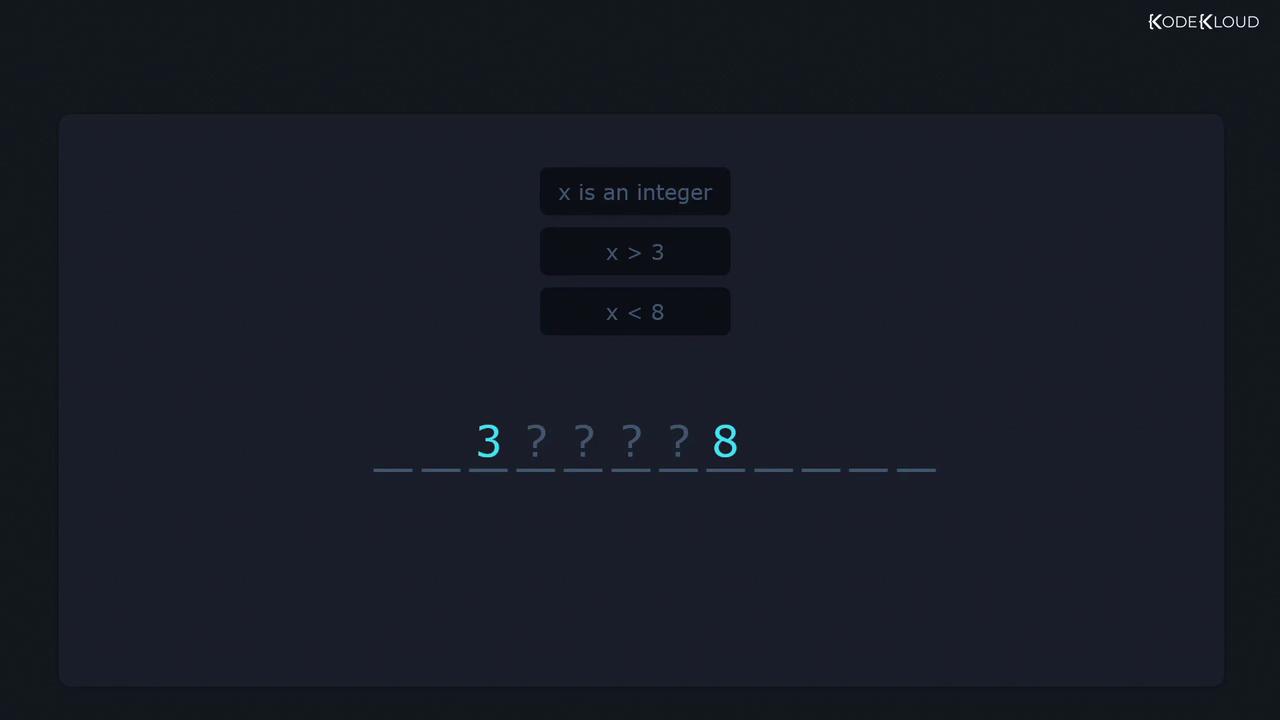
In the sections below, we’ll explore essential regex operators and examples using `grep` to filter and analyze text on Linux.
## Core Regex Operators
| Operator | Description |
| -------- | -------------------------------------------------------- |
| ^ | Beginning of line |
| \$ | End of line |
| . | Any single character |
| \* | Zero or more occurrences of the preceding element |
| + | One or more occurrences of the preceding element |
| {} | Specify a minimum and/or maximum number of occurrences |
| ? | Zero or one occurrence of the preceding element |
| \| | Alternation (logical OR) |
| \[] | Character class (match any one character inside) |
| () | Grouping |
| \[^] | Negated character class (match any character not inside) |
![The image displays a set of regex operators, including symbols like ^, \$, ., \*, +, \{}, ?, |, \[\], (), and \[^\].](https://kodekloud.com/kk-media/image/upload/v1752881463/notes-assets/images/Linux-System-Administration-for-Beginners-Analyze-text-using-basic-regular-expressions/regex-operators-symbols-set.jpg)
Below are practical `grep` examples—starting simple and building in complexity.
## The Caret (^) – Match Beginning of Line
Given a file `names.txt`:
```bash theme={null}
$ cat names.txt
adam
adnan
basam
samad
samuel
sheela
ravi
mausami
```
A plain search for `sam` returns any line containing that substring:
```bash theme={null}
$ grep 'sam' names.txt
basam
samad
samuel
mausami
```
To match only lines that start with `sam`, anchor the pattern with `^`:
```bash theme={null}
$ grep '^sam' names.txt
samad
samuel
```
## The Dollar Sign (\$) – Match End of Line
To find lines ending with a pattern, append `$`:
```bash theme={null}
$ grep 'sam$' names.txt
basam
```
In system files like `/etc/login.defs`, search for lines containing the digit 7:
```bash theme={null}
$ grep '7' /etc/login.defs
# 022 is the default value, but 027, or even 077, could be considered
HOME_MODE 0700
PASS_WARN_AGE 7
```
To list only those ending in `7`:
```bash theme={null}
$ grep '7$' /etc/login.defs
PASS_WARN_AGE 7
```
And lines ending with `mail`:
```bash theme={null}
$ grep 'mail$' /etc/login.defs
MAIL_DIR /var/spool/mail
#MAIL_FILE .mail
```
## The Dot (.) – Match Any Single Character
A dot (`.`) matches exactly one character. For example, `c.t` will match `cat`, `cut`, `c1t`, and even parts of longer strings:
```bash theme={null}
$ grep -r 'c.t' /etc/
/etc/man_db.conf:# manpath. If no catpath string is used, the catpath will default to the
/etc/man_db.conf:# the database cache for any manpaths not mentioned below unless explicitly
...
```
To restrict matches to whole words, use the `-w` option:
```bash theme={null}
$ grep -wr 'c.t' /etc/
/etc/brltty/Input/mn/all.txt:Left: append to existing cut buffer from selected character
...
```
## Escaping Special Characters
To match a literal dot instead of using `.` as a wildcard, escape it with a backslash:
```bash theme={null}
$ grep '\.' /etc/login.defs
HOME_MODE 0700
PASS_WARN_AGE 7
```
## The Asterisk (\*) – Zero or More Occurrences
The asterisk (`*`) applies to the preceding element, allowing zero or more matches. For instance, `let*` matches `le`, `let`, `lett`, `letttt`, etc.:
```bash theme={null}
$ grep -r 'let*' /etc/
/etc/pm2ppa.conf:# configuration file (/etc/pm2ppa.conf), and not from configuration files
/etc/pm2ppa.conf:#leftmargin 10
...
```
To match any path segment between slashes:
```bash theme={null}
$ grep -r '/.*/' /etc/
/etc/man_db.conf:# before /usr/man.
/etc/man_db.conf:MANDB_MAP /usr/man
...
```
## The Plus (+) – One or More Occurrences
The plus operator requires at least one occurrence of the preceding element.
Use `\+` in basic `grep` to enable the plus operator, or switch to extended regex with `grep -E`.
```bash theme={null}
$ grep -r '0\+' /etc/
/etc/pnm2ppa.conf:#colorshear 0
/etc/pnm2ppa.conf:#blackshear 0
...
```
If you omit the backslash (e.g., `grep -r '0+' /etc/`), `+` is treated literally, not as a quantifier.
## Extended Regular Expressions
To avoid escaping metacharacters like `+`, use extended regex with `grep -E` or `egrep`:
```bash theme={null}
$ grep -Er '0+' /etc/
```
With this foundation, you can harness regex patterns in Linux to perform precise text analysis and filtering.
## References
* [GNU grep Manual](https://www.gnu.org/software/grep/manual/grep.html)
* [Regular Expressions Tutorial](https://www.regular-expressions.info/)