> ## Documentation Index
> Fetch the complete documentation index at: https://notes.kodekloud.com/llms.txt
> Use this file to discover all available pages before exploring further.
# Archive backup compress unpack and uncompress files Optional
> This lesson covers archiving, compressing, and preparing files for remote backups in Linux using tar.
In this lesson, we’ll cover how to archive files in Linux using `tar`, compress those archives, and prepare them for remote backups. This workflow is essential for system administrators and DevOps engineers who need reliable, space-efficient backups.
Typical backup workflow:
1. **Archive**: Pack multiple files and directories into one file (e.g., `backup.tar`).
2. **Compress**: Shrink the archive size (e.g., `backup.tar.gz`).
3. **Transfer**: Copy the compressed archive to a remote server, shared drive, or cloud storage.
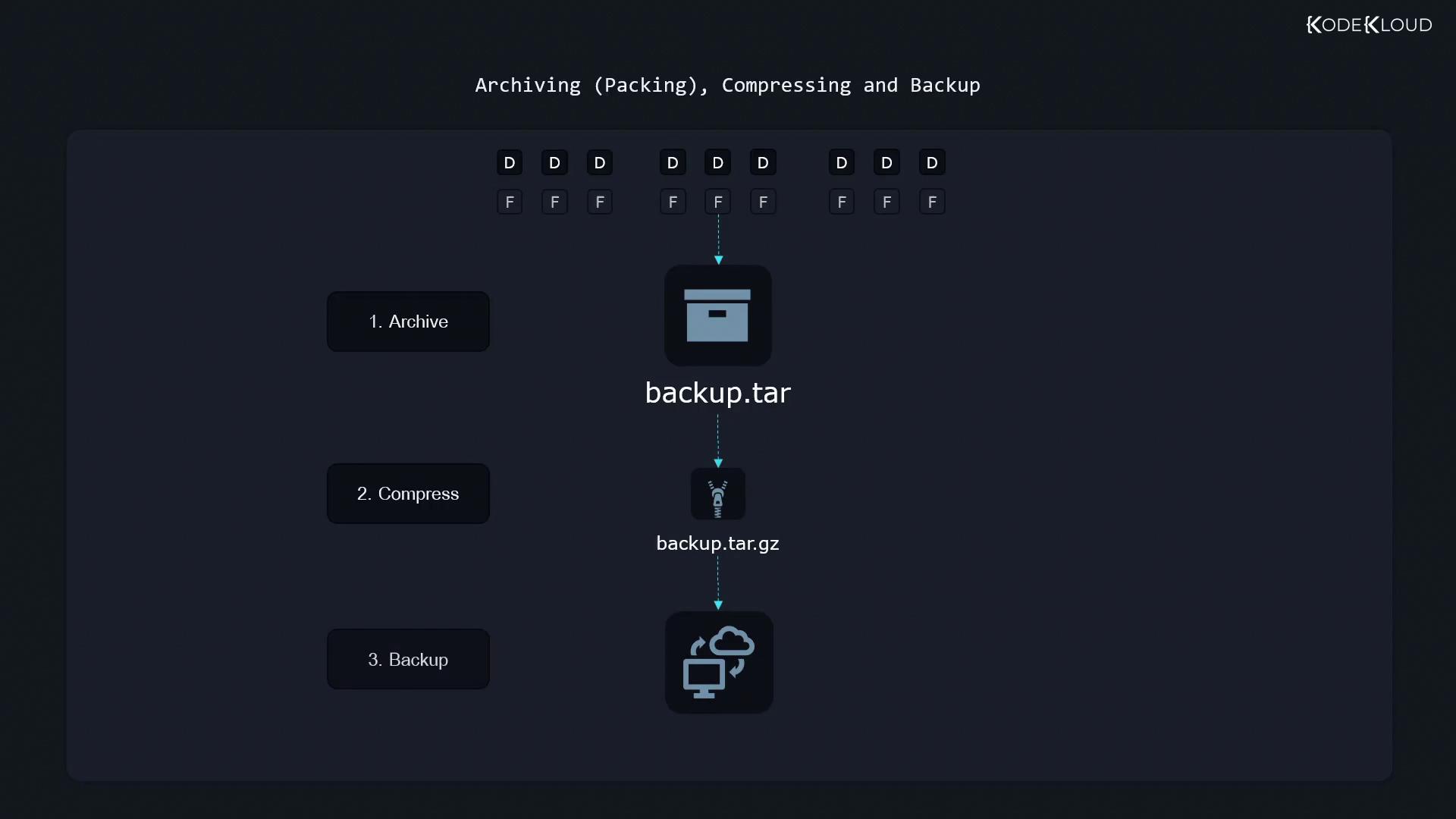
We’ll focus first on archiving with **tar**, then move on to compression and remote backups.
## Why Use tar?
Tar (tape archive) was originally designed for magnetic tapes but remains the de facto tool for:
* Bundling multiple files or directories into a single tarball (`.tar`).
* Preserving file metadata: permissions, timestamps, and ownership.
## Common tar Commands at a Glance
| Action | Long Option | Short Option | Example |
| --------- | ----------- | ------------ | ----------------------------- |
| List | --list | -t | `tar -tf archive.tar` |
| Create | --create | -c | `tar -cf archive.tar file1` |
| Append | --append | -r | `tar -rf archive.tar file2` |
| Extract | --extract | -x | `tar -xf archive.tar` |
| Directory | --directory | -C | `tar -xf archive.tar -C /tmp` |
## Listing Contents of an Existing Archive
To preview what’s inside `archive.tar`:
```bash theme={null}
tar --list --file archive.tar # Long form
tar -tf archive.tar # Short form
```
This displays:
```text theme={null}
file1
file2
file3
```
Always put the `--file` (or `-f`) option at the end of your option list, immediately followed by the archive name.
## Creating and Appending to a Tarball
### Create a New Archive
```bash theme={null}
# Long form
tar --create --file archive.tar file1
# Short form
tar -cf archive.tar file1
```
### Append Files or Directories
```bash theme={null}
# Add a single file
tar --append --file archive.tar file2
# Short form
tar -rf archive.tar file2
# Add an entire directory
tar --create --file archive.tar pictures/
# Short form
tar -cf archive.tar pictures/
```
* Using a **relative path** like `pictures/` stores entries as `pictures/...`.
* An **absolute path** (`/home/aaron/pictures/`) preserves the full directory structure inside the archive.
## Extracting an Archive
Always list contents before extracting:
```bash theme={null}
tar --list --file archive.tar
tar -tf archive.tar
```
Example output:
```text theme={null}
Pictures/
Pictures/family_dog.jpg
```
### Extract into Current Directory
```bash theme={null}
tar --extract --file archive.tar
# or
tar -xf archive.tar
```
If you’re in `/home/aaron/work`, the files will unpack into `/home/aaron/work/Pictures/`.
### Extract to a Specific Directory
```bash theme={null}
tar --extract --file archive.tar --directory /tmp
# or
tar -xf archive.tar -C /tmp
```
## Preserving Ownership and Permissions
By default, `tar` preserves permissions and ownership metadata in the archive. However, regular users cannot restore files to other owners. To fully retain all metadata, run extraction as root:
```bash theme={null}
sudo tar -xf archive.tar -C /desired/path
```
Extracting as root (`sudo`) may overwrite critical system files if the archive contains absolute paths. Always verify archive contents before restoring.
***
## References
* [GNU tar Manual](https://www.gnu.org/software/tar/manual/tar.html)
* [Linux File Permissions](https://www.kernel.org/doc/html/latest/filesystems/permissions.html)