> ## Documentation Index
> Fetch the complete documentation index at: https://notes.kodekloud.com/llms.txt
> Use this file to discover all available pages before exploring further.
# Backup files to a Remote System Optional
> Learn to back up files on Linux using command-line tools like rsync and dd for efficient synchronization and disk imaging.
In this lesson, you’ll learn how to back up files on Linux using native command-line tools. We’ll cover:
* Synchronizing directories over the network with **rsync**
* Creating full disk or partition images with **dd**
These simple yet powerful utilities preserve file attributes, transfer only changed data when possible, and let you store backups remotely or locally.
***
## Synchronize Directories with rsync
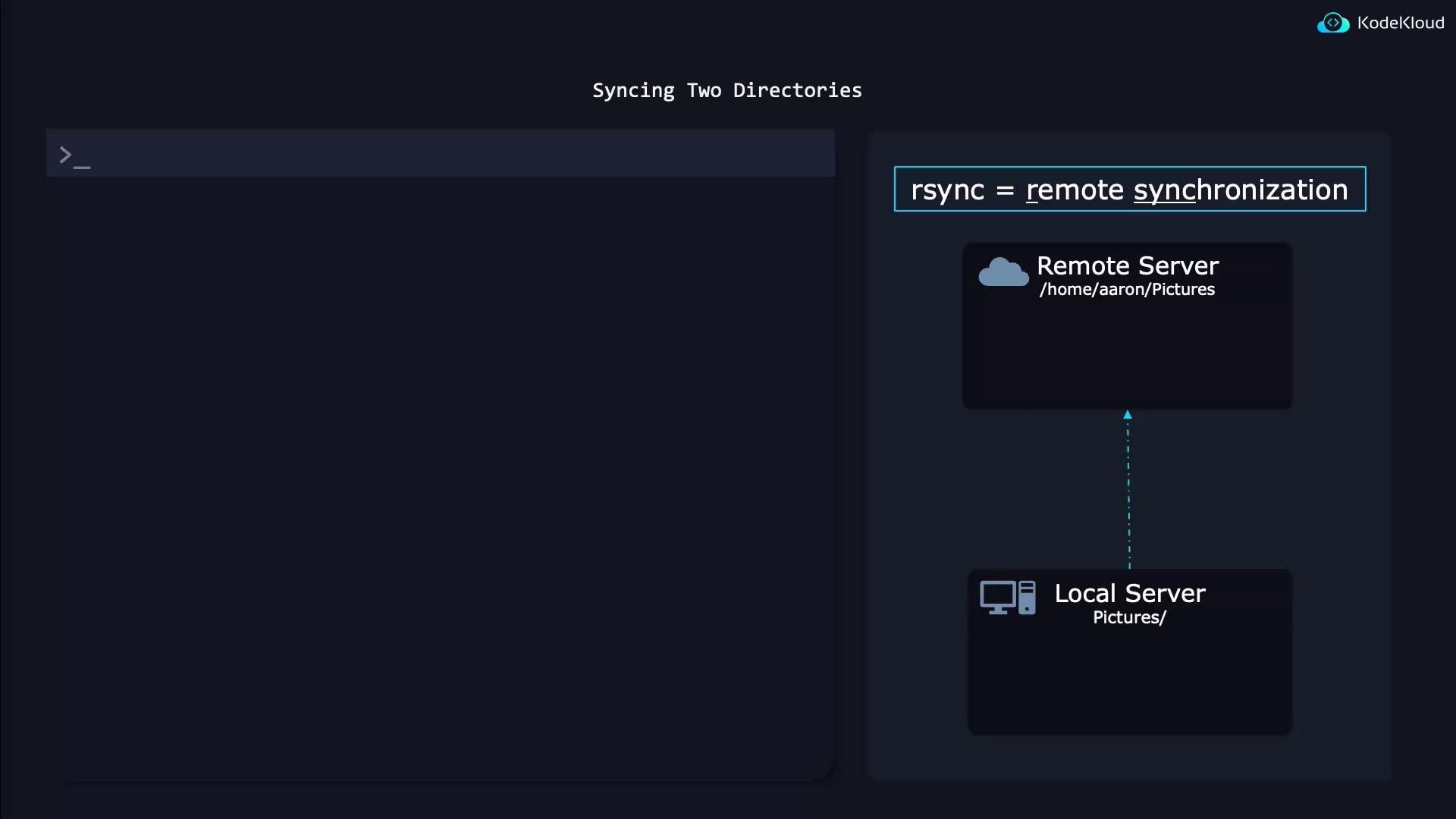
`rsync` (remote synchronization) is a fast, versatile tool that copies files between local and remote directories while preserving permissions, timestamps, and symbolic links. It only transfers the differences between the source and destination, making repeated backups efficient.
### Basic Syntax
```bash theme={null}
rsync -a [source/] user@remote_host:[destination/]
```
| Option | Description |
| ------ | ------------------------------------------------------------------------------ |
| -a | Archive mode: preserves symbolic links, permissions, timestamps, and recursion |
| -v | Verbose output |
| -h | Human-readable numbers |
| -P | Show progress and keep partially transferred files |
Adding a trailing slash to the source (e.g., `~/pics/`) copies *contents* of the directory. Omitting the slash (e.g., `~/pics`) copies the directory itself.
### Examples
Push local directory to a remote server:
```bash theme={null}
rsync -a ~/pictures/ AaronLockhart@9.9.9.9:/backup/pictures/
```
Pull a remote directory to your local system:
```bash theme={null}
rsync -a AaronLockhart@9.9.9.9:/backup/pictures/ ~/pictures/
```
Synchronize two local directories:
```bash theme={null}
rsync -a /path/to/source/ /path/to/destination/
```
On subsequent runs, only changed files are transferred, dramatically speeding up your backups.
***
## Bit-by-Bit Backups with dd
When you need a complete disk or partition image (for cloning or disaster recovery), use `dd`. It performs a raw, byte-for-byte copy.
Always unmount the target device before creating or restoring an image with `dd` to avoid data corruption.
### Create an Image
```bash theme={null}
sudo dd if=/dev/vda of=diskimage.raw bs=1M status=progress
```
* `if=/dev/vda` Input file (source disk or partition)
* `of=diskimage.raw` Output file (raw image)
* `bs=1M` Block size of 1 MiB for faster transfers
* `status=progress` Show live progress statistics
### Restore an Image
```bash theme={null}
sudo dd if=diskimage.raw of=/dev/vda bs=1M status=progress
```
Example output:
```bash theme={null}
$ sudo dd if=/dev/vda of=diskimage.raw bs=1M status=progress
1340080128 bytes (1.3GB, 1.2GiB) copied, 3s, 432 MB/s
$ sudo dd if=diskimage.raw of=/dev/vda bs=1M status=progress
1340080128 bytes (1.3GB, 1.2GiB) copied, 3s, 432 MB/s
```
***
## References
* [rsync manual](https://linux.die.net/man/1/rsync)
* [dd command reference](http://man7.org/linux/man-pages/man1/dd.1.html)
* [Linux System Administration Basics](https://tldp.org/)