> ## Documentation Index
> Fetch the complete documentation index at: https://notes.kodekloud.com/llms.txt
> Use this file to discover all available pages before exploring further.
# Create Delete Copy and Move Files and Directories
> Learn to manage files and directories in Linux using commands like ls, touch, mkdir, cp, mv, and rm.
Managing files and directories is a foundational skill for any Linux user or administrator. In this guide, you’ll learn how to list, create, copy, move (or rename), and delete files and directories using core commands like `ls`, `touch`, `mkdir`, `cp`, `mv`, and `rm`.
## Listing Files and Directories with `ls`
The `ls` (list) command displays directory contents. By default, hidden files (those beginning with `.`) are not shown.
### Common `ls` Usage
| Flag | Description | Example |
| ------ | ---------------------------------------- | ---------------- |
| (none) | Show non-hidden items | `ls` |
| `-a` | Include all entries, including `.` files | `ls -a` |
| `-l` | Long format (permissions, owner, size) | `ls -l /var/log` |
| `-h` | Human-readable sizes (use with `-l`) | `ls -lh` |
| `-alh` | Combine all flags | `ls -alh` |
#### Basic Listing
```bash theme={null}
$ ls
Desktop Documents Downloads Music Pictures Videos
```
#### Including Hidden Files
```bash theme={null}
$ ls -a
. .. .bashrc .ssh Desktop Documents Downloads Music Pictures Videos
```
#### Detailed, Human-Readable Output
```bash theme={null}
$ ls -alh
total 76K
drwx------. 16 aaron aaron 4.0K Nov 1 17:57 .
drwxr-xr-x. 7 root root 4.0K Oct 26 16:54 ..
-rw------- 1 aaron aaron 5.0K Nov 1 17:56 .bash_history
...
```
## Understanding the Linux File System Tree
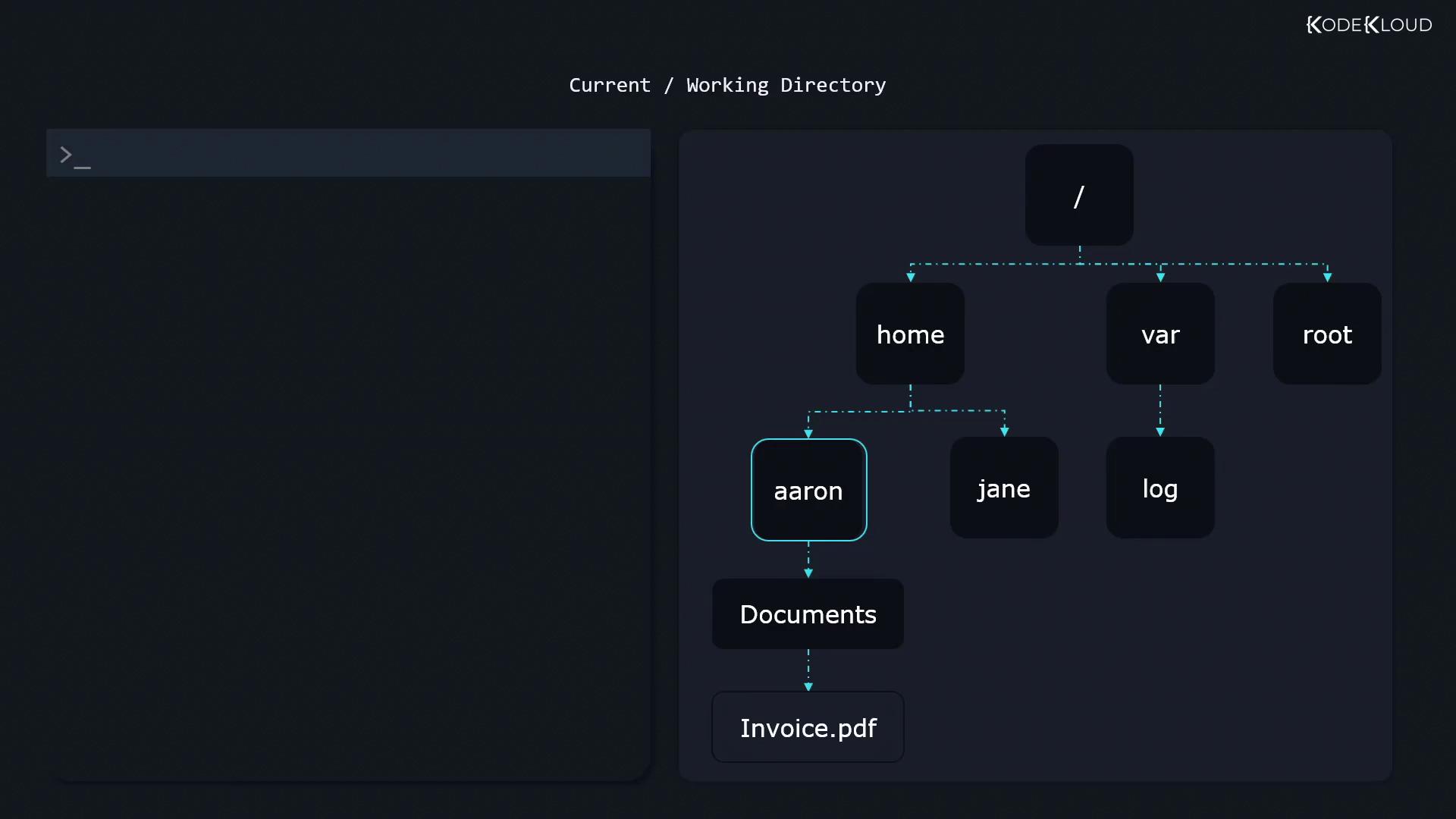
Linux files and directories form an inverted tree with `/` as the root. Every path you use is either absolute (from `/`) or relative (from your current directory).
* `/`
* `/home`
* `/home/aaron`
* `/home/aaron/Documents`
* `/home/aaron/Downloads`
* `/var`
* `/etc`
Absolute paths start with `/` and always refer to the same location.\
Relative paths begin from your current directory (check with `pwd`).
### Absolute Path
```text theme={null}
/home/aaron/Documents/invoice.pdf
```
### Relative Path
```bash theme={null}
$ pwd
/home/aaron
# From /home/aaron, this goes to invoice.pdf inside Documents
$ cd Documents
$ ls invoice.pdf
```
To move up one level:
```bash theme={null}
$ cd ..
```
Jump to your home directory:
```bash theme={null}
$ cd
$ pwd
/home/aaron
```
## Creating Files and Directories
* Create an empty file:
```bash theme={null}
$ touch receipt.pdf
```
* Create a directory:
```bash theme={null}
$ mkdir receipts
```
Both commands accept absolute or relative paths:
```bash theme={null}
$ mkdir /home/aaron/new_folder
```
## Copying Files and Directories with `cp`
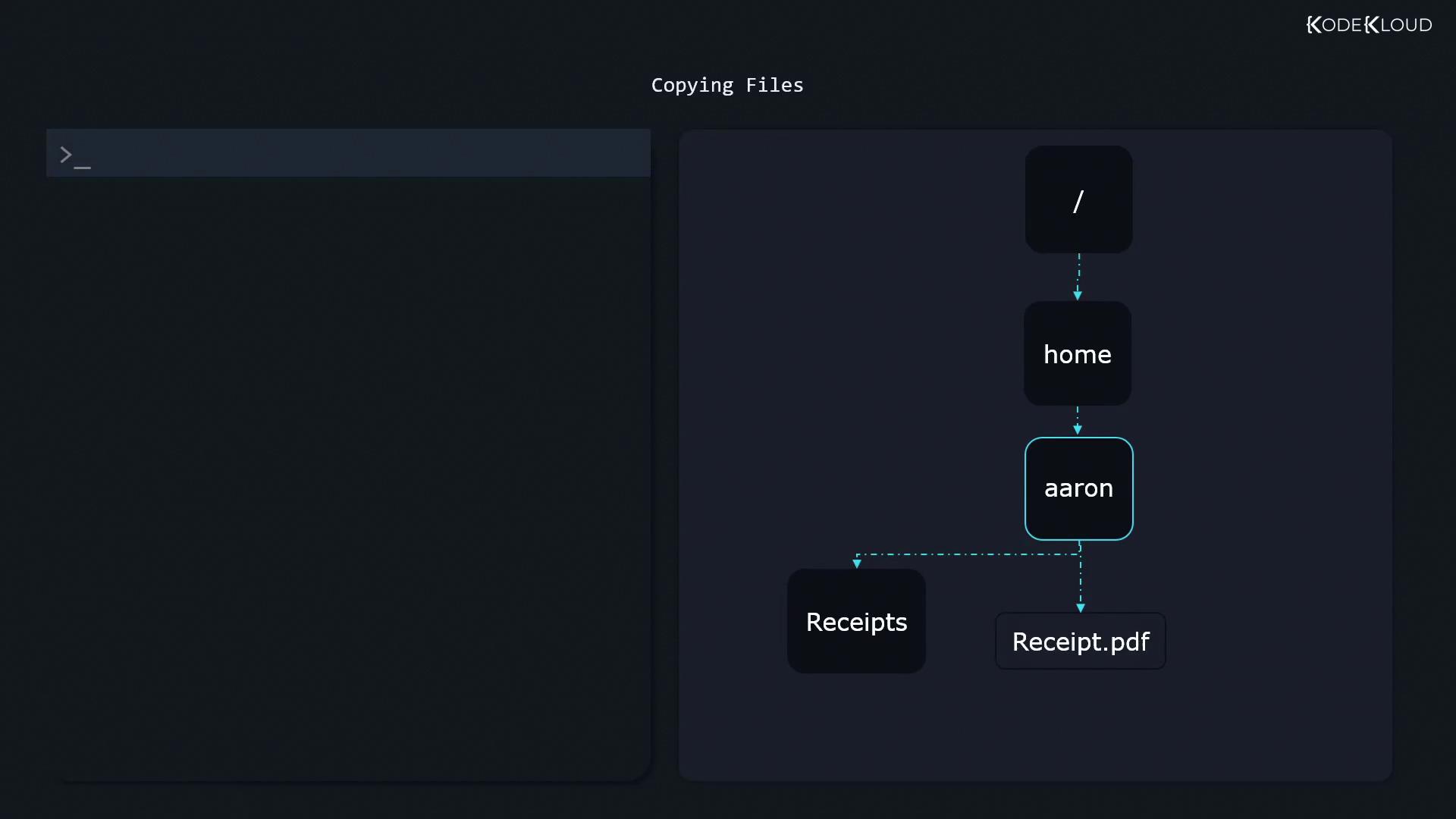
Use `cp` to duplicate files and directories.
### Copying a Single File
```bash theme={null}
$ cp receipt.pdf receipts/
```
To copy and rename at the same time:
```bash theme={null}
$ cp receipt.pdf receipts/receipt_backup.pdf
```
### Copying Directories Recursively
```bash theme={null}
$ cp -r Receipts/ BackupOfReceipts/
```
This duplicates the entire `Receipts` folder and its contents into `BackupOfReceipts`. Ensure the destination name does not already exist to avoid nesting.
## Moving and Renaming with `mv`
The `mv` command handles both moving and renaming:
* Move a file:
```bash theme={null}
$ mv receipt.pdf receipts/
```
* Rename a file:
```bash theme={null}
$ mv receipt.pdf old_receipt.pdf
```
* Rename or move a directory:
```bash theme={null}
$ mv receipts/ old_receipts/
```
No recursive flag is needed for directories; `mv` automatically moves contents.
## Deleting Files and Directories with `rm`
Use caution when removing files and directories:
* Remove a file:
```bash theme={null}
$ rm invoice.pdf
```
* Remove a non-empty directory:
```bash theme={null}
$ rm -r invoices/
```
The `rm -r` command permanently deletes directories and their contents. Always double-check the path before pressing Enter!
***
## References
* [Linux Man Pages](https://www.kernel.org/doc/man-pages/)
* [GNU coreutils Documentation](https://www.gnu.org/software/coreutils/)
* [Introduction to Linux File System](https://en.wikipedia.org/wiki/File_system#Unix_and_Unix-like_systems)