> ## Documentation Index
> Fetch the complete documentation index at: https://notes.kodekloud.com/llms.txt
> Use this file to discover all available pages before exploring further.
# Create and manage hard links
> This article explains how to create, manage, and understand hard links in Linux file systems.
Learn how Linux file systems use hard links to let multiple directory entries point to the same underlying data. You’ll see how to create, inspect, and remove hard links without wasting disk space.
## Files, Inodes, and Link Counts
Every file on a Linux filesystem (ext4, XFS, etc.) is represented by an inode. The inode stores metadata—permissions, timestamps, and pointers to data blocks on disk. The “Links” count in the `stat` output shows how many directory entries (hard links) reference that inode.
Let’s simulate Aaron saving a photo of his dog:
```bash theme={null}
mkdir -p /home/aaron/Pictures
echo "Picture of Milo the dog" > /home/aaron/Pictures/family_dog.jpg
stat /home/aaron/Pictures/family_dog.jpg
```
Example output:
```text theme={null}
File: /home/aaron/Pictures/family_dog.jpg
Size: 24 Blocks: 8 IO Block: 4096 regular file
Device: fd00h/64768d Inode: 52946177 Links: 1
Access: (0640/-rw-r-----) Uid: (1000/aaron) Gid: (1005/family)
...
```
Each new file has one link by default.
## Why Use Hard Links?
Copying files duplicates data and consumes extra space:
```bash theme={null}
cp /home/aaron/Pictures/family_dog.jpg /home/jane/Pictures/
```
Hard links solve this by pointing two filenames to the same inode:
```bash theme={null}
ln /home/aaron/Pictures/family_dog.jpg /home/jane/Pictures/family_dog.jpg
```
Now both entries share one set of data blocks.
| Comparison | Copy (`cp`) | Hard Link (`ln`) |
| ----------------- | ------------------- | ---------------------------------- |
| Disk Usage | Duplicated per copy | Single copy on disk |
| Data Consistency | Separate files | Always the same content |
| Link Count Effect | Independent inodes | Inode “Links” count increases by 1 |
Hard links only work on regular files within the same filesystem. See limitations below.
## Inspecting Link Counts
After creating the hard link, check the link count again:
```bash theme={null}
stat /home/jane/Pictures/family_dog.jpg
```
```text theme={null}
File: /home/jane/Pictures/family_dog.jpg
...
Inode: 52946177 Links: 2
...
```
Now `Links: 2` confirms two directory entries point to the same inode.
## Removing Hard Links
* If Aaron removes his entry:
```bash theme={null}
rm /home/aaron/Pictures/family_dog.jpg
stat /home/jane/Pictures/family_dog.jpg
# Links: 1
```
* Only when *all* links are removed does the filesystem reclaim the inode and free the data blocks:
```bash theme={null}
rm /home/jane/Pictures/family_dog.jpg
```
## Limitations of Hard Links
You **cannot**:
* Link directories (to prevent cycles in the filesystem tree).
* Cross filesystem boundaries (e.g., SSD → external drive).
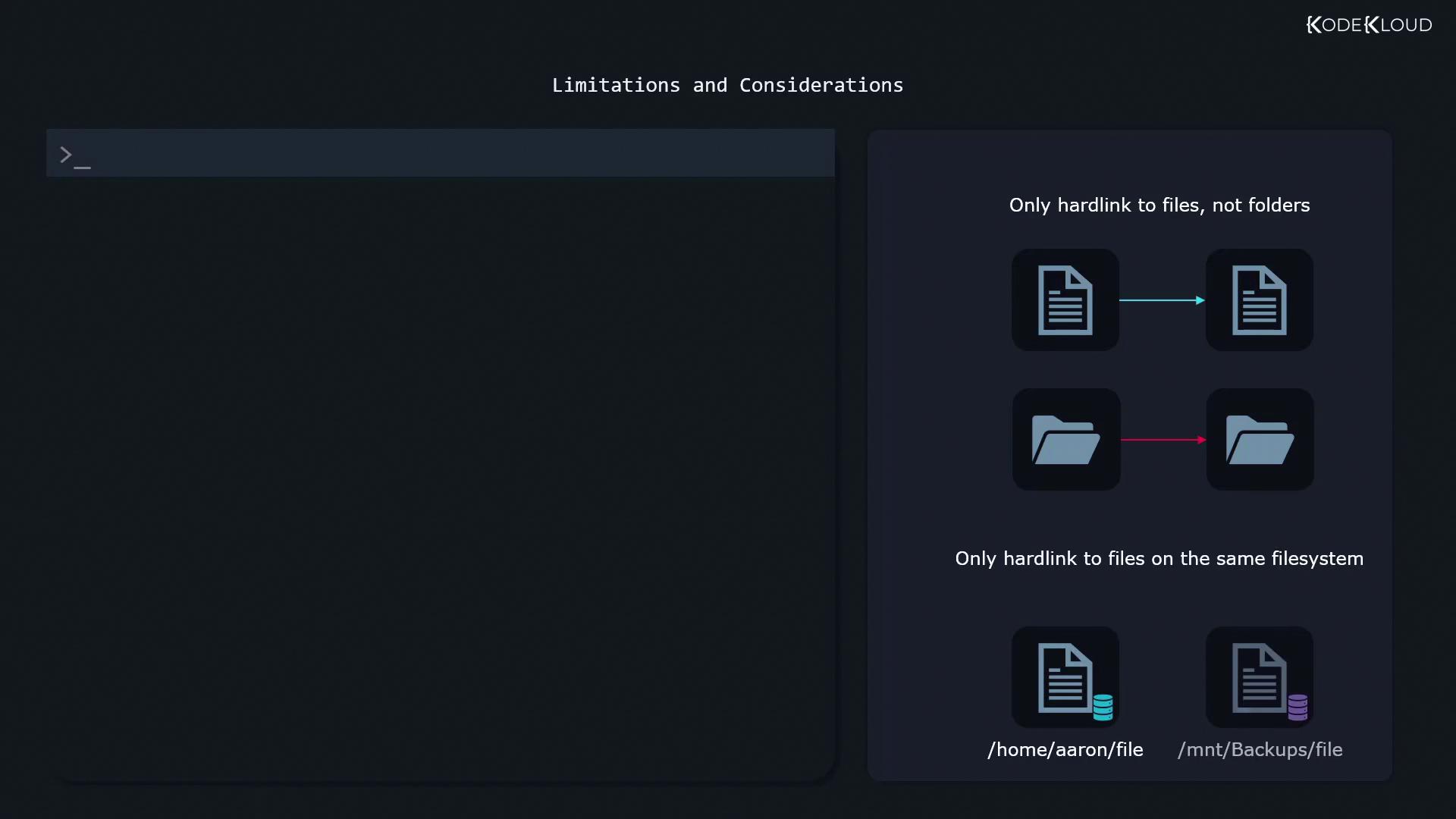
Attempting to `ln` a file across different mounts will fail silently or return an error:
```bash theme={null}
ln: failed to create hard link ... Invalid cross-device link
```
## Permissions and Hard Links
Permissions and ownership are stored in the inode itself. Changing them via any hard link affects all links:
```bash theme={null}
chmod g+rw /home/aaron/Pictures/family_dog.jpg
# Applies to /home/jane/Pictures/family_dog.jpg as well
```
Ensure users have the appropriate permissions in the target directory before creating a hard link.
***
## Further Reading
* [Linux Inodes and Hard Links](https://www.kernel.org/doc/html/latest/filesystems/index.html)
* [Filesystem Fundamentals](https://www.linuxfoundation.org/)
* [GNU Coreutils: ln Manual](https://www.gnu.org/software/coreutils/manual/html_node/ln-invocation.html)