> ## Documentation Index
> Fetch the complete documentation index at: https://notes.kodekloud.com/llms.txt
> Use this file to discover all available pages before exploring further.
# Create and manage soft links
> Learn how to create and manage soft links in Linux to reference files or directories without duplicating data.
In this lesson, you’ll learn how Linux handles soft links (symbolic links), allowing you to reference files or directories from convenient locations without duplicating data.
## Soft Links Explained
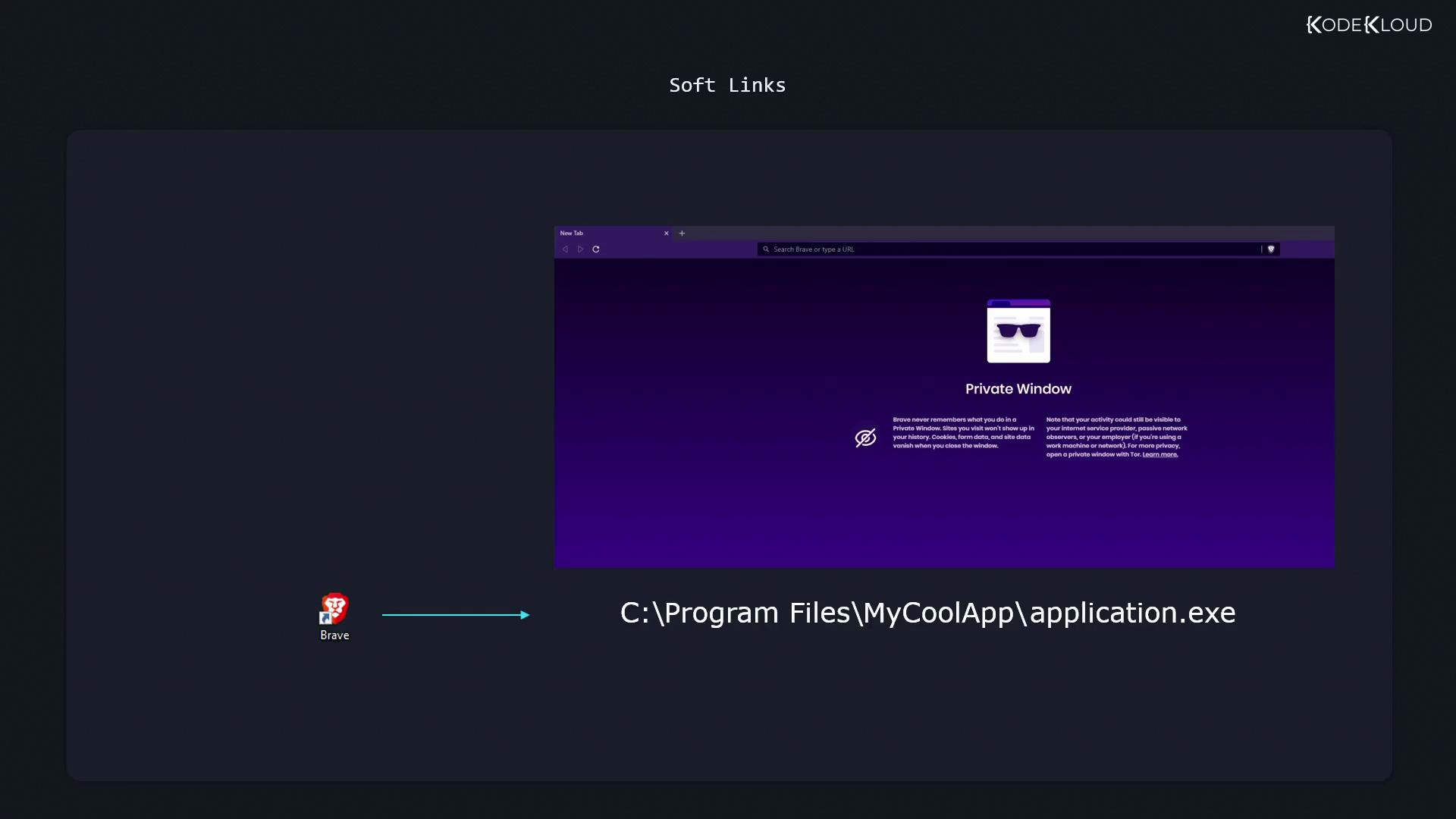
When you install an application on Windows, you often get a desktop shortcut pointing to the actual program in `C:\Program Files\MyCoolApp\application.exe`. Double-clicking the shortcut launches the app even though its files reside elsewhere. A Linux soft link works the same way: it’s a special file containing the path to another file or directory.
## Creating a Symbolic Link
Use the `ln` command with the `-s` option:
```bash theme={null}
ln -s
```
* ``: the existing file or directory.
* ``: name of the new symlink.
Example:
```bash theme={null}
ln -s /home/aaron/Pictures/family_dog.jpg family_dog_shortcut.jpg
```
## Verifying a Soft Link
List files in long format to see symlinks marked with an `l` and showing their targets:
```bash theme={null}
ls -l
# Output:
# lrwxrwxrwx. 1 aaron aaron 28 Jan 14 10:30 family_dog_shortcut.jpg -> /home/aaron/Pictures/family_dog.jpg
```
To display the stored path directly, use `readlink`:
```bash theme={null}
readlink family_dog_shortcut.jpg
# /home/aaron/Pictures/family_dog.jpg
```
Permissions on a symlink itself are always shown as `rwxrwxrwx`, but access is controlled by the target file’s permissions.
## Handling Permissions
If the target file is read-only, attempts to modify it via the symlink will fail:
```bash theme={null}
echo "Test" >> fstab_shortcut
# bash: fstab_shortcut: Permission denied
```
## Absolute vs. Relative Links
Absolute paths embed the full directory tree, which can break if you move or rename parent directories:
Absolute symlinks may become invalid if you relocate or rename directories in the path.\
Use relative paths when moving link and target together.
From `/home/aaron`, create a relative link:
```bash theme={null}
ln -s Pictures/family_dog.jpg relative_dog_shortcut.jpg
```
This link remains valid as long as you move both the `Pictures` directory and `relative_dog_shortcut.jpg` together.
## Linking Directories
You can create symlinks to directories—or even across filesystems (unlike hard links):
```bash theme={null}
ln -s /mnt/data/projects my_projects_link
```
## Comparing Symbolic and Hard Links
| Feature | Symbolic Link | Hard Link |
| ---------------------- | -------------------------- | ------------------------------------------------ |
| Can cross filesystems | Yes | No |
| Links to directories | Yes (with `-s`) | Typically no (restricted by OS) |
| Indicates broken link | Yes | No (hard link always valid until target deleted) |
| Independent attributes | No (permissions inherited) | Shares same inode and attributes |
## Further Reading
* [ln(1) – manual page for ln](https://man7.org/linux/man-pages/man1/ln.1.html)
* [readlink(1) – manual page for readlink](https://man7.org/linux/man-pages/man1/readlink.1.html)
* [Linux Symbolic Links on Wikipedia](https://en.wikipedia.org/wiki/Symbolic_link)