> ## Documentation Index
> Fetch the complete documentation index at: https://notes.kodekloud.com/llms.txt
> Use this file to discover all available pages before exploring further.
# Demo Pagers and VI
> This article covers terminal pagers less and more, and the Vim text editor for navigating and editing text in the Linux terminal.
In this lesson, we’ll cover two essential terminal pagers—**less** and **more**—and then explore the **Vim** (VI Improved) text editor. You’ll learn how to view, search, and navigate text in the shell, as well as basic editing workflows in Vim.
## Terminal Pagers
Pagers allow you to open large text files inside your shell session and move around without opening a full editor.
### less: Feature-Rich File Viewer
The `less` pager is highly configurable and supports backward navigation, incremental search, and more.
Open a file:
```bash theme={null}
[aaron@LFCS-CentOS ~]$ less /var/log/dnf.log
```
Navigation keys:
* Up/Down arrows or `j`/`k`
* `Space` to scroll forward one page
* `b` to scroll back one page
Searching inside `less`:
1. Press `/`
2. Enter your search term (e.g., `debug`)
3. Hit `Enter`
4. Use `n` for next match and `N` for previous match
By default searches are case-sensitive. To ignore case, launch with `-I`:
```bash theme={null}
[aaron@LFCS-CentOS ~]$ less -I /var/log/dnf.log
```
Exit `less`:
```bash theme={null}
q
```
### more: Simple Pager for Quick Viewing
The `more` pager is straightforward and ideal for quick lookups.
Open a file:
```bash theme={null}
[aaron@LFCS-CentOS ~]$ more /var/log/dnf.log
```
Basic navigation:
* `Space` for the next page
* `Enter` for the next line
Quit `more`:
```bash theme={null}
q
```
### Comparing less vs more
| Pager | Use Case | Primary Navigation |
| ----- | ---------------------------- | --------------------------- |
| less | Advanced, searchable viewing | `j`/`k`, `Space`, `/search` |
| more | Simple, sequential paging | `Space`, `Enter` |
***
## Vim (VI Improved) Editor
Vim is a powerful modal editor that’s ubiquitous on Linux systems. Understanding its modes is key to efficient editing.
### Launching Vim
Start without a file (you’ll assign a name before saving):
```bash theme={null}
[aaron@LFCS-CentOS ~]$ vim
```
Or open an existing/new file directly:
```bash theme={null}
[aaron@LFCS-CentOS ~]$ vim testfile
```
### Vim Modes
* **Normal** (default): Navigate & issue commands
* **Insert**: Enter text
* **Command-line**: Save, quit, or run Ex commands
Vim’s modal design separates navigation from text entry. Mastering mode transitions is the first step.
#### Entering Insert Mode
Press `i` to insert text. You’ll see `-- INSERT --` at the bottom.
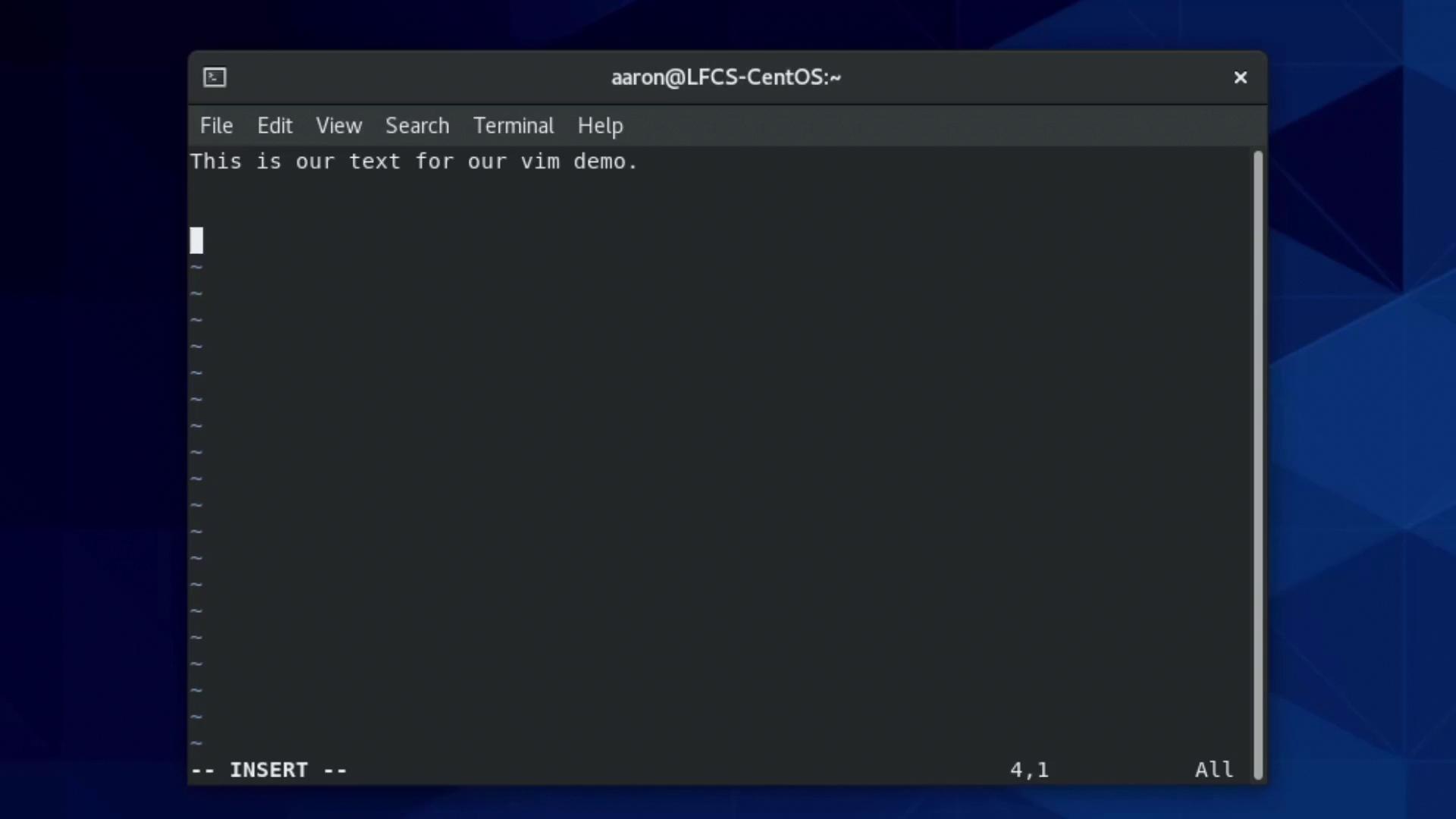
Type content:
```text theme={null}
This is our text for our vim demo.
```
Press `Esc` to return to Normal mode.
#### Searching in Normal Mode
1. Press `/`
2. Type your search (e.g., `is`)
3. Hit `Enter`
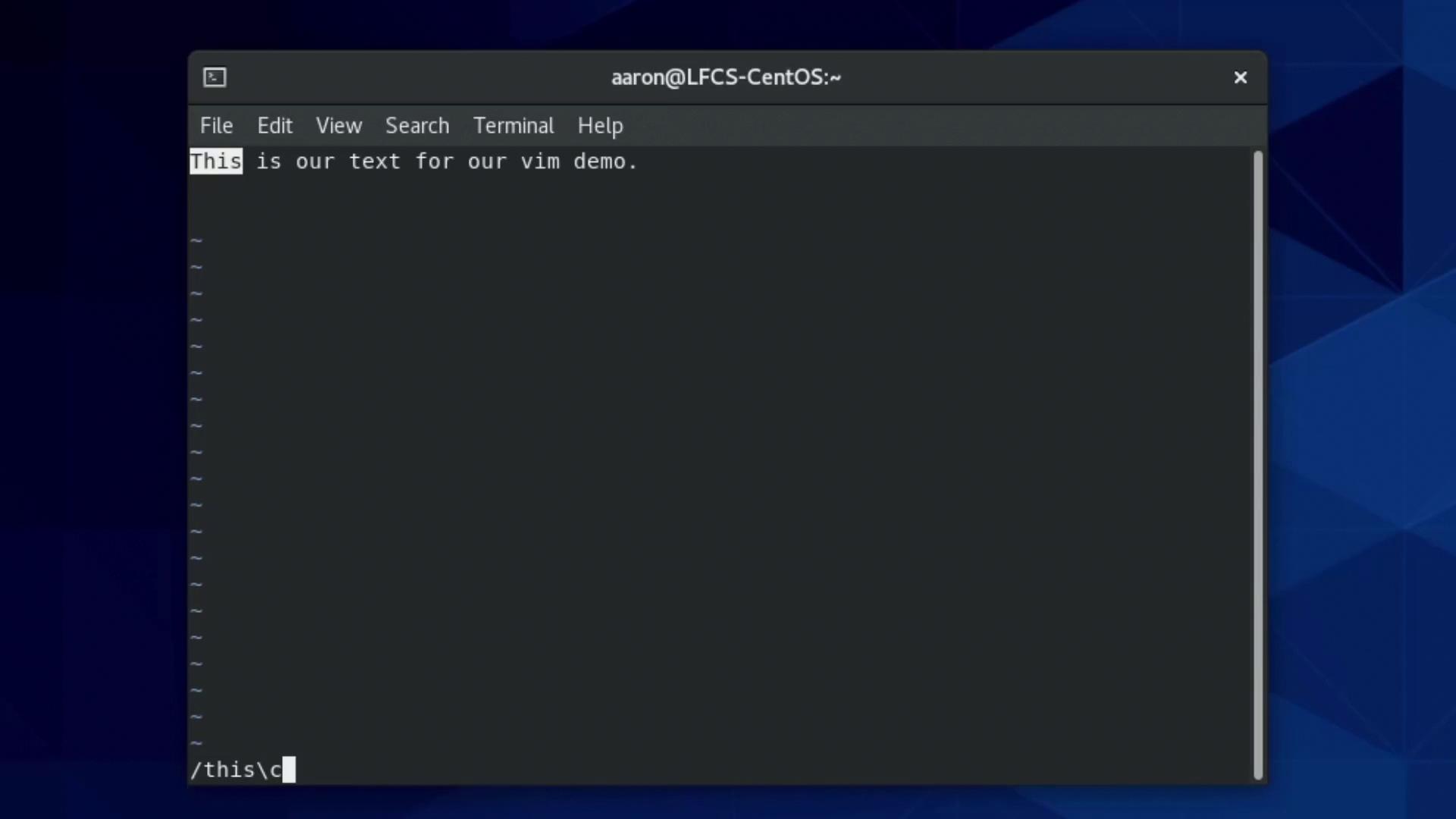
For case-insensitive matches, append `\c`:
```text theme={null}
/is\c
```
#### Jump to a Specific Line
In Normal mode, type `:` plus the line number:
```text theme={null}
:3
```
#### Yanking, Cutting & Pasting
| Action | Command | Description |
| ----------- | ------- | ----------------------------- |
| Copy line | `yy` | Yank (copy) the current line |
| Cut line | `dd` | Delete (cut) the current line |
| Paste after | `p` | Put (paste) after the cursor |
### Saving & Exiting
Switch to Command-line mode by typing `:` in Normal mode, then use:
* `:w` — write (save)
* `:q` — quit
* `:wq` — write and quit
* `:q!` — quit without saving
Using `:q!` will discard all unsaved changes. Be sure you intend to lose your edits before forcing a quit.
#### Example Workflow
```bash theme={null}
[aaron@LFCS-CentOS ~]$ vim testfile
# (enter Insert mode, make edits, then Esc)
:wq
[aaron@LFCS-CentOS ~]$ cat testfile
no
yes
no
no
no
no
no
yes
new changes
[aaron@LFCS-CentOS ~]$
```
***
## Additional Resources
* [Vim Documentation](https://vimhelp.org/)
* [GNU less Manual](https://www.gnu.org/software/less/manual/)
* [Linux Command-Line Navigation](https://linuxcommand.org/)