> ## Documentation Index
> Fetch the complete documentation index at: https://notes.kodekloud.com/llms.txt
> Use this file to discover all available pages before exploring further.
# List set and change standard file permissions
> Learn to manage file permissions in Linux by viewing, changing ownership, and modifying permissions using symbolic and octal notation.
Managing file permissions is a core skill for any Linux administrator or user. In this guide, you’ll learn how to view ownership, adjust user and group assignments, interpret permission bits, and modify permissions using both symbolic and octal notation.
## Table of Contents
1. [Understanding Ownership](#understanding-ownership)
2. [Viewing Owner, Group, and Permissions](#viewing-owner-group-and-permissions)
3. [Changing Owner and Group](#changing-owner-and-group)
4. [File Types and Permission Bits](#file-types-and-permission-bits)
5. [Permission Evaluation Order](#permission-evaluation-order)
6. [Modifying Permissions with chmod](#modifying-permissions-with-chmod)
* [Adding Permissions](#adding-permissions)
* [Removing Permissions](#removing-permissions)
* [Setting Exact Permissions](#setting-exact-permissions)
* [Combining Multiple Changes](#combining-multiple-changes)
7. [Using Octal Notation with chmod](#using-octal-notation-with-chmod)
8. [Resources & References](#resources--references)
***
## Understanding Ownership
Every file or directory on Linux has:
* **User owner** (UID)
* **Group owner** (GID)
Only the file’s owner or `root` can change its permissions or ownership.
***
## Viewing Owner, Group, and Permissions
Run `ls -l` to display permissions, owner, group, size, and timestamp:
```bash theme={null}
$ ls -l
-rw-r----- 1 aaron family 49 Oct 27 14:41 family_dog.jpg
```
* `-rw-r-----`: File type and permission bits
* `aaron` : User owner
* `family` : Group owner
***
## Changing Owner and Group
### Change Group: `chgrp`
```bash theme={null}
$ chgrp wheel family_dog.jpg
```
Example:
```bash theme={null}
$ ls -l
-rw-r----- 1 aaron family 49 Oct 27 14:41 family_dog.jpg
$ chgrp wheel family_dog.jpg
$ ls -l
-rw-r----- 1 aaron wheel 49 Oct 27 14:41 family_dog.jpg
```
You can only switch to groups you belong to. Use `groups` to list them:
```bash theme={null}
$ groups
aaron wheel family
```
### Change Owner: `chown`
Only `root` (or via `sudo`) can change the user owner:
```bash theme={null}
$ sudo chown jane family_dog.jpg
```
Example:
```bash theme={null}
$ ls -l
-rw-r----- 1 aaron wheel 49 Oct 27 14:41 family_dog.jpg
$ sudo chown jane family_dog.jpg
$ ls -l
-rw-r----- 1 jane wheel 49 Oct 27 14:41 family_dog.jpg
```
You can change both user and group:
```bash theme={null}
$ sudo chown aaron:family family_dog.jpg
$ ls -l
-rw-r----- 1 aaron family 49 Oct 27 14:41 family_dog.jpg
```
***
## File Types and Permission Bits
The first character in `ls -l` indicates the file type:
| Symbol | Type |
| ------ | ------------- |
| `-` | Regular file |
| `d` | Directory |
| `l` | Symbolic link |
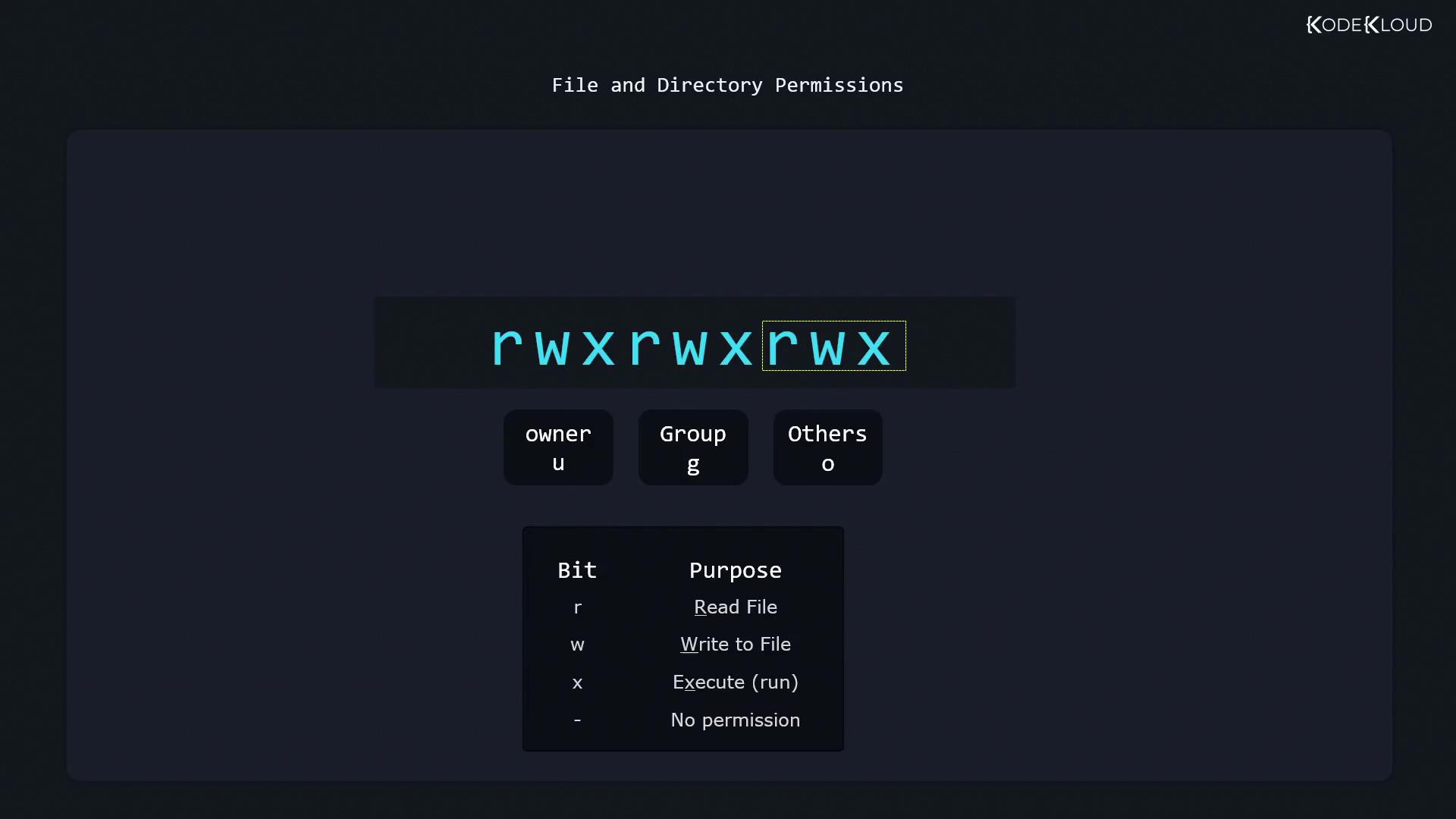
Permission bits follow in three sets (owner, group, others):
| Bit | Value | Meaning |
| --- | ----- | ---------------------- |
| r | 4 | Read |
| w | 2 | Write |
| x | 1 | Execute (or enter dir) |
> \[!note]
> For directories:
>
> * `r`: list contents
> * `w`: create/delete files
> * `x`: change into the directory
***
## Permission Evaluation Order
Linux checks permissions in this order:
1. Owner
2. Group
3. Others
Consider a file owned by `aaron:family` with permissions `-r--rw----`:
```bash theme={null}
$ ls -l
-r--rw---- 1 aaron family 49 Oct 27 14:41 family_dog.jpg
```
* As **aaron**: owner bits (`r--`) apply → no write
```bash theme={null}
$ echo "Update" >> family_dog.jpg
bash: family_dog.jpg: Permission denied
```
* As **jane** (in `family`): owner bits skipped, group bits (`rw-`) apply → can write
```bash theme={null}
$ su jane
$ echo "Add this content" >> family_dog.jpg
$ cat family_dog.jpg
Picture of Milo the dog
```
* Else: “others” bits determine access.
***
## Modifying Permissions with chmod
General syntax:
```bash theme={null}
chmod [who][+|-|=][perms] file
```
* **who**: `u` (owner), `g` (group), `o` (others), `a` (all)
* **+**: add permissions
* **-**: remove permissions
* **=**: set exact permissions
### Adding Permissions
Grant write to owner:
```bash theme={null}
$ ls -l
-r--rw---- 1 aaron family 49 Oct 27 14:41 family_dog.jpg
$ chmod u+w family_dog.jpg
$ ls -l
-rw-rw---- 1 aaron family 49 Oct 27 14:41 family_dog.jpg
```
### Removing Permissions
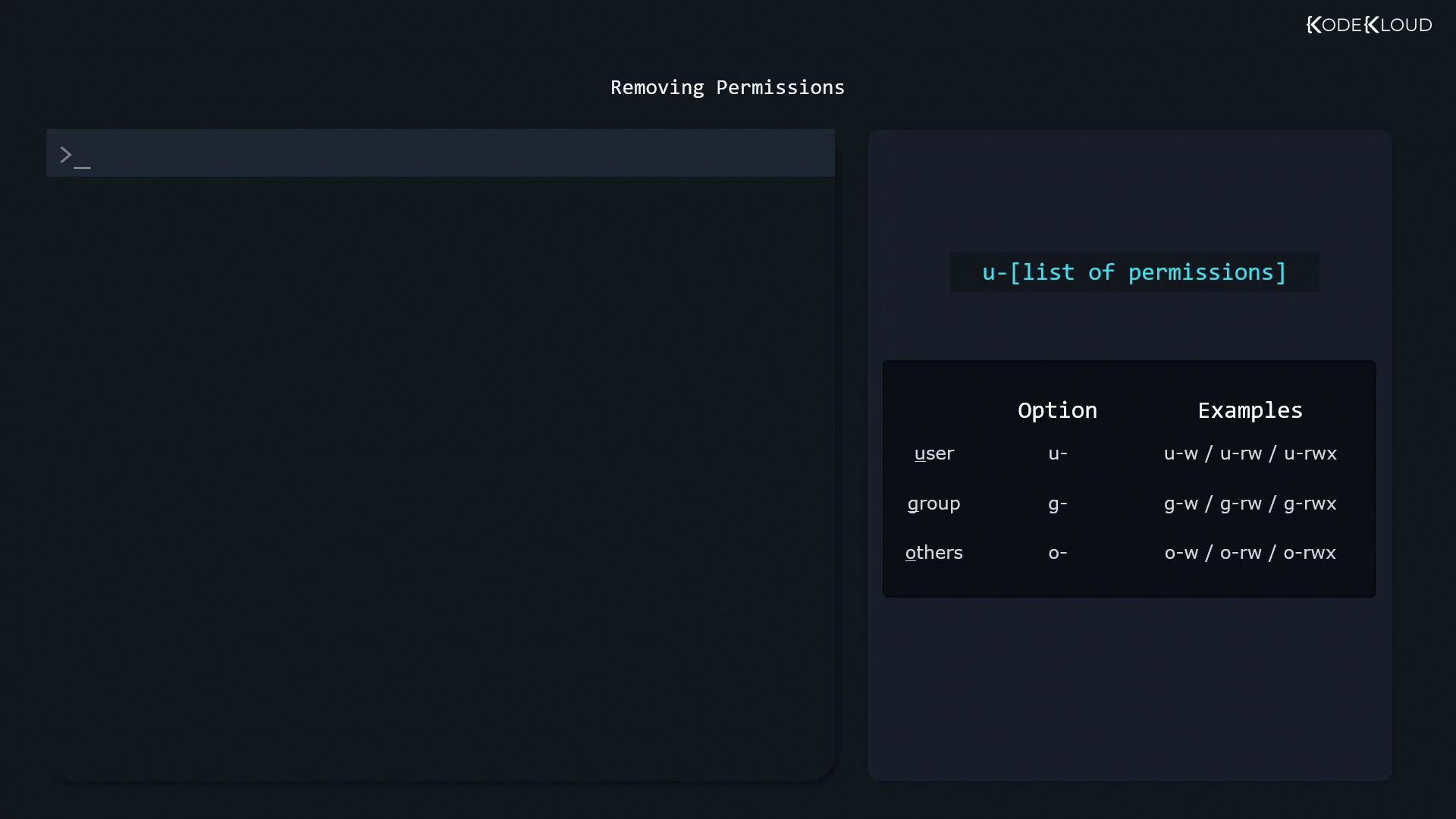
Use `-` to revoke bits. Common patterns:
* `u-w`: remove owner write
* `g-rw`: remove group read/write
* `o-rwx`: remove all for others
Remove read for others:
```bash theme={null}
$ ls -l
-r--rw-r-- 1 aaron family 49 Oct 27 14:41 family_dog.jpg
$ chmod o-r family_dog.jpg
$ ls -l
-r--rw---- 1 aaron family 49 Oct 27 14:41 family_dog.jpg
```
### Setting Exact Permissions
Overwrite existing bits with `=`:
```bash theme={null}
$ ls -l
-rw-rw---- 1 aaron family 49 Oct 27 14:41 family_dog.jpg
$ chmod g=r family_dog.jpg
$ ls -l
-rw-r----- 1 aaron family 49 Oct 27 14:41 family_dog.jpg
$ chmod g=rw family_dog.jpg
$ ls -l
-rw-rw---- 1 aaron family 49 Oct 27 14:41 family_dog.jpg
$ chmod g= family_dog.jpg
$ ls -l
-rw------- 1 aaron family 49 Oct 27 14:41 family_dog.jpg
$ chmod g=rwx family_dog.jpg
$ ls -l
-rw-rwx--- 1 aaron family 49 Oct 27 14:41 family_dog.jpg
```
### Combining Multiple Changes
Separate specs with commas:
```bash theme={null}
$ ls -l
-rw-rwxr-x 1 aaron family 49 Oct 27 14:41 family_dog.jpg
# Owner: add read/write, Group: set to read-only, Others: remove all
$ chmod u+rw,g=r,o= family_dog.jpg
$ ls -l
-rw-r----- 1 aaron family 49 Oct 27 14:41 family_dog.jpg
```
***
## Using Octal Notation with chmod
Octal mode is a compact way to set permissions. First, inspect with `stat`:
```bash theme={null}
$ stat family_dog.jpg
File: family_dog.jpg
Size: 49 Blocks: 8 IO Block: 4096 regular file
Device: fd00h/64768d Inode: 52946177 Links: 1
Access: (0640/-rw-r-----) Uid: ( 1000/aaron) Gid: ( 10/wheel)
```
> \[!note]
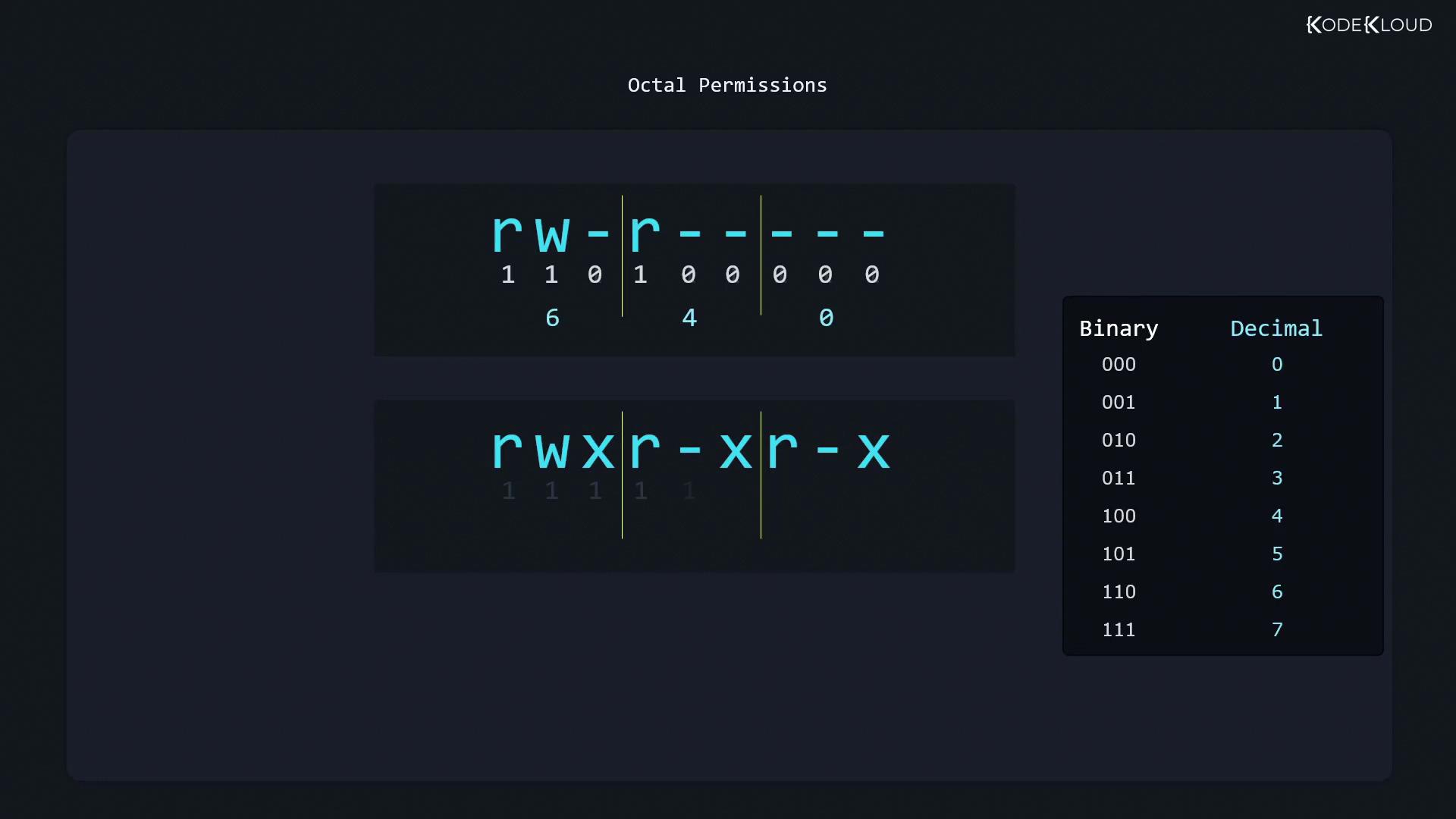
> Each octal digit = read (4) + write (2) + execute (1).\
> For `0640`:
>
> * Owner `6` = `rw-`
> * Group `4` = `r--`
> * Others `0` = `---`
Set `0640` directly:
```bash theme={null}
$ chmod 640 family_dog.jpg
```
***
## Resources & References
* [Linux Permissions Handbook](https://www.redhat.com/sysadmin/linux-file-permissions)
* [chmod Manual](https://man7.org/linux/man-pages/man1/chmod.1.html)
* [Kubernetes Basics](https://kubernetes.io/docs/concepts/overview/what-is-kubernetes/)