> ## Documentation Index
> Fetch the complete documentation index at: https://notes.kodekloud.com/llms.txt
> Use this file to discover all available pages before exploring further.
# Diagnose and manage processes
> This article explains how to diagnose and manage processes in Linux for effective system administration.
When you start any application, Linux creates a *process* that runs until completion or termination. Understanding how to monitor and control these processes is essential for effective system administration and performance tuning.
## Short-Lived vs. Long-Lived Processes
### Short-Lived Processes
Commands like `ls` spawn a process that exits immediately after running:
```bash theme={null}
$ ls
absolute_picture_shortcut all_output.txt archive.zip
archive.tar Desktop Documents
…
$ # Process ends when directory listing is complete
```
### Long-Lived Processes
Daemons such as `sshd` or long-running services remain active until explicitly stopped. To inspect active processes, the `ps` command is your first stop.
***
## Inspecting Processes with `ps`
`ps` provides a snapshot of processes. It supports two option syntaxes:
| Syntax Style | Example | Description |
| ------------ | -------- | ------------------------------------- |
| Unix (POSIX) | `ps -e` | Standard options prefixed with a dash |
| BSD | `ps axu` | Options without a dash |
Use `man ps` to explore all options and compare Unix vs. BSD syntax.
### Common `ps` Usage
* Show processes in the current terminal:
```bash theme={null}
$ ps
PID TTY TIME CMD
7726 pts/0 00:00:00 bash
7796 pts/0 00:00:00 ps
```
* List **all** system processes in user-oriented format:
```bash theme={null}
$ ps aux
USER PID %CPU %MEM VSZ RSS TTY STAT START TIME COMMAND
root 1 0.0 0.3 241296 14000 ? Ss Mar23 0:01 /usr/lib/systemd/systemd
aaron 7726 0.0 0.4 3142460 185096 pts/0 S+ 10:00 0:00 gnome-system-monitor
…
```
The mnemonic **aux** (a: all with terminal, u: user format, x: include daemons) helps recall this combination.
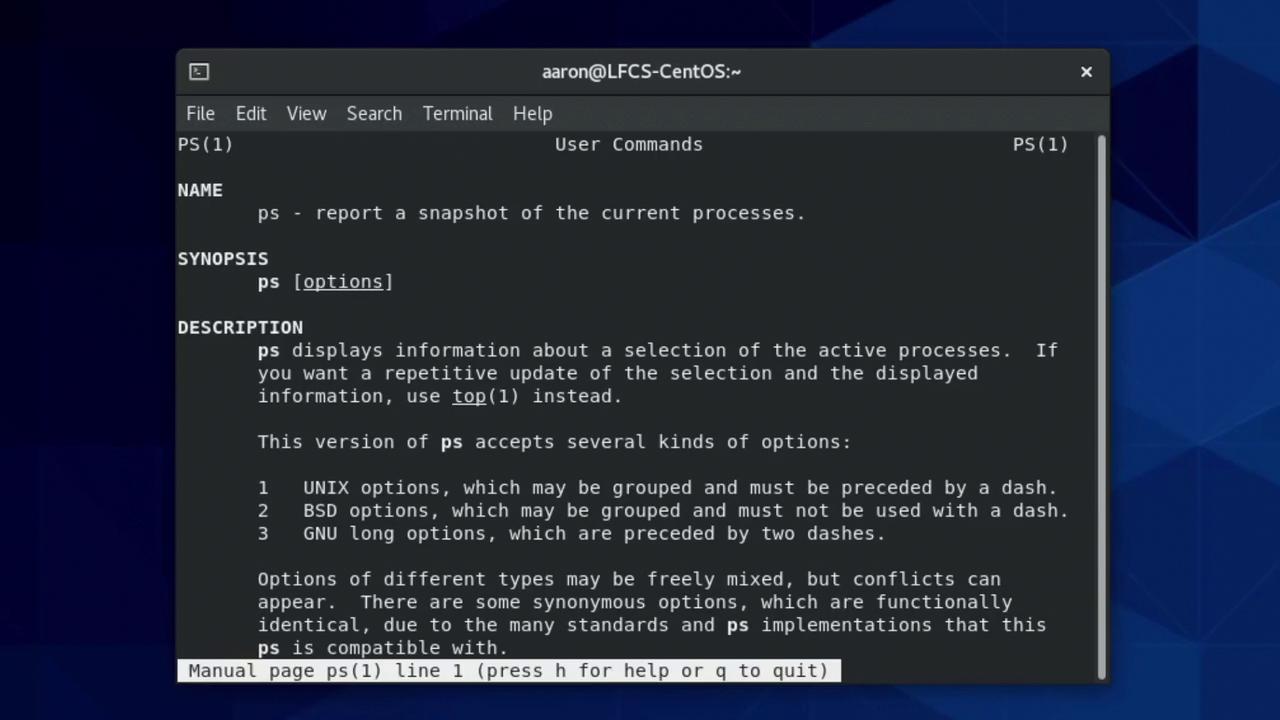
Excerpt from `man ps`:
```text theme={null}
To see every process on the system using standard syntax:
ps -e
ps -ef
Using BSD syntax:
ps ax
ps axu
To print a process tree:
ps -ejH
ps axjf
```
***
## Real-Time Monitoring with `top`
For continuous updates:
```bash theme={null}
$ top
top - 10:15:03 up 1 day, 2:34, 1 user, load average: 0.05, 0.03, 0.01
Tasks: 236 total, 1 running, 235 sleeping
%Cpu(s): 1.2 us, 0.5 sy, 98.3 id
MiB Mem : 3731.4 total, 1588.9 free, 915.5 used, 1227.0 buff/cache
PID USER PR NI VIRT RES SHR S %CPU %MEM TIME+ COMMAND
6601 aaron 20 0 3142460 185096 104268 S 6.2 4.8 0:06.60 gnome-shell
1 root 20 0 241296 14000 8912 S 0.0 0.4 0:01.26 systemd
…
```
* Use Up/Down arrows or `Page Up`/`Page Down` to scroll.
* Press `q` to exit.
***
## Filtering Processes
| Filter Type | Command Example |
| ----------- | -------------------------------------- |
| By PID | `ps -p 1 -o pid,tty,stat,time,command` |
| By User | `ps -U aaron -u` |
| By Name | `pgrep -a syslog` |
```bash theme={null}
$ pgrep -a syslog
1455 /usr/sbin/rsyslogd -n
```
***
## Adjusting Niceness (Priority)
Process priority (`nice` value) ranges from **–20** (highest) to **+19** (lowest).
* Launch with niceness 11:
```bash theme={null}
$ nice -n 11 bash
```
* View niceness:
```bash theme={null}
$ ps -l
F UID PID PPID PRI NI VSZ RSS STAT TTY TIME COMMAND
0 1000 6543 6540 20 11 658840 19268 S+ tty2 0:00 bash
```
* Change niceness of an existing PID:
```bash theme={null}
$ sudo renice 7 6543
6543 (process ID) old priority 11, new priority 7
```
***
## Parent/Child Process Trees
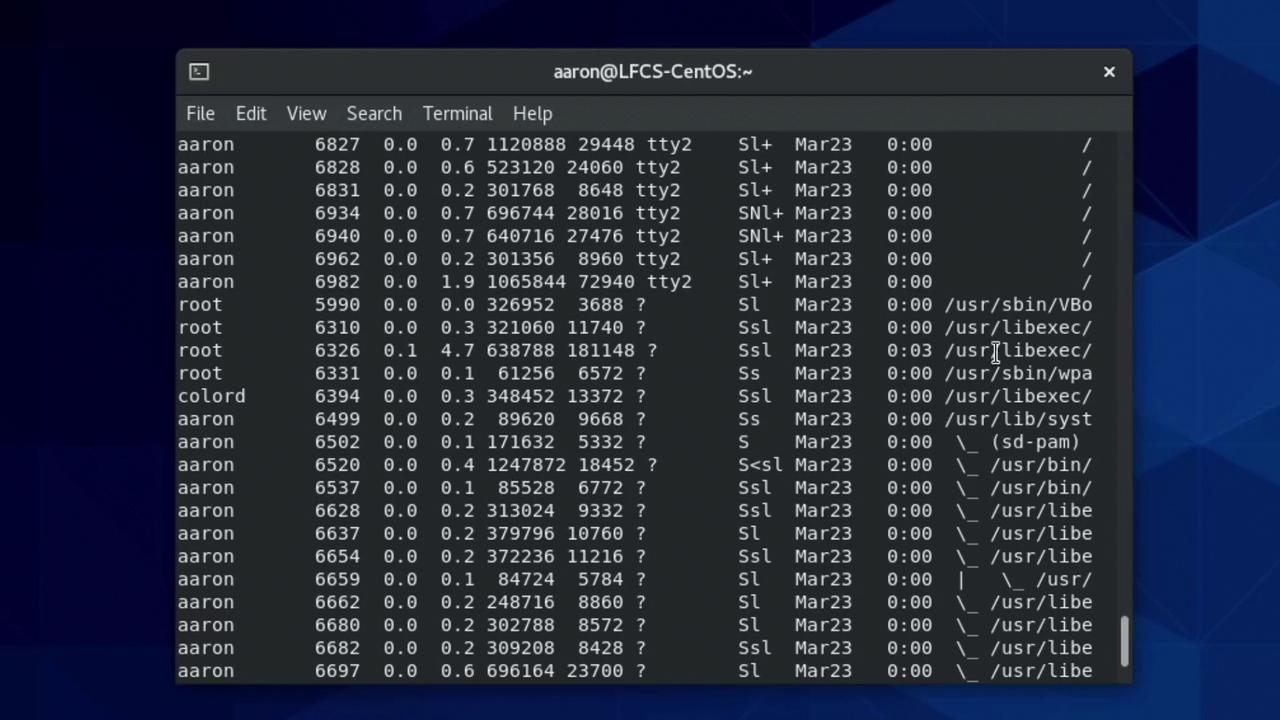
Display processes as a hierarchy:
```bash theme={null}
$ ps faxu
```
***
## Sending Signals
Linux signals control process behavior. Common signals include:
| Signal | Number | Default Action |
| ------- | ------ | ---------------------- |
| SIGHUP | 1 | Hangup (reload config) |
| SIGINT | 2 | Interrupt |
| SIGTERM | 15 | Graceful termination |
| SIGKILL | 9 | Force kill |
| SIGSTOP | 19 | Pause |
| SIGCONT | 18 | Continue |
List all signals:
```bash theme={null}
$ kill -l
1) SIGHUP 2) SIGINT 3) SIGQUIT 9) SIGKILL
15) SIGTERM 18) SIGCONT 19) SIGSTOP
```
Examples:
```bash theme={null}
# Reload sshd configuration
$ sudo kill -SIGHUP
# Graceful shutdown
$ kill
# Force kill
$ kill -9
# Kill by name
$ pkill -KILL bash
```
Killing your login shell (e.g., `bash`) will close your terminal or SSH session.
***
## Job Control: Background & Foreground
* **Ctrl+C**: Interrupt
* **Ctrl+Z**: Suspend
```bash theme={null}
$ vim /etc/hostname
[1]+ Stopped vim /etc/hostname
$ fg
vim /etc/hostname
```
* Start in background: `sleep 300 &`
* List jobs: `jobs`
* Bring to foreground: `fg %1`
* Send to background: `bg %1`
***
## Inspecting Open Files with `lsof`
List files held by a process:
```bash theme={null}
$ lsof -p $(pgrep -n bash)
COMMAND PID USER FD TYPE DEVICE SIZE/OFF NODE NAME
bash 8401 aaron cwd DIR 253,0 4096 262658 /home/aaron
bash 8401 aaron txt REG 253,0 925360 514014 /usr/bin/bash
…
```
View root-owned processes:
```bash theme={null}
$ sudo lsof -p 1
```
Find processes using a specific file:
```bash theme={null}
$ sudo lsof /var/log/messages
```
***
## Links and References
* [ps(1) Manual](https://man7.org/linux/man-pages/man1/ps.1.html)
* [top(1) Manual](https://man7.org/linux/man-pages/man1/top.1.html)
* [kill(1) Manual](https://man7.org/linux/man-pages/man1/kill.1.html)
* [lsof(8) Manual](https://man7.org/linux/man-pages/man8/lsof.8.html)
* [Linux Process Management Guide](https://linux.die.net/man/1/ps)