> ## Documentation Index
> Fetch the complete documentation index at: https://notes.kodekloud.com/llms.txt
> Use this file to discover all available pages before exploring further.
# Demo Google Calendar Integration
> Guide to set up a local Google Calendar MCP server, configure OAuth, connect it to Claude Desktop, and enable the assistant to read and create calendar events.
This guide shows how to integrate a pre-built MCP (Model-Capability-Plugin) server for Google Calendar so a local assistant (Claude Desktop in this example) can read and create events using your Google account. Follow these high-level steps:
* Clone the MCP server repository
* Enable the Google Calendar API and configure OAuth consent
* Create OAuth credentials (Desktop app) and download the JSON
* Point the MCP server at your credentials and run it
* Add the MCP server to your Claude Desktop configuration
* Interact with your Google Calendar from Claude
## 1. Clone the repository
Open a terminal and clone the repo:
```bash theme={null}
git clone https://github.com/nspady/google-calendar-mcp.git
```
Example output on macOS:
```bash theme={null}
jeremy@MACSTUDIO mcpstuff % git clone https://github.com/nspady/google-calendar-mcp.git
```
## 2. Enable the Google Calendar API and configure OAuth
1. Open the Google Cloud Console — APIs Library: [https://console.cloud.google.com/apis/library](https://console.cloud.google.com/apis/library)
2. Search for and enable the Google Calendar API: [https://developers.google.com/calendar](https://developers.google.com/calendar)
3. After enabling the API, go to APIs & Services → Credentials to configure OAuth: [https://console.cloud.google.com/apis/credentials](https://console.cloud.google.com/apis/credentials)
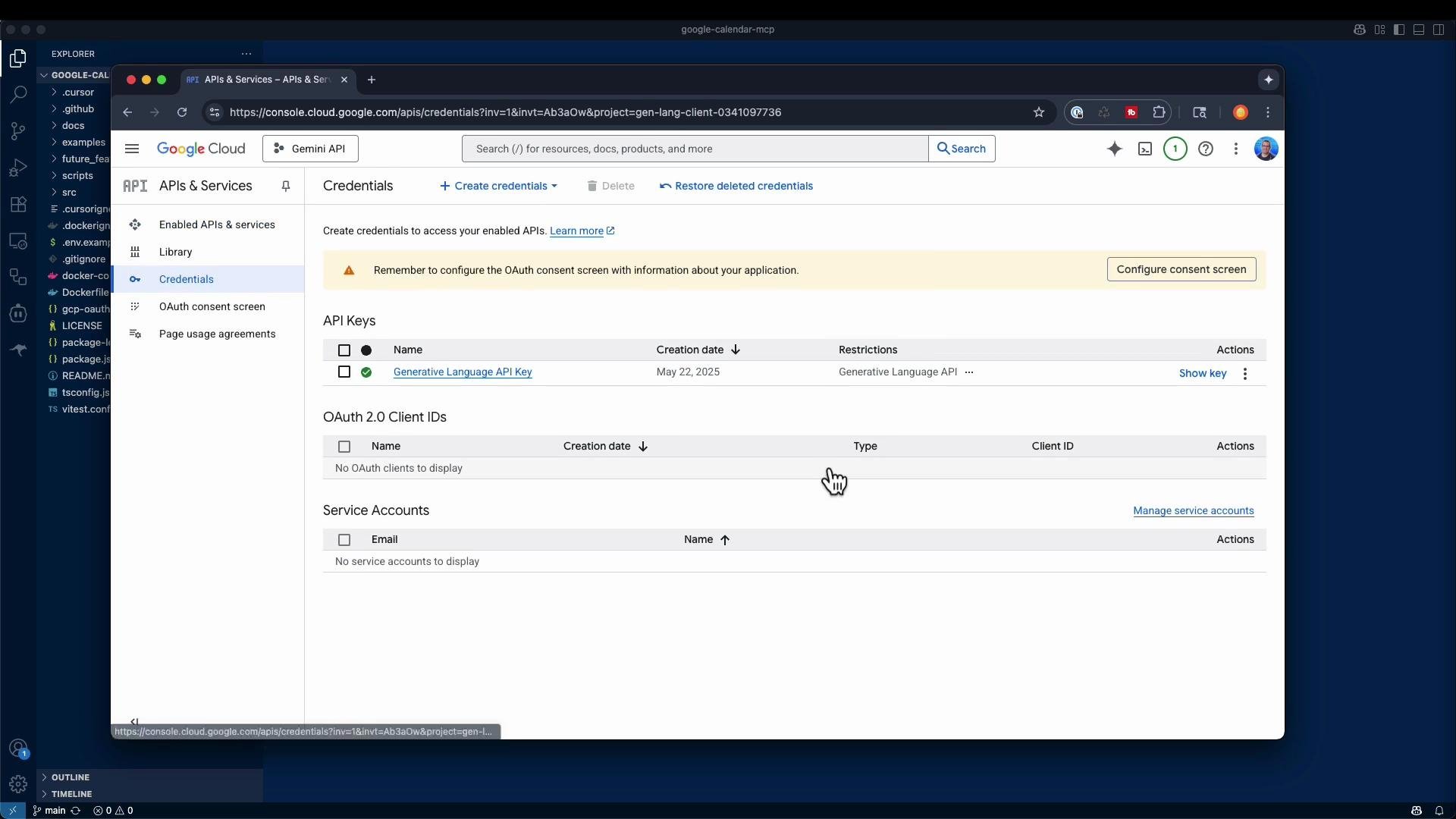 ## 3. Create an OAuth consent screen and client
1. Visit the OAuth consent screen: [https://console.cloud.google.com/apis/credentials/consent](https://console.cloud.google.com/apis/credentials/consent)
2. Set an app name (for example, "MCP calendar tool").
3. Choose the user type:
* Internal — restricts use to your organization.
* External — allows any Google account to authorize the app (typical for local personal use).
4. Provide contact info and save.
## 3. Create an OAuth consent screen and client
1. Visit the OAuth consent screen: [https://console.cloud.google.com/apis/credentials/consent](https://console.cloud.google.com/apis/credentials/consent)
2. Set an app name (for example, "MCP calendar tool").
3. Choose the user type:
* Internal — restricts use to your organization.
* External — allows any Google account to authorize the app (typical for local personal use).
4. Provide contact info and save.
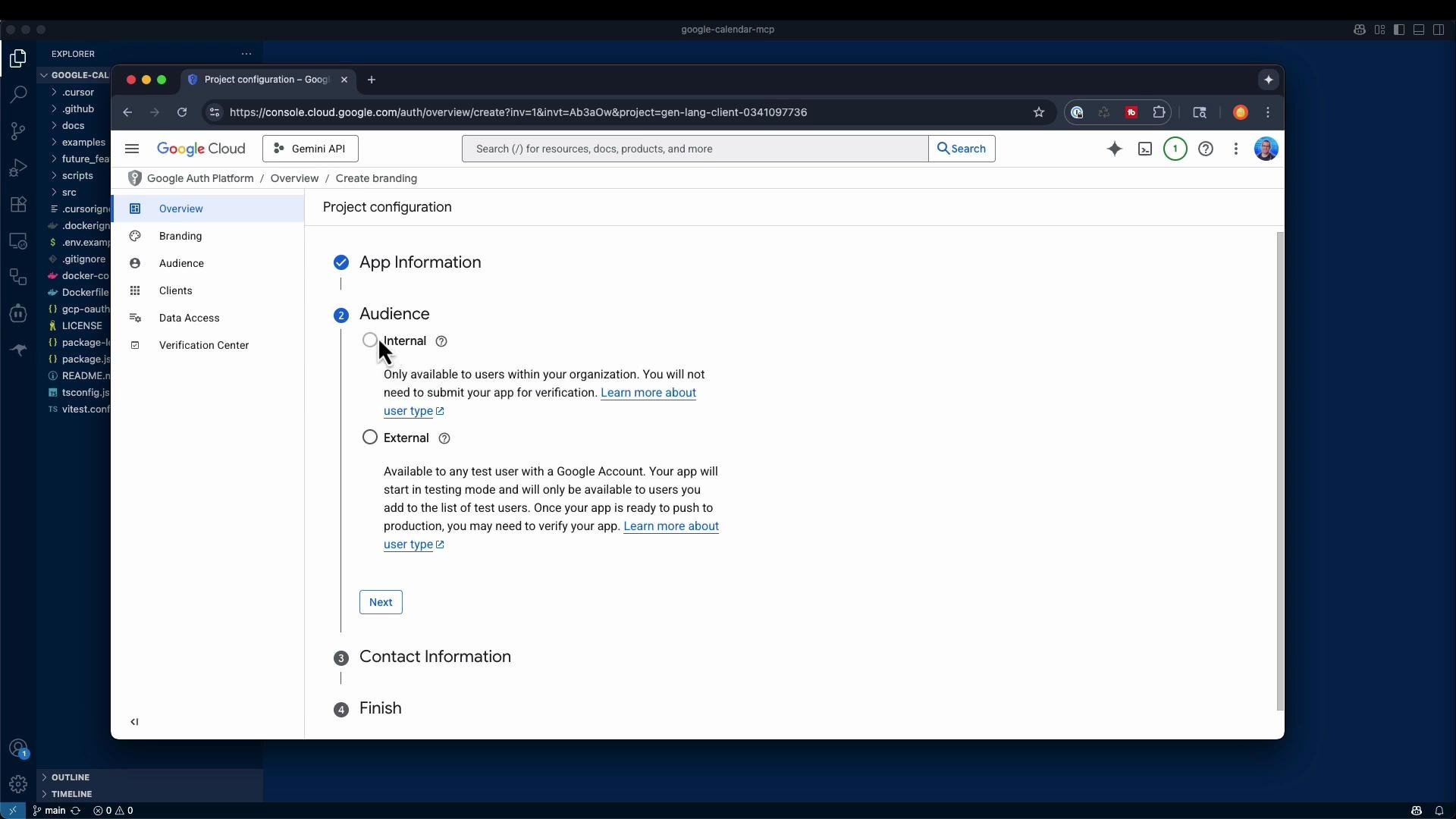 ## 4. Create OAuth client credentials
1. Create an OAuth 2.0 Client ID and choose **Desktop app** as the application type: [https://developers.google.com/identity/protocols/oauth2](https://developers.google.com/identity/protocols/oauth2)
2. Click **Download JSON** for the client credentials and save the file locally.
3. Optionally rename the downloaded file to `credentials.json` (or another descriptive filename).
## 5. Set the GOOGLE\_OAUTH\_CREDENTIALS environment variable and start the MCP server
Export an environment variable pointing to the absolute path of your credentials file, then start the MCP server. Example:
```bash theme={null}
export GOOGLE_OAUTH_CREDENTIALS="/Users/jeremy/demos/mcpstuff/google-calendar-mcp/credentials.json"
npm run start
```
When the server starts, it will open a browser window asking you to choose an account and authorize the app. If you see a "Google hasn't verified this app" warning, that is expected for a local/test app. You can proceed after clicking the advanced option and continuing — only do this for apps you trust.
If you see the "Google hasn't verified this app" page, proceed only if you trust the app and the credentials. Do not authorize unknown or public apps with your primary Google account.
## 4. Create OAuth client credentials
1. Create an OAuth 2.0 Client ID and choose **Desktop app** as the application type: [https://developers.google.com/identity/protocols/oauth2](https://developers.google.com/identity/protocols/oauth2)
2. Click **Download JSON** for the client credentials and save the file locally.
3. Optionally rename the downloaded file to `credentials.json` (or another descriptive filename).
## 5. Set the GOOGLE\_OAUTH\_CREDENTIALS environment variable and start the MCP server
Export an environment variable pointing to the absolute path of your credentials file, then start the MCP server. Example:
```bash theme={null}
export GOOGLE_OAUTH_CREDENTIALS="/Users/jeremy/demos/mcpstuff/google-calendar-mcp/credentials.json"
npm run start
```
When the server starts, it will open a browser window asking you to choose an account and authorize the app. If you see a "Google hasn't verified this app" warning, that is expected for a local/test app. You can proceed after clicking the advanced option and continuing — only do this for apps you trust.
If you see the "Google hasn't verified this app" page, proceed only if you trust the app and the credentials. Do not authorize unknown or public apps with your primary Google account.
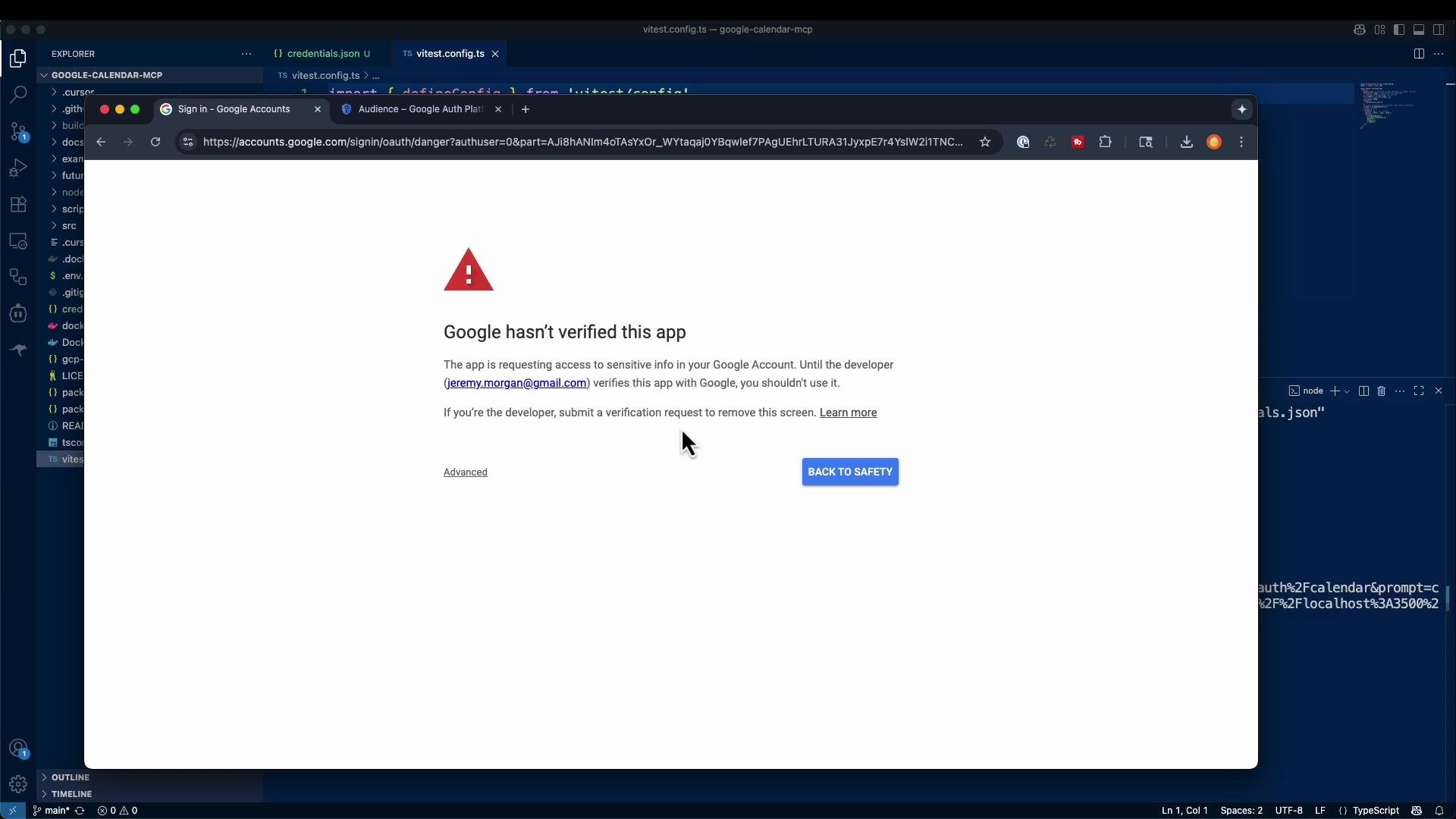 After allowing access you should see confirmation in the console that authentication succeeded and tokens were saved locally. Typical console output:
```bash theme={null}
http://localhost:3500/oauth2callback?code=4/0AVMBsJiQmpdFfFIB1ArXnIZn8182nNKCBL72RB3A43btCF5c6ZP6Xg4mJtqWZeEE8xYkUw&scope=...
Authentication successful. Tokens saved to /Users/jeremy/.config/google-calendar-mcp/tokens.json
```
## 6. Add the MCP server to Claude Desktop
Edit your Claude Desktop configuration file and add a new MCP server entry under `mcpServers`. The config file location depends on your OS:
| OS | Config path |
| ------- | ----------------------------------------------------------------- |
| macOS | `~/Library/Application Support/Claude/claude_desktop_config.json` |
| Windows | `%APPDATA%\Claude\claude_desktop_config.json` |
Example minimal JSON to add the Google Calendar MCP server:
```json theme={null}
{
"mcpServers": {
"google-calendar": {
"command": "npx",
"args": ["@cocal/google-calendar-mcp"],
"env": {
"GOOGLE_OAUTH_CREDENTIALS": "/path/to/your/gcp-oauth.keys.json"
}
}
}
}
```
A fuller example that includes multiple MCP servers:
```json theme={null}
{
"mcpServers": {
"Meteo API": {
"command": "/usr/local/bin/node",
"args": ["/Users/jeremy/demos/Weather-MCP-Server/server.js"]
},
"Hacker News API 2": {
"command": "/usr/local/bin/node",
"args": ["/Users/jeremy/demos/mcpstuff/postman-mcp/postman-mcp-server/mcpServer.js"]
},
"google-calendar": {
"command": "npx",
"args": ["@cocal/google-calendar-mcp"],
"env": {
"GOOGLE_OAUTH_CREDENTIALS": "/Users/jeremy/demos/mcpstuff/google-calendar-mcp/credentials.json"
}
}
}
}
```
After saving the config, restart Claude Desktop. Claude will detect the new MCP server and surface calendar-related tools.
## 7. Interacting with the calendar from Claude
Once the MCP server is connected, use natural-language prompts like:
* "What do I have on my calendar this week?"
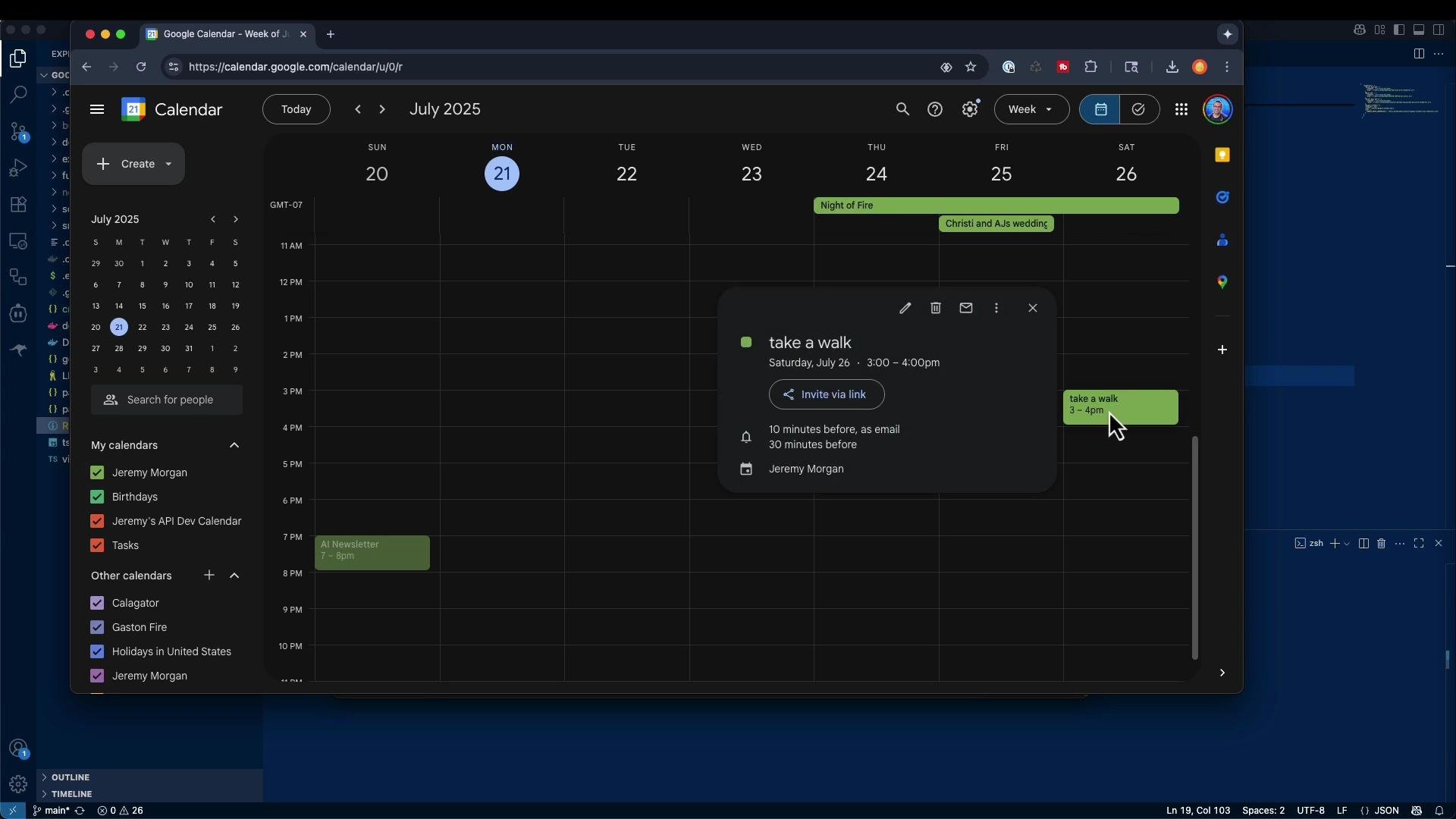
* "Create a new event on Saturday at 3 p.m. titled 'Take a Walk'."
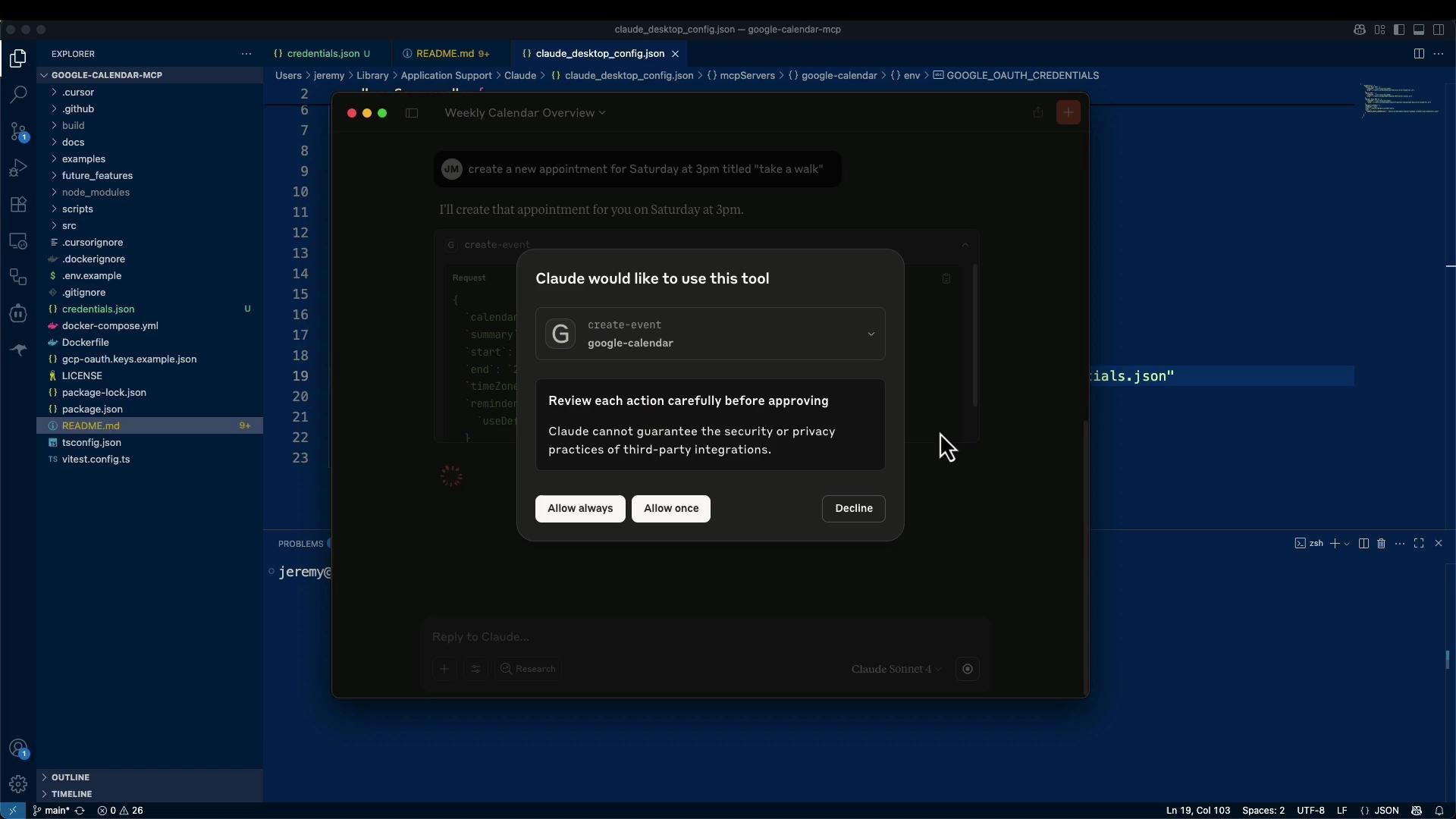
Claude will display the MCP tool UI and request permission to use the calendar tool. You can grant permission temporarily ("Allow once") or permanently ("Allow always").
After allowing access you should see confirmation in the console that authentication succeeded and tokens were saved locally. Typical console output:
```bash theme={null}
http://localhost:3500/oauth2callback?code=4/0AVMBsJiQmpdFfFIB1ArXnIZn8182nNKCBL72RB3A43btCF5c6ZP6Xg4mJtqWZeEE8xYkUw&scope=...
Authentication successful. Tokens saved to /Users/jeremy/.config/google-calendar-mcp/tokens.json
```
## 6. Add the MCP server to Claude Desktop
Edit your Claude Desktop configuration file and add a new MCP server entry under `mcpServers`. The config file location depends on your OS:
| OS | Config path |
| ------- | ----------------------------------------------------------------- |
| macOS | `~/Library/Application Support/Claude/claude_desktop_config.json` |
| Windows | `%APPDATA%\Claude\claude_desktop_config.json` |
Example minimal JSON to add the Google Calendar MCP server:
```json theme={null}
{
"mcpServers": {
"google-calendar": {
"command": "npx",
"args": ["@cocal/google-calendar-mcp"],
"env": {
"GOOGLE_OAUTH_CREDENTIALS": "/path/to/your/gcp-oauth.keys.json"
}
}
}
}
```
A fuller example that includes multiple MCP servers:
```json theme={null}
{
"mcpServers": {
"Meteo API": {
"command": "/usr/local/bin/node",
"args": ["/Users/jeremy/demos/Weather-MCP-Server/server.js"]
},
"Hacker News API 2": {
"command": "/usr/local/bin/node",
"args": ["/Users/jeremy/demos/mcpstuff/postman-mcp/postman-mcp-server/mcpServer.js"]
},
"google-calendar": {
"command": "npx",
"args": ["@cocal/google-calendar-mcp"],
"env": {
"GOOGLE_OAUTH_CREDENTIALS": "/Users/jeremy/demos/mcpstuff/google-calendar-mcp/credentials.json"
}
}
}
}
```
After saving the config, restart Claude Desktop. Claude will detect the new MCP server and surface calendar-related tools.
## 7. Interacting with the calendar from Claude
Once the MCP server is connected, use natural-language prompts like:
* "What do I have on my calendar this week?"
* "Create a new event on Saturday at 3 p.m. titled 'Take a Walk'."
Claude will display the MCP tool UI and request permission to use the calendar tool. You can grant permission temporarily ("Allow once") or permanently ("Allow always").
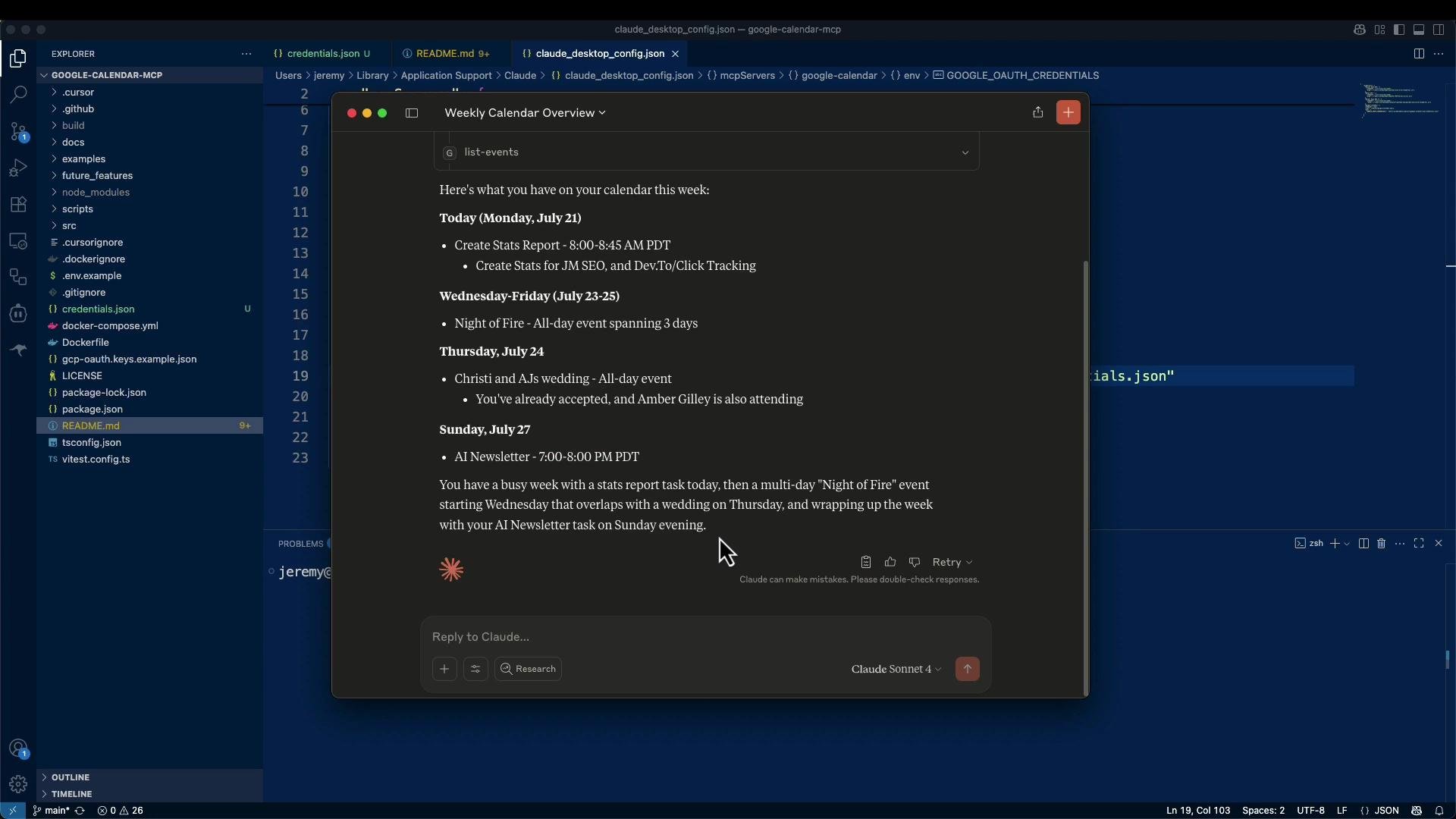 Here is the permission modal that Claude shows before creating an event:
 After creating an event from Claude, verify it directly in Google Calendar:
 ## Why use an MCP server?
MCP servers provide a consistent, tool-like interface that LLMs can call to perform API actions on your behalf. Benefits include:
* Simplified authorization: OAuth flows and token storage are handled by the MCP server.
* Structured responses: The MCP server returns parsed, predictable results for the assistant to consume.
* Reusability: The same MCP server can be reused across multiple assistant deployments without re-implementing API logic.
This reduces the need to write custom API glue code every time you want the assistant to interact with an external service.
Keep your downloaded credential files and token files private. Do not commit `credentials.json` or `tokens.json` to a public repository.
## Closing
This walkthrough demonstrates how to run a Google Calendar MCP server locally, authorize it with Google OAuth, register it with Claude Desktop, and use natural language to read and create events. MCP servers let you expose APIs to LLM-based assistants cleanly while isolating authorization and API logic from the assistant itself.
## Links and references
* Google Cloud Console — APIs Library: [https://console.cloud.google.com/apis/library](https://console.cloud.google.com/apis/library)
* Google Calendar API docs: [https://developers.google.com/calendar](https://developers.google.com/calendar)
* OAuth 2.0 for Desktop Apps: [https://developers.google.com/identity/protocols/oauth2](https://developers.google.com/identity/protocols/oauth2)
* Google unverified apps doc: [https://support.google.com/cloud/answer/7519473](https://support.google.com/cloud/answer/7519473)
* google-calendar-mcp README: [https://github.com/nspady/google-calendar-mcp#readme](https://github.com/nspady/google-calendar-mcp#readme)
## Why use an MCP server?
MCP servers provide a consistent, tool-like interface that LLMs can call to perform API actions on your behalf. Benefits include:
* Simplified authorization: OAuth flows and token storage are handled by the MCP server.
* Structured responses: The MCP server returns parsed, predictable results for the assistant to consume.
* Reusability: The same MCP server can be reused across multiple assistant deployments without re-implementing API logic.
This reduces the need to write custom API glue code every time you want the assistant to interact with an external service.
Keep your downloaded credential files and token files private. Do not commit `credentials.json` or `tokens.json` to a public repository.
## Closing
This walkthrough demonstrates how to run a Google Calendar MCP server locally, authorize it with Google OAuth, register it with Claude Desktop, and use natural language to read and create events. MCP servers let you expose APIs to LLM-based assistants cleanly while isolating authorization and API logic from the assistant itself.
## Links and references
* Google Cloud Console — APIs Library: [https://console.cloud.google.com/apis/library](https://console.cloud.google.com/apis/library)
* Google Calendar API docs: [https://developers.google.com/calendar](https://developers.google.com/calendar)
* OAuth 2.0 for Desktop Apps: [https://developers.google.com/identity/protocols/oauth2](https://developers.google.com/identity/protocols/oauth2)
* Google unverified apps doc: [https://support.google.com/cloud/answer/7519473](https://support.google.com/cloud/answer/7519473)
* google-calendar-mcp README: [https://github.com/nspady/google-calendar-mcp#readme](https://github.com/nspady/google-calendar-mcp#readme)