> ## Documentation Index
> Fetch the complete documentation index at: https://notes.kodekloud.com/llms.txt
> Use this file to discover all available pages before exploring further.
# Demo Run Your First MCP Tool Weather Tool
> Guide to running a local MCP server that exposes weather tools calling Open-Meteo, enabling assistants to fetch real‑time weather, hourly forecasts, and concise natural‑language summaries
In this walkthrough you’ll run a small MCP (Model Context Protocol) server locally that connects a language model to real-time weather data from the free Open-Meteo API. The goal: let an assistant (for example, Claude) answer questions like “What is the weather like today?” by calling a trusted local tool that fetches live data.
Why this pattern? LLMs are excellent at reasoning and natural language, but they don’t have up-to-date real-time knowledge. MCP lets you expose a controlled set of tools that the model can call to obtain fresh information (current weather, hourly forecasts, or a short summary) without giving the model direct network access.
Open-Meteo quick example (curl)
```bash theme={null}
curl "https://api.open-meteo.com/v1/forecast?latitude=52.52&longitude=13.41¤t_weather=true&hourly=temperature_2m,relativehumidity_2m,windspeed_10m"
```
Change `latitude` / `longitude` or the `hourly` parameters to request different fields. Open-Meteo uses simple HTTP GET queries and returns JSON.
Repository and local server
I built a small Node.js MCP server (Weather-MCP-Server) that calls Open-Meteo and exposes three MCP tools:
* `get_current_weather` — current conditions for a latitude/longitude
* `get_weather_forecast` — hourly forecast for a location (optionally specify days)
* `get_weather_summary` — a natural-language summary that combines current + forecast
Clone and run:
```bash theme={null}
git clone https://github.com/JeremyMorgan/Weather-MCP-Server
cd Weather-MCP-Server
npm install
npm run dev
```
This launches the MCP server (`server.js`) locally. The server advertises the three tools so an MPC-capable assistant can discover and call them.
Tools overview
| Tool name | Purpose | Example input |
| ---------------------- | ------------------------------------- | ----------------------------------------------------- |
| `get_current_weather` | Return current weather for a location | `{"latitude":45.4318,"longitude":-123.1426}` |
| `get_weather_forecast` | Return hourly forecast for a location | `{"latitude":45.4318,"longitude":-123.1426,"days":3}` |
| `get_weather_summary` | Return a short NL summary + raw data | `{"latitude":45.4318,"longitude":-123.1426}` |
Inspecting server.js
Below is the consolidated Node.js MCP server used in this lesson. It defines the tool metadata (name, description, input schema), implements the Open-Meteo calls, maps tool names to handlers, and exposes MCP request handlers for `tools/list` and `tools/call`.
```javascript theme={null}
#!/usr/bin/env node
import { Server } from '@modelcontextprotocol/sdk/server/index.js';
import { StdioServerTransport } from '@modelcontextprotocol/sdk/server/stdio.js';
import { RequestSchema } from '@modelcontextprotocol/sdk/types.js';
import { z } from 'zod';
import fetch from 'node-fetch';
// Weather API base URL
const WEATHER_API_BASE = 'https://api.open-meteo.com/v1/forecast';
// Tool definitions (exposed to MCP clients)
const tools = [
{
name: 'get_current_weather',
description: 'Get current weather data for a specific location',
inputSchema: {
type: 'object',
properties: {
latitude: { type: 'number', description: 'Latitude of the location' },
longitude: { type: 'number', description: 'Longitude of the location' }
},
required: ['latitude', 'longitude']
}
},
{
name: 'get_weather_forecast',
description: 'Get hourly weather forecast for a specific location',
inputSchema: {
type: 'object',
properties: {
latitude: { type: 'number', description: 'Latitude of the location' },
longitude: { type: 'number', description: 'Longitude of the location' },
days: { type: 'number', description: 'Number of days to forecast (default: 7)' }
},
required: ['latitude', 'longitude']
}
},
{
name: 'get_weather_summary',
description: 'Get a short natural-language summary for a location',
inputSchema: {
type: 'object',
properties: {
latitude: { type: 'number' },
longitude: { type: 'number' }
},
required: ['latitude', 'longitude']
}
}
];
// Helper functions implementing tool behavior
async function getCurrentWeather({ latitude, longitude }) {
const url = `${WEATHER_API_BASE}?latitude=${latitude}&longitude=${longitude}¤t_weather=true`;
const res = await fetch(url);
const data = await res.json();
return data.current_weather || data;
}
async function getWeatherForecast({ latitude, longitude, days = 7 }) {
// Request hourly temperature, relative humidity, and windspeed covering the requested days
const hourly = 'temperature_2m,relativehumidity_2m,windspeed_10m';
// Open-Meteo typically supports start_date/end_date for precise ranges; here we request hourly data and use forecast_days to limit days when available.
const url = `${WEATHER_API_BASE}?latitude=${latitude}&longitude=${longitude}&hourly=${hourly}&forecast_days=${days}`;
const res = await fetch(url);
return await res.json();
}
async function getWeatherSummary({ latitude, longitude }) {
const current = await getCurrentWeather({ latitude, longitude });
const forecast = await getWeatherForecast({ latitude, longitude, days: 1 });
const temp = current.temperature ?? current.temp ?? 'unknown';
const wind = current.windspeed ?? current.wind_speed ?? 'unknown';
const humidity = forecast.hourly?.relativehumidity_2m?.[0] ?? 'unknown';
return {
summary: `Current temperature ${temp}°C, wind ${wind} m/s, humidity ${humidity}%.`,
current,
forecast
};
}
// Map of tool names to handlers
const toolHandlers = {
get_current_weather: getCurrentWeather,
get_weather_forecast: getWeatherForecast,
get_weather_summary: getWeatherSummary
};
// Create the MCP server with stdio transport
const server = new Server(
{ name: 'weather-mcp-server', version: '1.0.0' },
{
transport: new StdioServerTransport(),
capabilities: { tools } // advertise the tools
}
);
// Request schemas for MCP messages
const ToolsCallRequestSchema = RequestSchema.extend({
method: z.literal('tools/call'),
params: z.object({
name: z.string(),
arguments: z.record(z.any())
})
});
const ToolsListRequestSchema = RequestSchema.extend({
method: z.literal('tools/list'),
params: z.object({}).optional()
});
// Handler to list available tools
server.setRequestHandler(ToolsListRequestSchema, async () => {
return { result: { tools } };
});
// Handler to call a tool
server.setRequestHandler(ToolsCallRequestSchema, async (request) => {
const { name, arguments: args } = request.params;
const handler = toolHandlers[name];
if (!handler) {
throw new Error(`Tool "${name}" not found`);
}
const result = await handler(args);
return { result };
});
// Start listening
server.start().catch((err) => {
console.error('Server failed to start:', err);
process.exit(1);
});
```
Testing with Postman
Postman supports MCP requests and is a convenient way to test your local server. Create a new MCP request and configure Postman to run your Node server command. Use the node binary plus the full path to `server.js` as the command to launch when Postman starts the MCP connection:
```bash theme={null}
node /Users/jeremy/demos/Weather-MCP-Server/server.js
```
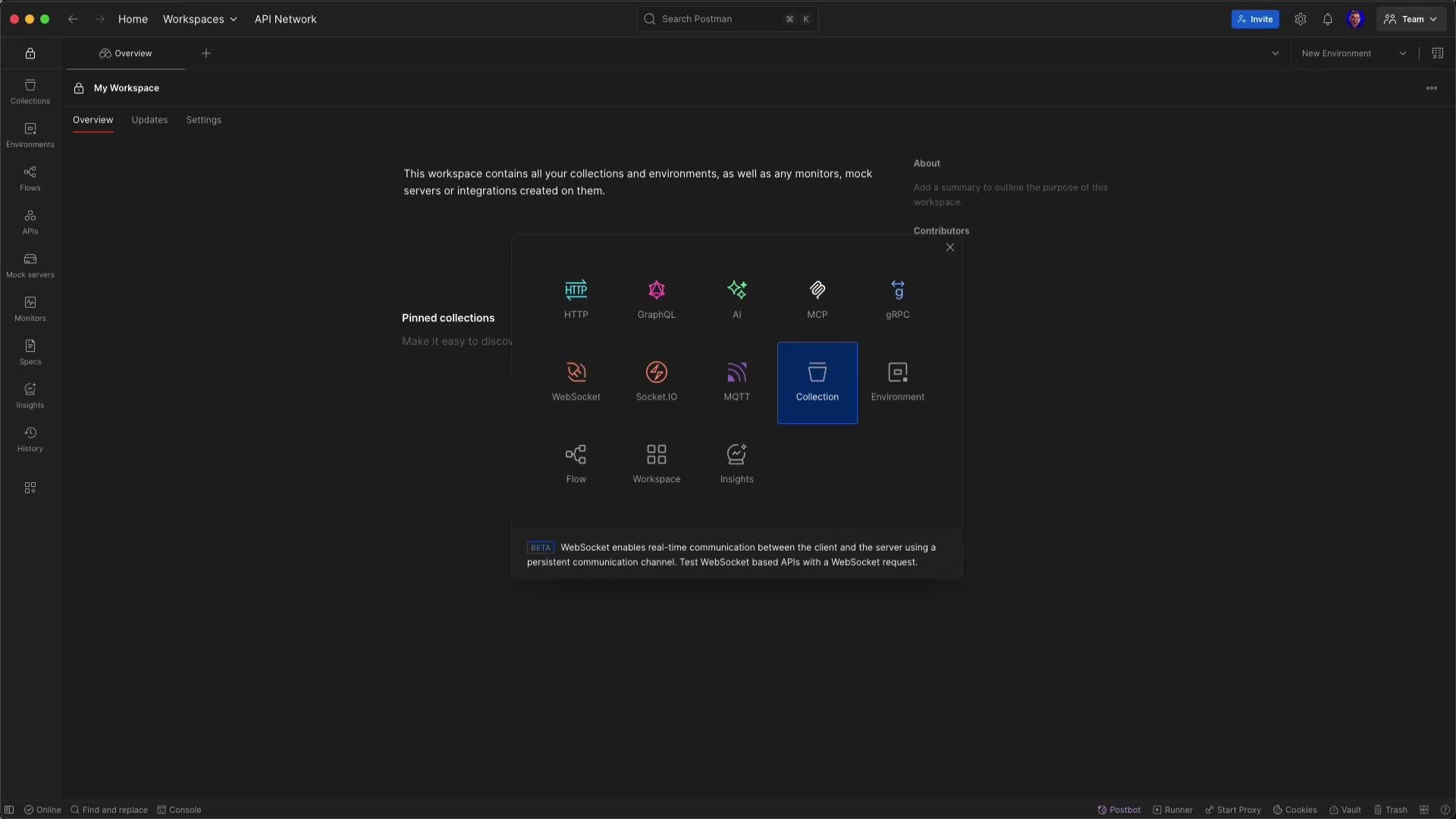 When Postman launches the server, MCP messages are routed to your process and you should see the three advertised tools: `get_current_weather`, `get_weather_forecast`, and `get_weather_summary`.
Example MCP call (tool invocation)
Here’s a minimal MCP request body to call `get_current_weather` for latitude `45.4318` and longitude `-123.1426`:
```json theme={null}
{
"method": "tools/call",
"params": {
"name": "get_current_weather",
"arguments": {
"latitude": 45.4318,
"longitude": -123.1426
}
}
}
```
The server will respond with JSON containing current weather fields (temperature, wind speed, etc.).
Alternative: call Open-Meteo directly with curl
You can bypass MCP and call Open-Meteo directly for quick checks:
```bash theme={null}
curl "https://api.open-meteo.com/v1/forecast?latitude=45.4318&longitude=-123.1426&hourly=temperature_2m,relativehumidity_2m"
```
This returns raw JSON arrays of hourly `time`, `temperature_2m`, and `relativehumidity_2m`. MCP wraps that low-level API behind simple tool interfaces so an assistant can use names, inferred parameters, and validated inputs instead of constructing queries manually.
Integrating the MCP server with Claude
To allow Claude to call your local MCP server, add the server entry in Claude’s Developer settings (MCP servers list). Example `config.json` snippet (used for Claude’s local MCP entries):
```json theme={null}
{
"mcpServers": {
"Hacker News API": {
"command": "/usr/local/bin/node",
"args": ["/Users/jeremy/demos/postman-mcp-server/mcpServer.js"]
},
"Meteo API": {
"command": "/usr/local/bin/node",
"args": ["/Users/jeremy/demos/Weather-MCP-Server/server.js"]
}
}
}
```
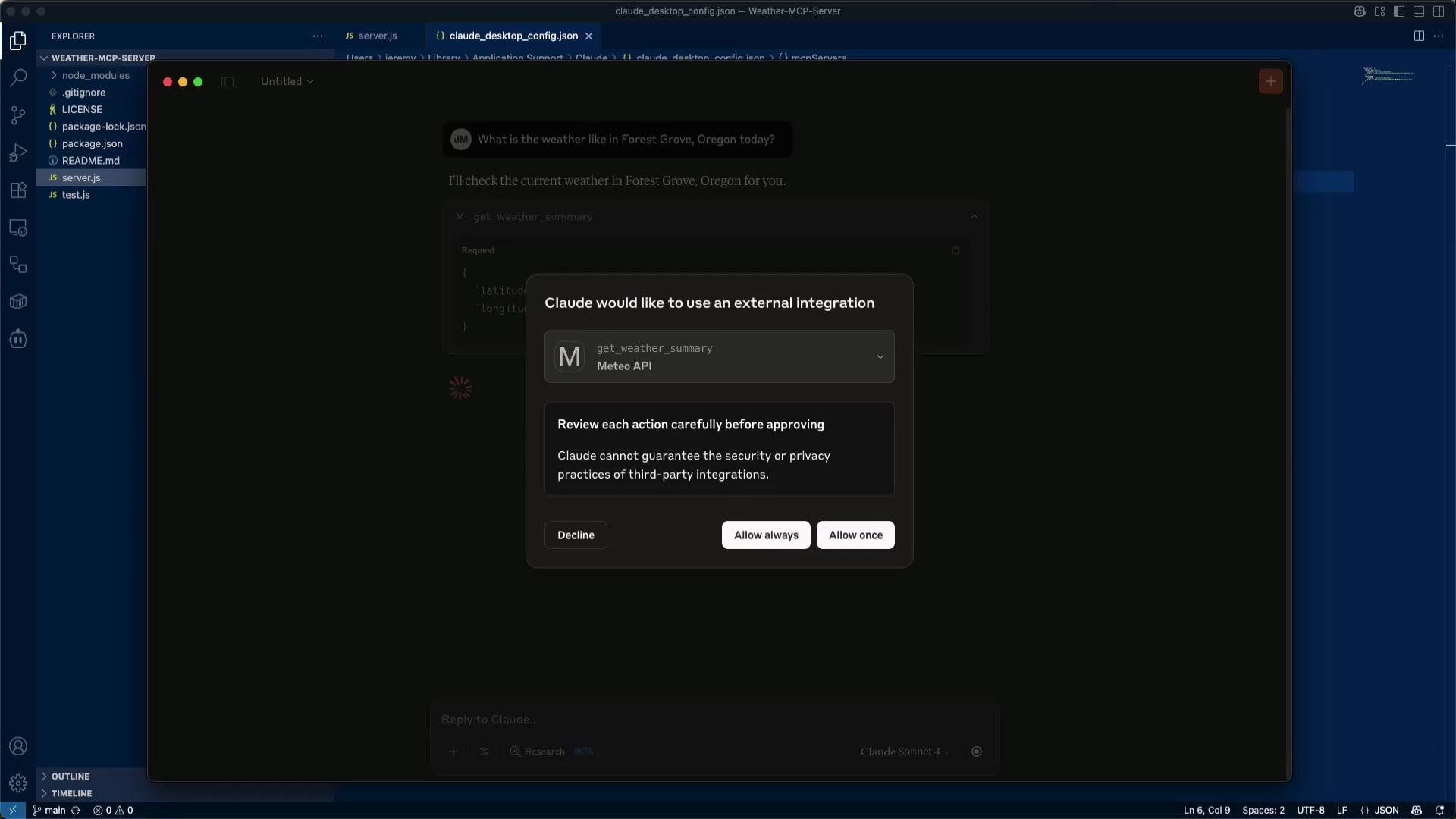
After saving and restarting Claude, the assistant will inspect advertised tools and their input schemas. When a user asks “What is the weather like in Forest Grove, Oregon today?” Claude can decide to call the appropriate tool and (if needed) infer or resolve parameters like lat/long.
When Claude requests permission to call an MCP tool, you’ll typically see a permission modal. Grant access to let the assistant call the tool.
When Postman launches the server, MCP messages are routed to your process and you should see the three advertised tools: `get_current_weather`, `get_weather_forecast`, and `get_weather_summary`.
Example MCP call (tool invocation)
Here’s a minimal MCP request body to call `get_current_weather` for latitude `45.4318` and longitude `-123.1426`:
```json theme={null}
{
"method": "tools/call",
"params": {
"name": "get_current_weather",
"arguments": {
"latitude": 45.4318,
"longitude": -123.1426
}
}
}
```
The server will respond with JSON containing current weather fields (temperature, wind speed, etc.).
Alternative: call Open-Meteo directly with curl
You can bypass MCP and call Open-Meteo directly for quick checks:
```bash theme={null}
curl "https://api.open-meteo.com/v1/forecast?latitude=45.4318&longitude=-123.1426&hourly=temperature_2m,relativehumidity_2m"
```
This returns raw JSON arrays of hourly `time`, `temperature_2m`, and `relativehumidity_2m`. MCP wraps that low-level API behind simple tool interfaces so an assistant can use names, inferred parameters, and validated inputs instead of constructing queries manually.
Integrating the MCP server with Claude
To allow Claude to call your local MCP server, add the server entry in Claude’s Developer settings (MCP servers list). Example `config.json` snippet (used for Claude’s local MCP entries):
```json theme={null}
{
"mcpServers": {
"Hacker News API": {
"command": "/usr/local/bin/node",
"args": ["/Users/jeremy/demos/postman-mcp-server/mcpServer.js"]
},
"Meteo API": {
"command": "/usr/local/bin/node",
"args": ["/Users/jeremy/demos/Weather-MCP-Server/server.js"]
}
}
}
```
After saving and restarting Claude, the assistant will inspect advertised tools and their input schemas. When a user asks “What is the weather like in Forest Grove, Oregon today?” Claude can decide to call the appropriate tool and (if needed) infer or resolve parameters like lat/long.
When Claude requests permission to call an MCP tool, you’ll typically see a permission modal. Grant access to let the assistant call the tool.
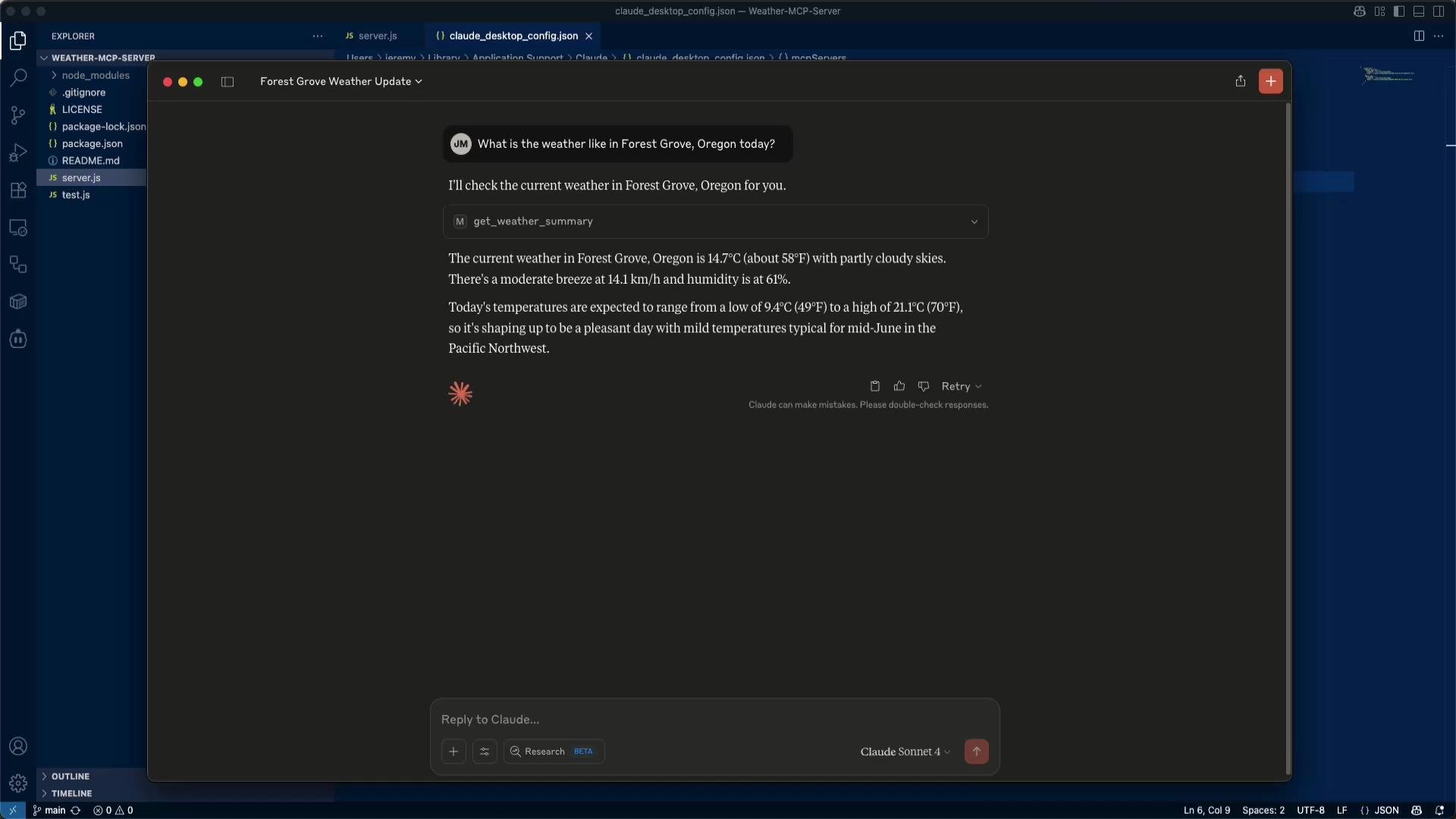
 After granting permission, Claude will call the tool and can return a natural-language summary combined with the raw data:
 Best practices and next steps
* Use input schemas to validate tool arguments and keep tool behavior explicit. That helps assistants choose tools appropriately.
* Prefer to keep MCP servers local or behind strict access controls. Don’t expose your local testing server directly to the public Internet without proper authentication.
* Use the `get_weather_summary` tool as a compact text response for chat UIs, while `get_current_weather` / `get_weather_forecast` provide structured data for downstream logic.
Do not expose local MCP servers publicly without authentication or firewall rules. MCP tools can access external APIs — treat them like any other backend service when it comes to security.
Why this matters
* LLMs supply natural-language understanding, reasoning, and parameter inference (e.g., mapping a place name to lat/long).
* An MCP server provides an explicit, auditable set of tools that call up-to-date external APIs.
* Combined, this is a simple Retrieval-Augmented Generation (RAG) pattern: a model reasons and generates while external APIs provide current facts.
Links and references
* Open-Meteo API: [https://open-meteo.com/](https://open-meteo.com/)
* Postman: [https://www.postman.com/](https://www.postman.com/)
* Claude: [https://claude.ai](https://claude.ai)
* Retrieval-Augmented Generation: [https://en.wikipedia.org/wiki/Retrieval-augmented\_generation](https://en.wikipedia.org/wiki/Retrieval-augmented_generation)
Start small: run the server locally, test with Postman, and then connect your assistant. Once you have the basic flow working, extend the server to support geocoding (resolve names → lat/long), caching, or rate-limiting for production use.
Thank you — enjoy experimenting with MCP and real-time APIs.
Best practices and next steps
* Use input schemas to validate tool arguments and keep tool behavior explicit. That helps assistants choose tools appropriately.
* Prefer to keep MCP servers local or behind strict access controls. Don’t expose your local testing server directly to the public Internet without proper authentication.
* Use the `get_weather_summary` tool as a compact text response for chat UIs, while `get_current_weather` / `get_weather_forecast` provide structured data for downstream logic.
Do not expose local MCP servers publicly without authentication or firewall rules. MCP tools can access external APIs — treat them like any other backend service when it comes to security.
Why this matters
* LLMs supply natural-language understanding, reasoning, and parameter inference (e.g., mapping a place name to lat/long).
* An MCP server provides an explicit, auditable set of tools that call up-to-date external APIs.
* Combined, this is a simple Retrieval-Augmented Generation (RAG) pattern: a model reasons and generates while external APIs provide current facts.
Links and references
* Open-Meteo API: [https://open-meteo.com/](https://open-meteo.com/)
* Postman: [https://www.postman.com/](https://www.postman.com/)
* Claude: [https://claude.ai](https://claude.ai)
* Retrieval-Augmented Generation: [https://en.wikipedia.org/wiki/Retrieval-augmented\_generation](https://en.wikipedia.org/wiki/Retrieval-augmented_generation)
Start small: run the server locally, test with Postman, and then connect your assistant. Once you have the basic flow working, extend the server to support geocoding (resolve names → lat/long), caching, or rate-limiting for production use.
Thank you — enjoy experimenting with MCP and real-time APIs.