> ## Documentation Index
> Fetch the complete documentation index at: https://notes.kodekloud.com/llms.txt
> Use this file to discover all available pages before exploring further.
# OpenAI API and Libraries
> Programmatic access to OpenAI’s models for integrating GPT features into applications using official SDKs and community libraries.
Programmatic access to OpenAI’s models enables seamless integration of GPT-powered features into your applications. In this guide, we’ll cover how to install and use the official OpenAI SDKs for Python and Node.js, leverage the OpenAI CLI for quick API operations, and explore community-maintained libraries.
## Official SDKs
For the latest SDKs, visit the [OpenAI documentation under “Libraries”](https://platform.openai.com/docs/libraries). Below is a quick overview:
| Language | Package | Install Command | Documentation |
| -------- | ------- | -------------------- | -------------------------------------------------------------------------- |
| Python | openai | `pip install openai` | [Python SDK Guide](https://platform.openai.com/docs/libraries/python) |
| Node.js | openai | `npm install openai` | [Node.js SDK Guide](https://platform.openai.com/docs/libraries/javascript) |
### Python SDK
#### Installation
```bash theme={null}
pip install openai
```
This single package provides both:
* The Python client library (`import openai`)
* The `openai` CLI tool for tasks like generating completions or fine-tuning models
Never commit your `OPENAI_API_KEY` in plaintext. Always load it from an environment variable or a secrets manager.
#### Quickstart Example
```python theme={null}
import os
import openai
# Load your API key securely
openai.api_key = os.getenv("OPENAI_API_KEY")
# Request a chat completion
response = openai.ChatCompletion.create(
model="gpt-3.5-turbo",
messages=[{"role": "user", "content": "Hello, world!"}]
)
print(response.choices[0].message.content)
```
#### Using the CLI
```bash theme={null}
openai api chat_completions.create \
-m gpt-3.5-turbo \
-g user "Hello, world!"
```
The `openai` CLI supports commands for completions, embeddings, file uploads, and fine-tuning. Run `openai --help` to explore all options.
### Node.js SDK
#### Installation
```bash theme={null}
npm install openai
```
#### Basic Usage (JavaScript)
```javascript theme={null}
import OpenAI from "openai";
const openai = new OpenAI({
apiKey: process.env.OPENAI_API_KEY
});
async function chat() {
const response = await openai.chat.completions.create({
model: "gpt-3.5-turbo",
messages: [{ role: "user", content: "Hello, world!" }]
});
console.log(response.choices[0].message.content);
}
chat();
```
For TypeScript examples and advanced configurations, see the [Node.js SDK Guide](https://platform.openai.com/docs/libraries/javascript).
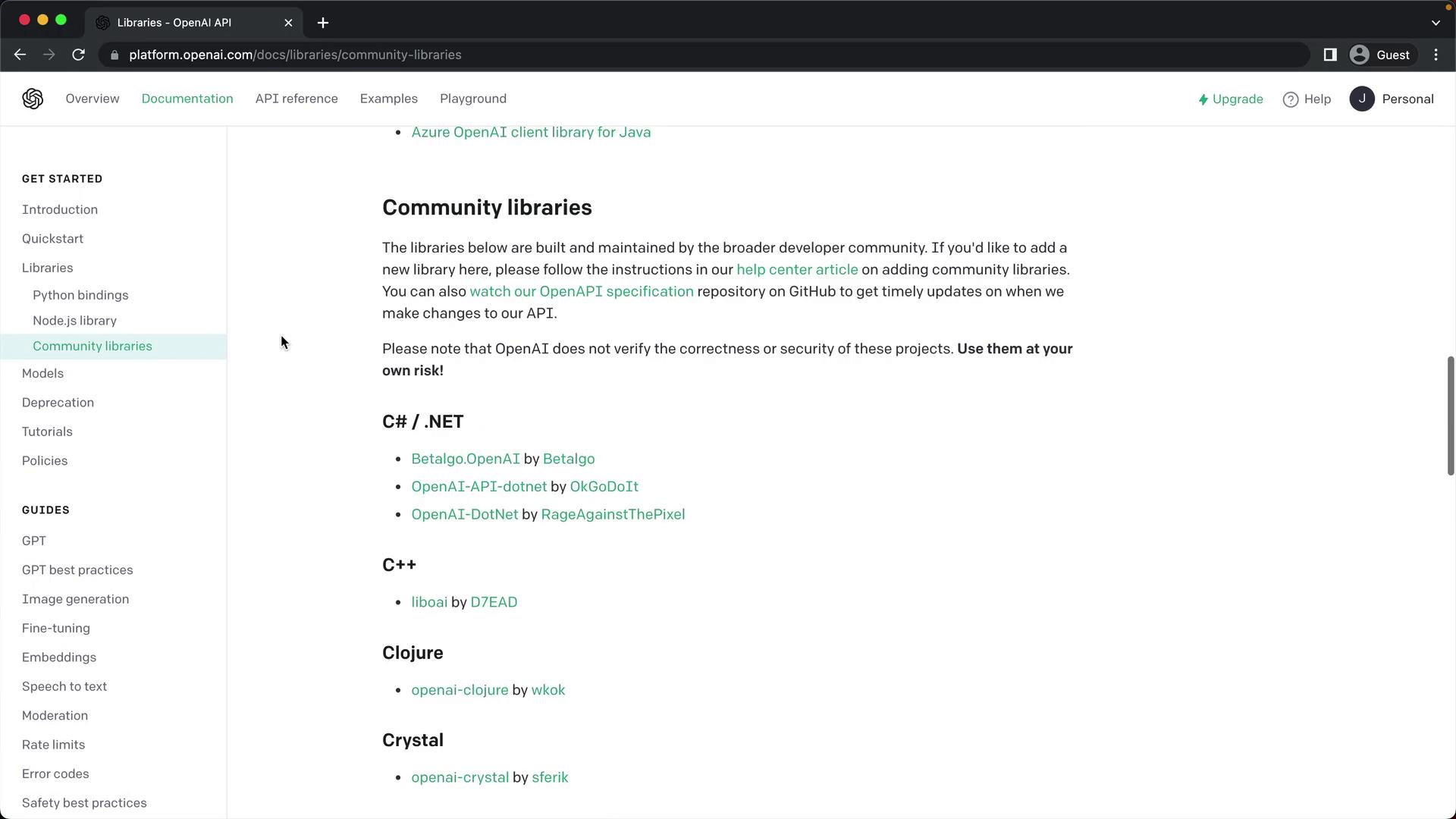
## Community Libraries
OpenAI’s documentation also links to community-maintained libraries across various languages. Use these with caution, as they are not officially supported:
## Next Steps
Now that you have the SDKs installed and the CLI at your fingertips, you’re ready to configure your development environment and build your first Python application that calls the OpenAI API.
## Links and References
* [OpenAI SDKs](https://platform.openai.com/docs/libraries)
* [OpenAI API Reference](https://platform.openai.com/docs/api-reference)
* [Managing API Keys](https://platform.openai.com/docs/api-keys)