> ## Documentation Index
> Fetch the complete documentation index at: https://notes.kodekloud.com/llms.txt
> Use this file to discover all available pages before exploring further.
# OpenAI Playground
> An interactive platform for testing and experimenting with the OpenAI API, featuring various modes and presets for different tasks.
Before you begin, make sure you have an OpenAI account and have configured your API key.
Set your API key in the environment to authenticate requests:
```bash theme={null}
export OPENAI_API_KEY="your_api_key_here"
```
Once in your account, click **Playground** in the top navigation to access the interface.
## Playground Interface Overview
The Playground is organized into three main sections:
* **Getting Started** panel (left): Usage guidelines, best practices, and limitations.
* **Presets** toolbar (top): Quickly load common tasks like Classification, Chat, and more.
* **Editor & Controls** (center and right): Write prompts and adjust parameters such as `temperature` and `max_tokens`.
## Classification Preset: Company Category Labeling
Select the **Classification** preset to label items by category. By default, you’ll see examples like Apple, Facebook, and FedEx. Let’s classify “Apple”:
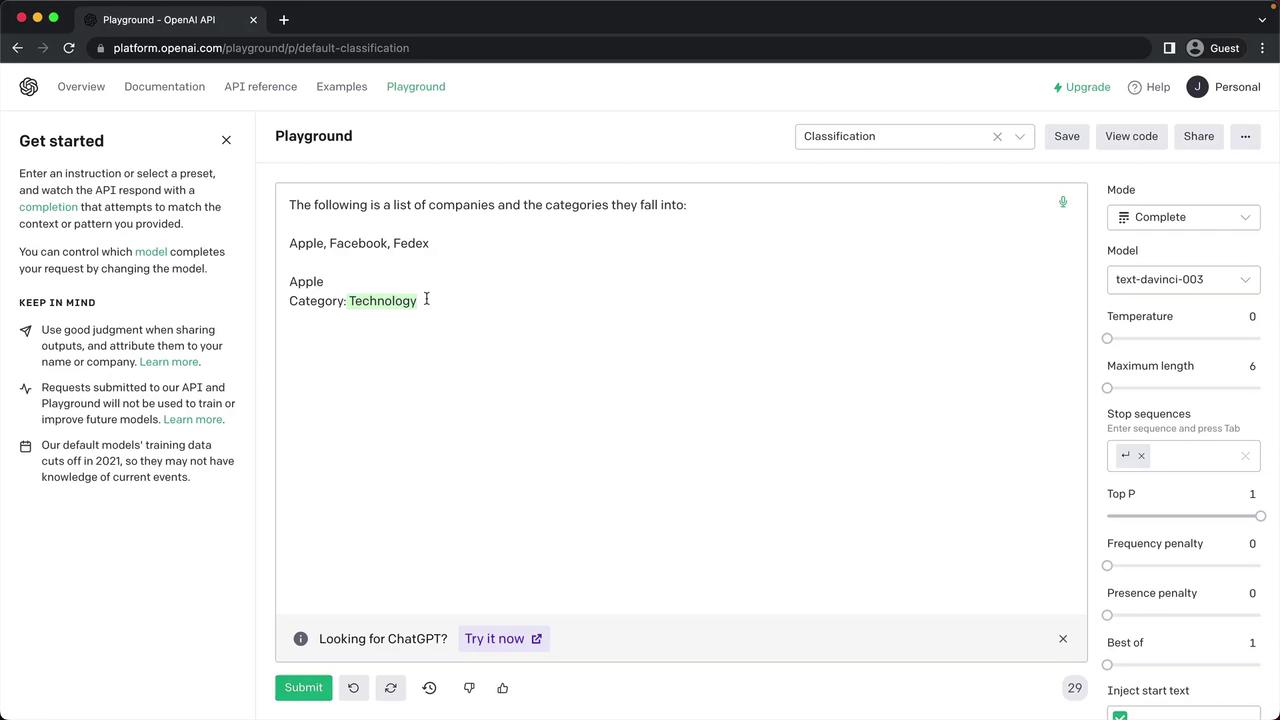
It correctly labels Apple as a technology company.
Below the editor, click **View Code** to examine the underlying API request in languages such as Python, Node.js, or raw JSON. For example, here’s the Python snippet:
```python theme={null}
import os
import openai
openai.api_key = os.getenv("OPENAI_API_KEY")
response = openai.Completion.create(
model="text-davinci-003",
prompt="The following is a list of companies and the categories they belong to:",
temperature=0,
max_tokens=6,
top_p=1,
frequency_penalty=0,
presence_penalty=0,
stop=["\n"]
)
print(response.choices[0].text.strip())
```
## Experimenting with Models & Parameters
Beyond presets, the Playground lets you switch between models—such as `text-davinci-003` and `gpt-3.5-turbo`—and fine-tune parameters. Hover over any label to view its description and experiment to see how changes affect output.
Adjusting parameters like `max_tokens` and `temperature` directly impacts response quality, token usage, and billing. Monitor your usage in the [OpenAI Dashboard](https://platform.openai.com/account/usage).
## Modes Overview
The Playground offers four modes to suit different tasks:
| Mode | Use Case | Example Prompt |
| -------- | --------------------------- | --------------------------------------------- |
| Complete | Generate finished text | `Write a tagline for an online bicycle shop.` |
| Chat | Conversational interactions | System/User messages for a Q\&A session |
| Insert | Fill in placeholders | `[Insert the body of an announcement email…]` |
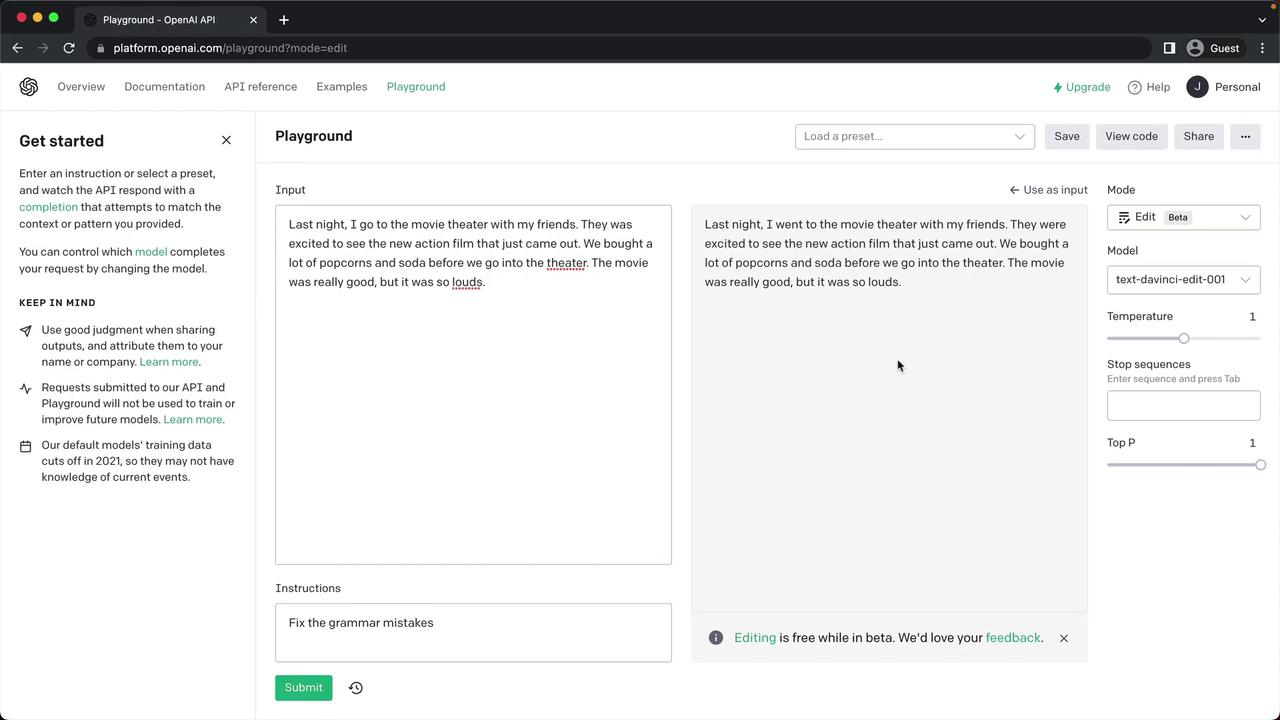
| Edit | Revise or correct text | `Fix the grammar mistakes in the paragraph…` |
### 1. Complete Mode
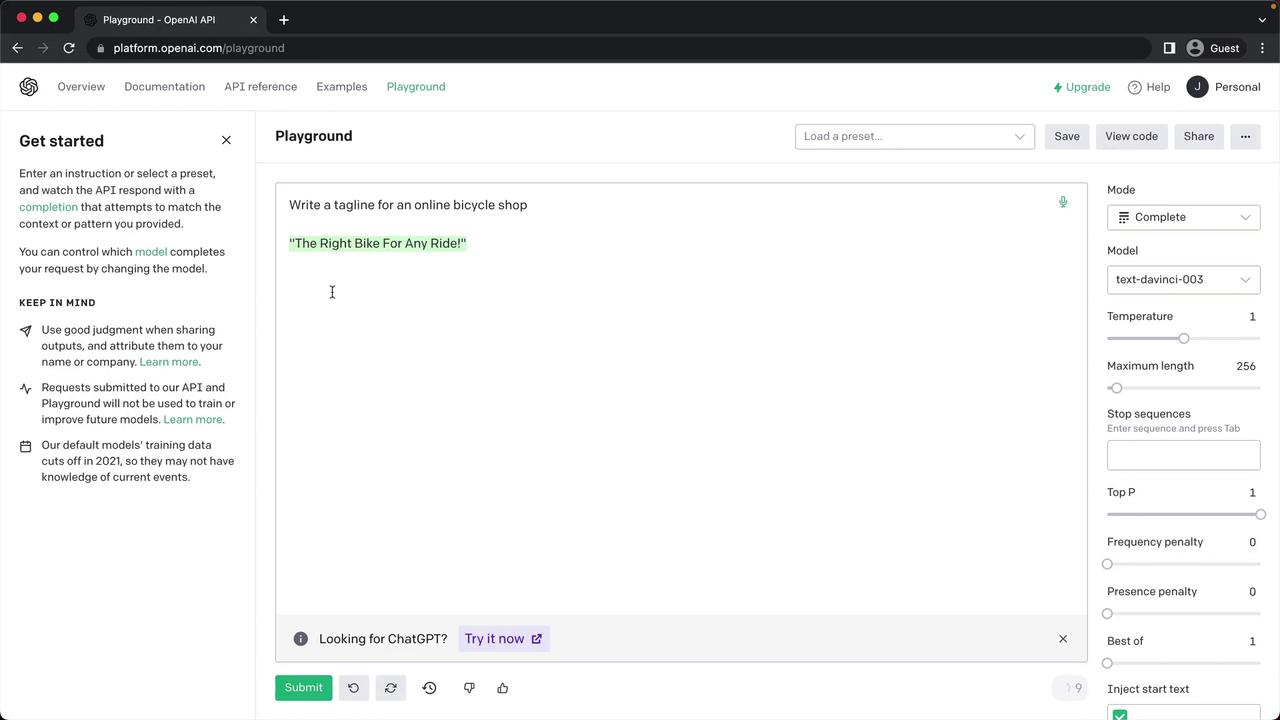
In **Complete** mode, you get free-form text completions. For instance, ask for a tagline:
```text theme={null}
Write a tagline for an online bicycle shop.
```
Click **Submit**, and you might see:
> The Right Bike for Any Ride!
### 2. Chat Mode
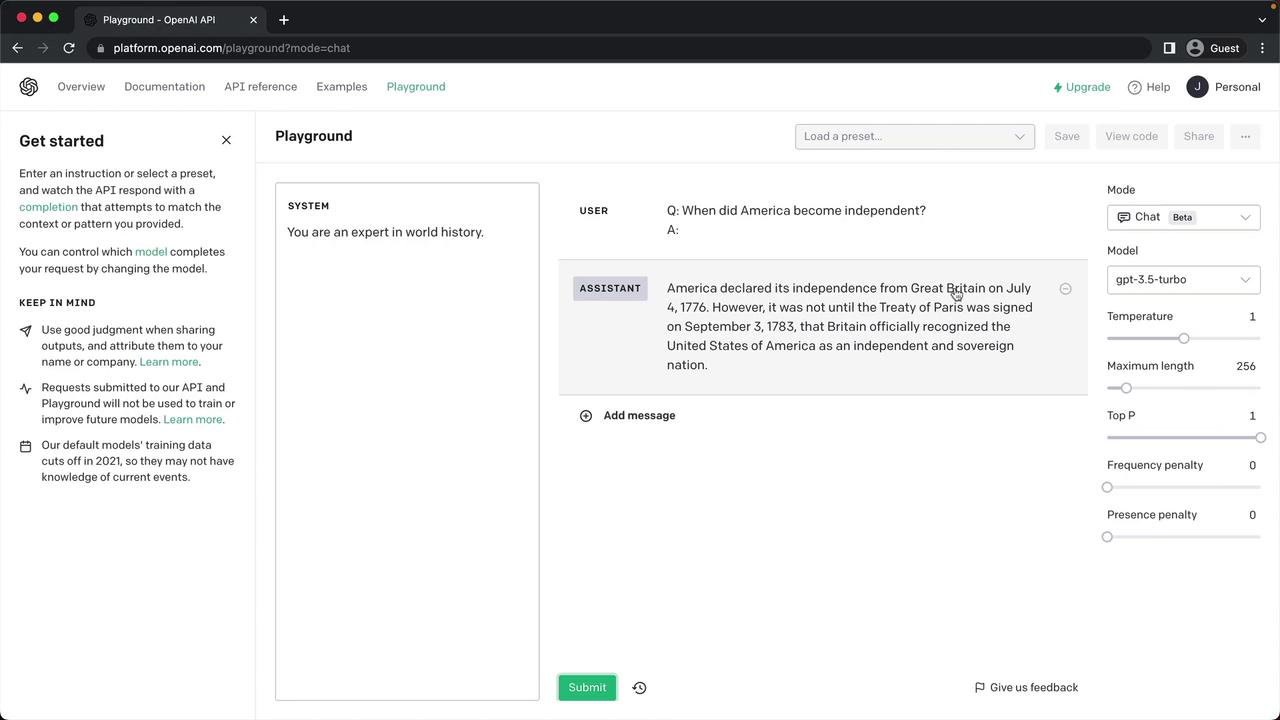
Switch to **Chat** to leverage conversational models like GPT-3.5 Turbo. For example, role-play a history professor:
* **System prompt:** “You are an expert in world history.”
* **User prompt:** “When did America become independent?”
Submit to receive a detailed response:
### 3. Insert Mode
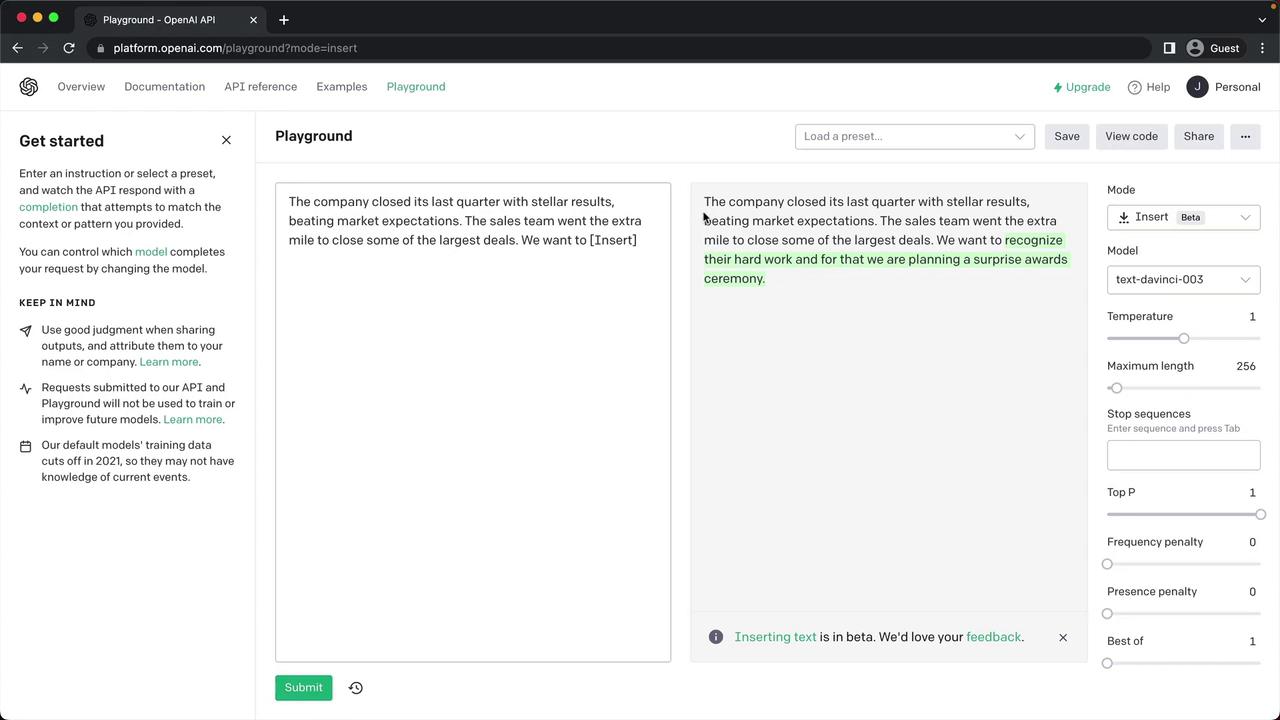
Use **Insert** mode to tell the model where to fill in text. Example:
```text theme={null}
[Insert the body of an announcement email recognizing sales teams for their performance.]
```
Submit to generate a complete email section:
### 4. Edit Mode
In **Edit** mode, paste existing text and ask the model to improve or correct it:
```text theme={null}
Fix the grammar mistakes in the following paragraph:
"Last night i went to the movie blah blah blah..."
```
After submission, you’ll receive a polished version:
***
You now have an overview of the OpenAI Playground’s presets, models, modes, and parameter controls. Continue experimenting to uncover best practices and optimize your prompts.
## Further Reading
* [OpenAI API Documentation](https://platform.openai.com/docs)
* [Playground Guide](https://platform.openai.com/playground)
* [Model Reference](https://platform.openai.com/docs/models)