> ## Documentation Index
> Fetch the complete documentation index at: https://notes.kodekloud.com/llms.txt
> Use this file to discover all available pages before exploring further.
# Setting Up OpenAI Account
> A quick guide to creating an OpenAI account and configuring API access for building AI-powered applications.
A quick guide to creating an OpenAI account and configuring API access. Follow these steps to start building AI-powered applications in minutes.
## 1. Create Your OpenAI Account
1. Navigate to [openai.com](https://openai.com) and click **Sign Up**.
2. Enter a valid email address and choose a strong password.
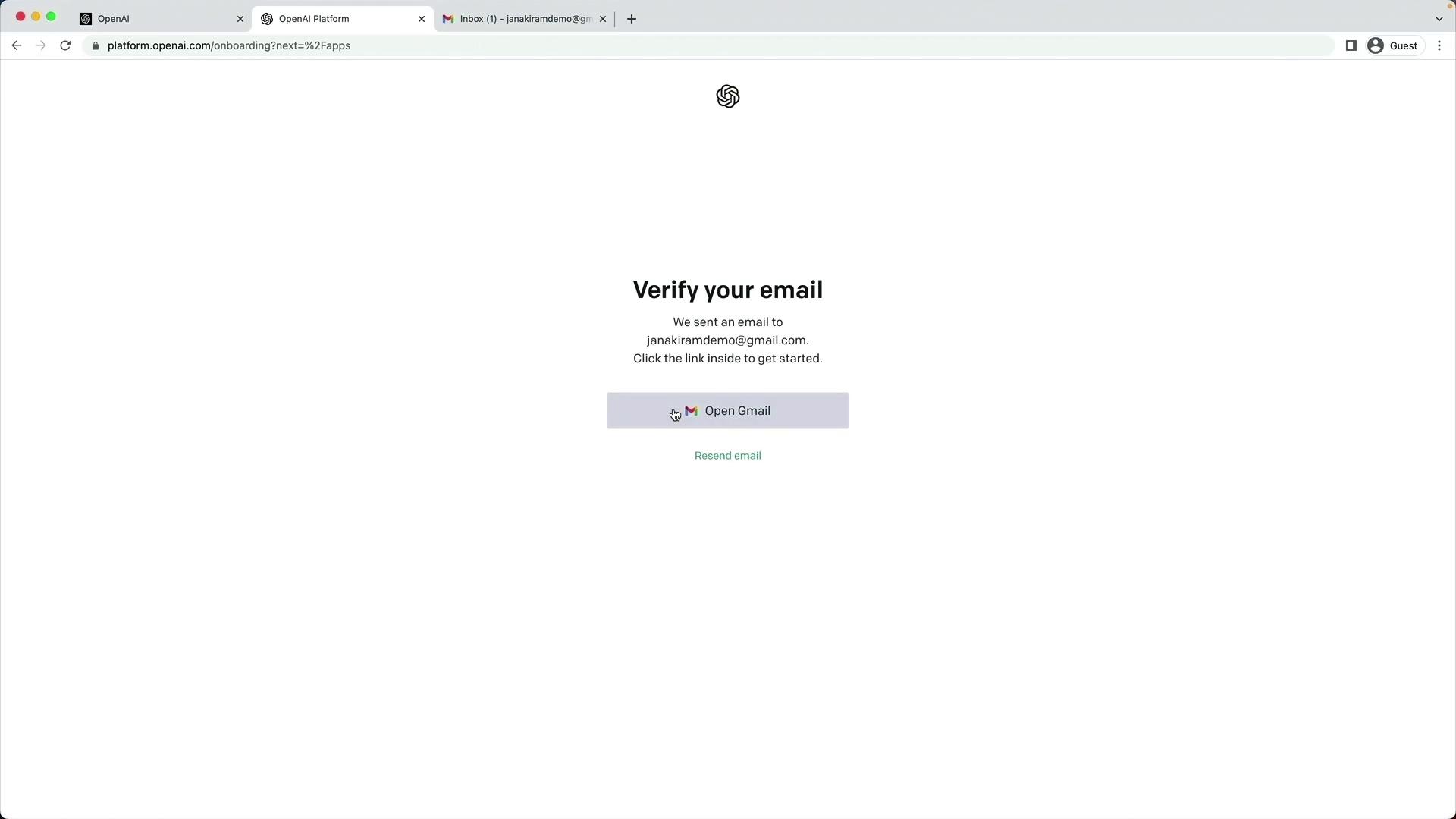
3. Open the verification email from OpenAI and click the confirmation link.
## 2. Complete Your Profile
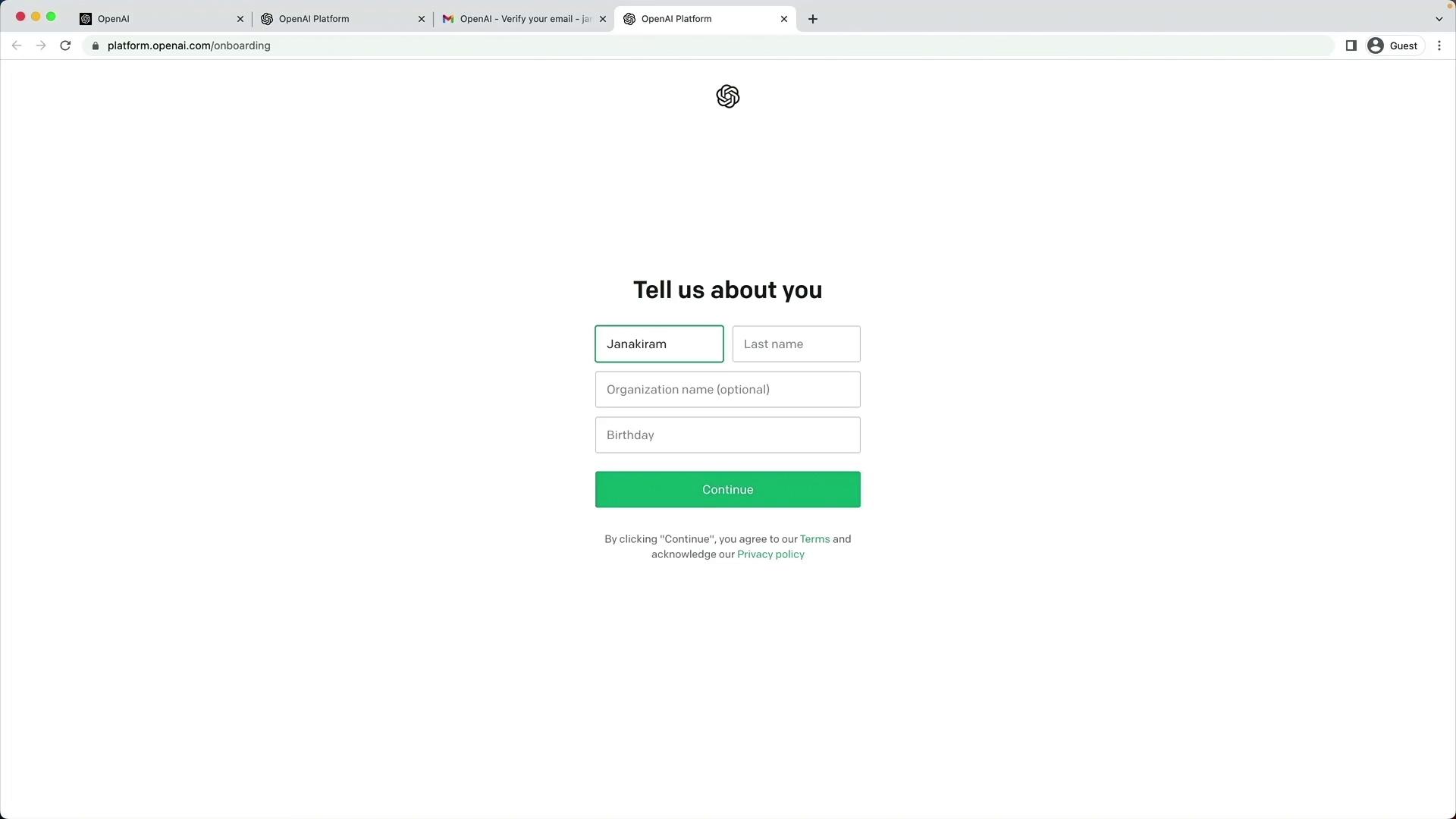
After email verification, fill in your personal and organizational details:
* First name
* Last name
* Organization name
* Birthday
Click **Continue** to proceed.
## 3. Verify Your Phone Number
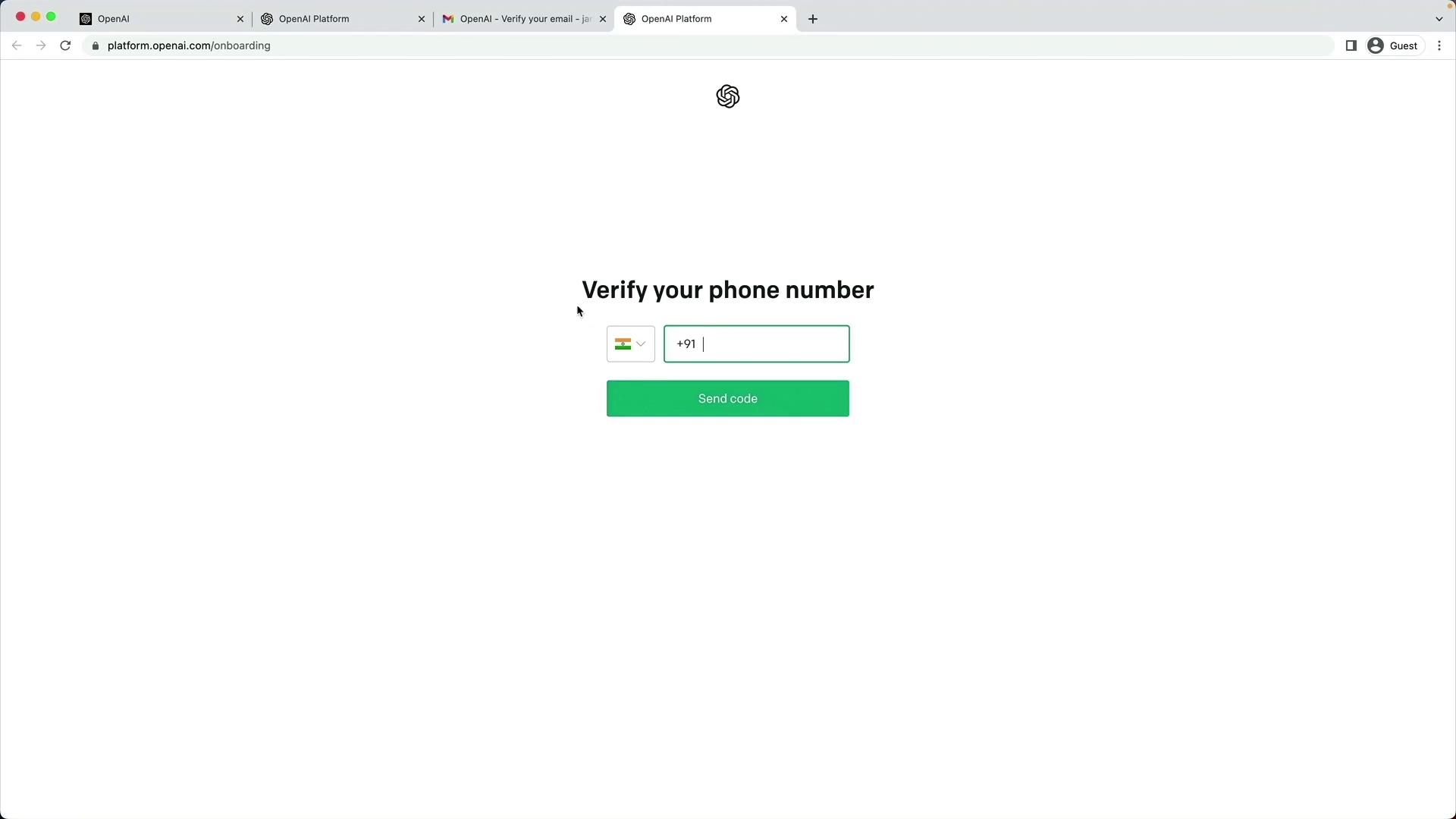
To enhance account security, OpenAI requires phone verification:
1. Enter your phone number.
2. Click **Send code**.
3. Input the one-time password (OTP) you receive.
## 4. Access the API Dashboard
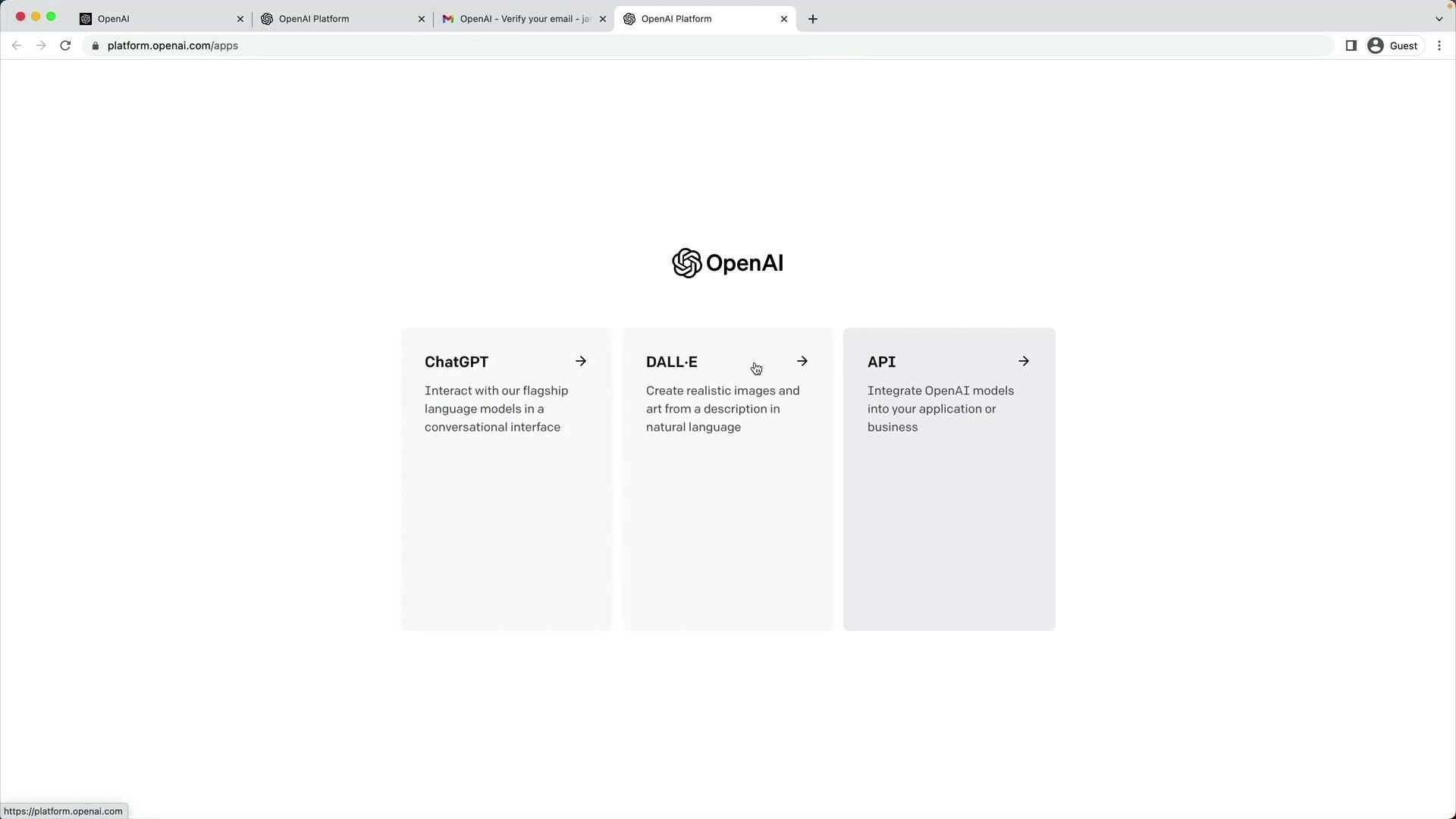
Once your identity is confirmed, you’ll be directed to the OpenAI dashboard. Choose **API** to view your API keys, usage stats, and documentation.
## 5. Monitor Usage & Configure Billing
On the API dashboard, you can track your API calls, review your free credits, and add a payment method:
* New users receive \$5 in free trial credits.
* To continue past the trial limit, click **Upgrade** and submit billing details.
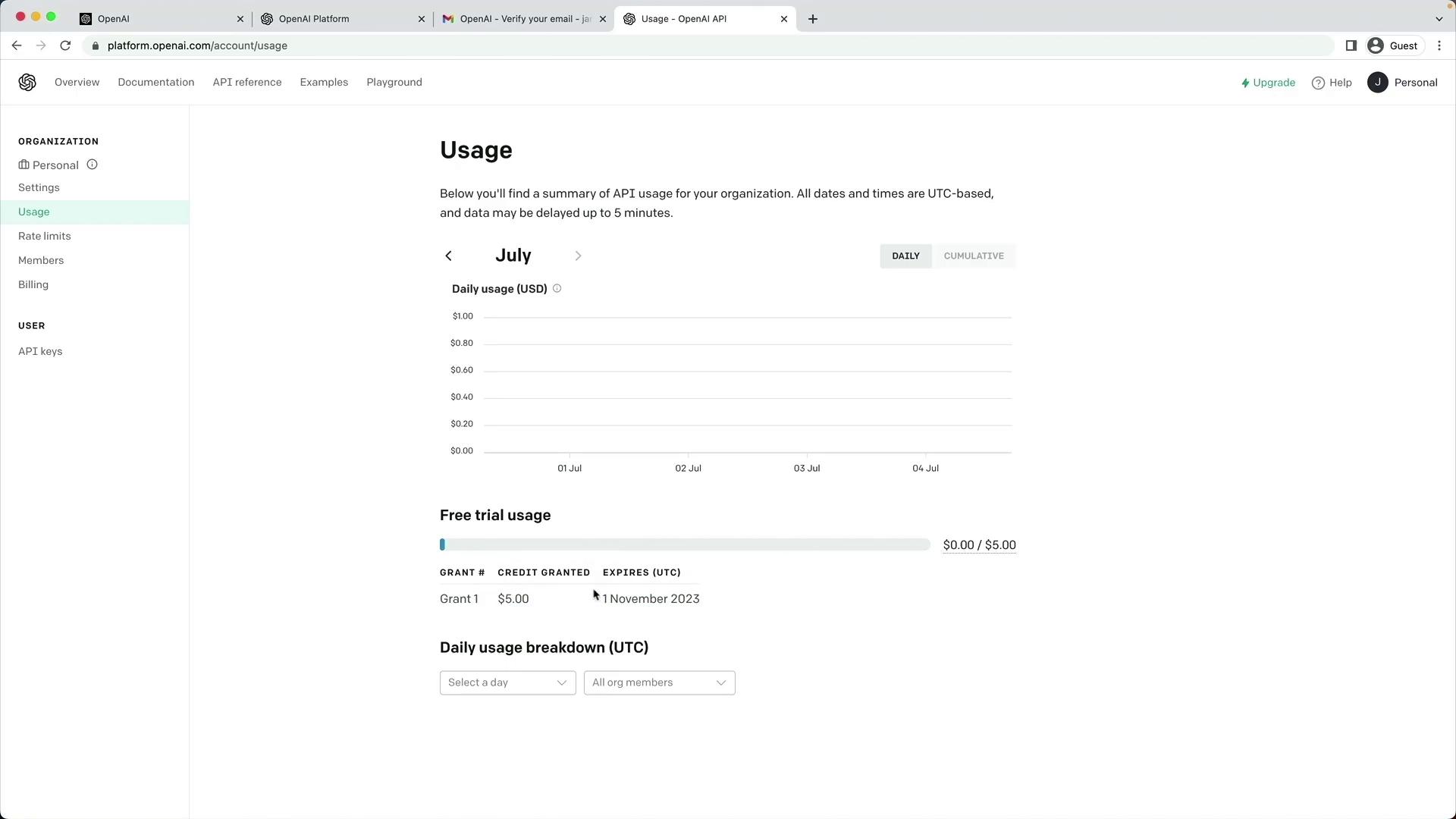
Your \$5 free-trial credits expire after three months. Keep an eye on your usage to avoid unexpected charges.
Treat your API keys like passwords. Never expose them in public code repositories.
## OpenAI Services Overview
| Service | Purpose | Documentation |
| ------- | -------------------------------- | --------------------------------------------------------------- |
| ChatGPT | Real-time conversational AI | [Chat Guide](https://platform.openai.com/docs/guides/chat) |
| DALL·E | Text-to-image generation | [Image Guide](https://platform.openai.com/docs/guides/images) |
| API | Programmatic access to AI models | [API Reference](https://platform.openai.com/docs/api-reference) |
## Next Steps
Now that your account and API access are set up:
* Review the [OpenAI API Quickstart](https://platform.openai.com/docs/quickstart).
* Explore SDKs and sample code on [GitHub](https://github.com/openai).
* Join the [OpenAI Community Forum](https://community.openai.com/) for support and tips.
## References
* [OpenAI Platform Documentation](https://platform.openai.com/docs)
* [OpenAI Pricing](https://openai.com/pricing)
* [Authentication Guide](https://platform.openai.com/docs/guides/authentication)