> ## Documentation Index
> Fetch the complete documentation index at: https://notes.kodekloud.com/llms.txt
> Use this file to discover all available pages before exploring further.
# Understanding Azure hierarchy
> This article explains Azures hierarchy, including management groups, subscriptions, and resource groups, for efficient resource management and policy enforcement.
Azure's hierarchy is a crucial concept for efficiently managing resources, enforcing policies, and monitoring costs. This article explains the structure of Azure's hierarchy—comprising management groups, subscriptions, and resource groups—and how these components work together.
## Management Groups
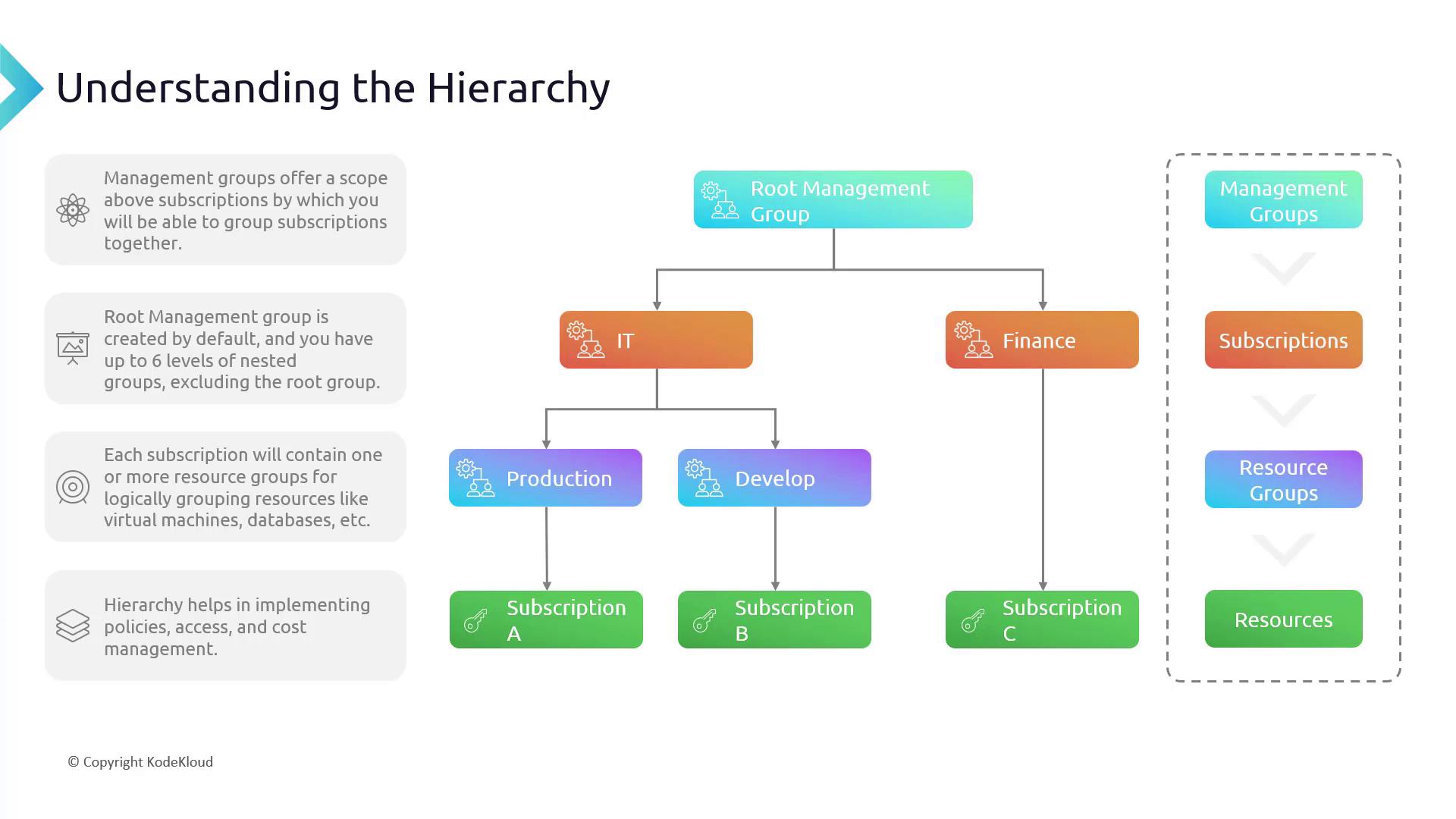
When managing multiple projects or departments with separate Azure subscriptions, management groups provide an effective way of consolidating administration. They enable you to group subscriptions under a single hierarchical structure, making it easier to apply policies and governance across the organization.
At the top of the hierarchy is the root management group, which is provided by default. This ultimate parent oversees all other groups and subscriptions. Azure supports nesting up to six levels beneath the root management group, accommodating even complex organizational requirements.
For instance, consider the diagram below, which illustrates a root management group containing two management groups—"IT" and "Finance." Under the "IT" management group, further subdivisions like Production and Development may be used to segregate environments.
## Subscriptions and Resource Groups
Descending down the hierarchy, each subscription in Azure serves as a distinct account in which resources are provisioned. Within a subscription, resources are logically organized into resource groups. Resource groups are containers that house virtual machines, databases, app services, and other assets, enabling granular management of settings, policies, and budgets.
This structured approach is essential for robust governance, controlled access, and effective cost management. It provides a comprehensive overview of your resources while allowing flexibility to focus on individual components as necessary.
## Working with Management Groups in the Azure Portal
Managing Azure's hierarchy is straightforward via the Azure portal. The following steps illustrate how to create and manage management groups:
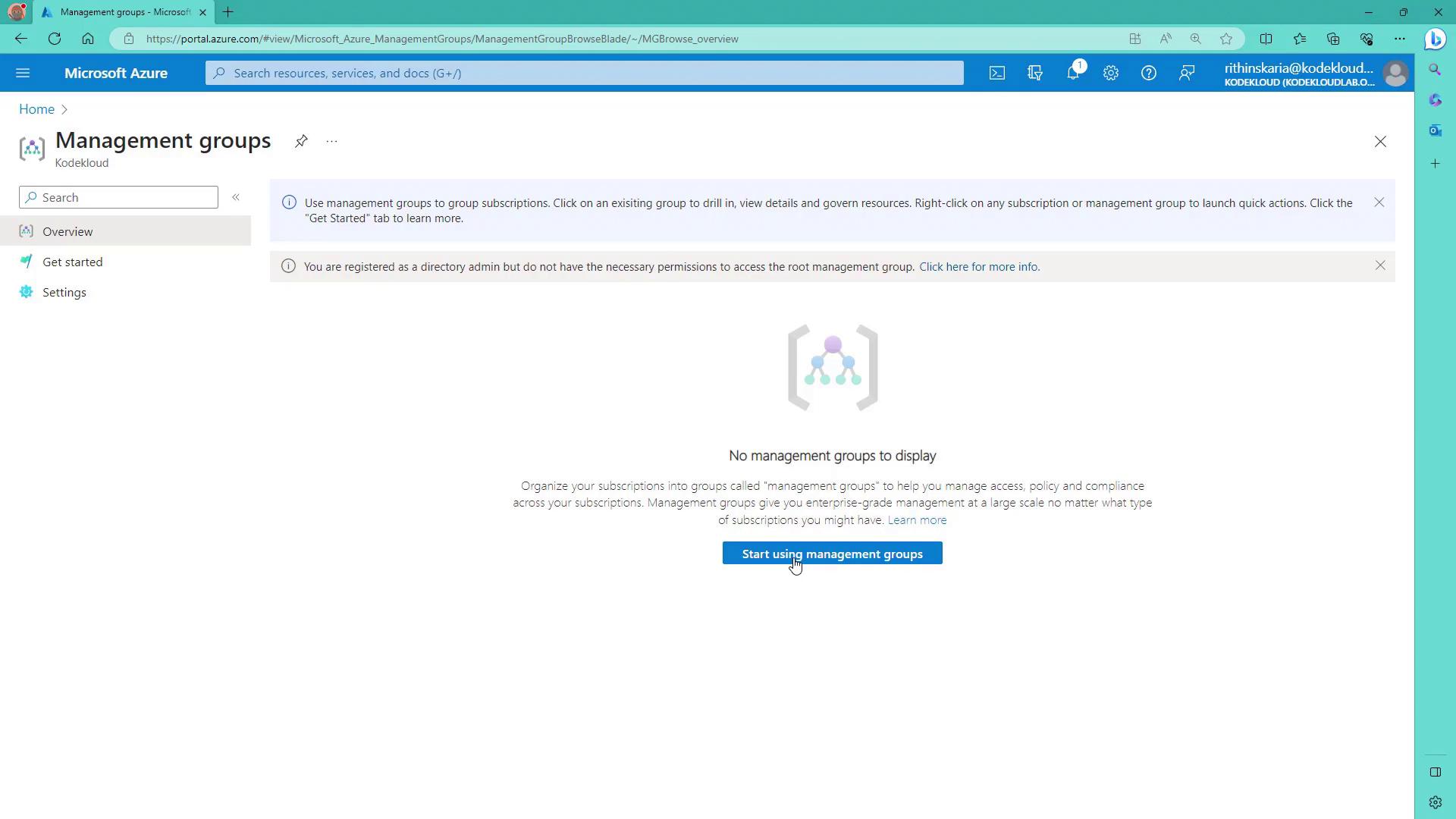
1. When you access the management groups section for the first time, you'll encounter a button labeled "Start using management groups." Clicking this initiates the creation of the root management group.
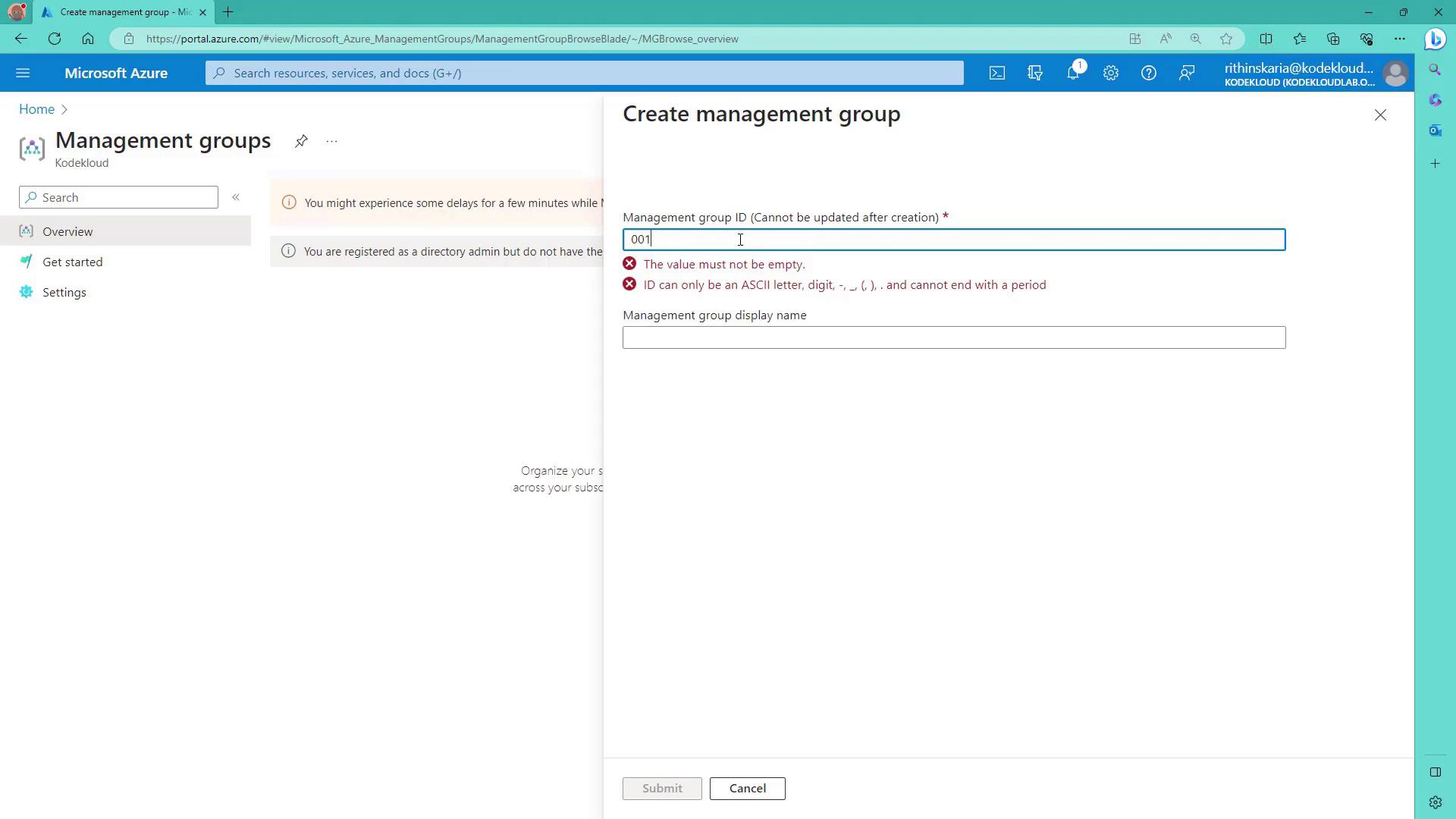
2. After initialization, you are prompted to set up a new management group (e.g., assign an ID like "001" and a name such as "IT").
During creation, you might encounter validation errors. For example, the system might indicate that the management group ID cannot be empty and must adhere to specific character rules.
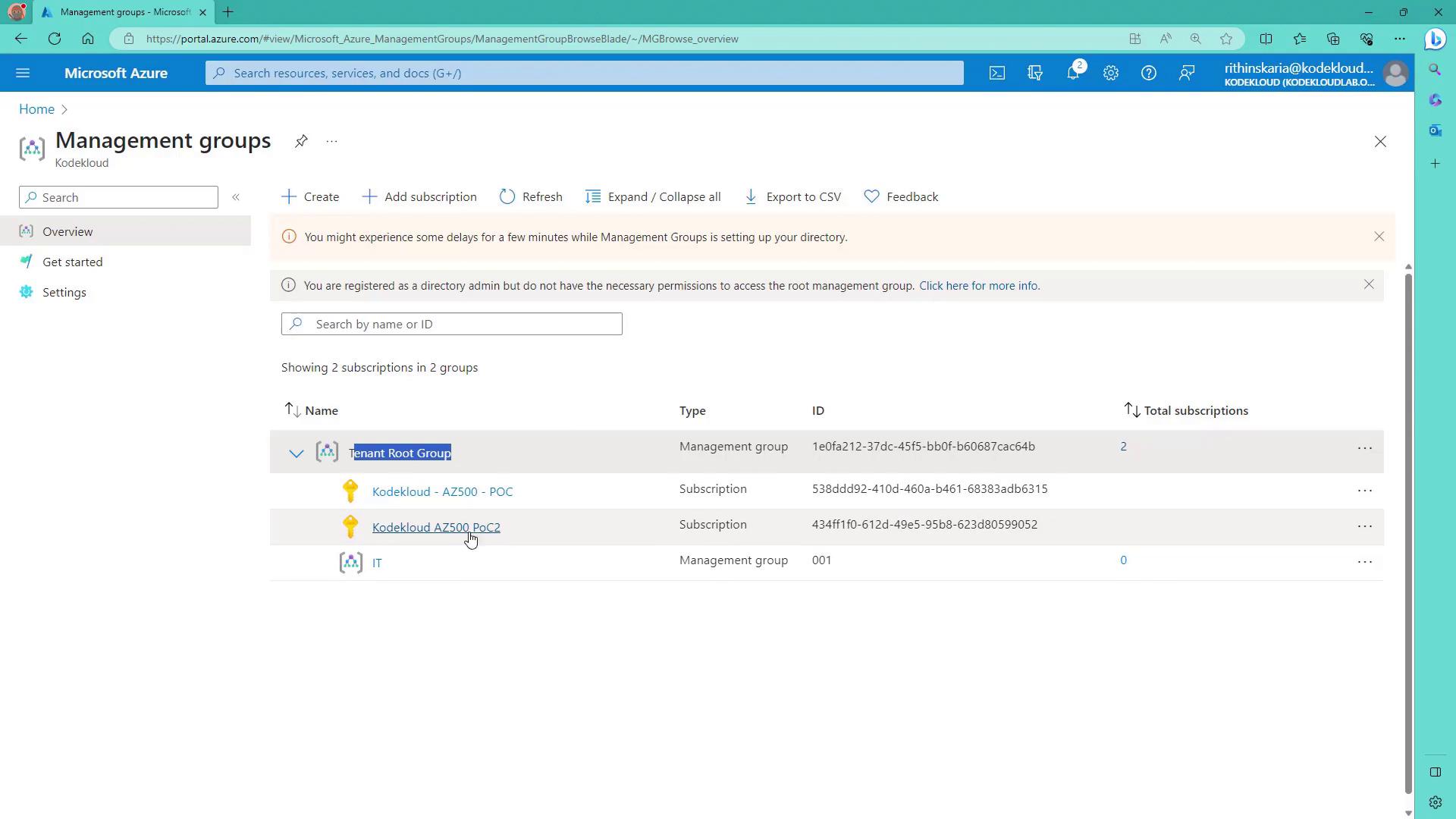
Once the management group is submitted successfully, the portal displays the tenant root group along with a list of available subscriptions. You can easily move subscriptions to their appropriate management groups by selecting a subscription and clicking "Move" to assign it—for example, to the "IT" group.
## Elevated Permissions and Access Control
To move subscriptions or manage the tenant root group, you must have elevated permissions through Azure Active Directory (Azure AD). Typically, this requires Global Administrator rights.
Without these elevated permissions, you may not be able to perform certain actions. Once the necessary permissions are assigned, you can click on a management group like "IT" to configure access control, review security policies, analyze costs, and set budgets.
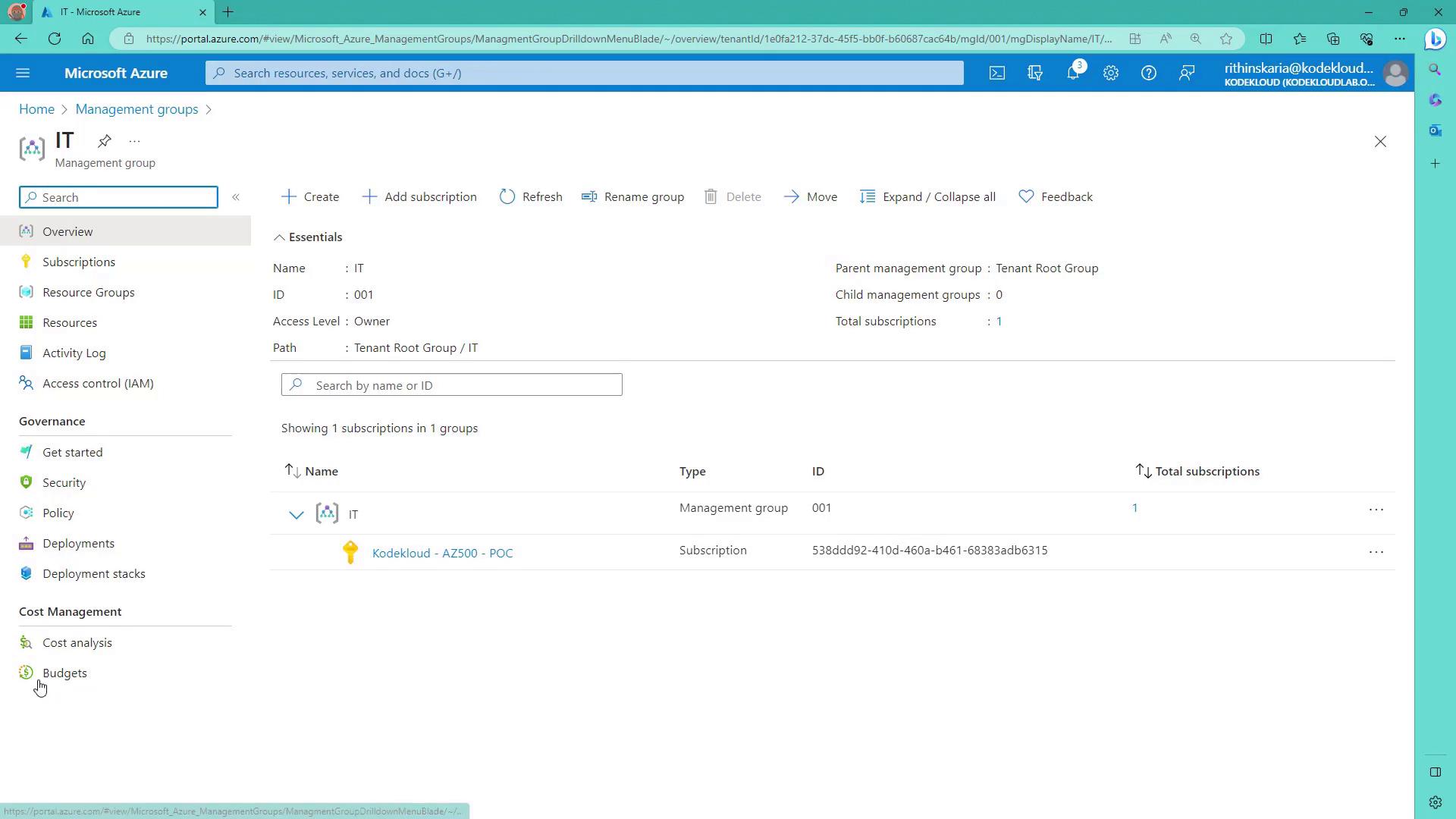
Be aware that governance and cost management features are not available for the tenant root group unless you have the required elevated permissions. If you attempt to access the root group without proper rights, you will receive an authorization error.
## Summary of Azure Hierarchy Components
Below is a concise summary of the key components of Azure's hierarchy:
| Component | Description | Example |
| --------------------- | ----------------------------------------------------------------------------------------------- | ---------------- |
| **Management Groups** | Top-level grouping that organizes subscriptions and nested management groups. | "IT", "Finance" |
| **Subscriptions** | Accounts under which resources are provisioned. They are organized under management groups. | Subscription 001 |
| **Resource Groups** | Logical containers for resources within subscriptions such as virtual machines, databases, etc. | Production/V2 |
This structure is designed for efficient policy management, access control, and cost oversight. Additionally, Role-Based Access Control (RBAC) provides a finer level of control over who can access and manage specific resources within your organization.
For more detailed information on Azure and its features, consider referring to these resources:
* [Azure Documentation](https://docs.microsoft.com/en-us/azure/)
* [Azure Governance](https://docs.microsoft.com/en-us/azure/governance/)
Happy learning!