> ## Documentation Index
> Fetch the complete documentation index at: https://notes.kodekloud.com/llms.txt
> Use this file to discover all available pages before exploring further.
# Explore hub and spoke topology
> Guide to configuring Azure hub-and-spoke networking with route tables and Azure Firewall to control spoke-to-spoke and outbound traffic, plus verification steps and firewall rule examples.
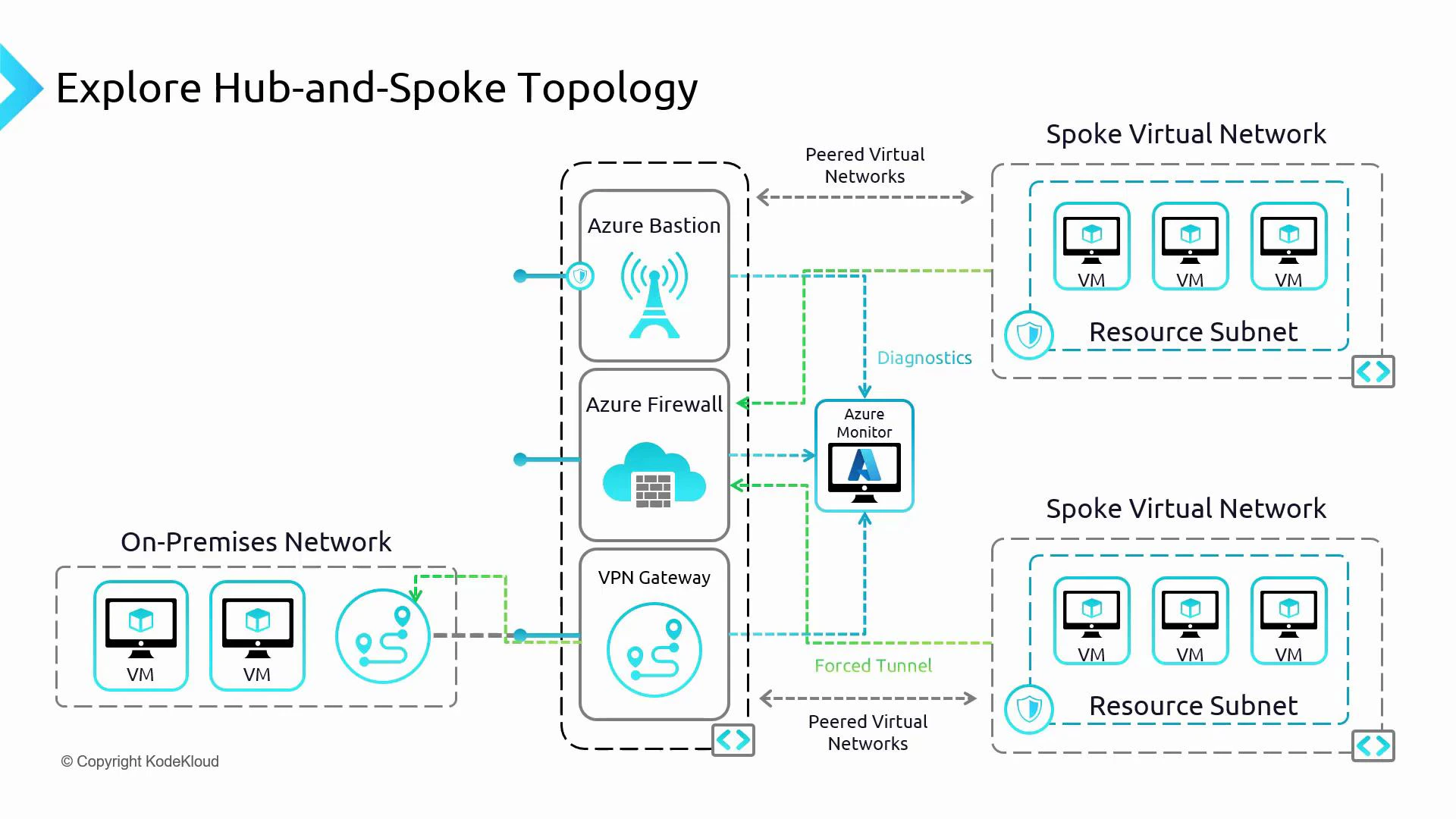
This guide shows a practical Azure hub-and-spoke network pattern focused on perimeter security using Azure Firewall in the hub to control traffic between two spoke VNets. Bastion and VPN Gateway configuration are intentionally out of scope — this lesson concentrates on routing, firewall rules, and verifying connectivity.
In a typical Azure hub-and-spoke topology the hub VNet hosts shared services such as Azure Firewall, Azure Bastion, and a VPN gateway, while spoke VNets host application or workload subnets. The hub acts as a central inspection and routing point and can connect to on-premises networks or other hubs.
Key hub responsibilities:
* Centralized traffic inspection and filtering with Azure Firewall.
* Secure management access via Azure Bastion (no public RDP/SSH ports required).
* Encrypted site-to-site connections via a VPN gateway.
* Centralized logging and telemetry through Azure Monitor.
 What you'll do in this walkthrough
* Create and attach a route table for Spoke B so that non-internal traffic is routed to the hub firewall.
* Associate the route table with the spoke subnet.
* Add Azure Firewall network rules to allow specific spoke-to-spoke communication.
* Verify connectivity and HTTP/HTTPS behavior based on the firewall rules.
Important resources
* [Azure Firewall documentation](https://learn.microsoft.com/azure/firewall)
* [Azure Virtual Network peering](https://learn.microsoft.com/azure/virtual-network/virtual-network-peering-overview)
* [Route table overview](https://learn.microsoft.com/azure/virtual-network/route-tables-overview)
Create and configure the route table for Spoke B
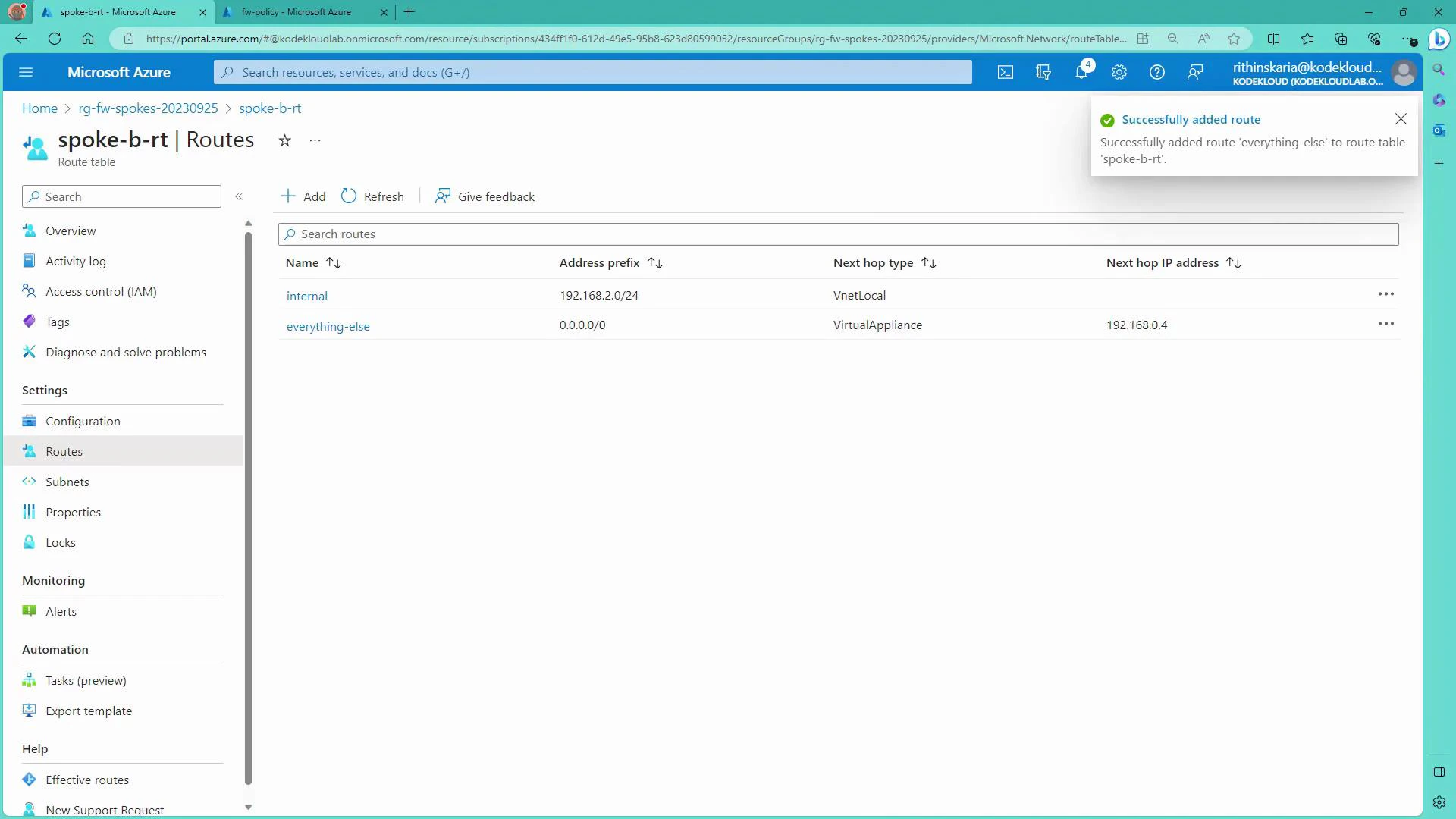
1. In the Azure portal, create a route table in the Spoke resource group and name it `SpokeBRT` (Spoke B Route Table).
2. Add these two routes to `SpokeBRT`:
| Route name | Destination CIDR | Next hop type | Next hop address / notes |
| --------------- | ---------------- | ----------------- | -------------------------------------- |
| internal | 192.168.2.0/24 | Virtual network | Keeps local subnet traffic local |
| everything-else | 0.0.0.0/0 | Virtual appliance | 192.168.0.4 (Azure Firewall IP in hub) |
After adding the routes, the portal shows confirmation that the "everything-else" route was added:
What you'll do in this walkthrough
* Create and attach a route table for Spoke B so that non-internal traffic is routed to the hub firewall.
* Associate the route table with the spoke subnet.
* Add Azure Firewall network rules to allow specific spoke-to-spoke communication.
* Verify connectivity and HTTP/HTTPS behavior based on the firewall rules.
Important resources
* [Azure Firewall documentation](https://learn.microsoft.com/azure/firewall)
* [Azure Virtual Network peering](https://learn.microsoft.com/azure/virtual-network/virtual-network-peering-overview)
* [Route table overview](https://learn.microsoft.com/azure/virtual-network/route-tables-overview)
Create and configure the route table for Spoke B
1. In the Azure portal, create a route table in the Spoke resource group and name it `SpokeBRT` (Spoke B Route Table).
2. Add these two routes to `SpokeBRT`:
| Route name | Destination CIDR | Next hop type | Next hop address / notes |
| --------------- | ---------------- | ----------------- | -------------------------------------- |
| internal | 192.168.2.0/24 | Virtual network | Keeps local subnet traffic local |
| everything-else | 0.0.0.0/0 | Virtual appliance | 192.168.0.4 (Azure Firewall IP in hub) |
After adding the routes, the portal shows confirmation that the "everything-else" route was added:
 Verify public connectivity to the VM before associating the route table
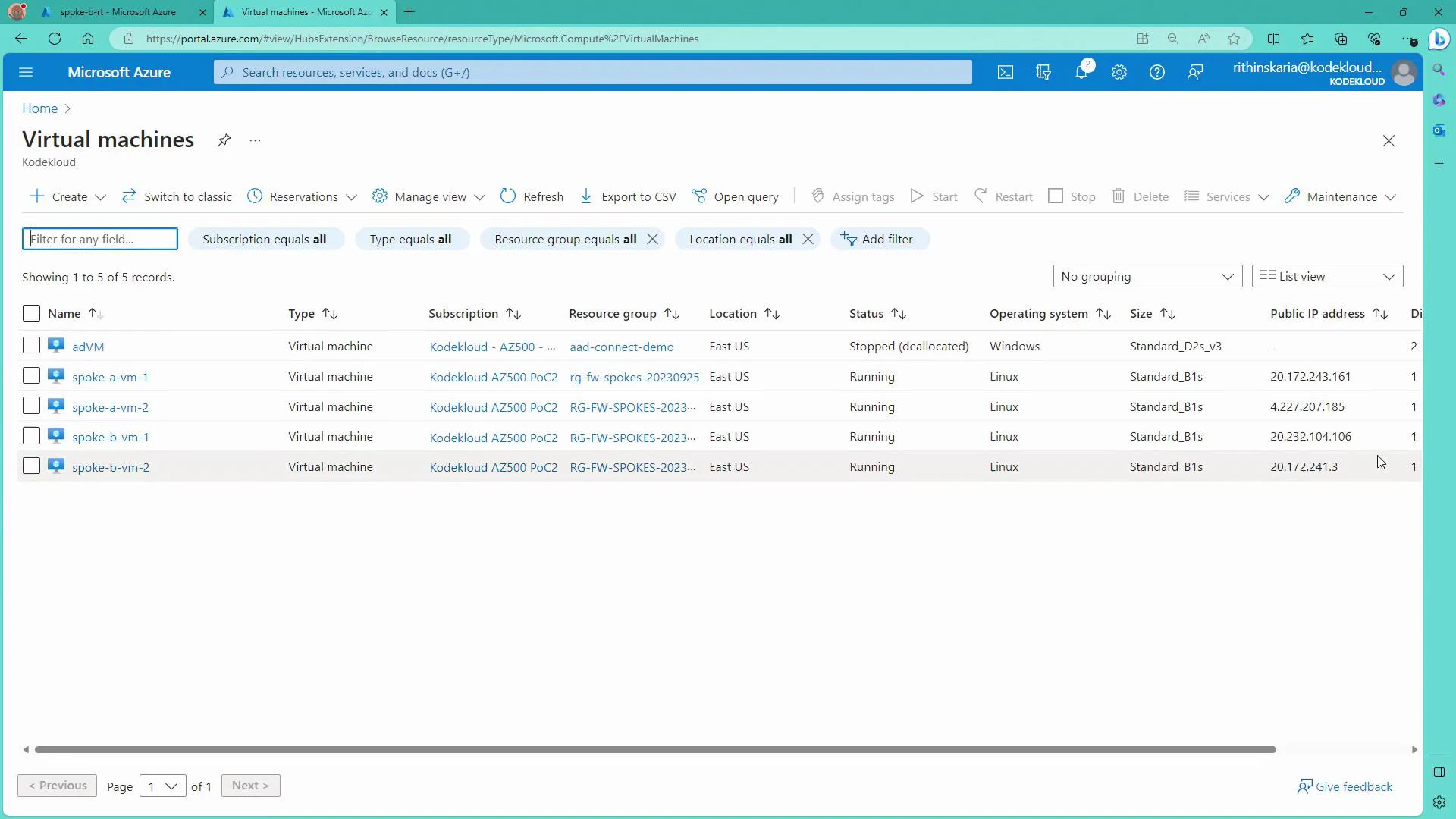
* Before associating the route table, VMs in Spoke B may still be reachable via their public IPs. Confirm connectivity (for example via SSH) from your workstation.
List of lab VMs in the Virtual Machines blade:
Verify public connectivity to the VM before associating the route table
* Before associating the route table, VMs in Spoke B may still be reachable via their public IPs. Confirm connectivity (for example via SSH) from your workstation.
List of lab VMs in the Virtual Machines blade:
 Example SSH session to a Spoke B VM public IP (sanitized):
```bash theme={null}
PS C:\Users\RithinSkaria> ssh kodekloud@20.232.104.106
The authenticity of host '20.232.104.106 (20.232.104.106)' can't be established.
ED25519 key fingerprint is SHA256:MbBAYg1XPD5Qb/TfWbzHMV8OPMbAQlMdgOnRJyFfEXk0.
Are you sure you want to continue connecting (yes/no/[fingerprint])? yes
Warning: Permanently added '20.232.104.106' (ED25519) to the list of known hosts.
kodekloud@20.232.104.106's password:
kodekloud@spoke-b-vm-1:~$
```
Associate the route table with the Spoke B subnet
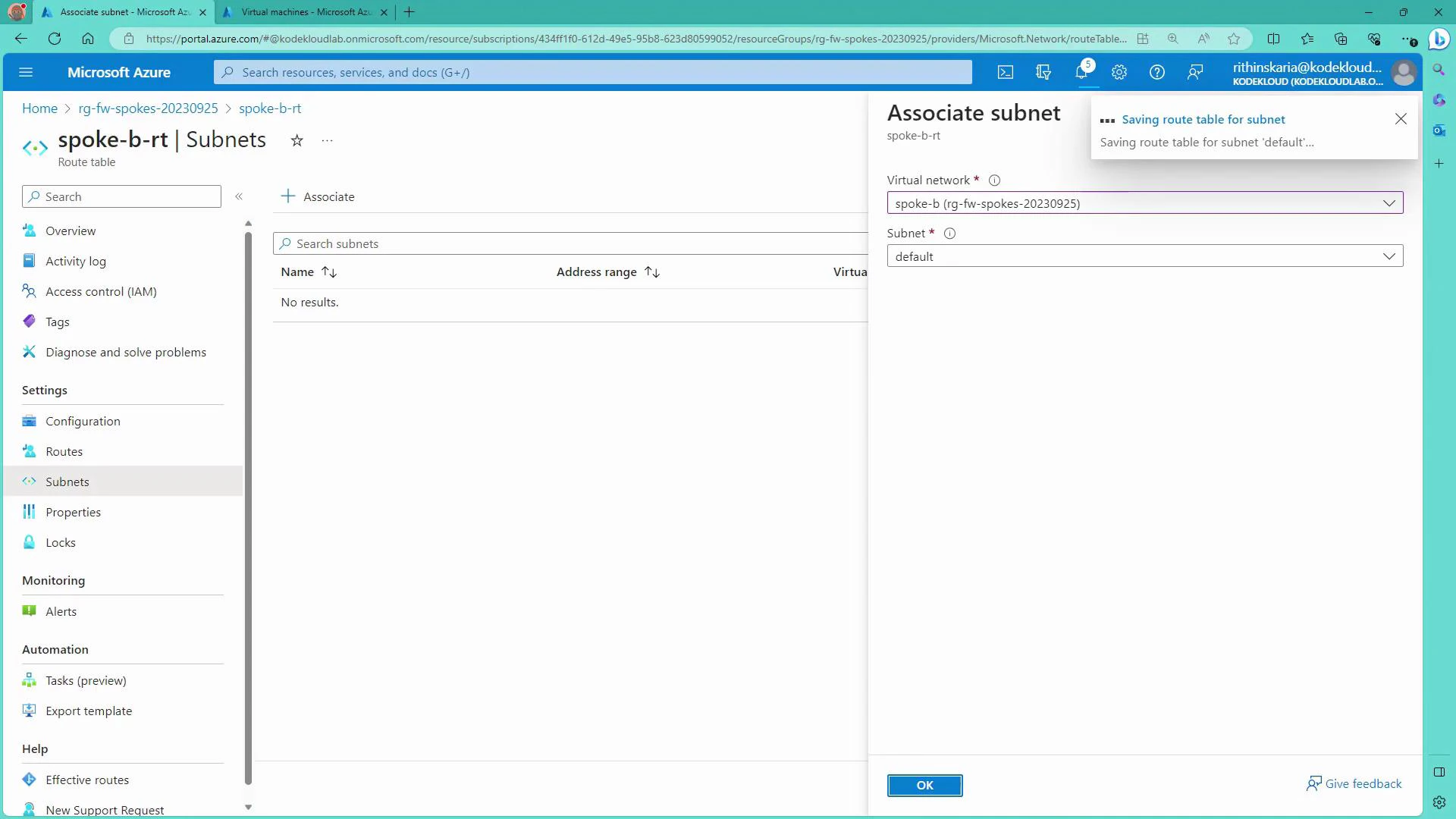
* In the route table pane, associate `SpokeBRT` with the Spoke B VNet's `default` subnet. Once associated, the 0.0.0.0/0 route will force non-local traffic to the hub firewall (192.168.0.4), which changes the effective path for outbound traffic and may interrupt direct public-IP access.
When selecting the subnet association, the portal shows the Associate subnet pane:
Example SSH session to a Spoke B VM public IP (sanitized):
```bash theme={null}
PS C:\Users\RithinSkaria> ssh kodekloud@20.232.104.106
The authenticity of host '20.232.104.106 (20.232.104.106)' can't be established.
ED25519 key fingerprint is SHA256:MbBAYg1XPD5Qb/TfWbzHMV8OPMbAQlMdgOnRJyFfEXk0.
Are you sure you want to continue connecting (yes/no/[fingerprint])? yes
Warning: Permanently added '20.232.104.106' (ED25519) to the list of known hosts.
kodekloud@20.232.104.106's password:
kodekloud@spoke-b-vm-1:~$
```
Associate the route table with the Spoke B subnet
* In the route table pane, associate `SpokeBRT` with the Spoke B VNet's `default` subnet. Once associated, the 0.0.0.0/0 route will force non-local traffic to the hub firewall (192.168.0.4), which changes the effective path for outbound traffic and may interrupt direct public-IP access.
When selecting the subnet association, the portal shows the Associate subnet pane:
 After associating the route table you may see SSH sessions reset:
```text theme={null}
client_loop: send disconnect: Connection reset
PS C:\Users\RithinSkaria>
```
This indicates the effective route has changed and traffic is now routed through the Azure Firewall for inspection and filtering. Next, configure Azure Firewall rules to permit specific spoke-to-spoke traffic.
Create Azure Firewall network rules to allow spoke-to-spoke communication
* Open the Azure Firewall policy (or firewall instance) and add a Network rule collection (e.g., "spoke comms"). Within the collection create allow rules for the precise source/destination IPs or CIDRs you want to permit.
Example firewall network rules (use specific IPs or subnet CIDRs as needed):
| Rule name | Priority | Action | Source | Destination | Destination port | Protocols |
| --------- | -------- | ------ | ------------------------- | ------------------------- | ---------------- | --------- |
| A1-to-B1 | 300 | Allow | 192.168.1.4 (Spoke A VM1) | 192.168.2.4 (Spoke B VM1) | Any | Any |
| A2-to-B2 | 301 | Allow | 192.168.1.5 (Spoke A VM2) | 192.168.2.5 (Spoke B VM2) | Any | Any |
Notes:
* Use CIDR prefixes to allow entire subnets (e.g., `192.168.1.0/24` and `192.168.2.0/24`) if you prefer broader rules.
* Priority and collection evaluation order matter: Firewall checks rule collections by priority and stops when it finds a match. If no rule matches, the default action is Deny.
Verify connectivity and expected behavior
* From Spoke A VM1 (192.168.1.4) to Spoke B VM1 (192.168.2.4) — allowed by the rule:
```bash theme={null}
kodekloud@spoke-a-vm-1:~$ ping 192.168.2.4
PING 192.168.2.4 (192.168.2.4) 56(84) bytes of data.
64 bytes from 192.168.2.4: icmp_seq=1 ttl=63 time=3.86 ms
64 bytes from 192.168.2.4: icmp_seq=2 ttl=63 time=3.09 ms
^C
--- 192.168.2.4 ping statistics ---
4 packets transmitted, 4 received, 0% packet loss
```
* From Spoke A VM1 to Spoke B VM2 (192.168.2.5) — blocked because no rule permits it:
```bash theme={null}
kodekloud@spoke-a-vm-1:~$ ping 192.168.2.5
PING 192.168.2.5 (192.168.2.5) 56(84) bytes of data.
^C
--- 192.168.2.5 ping statistics ---
4 packets transmitted, 0 received, 100% packet loss
```
* From Spoke B VM1, outbound HTTP/HTTPS (curl) is denied unless the firewall has an Application rule allowing the requested FQDNs:
```bash theme={null}
kodekloud@spoke-b-vm-1:~$ curl www.microsoft.com
Action: Deny. Reason: No rule matched. Proceeding with default action.
```
Allowing application access (example)
* To enable web access, add an Application rule to the firewall policy permitting specific FQDNs or FQDN tags for the subnet (e.g., allow `www.google.com` for `192.168.2.0/24`). After applying the rule, HTTP/HTTPS requests to allowed domains will succeed:
```bash theme={null}
kodekloud@spoke-b-vm-1:~$ curl www.google.com
... Google content ...
```
Important considerations and next steps
* Route tables (UDRs) are used to force traffic toward the hub firewall using the Virtual Appliance next hop. You can also direct specific ranges to a Virtual Network Gateway to route traffic to on-premises (e.g., using an on-prem CIDR like `10.0.0.0/8` with next hop Virtual Network Gateway).
* Azure Firewall is stateful: permitting A → B allows return traffic B → A automatically; you do not need separate reverse rules.
* Firewall rule collections and priorities determine which rules apply. Design rule sets to minimize overly permissive entries.
* For secure management, use Azure Bastion to RDP/SSH from the portal without exposing VM management ports.
* Forced tunneling routes internet-bound traffic to on-premises NVAs or other inspection points if required by your security architecture.
* Use Azure Monitor and diagnostic settings on Firewall and VNets for centralized telemetry and alerting.
Firewall rules are stateful: if a network rule allows A → B, return traffic from B → A is allowed automatically — you do not need a separate reverse rule.
Summary
This walkthrough demonstrates how to route Spoke B’s non-local traffic to an Azure Firewall in the hub using a route table, how to create network rules to allow specific spoke-to-spoke traffic, and how to verify connectivity and application-level access. From here you can expand the topology to include Bastion for management, VPN/ExpressRoute connectivity to on-premises, forced tunneling to NVAs, and comprehensive telemetry with Azure Monitor.
After associating the route table you may see SSH sessions reset:
```text theme={null}
client_loop: send disconnect: Connection reset
PS C:\Users\RithinSkaria>
```
This indicates the effective route has changed and traffic is now routed through the Azure Firewall for inspection and filtering. Next, configure Azure Firewall rules to permit specific spoke-to-spoke traffic.
Create Azure Firewall network rules to allow spoke-to-spoke communication
* Open the Azure Firewall policy (or firewall instance) and add a Network rule collection (e.g., "spoke comms"). Within the collection create allow rules for the precise source/destination IPs or CIDRs you want to permit.
Example firewall network rules (use specific IPs or subnet CIDRs as needed):
| Rule name | Priority | Action | Source | Destination | Destination port | Protocols |
| --------- | -------- | ------ | ------------------------- | ------------------------- | ---------------- | --------- |
| A1-to-B1 | 300 | Allow | 192.168.1.4 (Spoke A VM1) | 192.168.2.4 (Spoke B VM1) | Any | Any |
| A2-to-B2 | 301 | Allow | 192.168.1.5 (Spoke A VM2) | 192.168.2.5 (Spoke B VM2) | Any | Any |
Notes:
* Use CIDR prefixes to allow entire subnets (e.g., `192.168.1.0/24` and `192.168.2.0/24`) if you prefer broader rules.
* Priority and collection evaluation order matter: Firewall checks rule collections by priority and stops when it finds a match. If no rule matches, the default action is Deny.
Verify connectivity and expected behavior
* From Spoke A VM1 (192.168.1.4) to Spoke B VM1 (192.168.2.4) — allowed by the rule:
```bash theme={null}
kodekloud@spoke-a-vm-1:~$ ping 192.168.2.4
PING 192.168.2.4 (192.168.2.4) 56(84) bytes of data.
64 bytes from 192.168.2.4: icmp_seq=1 ttl=63 time=3.86 ms
64 bytes from 192.168.2.4: icmp_seq=2 ttl=63 time=3.09 ms
^C
--- 192.168.2.4 ping statistics ---
4 packets transmitted, 4 received, 0% packet loss
```
* From Spoke A VM1 to Spoke B VM2 (192.168.2.5) — blocked because no rule permits it:
```bash theme={null}
kodekloud@spoke-a-vm-1:~$ ping 192.168.2.5
PING 192.168.2.5 (192.168.2.5) 56(84) bytes of data.
^C
--- 192.168.2.5 ping statistics ---
4 packets transmitted, 0 received, 100% packet loss
```
* From Spoke B VM1, outbound HTTP/HTTPS (curl) is denied unless the firewall has an Application rule allowing the requested FQDNs:
```bash theme={null}
kodekloud@spoke-b-vm-1:~$ curl www.microsoft.com
Action: Deny. Reason: No rule matched. Proceeding with default action.
```
Allowing application access (example)
* To enable web access, add an Application rule to the firewall policy permitting specific FQDNs or FQDN tags for the subnet (e.g., allow `www.google.com` for `192.168.2.0/24`). After applying the rule, HTTP/HTTPS requests to allowed domains will succeed:
```bash theme={null}
kodekloud@spoke-b-vm-1:~$ curl www.google.com
... Google content ...
```
Important considerations and next steps
* Route tables (UDRs) are used to force traffic toward the hub firewall using the Virtual Appliance next hop. You can also direct specific ranges to a Virtual Network Gateway to route traffic to on-premises (e.g., using an on-prem CIDR like `10.0.0.0/8` with next hop Virtual Network Gateway).
* Azure Firewall is stateful: permitting A → B allows return traffic B → A automatically; you do not need separate reverse rules.
* Firewall rule collections and priorities determine which rules apply. Design rule sets to minimize overly permissive entries.
* For secure management, use Azure Bastion to RDP/SSH from the portal without exposing VM management ports.
* Forced tunneling routes internet-bound traffic to on-premises NVAs or other inspection points if required by your security architecture.
* Use Azure Monitor and diagnostic settings on Firewall and VNets for centralized telemetry and alerting.
Firewall rules are stateful: if a network rule allows A → B, return traffic from B → A is allowed automatically — you do not need a separate reverse rule.
Summary
This walkthrough demonstrates how to route Spoke B’s non-local traffic to an Azure Firewall in the hub using a route table, how to create network rules to allow specific spoke-to-spoke traffic, and how to verify connectivity and application-level access. From here you can expand the topology to include Bastion for management, VPN/ExpressRoute connectivity to on-premises, forced tunneling to NVAs, and comprehensive telemetry with Azure Monitor.