> ## Documentation Index
> Fetch the complete documentation index at: https://notes.kodekloud.com/llms.txt
> Use this file to discover all available pages before exploring further.
# Demo Forecast Potential Build Runner Usage 2
> Demonstrates running a folder-scoped Jenkins audit and forecast using gh actions-importer to analyze job execution, queueing, and concurrency for targeted capacity planning and migration
Earlier we audited and forecasted the entire Jenkins server. This lesson shows how to limit that audit/forecast to a single folder inside Jenkins — useful when you only need metrics for a subset of jobs (for focused capacity planning, migration assessments, or targeted troubleshooting).
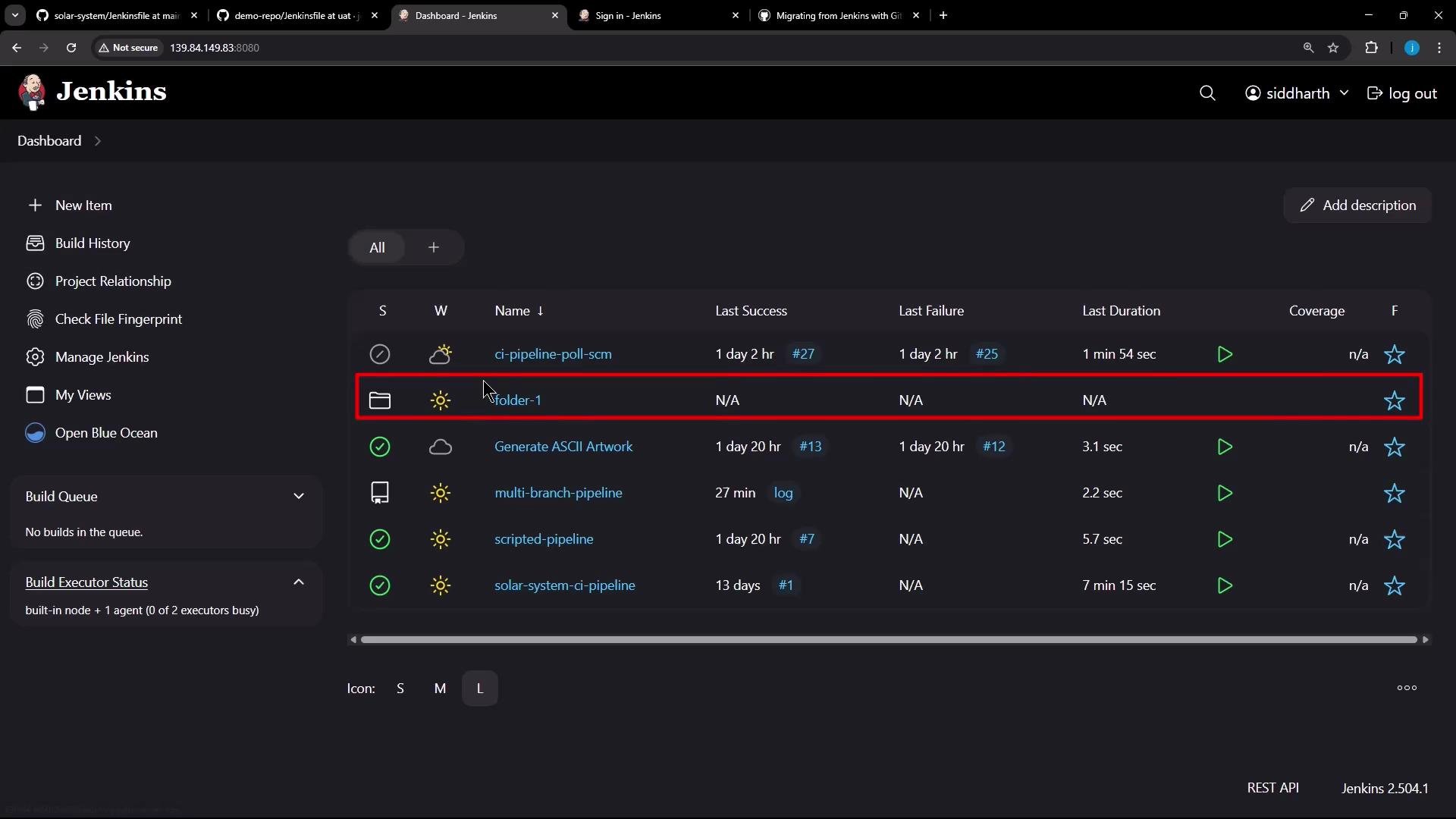 What you’ll see in this example:
* A folder named `folder-1`.
* Inside `folder-1`:
* `project1` — a Freestyle job that runs a simple `sleep` command (30 seconds).
* A nested `folder-2` that contains additional jobs (including a Pipeline).
To illustrate the effect of concurrent executors, I triggered the Freestyle job several times. Because the Jenkins master in this demo has two executors, two builds run concurrently; subsequent builds queue until an executor is free.
Quick summary of jobs in `folder-1`:
| Job / Folder | Type | Behavior |
| -------------------- | -------------------- | -------------------------------------------------- |
| `project1` | Freestyle | Runs `sleep 30` (multiple triggered runs observed) |
| `folder-2` | Folder | Contains pipeline jobs (see below) |
| `pipeline-project-2` | Declarative Pipeline | Two stages with `echo` / `sleep` steps |
Next, open `folder-2` to inspect the Pipeline job.
What you’ll see in this example:
* A folder named `folder-1`.
* Inside `folder-1`:
* `project1` — a Freestyle job that runs a simple `sleep` command (30 seconds).
* A nested `folder-2` that contains additional jobs (including a Pipeline).
To illustrate the effect of concurrent executors, I triggered the Freestyle job several times. Because the Jenkins master in this demo has two executors, two builds run concurrently; subsequent builds queue until an executor is free.
Quick summary of jobs in `folder-1`:
| Job / Folder | Type | Behavior |
| -------------------- | -------------------- | -------------------------------------------------- |
| `project1` | Freestyle | Runs `sleep 30` (multiple triggered runs observed) |
| `folder-2` | Folder | Contains pipeline jobs (see below) |
| `pipeline-project-2` | Declarative Pipeline | Two stages with `echo` / `sleep` steps |
Next, open `folder-2` to inspect the Pipeline job.
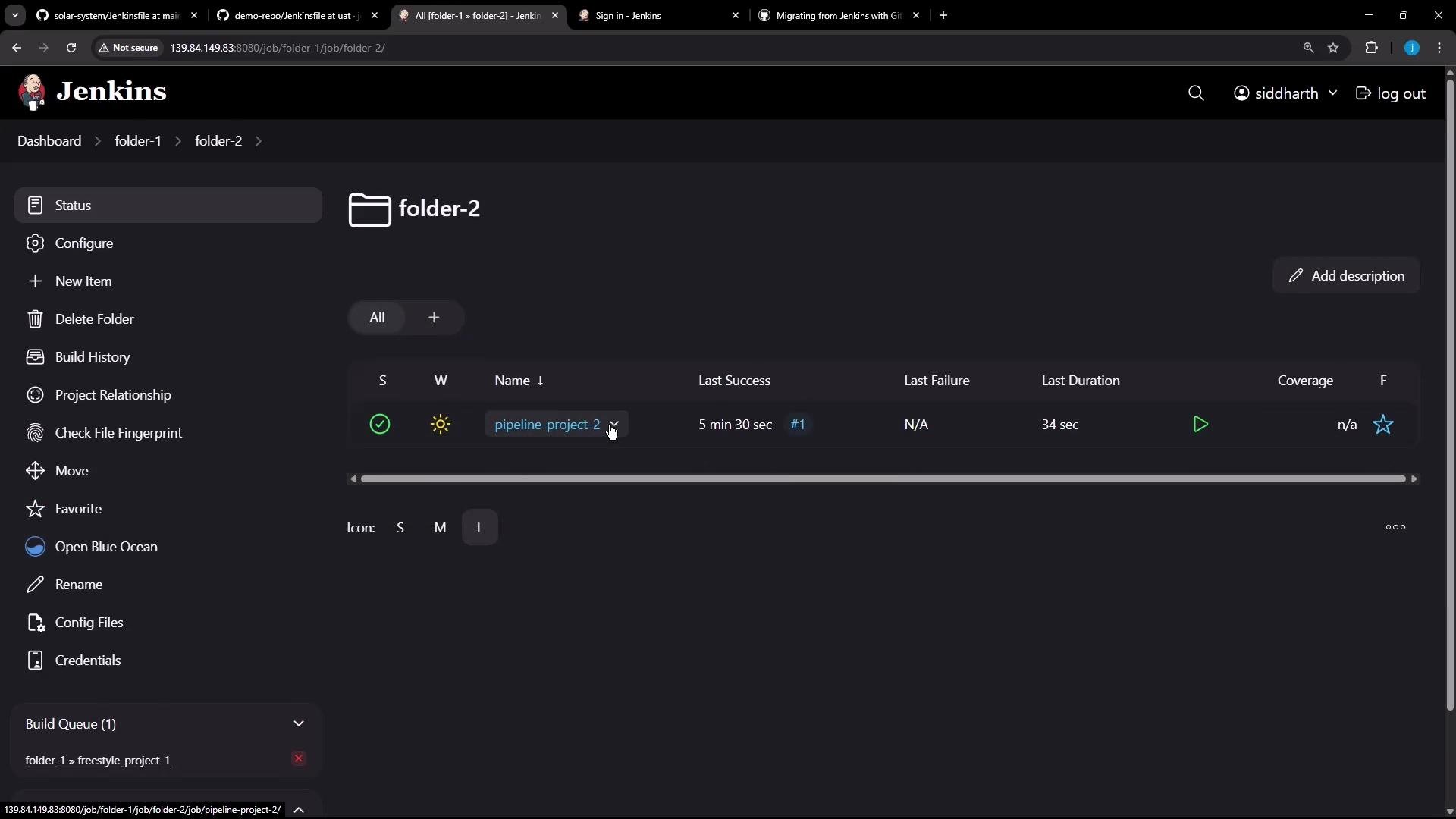 The pipeline is a minimal Declarative example; it contains two stages that echo a message and sleep for a few seconds:
```groovy theme={null}
pipeline {
agent any
stages {
stage('First Stage') {
steps {
echo 'Starting the first stage...'
sleep time: 5, unit: 'SECONDS'
echo 'First stage completed.'
}
}
stage('Second Stage') {
steps {
echo 'Starting the second stage...'
sleep time: 10, unit: 'SECONDS'
echo 'Second stage completed.'
}
}
}
}
```
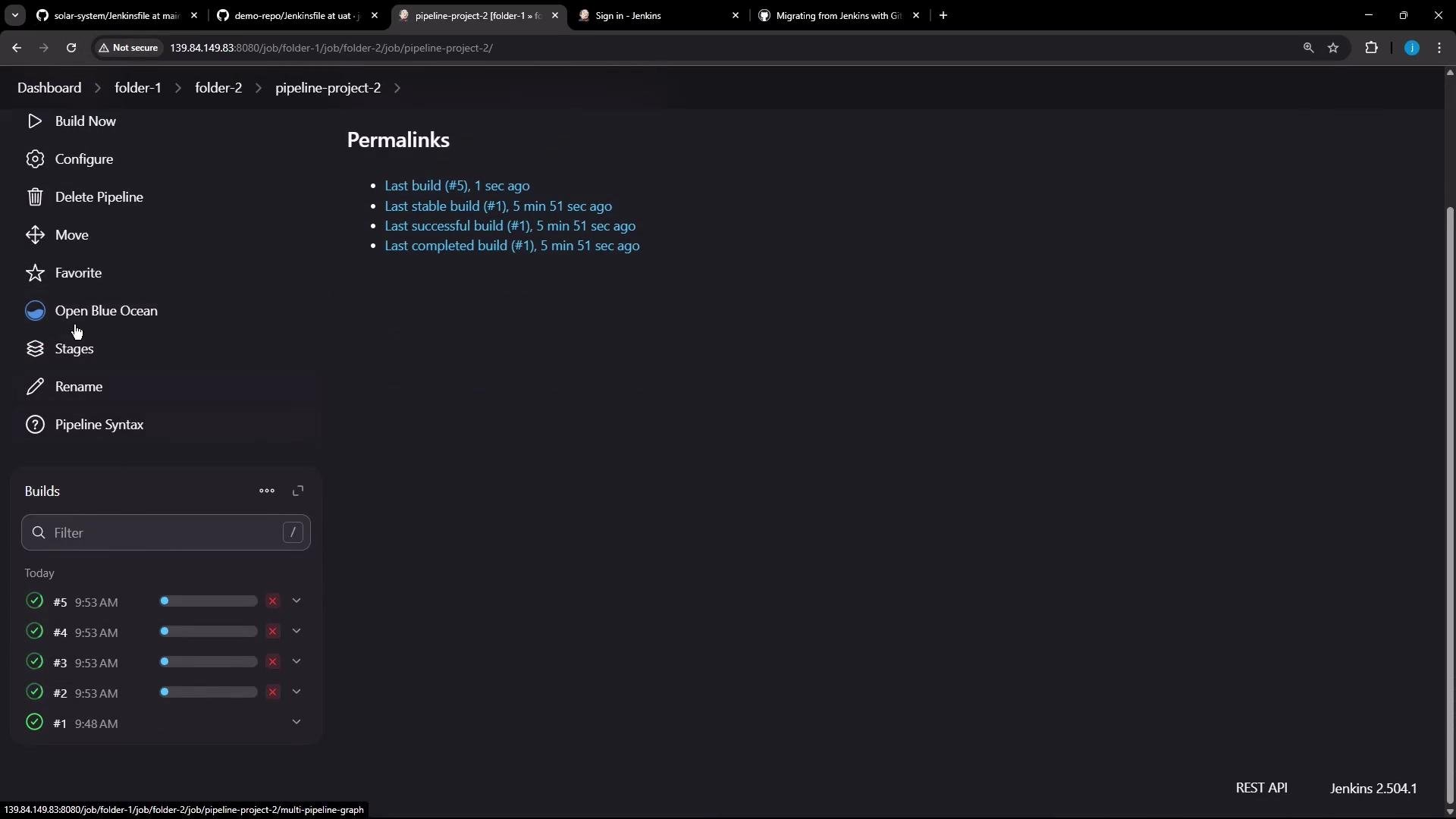
I triggered this pipeline multiple times as well. Actual start times vary depending on executor availability and queued tasks.
The pipeline is a minimal Declarative example; it contains two stages that echo a message and sleep for a few seconds:
```groovy theme={null}
pipeline {
agent any
stages {
stage('First Stage') {
steps {
echo 'Starting the first stage...'
sleep time: 5, unit: 'SECONDS'
echo 'First stage completed.'
}
}
stage('Second Stage') {
steps {
echo 'Starting the second stage...'
sleep time: 10, unit: 'SECONDS'
echo 'Second stage completed.'
}
}
}
}
```
I triggered this pipeline multiple times as well. Actual start times vary depending on executor availability and queued tasks.
 Restrict the audit/forecast to a folder
* Use the `-f` (or `--folder`) argument to limit the scope to a single folder inside Jenkins. The folder name should match the name shown in the Jenkins UI.
Use `-f ` to restrict the audit/forecast to a single folder (e.g., `folder-1`). The folder name should match the name visible in Jenkins.
Example command that targets only `folder-1`:
```bash theme={null}
gh actions-importer forecast jenkins --output-dir tmp/forecast --no-http-cache -f folder-1
```
Abbreviated sample output from the run:
```bash theme={null}
[2025-05-22 09:55:20] Logs: 'tmp/forecast/log/valet-20250522-095520.log'
[2025-05-22 09:55:20] Forecasting 'http://139.84.149.83:8080/'
[2025-05-22 09:55:21] Output file(s):
[2025-05-22 09:55:21] tmp/forecast/jobs/05-22-2025-09-55_jobs_0.json
[2025-05-22 09:55:21] tmp/forecast/forecast_report.md
```
Interpreting the folder-scoped forecast
* The generated report and job JSON files contain only the jobs present inside the specified folder (`folder-1` in this example).
* In this run the forecast report summarized:
* 2 pipeline projects
* 9 total job runs (4 runs of the Freestyle `project1` and 5 runs of the Pipeline)
* Metrics limited to those jobs: execution time, queue time, concurrency, and per-job run statistics
Why use folder-scoped forecasts?
* Focused capacity planning: measure executor needs for a subset of jobs (e.g., a team folder).
* Migration assessments: analyze only the jobs you plan to migrate.
* Faster runs: smaller scope reduces runtime and output size compared to full-server audits.
References and further reading
* Jenkins: [What is Jenkins?](https://www.jenkins.io/doc/)
* Jenkins Pipelines: [Pipeline as Code](https://www.jenkins.io/doc/book/pipeline/)
* GitHub CLI & actions-importer (example usage): refer to your project or extension documentation for `gh actions-importer` usage and flags
If you want, I can provide a step-by-step checklist to run the folder-scoped forecast in your environment or show how to parse the generated `jobs_*.json` for custom metrics.
Restrict the audit/forecast to a folder
* Use the `-f` (or `--folder`) argument to limit the scope to a single folder inside Jenkins. The folder name should match the name shown in the Jenkins UI.
Use `-f ` to restrict the audit/forecast to a single folder (e.g., `folder-1`). The folder name should match the name visible in Jenkins.
Example command that targets only `folder-1`:
```bash theme={null}
gh actions-importer forecast jenkins --output-dir tmp/forecast --no-http-cache -f folder-1
```
Abbreviated sample output from the run:
```bash theme={null}
[2025-05-22 09:55:20] Logs: 'tmp/forecast/log/valet-20250522-095520.log'
[2025-05-22 09:55:20] Forecasting 'http://139.84.149.83:8080/'
[2025-05-22 09:55:21] Output file(s):
[2025-05-22 09:55:21] tmp/forecast/jobs/05-22-2025-09-55_jobs_0.json
[2025-05-22 09:55:21] tmp/forecast/forecast_report.md
```
Interpreting the folder-scoped forecast
* The generated report and job JSON files contain only the jobs present inside the specified folder (`folder-1` in this example).
* In this run the forecast report summarized:
* 2 pipeline projects
* 9 total job runs (4 runs of the Freestyle `project1` and 5 runs of the Pipeline)
* Metrics limited to those jobs: execution time, queue time, concurrency, and per-job run statistics
Why use folder-scoped forecasts?
* Focused capacity planning: measure executor needs for a subset of jobs (e.g., a team folder).
* Migration assessments: analyze only the jobs you plan to migrate.
* Faster runs: smaller scope reduces runtime and output size compared to full-server audits.
References and further reading
* Jenkins: [What is Jenkins?](https://www.jenkins.io/doc/)
* Jenkins Pipelines: [Pipeline as Code](https://www.jenkins.io/doc/book/pipeline/)
* GitHub CLI & actions-importer (example usage): refer to your project or extension documentation for `gh actions-importer` usage and flags
If you want, I can provide a step-by-step checklist to run the folder-scoped forecast in your environment or show how to parse the generated `jobs_*.json` for custom metrics.