> ## Documentation Index
> Fetch the complete documentation index at: https://notes.kodekloud.com/llms.txt
> Use this file to discover all available pages before exploring further.
# Demo GitHub Actions Workflow 3
> Describes defining and using environment variables and secrets in GitHub Actions with examples creating and uploading an artifact while masking secrets in logs
In this lesson we'll cover how to define and use environment variables and secrets in GitHub Actions workflows. We'll continue with a simple example workflow that creates a text file containing a greeting and uploads it as an artifact.
You can declare environment variables at the workflow (global) level or the job level. Sensitive values — such as API keys or passwords — should be stored as secrets in GitHub, not hard-coded into your workflow YAML.
## Global environment variables
To make a variable available to every job and step in a workflow, define it at the top-level `env:` block. These values are accessible through the `env` context (`${{ env.NAME }}`) in expressions and are also exposed as environment variables inside each step.
Example: a workflow that defines a global `GREETING` and uses it to create `hello.txt`:
```yaml theme={null}
name: Demo-2
on:
workflow_dispatch:
env:
GREETING: "Hello"
jobs:
build:
runs-on: ubuntu-latest
steps:
- name: Create a text file
run: echo "${{ env.GREETING }}, world!" > hello.txt
- uses: actions/upload-artifact@v4
with:
name: hello-file
path: hello.txt
test:
runs-on: ubuntu-latest
needs: build
steps:
- uses: actions/download-artifact@v4
with:
name: hello-file
- name: List files
run: ls
- name: Test file
run: cat hello.txt | grep -i "Hello, world!"
```
## Job-level environment variables
If a variable should only be visible to a single job, place it inside that job's `env:` block. Job-level variables override workflow-level variables with the same name for that job.
Example: define a job-specific `GREETING2` used only in the `test` job:
```yaml theme={null}
name: Demo-2
on:
workflow_dispatch:
env:
GREETING: "Hello"
jobs:
build:
runs-on: ubuntu-latest
steps:
- name: Create a text file
run: echo "${{ env.GREETING }}, world!" > hello.txt
- uses: actions/upload-artifact@v4
with:
name: hello-file
path: hello.txt
test:
runs-on: ubuntu-latest
needs: build
env:
GREETING2: "Hello2"
steps:
- uses: actions/download-artifact@v4
with:
name: hello-file
- name: Show job-specific greeting
run: echo "${{ env.GREETING2 }}"
- name: Test file
run: cat hello.txt | grep -i "Hello, world!"
```
## How to reference environment variables in steps
* In YAML expressions and action inputs use the expression syntax: `${{ env.VAR_NAME }}`.
* Inside a `run:` step, workflow `env` entries are injected as environment variables, so you can also access them using the shell form `$VAR_NAME` (for POSIX shells) or `%VAR_NAME%` (on Windows). The expression form `${{ env.VAR_NAME }}` is evaluated before the step runs.
Example inline usages:
* Expression (evaluated by GitHub Actions): `${{ env.GREETING }}`
* Shell usage inside a run step: `echo "$GREETING"`
## Secrets
Secrets are intended for sensitive values (API keys, tokens, passwords). Create repository secrets via Settings → Secrets and variables → Actions. You can create secrets at different scopes:
| Scope | Availability | Typical use |
| ------------------ | -------------------------------------- | ----------------------------------------------------------- |
| Repository-level | Workflows in the repository | Repo-specific API keys |
| Environment-level | Jobs that target that environment | Deployment credentials for a staging/production environment |
| Organization-level | Repositories allowed to use the secret | Shared organization secrets (when permitted) |
Create a repository secret named `WORLD` with the value `world` (or your actual secret). The UI will not display the secret value after creation.
To reference secrets in a workflow, use the `secrets` context: `${{ secrets.WORLD }}`.
Example: combine a global `GREETING` env var with a `WORLD` secret to create the artifact:
```yaml theme={null}
name: Demo-2
on:
workflow_dispatch:
env:
GREETING: "Hello"
jobs:
build:
runs-on: ubuntu-latest
steps:
- name: Create a text file
run: echo "${{ env.GREETING }}, ${{ secrets.WORLD }}!" > hello.txt
- uses: actions/upload-artifact@v4
with:
name: hello-file
path: hello.txt
test:
runs-on: ubuntu-latest
needs: build
steps:
- uses: actions/download-artifact@v4
with:
name: hello-file
- name: List files
run: ls
- name: Test file
run: cat hello.txt | grep -i "Hello, world!"
```
Secrets are never shown in workflow logs. GitHub masks secret values (usually displayed as `***`) when commands that include them are printed to logs. Learn more at the GitHub Actions secrets docs: [Encrypted secrets for GitHub Actions](https://docs.github.com/en/actions/security-guides/encrypted-secrets).
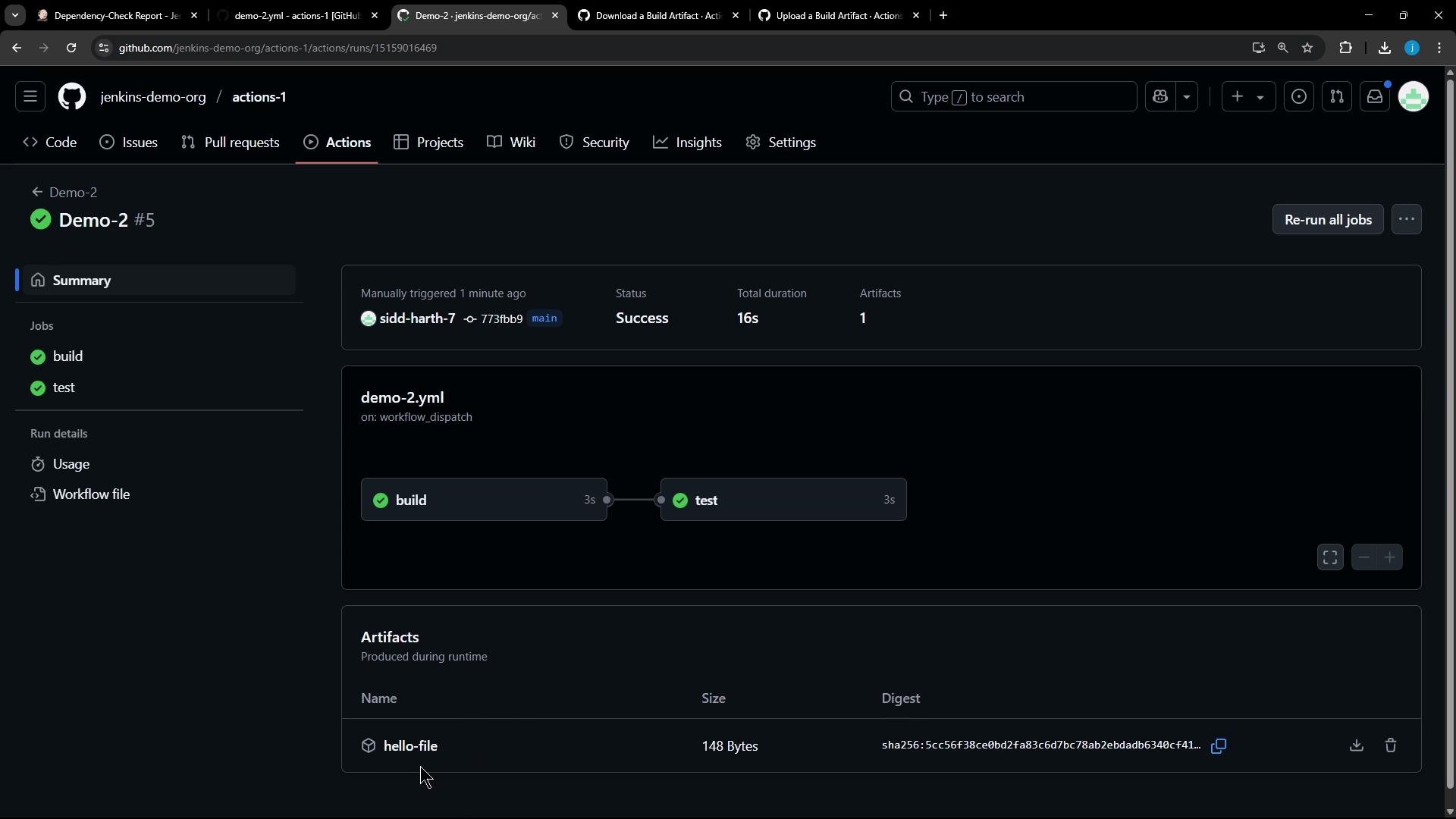
When the workflow runs, the build job creates `hello.txt` and uploads it as an artifact. In the build logs you will see the run command with the secret masked:
```text theme={null}
▾ Run echo "Hello, ***!" > hello.txt
echo "Hello, ***!" > hello.txt
shell: /usr/bin/bash -e {0}
env:
GREETING: Hello
```
Note: the secret value is present inside the produced artifact (e.g., `hello.txt`) because the secret was used during the job — but the value is not revealed in the logs.
After downloading the artifact (from the Actions run) you can verify the file content:
```text theme={null}
Hello, world!
```
 ## Quick reference
| Topic | Syntax / example |
| ---------------------------- | ----------------------------------------------------------------------------------- |
| Global env | `env:\n GREETING: "Hello"` |
| Job-level env | `jobs:\n test:\n env:\n GREETING2: "Hello2"` |
| Secret reference | `${{ secrets.WORLD }}` |
| Use in run step (expression) | `run: echo "${{ env.GREETING }}, ${{ secrets.WORLD }}!"` |
| Use in run step (shell var) | `run: echo "$GREETING, $WORLD!"` (only if `WORLD` is exported into the environment) |
## Links and references
* [Encrypted secrets for GitHub Actions](https://docs.github.com/en/actions/security-guides/encrypted-secrets)
* [GitHub Actions environment variables](https://docs.github.com/actions/learn-github-actions/variables)
* [Using artifacts in GitHub Actions](https://docs.github.com/actions/using-workflows/storing-workflow-data-as-artifacts)
That's how you define and use environment variables and secrets in GitHub Actions workflows.
## Quick reference
| Topic | Syntax / example |
| ---------------------------- | ----------------------------------------------------------------------------------- |
| Global env | `env:\n GREETING: "Hello"` |
| Job-level env | `jobs:\n test:\n env:\n GREETING2: "Hello2"` |
| Secret reference | `${{ secrets.WORLD }}` |
| Use in run step (expression) | `run: echo "${{ env.GREETING }}, ${{ secrets.WORLD }}!"` |
| Use in run step (shell var) | `run: echo "$GREETING, $WORLD!"` (only if `WORLD` is exported into the environment) |
## Links and references
* [Encrypted secrets for GitHub Actions](https://docs.github.com/en/actions/security-guides/encrypted-secrets)
* [GitHub Actions environment variables](https://docs.github.com/actions/learn-github-actions/variables)
* [Using artifacts in GitHub Actions](https://docs.github.com/actions/using-workflows/storing-workflow-data-as-artifacts)
That's how you define and use environment variables and secrets in GitHub Actions workflows.