> ## Documentation Index
> Fetch the complete documentation index at: https://notes.kodekloud.com/llms.txt
> Use this file to discover all available pages before exploring further.
# Demo Convert Solar system pipeline to GA Workflow 2
> Demonstrates migrating Jenkins pipeline to GitHub Actions by using repository secrets and variables to supply MongoDB credentials so unit tests run successfully.
We need to fix a failing unit-testing job in this lesson. The tests failed because the GitHub Actions job didn't have the MongoDB connection details (URI, username, or password) available to the test process; Mongoose received an `undefined` URI.
Example failure from the job log:
```text theme={null}
Run npm test
> Solar System@6.7.6 test
> mocha app-test.js --timeout 10000 --reporter mocha-junit-reporter --exit
error!! MongooseError: The `uri` parameter to `openUri()` must be a string, got "undefined". Make sure the first parameter to `mongoose.connect()` or `mongoose.createConnection()` is a string.
(node:2004) [MONGOOSE] DeprecationWarning: Mongoose: the `strictQuery` option will be switched back to `false` by default in Mongoose 7. Use `mongoose.set('strictQuery', false);` if you want to prepare for this change. Or use `mongoose.set('strictQuery', true);` to suppress this warning.
(Use `node --trace-deprecation ...` to show where the warning was created)
Server successfully running on port - 3000
Error: Process completed with exit code 8.
```
In the original Jenkins pipeline the stages that connected to MongoDB received environment variables from the top-level `environment` block, for example:
```groovy theme={null}
pipeline {
agent {
label 'us-west-1-ubuntu-22'
}
tools {
nodejs 'nodejs-22-6-0'
}
environment {
MONGO_URI = "mongodb+srv://supercluster.d83jj.mongodb.net/superData"
MONGO_DB_CREDS = credentials('mongo-db-credentials')
MONGO_USERNAME = credentials('mongo-db-username')
MONGO_PASSWORD = credentials('mongo-db-password')
}
stages {
stage('Installing Dependencies') {
agent {
docker {
image 'node:24'
args '-u root:root'
}
}
steps {
sh 'npm install --no-audit'
}
}
stage('Dependency Scanning') { … }
stage('Unit Testing') {
agent {
docker {
image 'node:24'
args '-u root:root'
}
}
options {
retry(2)
}
...
}
}
}
```
To replicate this in GitHub Actions without hard-coding secrets, use:
* Repository Secrets for sensitive values (passwords, API keys). These are available via `secrets`.
* Repository Variables for non-sensitive configuration (usernames, environment names). These are available via `vars`.
Create the secret and variable in the repo under Settings > Secrets and variables > Actions, then reference them in the workflow.
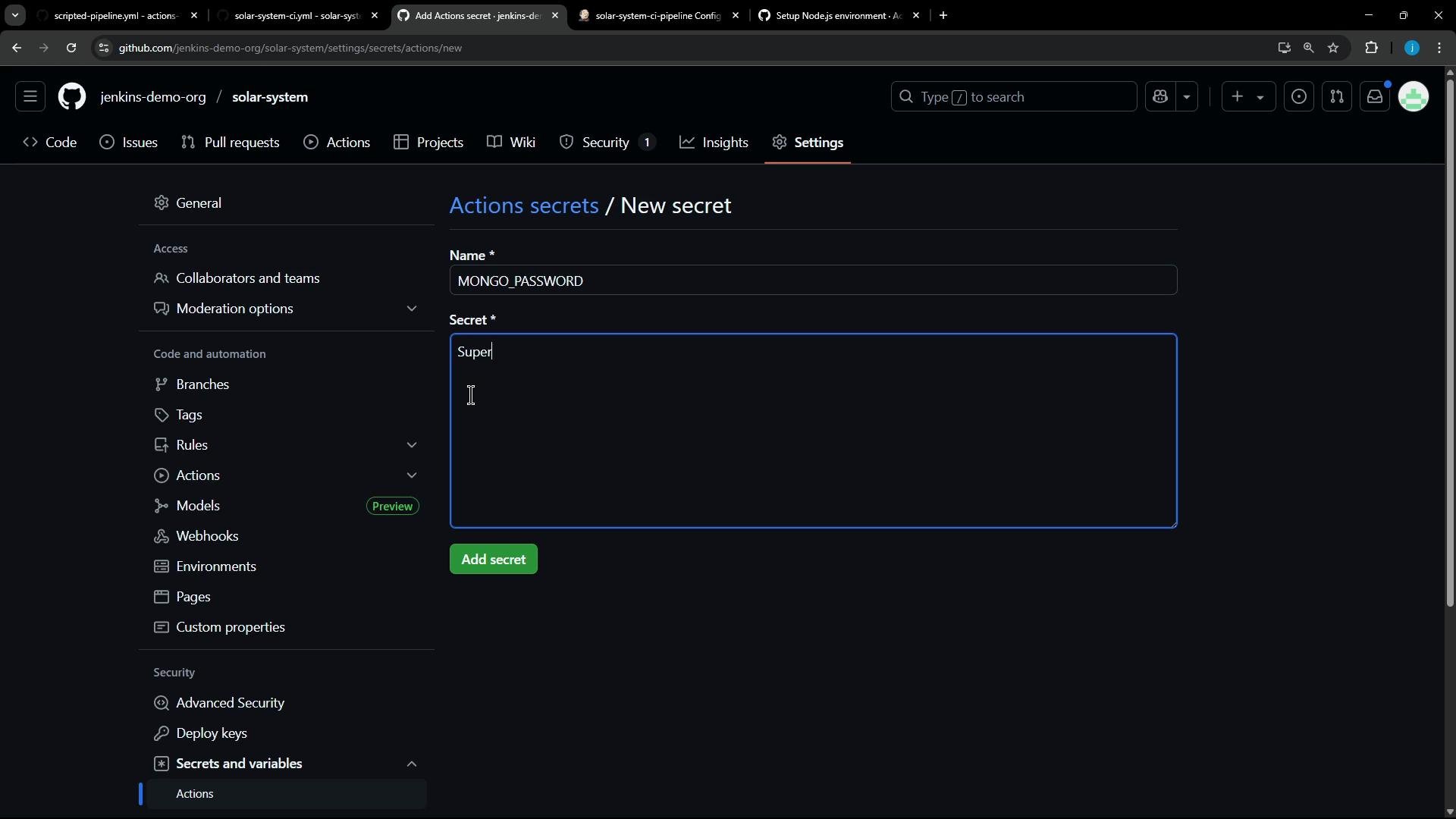 I added the password as a secret named `MONGO_PASSWORD`. The secret value is not visible after creation.
Next, add a repository variable for the Mongo username:
I added the password as a secret named `MONGO_PASSWORD`. The secret value is not visible after creation.
Next, add a repository variable for the Mongo username:
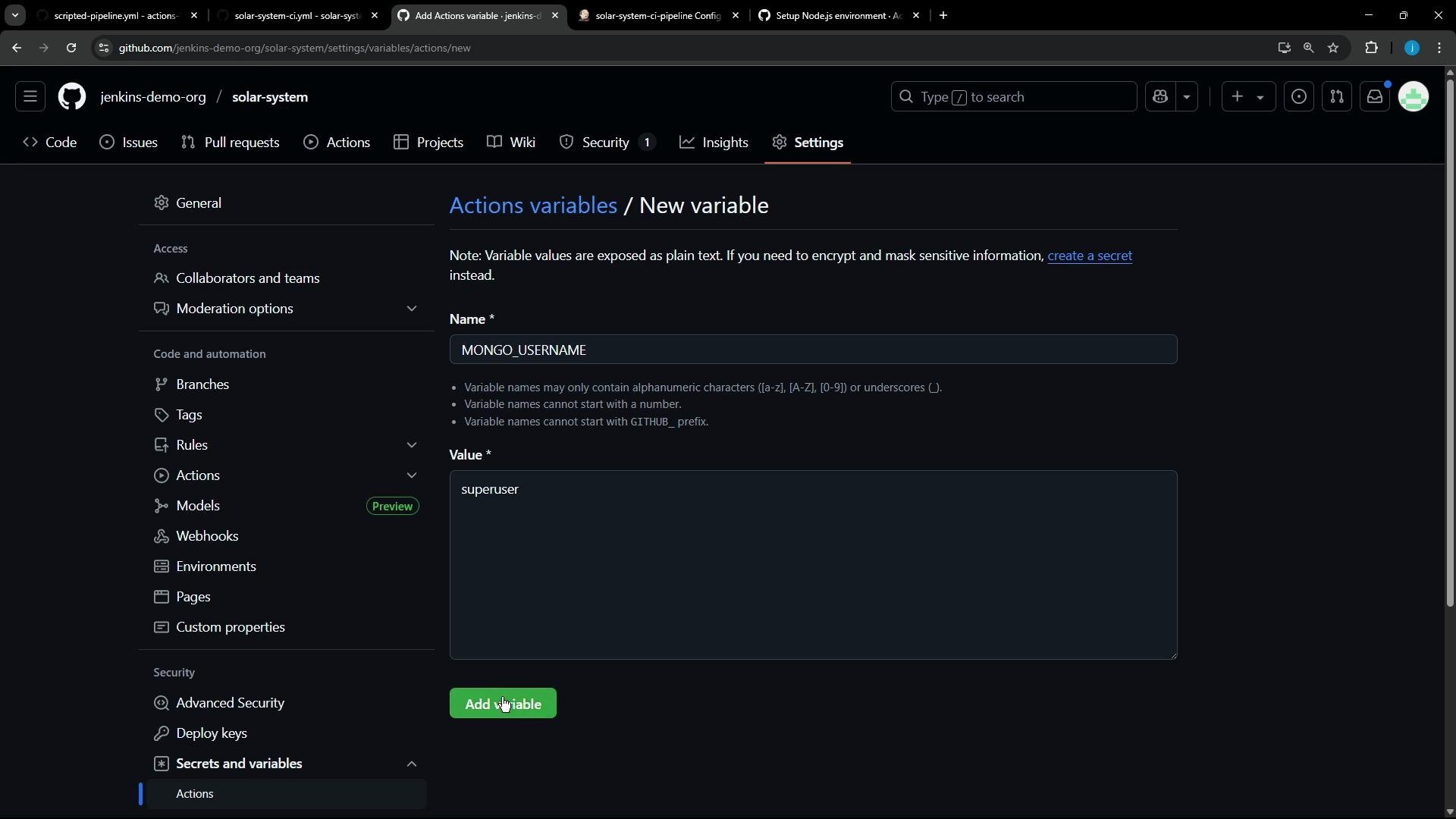 Use Actions Secrets for sensitive data (passwords, API keys) and Actions Variables for non-sensitive configuration (usernames, environment names). Secrets are masked in logs and are not visible after creation; variables can be edited and viewed in the repository settings by users with appropriate access.
Below is a concise GitHub Actions workflow demonstrating the correct YAML syntax and how to reference the repository variable and secret. Note:
* Use `:` for YAML key/value pairs (not `=`).
* Reference variables as `${{ vars.MONGO_USERNAME }}` and secrets as `${{ secrets.MONGO_PASSWORD }}`.
* Scope sensitive secrets at the job level if you want to limit exposure.
```yaml theme={null}
name: Solar System CI
on:
push:
workflow_dispatch:
env:
MONGO_URI: "mongodb+srv://supercluster.d83jj.mongodb.net/superData"
MONGO_USERNAME: ${{ vars.MONGO_USERNAME }}
jobs:
unit-testing:
runs-on: ubuntu-latest
env:
MONGO_URI: "mongodb+srv://supercluster.d83jj.mongodb.net/superData"
MONGO_USERNAME: ${{ vars.MONGO_USERNAME }}
MONGO_PASSWORD: ${{ secrets.MONGO_PASSWORD }}
steps:
- name: Checkout Repo
uses: actions/checkout@v4
- name: List repo files
run: ls -ltr
- uses: actions/setup-node@v4
with:
node-version: 22
- name: Install Dependencies
run: npm install --no-audit
- name: Unit Testing
run: npm test
```
Environment variables summary
| Variable | Where to set | Example / Notes |
| ---------------- | -------------------------------------- | ----------------------------------------------------------------------------------- |
| `MONGO_URI` | Repository Variables or workflow `env` | `mongodb+srv://supercluster.d83jj.mongodb.net/superData` |
| `MONGO_USERNAME` | Repository Variable | `${{ vars.MONGO_USERNAME }}` — non-sensitive, set in Settings > Actions > Variables |
| `MONGO_PASSWORD` | Repository Secret | `${{ secrets.MONGO_PASSWORD }}` — sensitive, set in Settings > Actions > Secrets |
Key points and best practices
* Never hard-code credentials in workflows or repository files. Use repository secrets for passwords and API keys.
* Use repository variables for non-sensitive configuration so they are easy to change across workflows.
* Scope secrets to the job-level `env` to reduce exposure to other jobs.
* Use `actions/setup-node@v4` to install a Node version compatible with your app (example uses Node 22).
* If your tests produce JUnit XML (for example via `mocha-junit-reporter`), upload the XML as an artifact in a follow-up step so the test results are accessible from the Actions UI.
Do not store credentials or secrets in plaintext in your repository. Secrets are masked in logs, but treating secrets responsibly (scoped, rotated, and audited) is critical for secure CI/CD.
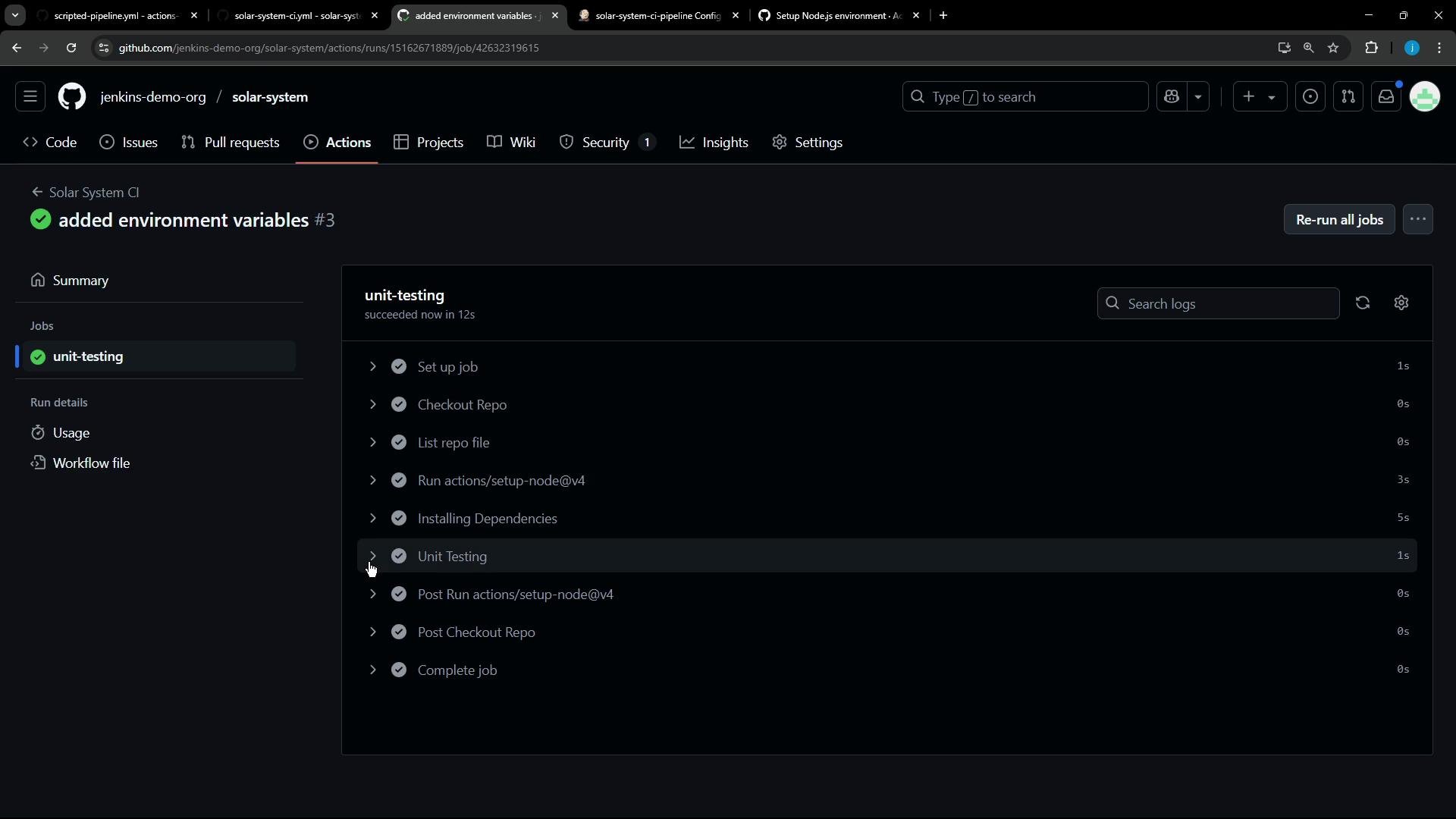
After adding the secret and the variable, I committed and pushed the workflow changes. The workflow ran and the unit-testing job succeeded:
Use Actions Secrets for sensitive data (passwords, API keys) and Actions Variables for non-sensitive configuration (usernames, environment names). Secrets are masked in logs and are not visible after creation; variables can be edited and viewed in the repository settings by users with appropriate access.
Below is a concise GitHub Actions workflow demonstrating the correct YAML syntax and how to reference the repository variable and secret. Note:
* Use `:` for YAML key/value pairs (not `=`).
* Reference variables as `${{ vars.MONGO_USERNAME }}` and secrets as `${{ secrets.MONGO_PASSWORD }}`.
* Scope sensitive secrets at the job level if you want to limit exposure.
```yaml theme={null}
name: Solar System CI
on:
push:
workflow_dispatch:
env:
MONGO_URI: "mongodb+srv://supercluster.d83jj.mongodb.net/superData"
MONGO_USERNAME: ${{ vars.MONGO_USERNAME }}
jobs:
unit-testing:
runs-on: ubuntu-latest
env:
MONGO_URI: "mongodb+srv://supercluster.d83jj.mongodb.net/superData"
MONGO_USERNAME: ${{ vars.MONGO_USERNAME }}
MONGO_PASSWORD: ${{ secrets.MONGO_PASSWORD }}
steps:
- name: Checkout Repo
uses: actions/checkout@v4
- name: List repo files
run: ls -ltr
- uses: actions/setup-node@v4
with:
node-version: 22
- name: Install Dependencies
run: npm install --no-audit
- name: Unit Testing
run: npm test
```
Environment variables summary
| Variable | Where to set | Example / Notes |
| ---------------- | -------------------------------------- | ----------------------------------------------------------------------------------- |
| `MONGO_URI` | Repository Variables or workflow `env` | `mongodb+srv://supercluster.d83jj.mongodb.net/superData` |
| `MONGO_USERNAME` | Repository Variable | `${{ vars.MONGO_USERNAME }}` — non-sensitive, set in Settings > Actions > Variables |
| `MONGO_PASSWORD` | Repository Secret | `${{ secrets.MONGO_PASSWORD }}` — sensitive, set in Settings > Actions > Secrets |
Key points and best practices
* Never hard-code credentials in workflows or repository files. Use repository secrets for passwords and API keys.
* Use repository variables for non-sensitive configuration so they are easy to change across workflows.
* Scope secrets to the job-level `env` to reduce exposure to other jobs.
* Use `actions/setup-node@v4` to install a Node version compatible with your app (example uses Node 22).
* If your tests produce JUnit XML (for example via `mocha-junit-reporter`), upload the XML as an artifact in a follow-up step so the test results are accessible from the Actions UI.
Do not store credentials or secrets in plaintext in your repository. Secrets are masked in logs, but treating secrets responsibly (scoped, rotated, and audited) is critical for secure CI/CD.
After adding the secret and the variable, I committed and pushed the workflow changes. The workflow ran and the unit-testing job succeeded:
 Snippet from the successful job log (note the secret is masked):
```text theme={null}
Run npm test
shell: /usr/bin/bash -e {0}
env:
MONGO_URI: mongodb+srv://supercluster.d83jj.mongodb.net/superData
MONGO_USERNAME: superuser
MONGO_PASSWORD: ***
> Solar System@6.7.6 test
> mocha app-test.js --timeout 10000 --reporter mocha-junit-reporter --exit
(node:2014) [MONGOOSE] DeprecationWarning: Mongoose: the `strictQuery` option will be switched back to `false` by default in Mongoose 7. Use `mongoose.set('strictQuery', false);` if you want to prepare for this change. Or use `mongoose.set('strictQuery', true);` to suppress this warning.
(Use `node --trace-deprecation ...` to show where the warning was created)
Server successfully running on port - 3000
```
The prior connection error is gone and tests run successfully. One remaining improvement: the test reporter produced JUnit XML, but the workflow did not upload those files as artifacts. In the next lesson we'll add an artifact upload step (e.g., `actions/upload-artifact@v4`) so test reports are visible from the GitHub Actions run UI.
Related references
* [GitHub Actions: Secrets and variables](https://docs.github.com/en/actions/security-guides/encrypted-secrets)
* [actions/setup-node](https://github.com/actions/setup-node)
* [Mocha](https://mochajs.org/) and [mocha-junit-reporter](https://github.com/michaelleeallen/mocha-junit-reporter)
Snippet from the successful job log (note the secret is masked):
```text theme={null}
Run npm test
shell: /usr/bin/bash -e {0}
env:
MONGO_URI: mongodb+srv://supercluster.d83jj.mongodb.net/superData
MONGO_USERNAME: superuser
MONGO_PASSWORD: ***
> Solar System@6.7.6 test
> mocha app-test.js --timeout 10000 --reporter mocha-junit-reporter --exit
(node:2014) [MONGOOSE] DeprecationWarning: Mongoose: the `strictQuery` option will be switched back to `false` by default in Mongoose 7. Use `mongoose.set('strictQuery', false);` if you want to prepare for this change. Or use `mongoose.set('strictQuery', true);` to suppress this warning.
(Use `node --trace-deprecation ...` to show where the warning was created)
Server successfully running on port - 3000
```
The prior connection error is gone and tests run successfully. One remaining improvement: the test reporter produced JUnit XML, but the workflow did not upload those files as artifacts. In the next lesson we'll add an artifact upload step (e.g., `actions/upload-artifact@v4`) so test reports are visible from the GitHub Actions run UI.
Related references
* [GitHub Actions: Secrets and variables](https://docs.github.com/en/actions/security-guides/encrypted-secrets)
* [actions/setup-node](https://github.com/actions/setup-node)
* [Mocha](https://mochajs.org/) and [mocha-junit-reporter](https://github.com/michaelleeallen/mocha-junit-reporter)