> ## Documentation Index
> Fetch the complete documentation index at: https://notes.kodekloud.com/llms.txt
> Use this file to discover all available pages before exploring further.
# Network Troubleshooting
> Step-by-step guide to troubleshooting network connectivity from physical checks through ping, IP/DHCP, routing, DNS and traceroute, with examples and common commands.
Earlier we followed a simple web request as it traveled down the layers, across the network, and back up the stack on the other side.
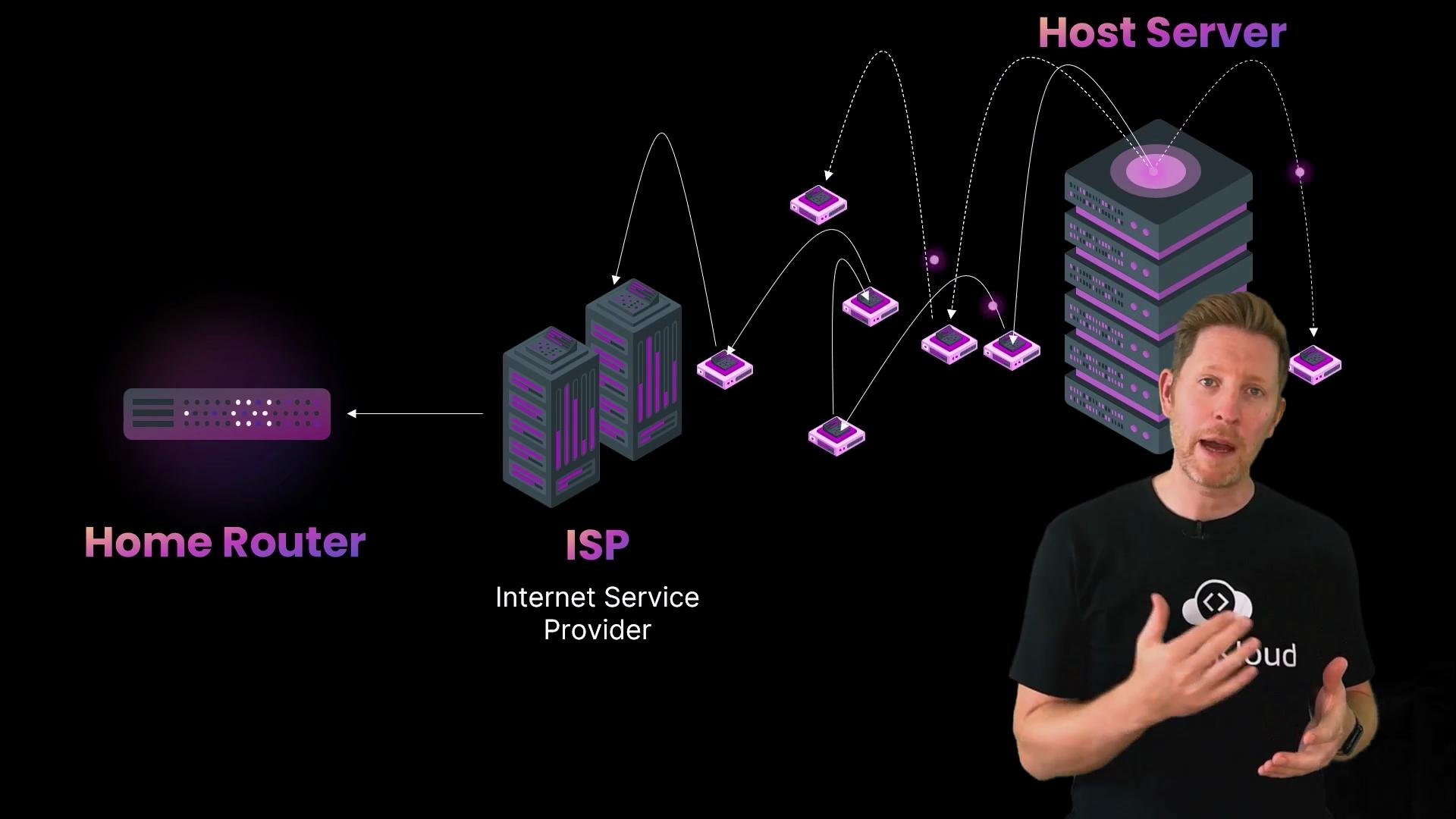 When the request fails, the same layer-by-layer thinking helps you find the fault quickly. Some issues are obvious — a loose cable or a missing Wi‑Fi icon — while others require command-line investigation. Below is a practical, step-by-step troubleshooting workflow that starts at the physical/link layers and works up to application-level checks.
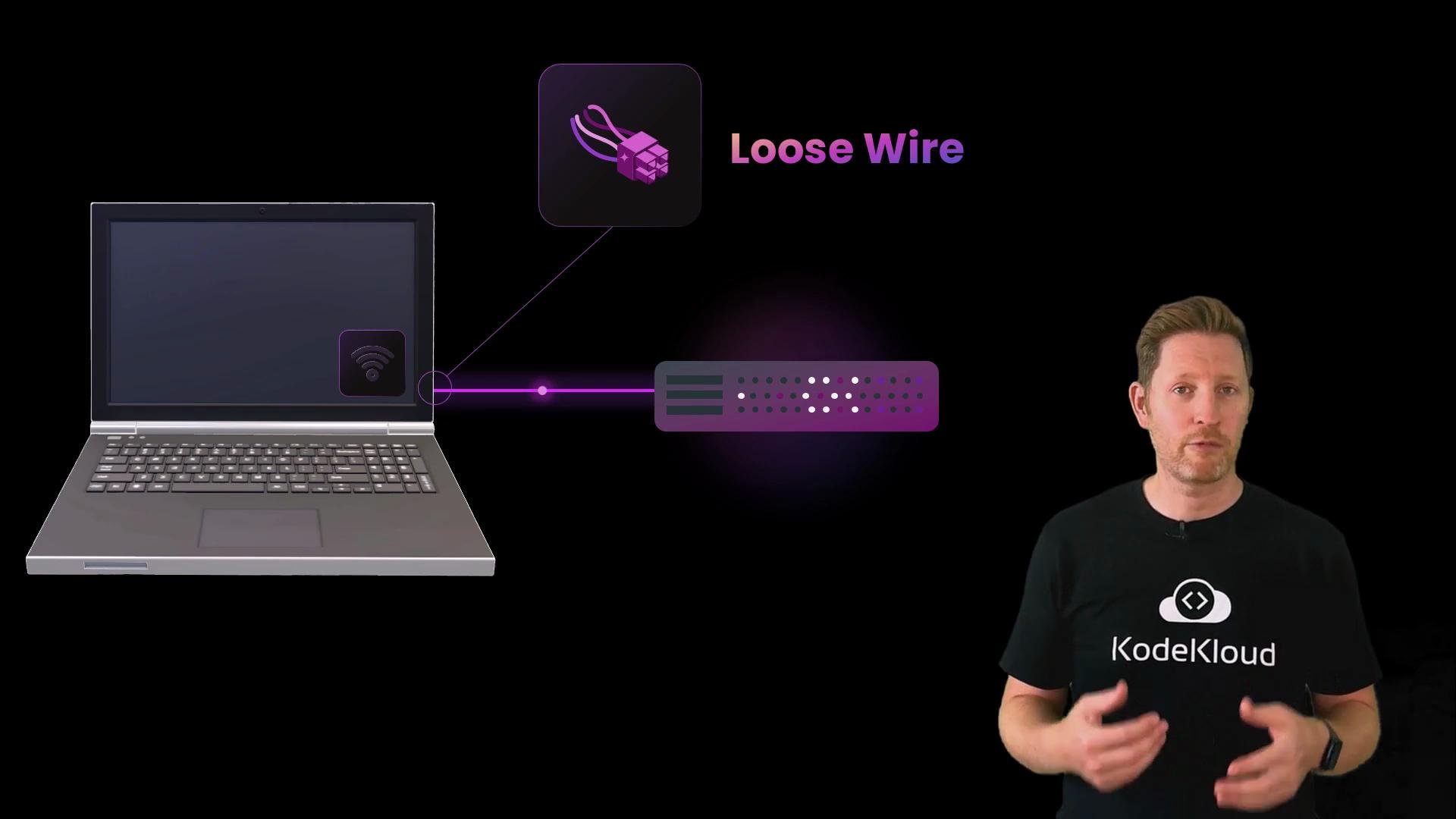 Getting started: quick physical checks
* Is the Wi‑Fi icon visible and indicating a connection?
* Is Airplane Mode disabled?
* Are cables plugged in and the router powered on?
* Are other devices on the same network online?
If other devices work, the issue is likely local to your device. If no devices are online, check the router and ISP connection. Basic restarts help: reboot your computer, then unplug the router for 10 seconds and plug it back in.
If the basics don’t fix it, move to the command line and test the link/network layer — your device’s connection to the router.
Top-level troubleshooting flow (summary)
| Layer | What to check | Useful command(s) |
| -------------------- | ---------------------------------------------- | ------------------------------------ |
| Physical | Power, cables, Wi‑Fi, signal strength | N/A (GUI / hardware) |
| Link / Local network | Can you reach the router (local connectivity)? | `ping ` |
| Network / Routing | Does routing to the Internet work (by IP)? | `ping 8.8.8.8` |
| Application / DNS | Are hostnames resolving? | `ping google.com`, `nslookup`, `dig` |
| Path analysis | Where packets are dropped? | `traceroute` / `tracert` |
Link / Network layer — ping the router
Send an ICMP echo to your router to verify local connectivity. If you don’t know your router’s IP, look for the “Router” or “Default Gateway” entry in your network GUI.
Example: successful ping to the router
```bash theme={null}
$ ping 192.168.0.1
PING 192.168.0.1 (192.168.0.1): 56 data bytes
64 bytes from 192.168.0.1: icmp_seq=0 ttl=64 time=5.447 ms
64 bytes from 192.168.0.1: icmp_seq=1 ttl=64 time=3.351 ms
64 bytes from 192.168.0.1: icmp_seq=2 ttl=64 time=3.245 ms
^C
--- 192.168.0.1 ping statistics ---
3 packets transmitted, 3 received, 0% packet loss
round-trip min/avg/max/stddev = 3.245/4.014/5.447/1.014 ms
```
Each reply shows round‑trip time for that packet. When you stop the command (Control+C), the summary helps spot packet loss or latency spikes — useful for diagnosing flaky Wi‑Fi or an overloaded local network.
If the router responds, your device’s network interface and local link are working. If it doesn’t, focus on Wi‑Fi settings, physical cables, and your network adapter configuration.
Check the device IP configuration
Confirm your device has a valid IP address and a listed gateway/router. In the GUI, check the TCP/IP or network details for:
* A private IP (commonly `192.168.x.x`, `10.x.x.x`, or `172.16.x.x–172.31.x.x`).
* A router/default gateway IP (e.g., `192.168.0.1`).
* Whether the IP was obtained via DHCP or set manually.
From the terminal:
* Windows: `ipconfig`
* macOS / Linux: `ifconfig` or `ip addr`
Example (truncated macOS-style output):
```bash theme={null}
$ ifconfig
en0: flags=8863 mtu 1500
ether ae:4c:5a:5a:d3:88
inet 192.168.0.147 netmask 0xffffff00 broadcast 192.168.0.255
media: autoselect
status: active
```
If you see an APIPA/169.254.x.x address, your device did not obtain an address from DHCP.
Routing / Internet test — ping a public IP
If the router is reachable and your IP looks valid, test reachability beyond your router by pinging a known public IP (e.g., Google’s public DNS `8.8.8.8`). This checks routing without involving DNS.
Example: successful ping to 8.8.8.8
```bash theme={null}
$ ping 8.8.8.8
PING 8.8.8.8 (8.8.8.8): 56 data bytes
64 bytes from 8.8.8.8: icmp_seq=0 ttl=114 time=46.781 ms
64 bytes from 8.8.8.8: icmp_seq=1 ttl=114 time=57.126 ms
64 bytes from 8.8.8.8: icmp_seq=2 ttl=114 time=41.411 ms
^C
--- 8.8.8.8 ping statistics ---
3 packets transmitted, 3 received, 0% packet loss
round-trip min/avg/max/stddev = 41.411/46.781/57.126/7.317 ms
```
* If this succeeds, your router has upstream connectivity.
* If it fails, the problem is likely upstream (router → ISP) or the ISP itself.
Application layer — DNS lookups
If IP pings work but hostnames do not, DNS is the likely cause. Try resolving a hostname such as `google.com`.
Example: DNS failure when resolving google.com
```bash theme={null}
$ ping google.com
ping: cannot resolve google.com: Unknown host
```
If DNS fails:
* Check the DNS server entries in your network settings.
* Try switching to a known resolver, e.g., `8.8.8.8` (Google) or `1.1.1.1` (Cloudflare).
* Alternatively, point DNS to your router so it will forward requests to the ISP or public DNS.
After updating DNS, re-run the hostname lookup to confirm resolution.
Traceroute — visualize the packet path
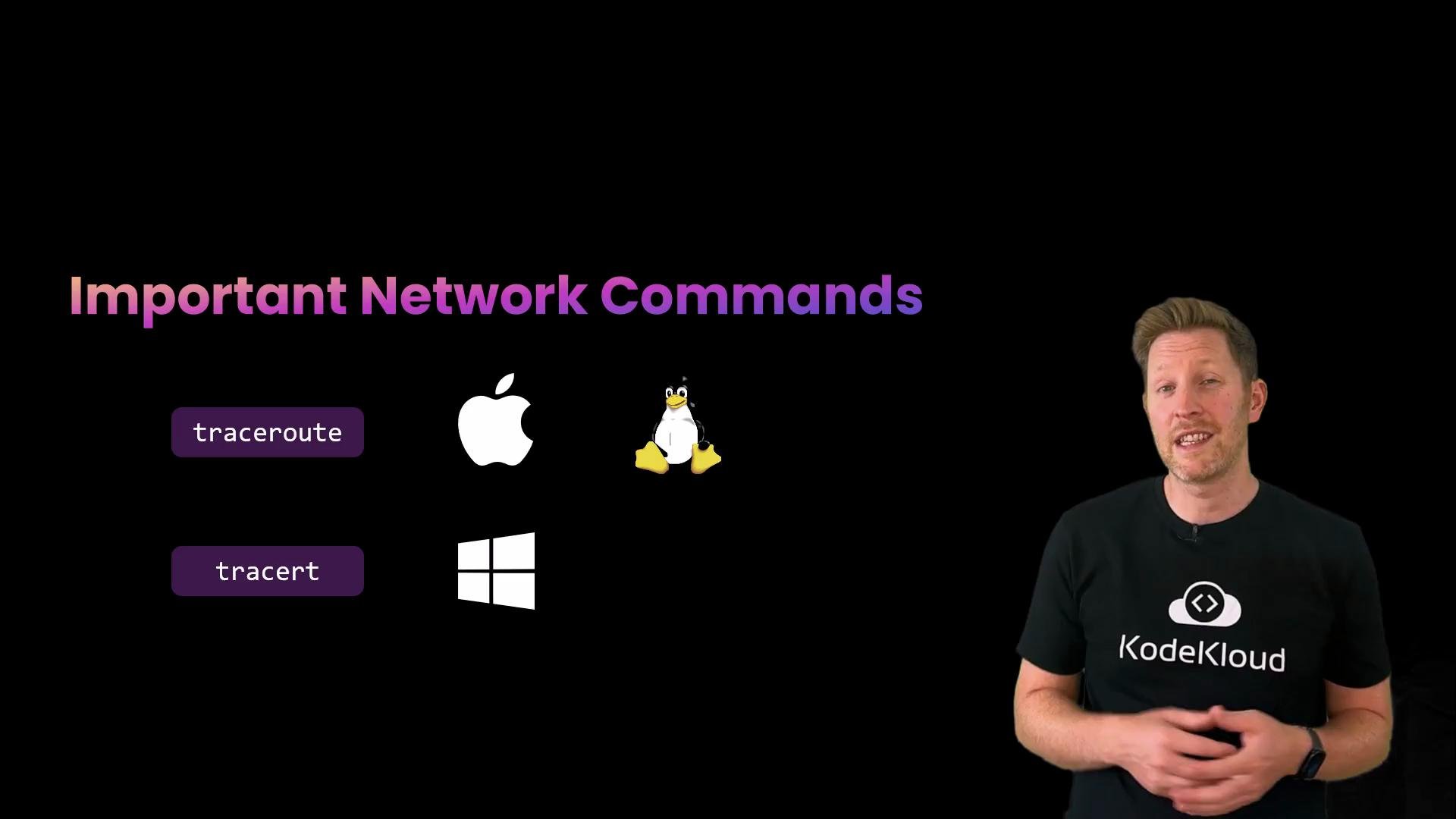
Use `traceroute` (macOS/Linux) or `tracert` (Windows) to view each hop between your device and a destination. This helps locate where packets are dropped or delayed.
* Some intermediate routers intentionally do not respond to ICMP or TTL-expired messages; asterisks in a traceroute do not always mean a problem.
* Use traceroute output to determine whether the issue is inside your LAN, at the ISP, or beyond.
Getting started: quick physical checks
* Is the Wi‑Fi icon visible and indicating a connection?
* Is Airplane Mode disabled?
* Are cables plugged in and the router powered on?
* Are other devices on the same network online?
If other devices work, the issue is likely local to your device. If no devices are online, check the router and ISP connection. Basic restarts help: reboot your computer, then unplug the router for 10 seconds and plug it back in.
If the basics don’t fix it, move to the command line and test the link/network layer — your device’s connection to the router.
Top-level troubleshooting flow (summary)
| Layer | What to check | Useful command(s) |
| -------------------- | ---------------------------------------------- | ------------------------------------ |
| Physical | Power, cables, Wi‑Fi, signal strength | N/A (GUI / hardware) |
| Link / Local network | Can you reach the router (local connectivity)? | `ping ` |
| Network / Routing | Does routing to the Internet work (by IP)? | `ping 8.8.8.8` |
| Application / DNS | Are hostnames resolving? | `ping google.com`, `nslookup`, `dig` |
| Path analysis | Where packets are dropped? | `traceroute` / `tracert` |
Link / Network layer — ping the router
Send an ICMP echo to your router to verify local connectivity. If you don’t know your router’s IP, look for the “Router” or “Default Gateway” entry in your network GUI.
Example: successful ping to the router
```bash theme={null}
$ ping 192.168.0.1
PING 192.168.0.1 (192.168.0.1): 56 data bytes
64 bytes from 192.168.0.1: icmp_seq=0 ttl=64 time=5.447 ms
64 bytes from 192.168.0.1: icmp_seq=1 ttl=64 time=3.351 ms
64 bytes from 192.168.0.1: icmp_seq=2 ttl=64 time=3.245 ms
^C
--- 192.168.0.1 ping statistics ---
3 packets transmitted, 3 received, 0% packet loss
round-trip min/avg/max/stddev = 3.245/4.014/5.447/1.014 ms
```
Each reply shows round‑trip time for that packet. When you stop the command (Control+C), the summary helps spot packet loss or latency spikes — useful for diagnosing flaky Wi‑Fi or an overloaded local network.
If the router responds, your device’s network interface and local link are working. If it doesn’t, focus on Wi‑Fi settings, physical cables, and your network adapter configuration.
Check the device IP configuration
Confirm your device has a valid IP address and a listed gateway/router. In the GUI, check the TCP/IP or network details for:
* A private IP (commonly `192.168.x.x`, `10.x.x.x`, or `172.16.x.x–172.31.x.x`).
* A router/default gateway IP (e.g., `192.168.0.1`).
* Whether the IP was obtained via DHCP or set manually.
From the terminal:
* Windows: `ipconfig`
* macOS / Linux: `ifconfig` or `ip addr`
Example (truncated macOS-style output):
```bash theme={null}
$ ifconfig
en0: flags=8863 mtu 1500
ether ae:4c:5a:5a:d3:88
inet 192.168.0.147 netmask 0xffffff00 broadcast 192.168.0.255
media: autoselect
status: active
```
If you see an APIPA/169.254.x.x address, your device did not obtain an address from DHCP.
Routing / Internet test — ping a public IP
If the router is reachable and your IP looks valid, test reachability beyond your router by pinging a known public IP (e.g., Google’s public DNS `8.8.8.8`). This checks routing without involving DNS.
Example: successful ping to 8.8.8.8
```bash theme={null}
$ ping 8.8.8.8
PING 8.8.8.8 (8.8.8.8): 56 data bytes
64 bytes from 8.8.8.8: icmp_seq=0 ttl=114 time=46.781 ms
64 bytes from 8.8.8.8: icmp_seq=1 ttl=114 time=57.126 ms
64 bytes from 8.8.8.8: icmp_seq=2 ttl=114 time=41.411 ms
^C
--- 8.8.8.8 ping statistics ---
3 packets transmitted, 3 received, 0% packet loss
round-trip min/avg/max/stddev = 41.411/46.781/57.126/7.317 ms
```
* If this succeeds, your router has upstream connectivity.
* If it fails, the problem is likely upstream (router → ISP) or the ISP itself.
Application layer — DNS lookups
If IP pings work but hostnames do not, DNS is the likely cause. Try resolving a hostname such as `google.com`.
Example: DNS failure when resolving google.com
```bash theme={null}
$ ping google.com
ping: cannot resolve google.com: Unknown host
```
If DNS fails:
* Check the DNS server entries in your network settings.
* Try switching to a known resolver, e.g., `8.8.8.8` (Google) or `1.1.1.1` (Cloudflare).
* Alternatively, point DNS to your router so it will forward requests to the ISP or public DNS.
After updating DNS, re-run the hostname lookup to confirm resolution.
Traceroute — visualize the packet path
Use `traceroute` (macOS/Linux) or `tracert` (Windows) to view each hop between your device and a destination. This helps locate where packets are dropped or delayed.
* Some intermediate routers intentionally do not respond to ICMP or TTL-expired messages; asterisks in a traceroute do not always mean a problem.
* Use traceroute output to determine whether the issue is inside your LAN, at the ISP, or beyond.
 Common troubleshooting commands (quick reference)
| Command | Platform | Purpose |
| -------------------------------------------- | ------------------------ | ---------------------------------------------------------- |
| `` `ping ` `` | All | Test IP-level or hostname reachability and measure latency |
| `ipconfig` | Windows | View interface configuration and default gateway |
| `ifconfig` / `ip addr` | macOS / Linux | View interface configuration and addresses |
| `` `nslookup ` / `dig ` `` | All (dig on Linux/macOS) | Test DNS resolution and view which server was queried |
| `` `traceroute ` / `tracert ` `` | macOS/Linux / Windows | Show hop-by-hop path and locate where packets are dropped |
Walkthrough 1 — DNS problem (browser won’t load pages)
Scenario: Browser shows “no internet” while the Wi‑Fi icon indicates connected. Other devices on the network work.
Troubleshooting steps:
1. Physical: Wi‑Fi is on, signal strength is good, other devices online.
2. Link/Network: `ping` to router replies → local connectivity OK.
3. Network: GUI shows `192.168.0.148` and router `192.168.0.1` → DHCP/addresses are sensible.
4. Routing/Internet: `ping 8.8.8.8` replies → routing to the Internet is OK.
5. Application: `ping google.com` fails with “cannot resolve” → DNS issue.
Fix: Change DNS in network settings to a known resolver (e.g., `8.8.8.8`) or set DNS to your router so it forwards DNS. After updating DNS, confirm hostnames resolve and the browser should recover.
Common troubleshooting commands (quick reference)
| Command | Platform | Purpose |
| -------------------------------------------- | ------------------------ | ---------------------------------------------------------- |
| `` `ping ` `` | All | Test IP-level or hostname reachability and measure latency |
| `ipconfig` | Windows | View interface configuration and default gateway |
| `ifconfig` / `ip addr` | macOS / Linux | View interface configuration and addresses |
| `` `nslookup ` / `dig ` `` | All (dig on Linux/macOS) | Test DNS resolution and view which server was queried |
| `` `traceroute ` / `tracert ` `` | macOS/Linux / Windows | Show hop-by-hop path and locate where packets are dropped |
Walkthrough 1 — DNS problem (browser won’t load pages)
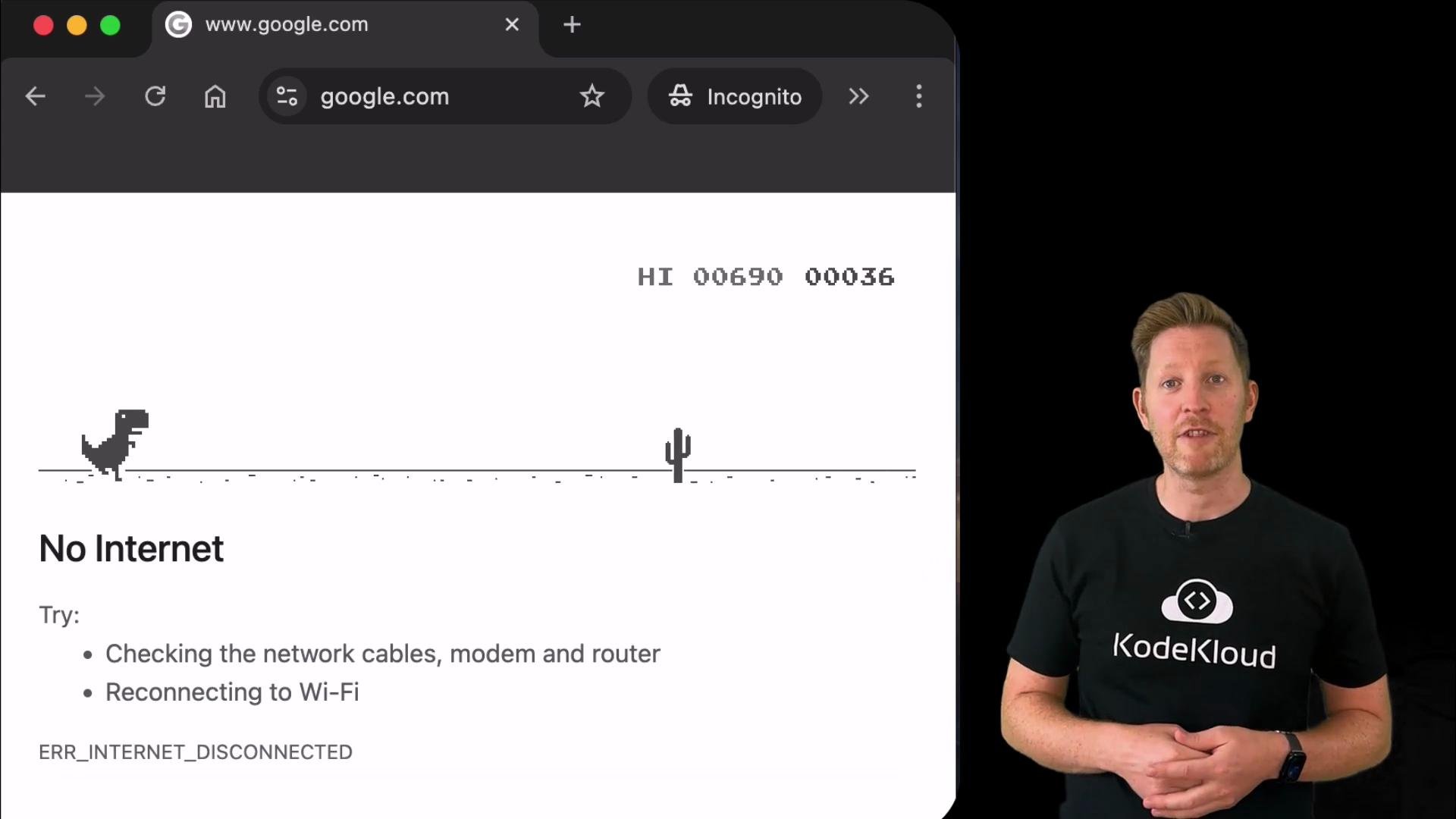
Scenario: Browser shows “no internet” while the Wi‑Fi icon indicates connected. Other devices on the network work.
Troubleshooting steps:
1. Physical: Wi‑Fi is on, signal strength is good, other devices online.
2. Link/Network: `ping` to router replies → local connectivity OK.
3. Network: GUI shows `192.168.0.148` and router `192.168.0.1` → DHCP/addresses are sensible.
4. Routing/Internet: `ping 8.8.8.8` replies → routing to the Internet is OK.
5. Application: `ping google.com` fails with “cannot resolve” → DNS issue.
Fix: Change DNS in network settings to a known resolver (e.g., `8.8.8.8`) or set DNS to your router so it forwards DNS. After updating DNS, confirm hostnames resolve and the browser should recover.
 Walkthrough 2 — DHCP / misconfigured IP (device can't talk to router)
Scenario: Wi‑Fi shows connected but the device cannot reach the router.
Troubleshooting steps:
1. Physical: Wi‑Fi on and signal good; other devices online.
2. Link/Network: `ping 192.168.0.1` — no replies:
```bash theme={null}
$ ping 192.168.0.1
PING 192.168.0.1 (192.168.0.1): 56 data bytes
Request timeout for icmp_seq 0
Request timeout for icmp_seq 1
^C
--- 192.168.0.1 ping statistics ---
2 packets transmitted, 0 received, 100% packet loss
```
3. Network: Inspect device IP settings — IP or gateway may have been set manually to the wrong network.
4. Fix: Switch the interface to DHCP (automatic configuration). This requests a valid IP, gateway, and DNS from the router.
After switching back to DHCP, the router responds again:
```bash theme={null}
$ ping 192.168.0.1
PING 192.168.0.1 (192.168.0.1): 56 data bytes
64 bytes from 192.168.0.1: icmp_seq=0 ttl=64 time=4.119 ms
64 bytes from 192.168.0.1: icmp_seq=1 ttl=64 time=3.070 ms
64 bytes from 192.168.0.1: icmp_seq=2 ttl=64 time=4.275 ms
^C
--- 192.168.0.1 ping statistics ---
3 packets transmitted, 3 received, 0% packet loss
round-trip min/avg/max/stddev = 3.070/3.821/4.275/0.535 ms
```
Recap — a systematic approach
* Start at the physical layer: power, cables, Wi‑Fi, signal strength.
* Use `ping` to verify both local (router) and remote (Internet IP) connectivity.
* Use `ipconfig` / `ifconfig` or the GUI to confirm your IP, netmask, gateway, and whether DHCP is in use.
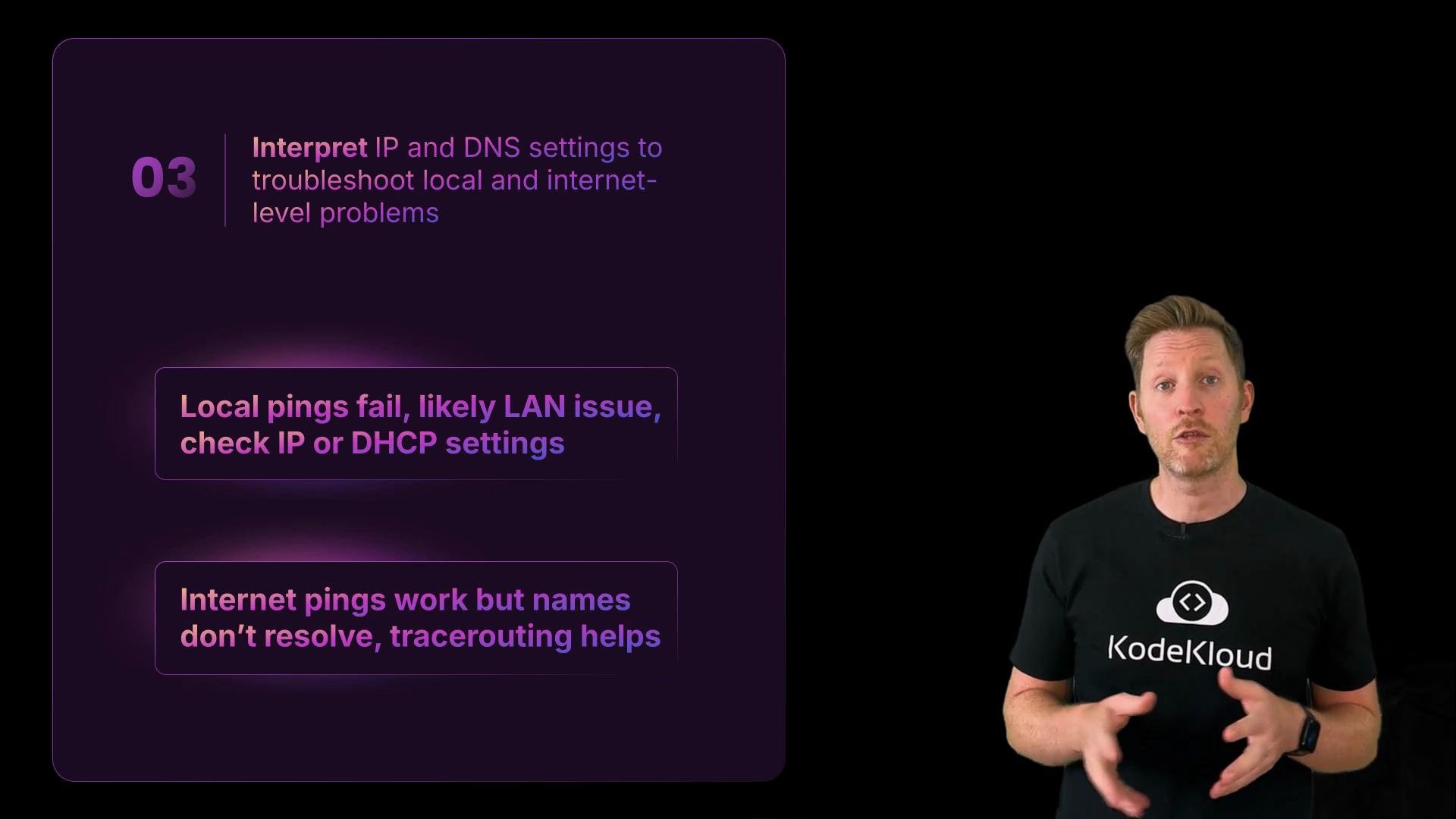
* If local pings fail, it’s likely a LAN issue — check IP/DHCP and adapter settings.
* If pings by IP succeed but names fail, it’s a DNS problem.
* Use `traceroute` / `tracert` to find where packets are being dropped or delayed.
Walkthrough 2 — DHCP / misconfigured IP (device can't talk to router)
Scenario: Wi‑Fi shows connected but the device cannot reach the router.
Troubleshooting steps:
1. Physical: Wi‑Fi on and signal good; other devices online.
2. Link/Network: `ping 192.168.0.1` — no replies:
```bash theme={null}
$ ping 192.168.0.1
PING 192.168.0.1 (192.168.0.1): 56 data bytes
Request timeout for icmp_seq 0
Request timeout for icmp_seq 1
^C
--- 192.168.0.1 ping statistics ---
2 packets transmitted, 0 received, 100% packet loss
```
3. Network: Inspect device IP settings — IP or gateway may have been set manually to the wrong network.
4. Fix: Switch the interface to DHCP (automatic configuration). This requests a valid IP, gateway, and DNS from the router.
After switching back to DHCP, the router responds again:
```bash theme={null}
$ ping 192.168.0.1
PING 192.168.0.1 (192.168.0.1): 56 data bytes
64 bytes from 192.168.0.1: icmp_seq=0 ttl=64 time=4.119 ms
64 bytes from 192.168.0.1: icmp_seq=1 ttl=64 time=3.070 ms
64 bytes from 192.168.0.1: icmp_seq=2 ttl=64 time=4.275 ms
^C
--- 192.168.0.1 ping statistics ---
3 packets transmitted, 3 received, 0% packet loss
round-trip min/avg/max/stddev = 3.070/3.821/4.275/0.535 ms
```
Recap — a systematic approach
* Start at the physical layer: power, cables, Wi‑Fi, signal strength.
* Use `ping` to verify both local (router) and remote (Internet IP) connectivity.
* Use `ipconfig` / `ifconfig` or the GUI to confirm your IP, netmask, gateway, and whether DHCP is in use.
* If local pings fail, it’s likely a LAN issue — check IP/DHCP and adapter settings.
* If pings by IP succeed but names fail, it’s a DNS problem.
* Use `traceroute` / `tracert` to find where packets are being dropped or delayed.
 Pop quiz
Which of the following statements is true?
A. A successful `ping google.com` proves your DNS server is faulty.\
B. If pinging your router fails, the problem is definitely with your ISP.\
C. `traceroute` shows how your packets travel across the network, hop by hop.\
D. If your IP address starts with 169.254, it means your router is not connected properly.
Answer: C is correct. `traceroute` reveals the hop-by-hop path packets take and helps identify where problems occur.
Notes on the false options:
* A is false — a successful `ping` by name shows DNS resolution works for that lookup; it does not alone prove DNS is faulty in all cases.
* B is false — if pinging the router fails, the issue is likely local (device or router), not necessarily the ISP.
* D is false — an APIPA/`169.254.x.x` address indicates the device couldn’t obtain an IP via DHCP; this often points to DHCP or local connectivity issues between the device and the DHCP server (router).
That’s the end of this article.
Pop quiz
Which of the following statements is true?
A. A successful `ping google.com` proves your DNS server is faulty.\
B. If pinging your router fails, the problem is definitely with your ISP.\
C. `traceroute` shows how your packets travel across the network, hop by hop.\
D. If your IP address starts with 169.254, it means your router is not connected properly.
Answer: C is correct. `traceroute` reveals the hop-by-hop path packets take and helps identify where problems occur.
Notes on the false options:
* A is false — a successful `ping` by name shows DNS resolution works for that lookup; it does not alone prove DNS is faulty in all cases.
* B is false — if pinging the router fails, the issue is likely local (device or router), not necessarily the ISP.
* D is false — an APIPA/`169.254.x.x` address indicates the device couldn’t obtain an IP via DHCP; this often points to DHCP or local connectivity issues between the device and the DHCP server (router).
That’s the end of this article.