> ## Documentation Index
> Fetch the complete documentation index at: https://notes.kodekloud.com/llms.txt
> Use this file to discover all available pages before exploring further.
# Network Hardware
> A historical overview of home network hardware, topologies, and media evolution explaining devices, cabling, Wi‑Fi advances, and performance factors from 1980s to 2020s
Ever wonder how your laptop talks to your router, or how your game console gets online without wires? Home networks feel simple—until something stops working. Slow Wi‑Fi, no signal in one room, or devices that won't connect are common problems. This guide explains why those issues happen and how the hardware, topology, and media evolved to solve them.
We’ll trace home networking decade by decade and focus on three things: the underlying technology, the topology (how devices are arranged), and the physical medium used to move data (wired or wireless). Although the examples emphasize homes, the same building blocks scale to offices, campuses, and larger networks.
Three key questions, one home, five NICs, and a lot of blinking lights.
Before we dive in, keep four core performance characteristics in mind—think of them as road features for your data:
* Bandwidth — how much data can move simultaneously (more lanes = higher throughput).
* Latency — how long it takes a packet to start moving (high latency = lag).
* Jitter — variability in packet timing (causes choppy audio/video).
* Congestion — too many devices competing for the same path (causes slowdowns even with high headline speeds).
As you read each decade, notice how new cables, devices, and layouts attempted to address one or more of these constraints.
## 1980s — early local networking
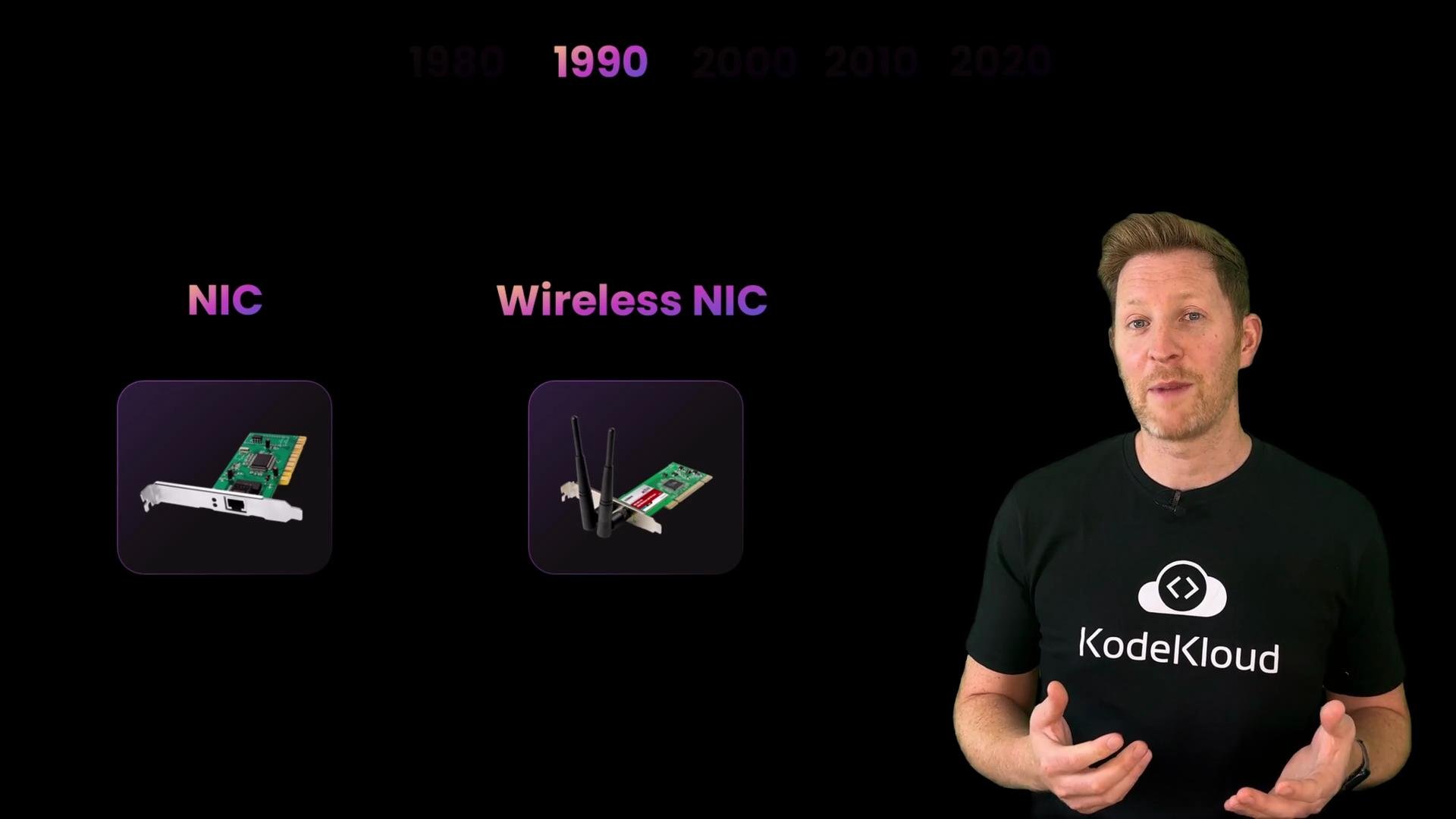
Most computers were standalone. To share files or printers without swapping floppy disks, systems used a Network Interface Card (NIC)—also called a network adapter or LAN adapter. NICs provided a physical Ethernet connector and the interface logic the operating system used.
Common characteristics:
* NICs were usually internal (ISA/early PCI cards) and wired.
* Small networks often used hubs: dumb devices that forwarded every incoming frame to every port. Easy, but inefficient—every device sees all traffic and effective bandwidth drops as devices increase.
* Bus topology (a single shared cable) was common; simple to wire but fragile—a single break could take the whole network offline.
* Coaxial cable was widely used: robust for the era but limited versus later twisted-pair and fiber.
Performance demands were rising and the older tech was reaching limits.
 ## 1990s — connecting to the world
The big shift was bringing homes online. Modems translated digital data into tones suitable for telephone lines and connected homes to Internet Service Providers (ISPs). Dial-up offered broad availability but suffered from low bandwidth and high latency—web pages often appeared line by line.
Local networking hardware improved:
* Switches replaced hubs in many setups. Switches forward frames only to the destination port using MAC address tables, reducing unnecessary traffic and improving usable bandwidth.
* Bridges connected and filtered traffic between network segments.
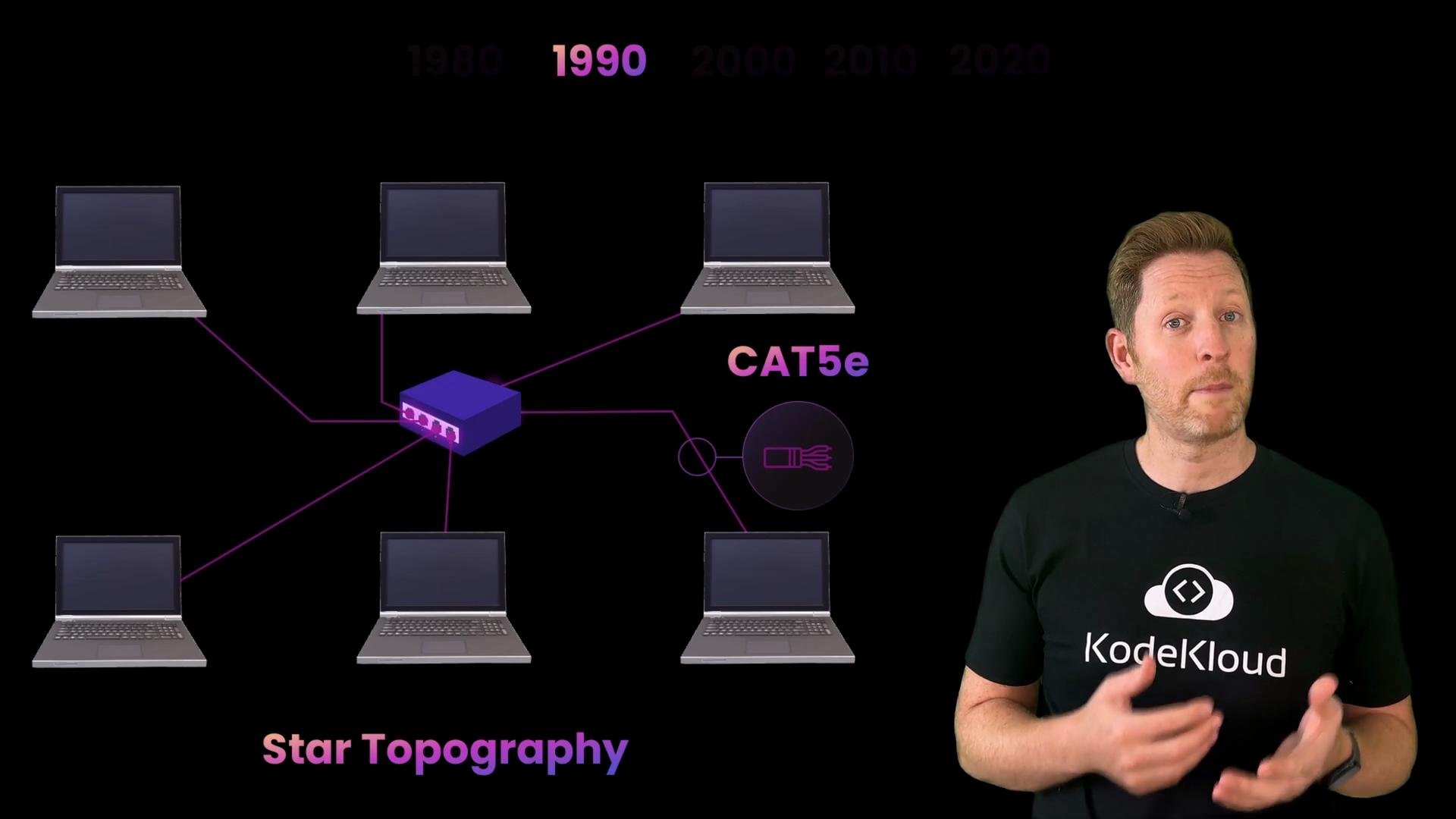
* Topologies shifted from bus to star—central switches or hubs made troubleshooting and scaling easier.
* Wired connections remained the most reliable choice; early wireless NICs existed but were uncommon and expensive.
## 2000s — broadband and the home router
Broadband made Internet connections faster and persistent. The home router became the network centerpiece: routing between your private network and the ISP, assigning private IPs, and handling NAT.
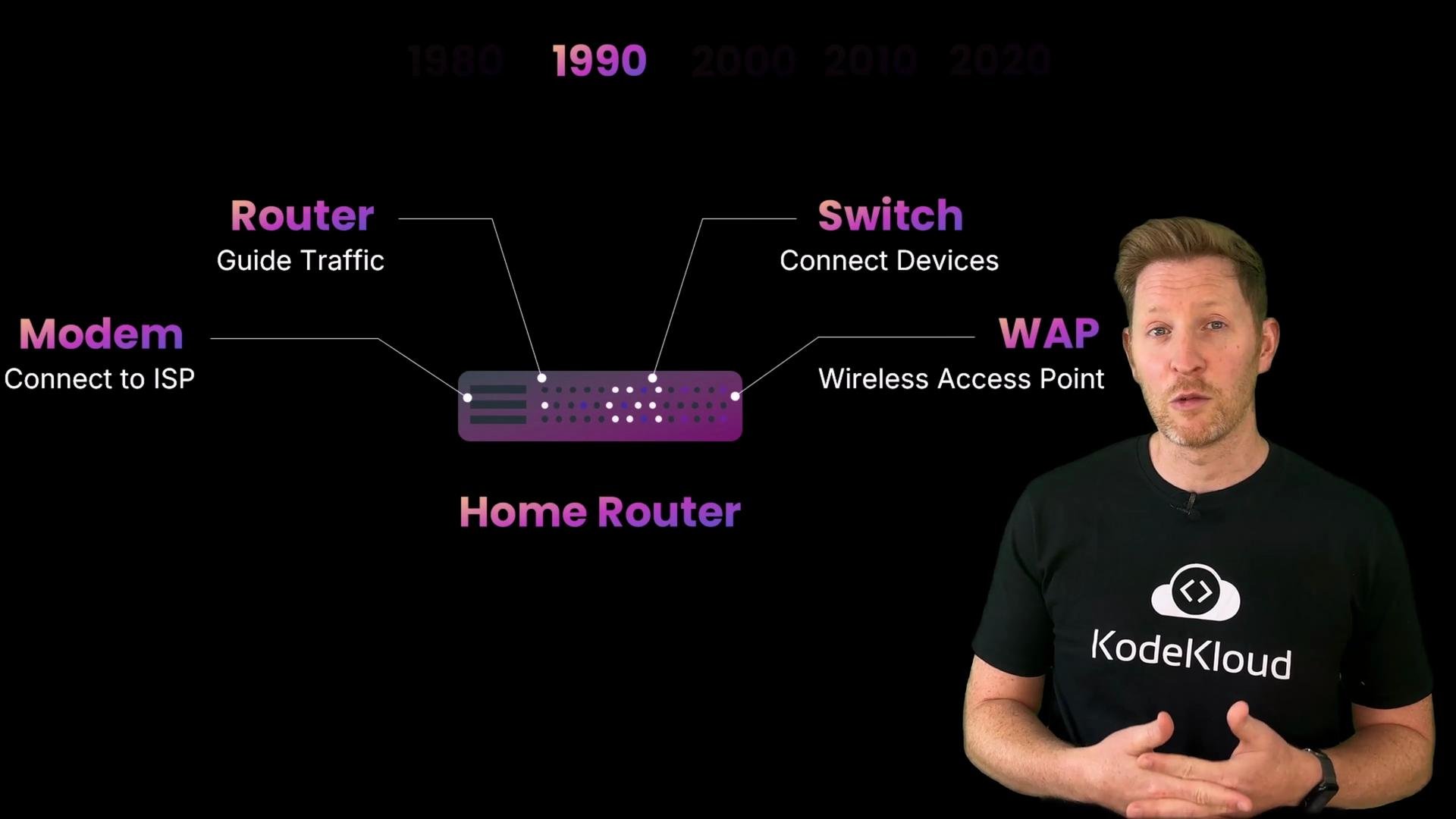
Most consumer “routers” are actually multifunction devices: modem (connect to ISP), router (forward and NAT), switch (multiple wired ports), and wireless access point (WAP).
## 1990s — connecting to the world
The big shift was bringing homes online. Modems translated digital data into tones suitable for telephone lines and connected homes to Internet Service Providers (ISPs). Dial-up offered broad availability but suffered from low bandwidth and high latency—web pages often appeared line by line.
Local networking hardware improved:
* Switches replaced hubs in many setups. Switches forward frames only to the destination port using MAC address tables, reducing unnecessary traffic and improving usable bandwidth.
* Bridges connected and filtered traffic between network segments.
* Topologies shifted from bus to star—central switches or hubs made troubleshooting and scaling easier.
* Wired connections remained the most reliable choice; early wireless NICs existed but were uncommon and expensive.
## 2000s — broadband and the home router
Broadband made Internet connections faster and persistent. The home router became the network centerpiece: routing between your private network and the ISP, assigning private IPs, and handling NAT.
Most consumer “routers” are actually multifunction devices: modem (connect to ISP), router (forward and NAT), switch (multiple wired ports), and wireless access point (WAP).
 Wired improvements:
* Cat5e Ethernet became the standard: affordable and capable of gigabit speeds for most home uses.
* Wired Ethernet remains preferable for gaming, streaming, and large transfers due to lower latency and higher reliability.
Wireless improvements and layout changes:
* Wi‑Fi access points grew more common as standards matured.
* To extend coverage or capacity, people added extra WAPs, range extenders, and switches to expand wired ports for high-demand devices.
Wired improvements:
* Cat5e Ethernet became the standard: affordable and capable of gigabit speeds for most home uses.
* Wired Ethernet remains preferable for gaming, streaming, and large transfers due to lower latency and higher reliability.
Wireless improvements and layout changes:
* Wi‑Fi access points grew more common as standards matured.
* To extend coverage or capacity, people added extra WAPs, range extenders, and switches to expand wired ports for high-demand devices.
 ## 2010s — Wi‑Fi everywhere, smarter home networks
Wi‑Fi became mainstream and essential. Homes continued to use star layouts for wired devices, but wireless coverage increasingly relied on multiple access points and mesh-like approaches for seamless roaming.
Key trends:
* Cat6 cabling grew popular for higher bandwidth and reduced crosstalk.
* Consumer switches became commonplace to support consoles, streaming boxes, and home offices—offloading traffic from Wi‑Fi and improving stability.
* Router firmware and devices got smarter: QoS options, better routing, parental controls, and basic traffic analytics.
## 2020s — mesh, Wi‑Fi 6, and hybrid topologies
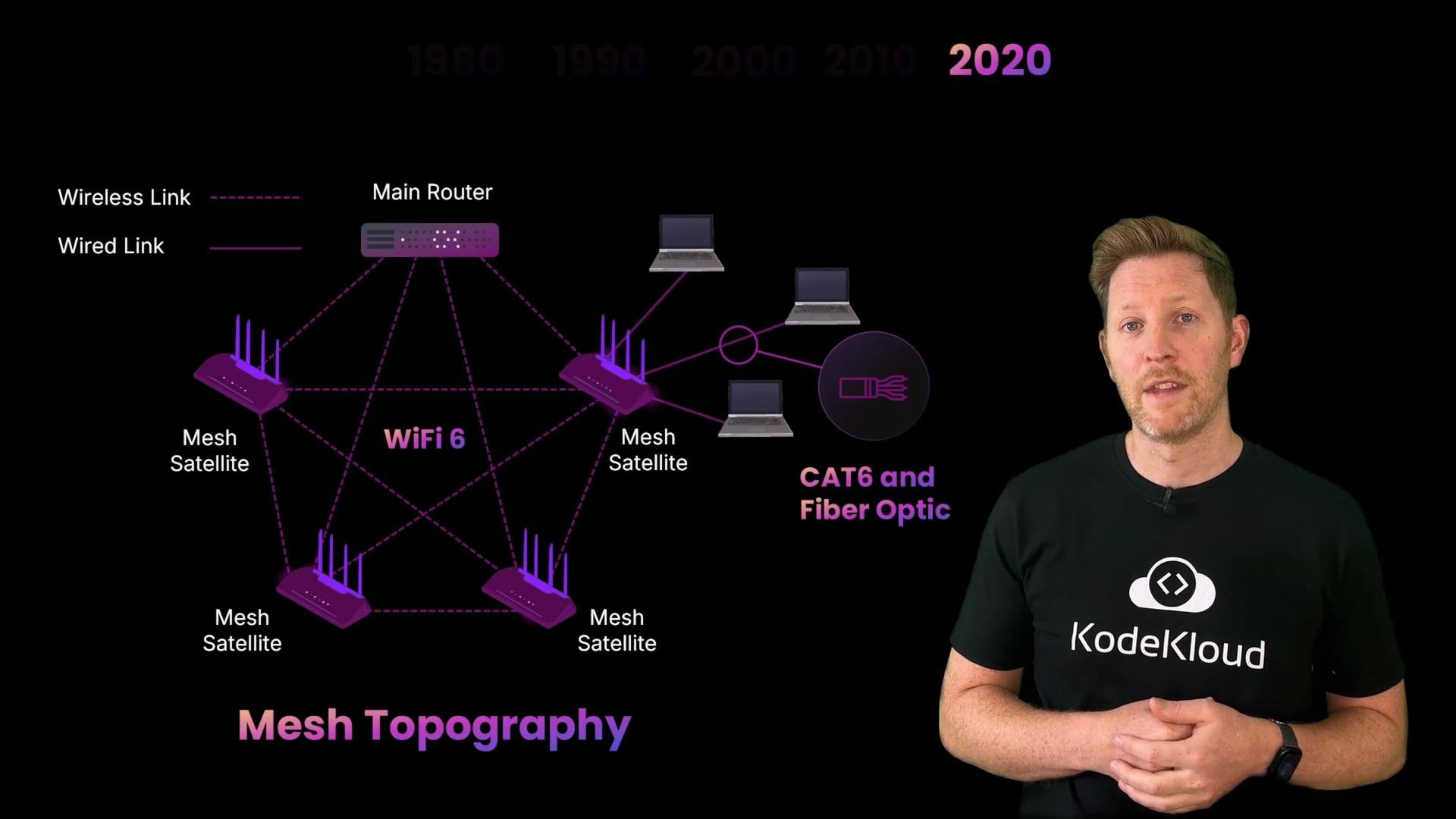
Modern homes host many more devices and expect consistent, low-latency performance. Mesh Wi‑Fi systems—multi-node kits where nodes communicate with neighbors—provide more uniform coverage and automatic path selection. A single node going offline usually doesn’t break the network because traffic can route through other nodes.
Today’s typical setup is hybrid:
* Wired star connections for fixed, high-bandwidth devices (Cat6 or fiber).
* Wireless mesh zones for mobile devices and general coverage.
* Routers and mesh systems with Wi‑Fi 6 increase throughput and efficiency for dense device environments.
* When wired infrastructure is impractical, 5G routers provide a high-speed cellular alternative.
## 2010s — Wi‑Fi everywhere, smarter home networks
Wi‑Fi became mainstream and essential. Homes continued to use star layouts for wired devices, but wireless coverage increasingly relied on multiple access points and mesh-like approaches for seamless roaming.
Key trends:
* Cat6 cabling grew popular for higher bandwidth and reduced crosstalk.
* Consumer switches became commonplace to support consoles, streaming boxes, and home offices—offloading traffic from Wi‑Fi and improving stability.
* Router firmware and devices got smarter: QoS options, better routing, parental controls, and basic traffic analytics.
## 2020s — mesh, Wi‑Fi 6, and hybrid topologies
Modern homes host many more devices and expect consistent, low-latency performance. Mesh Wi‑Fi systems—multi-node kits where nodes communicate with neighbors—provide more uniform coverage and automatic path selection. A single node going offline usually doesn’t break the network because traffic can route through other nodes.
Today’s typical setup is hybrid:
* Wired star connections for fixed, high-bandwidth devices (Cat6 or fiber).
* Wireless mesh zones for mobile devices and general coverage.
* Routers and mesh systems with Wi‑Fi 6 increase throughput and efficiency for dense device environments.
* When wired infrastructure is impractical, 5G routers provide a high-speed cellular alternative.
 ## Decade comparison at a glance
| Decade | Typical media | Common topology | Typical hardware | Primary improvements |
| ------ | ----------------------------------------- | ----------------------------------- | -------------------------------- | ----------------------------------------- |
| 1980s | Coaxial, early twisted pair | Bus | NICs (ISA), hubs | Basic LAN connectivity |
| 1990s | Telephone lines for dial-up, twisted pair | Star begins to replace bus | Modems, switches, bridges | Internet access, switching |
| 2000s | Cat5e, DSL/cable broadband | Star with router at center | Combined modem/router/switch/WAP | Persistent broadband, consumer routers |
| 2010s | Cat6, improved Wi‑Fi | Hybrid (wired star + multiple WAPs) | Managed switches, better routers | Wi‑Fi expansion, QoS |
| 2020s | Cat6/fiber, Wi‑Fi 6, 5G | Mesh + wired star hybrid | Mesh nodes, Wi‑Fi 6 routers | Seamless coverage, higher density support |
## Quick quiz (think before you proceed)
Which of the following statements is true?
A. A NIC can connect a device to a network using either Ethernet or Wi‑Fi.\
B. Star topologies make it harder to isolate faults than bus topologies.\
C. Jitter only affects Internet speed, not call or video quality.
Pause and choose the best answer.
### Answers explained
* A is true. Network Interface Cards exist as wired or wireless adapters—both provide the interface that connects your device to a network.
* B is false. Star topologies make it easier to isolate faults; one cable or device failure typically affects only that endpoint.
* C is false. Jitter is uneven packet timing and directly affects call and video quality, causing choppy audio or stuttering video—even when bandwidth appears sufficient.
Common pitfalls to avoid: mixing multiple NAT layers unintentionally (e.g., ISP modem+router plus your own router) can create double NAT issues. Also, wireless extenders can reduce throughput if positioned poorly—prefer wired backhaul for mesh nodes when possible.
## Summary — map back to the core ideas
* Interfaces and media: Devices connect using NICs (wired or wireless). Common cabling: `Cat5e`, `Cat6`, and `fiber`. Wireless options include Wi‑Fi (multiple generations) and cellular (4G/5G).
* Core devices: Modems (connect to ISPs), routers (route and NAT), switches (expand wired connectivity), and WAPs/mesh nodes (provide wireless access).
* Topologies: Star is common for wired setups; mesh and hybrid layouts improve coverage and resilience for modern homes.
* Performance factors: Layout, interference, and device demand impact experience—not just headline speed. Pay attention to latency, jitter, congestion, and bandwidth.
* Scale: These same components and concepts scale up from home networks to enterprise and WAN environments with additional routing, security, and optimization layers.
We’ll next break down the protocols that make networks work—how devices agree on a language to talk, how they share the medium, and how traffic is routed efficiently.
## Links and references
* [IEEE 802.11 (Wi‑Fi) standards overview](https://en.wikipedia.org/wiki/IEEE_802.11)
* [Wi‑Fi Alliance (Wi‑Fi 6)](https://www.wi-fi.org/discover-wi-fi/wi-fi-6)
* [Ethernet cabling standards (Cat5e vs Cat6)](https://en.wikipedia.org/wiki/Ethernet_cabling)
## Decade comparison at a glance
| Decade | Typical media | Common topology | Typical hardware | Primary improvements |
| ------ | ----------------------------------------- | ----------------------------------- | -------------------------------- | ----------------------------------------- |
| 1980s | Coaxial, early twisted pair | Bus | NICs (ISA), hubs | Basic LAN connectivity |
| 1990s | Telephone lines for dial-up, twisted pair | Star begins to replace bus | Modems, switches, bridges | Internet access, switching |
| 2000s | Cat5e, DSL/cable broadband | Star with router at center | Combined modem/router/switch/WAP | Persistent broadband, consumer routers |
| 2010s | Cat6, improved Wi‑Fi | Hybrid (wired star + multiple WAPs) | Managed switches, better routers | Wi‑Fi expansion, QoS |
| 2020s | Cat6/fiber, Wi‑Fi 6, 5G | Mesh + wired star hybrid | Mesh nodes, Wi‑Fi 6 routers | Seamless coverage, higher density support |
## Quick quiz (think before you proceed)
Which of the following statements is true?
A. A NIC can connect a device to a network using either Ethernet or Wi‑Fi.\
B. Star topologies make it harder to isolate faults than bus topologies.\
C. Jitter only affects Internet speed, not call or video quality.
Pause and choose the best answer.
### Answers explained
* A is true. Network Interface Cards exist as wired or wireless adapters—both provide the interface that connects your device to a network.
* B is false. Star topologies make it easier to isolate faults; one cable or device failure typically affects only that endpoint.
* C is false. Jitter is uneven packet timing and directly affects call and video quality, causing choppy audio or stuttering video—even when bandwidth appears sufficient.
Common pitfalls to avoid: mixing multiple NAT layers unintentionally (e.g., ISP modem+router plus your own router) can create double NAT issues. Also, wireless extenders can reduce throughput if positioned poorly—prefer wired backhaul for mesh nodes when possible.
## Summary — map back to the core ideas
* Interfaces and media: Devices connect using NICs (wired or wireless). Common cabling: `Cat5e`, `Cat6`, and `fiber`. Wireless options include Wi‑Fi (multiple generations) and cellular (4G/5G).
* Core devices: Modems (connect to ISPs), routers (route and NAT), switches (expand wired connectivity), and WAPs/mesh nodes (provide wireless access).
* Topologies: Star is common for wired setups; mesh and hybrid layouts improve coverage and resilience for modern homes.
* Performance factors: Layout, interference, and device demand impact experience—not just headline speed. Pay attention to latency, jitter, congestion, and bandwidth.
* Scale: These same components and concepts scale up from home networks to enterprise and WAN environments with additional routing, security, and optimization layers.
We’ll next break down the protocols that make networks work—how devices agree on a language to talk, how they share the medium, and how traffic is routed efficiently.
## Links and references
* [IEEE 802.11 (Wi‑Fi) standards overview](https://en.wikipedia.org/wiki/IEEE_802.11)
* [Wi‑Fi Alliance (Wi‑Fi 6)](https://www.wi-fi.org/discover-wi-fi/wi-fi-6)
* [Ethernet cabling standards (Cat5e vs Cat6)](https://en.wikipedia.org/wiki/Ethernet_cabling)