> ## Documentation Index
> Fetch the complete documentation index at: https://notes.kodekloud.com/llms.txt
> Use this file to discover all available pages before exploring further.
# Demo Firewall Ports Install Config
> Configuring UFW firewall and ports for NGINX and a Flask app, verifying services and recommending reverse proxying and SSH safety.
You can quickly verify NGINX and a backend Flask app from the server itself using `curl`. That confirms the services are running from the server/engineer perspective, but it doesn't prove the same results from the client/browser perspective.
Below are the two checks we ran locally on the host to confirm both NGINX and the Flask app were responding:
```bash theme={null}
bob@alpine-host ~ ➜ curl localhost
Welcome to nginx!
Welcome to nginx!
If you see this page, the nginx web server is successfully installed and working. Further configuration is required.
For online documentation and support please refer to
nginx.org.
Commercial support is available at
nginx.com.
Thank you for using nginx.
bob@alpine-host ~ ➜ curl localhost:5000
Hello, Human!
[Not Authenticated]
bob@alpine-host ~ ➜ clear
```
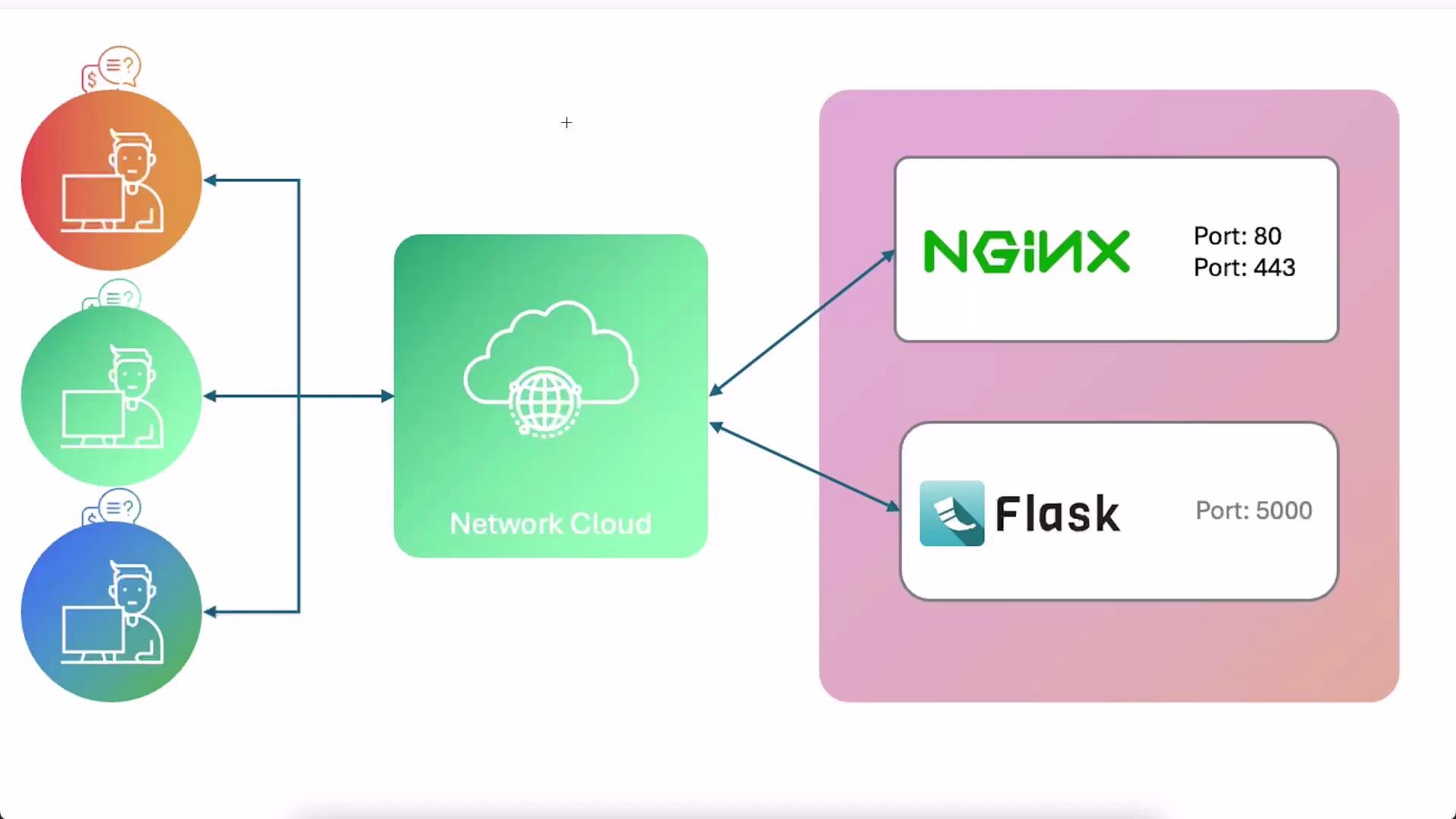 The diagram above illustrates the lab environment:
* Users (left) reach services over the Internet (network cloud).
* Services (right):
* NGINX serves the default page on port `80` (HTTP).
* A small Flask application listens on port `5000`.
In this lab the firewall is initially inactive, so both services are reachable directly from a browser or the lab UI “view ports” feature (you can open `80` or `5000` in a browser tab from the UI). This setup is convenient for learning but not representative of a secure production environment.
UFW (Uncomplicated Firewall) is a simple frontend to manage Linux iptables rules. See the official UFW documentation for details: [https://help.ubuntu.com/community/UFW](https://help.ubuntu.com/community/UFW). The recommended workflow is to enable UFW and explicitly allow only the ports your system needs.
Before enabling the firewall, always make sure you allow SSH access (for example `sudo ufw allow OpenSSH` or `sudo ufw allow 22/tcp`) so you don't lock yourself out of the server.
## Typical UFW workflow
Below is a step-by-step example showing how to check UFW status, allow SSH, enable the firewall, add web ports, and verify the rules:
```bash theme={null}
# Check current status (likely inactive in a fresh lab)
bob@alpine-host ~ ➜ sudo ufw status
Status: inactive
# Allow SSH first to avoid being locked out (recommended)
bob@alpine-host ~ ➜ sudo ufw allow OpenSSH
Rule added
Rule added (v6)
# Enable UFW (turns on the firewall and enables it at startup)
bob@alpine-host ~ ➜ sudo ufw enable
Firewall is active and enabled on system startup
# Allow HTTP (port 80) and HTTPS (port 443)
bob@alpine-host ~ ➜ sudo ufw allow 80/tcp
Rule added
Rule added (v6)
bob@alpine-host ~ ➜ sudo ufw allow 443/tcp
Rule added
Rule added (v6)
# (Optional) Allow the Flask app port if you need direct external access (not recommended)
bob@alpine-host ~ ➜ sudo ufw allow 5000/tcp
Rule added
Rule added (v6)
# View current active rules
bob@alpine-host ~ ➜ sudo ufw status
Status: active
To Action From
-- ------ -----
80/tcp ALLOW Anywhere
443/tcp ALLOW Anywhere
5000/tcp ALLOW Anywhere
22/tcp ALLOW Anywhere
80/tcp (v6) ALLOW Anywhere (v6)
443/tcp (v6) ALLOW Anywhere (v6)
5000/tcp (v6) ALLOW Anywhere (v6)
22/tcp (v6) ALLOW Anywhere (v6)
```
## Port summary and recommended exposure
| Service | Port | Typical use / recommendation |
| ----------------------- | ------ | --------------------------------------------------------------------------------------------------------- |
| NGINX (HTTP) | `80` | Publicly expose for HTTP traffic; use only if you intentionally serve unencrypted content. |
| NGINX (HTTPS) | `443` | Publicly expose for secure web traffic. Use a TLS certificate for production. |
| Flask app (development) | `5000` | Development port. Avoid exposing directly to the Internet. Instead, route via NGINX on `80`/`443`. |
| SSH | `22` | Required for remote administration. Always allow before enabling the firewall. (`sudo ufw allow OpenSSH`) |
## Best practices and notes
* UFW adds both IPv4 and IPv6 rules. You will typically see `Rule added (v6)` in the command output. If your environment supports IPv6 (mobile networks frequently do), those rules are relevant.
* Always permit SSH (`22/tcp` or `OpenSSH`) before enabling UFW to prevent locking yourself out.
* For public-facing services, prefer exposing only `80` and `443`. Avoid opening non-standard ports (like `5000`) to reduce your attack surface and avoid confusion for end users who normally do not append ports to URLs.
* To expose internal apps on standard web ports, use NGINX as a reverse proxy (or a load balancer) to accept traffic on `80`/`443` and forward requests internally to your application on `5000`. Reverse proxying and load balancing deserve their own dedicated guides.
Resources:
* UFW documentation: [https://help.ubuntu.com/community/UFW](https://help.ubuntu.com/community/UFW)
* NGINX documentation: [https://nginx.org/en/docs/](https://nginx.org/en/docs/)
Summary: enable UFW, allow only the ports you need (and always allow SSH before enabling), and use NGINX as a reverse proxy to present backend applications on standard web ports (`80`/`443`) instead of opening many arbitrary ports.
The diagram above illustrates the lab environment:
* Users (left) reach services over the Internet (network cloud).
* Services (right):
* NGINX serves the default page on port `80` (HTTP).
* A small Flask application listens on port `5000`.
In this lab the firewall is initially inactive, so both services are reachable directly from a browser or the lab UI “view ports” feature (you can open `80` or `5000` in a browser tab from the UI). This setup is convenient for learning but not representative of a secure production environment.
UFW (Uncomplicated Firewall) is a simple frontend to manage Linux iptables rules. See the official UFW documentation for details: [https://help.ubuntu.com/community/UFW](https://help.ubuntu.com/community/UFW). The recommended workflow is to enable UFW and explicitly allow only the ports your system needs.
Before enabling the firewall, always make sure you allow SSH access (for example `sudo ufw allow OpenSSH` or `sudo ufw allow 22/tcp`) so you don't lock yourself out of the server.
## Typical UFW workflow
Below is a step-by-step example showing how to check UFW status, allow SSH, enable the firewall, add web ports, and verify the rules:
```bash theme={null}
# Check current status (likely inactive in a fresh lab)
bob@alpine-host ~ ➜ sudo ufw status
Status: inactive
# Allow SSH first to avoid being locked out (recommended)
bob@alpine-host ~ ➜ sudo ufw allow OpenSSH
Rule added
Rule added (v6)
# Enable UFW (turns on the firewall and enables it at startup)
bob@alpine-host ~ ➜ sudo ufw enable
Firewall is active and enabled on system startup
# Allow HTTP (port 80) and HTTPS (port 443)
bob@alpine-host ~ ➜ sudo ufw allow 80/tcp
Rule added
Rule added (v6)
bob@alpine-host ~ ➜ sudo ufw allow 443/tcp
Rule added
Rule added (v6)
# (Optional) Allow the Flask app port if you need direct external access (not recommended)
bob@alpine-host ~ ➜ sudo ufw allow 5000/tcp
Rule added
Rule added (v6)
# View current active rules
bob@alpine-host ~ ➜ sudo ufw status
Status: active
To Action From
-- ------ -----
80/tcp ALLOW Anywhere
443/tcp ALLOW Anywhere
5000/tcp ALLOW Anywhere
22/tcp ALLOW Anywhere
80/tcp (v6) ALLOW Anywhere (v6)
443/tcp (v6) ALLOW Anywhere (v6)
5000/tcp (v6) ALLOW Anywhere (v6)
22/tcp (v6) ALLOW Anywhere (v6)
```
## Port summary and recommended exposure
| Service | Port | Typical use / recommendation |
| ----------------------- | ------ | --------------------------------------------------------------------------------------------------------- |
| NGINX (HTTP) | `80` | Publicly expose for HTTP traffic; use only if you intentionally serve unencrypted content. |
| NGINX (HTTPS) | `443` | Publicly expose for secure web traffic. Use a TLS certificate for production. |
| Flask app (development) | `5000` | Development port. Avoid exposing directly to the Internet. Instead, route via NGINX on `80`/`443`. |
| SSH | `22` | Required for remote administration. Always allow before enabling the firewall. (`sudo ufw allow OpenSSH`) |
## Best practices and notes
* UFW adds both IPv4 and IPv6 rules. You will typically see `Rule added (v6)` in the command output. If your environment supports IPv6 (mobile networks frequently do), those rules are relevant.
* Always permit SSH (`22/tcp` or `OpenSSH`) before enabling UFW to prevent locking yourself out.
* For public-facing services, prefer exposing only `80` and `443`. Avoid opening non-standard ports (like `5000`) to reduce your attack surface and avoid confusion for end users who normally do not append ports to URLs.
* To expose internal apps on standard web ports, use NGINX as a reverse proxy (or a load balancer) to accept traffic on `80`/`443` and forward requests internally to your application on `5000`. Reverse proxying and load balancing deserve their own dedicated guides.
Resources:
* UFW documentation: [https://help.ubuntu.com/community/UFW](https://help.ubuntu.com/community/UFW)
* NGINX documentation: [https://nginx.org/en/docs/](https://nginx.org/en/docs/)
Summary: enable UFW, allow only the ports you need (and always allow SSH before enabling), and use NGINX as a reverse proxy to present backend applications on standard web ports (`80`/`443`) instead of opening many arbitrary ports.