> ## Documentation Index
> Fetch the complete documentation index at: https://notes.kodekloud.com/llms.txt
> Use this file to discover all available pages before exploring further.
# Install Config Introduction
> Guide to installing, configuring, and managing Nginx across platforms, covering package managers, service commands, nginx.conf structure, hosting static sites, and basic firewall rules.
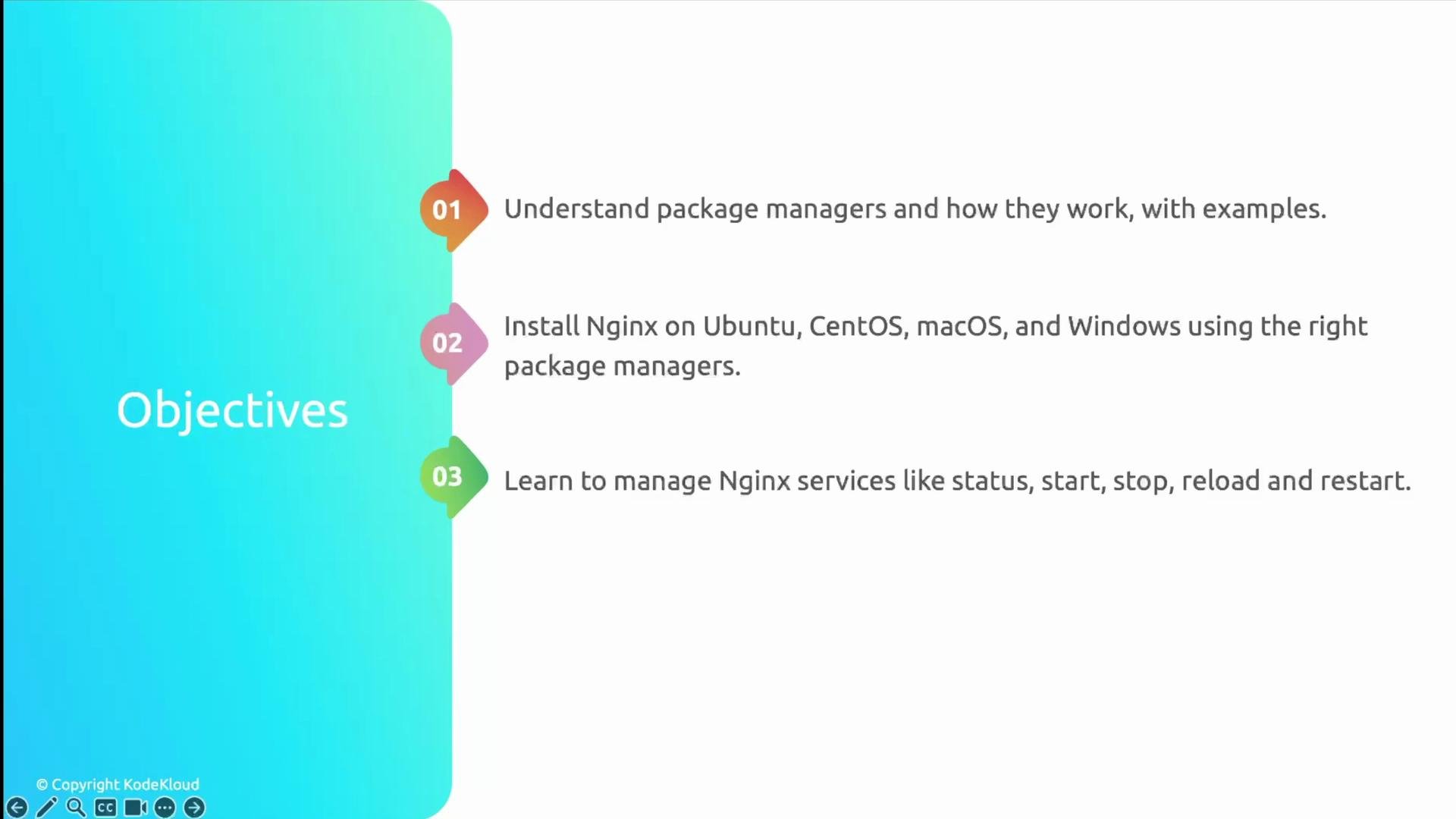
This lesson covers the essentials for installing, configuring, and managing Nginx. You'll learn:
* How package managers work and which to use on common platforms.
* How to install Nginx on Ubuntu (primary), plus CentOS, macOS, and Windows.
* How to manage Nginx as a service (status, start, stop, restart, reload).
* How the `nginx.conf` file is structured and how configuration is inherited.
* How to host a simple static website with Nginx and allow traffic via UFW.
 ***
## Package managers: overview and quick comparison
Package managers automate installing, upgrading, configuring, and removing software. Below are common examples and typical use cases:
| Package manager | Platform(s) | Typical commands |
| ---------------------------------------------------------------------- | -------------------: | ---------------------------------------------------- |
| [`apt`](https://wiki.debian.org/Apt) | Debian, Ubuntu | `sudo apt update` / `sudo apt install nginx` |
| [`yum`](https://en.wikipedia.org/wiki/YUM_\(package_manager\)) / `dnf` | CentOS, RHEL, Fedora | `sudo yum install nginx` or `sudo dnf install nginx` |
| [Homebrew](https://brew.sh) | macOS | `brew install nginx` |
| Chocolatey / WSL | Windows | `choco install nginx` (or run Nginx inside WSL) |
Use the package manager native to your OS for the smoothest installation and updates.
When choosing where to run Nginx on Windows, prefer WSL (Windows Subsystem for Linux) for a Linux-like experience and easier parity with production Linux servers.
***
## Install Nginx — quick commands by platform
Below are concise, platform-specific instructions. These are the most common, production-friendly approaches.
Ubuntu (Debian-family)
```bash theme={null}
sudo apt update
sudo apt install -y nginx
# Verify installation, enable at boot
sudo systemctl enable --now nginx
```
CentOS / RHEL / Fedora
```bash theme={null}
# On CentOS 7/8 or RHEL; use dnf on newer distributions:
sudo yum install -y nginx
# or
sudo dnf install -y nginx
# Start and enable at boot
sudo systemctl enable --now nginx
```
macOS (Homebrew)
```bash theme={null}
brew update
brew install nginx
# Start Nginx (Homebrew service)
brew services start nginx
```
Windows
* Recommended: use WSL and follow the Ubuntu instructions inside the WSL environment.
* Alternatively, use Chocolatey:
```powershell theme={null}
choco install nginx
```
***
## Manage the Nginx service
You will commonly use systemctl on modern Linux systems. Here are the essential commands:
| Action | systemd (`systemctl`) |
| ------------------------------- | ------------------------------ |
| Check status | `sudo systemctl status nginx` |
| Start | `sudo systemctl start nginx` |
| Stop | `sudo systemctl stop nginx` |
| Restart | `sudo systemctl restart nginx` |
| Reload configuration (graceful) | `sudo systemctl reload nginx` |
| Enable at boot | `sudo systemctl enable nginx` |
Older SysV init / compatibility:
```bash theme={null}
sudo service nginx start
sudo service nginx stop
sudo service nginx reload
```
Reloading (`reload`) applies configuration changes without terminating worker processes; use `restart` when you need a full restart. Always test config before reloading: `sudo nginx -t`.
***
## Understanding nginx.conf: structure and inheritance
Nginx configuration is hierarchical. The main contexts you should know:
* Main/global context (top-level): process-wide directives (user, worker\_processes, error\_log).
* `events` context: connection handling directives (e.g., `worker_connections`).
* `http` context: HTTP server configuration, MIME types, logging, upstreams, and general `server` directives.
* `server` blocks: Virtual hosts — listen addresses, `server_name`, SSL, access logging.
* `location` blocks (inside server): How requests are routed and handled for specific URIs.
Minimal example (illustrative):
```nginx theme={null}
user www-data;
worker_processes auto;
error_log /var/log/nginx/error.log warn;
events {
worker_connections 1024;
}
http {
include /etc/nginx/mime.types;
default_type application/octet-stream;
sendfile on;
keepalive_timeout 65;
server {
listen 80;
server_name example.com www.example.com;
root /var/www/example;
index index.html;
location / {
try_files $uri $uri/ =404;
}
}
}
```
Always validate changes before reloading:
```bash theme={null}
sudo nginx -t
sudo systemctl reload nginx
```
***
## Host a static website with Nginx
Typical steps to serve a simple static site:
1. Create the document root and a test page:
```bash theme={null}
sudo mkdir -p /var/www/example
echo "
***
## Package managers: overview and quick comparison
Package managers automate installing, upgrading, configuring, and removing software. Below are common examples and typical use cases:
| Package manager | Platform(s) | Typical commands |
| ---------------------------------------------------------------------- | -------------------: | ---------------------------------------------------- |
| [`apt`](https://wiki.debian.org/Apt) | Debian, Ubuntu | `sudo apt update` / `sudo apt install nginx` |
| [`yum`](https://en.wikipedia.org/wiki/YUM_\(package_manager\)) / `dnf` | CentOS, RHEL, Fedora | `sudo yum install nginx` or `sudo dnf install nginx` |
| [Homebrew](https://brew.sh) | macOS | `brew install nginx` |
| Chocolatey / WSL | Windows | `choco install nginx` (or run Nginx inside WSL) |
Use the package manager native to your OS for the smoothest installation and updates.
When choosing where to run Nginx on Windows, prefer WSL (Windows Subsystem for Linux) for a Linux-like experience and easier parity with production Linux servers.
***
## Install Nginx — quick commands by platform
Below are concise, platform-specific instructions. These are the most common, production-friendly approaches.
Ubuntu (Debian-family)
```bash theme={null}
sudo apt update
sudo apt install -y nginx
# Verify installation, enable at boot
sudo systemctl enable --now nginx
```
CentOS / RHEL / Fedora
```bash theme={null}
# On CentOS 7/8 or RHEL; use dnf on newer distributions:
sudo yum install -y nginx
# or
sudo dnf install -y nginx
# Start and enable at boot
sudo systemctl enable --now nginx
```
macOS (Homebrew)
```bash theme={null}
brew update
brew install nginx
# Start Nginx (Homebrew service)
brew services start nginx
```
Windows
* Recommended: use WSL and follow the Ubuntu instructions inside the WSL environment.
* Alternatively, use Chocolatey:
```powershell theme={null}
choco install nginx
```
***
## Manage the Nginx service
You will commonly use systemctl on modern Linux systems. Here are the essential commands:
| Action | systemd (`systemctl`) |
| ------------------------------- | ------------------------------ |
| Check status | `sudo systemctl status nginx` |
| Start | `sudo systemctl start nginx` |
| Stop | `sudo systemctl stop nginx` |
| Restart | `sudo systemctl restart nginx` |
| Reload configuration (graceful) | `sudo systemctl reload nginx` |
| Enable at boot | `sudo systemctl enable nginx` |
Older SysV init / compatibility:
```bash theme={null}
sudo service nginx start
sudo service nginx stop
sudo service nginx reload
```
Reloading (`reload`) applies configuration changes without terminating worker processes; use `restart` when you need a full restart. Always test config before reloading: `sudo nginx -t`.
***
## Understanding nginx.conf: structure and inheritance
Nginx configuration is hierarchical. The main contexts you should know:
* Main/global context (top-level): process-wide directives (user, worker\_processes, error\_log).
* `events` context: connection handling directives (e.g., `worker_connections`).
* `http` context: HTTP server configuration, MIME types, logging, upstreams, and general `server` directives.
* `server` blocks: Virtual hosts — listen addresses, `server_name`, SSL, access logging.
* `location` blocks (inside server): How requests are routed and handled for specific URIs.
Minimal example (illustrative):
```nginx theme={null}
user www-data;
worker_processes auto;
error_log /var/log/nginx/error.log warn;
events {
worker_connections 1024;
}
http {
include /etc/nginx/mime.types;
default_type application/octet-stream;
sendfile on;
keepalive_timeout 65;
server {
listen 80;
server_name example.com www.example.com;
root /var/www/example;
index index.html;
location / {
try_files $uri $uri/ =404;
}
}
}
```
Always validate changes before reloading:
```bash theme={null}
sudo nginx -t
sudo systemctl reload nginx
```
***
## Host a static website with Nginx
Typical steps to serve a simple static site:
1. Create the document root and a test page:
```bash theme={null}
sudo mkdir -p /var/www/example
echo "Hello from Nginx
" | sudo tee /var/www/example/index.html
sudo chown -R www-data:www-data /var/www/example
```
2. Create a server block (virtual host). On Debian/Ubuntu, use `sites-available` and `sites-enabled`:
```nginx theme={null}
# /etc/nginx/sites-available/example
server {
listen 80;
server_name example.com www.example.com;
root /var/www/example;
index index.html;
location / {
try_files $uri $uri/ =404;
}
}
```
3. Enable the site and reload:
```bash theme={null}
sudo ln -s /etc/nginx/sites-available/example /etc/nginx/sites-enabled/
sudo nginx -t
sudo systemctl reload nginx
```
If you use a different path or platform, adapt the file locations accordingly.
***
## Networking basics & firewall (UFW)
Nginx commonly uses these ports:
| Service | Port | Description |
| ------: | ---: | --------------------------- |
| HTTP | 80 | Unencrypted web traffic |
| HTTPS | 443 | Encrypted web traffic (TLS) |
Allow HTTP/HTTPS through UFW on Ubuntu:
```bash theme={null}
# Allow pre-defined Nginx profiles
sudo ufw allow 'Nginx Full' # allows ports 80 and 443
# Or allow only HTTP:
sudo ufw allow 80/tcp
# Enable/Status:
sudo ufw enable
sudo ufw status
```
You can also permit only HTTP or HTTPS as needed (`'Nginx HTTP'` or `'Nginx Full'`).
***
## Links and references
* Nginx documentation: [https://nginx.org/en/docs/](https://nginx.org/en/docs/)
* apt (Debian package manager): [https://wiki.debian.org/Apt](https://wiki.debian.org/Apt)
* yum (package manager overview): [https://en.wikipedia.org/wiki/YUM\_(package\_manager)](https://en.wikipedia.org/wiki/YUM_\(package_manager\))
* Homebrew (macOS package manager): [https://brew.sh](https://brew.sh)
* UFW (Uncomplicated Firewall): [https://help.ubuntu.com/community/UFW](https://help.ubuntu.com/community/UFW)
Use these resources for deeper configuration examples, SSL/TLS setup, reverse proxy patterns, and performance tuning.