> ## Documentation Index
> Fetch the complete documentation index at: https://notes.kodekloud.com/llms.txt
> Use this file to discover all available pages before exploring further.
# Nginx Overview
> Concise guide to NGINX configuration structure, key directives, server blocks, common files and commands for managing and troubleshooting NGINX.
This guide gives a concise, practical overview of NGINX configuration and the structure of the primary configuration file, `nginx.conf`. It explains the typical file layout, key configuration blocks, example snippets, and common commands you’ll use when managing NGINX. This is ideal for beginners and engineers who need a quick reference while editing configs.
On most Linux distributions `nginx.conf` lives at `/etc/nginx/nginx.conf`. You can confirm this with `nginx -V` which prints the configured paths.
You’ll typically see this high-level structure in `nginx.conf`:
* Global settings — server-wide options (user, worker counts, pid file, etc.)
* `events` block — connection and event model settings
* `http` block — HTTP-level configuration and includes for server blocks
* `server` blocks — virtual hosts that define how NGINX responds to requests
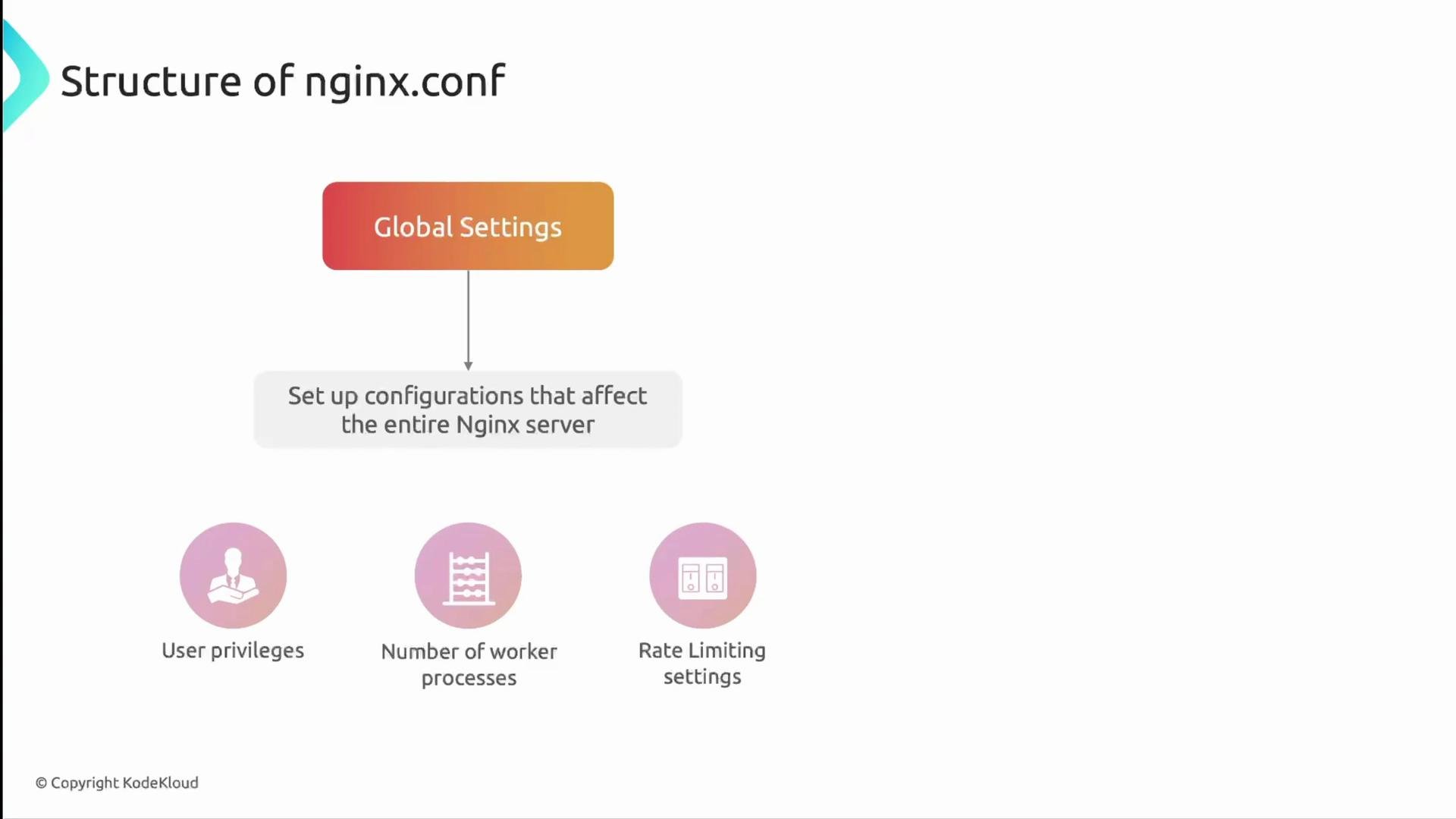
Global settings apply to the whole NGINX instance: user privileges, number of worker processes, PID file, and other server-wide behaviors. Features like compression and caching are usually configured inside the `http` block rather than the global scope.
 ## events block
The `events` block controls how worker processes handle connections and the event model (select/epoll/kqueue). A minimal `events` block:
```nginx theme={null}
events {
worker_connections 1024;
use epoll;
}
```
Key points:
* `worker_connections` sets the max simultaneous connections each worker can handle.
* Total theoretical concurrent connections ≈ `worker_processes * worker_connections`.
* Real limits depend on OS file descriptor limits (ulimit), socket limits, and other factors — treat the formula as an approximation.
* `use` is optional; NGINX auto-selects the best mechanism if you omit it (`epoll` on Linux, `kqueue` on BSD/macOS).
## http block
The `http` block holds HTTP-specific settings: logging, compression, MIME types, keepalives, and includes for `server` blocks or other fragments. A practical example:
```nginx theme={null}
http {
sendfile on;
tcp_nopush on;
tcp_nodelay on;
gzip on;
log_format main '$remote_addr - $remote_user [$time_local] "$request" '
'$status $body_bytes_sent "$http_referer" "$http_user_agent"';
keepalive_timeout 65;
types_hash_max_size 2048;
include /etc/nginx/mime.types;
default_type application/octet-stream;
# Server blocks (virtual hosts) and additional configuration:
include /etc/nginx/conf.d/*.conf;
include /etc/nginx/sites-enabled/*;
}
```
Notes:
* Use `include` to keep `nginx.conf` concise and load site-specific files from `conf.d` or `sites-enabled`.
* Configure gzip, caching, proxy, and upstreams in this section or in included files.
## server block (virtual host)
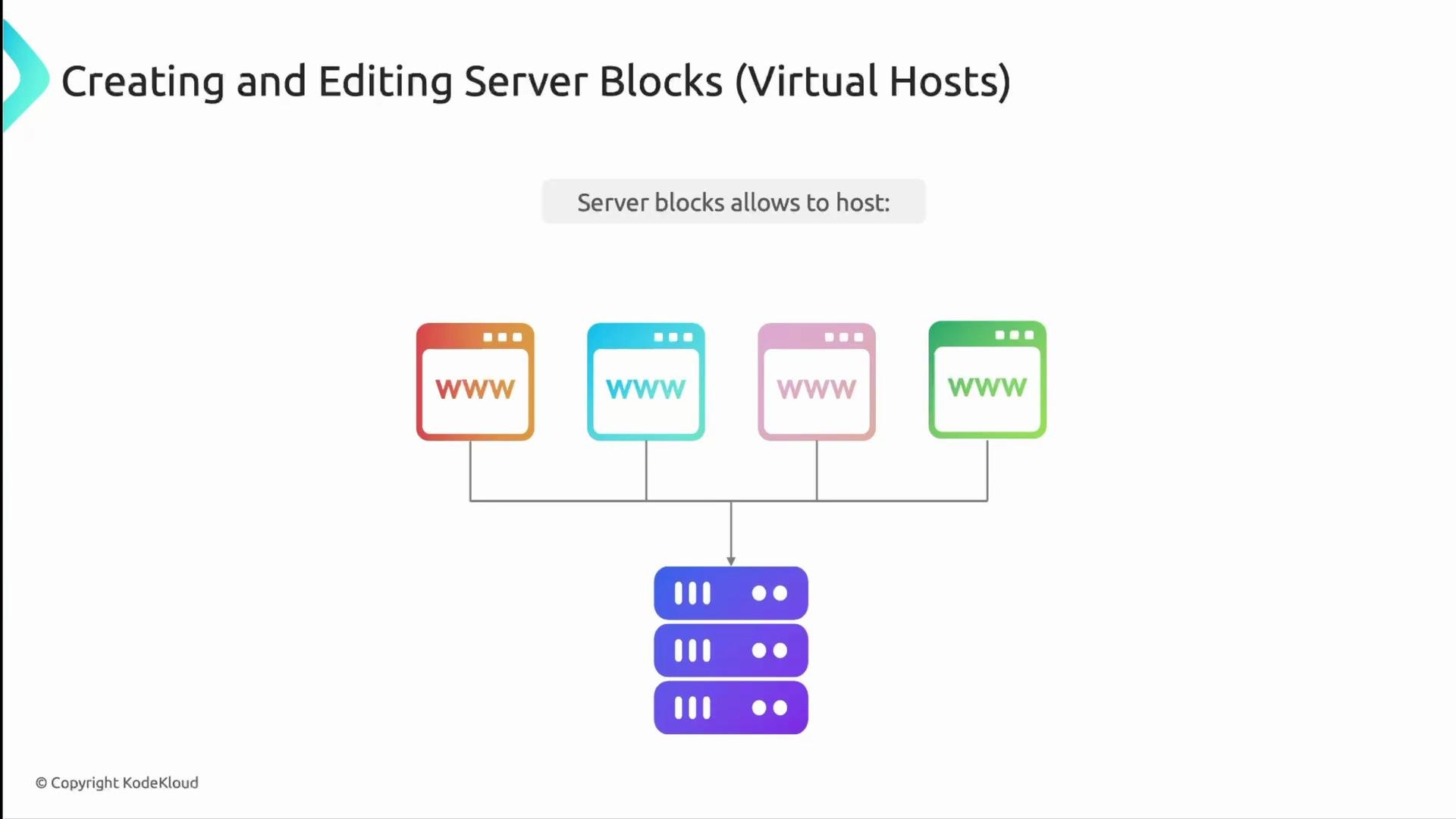
`server` blocks (virtual hosts) define how NGINX responds for specific domains, IPs, or ports. You can host multiple sites on one instance by adding multiple `server` blocks.
## events block
The `events` block controls how worker processes handle connections and the event model (select/epoll/kqueue). A minimal `events` block:
```nginx theme={null}
events {
worker_connections 1024;
use epoll;
}
```
Key points:
* `worker_connections` sets the max simultaneous connections each worker can handle.
* Total theoretical concurrent connections ≈ `worker_processes * worker_connections`.
* Real limits depend on OS file descriptor limits (ulimit), socket limits, and other factors — treat the formula as an approximation.
* `use` is optional; NGINX auto-selects the best mechanism if you omit it (`epoll` on Linux, `kqueue` on BSD/macOS).
## http block
The `http` block holds HTTP-specific settings: logging, compression, MIME types, keepalives, and includes for `server` blocks or other fragments. A practical example:
```nginx theme={null}
http {
sendfile on;
tcp_nopush on;
tcp_nodelay on;
gzip on;
log_format main '$remote_addr - $remote_user [$time_local] "$request" '
'$status $body_bytes_sent "$http_referer" "$http_user_agent"';
keepalive_timeout 65;
types_hash_max_size 2048;
include /etc/nginx/mime.types;
default_type application/octet-stream;
# Server blocks (virtual hosts) and additional configuration:
include /etc/nginx/conf.d/*.conf;
include /etc/nginx/sites-enabled/*;
}
```
Notes:
* Use `include` to keep `nginx.conf` concise and load site-specific files from `conf.d` or `sites-enabled`.
* Configure gzip, caching, proxy, and upstreams in this section or in included files.
## server block (virtual host)
`server` blocks (virtual hosts) define how NGINX responds for specific domains, IPs, or ports. You can host multiple sites on one instance by adding multiple `server` blocks.
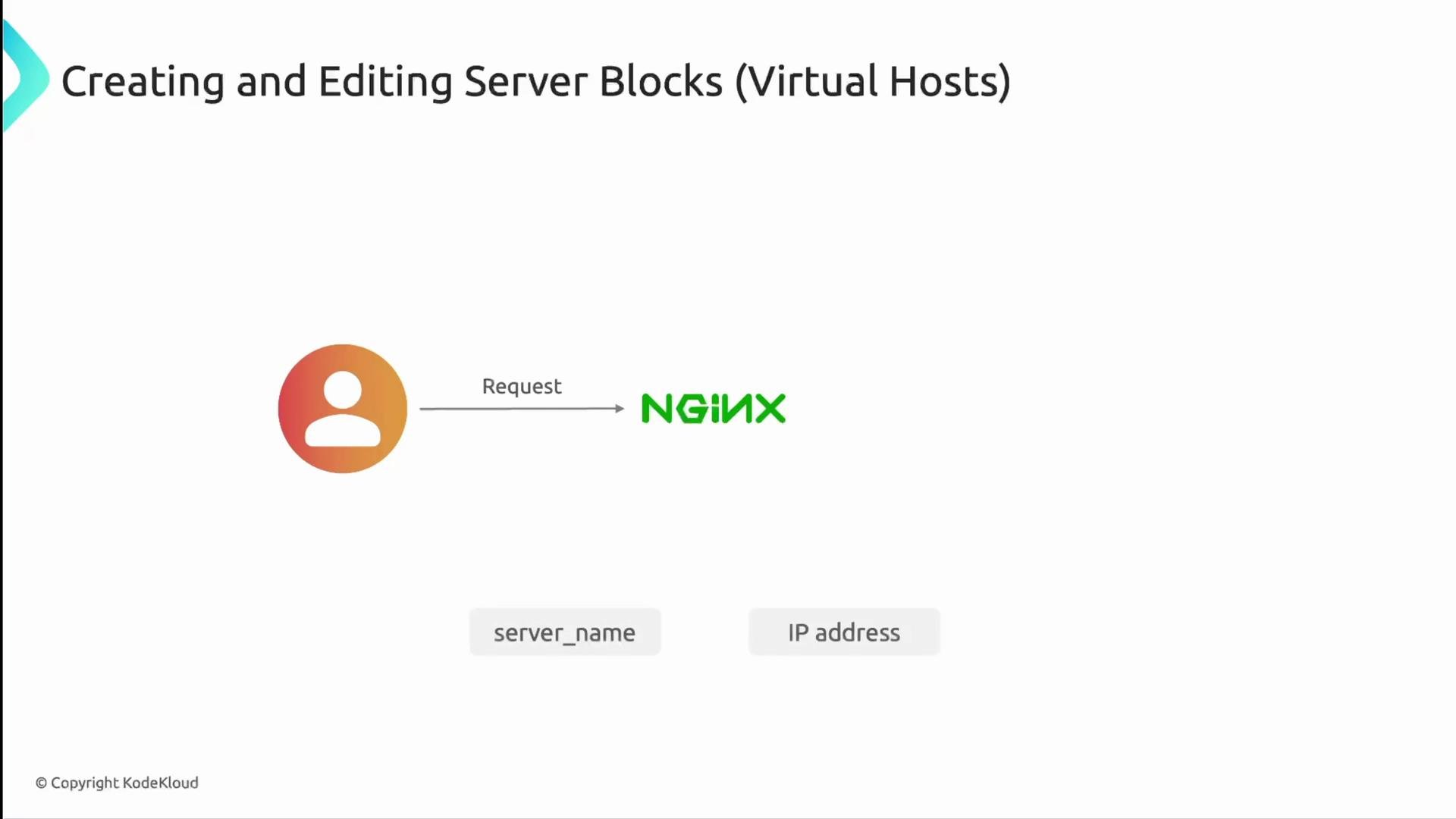
 NGINX chooses the matching `server` block using `listen` and `server_name` (or the IP) from the incoming request.
 Example `server` block:
```nginx theme={null}
server {
listen 80;
server_name example.com www.example.com;
root /var/www/example.com/html;
index index.html;
location / {
try_files $uri $uri/ =404;
}
}
```
Directive summary:
| Directive | Purpose |
| --------------- | ---------------------------------------------------------------------- |
| `listen` | Port/address to monitor (e.g., `80` for HTTP, `443 ssl` for HTTPS). |
| `server_name` | Domain or hostnames this block should respond to. |
| `root` | Filesystem path that serves site content. |
| `index` | Default file(s) served for directory requests. |
| `location` | Path-based matching blocks for request handling; `/` is the site root. |
| `try_files ...` | Try files or directories in order; fallback (e.g., `=404`) on miss. |
Default webroots vary by distribution:
* Debian/Ubuntu: `/var/www//html`
* CentOS/Red Hat: `/usr/share/nginx/html`
## NGINX modules
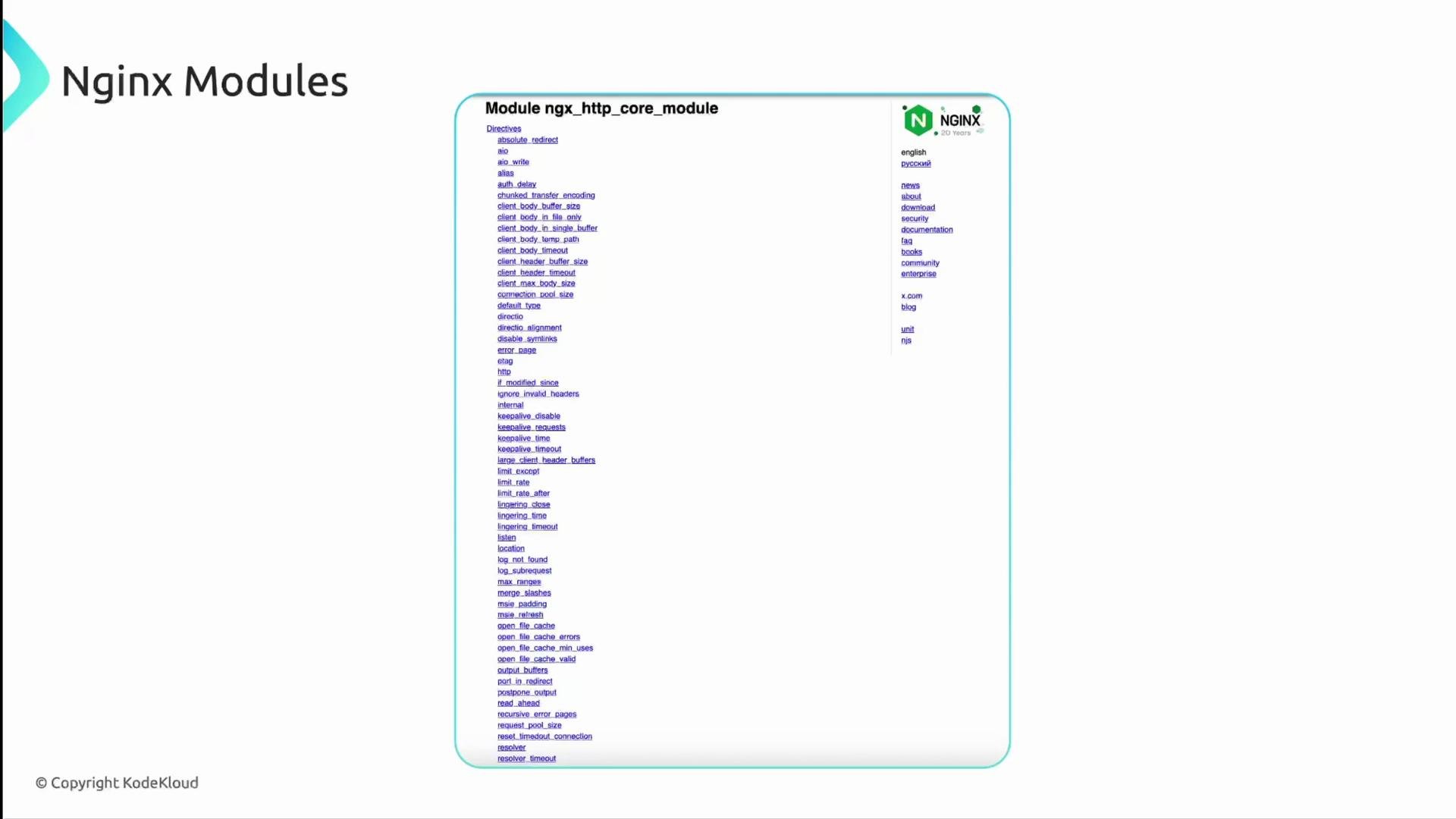
NGINX functionality is provided by modules (core HTTP module, SSL, proxy, rewrite, gzip, etc.). Which directives you can use depends on the modules compiled into your NGINX binary. Use `nginx -V` to see compile-time modules and options.
Example `server` block:
```nginx theme={null}
server {
listen 80;
server_name example.com www.example.com;
root /var/www/example.com/html;
index index.html;
location / {
try_files $uri $uri/ =404;
}
}
```
Directive summary:
| Directive | Purpose |
| --------------- | ---------------------------------------------------------------------- |
| `listen` | Port/address to monitor (e.g., `80` for HTTP, `443 ssl` for HTTPS). |
| `server_name` | Domain or hostnames this block should respond to. |
| `root` | Filesystem path that serves site content. |
| `index` | Default file(s) served for directory requests. |
| `location` | Path-based matching blocks for request handling; `/` is the site root. |
| `try_files ...` | Try files or directories in order; fallback (e.g., `=404`) on miss. |
Default webroots vary by distribution:
* Debian/Ubuntu: `/var/www//html`
* CentOS/Red Hat: `/usr/share/nginx/html`
## NGINX modules
NGINX functionality is provided by modules (core HTTP module, SSL, proxy, rewrite, gzip, etc.). Which directives you can use depends on the modules compiled into your NGINX binary. Use `nginx -V` to see compile-time modules and options.
 ## Common NGINX directories and files
Typical locations and purpose:
| Path | Purpose / Notes |
| ---------------------------- | --------------------------------------------------------------------------------- |
| `/etc/nginx/nginx.conf` | Main configuration file. |
| `/etc/nginx/sites-available` | Site config files (not active by default). |
| `/etc/nginx/sites-enabled` | Symlinks to `sites-available` to enable sites. |
| `/etc/nginx/conf.d` | Additional config snippets (often auto-generated or small fragments). |
| `mime.types` | Maps extensions to MIME types. |
| `nginx.pid` | Master process PID file. |
| `/var/log/nginx/` | Access and error logs. |
| Webroots | Typically under `/var/www/` (Debian/Ubuntu) or `/usr/share/nginx/` (CentOS/RHEL). |
Using symbolic links in `sites-enabled` is a common pattern to enable/disable sites (similar in intent to Apache’s approach, but usually managed manually or with helper scripts).
## Useful NGINX commands
Use the following commands when managing or troubleshooting NGINX:
| Command | Purpose |
| ------------------- | ------------------------------------------------------------------------------- |
| `nginx -h` | Show NGINX command-line options. |
| `nginx -v` | Show NGINX version (brief). |
| `nginx -V` | Show version plus configure/build options. |
| `nginx -t` | Test configuration for syntax errors and validity. |
| `nginx -T` | Dump processed configuration to stdout and test it. |
| `nginx -s ` | Send a signal to the master process (e.g., `stop`, `quit`, `reload`, `reopen`). |
Always validate configuration before reloading:
Run `nginx -t` (or `sudo nginx -t`) after edits to verify syntax and detect errors before reloading or restarting NGINX.
Example syntax check output:
```bash theme={null}
sudo nginx -t
nginx: the configuration file /etc/nginx/nginx.conf syntax is ok
nginx: configuration file /etc/nginx/nginx.conf test is successful
```
Reload vs restart:
* `nginx -s reload` or `sudo systemctl reload nginx` — reloads config without dropping existing connections (preferred when possible).
* `sudo systemctl restart nginx` — fully restarts the service and interrupts active connections.
## Quick links and further reading
* NGINX official documentation: [https://nginx.org/en/docs/](https://nginx.org/en/docs/)
* NGINX Admin Guide: [https://nginx.org/en/docs/admin\_guide.html](https://nginx.org/en/docs/admin_guide.html)
That wraps up this concise overview of NGINX configuration structure and common operations.
## Common NGINX directories and files
Typical locations and purpose:
| Path | Purpose / Notes |
| ---------------------------- | --------------------------------------------------------------------------------- |
| `/etc/nginx/nginx.conf` | Main configuration file. |
| `/etc/nginx/sites-available` | Site config files (not active by default). |
| `/etc/nginx/sites-enabled` | Symlinks to `sites-available` to enable sites. |
| `/etc/nginx/conf.d` | Additional config snippets (often auto-generated or small fragments). |
| `mime.types` | Maps extensions to MIME types. |
| `nginx.pid` | Master process PID file. |
| `/var/log/nginx/` | Access and error logs. |
| Webroots | Typically under `/var/www/` (Debian/Ubuntu) or `/usr/share/nginx/` (CentOS/RHEL). |
Using symbolic links in `sites-enabled` is a common pattern to enable/disable sites (similar in intent to Apache’s approach, but usually managed manually or with helper scripts).
## Useful NGINX commands
Use the following commands when managing or troubleshooting NGINX:
| Command | Purpose |
| ------------------- | ------------------------------------------------------------------------------- |
| `nginx -h` | Show NGINX command-line options. |
| `nginx -v` | Show NGINX version (brief). |
| `nginx -V` | Show version plus configure/build options. |
| `nginx -t` | Test configuration for syntax errors and validity. |
| `nginx -T` | Dump processed configuration to stdout and test it. |
| `nginx -s ` | Send a signal to the master process (e.g., `stop`, `quit`, `reload`, `reopen`). |
Always validate configuration before reloading:
Run `nginx -t` (or `sudo nginx -t`) after edits to verify syntax and detect errors before reloading or restarting NGINX.
Example syntax check output:
```bash theme={null}
sudo nginx -t
nginx: the configuration file /etc/nginx/nginx.conf syntax is ok
nginx: configuration file /etc/nginx/nginx.conf test is successful
```
Reload vs restart:
* `nginx -s reload` or `sudo systemctl reload nginx` — reloads config without dropping existing connections (preferred when possible).
* `sudo systemctl restart nginx` — fully restarts the service and interrupts active connections.
## Quick links and further reading
* NGINX official documentation: [https://nginx.org/en/docs/](https://nginx.org/en/docs/)
* NGINX Admin Guide: [https://nginx.org/en/docs/admin\_guide.html](https://nginx.org/en/docs/admin_guide.html)
That wraps up this concise overview of NGINX configuration structure and common operations.