> ## Documentation Index
> Fetch the complete documentation index at: https://notes.kodekloud.com/llms.txt
> Use this file to discover all available pages before exploring further.
# Demo Configure URL Redirect
> Guide to configure NGINX to redirect HTTP traffic to HTTPS, enable TLS and firewall rules, enable site, reload NGINX, and verify redirects.
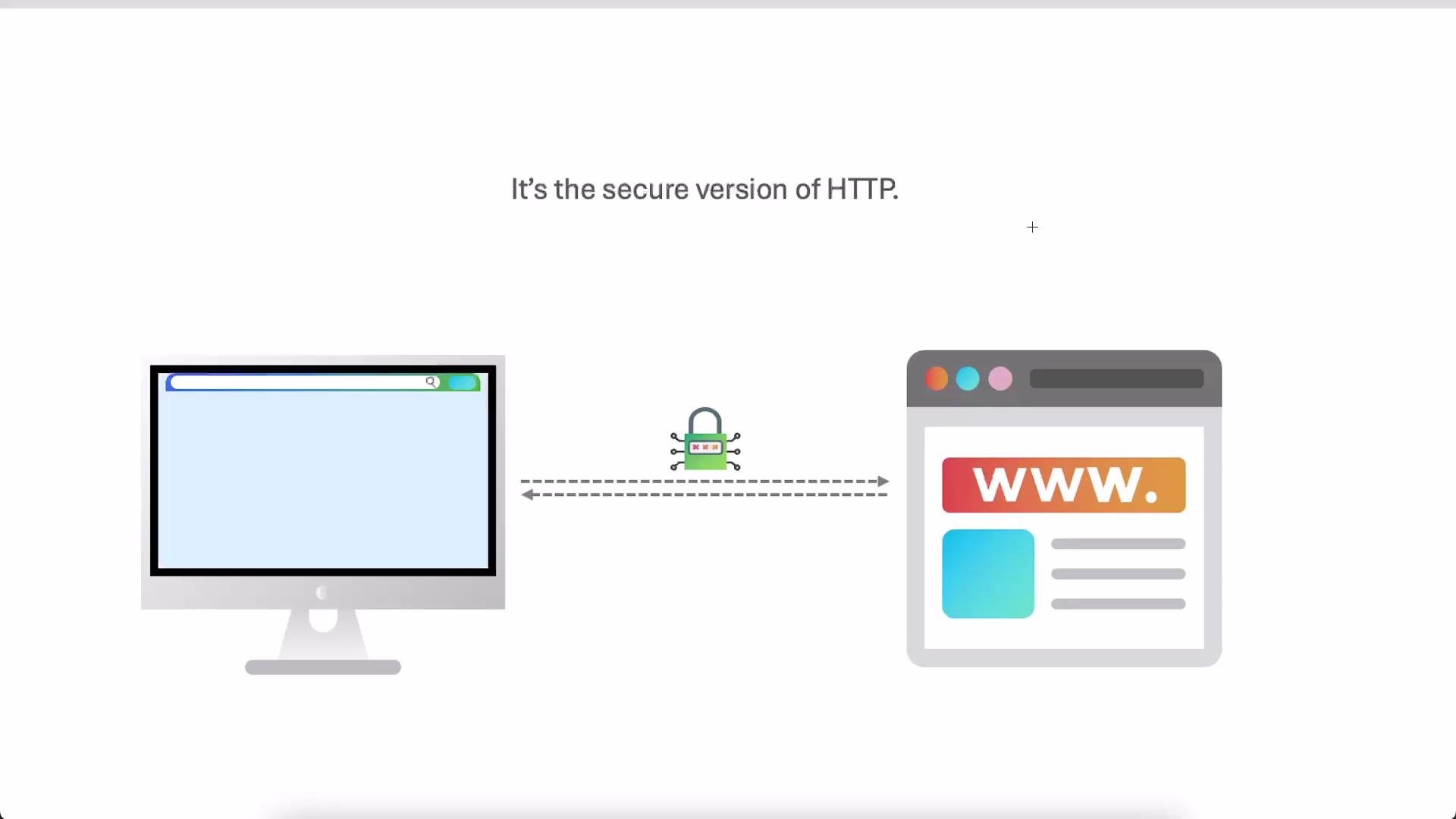
In this lesson you'll configure NGINX to redirect all plain HTTP traffic to HTTPS using the `return` directive. This forces clients connecting on port 80 to be redirected to port 443 so all requests are encrypted.
We have a simple "Diner" app served from port 80 on the host. The steps covered here:
* Check firewall rules.
* Allow inbound HTTPS (port 443).
* Create a single NGINX config containing two server blocks:
* one to redirect HTTP → HTTPS (301),
* one to serve the site over HTTPS with TLS certificates.
* Enable the site, validate and reload NGINX.
* Verify the redirect using curl and a browser.
 ## 1. Confirm current firewall status
Check which ports are allowed so you can open port 443 before enabling HTTPS:
```bash theme={null}
root@ubuntu-host:~# ufw status
Status: active
To Action From
-- ------ ----
22/tcp ALLOW Anywhere
80/tcp ALLOW Anywhere
22/tcp (v6) ALLOW Anywhere (v6)
80/tcp (v6) ALLOW Anywhere (v6)
```
Port 443 is not listed, so HTTPS requests will fail until it is allowed.
Enable HTTPS (TCP 443):
```bash theme={null}
root@ubuntu-host:~# ufw allow 443/tcp
Rule added
Rule added (v6)
```
## 2. Understand what happens if port 443 is open but NGINX isn't serving HTTPS
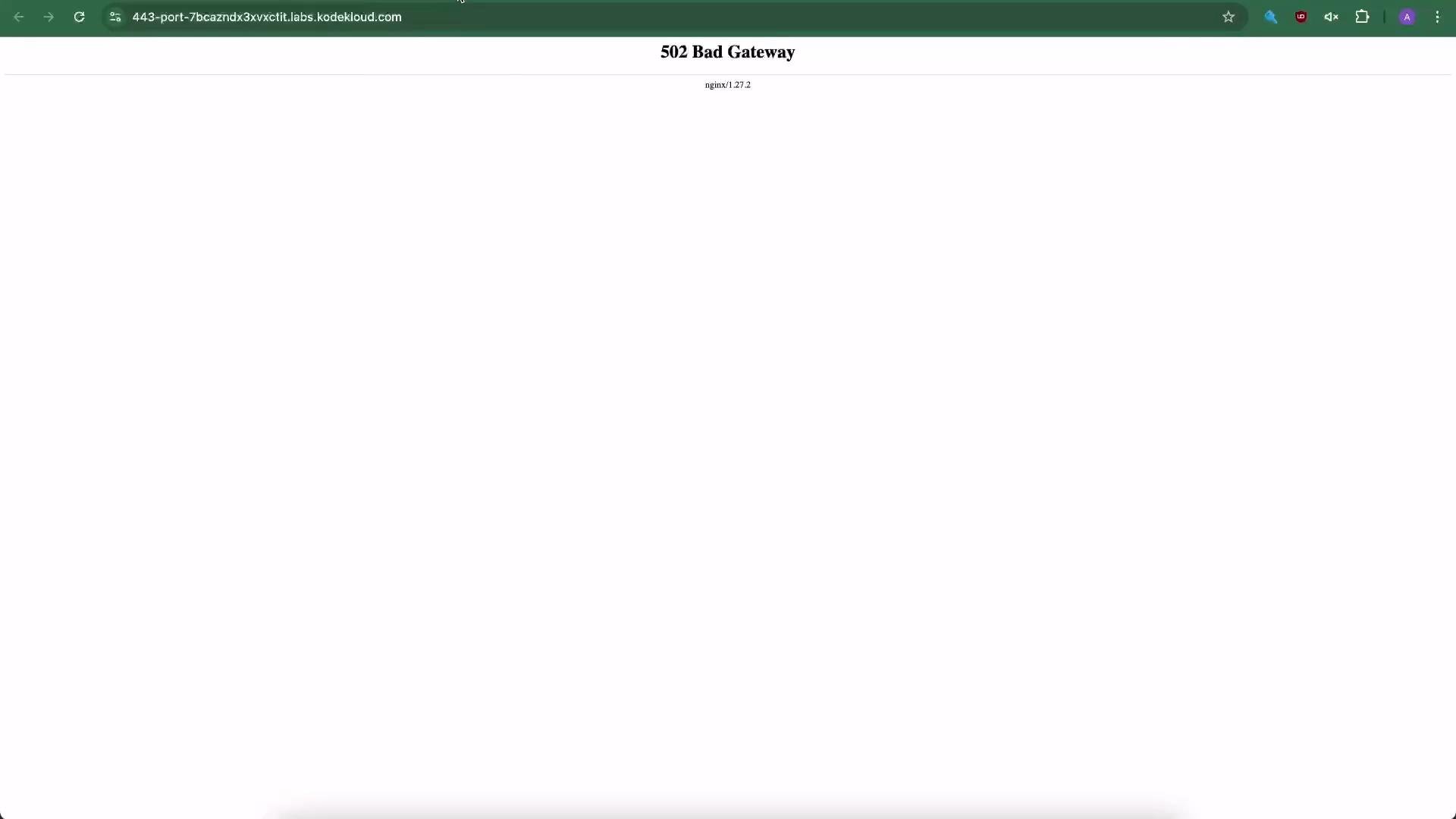
If port 443 is allowed but NGINX has no TLS server block for the site, the browser may show a connection error or an upstream proxy might return a 502 Bad Gateway. Example browser output:
## 1. Confirm current firewall status
Check which ports are allowed so you can open port 443 before enabling HTTPS:
```bash theme={null}
root@ubuntu-host:~# ufw status
Status: active
To Action From
-- ------ ----
22/tcp ALLOW Anywhere
80/tcp ALLOW Anywhere
22/tcp (v6) ALLOW Anywhere (v6)
80/tcp (v6) ALLOW Anywhere (v6)
```
Port 443 is not listed, so HTTPS requests will fail until it is allowed.
Enable HTTPS (TCP 443):
```bash theme={null}
root@ubuntu-host:~# ufw allow 443/tcp
Rule added
Rule added (v6)
```
## 2. Understand what happens if port 443 is open but NGINX isn't serving HTTPS
If port 443 is allowed but NGINX has no TLS server block for the site, the browser may show a connection error or an upstream proxy might return a 502 Bad Gateway. Example browser output:
 ## 3. Create the combined NGINX configuration
We keep the configuration DRY by putting two server blocks in the same file:
* A lightweight port 80 server block that issues a permanent `301` redirect to the same host and URI on `https://`.
* A port 443 server block that enables TLS and serves the app files.
Create or edit `/etc/nginx/sites-available/diner-https` with the following:
```nginx theme={null}
#
server {
listen 80;
server_name diner.com;
return 301 https://$host$request_uri;
}
server {
listen 443 ssl;
server_name diner.com;
ssl_certificate /etc/ssl/certs/diner.com.pem;
ssl_certificate_key /etc/ssl/certs/diner.com-key.pem;
root /var/www/diner;
# Add index.php to the list if you are using PHP
index index.html index.htm index.nginx-debian.html;
location / {
# First attempt to serve request as file, then
# as directory, then fall back to displaying a 404.
try_files $uri $uri/ =404;
}
}
```
Notes about this configuration:
* The `return 301 https://$host$request_uri;` preserves the hostname, path and query string so `http://diner.com/some/path?x=1` becomes `https://diner.com/some/path?x=1`.
* The second server block enables `ssl`, and points to the certificate and key files used for TLS.
* The example certificate/key paths are present for this exercise. In production obtain valid certificates (for example via Let's Encrypt) and reference them here.
Using a `301 Moved Permanently` response will cause clients and search engines to cache the redirect. Use `302 Found` during testing if you expect to change behavior later, then switch to `301` once everything is final.
## 4. Enable the site and reload NGINX
Create the symlink in `sites-enabled`:
```bash theme={null}
root@ubuntu-host:~# ln -s /etc/nginx/sites-available/diner-https /etc/nginx/sites-enabled/diner-https
```
Validate the NGINX configuration and reload:
```bash theme={null}
root@ubuntu-host:~# nginx -t
nginx: the configuration file /etc/nginx/nginx.conf syntax is ok
nginx: configuration file /etc/nginx/nginx.conf test is successful
root@ubuntu-host:~# nginx -s reload
# or: systemctl reload nginx
```
## 5. Verify the redirect and HTTPS behavior
Test the HTTP → HTTPS redirect locally with curl.
Check only headers (should show `301` and `Location` header):
```bash theme={null}
root@ubuntu-host:~# curl -I http://localhost
HTTP/1.1 301 Moved Permanently
Server: nginx/1.18.0 (Ubuntu)
Date: Mon, 01 Jan 20XX 00:00:00 GMT
Content-Type: text/html
Content-Length: 178
Connection: keep-alive
Location: https://localhost/
```
A plain curl will show the HTML 301 page:
```bash theme={null}
root@ubuntu-host:~# curl http://localhost
301 Moved Permanently
## 3. Create the combined NGINX configuration
We keep the configuration DRY by putting two server blocks in the same file:
* A lightweight port 80 server block that issues a permanent `301` redirect to the same host and URI on `https://`.
* A port 443 server block that enables TLS and serves the app files.
Create or edit `/etc/nginx/sites-available/diner-https` with the following:
```nginx theme={null}
#
server {
listen 80;
server_name diner.com;
return 301 https://$host$request_uri;
}
server {
listen 443 ssl;
server_name diner.com;
ssl_certificate /etc/ssl/certs/diner.com.pem;
ssl_certificate_key /etc/ssl/certs/diner.com-key.pem;
root /var/www/diner;
# Add index.php to the list if you are using PHP
index index.html index.htm index.nginx-debian.html;
location / {
# First attempt to serve request as file, then
# as directory, then fall back to displaying a 404.
try_files $uri $uri/ =404;
}
}
```
Notes about this configuration:
* The `return 301 https://$host$request_uri;` preserves the hostname, path and query string so `http://diner.com/some/path?x=1` becomes `https://diner.com/some/path?x=1`.
* The second server block enables `ssl`, and points to the certificate and key files used for TLS.
* The example certificate/key paths are present for this exercise. In production obtain valid certificates (for example via Let's Encrypt) and reference them here.
Using a `301 Moved Permanently` response will cause clients and search engines to cache the redirect. Use `302 Found` during testing if you expect to change behavior later, then switch to `301` once everything is final.
## 4. Enable the site and reload NGINX
Create the symlink in `sites-enabled`:
```bash theme={null}
root@ubuntu-host:~# ln -s /etc/nginx/sites-available/diner-https /etc/nginx/sites-enabled/diner-https
```
Validate the NGINX configuration and reload:
```bash theme={null}
root@ubuntu-host:~# nginx -t
nginx: the configuration file /etc/nginx/nginx.conf syntax is ok
nginx: configuration file /etc/nginx/nginx.conf test is successful
root@ubuntu-host:~# nginx -s reload
# or: systemctl reload nginx
```
## 5. Verify the redirect and HTTPS behavior
Test the HTTP → HTTPS redirect locally with curl.
Check only headers (should show `301` and `Location` header):
```bash theme={null}
root@ubuntu-host:~# curl -I http://localhost
HTTP/1.1 301 Moved Permanently
Server: nginx/1.18.0 (Ubuntu)
Date: Mon, 01 Jan 20XX 00:00:00 GMT
Content-Type: text/html
Content-Length: 178
Connection: keep-alive
Location: https://localhost/
```
A plain curl will show the HTML 301 page:
```bash theme={null}
root@ubuntu-host:~# curl http://localhost
301 Moved Permanently
301 Moved Permanently
nginx/1.18.0 (Ubuntu)
```
With port 443 allowed and NGINX serving your TLS server block, visiting `https://` in a browser should load the site over HTTPS (no 502).
If a user visits `http://diner.com/some/path`, the `return 301 https://$host$request_uri;` will redirect them to `https://diner.com/some/path`, preserving the full path and query string.
Make sure the TLS certificate and key are valid for the `server_name` you use. An invalid certificate will produce browser warnings even if the redirect is correct.
## Quick checklist
| Step | Purpose | Example command / file |
| --------------- | ---------------------------------------------- | ----------------------------------------------------------------------------------- |
| Verify firewall | See which ports are open | `ufw status` |
| Allow HTTPS | Permit inbound TLS traffic | `ufw allow 443/tcp` |
| Configure NGINX | Add HTTP → HTTPS redirect and TLS server block | `/etc/nginx/sites-available/diner-https` (see above) |
| Enable site | Activate site config | `ln -s /etc/nginx/sites-available/diner-https /etc/nginx/sites-enabled/diner-https` |
| Test & reload | Validate and apply changes | `nginx -t && nginx -s reload` |
| Verify | Confirm redirect and TLS are working | `curl -I http://localhost` and visit `https://` |
## Recap
* Use a simple server block on port 80 to issue a `301` redirect to HTTPS.
* Serve the site on port 443 with TLS configured.
* Ensure the firewall allows port 443 before relying on HTTPS.
* Validate the NGINX config and reload before testing to avoid downtime.
Further reading:
* NGINX docs: [https://nginx.org/en/docs/](https://nginx.org/en/docs/)
* Let's Encrypt: [https://letsencrypt.org/](https://letsencrypt.org/)
* curl: [https://curl.se/](https://curl.se/)