> ## Documentation Index
> Fetch the complete documentation index at: https://notes.kodekloud.com/llms.txt
> Use this file to discover all available pages before exploring further.
# Demo Configure URL Rewrite
> Guide showing how to configure an Nginx rewrite to permanently redirect /images requests to /pics, preserving links and issuing HTTP 301 responses
This guide demonstrates how to use the Nginx `rewrite` directive to map one URL path to another. In this example, the site serves images from `/var/www/html/images`, but the site owner wants to use `/pics` going forward. To preserve existing `/images/*` links (so bookmarks and external links keep working), we’ll add a rewrite that transparently redirects `/images/...` requests to `/pics/...`.
Why this matters:
* Keeps old links working while you change the public path.
* Issues an HTTP 301 (permanent) redirect so clients and search engines update bookmarks and indexes.
* Easy to implement without moving clients to the new path manually.
Example URLs:
```text theme={null}
http://example.com/images/pic10.jpg
http://example.com/pics/pic10.jpg
# desired rewrite:
rewrite ^/images/(.*)$ /pics/$1 permanent;
```
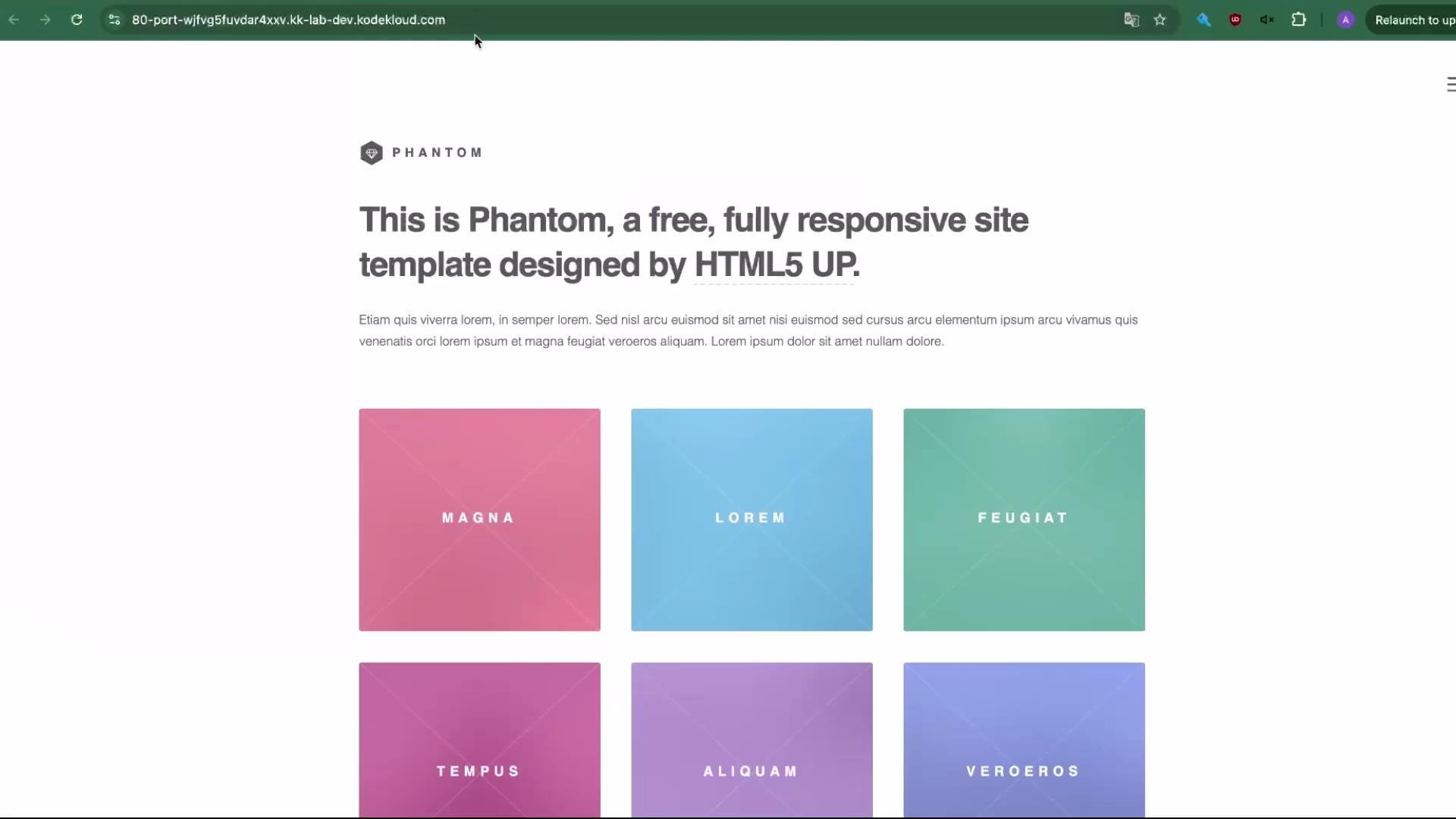
Open your browser to the site (port 80) and request `/images/pic10.jpg` to confirm the image is currently reachable. The demo site uses the Phantom template and contains a set of small picture files:
 ## 1. Prepare the filesystem
Make a copy of the existing `images` directory to `pics` so both directories exist on disk:
```bash theme={null}
# change to the web root
cd /var/www/html
# verify images directory exists
ls -l images/
# copy images/ to pics/
cp -R images/ pics/
# verify pics/ was created
ls -l
```
Example listing of `images/` (the files that will be served):
```text theme={null}
total 136
-rw-r--r-- 1 root root 1259 Feb 18 16:14 logo.svg
-rw-r--r-- 1 root root 6311 Feb 18 16:14 pic01.jpg
-rw-r--r-- 1 root root 6084 Feb 18 16:14 pic02.jpg
...
-rw-r--r-- 1 root root 6489 Feb 18 16:14 pic10.jpg
-rw-r--r-- 1 root root 6338 Feb 18 16:14 pic11.jpg
...
```
## 2. Add the rewrite rule to your Nginx site config
Edit your Nginx server block (for example `/etc/nginx/sites-available/example`) and add the `rewrite` directive inside the `location /` block, before `try_files`. The `^` anchors the match to the start of the path, `(.*)` captures the rest of the requested path, and `/pics/$1` inserts that captured portion into the new path. The `permanent` flag issues an HTTP 301.
```nginx theme={null}
# /etc/nginx/sites-available/example
server {
listen 80;
server_name example.com;
root /var/www/html;
# Add index.php to the list if you are using PHP
index index.html index.htm index.nginx-debian.html;
location / {
# Rewrite any /images/ to /pics/ permanently
rewrite ^/images/(.*)$ /pics/$1 permanent;
# First attempt to serve request as file, then as directory,
# then fall back to displaying a 404.
try_files $uri $uri/ =404;
}
}
```
Notes on the regex:
* `^/images/(.*)$` — matches any URI starting with `/images/` and captures everything after the slash.
* `$1` — is the first capture group, representing whatever `(.*)` matched.
* Use more specific patterns if you need to limit matches (e.g., only `.jpg` or `.png`).
## 3. Test and reload Nginx
Always validate configuration before reloading:
```bash theme={null}
# test the config
sudo nginx -t
# if the test is successful, reload nginx
sudo nginx -s reload
```
A successful test returns:
```text theme={null}
nginx: the configuration file /etc/nginx/nginx.conf syntax is ok
nginx: configuration file /etc/nginx/nginx.conf test is successful
```
## 4. Verify the redirect in a browser
Open a fresh browser window (or incognito) and request the old URL:
```text theme={null}
http://example.com/images/pic10.jpg
```
You should receive an HTTP 301 redirect to:
```text theme={null}
http://example.com/pics/pic10.jpg
```
and the image will load from the new `/pics/` location.
Permanent redirects (HTTP 301) are cached aggressively by browsers and search engines. Use an incognito window or clear the cache when testing. If you need a temporary redirect while testing, use the `redirect` flag instead of `permanent`.
Test rewrite rules on a staging environment before applying them in production. Regular expressions in `rewrite` directives are powerful but easy to misconfigure.
## Quick reference — rewrite flags
| Flag | Effect | When to use |
| ----------- | ------------------------------------------------------- | ----------------------------------------------------------------------------------------------- |
| `permanent` | Returns HTTP 301 | Use when the resource has permanently moved and you want clients/search engines to update links |
| `redirect` | Returns HTTP 302 | Use for temporary moves or when testing before making permanent |
| `last` | Re-evaluates location with changed URI | Use if you want Nginx to search for a new matching location after rewrite |
| `break` | Stops processing rewrite directives in current location | Use to stop rewrite processing without re-evaluating locations |
For more details on `rewrite` and directives, see the official Nginx docs: [nginx rewrite module](https://nginx.org/en/docs/http/ngx_http_rewrite_module.html).
That covers a basic permanent rewrite from `/images` to `/pics`. Adjust the regex and flags (`last`, `break`, `redirect`, `permanent`) to suit your specific routing and caching requirements.
## 1. Prepare the filesystem
Make a copy of the existing `images` directory to `pics` so both directories exist on disk:
```bash theme={null}
# change to the web root
cd /var/www/html
# verify images directory exists
ls -l images/
# copy images/ to pics/
cp -R images/ pics/
# verify pics/ was created
ls -l
```
Example listing of `images/` (the files that will be served):
```text theme={null}
total 136
-rw-r--r-- 1 root root 1259 Feb 18 16:14 logo.svg
-rw-r--r-- 1 root root 6311 Feb 18 16:14 pic01.jpg
-rw-r--r-- 1 root root 6084 Feb 18 16:14 pic02.jpg
...
-rw-r--r-- 1 root root 6489 Feb 18 16:14 pic10.jpg
-rw-r--r-- 1 root root 6338 Feb 18 16:14 pic11.jpg
...
```
## 2. Add the rewrite rule to your Nginx site config
Edit your Nginx server block (for example `/etc/nginx/sites-available/example`) and add the `rewrite` directive inside the `location /` block, before `try_files`. The `^` anchors the match to the start of the path, `(.*)` captures the rest of the requested path, and `/pics/$1` inserts that captured portion into the new path. The `permanent` flag issues an HTTP 301.
```nginx theme={null}
# /etc/nginx/sites-available/example
server {
listen 80;
server_name example.com;
root /var/www/html;
# Add index.php to the list if you are using PHP
index index.html index.htm index.nginx-debian.html;
location / {
# Rewrite any /images/ to /pics/ permanently
rewrite ^/images/(.*)$ /pics/$1 permanent;
# First attempt to serve request as file, then as directory,
# then fall back to displaying a 404.
try_files $uri $uri/ =404;
}
}
```
Notes on the regex:
* `^/images/(.*)$` — matches any URI starting with `/images/` and captures everything after the slash.
* `$1` — is the first capture group, representing whatever `(.*)` matched.
* Use more specific patterns if you need to limit matches (e.g., only `.jpg` or `.png`).
## 3. Test and reload Nginx
Always validate configuration before reloading:
```bash theme={null}
# test the config
sudo nginx -t
# if the test is successful, reload nginx
sudo nginx -s reload
```
A successful test returns:
```text theme={null}
nginx: the configuration file /etc/nginx/nginx.conf syntax is ok
nginx: configuration file /etc/nginx/nginx.conf test is successful
```
## 4. Verify the redirect in a browser
Open a fresh browser window (or incognito) and request the old URL:
```text theme={null}
http://example.com/images/pic10.jpg
```
You should receive an HTTP 301 redirect to:
```text theme={null}
http://example.com/pics/pic10.jpg
```
and the image will load from the new `/pics/` location.
Permanent redirects (HTTP 301) are cached aggressively by browsers and search engines. Use an incognito window or clear the cache when testing. If you need a temporary redirect while testing, use the `redirect` flag instead of `permanent`.
Test rewrite rules on a staging environment before applying them in production. Regular expressions in `rewrite` directives are powerful but easy to misconfigure.
## Quick reference — rewrite flags
| Flag | Effect | When to use |
| ----------- | ------------------------------------------------------- | ----------------------------------------------------------------------------------------------- |
| `permanent` | Returns HTTP 301 | Use when the resource has permanently moved and you want clients/search engines to update links |
| `redirect` | Returns HTTP 302 | Use for temporary moves or when testing before making permanent |
| `last` | Re-evaluates location with changed URI | Use if you want Nginx to search for a new matching location after rewrite |
| `break` | Stops processing rewrite directives in current location | Use to stop rewrite processing without re-evaluating locations |
For more details on `rewrite` and directives, see the official Nginx docs: [nginx rewrite module](https://nginx.org/en/docs/http/ngx_http_rewrite_module.html).
That covers a basic permanent rewrite from `/images` to `/pics`. Adjust the regex and flags (`last`, `break`, `redirect`, `permanent`) to suit your specific routing and caching requirements.