> ## Documentation Index
> Fetch the complete documentation index at: https://notes.kodekloud.com/llms.txt
> Use this file to discover all available pages before exploring further.
# URL Redirect Rewrite
> Guide to Nginx URL redirects and rewrites, explaining return versus rewrite and try_files with examples for site migrations, domain redirects, and internal URL mapping
In this lesson we cover Nginx URL redirects (using `return`) and rewrites (`rewrite`, `try_files`) — when to use each, how they behave, and practical examples you can apply during site migrations or reorganizations.
Think of URLs like a postal address. If you moved from 111 Main Street, Apt 204 to 555 Meadows Drive, the post office (or senders) must be told where to send new mail. Similarly, redirects tell clients the resource has permanently or temporarily moved (the client is instructed to request a new URL). Rewrites change how the server internally resolves a request so content from a different path is served without telling the client about a new URL.
Why this matters:
* Redirects are ideal when moving content to a new domain or path and you want search engines and clients to update their records.
* Rewrites are useful when you want to serve the same content under a new, nicer URL without changing what the client sees.
## Redirecting to a new domain
Redirects are typically implemented with the `return` directive. Use `301` for permanent, `302` for temporary.
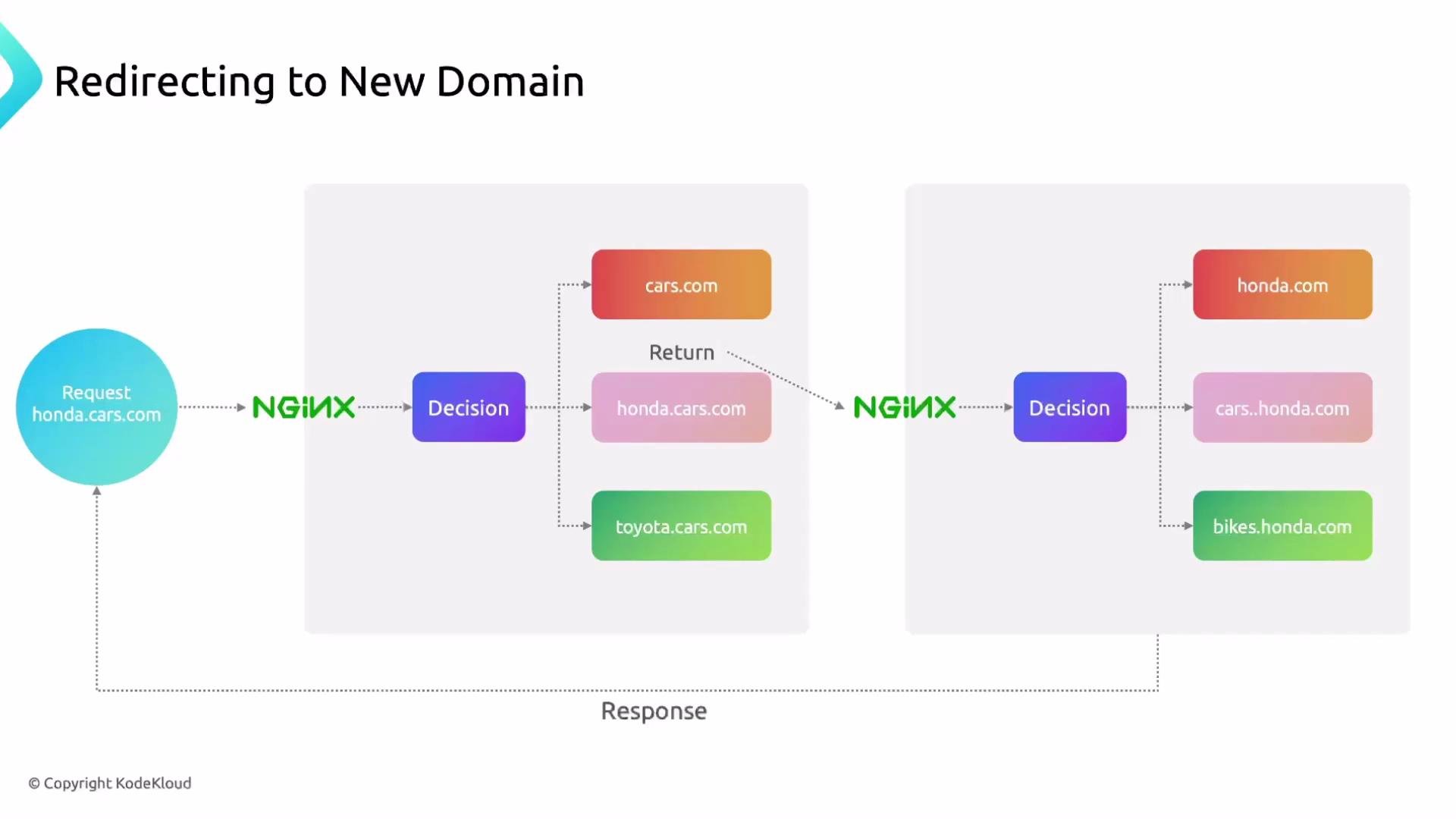 Example: redirect all requests for `honda.cars.com` to `cars.honda.com`, preserving the full request URI and query string:
```nginx theme={null}
server {
listen 80;
server_name honda.cars.com;
return 301 https://cars.honda.com$request_uri;
root /var/www/example.com/html;
index index.html;
location / {
try_files $uri $uri/ =404;
}
}
```
You can also redirect HTTP to HTTPS for the same host. Remember HTTPS requires TLS certificates configured on the server block that listens on port `443`.
When redirecting HTTP to HTTPS, ensure the server block on port `443` is configured with valid TLS certificate and key files; otherwise clients will fail to connect securely.
Example: redirect HTTP to HTTPS, and the matching HTTPS server block:
```nginx theme={null}
server {
listen 80;
server_name honda.cars.com;
return 301 https://$host$request_uri;
}
server {
listen 443 ssl;
server_name honda.cars.com;
ssl_certificate /etc/ssl/certs/honda.cars.com.pem;
ssl_certificate_key /etc/ssl/certs/honda.cars.com-key.pem;
root /var/www/honda.cars.com/html;
index index.html;
location / {
try_files $uri $uri/ =404;
}
}
```
Important built-in variables:
* `$host` — the host name from the request (for example, `honda.cars.com`).
* `$request_uri` — the full original request URI including query string (for example, `/2024/civic-type-r?color=red`).
Example transformation:
* Incoming request: `honda.cars.com/2024/civic-type-r`
* With `return 301 https://cars.honda.com$request_uri;` the client is redirected to: `https://cars.honda.com/2024/civic-type-r`
You can scope a `return` inside a `location` block to redirect a single page rather than the entire domain. Example:
```nginx theme={null}
server {
listen 80;
server_name honda.cars.com;
root /var/www/example.com/html;
index index.html;
location = /civic-type-r {
return 301 https://cars.honda.com$request_uri;
}
}
```
## HTTP status codes quick reference
| Status Code | Meaning | Use case |
| ----------- | -------------------------- | ----------------------------------------------------------------------- |
| `200` | OK | Request succeeded and response includes the resource. |
| `301` | Moved Permanently | Use for permanent redirects so clients and search engines update links. |
| `302` | Found / Temporary Redirect | Use for temporary redirects when the original URL remains current. |
| `400` | Bad Request | Client sent malformed request. |
| `401` | Unauthorized | Authentication required. |
| `403` | Forbidden | Authenticated but insufficient permissions. |
| `404` | Not Found | Resource doesn't exist. |
| `500` | Internal Server Error | Server encountered an unexpected condition. |
| `502` | Bad Gateway | Invalid response from an upstream server. |
| `503` | Service Unavailable | Server cannot handle the request (often temporary). |
Tip: Inspect status codes and request metadata in your browser Developer Tools → Network tab to see how redirects and rewrites behave in practice.
Example: redirect all requests for `honda.cars.com` to `cars.honda.com`, preserving the full request URI and query string:
```nginx theme={null}
server {
listen 80;
server_name honda.cars.com;
return 301 https://cars.honda.com$request_uri;
root /var/www/example.com/html;
index index.html;
location / {
try_files $uri $uri/ =404;
}
}
```
You can also redirect HTTP to HTTPS for the same host. Remember HTTPS requires TLS certificates configured on the server block that listens on port `443`.
When redirecting HTTP to HTTPS, ensure the server block on port `443` is configured with valid TLS certificate and key files; otherwise clients will fail to connect securely.
Example: redirect HTTP to HTTPS, and the matching HTTPS server block:
```nginx theme={null}
server {
listen 80;
server_name honda.cars.com;
return 301 https://$host$request_uri;
}
server {
listen 443 ssl;
server_name honda.cars.com;
ssl_certificate /etc/ssl/certs/honda.cars.com.pem;
ssl_certificate_key /etc/ssl/certs/honda.cars.com-key.pem;
root /var/www/honda.cars.com/html;
index index.html;
location / {
try_files $uri $uri/ =404;
}
}
```
Important built-in variables:
* `$host` — the host name from the request (for example, `honda.cars.com`).
* `$request_uri` — the full original request URI including query string (for example, `/2024/civic-type-r?color=red`).
Example transformation:
* Incoming request: `honda.cars.com/2024/civic-type-r`
* With `return 301 https://cars.honda.com$request_uri;` the client is redirected to: `https://cars.honda.com/2024/civic-type-r`
You can scope a `return` inside a `location` block to redirect a single page rather than the entire domain. Example:
```nginx theme={null}
server {
listen 80;
server_name honda.cars.com;
root /var/www/example.com/html;
index index.html;
location = /civic-type-r {
return 301 https://cars.honda.com$request_uri;
}
}
```
## HTTP status codes quick reference
| Status Code | Meaning | Use case |
| ----------- | -------------------------- | ----------------------------------------------------------------------- |
| `200` | OK | Request succeeded and response includes the resource. |
| `301` | Moved Permanently | Use for permanent redirects so clients and search engines update links. |
| `302` | Found / Temporary Redirect | Use for temporary redirects when the original URL remains current. |
| `400` | Bad Request | Client sent malformed request. |
| `401` | Unauthorized | Authentication required. |
| `403` | Forbidden | Authenticated but insufficient permissions. |
| `404` | Not Found | Resource doesn't exist. |
| `500` | Internal Server Error | Server encountered an unexpected condition. |
| `502` | Bad Gateway | Invalid response from an upstream server. |
| `503` | Service Unavailable | Server cannot handle the request (often temporary). |
Tip: Inspect status codes and request metadata in your browser Developer Tools → Network tab to see how redirects and rewrites behave in practice.
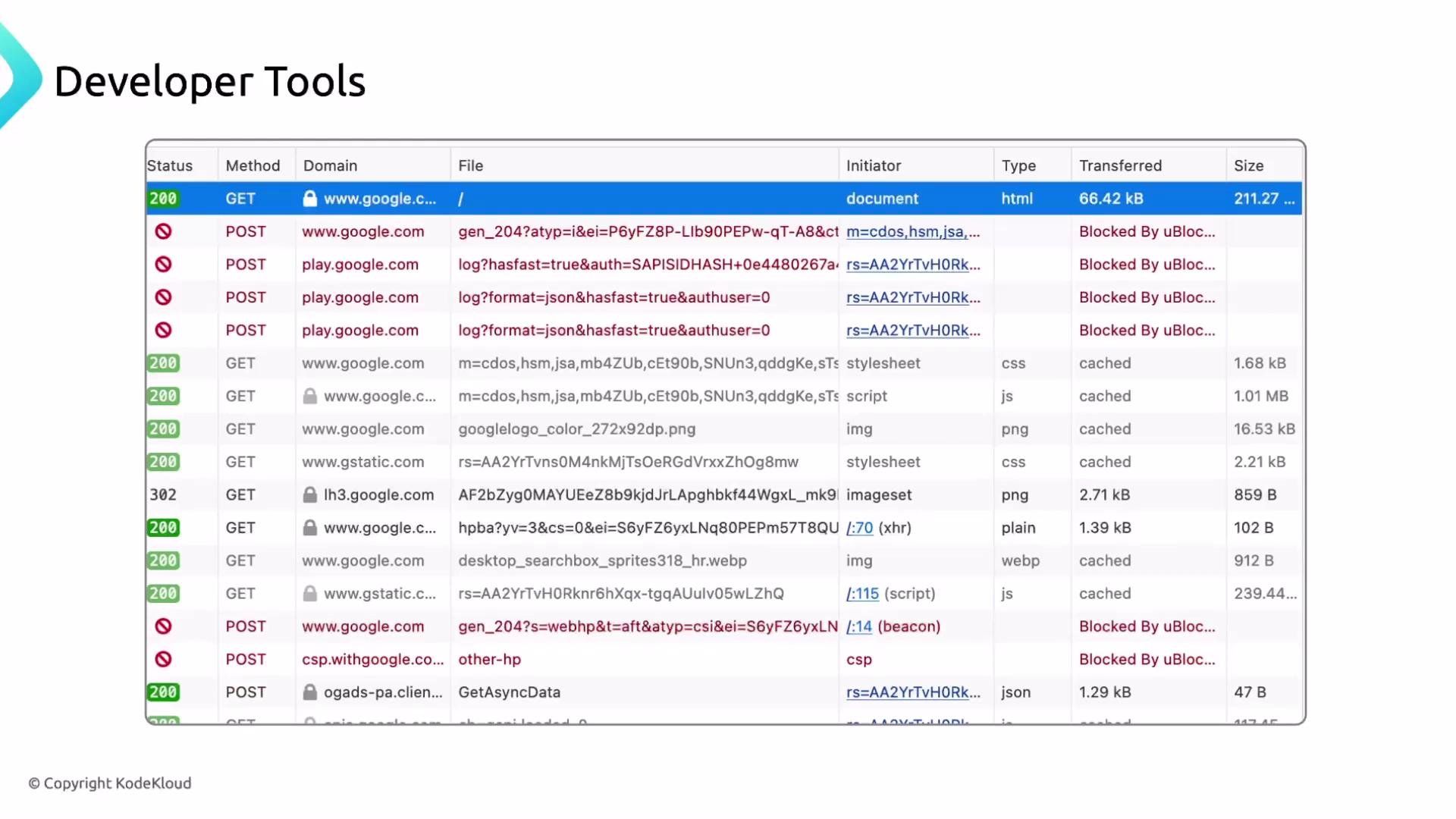 Each row in the Network panel corresponds to a single resource request and shows method, status code, host, type, size, and response/request headers.
## Rewrite rules — when to rewrite vs redirect
Rewrite rules change how the server resolves an incoming URI. Use rewrites when you want to:
* Keep the visible URL the same while serving content from a different backend path.
* Provide clean URLs that map to existing files or application routes.
* Avoid breaking links after reorganizing site structure.
Analogy: notifying the post office to change the package label so items addressed to your old address are delivered to the new address without the sender knowing — an internal relabeling.
### Simple rewrite (client-visible redirect)
If you want clients redirected from an old path to a new one (permanently), use `rewrite ... permanent` or `return 301`:
```nginx theme={null}
server {
listen 80;
server_name honda.cars.com;
root /var/www/example.com/html;
index index.html;
rewrite ^/sports-car-civic-type-r$ /type-r permanent;
}
```
This issues a permanent redirect (HTTP `301`). If you want the server to internally serve content from another path without redirecting the client, use `try_files` or an internal rewrite.
### Serving images from a new path (example)
Suppose your site files originally store images in `pics`, but you want them served from `/images`. You can either rename the folder or rewrite requests from `/pics/*` to `/images/*`.
Initial tree:
```bash theme={null}
$ tree
.
|-- 50x.html
|-- index.html
`-- pics
|-- accord.jpg
|-- civic.jpg
`-- type-r.jpg
```
Option 1: client-visible redirect from `/pics/...` to `/images/...`:
```nginx theme={null}
server {
listen 80;
server_name honda.cars.com;
root /var/www/example.com/html;
index index.html;
location /pics {
rewrite ^/pics/(.*)$ /images/$1 permanent;
}
}
```
A request to `http://honda.cars.com/pics/type-r.jpg` will be redirected to `http://honda.cars.com/images/type-r.jpg`.
Option 2: internal rewrite (serve content from `/images` without redirecting):
* Prefer `try_files` or an internal `alias`/`root` configuration for better performance and less client-visible churn.
Why use rewrites:
* Preserve bookmarks and external links after reorganizing content.
* Present user-friendly URLs while keeping implementation details hidden.
* Support incremental migrations without downtime.
## Regular expressions (Regex) primer for Nginx
Regex is frequently used in `rewrite` rules and `location` match patterns to capture and transform URIs.
Each row in the Network panel corresponds to a single resource request and shows method, status code, host, type, size, and response/request headers.
## Rewrite rules — when to rewrite vs redirect
Rewrite rules change how the server resolves an incoming URI. Use rewrites when you want to:
* Keep the visible URL the same while serving content from a different backend path.
* Provide clean URLs that map to existing files or application routes.
* Avoid breaking links after reorganizing site structure.
Analogy: notifying the post office to change the package label so items addressed to your old address are delivered to the new address without the sender knowing — an internal relabeling.
### Simple rewrite (client-visible redirect)
If you want clients redirected from an old path to a new one (permanently), use `rewrite ... permanent` or `return 301`:
```nginx theme={null}
server {
listen 80;
server_name honda.cars.com;
root /var/www/example.com/html;
index index.html;
rewrite ^/sports-car-civic-type-r$ /type-r permanent;
}
```
This issues a permanent redirect (HTTP `301`). If you want the server to internally serve content from another path without redirecting the client, use `try_files` or an internal rewrite.
### Serving images from a new path (example)
Suppose your site files originally store images in `pics`, but you want them served from `/images`. You can either rename the folder or rewrite requests from `/pics/*` to `/images/*`.
Initial tree:
```bash theme={null}
$ tree
.
|-- 50x.html
|-- index.html
`-- pics
|-- accord.jpg
|-- civic.jpg
`-- type-r.jpg
```
Option 1: client-visible redirect from `/pics/...` to `/images/...`:
```nginx theme={null}
server {
listen 80;
server_name honda.cars.com;
root /var/www/example.com/html;
index index.html;
location /pics {
rewrite ^/pics/(.*)$ /images/$1 permanent;
}
}
```
A request to `http://honda.cars.com/pics/type-r.jpg` will be redirected to `http://honda.cars.com/images/type-r.jpg`.
Option 2: internal rewrite (serve content from `/images` without redirecting):
* Prefer `try_files` or an internal `alias`/`root` configuration for better performance and less client-visible churn.
Why use rewrites:
* Preserve bookmarks and external links after reorganizing content.
* Present user-friendly URLs while keeping implementation details hidden.
* Support incremental migrations without downtime.
## Regular expressions (Regex) primer for Nginx
Regex is frequently used in `rewrite` rules and `location` match patterns to capture and transform URIs.
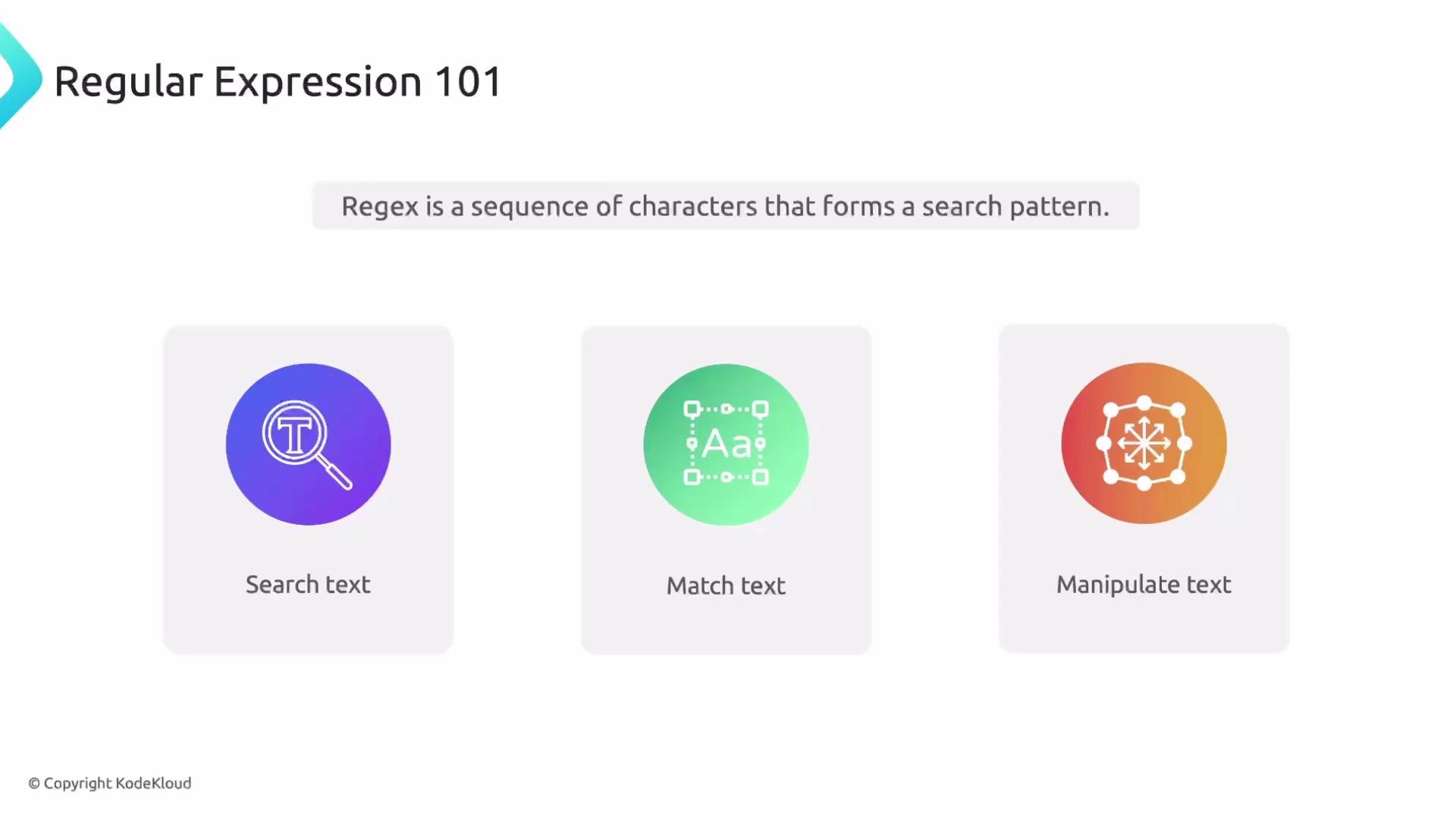 Common regex symbols:
* `^` — start of string
* `$` — end of string
* `.` — any single character (except newline)
* `*` — 0 or more of the preceding token
* `+` — 1 or more of the preceding token
* `?` — 0 or 1 of the preceding token
* `()` — capture group
* `[]` — character class, e.g., `[a-z]`
* `|` — alternation (logical OR)
* `\d`, `\w`, `\s` — shorthand for digits, word characters, whitespace (availability may vary by flavor)
Examples — strings and regex matches:
```text theme={null}
String Regex Expression Matches?
/hello-world ^/[a-z-]+$ yes
/HELLO-WORLD ^/[A-Z-]+$ yes
/hello-world ^/[a-zA-Z-]+$ yes
/HELLO-WORLD ^/[a-zA-Z-]+$ yes
/hello123 ^/[a-z0-9]+$ yes
/hello_W0R1D ^/[A-Za-z0-9_]+$ yes
```
Capturing and reusing parts of a URL:
Parentheses capture parts of the matched URI which you can reference in the replacement string as `$1`, `$2`, etc.
Example:
```nginx theme={null}
# Redirect /old_page/ to /new_page/
rewrite ^/old_page/(.*)$ /new_page/$1 permanent;
```
* `^/old_page/(.*)$` captures everything after `/old_page/` into `$1`.
* Replacement `/new_page/$1` reuses that captured part.
Regex can be powerful but also complex — test patterns using tools like Regex101 to avoid surprises.
Useful link:
* Regex testing: [https://regex101.com](https://regex101.com)
This concludes the conceptual portion. Next up: demo walkthroughs showing these directives in action.
## Links and references
* [Nginx documentation — rewrite module](https://nginx.org/en/docs/http/ngx_http_rewrite_module.html)
* [Nginx documentation — return directive](https://nginx.org/en/docs/http/ngx_http_rewrite_module.html#return)
* [Regex101 — interactive regex tester](https://regex101.com)
* [Kubernetes Basics](https://kubernetes.io/docs/concepts/overview/what-is-kubernetes/) (example reference)
* [Docker Hub](https://hub.docker.com/)
* [Terraform Registry](https://registry.terraform.io/)
Common regex symbols:
* `^` — start of string
* `$` — end of string
* `.` — any single character (except newline)
* `*` — 0 or more of the preceding token
* `+` — 1 or more of the preceding token
* `?` — 0 or 1 of the preceding token
* `()` — capture group
* `[]` — character class, e.g., `[a-z]`
* `|` — alternation (logical OR)
* `\d`, `\w`, `\s` — shorthand for digits, word characters, whitespace (availability may vary by flavor)
Examples — strings and regex matches:
```text theme={null}
String Regex Expression Matches?
/hello-world ^/[a-z-]+$ yes
/HELLO-WORLD ^/[A-Z-]+$ yes
/hello-world ^/[a-zA-Z-]+$ yes
/HELLO-WORLD ^/[a-zA-Z-]+$ yes
/hello123 ^/[a-z0-9]+$ yes
/hello_W0R1D ^/[A-Za-z0-9_]+$ yes
```
Capturing and reusing parts of a URL:
Parentheses capture parts of the matched URI which you can reference in the replacement string as `$1`, `$2`, etc.
Example:
```nginx theme={null}
# Redirect /old_page/ to /new_page/
rewrite ^/old_page/(.*)$ /new_page/$1 permanent;
```
* `^/old_page/(.*)$` captures everything after `/old_page/` into `$1`.
* Replacement `/new_page/$1` reuses that captured part.
Regex can be powerful but also complex — test patterns using tools like Regex101 to avoid surprises.
Useful link:
* Regex testing: [https://regex101.com](https://regex101.com)
This concludes the conceptual portion. Next up: demo walkthroughs showing these directives in action.
## Links and references
* [Nginx documentation — rewrite module](https://nginx.org/en/docs/http/ngx_http_rewrite_module.html)
* [Nginx documentation — return directive](https://nginx.org/en/docs/http/ngx_http_rewrite_module.html#return)
* [Regex101 — interactive regex tester](https://regex101.com)
* [Kubernetes Basics](https://kubernetes.io/docs/concepts/overview/what-is-kubernetes/) (example reference)
* [Docker Hub](https://hub.docker.com/)
* [Terraform Registry](https://registry.terraform.io/)