> ## Documentation Index
> Fetch the complete documentation index at: https://notes.kodekloud.com/llms.txt
> Use this file to discover all available pages before exploring further.
# Virtual Servers Multiple Sites
> How to use NGINX server blocks to host multiple websites on one server, including configuration examples, ports, TLS termination, and deployment best practices.
In this lesson we’ll dive into NGINX virtual servers (a.k.a. server blocks) and how a single NGINX instance can host multiple websites. This is a common pattern for consolidating hosting, reducing cost, and centralizing configuration and TLS termination.
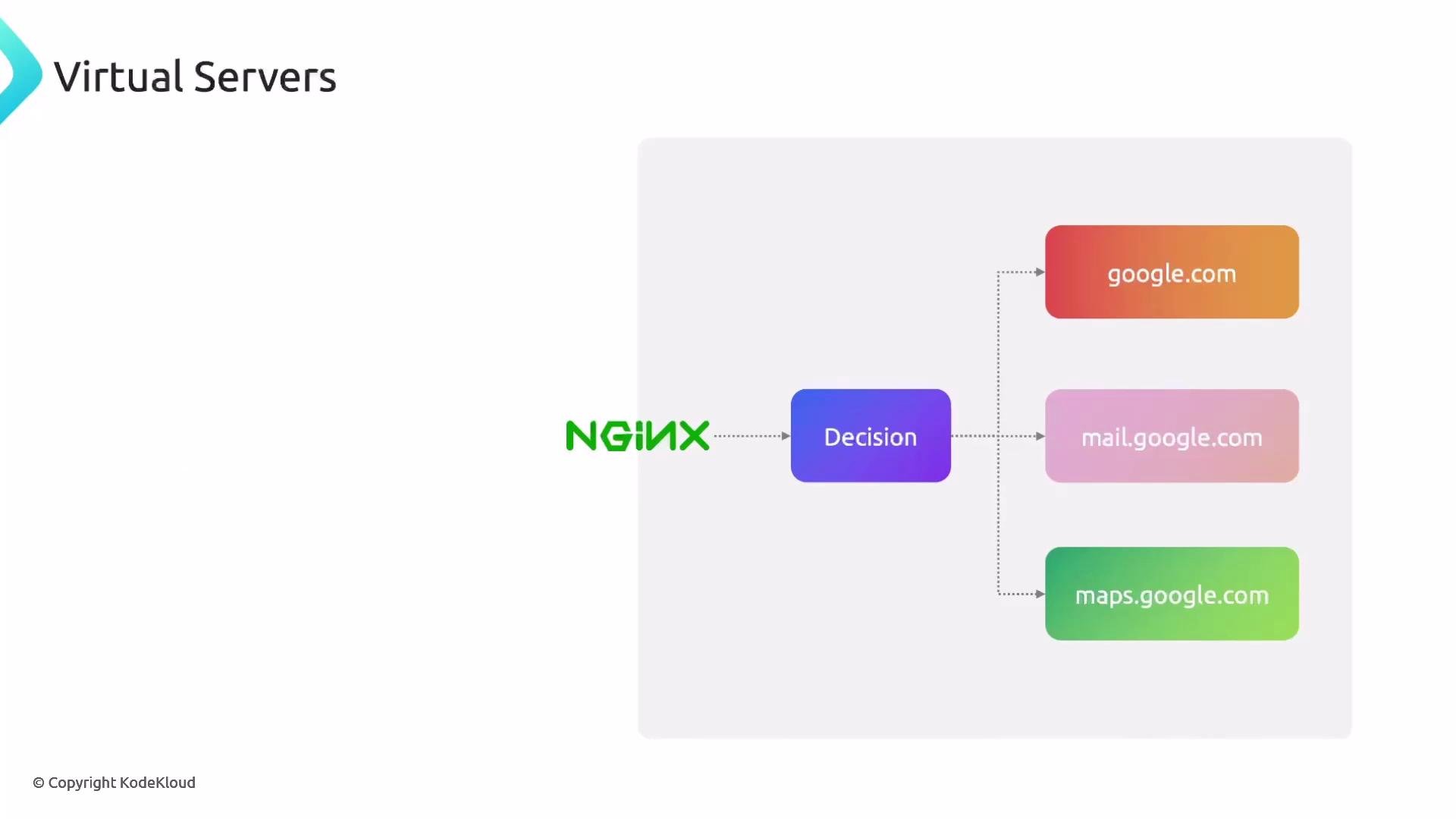
Think of it like living in an apartment building: the building address (1234 Main Street) is the physical server, and each apartment number (301, 302, etc.) is a virtual server. When a delivery arrives, the driver goes to the building and then to the correct apartment. Similarly, NGINX receives a request for the server's IP and then routes it to the correct virtual server based on the Host header, port, or other criteria.
 What a virtual server does
* Matches incoming requests (usually by `Host` header and `listen` port).
* Applies the configuration for that site (root directory, proxying, rewrites, TLS, etc.).
* Lets one NGINX process host many sites (each with its own behavior and files).
For example:
* A request for `google.com` is handled by the virtual server whose `server_name` matches `google.com`.
* A request for `mail.google.com` is routed to a different virtual server that may have different document root or proxy settings.
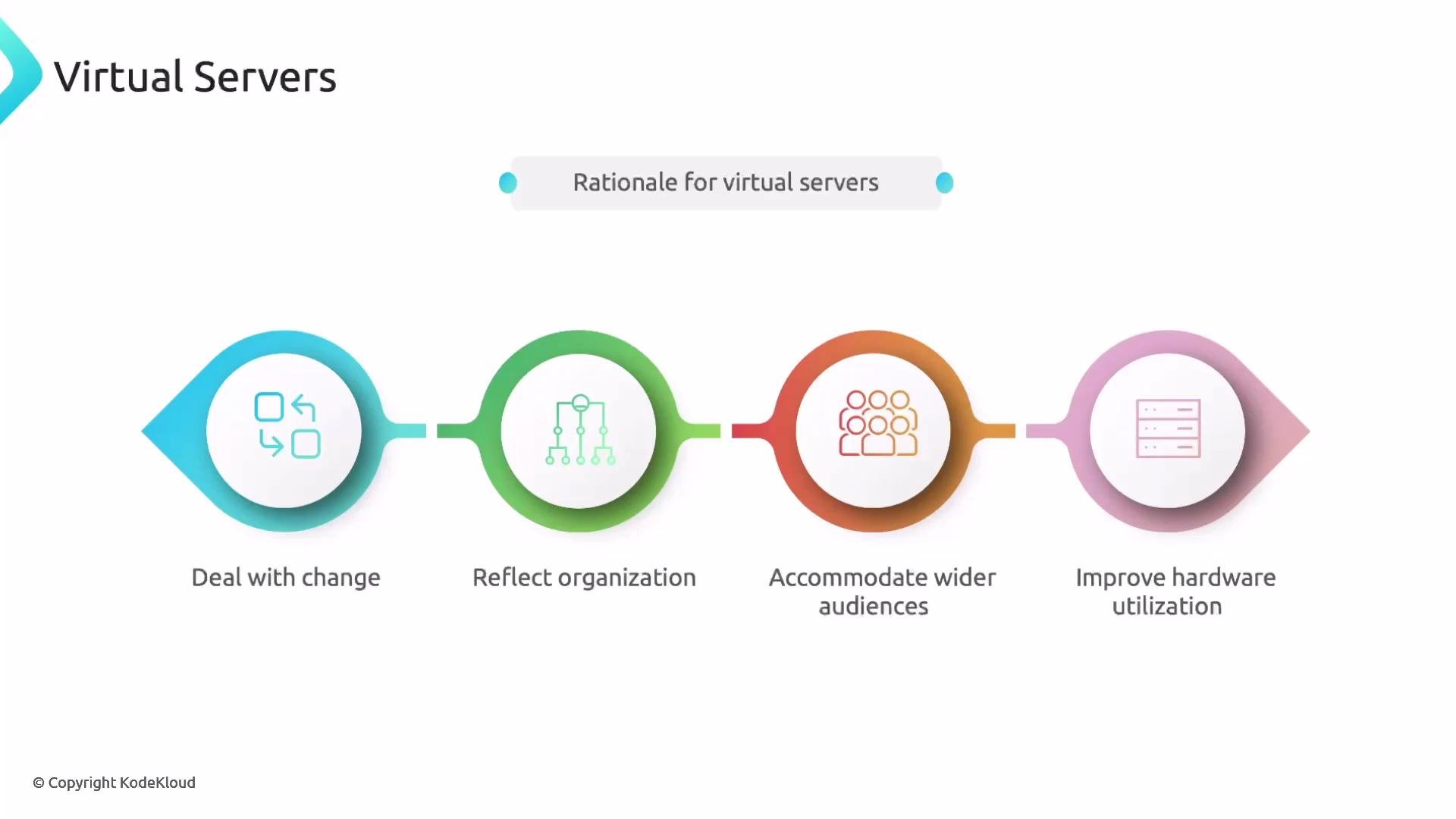
Running multiple virtual servers on one host reduces overhead (fewer machines to maintain), centralizes logging and monitoring, and simplifies TLS certificate management when using a single reverse proxy.
What a virtual server does
* Matches incoming requests (usually by `Host` header and `listen` port).
* Applies the configuration for that site (root directory, proxying, rewrites, TLS, etc.).
* Lets one NGINX process host many sites (each with its own behavior and files).
For example:
* A request for `google.com` is handled by the virtual server whose `server_name` matches `google.com`.
* A request for `mail.google.com` is routed to a different virtual server that may have different document root or proxy settings.
Running multiple virtual servers on one host reduces overhead (fewer machines to maintain), centralizes logging and monitoring, and simplifies TLS certificate management when using a single reverse proxy.
 Basic server block example
This minimal server block listens on port 80 and responds when the request matches the specified IP or hostname. Note that `server_name` can be an IP address or a DNS hostname.
```nginx theme={null}
server {
listen 80;
server_name 172.217.22.14;
root /var/www/example.com/html;
index index.html;
location / {
try_files $uri $uri/ =404;
}
}
```
Listening on nonstandard ports
NGINX can listen on any port. Standard HTTP uses port 80 and HTTPS uses 443. If you use a nonstandard port like 8080, clients must include it in the URL (for example, `http://wiki.example.com:8080`).
```nginx theme={null}
server {
listen 8080;
server_name wiki.example.com;
root /var/www/wiki.example.com/html;
index index.html;
location / {
try_files $uri $uri/ =404;
}
}
```
Multiple server blocks in one configuration file
You can define many server blocks in a single NGINX configuration. Each block handles a distinct site or hostname.
```nginx theme={null}
server {
listen 80;
server_name honda.cars.com;
root /var/www/honda.cars.com/html;
index index.html;
location / {
try_files $uri $uri/ =404;
}
}
server {
listen 80;
server_name toyota.cars.com;
root /var/www/toyota.cars.com/html;
index index.html;
location / {
try_files $uri $uri/ =404;
}
}
```
Quick reference — common server block directives
| Directive | Purpose | Example |
| ------------- | --------------------------------------- | ------------------------------------------- |
| `listen` | Port and address to listen on | `listen 80;` |
| `server_name` | Hostnames or IPs this block responds to | `server_name example.com www.example.com;` |
| `root` | Filesystem path for static files | `root /var/www/example.com/html;` |
| `index` | Default file(s) to serve | `index index.html index.htm;` |
| `location` | Request-matching and handling rules | `location / { try_files $uri $uri/ =404; }` |
Ports and user experience
| Port | Typical use | Notes |
| ------ | ------------------------- | ------------------------------------------------- |
| `80` | HTTP | Default HTTP port; no port in URL required |
| `443` | HTTPS | Default HTTPS; used with TLS certificates |
| `8080` | Alternate HTTP | Requires `:8080` in URL (e.g. `http://host:8080`) |
| Custom | Apps or internal services | Use with proxying or firewall rules as needed |
Best practices and deployment tips
* Keep each site's configuration in a separate file and enable them selectively (for example, `/etc/nginx/sites-available/` with symlinks in `/etc/nginx/sites-enabled/`). This minimizes the blast radius of configuration errors and simplifies automation.
* Use a single reverse proxy on ports 80/443 to route traffic to internal ports (avoids exposing nonstandard ports to users).
* Consolidate TLS termination at the front-end reverse proxy, or use tools like Certbot/ACME to automate certificates per site.
* Test configuration changes with `nginx -t` before reloading: `sudo nginx -t && sudo systemctl reload nginx`.
Store each site's configuration in its own file and enable them individually (for example, with `/etc/nginx/sites-available/` and `/etc/nginx/sites-enabled/`). This reduces blast radius when editing configs and makes management easier.
Additional resources
* [NGINX official documentation — Server Blocks (server context)](https://nginx.org/en/docs/http/ngx_http_core_module.html#server)
* [NGINX Beginner’s Guide — How to Set Up Server Blocks](https://www.nginx.com/resources/wiki/start/topics/examples/server_blocks/)
* [Debian/Ubuntu NGINX packaging — sites-available and sites-enabled pattern](https://wiki.debian.org/Nginx)
You can now create a demo environment: add site files under `/var/www/`, create per-site server block files, test configuration, and reload NGINX to see multiple virtual servers served from a single NGINX instance.
Basic server block example
This minimal server block listens on port 80 and responds when the request matches the specified IP or hostname. Note that `server_name` can be an IP address or a DNS hostname.
```nginx theme={null}
server {
listen 80;
server_name 172.217.22.14;
root /var/www/example.com/html;
index index.html;
location / {
try_files $uri $uri/ =404;
}
}
```
Listening on nonstandard ports
NGINX can listen on any port. Standard HTTP uses port 80 and HTTPS uses 443. If you use a nonstandard port like 8080, clients must include it in the URL (for example, `http://wiki.example.com:8080`).
```nginx theme={null}
server {
listen 8080;
server_name wiki.example.com;
root /var/www/wiki.example.com/html;
index index.html;
location / {
try_files $uri $uri/ =404;
}
}
```
Multiple server blocks in one configuration file
You can define many server blocks in a single NGINX configuration. Each block handles a distinct site or hostname.
```nginx theme={null}
server {
listen 80;
server_name honda.cars.com;
root /var/www/honda.cars.com/html;
index index.html;
location / {
try_files $uri $uri/ =404;
}
}
server {
listen 80;
server_name toyota.cars.com;
root /var/www/toyota.cars.com/html;
index index.html;
location / {
try_files $uri $uri/ =404;
}
}
```
Quick reference — common server block directives
| Directive | Purpose | Example |
| ------------- | --------------------------------------- | ------------------------------------------- |
| `listen` | Port and address to listen on | `listen 80;` |
| `server_name` | Hostnames or IPs this block responds to | `server_name example.com www.example.com;` |
| `root` | Filesystem path for static files | `root /var/www/example.com/html;` |
| `index` | Default file(s) to serve | `index index.html index.htm;` |
| `location` | Request-matching and handling rules | `location / { try_files $uri $uri/ =404; }` |
Ports and user experience
| Port | Typical use | Notes |
| ------ | ------------------------- | ------------------------------------------------- |
| `80` | HTTP | Default HTTP port; no port in URL required |
| `443` | HTTPS | Default HTTPS; used with TLS certificates |
| `8080` | Alternate HTTP | Requires `:8080` in URL (e.g. `http://host:8080`) |
| Custom | Apps or internal services | Use with proxying or firewall rules as needed |
Best practices and deployment tips
* Keep each site's configuration in a separate file and enable them selectively (for example, `/etc/nginx/sites-available/` with symlinks in `/etc/nginx/sites-enabled/`). This minimizes the blast radius of configuration errors and simplifies automation.
* Use a single reverse proxy on ports 80/443 to route traffic to internal ports (avoids exposing nonstandard ports to users).
* Consolidate TLS termination at the front-end reverse proxy, or use tools like Certbot/ACME to automate certificates per site.
* Test configuration changes with `nginx -t` before reloading: `sudo nginx -t && sudo systemctl reload nginx`.
Store each site's configuration in its own file and enable them individually (for example, with `/etc/nginx/sites-available/` and `/etc/nginx/sites-enabled/`). This reduces blast radius when editing configs and makes management easier.
Additional resources
* [NGINX official documentation — Server Blocks (server context)](https://nginx.org/en/docs/http/ngx_http_core_module.html#server)
* [NGINX Beginner’s Guide — How to Set Up Server Blocks](https://www.nginx.com/resources/wiki/start/topics/examples/server_blocks/)
* [Debian/Ubuntu NGINX packaging — sites-available and sites-enabled pattern](https://wiki.debian.org/Nginx)
You can now create a demo environment: add site files under `/var/www/`, create per-site server block files, test configuration, and reload NGINX to see multiple virtual servers served from a single NGINX instance.