> ## Documentation Index
> Fetch the complete documentation index at: https://notes.kodekloud.com/llms.txt
> Use this file to discover all available pages before exploring further.
# Compression
> Explains using gzip and Brotli in NGINX to compress text assets, compare algorithms, configure settings, and avoid compressing already compressed media.
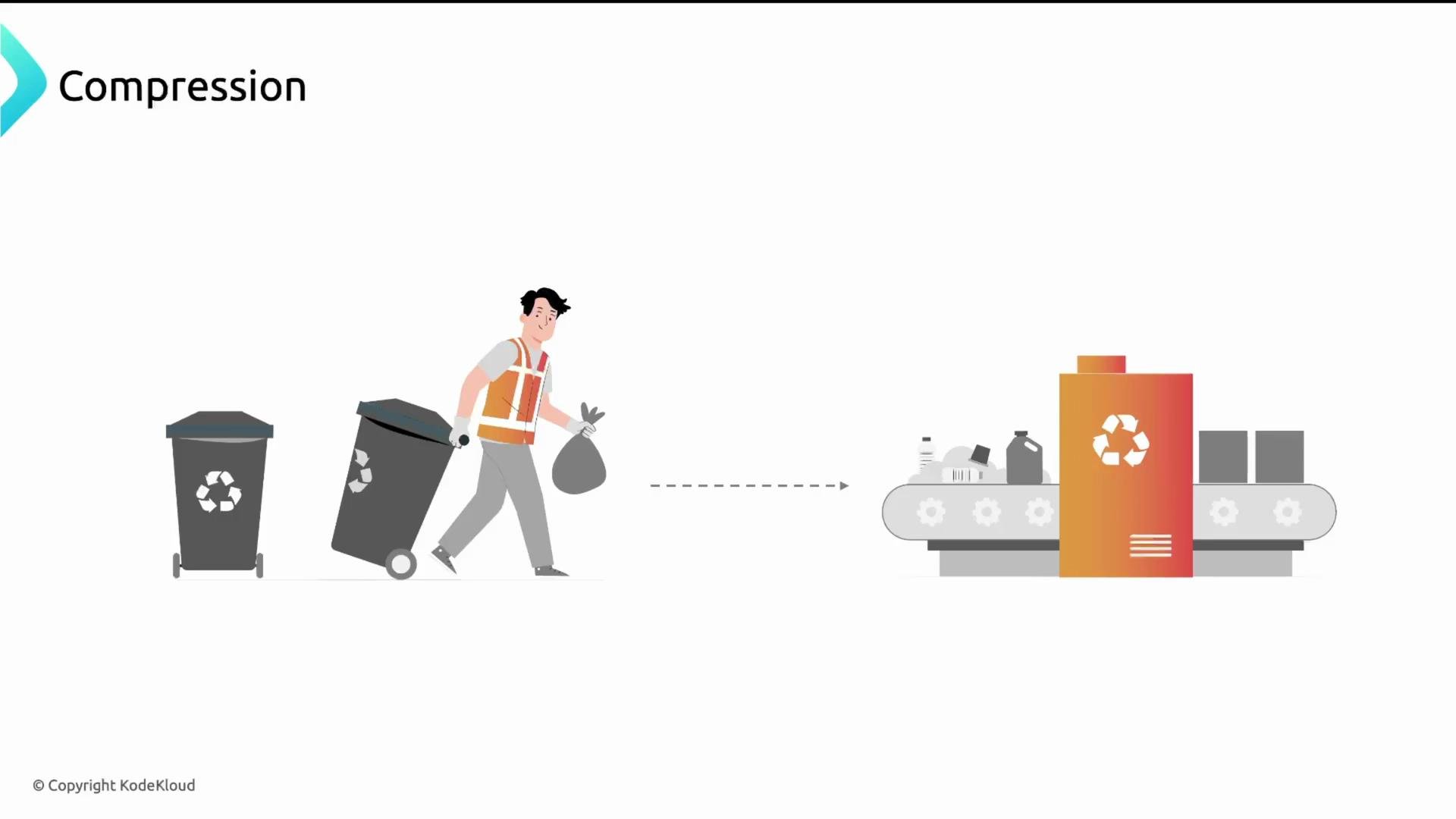
Think of packing a suitcase for a week in Hawaii. If you stuff clothes without folding them, they take more space and are harder to close. Fold them neatly and you fit more. Compression does the same for data: it reduces the size of files sent over the network so they consume less bandwidth and arrive faster.
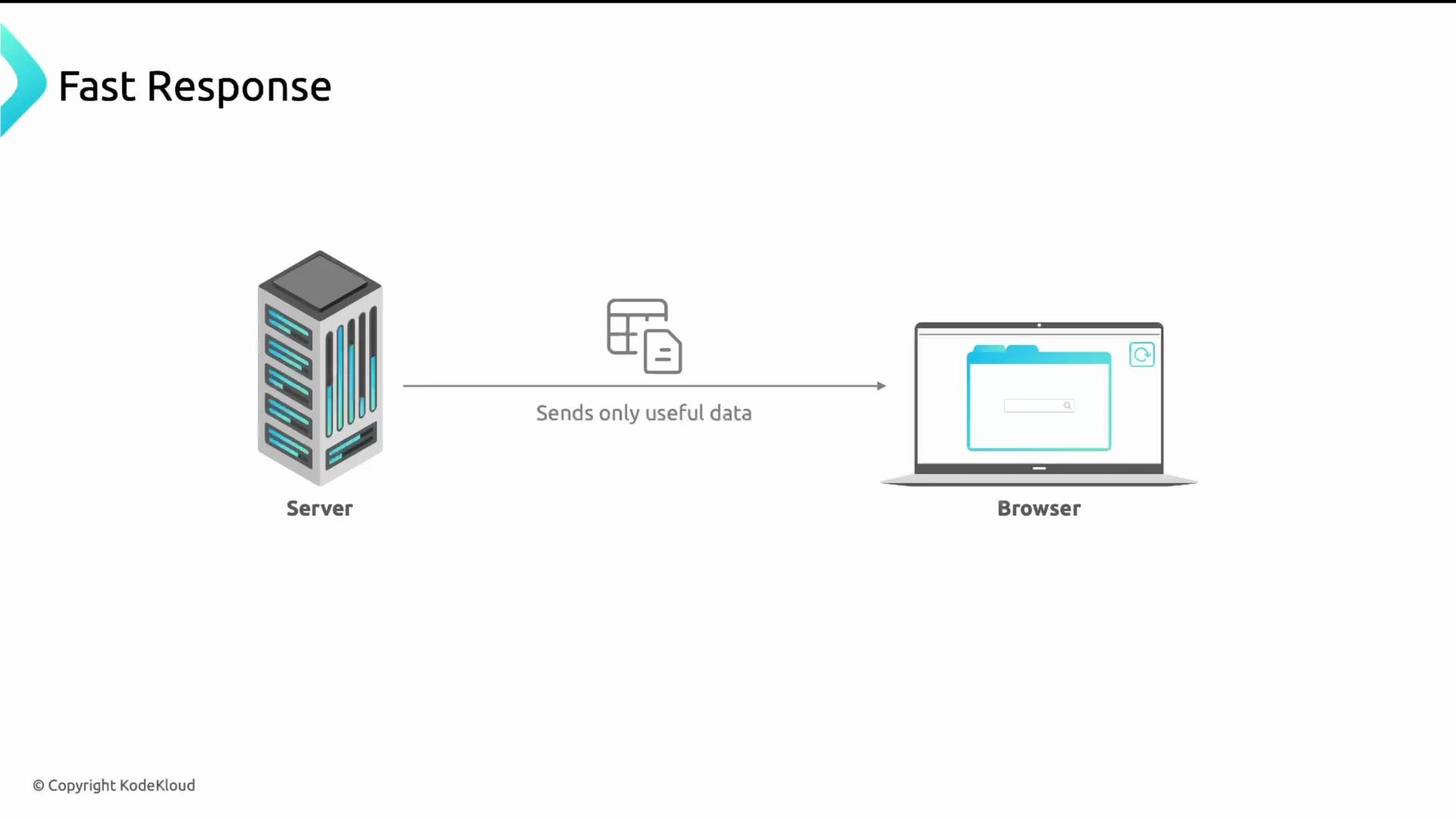
When an HTTP server compresses a response, it sends a smaller encoded version to the browser. The browser then decompresses and renders the original content. Without compression, the server sends full HTML, JavaScript, CSS, and other assets — increasing load times and data usage for end users, especially on mobile or metered connections.
 The end result of proper compression: less data transferred, faster page loads, and a better user experience.
 ## What resources should you compress?
Text-based resources usually compress well and should be enabled for compression:
* HTML, CSS, JavaScript
* JSON, XML
* RSS, SVG, text files
* Font files (e.g., `font/woff`, `font/woff2`) — can be included selectively
Binary media and many archive formats are already compressed; recompressing them yields little benefit and wastes CPU:
* JPEG, PNG (use modern formats like WebP or AVIF instead for better compression)
* MP4, MP3, AVI, ZIP, TAR
## What resources should you compress?
Text-based resources usually compress well and should be enabled for compression:
* HTML, CSS, JavaScript
* JSON, XML
* RSS, SVG, text files
* Font files (e.g., `font/woff`, `font/woff2`) — can be included selectively
Binary media and many archive formats are already compressed; recompressing them yields little benefit and wastes CPU:
* JPEG, PNG (use modern formats like WebP or AVIF instead for better compression)
* MP4, MP3, AVI, ZIP, TAR
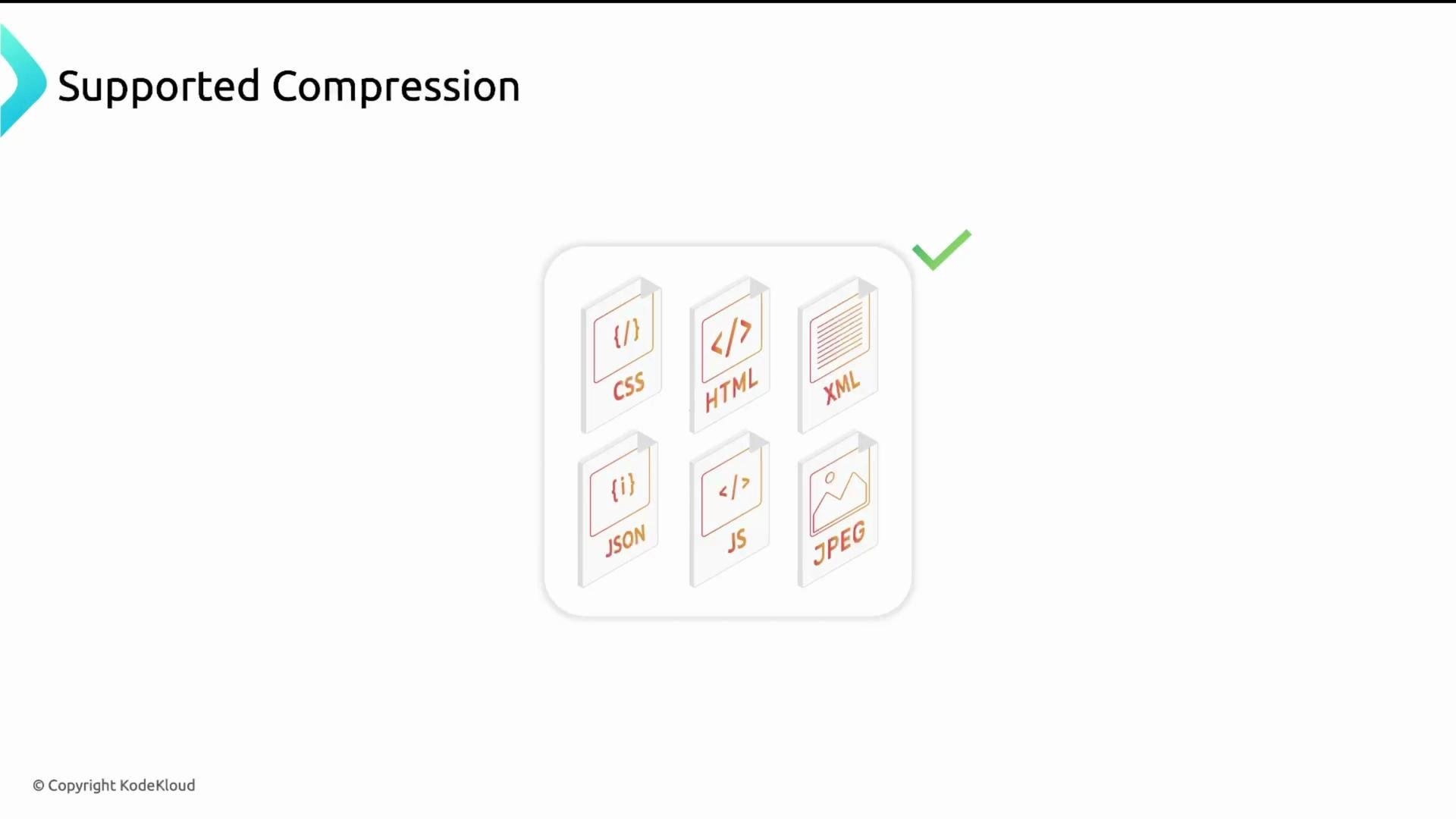
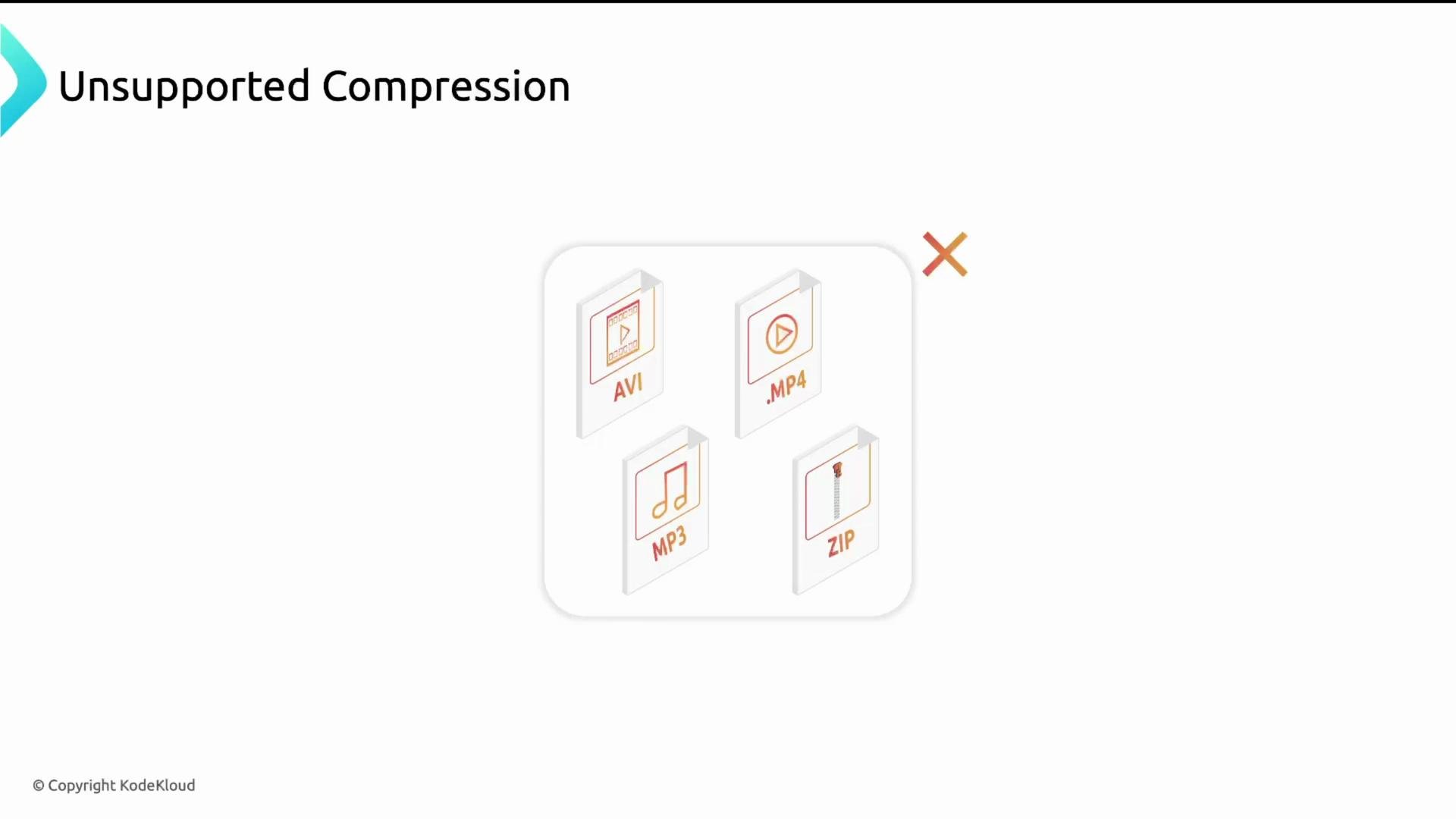 Table — quick guidance
| Should compress | Should generally not compress |
| ---------------------------------------------------------------------------------------- | --------------------------------------------------------------- |
| `text/html`, `text/css`, `application/javascript`, `application/json`, `application/xml` | `video/mp4`, `audio/mpeg`, `application/zip` |
| `text/plain`, `application/rss+xml`, `image/svg+xml` | Already compressed images (JPEG/PNG) — prefer WebP/AVIF instead |
## Supported algorithms in NGINX
NGINX supports two widely used compression algorithms: gzip and Brotli.
### gzip
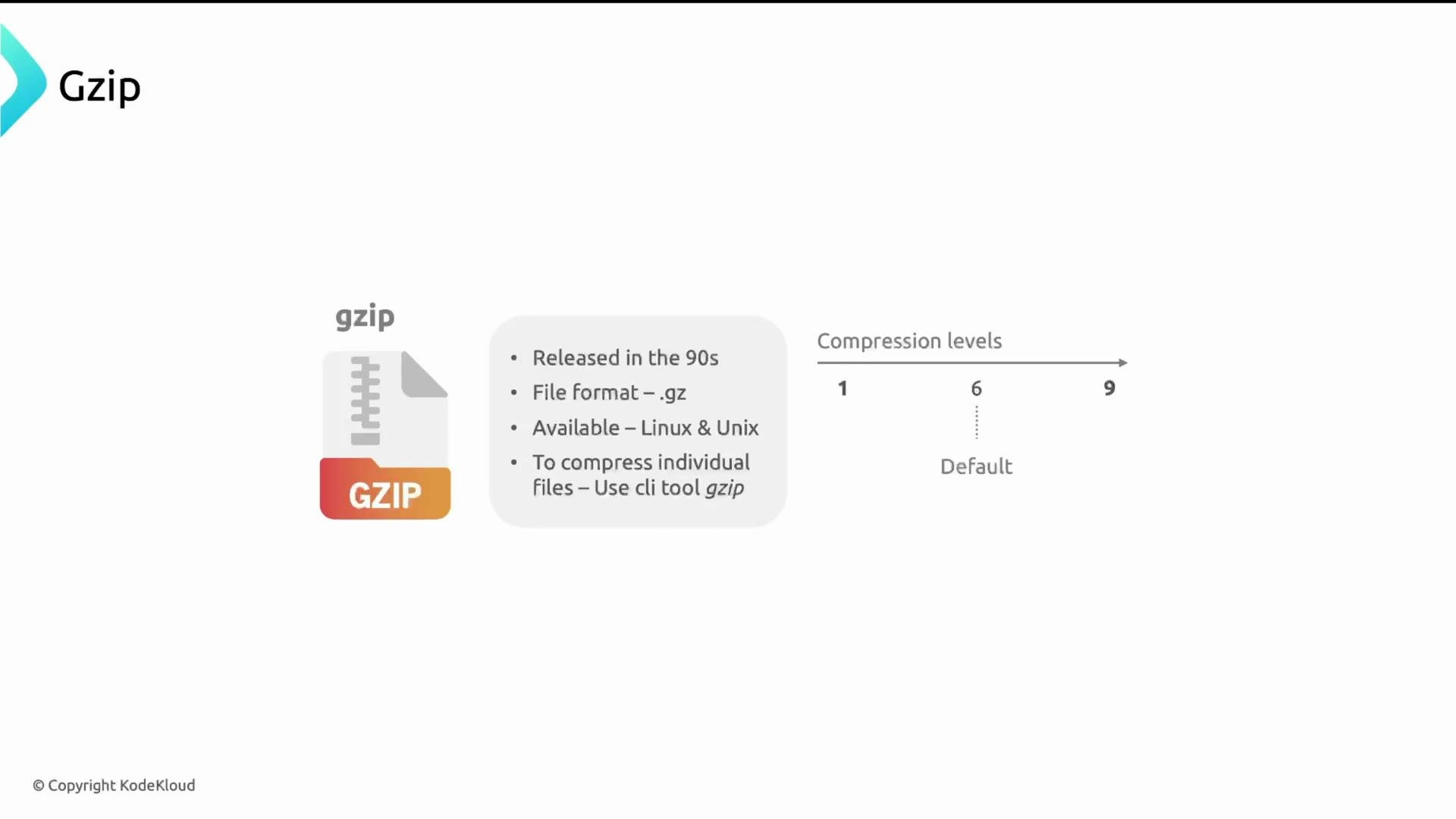
* Widely supported across browsers and servers (legacy compatibility).
* Compression levels 1–9 (1 = fastest, 9 = best compression, default commonly 6).
* Available as a built-in NGINX feature on most distributions.
Table — quick guidance
| Should compress | Should generally not compress |
| ---------------------------------------------------------------------------------------- | --------------------------------------------------------------- |
| `text/html`, `text/css`, `application/javascript`, `application/json`, `application/xml` | `video/mp4`, `audio/mpeg`, `application/zip` |
| `text/plain`, `application/rss+xml`, `image/svg+xml` | Already compressed images (JPEG/PNG) — prefer WebP/AVIF instead |
## Supported algorithms in NGINX
NGINX supports two widely used compression algorithms: gzip and Brotli.
### gzip
* Widely supported across browsers and servers (legacy compatibility).
* Compression levels 1–9 (1 = fastest, 9 = best compression, default commonly 6).
* Available as a built-in NGINX feature on most distributions.
 Example: compress a file using the gzip CLI
```bash theme={null}
$ gzip ubuntu-jammy-jellyfish.iso
$ ls -l
-rw-r--r-- 1 user user 10G Jun 20 12:00 ubuntu-jammy-jellyfish.iso.gz
```
Recommended minimal nginx.conf gzip configuration (place inside the `http { ... }` block, often in `/etc/nginx/nginx.conf`):
```nginx theme={null}
http {
gzip on;
gzip_vary on;
gzip_proxied any;
gzip_comp_level 6;
gzip_buffers 16 8k;
gzip_http_version 1.1;
gzip_types
text/plain
text/css
text/html
text/xml
text/javascript
application/json
application/javascript
application/rss+xml;
}
```
Notes:
* `gzip on;` — enable gzip compression.
* `gzip_comp_level` — set CPU vs. compression trade-off (1–9). Level 6 is a sensible default.
* `gzip_types` — list MIME types to compress (add `font/woff` and `font/woff2` if desired).
* `gzip_proxied any;` — allows compression for proxied requests.
### Brotli
* Better compression ratios in many cases (levels 0–11).
* Modern browsers advertise Brotli via `br` in `Accept-Encoding`.
* Not always built into stock NGINX; often provided via the third-party ngx\_brotli module or available in vendor packages.
Example: compress a file using the gzip CLI
```bash theme={null}
$ gzip ubuntu-jammy-jellyfish.iso
$ ls -l
-rw-r--r-- 1 user user 10G Jun 20 12:00 ubuntu-jammy-jellyfish.iso.gz
```
Recommended minimal nginx.conf gzip configuration (place inside the `http { ... }` block, often in `/etc/nginx/nginx.conf`):
```nginx theme={null}
http {
gzip on;
gzip_vary on;
gzip_proxied any;
gzip_comp_level 6;
gzip_buffers 16 8k;
gzip_http_version 1.1;
gzip_types
text/plain
text/css
text/html
text/xml
text/javascript
application/json
application/javascript
application/rss+xml;
}
```
Notes:
* `gzip on;` — enable gzip compression.
* `gzip_comp_level` — set CPU vs. compression trade-off (1–9). Level 6 is a sensible default.
* `gzip_types` — list MIME types to compress (add `font/woff` and `font/woff2` if desired).
* `gzip_proxied any;` — allows compression for proxied requests.
### Brotli
* Better compression ratios in many cases (levels 0–11).
* Modern browsers advertise Brotli via `br` in `Accept-Encoding`.
* Not always built into stock NGINX; often provided via the third-party ngx\_brotli module or available in vendor packages.
 Brotli is commonly added to open-source NGINX via the ngx\_brotli module. See the module repository for installation options and instructions:
* ngx\_brotli: [https://github.com/google/ngx\_brotli](https://github.com/google/ngx_brotli)
Comparison (gzip vs Brotli)
| Feature | gzip | Brotli |
| --------------------- | --------- | ------------------------------- |
| Browser support | Universal | Modern browsers (`br`) |
| Compression levels | 1–9 | 0–11 |
| Typical ratio | Good | Often better than gzip |
| CPU cost | Moderate | Can be higher at top levels |
| Availability in NGINX | Built-in | Requires module or vendor build |
If you decide to build NGINX from source to include third-party modules (e.g., Brotli), the typical sequence is:
```bash theme={null}
# download nginx source
wget https://nginx.org/download/nginx-1.27.0.tar.gz
tar zxf nginx-1.27.0.tar.gz
cd nginx-1.27.0
# configure with desired options and modules (example)
./configure \
--sbin-path=/usr/local/nginx/nginx \
--conf-path=/usr/local/nginx/nginx.conf \
--pid-path=/usr/local/nginx/nginx.pid \
--with-pcre=../pcre2-10.42 \
--with-zlib=../zlib-1.2.13 \
--with-http_ssl_module \
--with-stream \
--with-mail=dynamic \
--add-module=/usr/build/nginx-rtmp-module \
--add-dynamic-module=/usr/build/3party_module
# then
make && sudo make install
```
Compiling NGINX adds complexity and is usually unnecessary unless you require a specific third-party module not available from your vendor.
## How the server and browser negotiate compression
Clients tell servers which encodings they accept via the `Accept-Encoding` request header. Example request header from a browser:
```http theme={null}
Request Headers
:method: GET
:path: /main.bundle.js
:scheme: https
accept: */*
accept-encoding: gzip, deflate, br
accept-language: en-US,en;q=0.9
cache-control: no-cache
pragma: no-cache
```
If the server chooses gzip or Brotli, it responds with a `Content-Encoding` response header indicating the encoding used. Example response headers:
```text theme={null}
Response Headers
content-encoding: gzip
content-type: text/html; charset=UTF-8
date: Fri, 27 May 2016 16:53:50 GMT
server: gws
status: 200
```
To confirm compression is active:
1. Open your browser DevTools → Network tab.
2. Select a resource and inspect Response Headers for `Content-Encoding`.
3. Confirm the resource is smaller than the uncompressed version (DevTools shows transfer size vs resource size).
Avoid compressing already-compressed formats (MP4, MP3, ZIP, most JPEGs). Compress text-based assets (HTML, CSS, JS, JSON, XML) to get the best savings with minimal CPU overhead.
## Summary and recommendations
* Enable gzip by default for broad compatibility; start with `gzip_comp_level 6`.
* Use Brotli if you can add/enable the module and want better compression ratios for text assets — balance the Brotli level against CPU cost.
* Do not compress already-compressed media and archive formats; instead adopt modern image formats (WebP/AVIF) where appropriate.
* Verify using browser DevTools (check `Accept-Encoding` and `Content-Encoding` headers).
If you want to try this hands-on, enable gzip in your NGINX configuration, reload NGINX, and use browser DevTools to verify `Content-Encoding` behavior for HTML, CSS, and JS resources.
Brotli is commonly added to open-source NGINX via the ngx\_brotli module. See the module repository for installation options and instructions:
* ngx\_brotli: [https://github.com/google/ngx\_brotli](https://github.com/google/ngx_brotli)
Comparison (gzip vs Brotli)
| Feature | gzip | Brotli |
| --------------------- | --------- | ------------------------------- |
| Browser support | Universal | Modern browsers (`br`) |
| Compression levels | 1–9 | 0–11 |
| Typical ratio | Good | Often better than gzip |
| CPU cost | Moderate | Can be higher at top levels |
| Availability in NGINX | Built-in | Requires module or vendor build |
If you decide to build NGINX from source to include third-party modules (e.g., Brotli), the typical sequence is:
```bash theme={null}
# download nginx source
wget https://nginx.org/download/nginx-1.27.0.tar.gz
tar zxf nginx-1.27.0.tar.gz
cd nginx-1.27.0
# configure with desired options and modules (example)
./configure \
--sbin-path=/usr/local/nginx/nginx \
--conf-path=/usr/local/nginx/nginx.conf \
--pid-path=/usr/local/nginx/nginx.pid \
--with-pcre=../pcre2-10.42 \
--with-zlib=../zlib-1.2.13 \
--with-http_ssl_module \
--with-stream \
--with-mail=dynamic \
--add-module=/usr/build/nginx-rtmp-module \
--add-dynamic-module=/usr/build/3party_module
# then
make && sudo make install
```
Compiling NGINX adds complexity and is usually unnecessary unless you require a specific third-party module not available from your vendor.
## How the server and browser negotiate compression
Clients tell servers which encodings they accept via the `Accept-Encoding` request header. Example request header from a browser:
```http theme={null}
Request Headers
:method: GET
:path: /main.bundle.js
:scheme: https
accept: */*
accept-encoding: gzip, deflate, br
accept-language: en-US,en;q=0.9
cache-control: no-cache
pragma: no-cache
```
If the server chooses gzip or Brotli, it responds with a `Content-Encoding` response header indicating the encoding used. Example response headers:
```text theme={null}
Response Headers
content-encoding: gzip
content-type: text/html; charset=UTF-8
date: Fri, 27 May 2016 16:53:50 GMT
server: gws
status: 200
```
To confirm compression is active:
1. Open your browser DevTools → Network tab.
2. Select a resource and inspect Response Headers for `Content-Encoding`.
3. Confirm the resource is smaller than the uncompressed version (DevTools shows transfer size vs resource size).
Avoid compressing already-compressed formats (MP4, MP3, ZIP, most JPEGs). Compress text-based assets (HTML, CSS, JS, JSON, XML) to get the best savings with minimal CPU overhead.
## Summary and recommendations
* Enable gzip by default for broad compatibility; start with `gzip_comp_level 6`.
* Use Brotli if you can add/enable the module and want better compression ratios for text assets — balance the Brotli level against CPU cost.
* Do not compress already-compressed media and archive formats; instead adopt modern image formats (WebP/AVIF) where appropriate.
* Verify using browser DevTools (check `Accept-Encoding` and `Content-Encoding` headers).
If you want to try this hands-on, enable gzip in your NGINX configuration, reload NGINX, and use browser DevTools to verify `Content-Encoding` behavior for HTML, CSS, and JS resources.