> ## Documentation Index
> Fetch the complete documentation index at: https://notes.kodekloud.com/llms.txt
> Use this file to discover all available pages before exploring further.
# Basic Authentication
> Guide to setting up HTTP Basic Authentication with NGINX including creating htpasswd credentials, configuring auth_basic for protected locations, and security best practices
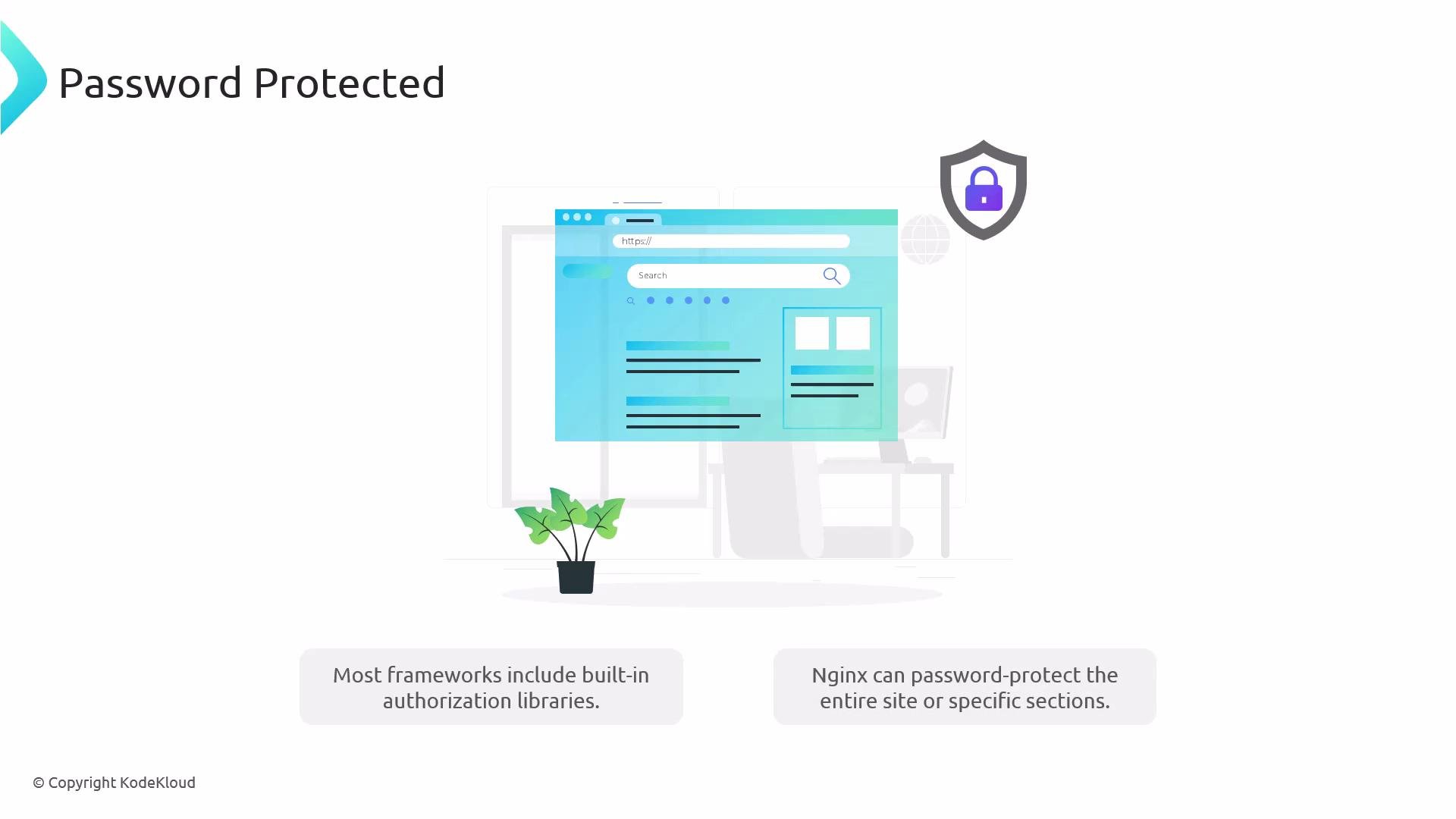
NGINX can enforce HTTP Basic Authentication to protect an entire site or specific paths. This guide explains when to use NGINX basic auth, how to create the credentials file, and how to configure NGINX to require authentication for a `location` (for example, `/admin`).
 Why use NGINX basic auth?
* Fast to set up for internal, staging, or admin-only pages.
* Works at the webserver layer — no application code changes required.
* Uses standard browser username/password prompt (no UI customization).
Use cases
| Resource | Typical use | Notes |
| -------------------------- | ---------------------------------------------- | --------------------------------------- |
| Admin panel | Protect `https://example.com/admin` | Quick protection for internal admin UIs |
| Staging or preview sites | Restrict access to pre-production environments | Simple gating for testers or QA |
| Premium content (internal) | Limit access to specific resources | Consider UX for public-facing content |
NGINX basic auth uses the browser's built-in username/password prompt. It's appropriate for internal or staging protection, but for public-facing authentication consider framework-based auth, OAuth, or SSO for a better user experience.
Example: password-protecting a subpath
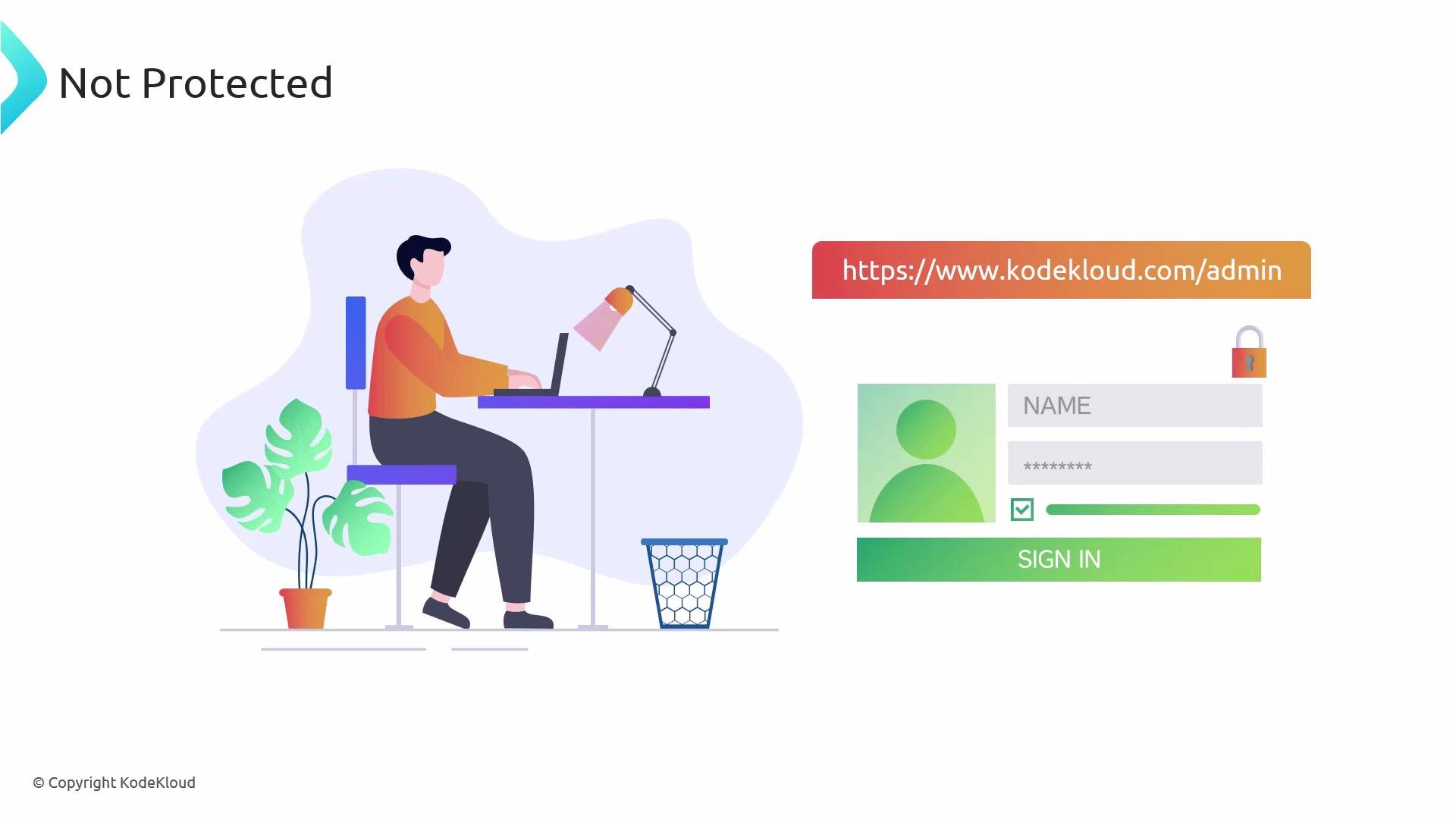
You may want `https://www.kodekloud.com` publicly available while protecting `https://www.kodekloud.com/admin` with a username and password. When configured, visiting `/admin` will trigger the browser's basic auth prompt.
Why use NGINX basic auth?
* Fast to set up for internal, staging, or admin-only pages.
* Works at the webserver layer — no application code changes required.
* Uses standard browser username/password prompt (no UI customization).
Use cases
| Resource | Typical use | Notes |
| -------------------------- | ---------------------------------------------- | --------------------------------------- |
| Admin panel | Protect `https://example.com/admin` | Quick protection for internal admin UIs |
| Staging or preview sites | Restrict access to pre-production environments | Simple gating for testers or QA |
| Premium content (internal) | Limit access to specific resources | Consider UX for public-facing content |
NGINX basic auth uses the browser's built-in username/password prompt. It's appropriate for internal or staging protection, but for public-facing authentication consider framework-based auth, OAuth, or SSO for a better user experience.
Example: password-protecting a subpath
You may want `https://www.kodekloud.com` publicly available while protecting `https://www.kodekloud.com/admin` with a username and password. When configured, visiting `/admin` will trigger the browser's basic auth prompt.
 Creating the credentials file
NGINX reads credentials from a file such as `/etc/nginx/conf.d/.htpasswd`. Two common ways to build this file:
1. Recommended: using `htpasswd` from apache2-utils (Debian/Ubuntu) or httpd-tools (RHEL/CentOS/Fedora)
* Install the utility (Debian/Ubuntu example):
```bash theme={null}
sudo apt update
sudo apt install -y apache2-utils
```
* Create the password file and add the first user (`-c` creates the file; omit `-c` to add more users without overwriting):
```bash theme={null}
sudo htpasswd -c /etc/nginx/conf.d/.htpasswd admin
# You will be prompted to enter and confirm the password.
```
* Add a second user (do NOT use `-c` here):
```bash theme={null}
sudo htpasswd /etc/nginx/conf.d/.htpasswd jsmith
```
2. Using OpenSSL (no extra package required)
If you prefer not to install apache2-utils, you can append APR1/MD5-style password hashes with `openssl`. Because writing to `/etc/nginx/conf.d/.htpasswd` often requires root privileges, use `sudo sh -c` for each append.
* Add `admin`:
```bash theme={null}
sudo sh -c "echo -n 'admin:' >> /etc/nginx/conf.d/.htpasswd"
sudo sh -c "openssl passwd -apr1 >> /etc/nginx/conf.d/.htpasswd"
# You will be prompted to set and verify the password for openssl.
```
* Add `jsmith` similarly:
```bash theme={null}
sudo sh -c "echo -n 'jsmith:' >> /etc/nginx/conf.d/.htpasswd"
sudo sh -c "openssl passwd -apr1 >> /etc/nginx/conf.d/.htpasswd"
```
Notes on storage and hashing
* The file stores hashed passwords (APR1/MD5-style in these examples) — plaintext passwords are not recoverable from the file.
* Store credentials securely using a secrets manager (e.g., 1Password, HashiCorp Vault) when possible.
Viewing and verifying the file
To inspect the htpasswd file and confirm entries:
```bash theme={null}
cat /etc/nginx/conf.d/.htpasswd
```
Example output:
```text theme={null}
admin:$apr1$egX1fPMK$EXwGqVFsOSBFsQNJMc2iB0
jsmith:$apr1$L5aCfsuK$XPsXg11JMTQpd0ihTVyus.
```
Configure NGINX to require authentication
Add `auth_basic` and `auth_basic_user_file` within the `server` or `location` block for the path you want to protect (here `/admin`). Use a quoted string for the `auth_basic` prompt and include trailing semicolons.
```nginx theme={null}
server {
listen 80;
server_name example.com www.example.com;
root /var/www/example.com/html;
index index.html;
location /admin {
auth_basic "Restricted Content";
auth_basic_user_file /etc/nginx/conf.d/.htpasswd;
}
}
```
Test and reload NGINX
* Test the configuration:
```bash theme={null}
sudo nginx -t
```
* If the test passes, reload NGINX:
```bash theme={null}
sudo systemctl reload nginx
# or: sudo nginx -s reload
```
Behavior
When you visit `http://example.com/admin` (or `https://example.com/admin` if TLS is configured), the browser will display a login dialog using the `auth_basic` string (e.g., "Restricted Content"). Enter a username and password from the `.htpasswd` file to proceed.
Important security reminder
Always use HTTPS when using HTTP Basic Authentication. Basic auth sends credentials Base64-encoded with each request; over plain HTTP they can be intercepted. Configure TLS in NGINX and use certificate best practices for any protected endpoints on untrusted networks.
Best practices and final notes
* Basic auth is great for quick protection of internal or staging sites, admin panels, and simple gating scenarios.
* Because the browser prompt cannot be styled, consider application-level authentication or OAuth/SSO for public-facing user experiences.
* Rotate credentials periodically and manage them with a secure secrets store for production-sensitive use.
* Prefer `htpasswd` for convenience; use `openssl` only when adding a minimal dependency is preferred.
Links and references
* NGINX official docs: [https://nginx.org/en/docs/](https://nginx.org/en/docs/)
* Apache htpasswd utility / apache2-utils: [https://httpd.apache.org/docs/current/programs/htpasswd.html](https://httpd.apache.org/docs/current/programs/htpasswd.html)
* OpenSSL passwd: [https://www.openssl.org/docs/man1.1.1/man1/openssl-passwd.html](https://www.openssl.org/docs/man1.1.1/man1/openssl-passwd.html)
* Secrets management: HashiCorp Vault — [https://www.vaultproject.io/](https://www.vaultproject.io/); 1Password — [https://1password.com/](https://1password.com/)
Try this workflow in a test environment first to validate configuration and behavior before applying to production.
Creating the credentials file
NGINX reads credentials from a file such as `/etc/nginx/conf.d/.htpasswd`. Two common ways to build this file:
1. Recommended: using `htpasswd` from apache2-utils (Debian/Ubuntu) or httpd-tools (RHEL/CentOS/Fedora)
* Install the utility (Debian/Ubuntu example):
```bash theme={null}
sudo apt update
sudo apt install -y apache2-utils
```
* Create the password file and add the first user (`-c` creates the file; omit `-c` to add more users without overwriting):
```bash theme={null}
sudo htpasswd -c /etc/nginx/conf.d/.htpasswd admin
# You will be prompted to enter and confirm the password.
```
* Add a second user (do NOT use `-c` here):
```bash theme={null}
sudo htpasswd /etc/nginx/conf.d/.htpasswd jsmith
```
2. Using OpenSSL (no extra package required)
If you prefer not to install apache2-utils, you can append APR1/MD5-style password hashes with `openssl`. Because writing to `/etc/nginx/conf.d/.htpasswd` often requires root privileges, use `sudo sh -c` for each append.
* Add `admin`:
```bash theme={null}
sudo sh -c "echo -n 'admin:' >> /etc/nginx/conf.d/.htpasswd"
sudo sh -c "openssl passwd -apr1 >> /etc/nginx/conf.d/.htpasswd"
# You will be prompted to set and verify the password for openssl.
```
* Add `jsmith` similarly:
```bash theme={null}
sudo sh -c "echo -n 'jsmith:' >> /etc/nginx/conf.d/.htpasswd"
sudo sh -c "openssl passwd -apr1 >> /etc/nginx/conf.d/.htpasswd"
```
Notes on storage and hashing
* The file stores hashed passwords (APR1/MD5-style in these examples) — plaintext passwords are not recoverable from the file.
* Store credentials securely using a secrets manager (e.g., 1Password, HashiCorp Vault) when possible.
Viewing and verifying the file
To inspect the htpasswd file and confirm entries:
```bash theme={null}
cat /etc/nginx/conf.d/.htpasswd
```
Example output:
```text theme={null}
admin:$apr1$egX1fPMK$EXwGqVFsOSBFsQNJMc2iB0
jsmith:$apr1$L5aCfsuK$XPsXg11JMTQpd0ihTVyus.
```
Configure NGINX to require authentication
Add `auth_basic` and `auth_basic_user_file` within the `server` or `location` block for the path you want to protect (here `/admin`). Use a quoted string for the `auth_basic` prompt and include trailing semicolons.
```nginx theme={null}
server {
listen 80;
server_name example.com www.example.com;
root /var/www/example.com/html;
index index.html;
location /admin {
auth_basic "Restricted Content";
auth_basic_user_file /etc/nginx/conf.d/.htpasswd;
}
}
```
Test and reload NGINX
* Test the configuration:
```bash theme={null}
sudo nginx -t
```
* If the test passes, reload NGINX:
```bash theme={null}
sudo systemctl reload nginx
# or: sudo nginx -s reload
```
Behavior
When you visit `http://example.com/admin` (or `https://example.com/admin` if TLS is configured), the browser will display a login dialog using the `auth_basic` string (e.g., "Restricted Content"). Enter a username and password from the `.htpasswd` file to proceed.
Important security reminder
Always use HTTPS when using HTTP Basic Authentication. Basic auth sends credentials Base64-encoded with each request; over plain HTTP they can be intercepted. Configure TLS in NGINX and use certificate best practices for any protected endpoints on untrusted networks.
Best practices and final notes
* Basic auth is great for quick protection of internal or staging sites, admin panels, and simple gating scenarios.
* Because the browser prompt cannot be styled, consider application-level authentication or OAuth/SSO for public-facing user experiences.
* Rotate credentials periodically and manage them with a secure secrets store for production-sensitive use.
* Prefer `htpasswd` for convenience; use `openssl` only when adding a minimal dependency is preferred.
Links and references
* NGINX official docs: [https://nginx.org/en/docs/](https://nginx.org/en/docs/)
* Apache htpasswd utility / apache2-utils: [https://httpd.apache.org/docs/current/programs/htpasswd.html](https://httpd.apache.org/docs/current/programs/htpasswd.html)
* OpenSSL passwd: [https://www.openssl.org/docs/man1.1.1/man1/openssl-passwd.html](https://www.openssl.org/docs/man1.1.1/man1/openssl-passwd.html)
* Secrets management: HashiCorp Vault — [https://www.vaultproject.io/](https://www.vaultproject.io/); 1Password — [https://1password.com/](https://1password.com/)
Try this workflow in a test environment first to validate configuration and behavior before applying to production.