> ## Documentation Index
> Fetch the complete documentation index at: https://notes.kodekloud.com/llms.txt
> Use this file to discover all available pages before exploring further.
# Demo HTTPS
> Guide to configuring NGINX for HTTP to HTTPS redirects and as an HTTPS reverse proxy forwarding TLS to Apache backends, including test certs, SNI, and certificate verification best practices.
In this lesson you will:
1. Configure NGINX to redirect all HTTP traffic to HTTPS and serve a simple HTTPS site using locally generated SSL certificates (for testing).
2. Configure NGINX as an HTTPS reverse proxy that accepts TLS on the frontend and forwards encrypted HTTPS traffic to backend Apache servers.
First we demonstrate the simple HTTP → HTTPS redirect and static HTTPS site on NGINX. Then we expand to an HTTPS reverse-proxy setup where NGINX forwards requests to two HTTPS Apache backends.
Overview — reverse-proxy (HTTPS frontend → HTTPS backends)
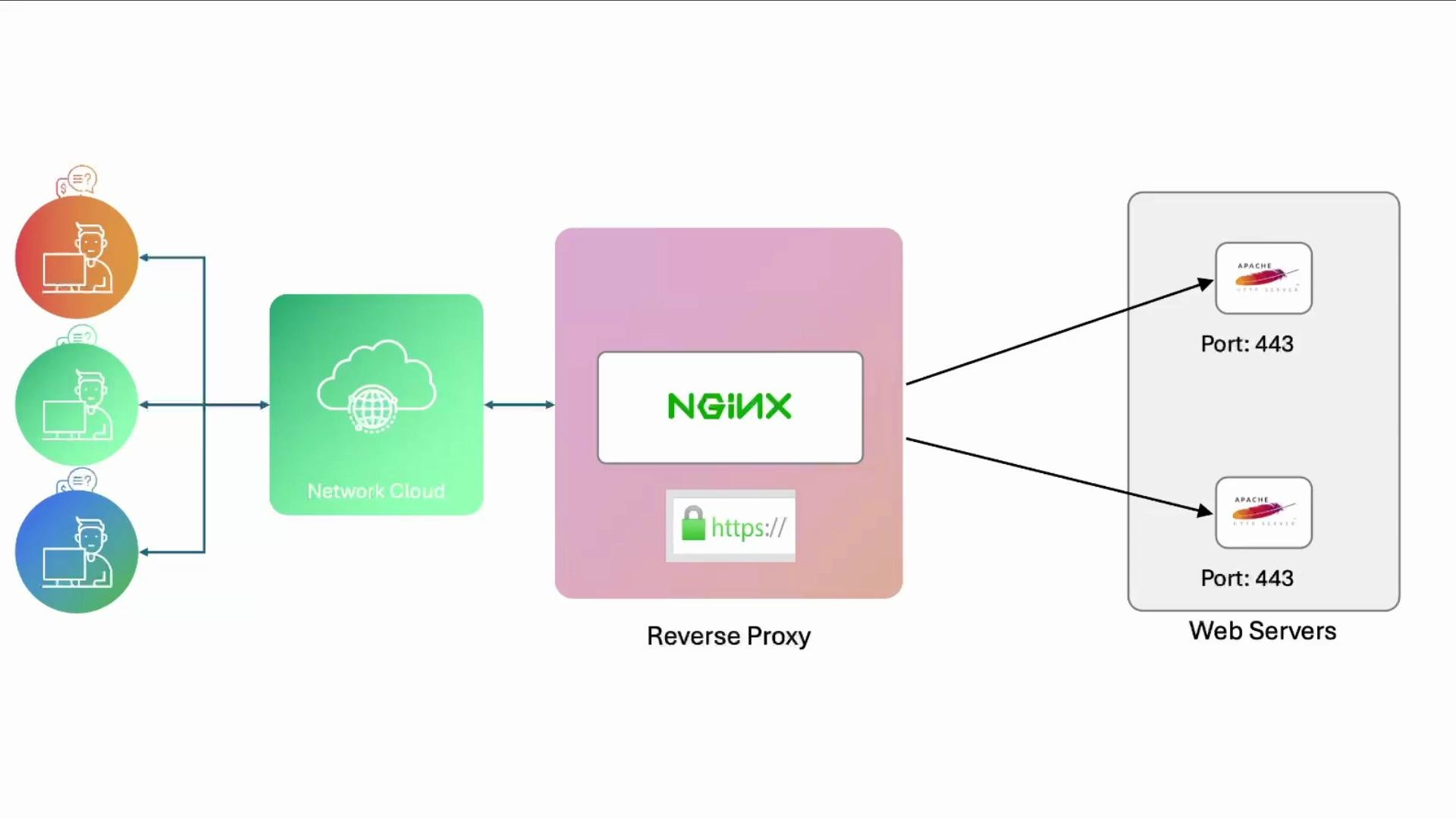 This diagram illustrates the second example: NGINX listens on port 443 and proxy\_passes requests over TLS to two Apache backends that also serve on port 443.
Prerequisites and notes
* For local test certificates use mkcert: [https://mkcert.dev](https://mkcert.dev). For production issue certificates from a trusted CA such as Let's Encrypt: [https://letsencrypt.org](https://letsencrypt.org).
* Ensure OS firewall (e.g., `ufw`) allows `443/tcp` on all servers that should accept HTTPS traffic.
* If NGINX will proxy over HTTPS to backends, the backends must present valid certificates, or you must explicitly configure NGINX to skip verification (not recommended for production).
For local development use `mkcert` to create locally-trusted certs quickly. For production, automate certificate issuance and renewal with Let's Encrypt or another trusted CA.
Quick checklist
| Task | Command / File |
| --------------------------------------- | -------------------------------------------------------- |
| Allow HTTPS in firewall (on NGINX host) | `sudo ufw allow 443/tcp` |
| Site config (NGINX) | `/etc/nginx/sites-available/example-https` |
| Test NGINX config | `sudo nginx -t` |
| Generate test certs (mkcert) | `mkcert example.com` |
| Move certs to system store | `sudo mv example.com.pem /etc/ssl/certs/example.com.pem` |
1. Simple HTTP → HTTPS redirect and an HTTPS site on NGINX
Start by allowing HTTPS through the host firewall:
```shell theme={null}
# on the NGINX host
sudo ufw allow 443/tcp
sudo ufw status
```
Example status output:
```shell theme={null}
Status: active
To Action From
-- ------ ----
22/tcp ALLOW Anywhere
80/tcp ALLOW Anywhere
443/tcp ALLOW Anywhere
22/tcp (v6) ALLOW Anywhere (v6)
80/tcp (v6) ALLOW Anywhere (v6)
443/tcp (v6) ALLOW Anywhere (v6)
```
Create an NGINX site configuration that redirects HTTP to HTTPS and serves TLS on port 443. Save this file as `/etc/nginx/sites-available/example-https`:
```nginx theme={null}
# /etc/nginx/sites-available/example-https
server {
listen 80;
server_name example.com;
return 301 https://$host$request_uri;
}
server {
listen 443 ssl;
server_name example.com;
ssl_certificate /etc/ssl/certs/example.com.pem;
ssl_certificate_key /etc/ssl/certs/example.com-key.pem;
root /var/www/html;
# Add index.php to the list if you are using PHP
index index.html index.htm index.nginx-debian.html;
location / {
# First attempt to serve request as file, then
# as directory, then fall back to displaying a 404.
try_files $uri $uri/ =404;
}
}
```
Enable the site and test the NGINX configuration:
```shell theme={null}
sudo ln -s /etc/nginx/sites-available/example-https /etc/nginx/sites-enabled/example-https
sudo nginx -t
```
At this point `nginx -t` will fail if the certificate files referenced above do not exist. For testing you can generate a cert and key with mkcert.
Generate test certificates using mkcert:
```shell theme={null}
# generate cert and key in the current directory
mkcert example.com
# move them into /etc/ssl/certs and set permissions
sudo mkdir -p /etc/ssl/certs
sudo mv example.com.pem /etc/ssl/certs/example.com.pem
sudo mv example.com-key.pem /etc/ssl/certs/example.com-key.pem
sudo chmod 644 /etc/ssl/certs/example.com.pem
sudo chmod 600 /etc/ssl/certs/example.com-key.pem
```
Note: `mkcert` creates `example.com.pem` (certificate) and `example.com-key.pem` (private key) by default in the current directory. `mkcert` also supports `-cert-file` and `-key-file` flags to write directly to target locations.
After placing the certificate and key, test and reload NGINX:
```shell theme={null}
sudo nginx -t
sudo nginx -s reload
```
Verify the site responds over HTTPS:
```shell theme={null}
curl -I https://example.com --insecure
```
Use `--insecure` only for local testing where the mkcert CA may not be trusted by the client. Do not use `--insecure` in production.
2. Reverse proxy: NGINX front-end (HTTPS) → Apache backends (HTTPS)
Assume you have two Apache backends already configured to serve HTTPS on port 443. Configure NGINX so it proxy\_passes requests to those backends using HTTPS, keeping the connection encrypted end-to-end.
Create an upstream block listing backend IPs (port 443) and configure the server block to proxy to that upstream. Example combined configuration at `/etc/nginx/sites-available/example-https`:
```nginx theme={null}
# Upstream configuration (backends terminate TLS on 443)
upstream example {
server 192.230.210.3:443;
server 192.230.210.6:443;
}
server {
listen 80;
server_name example.com;
return 301 https://$host$request_uri;
}
server {
listen 443 ssl;
server_name example.com;
ssl_certificate /etc/ssl/certs/example.com.pem;
ssl_certificate_key /etc/ssl/certs/example.com-key.pem;
root /var/www/html;
index index.html index.htm index.nginx-debian.html;
location / {
proxy_pass https://example;
# Forward typical headers to the backend
proxy_set_header Host $host;
proxy_set_header X-Real-IP $remote_addr;
proxy_set_header X-Forwarded-For $proxy_add_x_forwarded_for;
proxy_set_header X-Forwarded-Proto $scheme;
# Allow proxying to HTTPS backends using SNI
proxy_ssl_server_name on;
proxy_ssl_name $host;
}
}
```
Key details and options
* Because the upstream servers are HTTPS endpoints, NGINX will initiate TLS when contacting them. `proxy_ssl_server_name on;` ensures the Server Name Indication (SNI) extension is sent so backends can present the correct certificate.
* In production you should enable upstream certificate validation. Depending on your environment you may need to provide a CA bundle or configure `proxy_ssl_trusted_certificate` and `proxy_ssl_verify` options (see NGINX docs).
* For internal environments using self-signed certificates you can disable verification during testing, but this is a security risk in production.
Do NOT disable TLS verification (`proxy_ssl_verify off`) in production. If using self-signed certs for internal services, add the CA to the NGINX host trust store instead of skipping verification.
Apache backend example
Each Apache backend should redirect HTTP to HTTPS and serve the site on port 443 with the certificate and key. Example Apache virtual host (save as `/etc/apache2/sites-available/example.conf`):
```apache theme={null}
ServerAdmin webmaster@localhost
ServerName example.com
# Redirect all HTTP requests to HTTPS, preserving host and URI
RewriteEngine On
RewriteCond %{HTTPS} off
RewriteRule ^ https://%{HTTP_HOST}%{REQUEST_URI} [L,R=301]
SSLEngine on
ServerName example.com
DocumentRoot /var/www/html
SSLCertificateFile /etc/ssl/certs/example.com.pem
SSLCertificateKeyFile /etc/ssl/certs/example.com-key.pem
CustomLog ${APACHE_LOG_DIR}/access.log combined
ErrorLog ${APACHE_LOG_DIR}/error.log
```
Firewall and testing
* Make sure each backend allows incoming `443/tcp`:
```shell theme={null}
# on each backend
sudo ufw allow 443/tcp
sudo ufw status
```
* Place the corresponding certificates on each backend (they can use the same certificate if the domain and CA match).
* Restart/reload services after configuration changes:
```shell theme={null}
# On the NGINX host
sudo nginx -t
sudo nginx -s reload
# On each Apache backend
sudo systemctl reload apache2
```
Quick functional test
* To validate load balancing and which backend handled a request, add a unique identifier to each backend's `index.html` (for example "NODE01" on `192.230.210.3` and "NODE02" on `192.230.210.6`) and issue multiple requests. Responses should alternate according to upstream load balancing.
Example snippet to add to `/var/www/html/index.html` on a backend:
```html theme={null}
This diagram illustrates the second example: NGINX listens on port 443 and proxy\_passes requests over TLS to two Apache backends that also serve on port 443.
Prerequisites and notes
* For local test certificates use mkcert: [https://mkcert.dev](https://mkcert.dev). For production issue certificates from a trusted CA such as Let's Encrypt: [https://letsencrypt.org](https://letsencrypt.org).
* Ensure OS firewall (e.g., `ufw`) allows `443/tcp` on all servers that should accept HTTPS traffic.
* If NGINX will proxy over HTTPS to backends, the backends must present valid certificates, or you must explicitly configure NGINX to skip verification (not recommended for production).
For local development use `mkcert` to create locally-trusted certs quickly. For production, automate certificate issuance and renewal with Let's Encrypt or another trusted CA.
Quick checklist
| Task | Command / File |
| --------------------------------------- | -------------------------------------------------------- |
| Allow HTTPS in firewall (on NGINX host) | `sudo ufw allow 443/tcp` |
| Site config (NGINX) | `/etc/nginx/sites-available/example-https` |
| Test NGINX config | `sudo nginx -t` |
| Generate test certs (mkcert) | `mkcert example.com` |
| Move certs to system store | `sudo mv example.com.pem /etc/ssl/certs/example.com.pem` |
1. Simple HTTP → HTTPS redirect and an HTTPS site on NGINX
Start by allowing HTTPS through the host firewall:
```shell theme={null}
# on the NGINX host
sudo ufw allow 443/tcp
sudo ufw status
```
Example status output:
```shell theme={null}
Status: active
To Action From
-- ------ ----
22/tcp ALLOW Anywhere
80/tcp ALLOW Anywhere
443/tcp ALLOW Anywhere
22/tcp (v6) ALLOW Anywhere (v6)
80/tcp (v6) ALLOW Anywhere (v6)
443/tcp (v6) ALLOW Anywhere (v6)
```
Create an NGINX site configuration that redirects HTTP to HTTPS and serves TLS on port 443. Save this file as `/etc/nginx/sites-available/example-https`:
```nginx theme={null}
# /etc/nginx/sites-available/example-https
server {
listen 80;
server_name example.com;
return 301 https://$host$request_uri;
}
server {
listen 443 ssl;
server_name example.com;
ssl_certificate /etc/ssl/certs/example.com.pem;
ssl_certificate_key /etc/ssl/certs/example.com-key.pem;
root /var/www/html;
# Add index.php to the list if you are using PHP
index index.html index.htm index.nginx-debian.html;
location / {
# First attempt to serve request as file, then
# as directory, then fall back to displaying a 404.
try_files $uri $uri/ =404;
}
}
```
Enable the site and test the NGINX configuration:
```shell theme={null}
sudo ln -s /etc/nginx/sites-available/example-https /etc/nginx/sites-enabled/example-https
sudo nginx -t
```
At this point `nginx -t` will fail if the certificate files referenced above do not exist. For testing you can generate a cert and key with mkcert.
Generate test certificates using mkcert:
```shell theme={null}
# generate cert and key in the current directory
mkcert example.com
# move them into /etc/ssl/certs and set permissions
sudo mkdir -p /etc/ssl/certs
sudo mv example.com.pem /etc/ssl/certs/example.com.pem
sudo mv example.com-key.pem /etc/ssl/certs/example.com-key.pem
sudo chmod 644 /etc/ssl/certs/example.com.pem
sudo chmod 600 /etc/ssl/certs/example.com-key.pem
```
Note: `mkcert` creates `example.com.pem` (certificate) and `example.com-key.pem` (private key) by default in the current directory. `mkcert` also supports `-cert-file` and `-key-file` flags to write directly to target locations.
After placing the certificate and key, test and reload NGINX:
```shell theme={null}
sudo nginx -t
sudo nginx -s reload
```
Verify the site responds over HTTPS:
```shell theme={null}
curl -I https://example.com --insecure
```
Use `--insecure` only for local testing where the mkcert CA may not be trusted by the client. Do not use `--insecure` in production.
2. Reverse proxy: NGINX front-end (HTTPS) → Apache backends (HTTPS)
Assume you have two Apache backends already configured to serve HTTPS on port 443. Configure NGINX so it proxy\_passes requests to those backends using HTTPS, keeping the connection encrypted end-to-end.
Create an upstream block listing backend IPs (port 443) and configure the server block to proxy to that upstream. Example combined configuration at `/etc/nginx/sites-available/example-https`:
```nginx theme={null}
# Upstream configuration (backends terminate TLS on 443)
upstream example {
server 192.230.210.3:443;
server 192.230.210.6:443;
}
server {
listen 80;
server_name example.com;
return 301 https://$host$request_uri;
}
server {
listen 443 ssl;
server_name example.com;
ssl_certificate /etc/ssl/certs/example.com.pem;
ssl_certificate_key /etc/ssl/certs/example.com-key.pem;
root /var/www/html;
index index.html index.htm index.nginx-debian.html;
location / {
proxy_pass https://example;
# Forward typical headers to the backend
proxy_set_header Host $host;
proxy_set_header X-Real-IP $remote_addr;
proxy_set_header X-Forwarded-For $proxy_add_x_forwarded_for;
proxy_set_header X-Forwarded-Proto $scheme;
# Allow proxying to HTTPS backends using SNI
proxy_ssl_server_name on;
proxy_ssl_name $host;
}
}
```
Key details and options
* Because the upstream servers are HTTPS endpoints, NGINX will initiate TLS when contacting them. `proxy_ssl_server_name on;` ensures the Server Name Indication (SNI) extension is sent so backends can present the correct certificate.
* In production you should enable upstream certificate validation. Depending on your environment you may need to provide a CA bundle or configure `proxy_ssl_trusted_certificate` and `proxy_ssl_verify` options (see NGINX docs).
* For internal environments using self-signed certificates you can disable verification during testing, but this is a security risk in production.
Do NOT disable TLS verification (`proxy_ssl_verify off`) in production. If using self-signed certs for internal services, add the CA to the NGINX host trust store instead of skipping verification.
Apache backend example
Each Apache backend should redirect HTTP to HTTPS and serve the site on port 443 with the certificate and key. Example Apache virtual host (save as `/etc/apache2/sites-available/example.conf`):
```apache theme={null}
ServerAdmin webmaster@localhost
ServerName example.com
# Redirect all HTTP requests to HTTPS, preserving host and URI
RewriteEngine On
RewriteCond %{HTTPS} off
RewriteRule ^ https://%{HTTP_HOST}%{REQUEST_URI} [L,R=301]
SSLEngine on
ServerName example.com
DocumentRoot /var/www/html
SSLCertificateFile /etc/ssl/certs/example.com.pem
SSLCertificateKeyFile /etc/ssl/certs/example.com-key.pem
CustomLog ${APACHE_LOG_DIR}/access.log combined
ErrorLog ${APACHE_LOG_DIR}/error.log
```
Firewall and testing
* Make sure each backend allows incoming `443/tcp`:
```shell theme={null}
# on each backend
sudo ufw allow 443/tcp
sudo ufw status
```
* Place the corresponding certificates on each backend (they can use the same certificate if the domain and CA match).
* Restart/reload services after configuration changes:
```shell theme={null}
# On the NGINX host
sudo nginx -t
sudo nginx -s reload
# On each Apache backend
sudo systemctl reload apache2
```
Quick functional test
* To validate load balancing and which backend handled a request, add a unique identifier to each backend's `index.html` (for example "NODE01" on `192.230.210.3` and "NODE02" on `192.230.210.6`) and issue multiple requests. Responses should alternate according to upstream load balancing.
Example snippet to add to `/var/www/html/index.html` on a backend:
```html theme={null}
Served from NODE01
```
Wrap-up and best practices
* We configured NGINX to redirect HTTP → HTTPS and serve TLS using locally generated certs for testing.
* We extended NGINX to act as an HTTPS reverse proxy, forwarding requests to HTTPS backends with SNI support.
* For production use:
* Obtain certificates from a trusted CA (e.g., Let's Encrypt).
* Ensure proper certificate verification between proxy and backends (add CA bundles or enable `proxy_ssl_verify`).
* Avoid disabling TLS verification on the proxy.
* Consider monitoring, access and error logging, and automated certificate renewal.
Links and references
* mkcert — [https://mkcert.dev](https://mkcert.dev)
* Let's Encrypt — [https://letsencrypt.org](https://letsencrypt.org)
* NGINX proxying to HTTPS backends — [https://nginx.org/en/docs/http/ngx\_http\_proxy\_module.html](https://nginx.org/en/docs/http/ngx_http_proxy_module.html)
* Apache mod\_ssl / VirtualHost examples — [https://httpd.apache.org/docs/2.4/ssl/ssl\_howto.html](https://httpd.apache.org/docs/2.4/ssl/ssl_howto.html)
* UFW (Uncomplicated Firewall) — [https://help.ubuntu.com/community/UFW](https://help.ubuntu.com/community/UFW)