> ## Documentation Index
> Fetch the complete documentation index at: https://notes.kodekloud.com/llms.txt
> Use this file to discover all available pages before exploring further.
# HTTPS
> Explains HTTPS/TLS, certificate authorities, obtaining and using certificates with Certbot or mkcert, and configuring Nginx to serve secure HTTPS for production and local development.
In this lesson you’ll learn what HTTPS is, why it matters, how TLS certificates work, and how to obtain and use them with a web server. The Nginx server block shown later demonstrates how to wire a certificate into a production-style configuration.
Why HTTPS matters
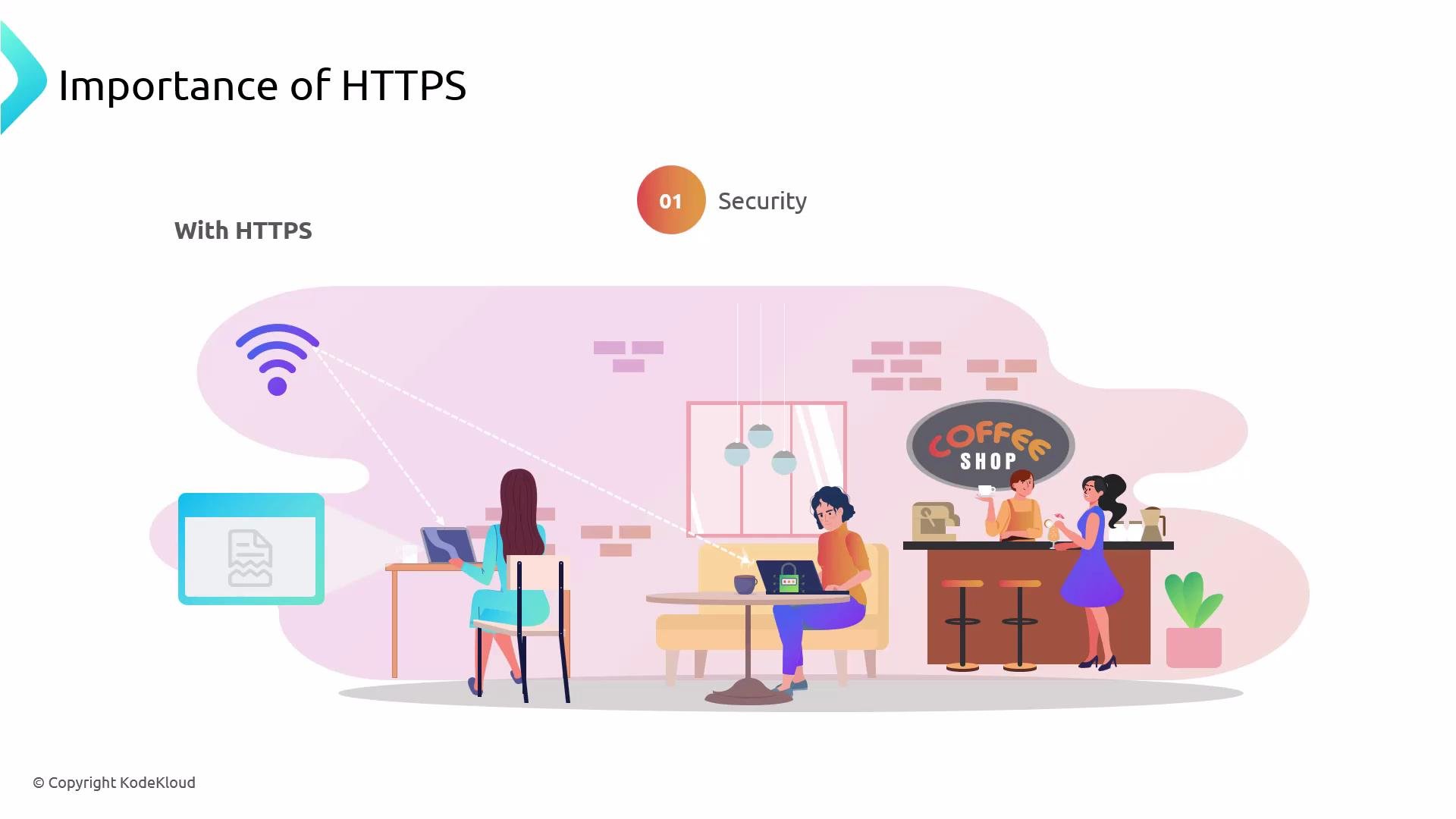
* Security: HTTPS (TLS) encrypts the entire communication channel between browser and website. On a shared network (e.g., public Wi‑Fi) an attacker cannot read intercepted traffic without access to the server’s private key. HTTPS protects usernames, passwords, payment data, and other sensitive information.
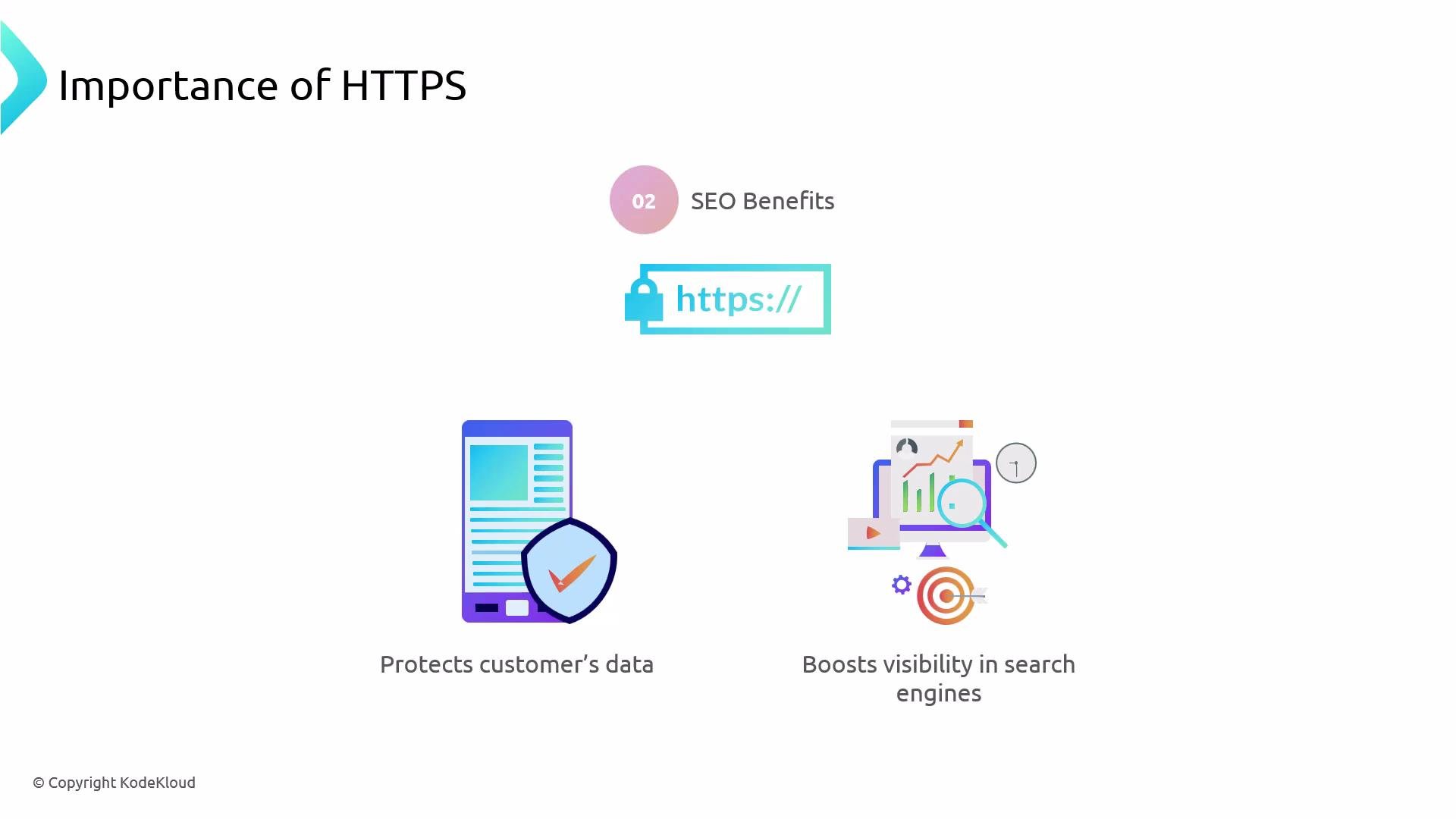
* SEO and trust: Modern search engines and browsers favor HTTPS. A secure site can rank better in search results and displays browser UI (padlock) that increases user trust.
 SSL vs TLS
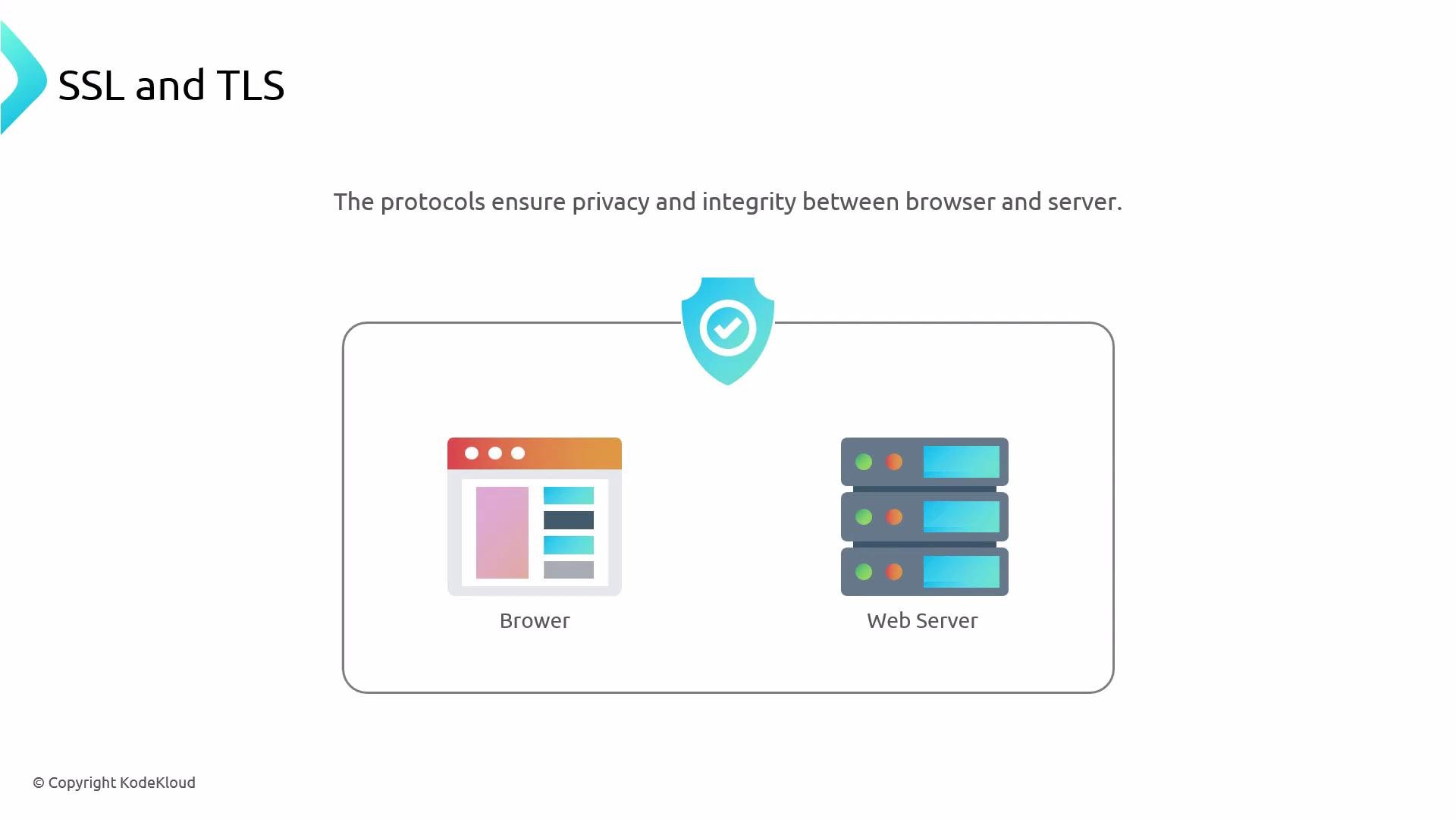
* SSL (Secure Sockets Layer) is deprecated. TLS (Transport Layer Security) is the modern, secure protocol that replaced SSL.
* People still say “SSL certificate,” but the protocol in use is TLS. Use TLS 1.2 or TLS 1.3; TLS 1.0 and 1.1 (and all SSL versions) are insecure and should be disabled.
SSL vs TLS
* SSL (Secure Sockets Layer) is deprecated. TLS (Transport Layer Security) is the modern, secure protocol that replaced SSL.
* People still say “SSL certificate,” but the protocol in use is TLS. Use TLS 1.2 or TLS 1.3; TLS 1.0 and 1.1 (and all SSL versions) are insecure and should be disabled.
 High-level TLS handshake (simplified)
1. The browser opens an HTTPS connection to the server.
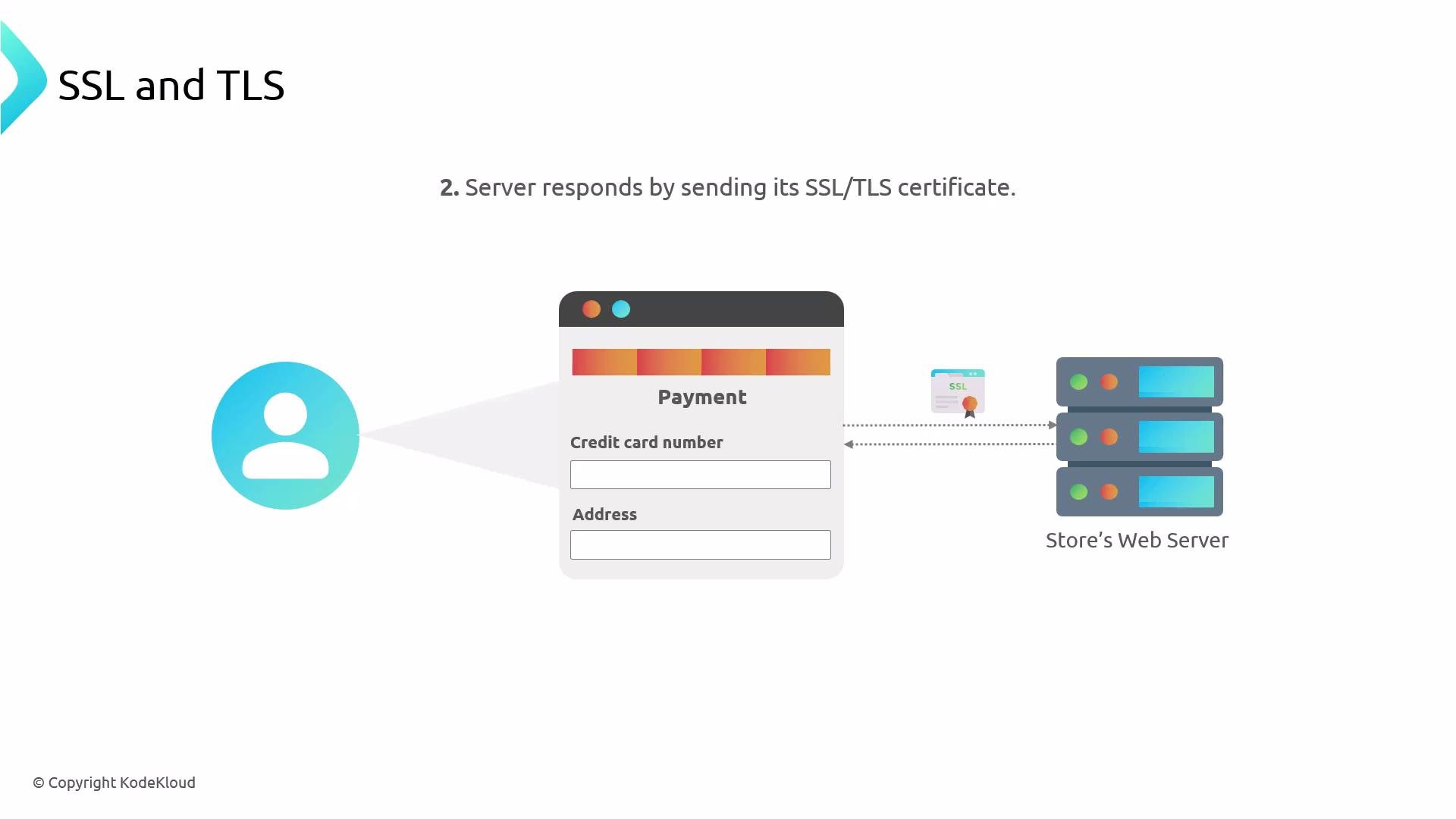
2. The server sends its TLS certificate (an X.509 document signed by a Certificate Authority). The certificate includes the server’s public key and identifying information (domain name).
3. The browser validates the certificate (chain-of-trust, expiration, and domain name). If valid, the browser and server complete an authenticated key exchange (commonly ECDHE), which results in ephemeral symmetric session keys.
4. All subsequent traffic is encrypted using the negotiated symmetric keys for performance and confidentiality.
High-level TLS handshake (simplified)
1. The browser opens an HTTPS connection to the server.
2. The server sends its TLS certificate (an X.509 document signed by a Certificate Authority). The certificate includes the server’s public key and identifying information (domain name).
3. The browser validates the certificate (chain-of-trust, expiration, and domain name). If valid, the browser and server complete an authenticated key exchange (commonly ECDHE), which results in ephemeral symmetric session keys.
4. All subsequent traffic is encrypted using the negotiated symmetric keys for performance and confidentiality.
 Certificate Authorities (CAs)
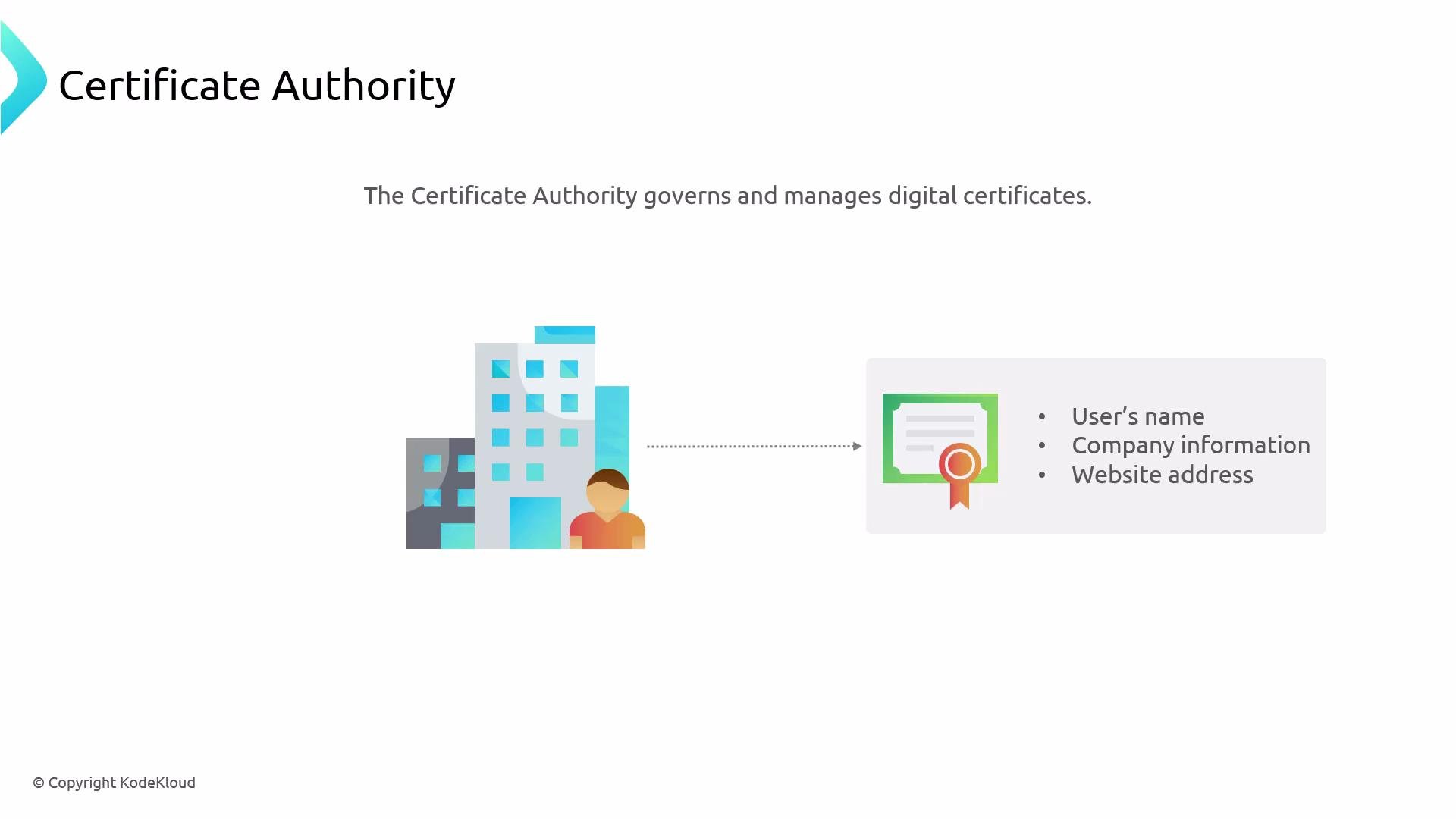
* CAs validate identity and digitally sign certificates so browsers can trust them.
* Examples include DigiCert, Sectigo, and other commercial CAs.
* Let’s Encrypt is a widely used free, automated CA trusted by modern browsers and suitable for production.
Certificate Authorities (CAs)
* CAs validate identity and digitally sign certificates so browsers can trust them.
* Examples include DigiCert, Sectigo, and other commercial CAs.
* Let’s Encrypt is a widely used free, automated CA trusted by modern browsers and suitable for production.
 Certificates verify ownership
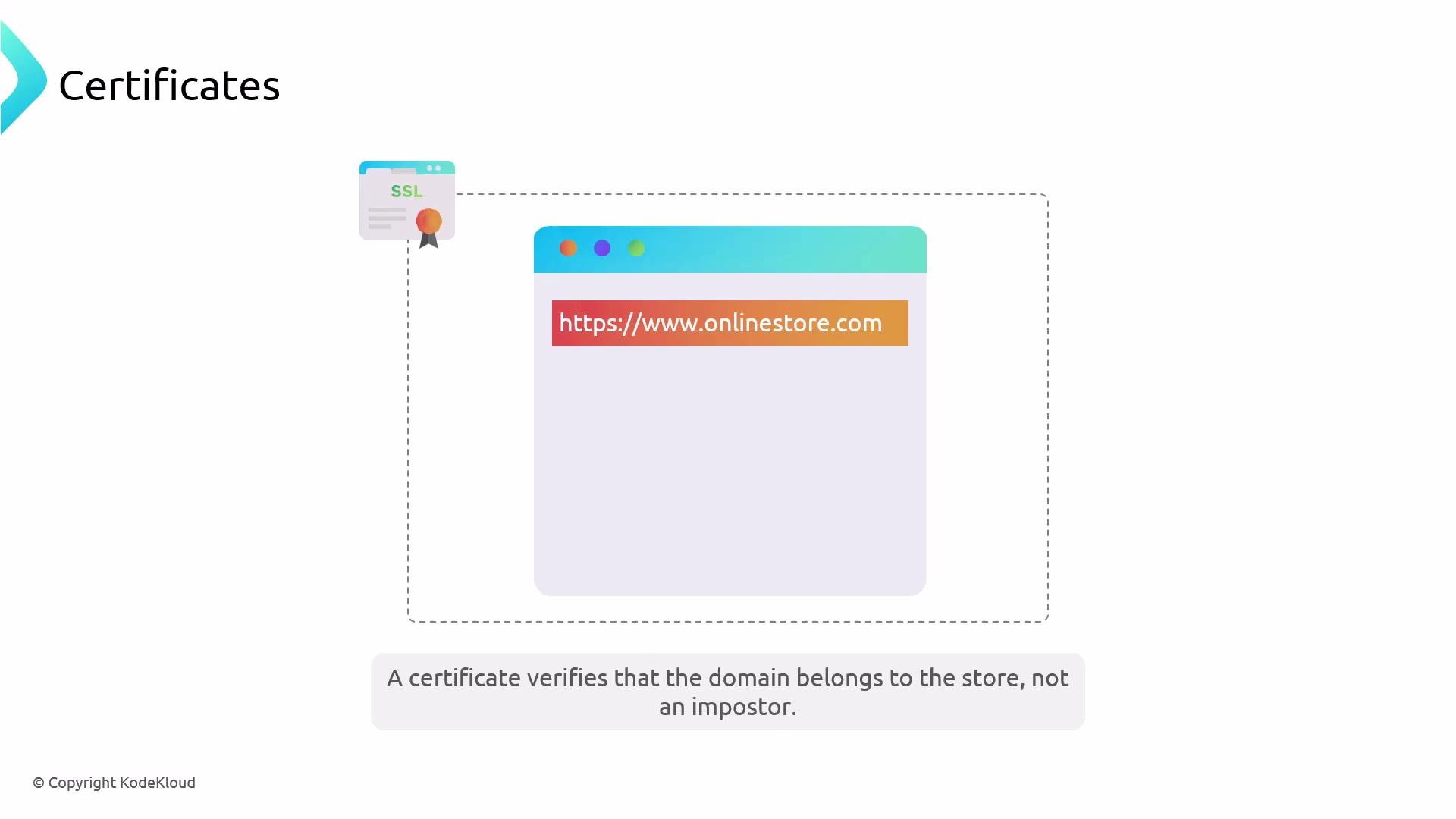
* A TLS certificate is effectively a website’s online ID card. It proves the certificate requester controls the domain and prevents impersonation.
Certificates verify ownership
* A TLS certificate is effectively a website’s online ID card. It proves the certificate requester controls the domain and prevents impersonation.
 Public/private keys (asymmetric encryption)
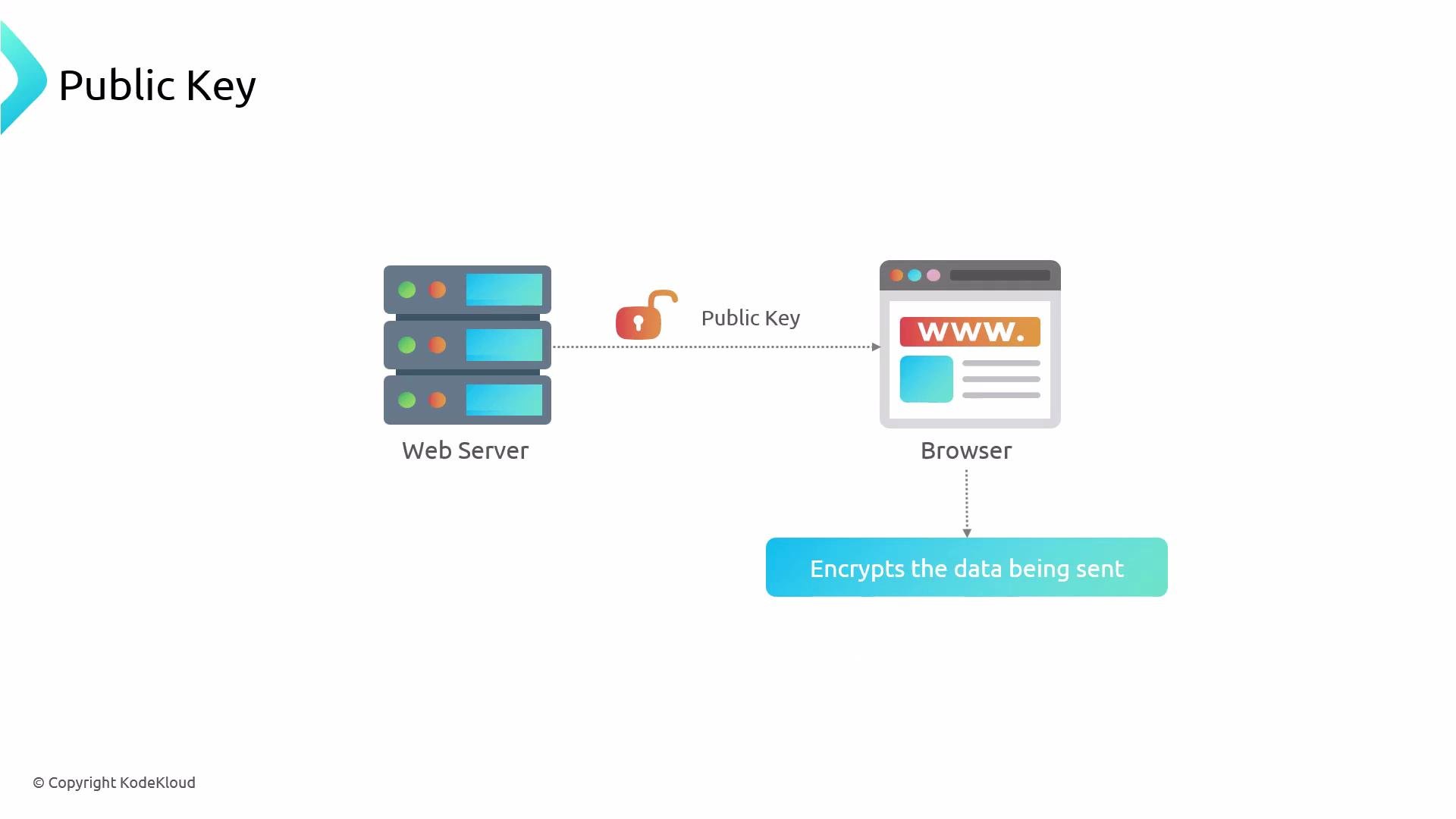
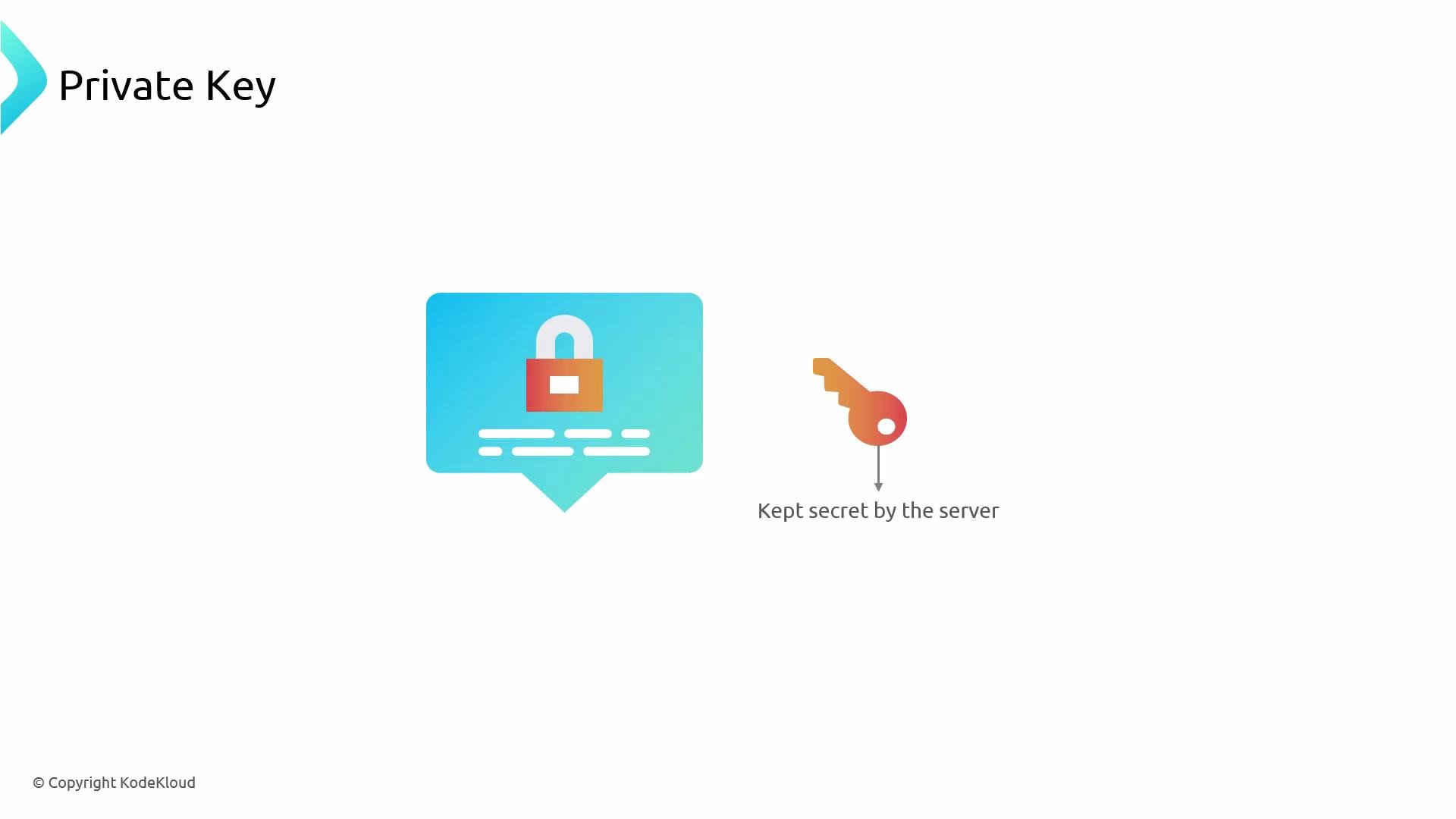
* TLS uses asymmetric cryptography for authentication and key exchange: a public key (shared) and a private key (kept secret on the server).
* The public/private key pair authenticates the server and helps establish session keys; bulk encryption uses symmetric keys because symmetric algorithms are faster.
Public/private keys (asymmetric encryption)
* TLS uses asymmetric cryptography for authentication and key exchange: a public key (shared) and a private key (kept secret on the server).
* The public/private key pair authenticates the server and helps establish session keys; bulk encryption uses symmetric keys because symmetric algorithms are faster.
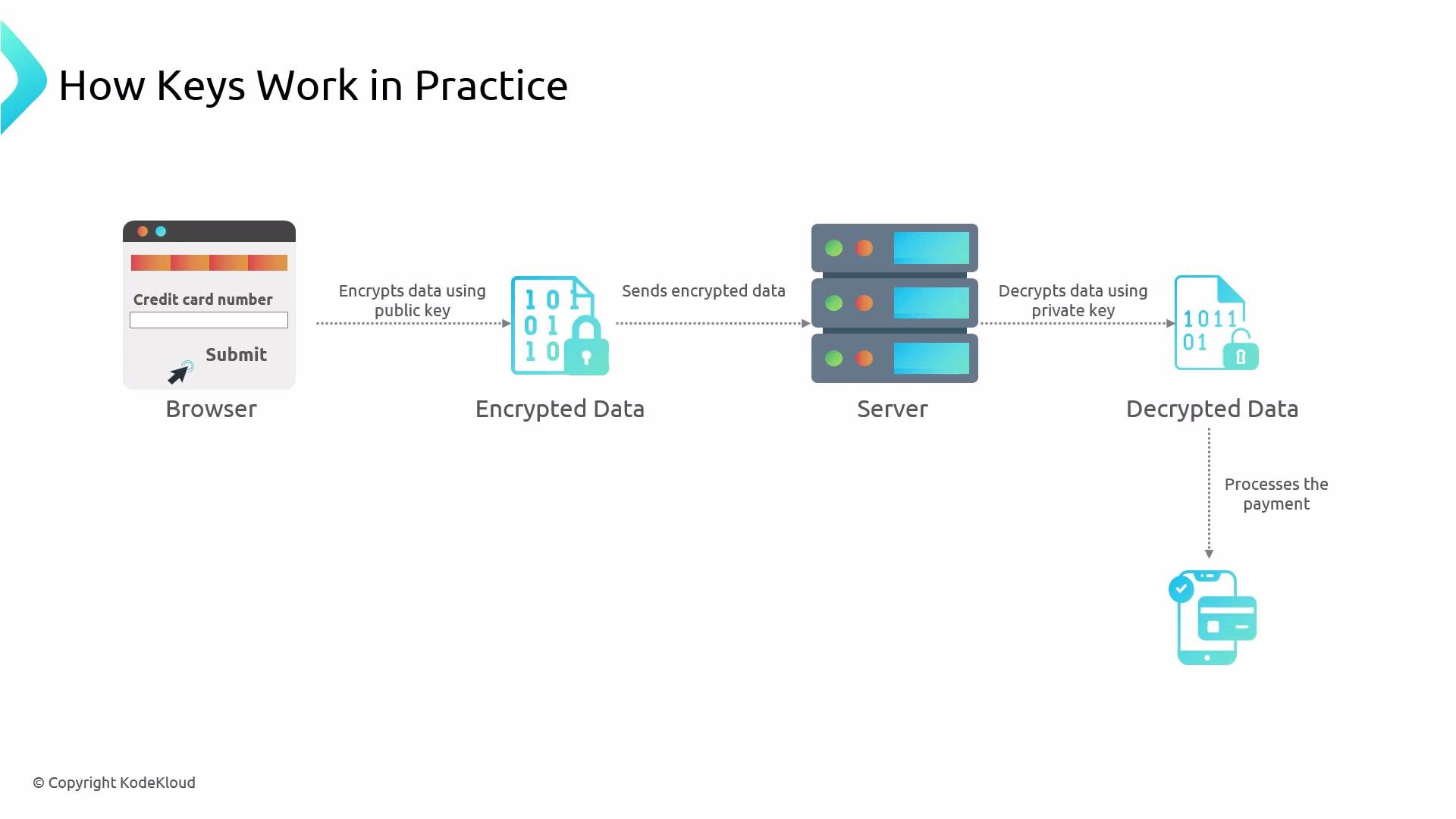
 Practical flow for a payment form
* After the TLS handshake, the browser encrypts sensitive form fields (e.g., credit card numbers) with the negotiated symmetric session keys.
* The server uses its private key and the session keys established during the handshake to decrypt and process the request.
Practical flow for a payment form
* After the TLS handshake, the browser encrypts sensitive form fields (e.g., credit card numbers) with the negotiated symmetric session keys.
* The server uses its private key and the session keys established during the handshake to decrypt and process the request.
 Obtaining TLS certificates
* Let’s Encrypt + Certbot: Let’s Encrypt issues free, trusted certificates. Certbot is a popular, well-documented client to obtain and renew certificates automatically.
* Requirements: you must own (or control) the domain and have DNS pointing to the server where you run Certbot.
Example Certbot usage (adjust domains and plugin/flags for your environment):
```bash theme={null}
sudo apt update
sudo apt install certbot
# Obtain a certificate using the standalone plugin for devops.org and www.devops.org
sudo certbot certonly --standalone --preferred-challenges http -d devops.org -d www.devops.org
```
Note: package names, installation commands, and recommended Certbot plugins (e.g., `certbot-nginx`) vary by distribution. Check the Certbot documentation for platform-specific instructions: [https://certbot.eff.org](https://certbot.eff.org)
Local development / testing: mkcert
* mkcert makes short-lived, locally trusted certificates for development and testing by installing a local CA in your machine’s trust store.
* These certificates are only appropriate for local testing and should never be used for public production sites.
mkcert installs a local CA in your OS/browser trust store so the generated certs are trusted on your development machine. It is very convenient for local HTTPS but is not a replacement for CA‑signed certificates like those from Let’s Encrypt in production.
Example mkcert workflow (local testing)
* Install mkcert (platform-specific) and run `mkcert --install` once to register the local CA.
* Generate certificates for one or more hostnames. Note: X.509 wildcards only match a single subdomain level (e.g., `*.example.com` matches `a.example.com` but not `a.b.example.com`).
```bash theme={null}
sudo apt install mkcert
cd /etc/ssl/private
mkcert --install
mkcert '*.example.com'
```
Sample mkcert output (representative):
```text theme={null}
Created a new certificate valid for the following names 📜
- "*.example.com"
Reminder: X.509 wildcards only go one level deep, so this won't match a.b.example.com ℹ️
The certificate is at "./_wildcard.example.com.pem" and the key at "./_wildcard.example.com-key.pem"
```
Place the generated certificate and key into secure locations (for example, certificate into `/etc/ssl/certs/` and private key into `/etc/ssl/private/`) and reference those paths from your web server configuration.
Do not use mkcert-generated certificates in production. For public-facing services, always use CA-signed certificates (e.g., from Let’s Encrypt or a commercial CA).
Using the certificate in an Nginx server block
* After obtaining the certificate and private key, reference them in your Nginx configuration and listen on port 443 for TLS traffic.
* Example Nginx server block — adjust `server_name` and file paths to match your environment:
```nginx theme={null}
server {
listen 443 ssl;
server_name honda.cars.com;
ssl_certificate /etc/ssl/certs/honda.cars.com.pem;
ssl_certificate_key /etc/ssl/private/honda.cars.com-key.pem;
root /var/www/honda.cars.com/html;
index index.html;
location / {
try_files $uri $uri/ =404;
}
}
```
After configuring Nginx, test and reload:
```bash theme={null}
sudo nginx -t
sudo systemctl reload nginx
```
Quick reference table — certificate options
| Certificate Type | Use Case | Notes |
| --------------------------------- | ------------------------------ | ------------------------------------------------ |
| Let’s Encrypt | Production, automated | Free, widely trusted; use Certbot for automation |
| Commercial CA (DigiCert, Sectigo) | Enterprise/extended validation | Paid options, extended features and support |
| mkcert | Local development | Installs local CA; never use in production |
Summary
* HTTPS/TLS protects confidentiality and integrity of web traffic; it’s essential for any site handling sensitive data.
* TLS certificates are issued and validated by Certificate Authorities. Let’s Encrypt provides free, trusted certificates and Certbot is a commonly used client for obtaining and renewing them.
* Use mkcert only for local development and testing; do not use mkcert certs in production.
* After obtaining certificates, configure your web server (example shown with Nginx) to serve HTTPS on port 443, and verify with `nginx -t` and browser or SSL tools.
Obtaining TLS certificates
* Let’s Encrypt + Certbot: Let’s Encrypt issues free, trusted certificates. Certbot is a popular, well-documented client to obtain and renew certificates automatically.
* Requirements: you must own (or control) the domain and have DNS pointing to the server where you run Certbot.
Example Certbot usage (adjust domains and plugin/flags for your environment):
```bash theme={null}
sudo apt update
sudo apt install certbot
# Obtain a certificate using the standalone plugin for devops.org and www.devops.org
sudo certbot certonly --standalone --preferred-challenges http -d devops.org -d www.devops.org
```
Note: package names, installation commands, and recommended Certbot plugins (e.g., `certbot-nginx`) vary by distribution. Check the Certbot documentation for platform-specific instructions: [https://certbot.eff.org](https://certbot.eff.org)
Local development / testing: mkcert
* mkcert makes short-lived, locally trusted certificates for development and testing by installing a local CA in your machine’s trust store.
* These certificates are only appropriate for local testing and should never be used for public production sites.
mkcert installs a local CA in your OS/browser trust store so the generated certs are trusted on your development machine. It is very convenient for local HTTPS but is not a replacement for CA‑signed certificates like those from Let’s Encrypt in production.
Example mkcert workflow (local testing)
* Install mkcert (platform-specific) and run `mkcert --install` once to register the local CA.
* Generate certificates for one or more hostnames. Note: X.509 wildcards only match a single subdomain level (e.g., `*.example.com` matches `a.example.com` but not `a.b.example.com`).
```bash theme={null}
sudo apt install mkcert
cd /etc/ssl/private
mkcert --install
mkcert '*.example.com'
```
Sample mkcert output (representative):
```text theme={null}
Created a new certificate valid for the following names 📜
- "*.example.com"
Reminder: X.509 wildcards only go one level deep, so this won't match a.b.example.com ℹ️
The certificate is at "./_wildcard.example.com.pem" and the key at "./_wildcard.example.com-key.pem"
```
Place the generated certificate and key into secure locations (for example, certificate into `/etc/ssl/certs/` and private key into `/etc/ssl/private/`) and reference those paths from your web server configuration.
Do not use mkcert-generated certificates in production. For public-facing services, always use CA-signed certificates (e.g., from Let’s Encrypt or a commercial CA).
Using the certificate in an Nginx server block
* After obtaining the certificate and private key, reference them in your Nginx configuration and listen on port 443 for TLS traffic.
* Example Nginx server block — adjust `server_name` and file paths to match your environment:
```nginx theme={null}
server {
listen 443 ssl;
server_name honda.cars.com;
ssl_certificate /etc/ssl/certs/honda.cars.com.pem;
ssl_certificate_key /etc/ssl/private/honda.cars.com-key.pem;
root /var/www/honda.cars.com/html;
index index.html;
location / {
try_files $uri $uri/ =404;
}
}
```
After configuring Nginx, test and reload:
```bash theme={null}
sudo nginx -t
sudo systemctl reload nginx
```
Quick reference table — certificate options
| Certificate Type | Use Case | Notes |
| --------------------------------- | ------------------------------ | ------------------------------------------------ |
| Let’s Encrypt | Production, automated | Free, widely trusted; use Certbot for automation |
| Commercial CA (DigiCert, Sectigo) | Enterprise/extended validation | Paid options, extended features and support |
| mkcert | Local development | Installs local CA; never use in production |
Summary
* HTTPS/TLS protects confidentiality and integrity of web traffic; it’s essential for any site handling sensitive data.
* TLS certificates are issued and validated by Certificate Authorities. Let’s Encrypt provides free, trusted certificates and Certbot is a commonly used client for obtaining and renewing them.
* Use mkcert only for local development and testing; do not use mkcert certs in production.
* After obtaining certificates, configure your web server (example shown with Nginx) to serve HTTPS on port 443, and verify with `nginx -t` and browser or SSL tools.
 Links and references
* Certbot: [https://certbot.eff.org](https://certbot.eff.org)
* Let’s Encrypt: [https://letsencrypt.org](https://letsencrypt.org)
* mkcert GitHub: [https://github.com/FiloSottile/mkcert](https://github.com/FiloSottile/mkcert)
* Nginx documentation: [https://nginx.org/en/docs/](https://nginx.org/en/docs/)
Now that you understand the concepts and commands, practice obtaining a certificate (e.g., with Certbot) and configuring Nginx to serve HTTPS for your site.
Links and references
* Certbot: [https://certbot.eff.org](https://certbot.eff.org)
* Let’s Encrypt: [https://letsencrypt.org](https://letsencrypt.org)
* mkcert GitHub: [https://github.com/FiloSottile/mkcert](https://github.com/FiloSottile/mkcert)
* Nginx documentation: [https://nginx.org/en/docs/](https://nginx.org/en/docs/)
Now that you understand the concepts and commands, practice obtaining a certificate (e.g., with Certbot) and configuring Nginx to serve HTTPS for your site.