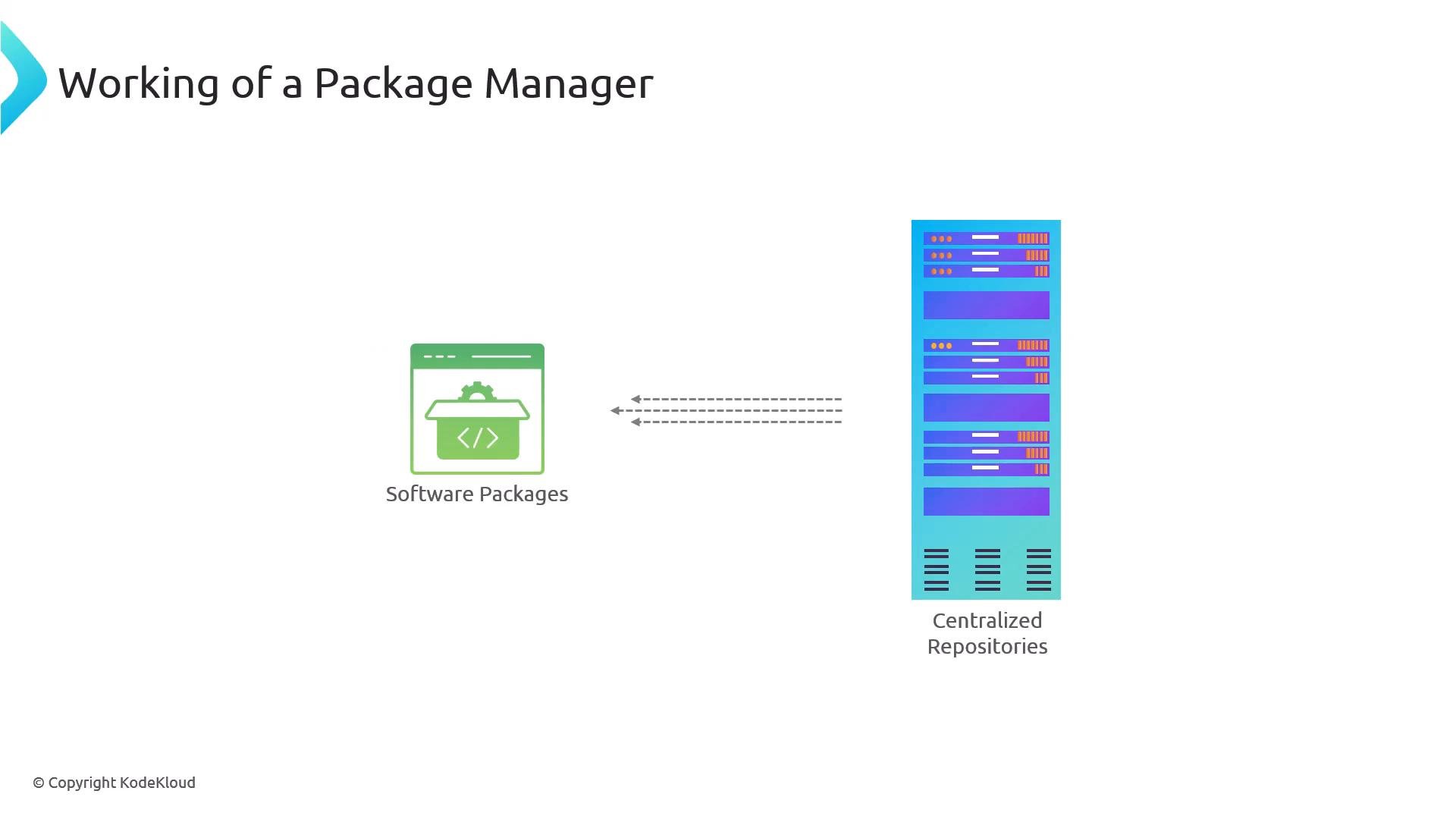
Before we jump into installing NGINX, it helps to understand what a package manager does and why you should use one. A package manager is an automation tool that installs, upgrades, configures, and removes software on your system. It handles the details for you: downloading packages and metadata from repositories, resolving and fetching dependencies, and applying configuration so the software integrates with the rest of the OS. Using the system package manager makes software management predictable, reproducible, and easier to maintain. Here’s a high-level view of the workflow: the package manager pulls packages and metadata from centralized repositories, resolves dependencies, downloads required components, and installs (and sometimes configures) the software so it works with other installed components.
A diagram titled "Working of a Package Manager" showing a green "Software Packages" icon on the left communicating (dashed arrows) with a blue server rack labeled "Centralized Repositories" on the right.
Repositories are maintained by operating system vendors, third-party vendors, and open source communities (for example, the NGINX Open Source Community). When you request an install, the package manager:
  • checks the package metadata,
  • identifies any missing dependencies,
  • downloads the required components,
  • and then installs and integrates the software with the system services.
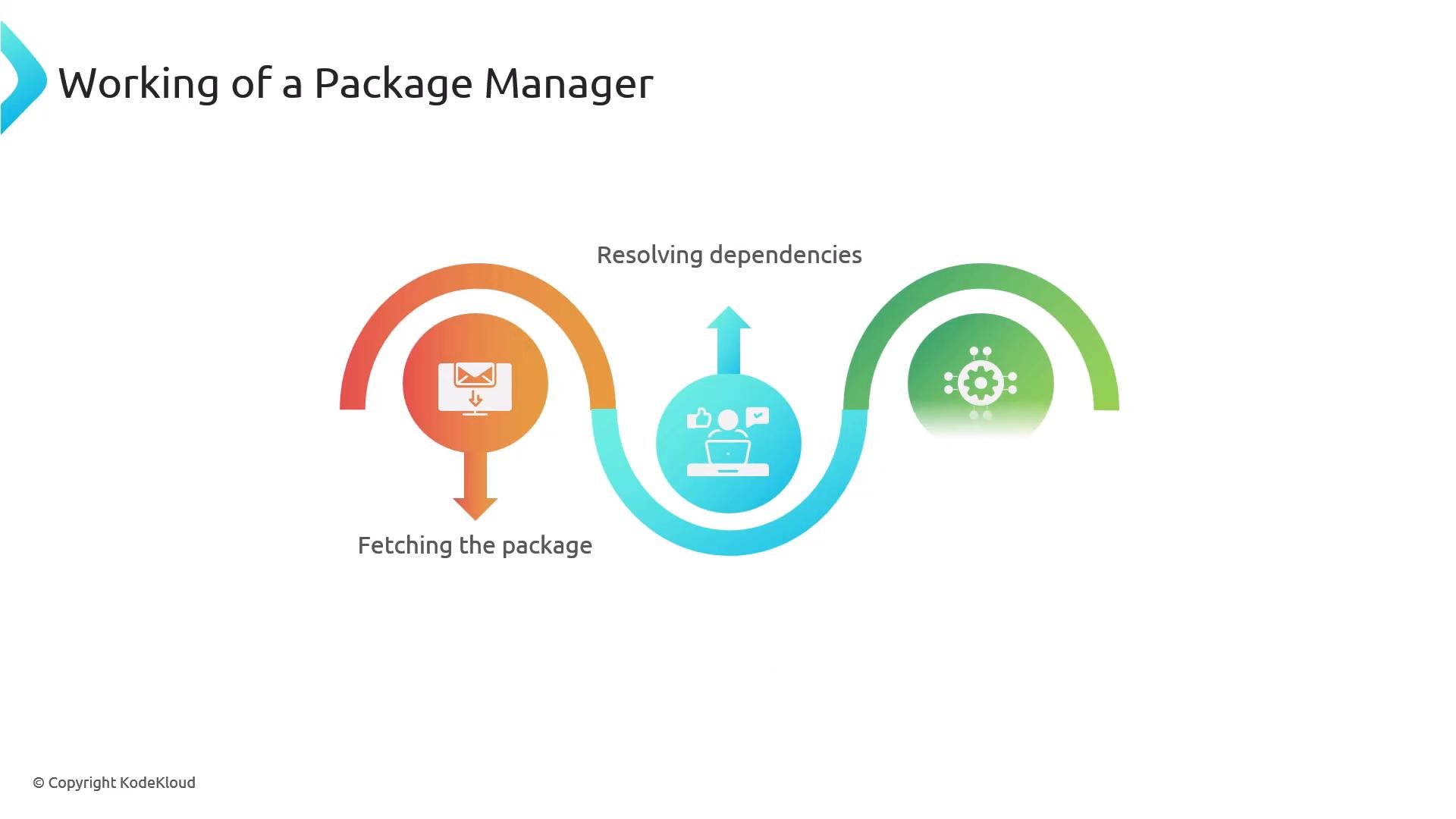
This fetch-resolve-install loop is what makes package management reliable and repeatable.
A slide titled "Working of a Package Manager" showing a colorful three-step diagram. It illustrates "Fetching the package" (orange), "Resolving dependencies" (blue center), and a green installation/gear step.
Popular package managers — quick comparison Below we cover the most common package managers and the commands you’ll use to install software such as NGINX.
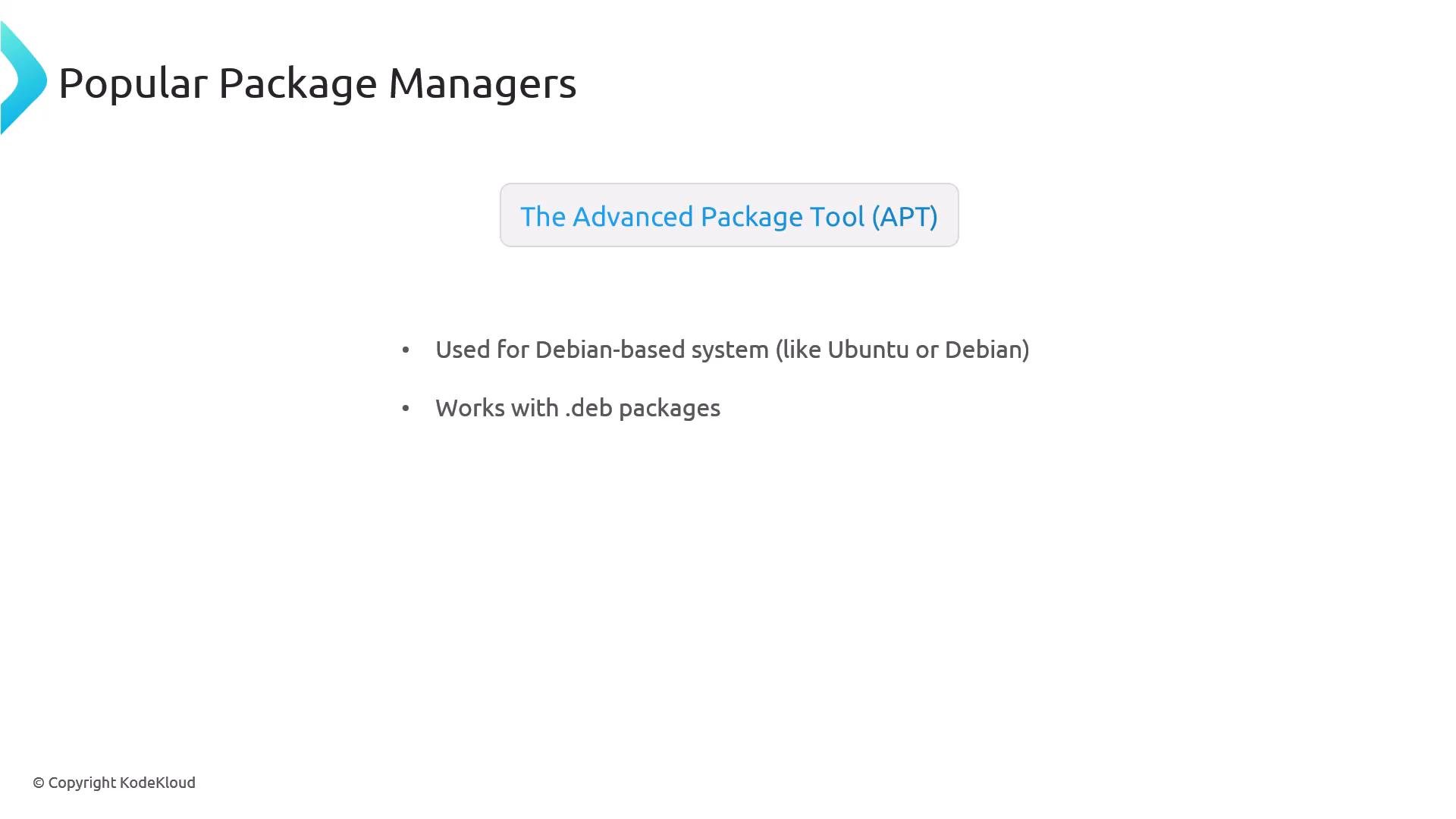
A slide titled "Popular Package Managers" highlighting "The Advanced Package Tool (APT)" with two bullets explaining it's used for Debian-based systems (like Ubuntu) and works with .deb packages.
apt (Debian / Ubuntu)
  • apt is the default package tool on Debian-based distributions and works with .deb packages.
  • Typical workflow: refresh the package index, install the package, then start or enable the service as needed.
Common apt commands:
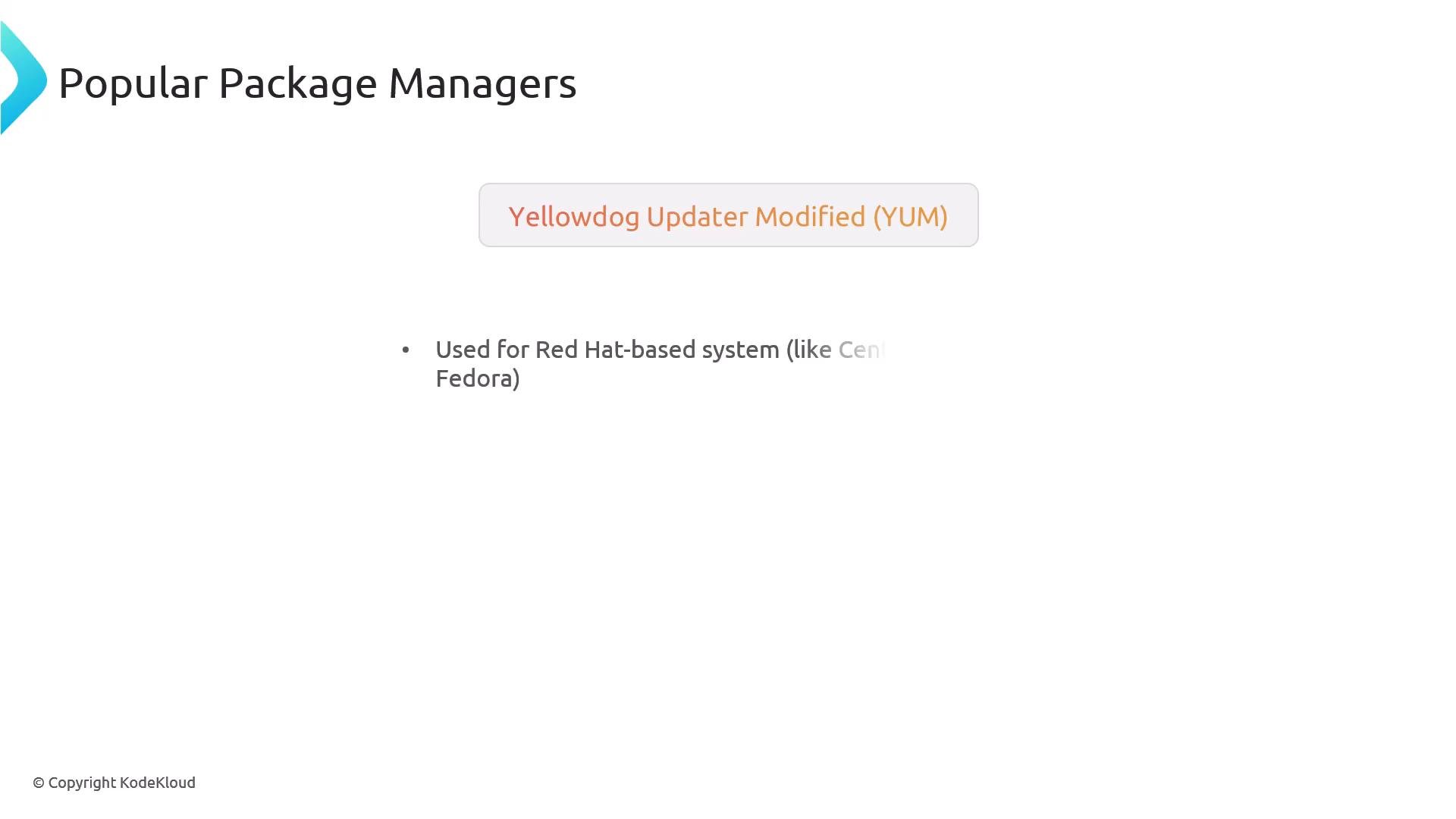
A presentation slide titled "Popular Package Managers" highlighting "Yellowdog Updater Modified (YUM)" with a bullet noting it's used for Red Hat–based systems (like CentOS and Fedora).
yum / dnf (RHEL, CentOS, Fedora)
  • yum has been the traditional package manager on many Red Hat–based systems; newer systems favor dnf, which provides a similar interface.
  • Both work with .rpm packages and handle dependency resolution for you.
Common yum/dnf commands:
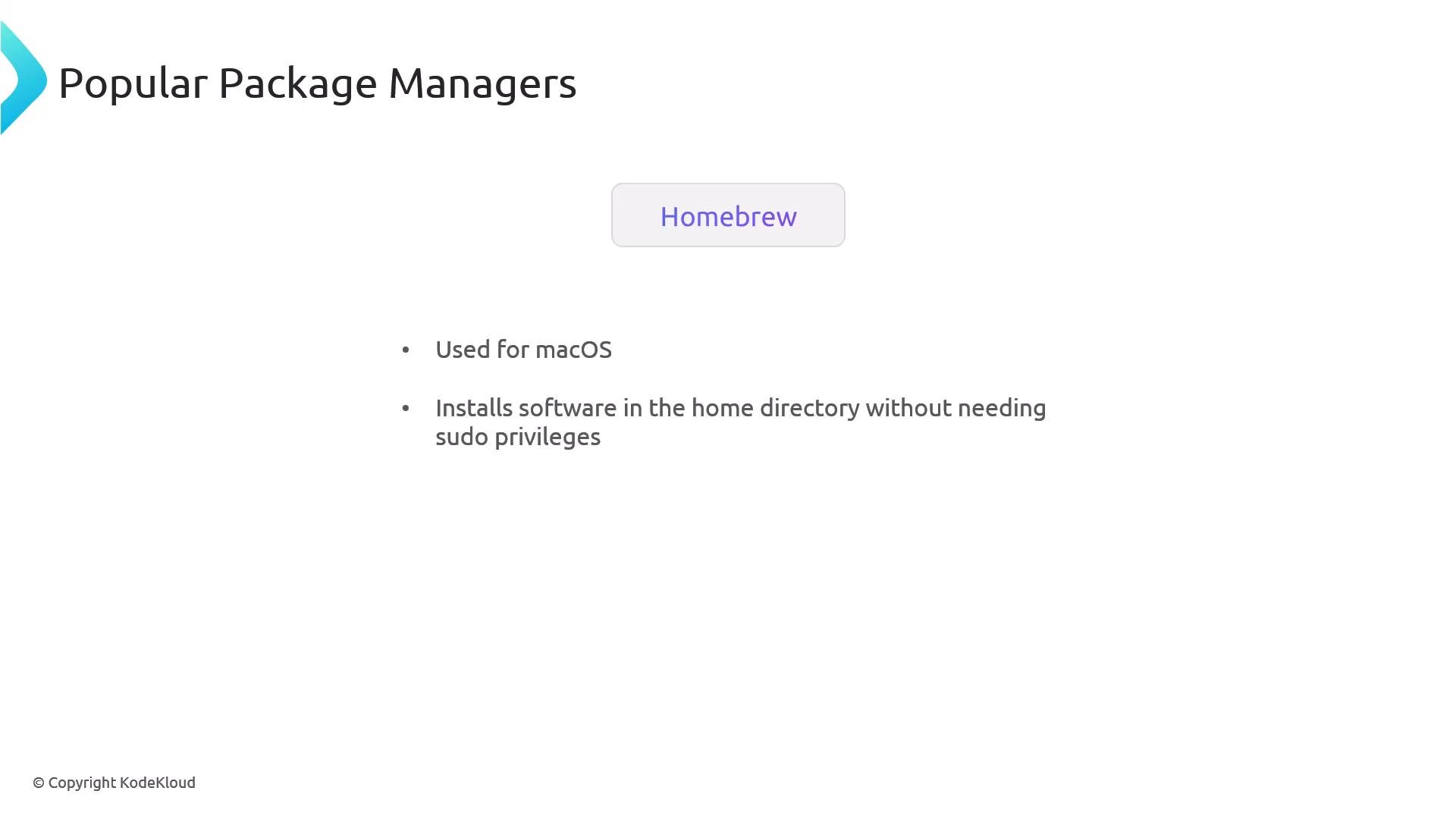
A presentation slide titled "Popular Package Managers" showing a centered "Homebrew" button. Bullets note Homebrew is used for macOS and installs software in the home directory without needing sudo privileges.
Homebrew (macOS & Linux)
  • Homebrew installs packages into directories it manages (typically /usr/local on Intel Macs or /opt/homebrew on Apple Silicon).
  • It generally does not require sudo for day-to-day usage on macOS.
Common Homebrew commands:
Chocolatey (Windows)
  • Chocolatey provides command-line package management for Windows and is useful for automating installs across machines.
  • Typical commands are executed in an elevated PowerShell.
Common Chocolatey commands:
Use the -y flag with install, upgrade, or remove commands to automatically confirm prompts when you need non-interactive behavior (for scripting or automation). Note: apt update does not prompt and does not accept -y—use -y with apt install or apt upgrade if you want to skip confirmation.
Why prefer your system package manager?
  • Dependency resolution: The package manager fetches and installs required libraries and runtime components.
  • Security and updates: Packages often include security updates and are tracked by your package system.
  • Integration: Services installed via the package manager typically include systemd unit files or init scripts for easy management.
  • Reproducibility: Scripts or automation tools that use package managers produce consistent results across systems.
Install NGINX (quick commands)
  • On Debian/Ubuntu:
  • On Red Hat/CentOS/Fedora (using yum or dnf):
  • On macOS (Homebrew):
  • On Windows (Chocolatey):
After installation you’ll typically start and enable the NGINX service:
  • systemd (most Linux distros):
  • macOS (Homebrew): follow Homebrew’s caveats output after brew install nginx (it shows how to start the service).
  • Windows (Chocolatey): use the Service Manager or the provided startup instructions.
A live demo will show how to install and start NGINX on a target system, verify it’s serving the default page, and check logs and service status. Links and References

Watch Video