> ## Documentation Index
> Fetch the complete documentation index at: https://notes.kodekloud.com/llms.txt
> Use this file to discover all available pages before exploring further.
# Demo 2 Basic Git Commands
> Learn basic Git commands for version control through a simple mock project, covering repository initialization, staging, committing, and inspecting commit history.
Learn how to use Git for version control by walking through a simple mock project. We’ll cover:
* Initializing a Git repository
* Staging and committing files
* Inspecting commit history
By the end of this guide, you’ll understand the core Git commands for day-to-day workflows.
***
## Table of Contents
1. [Initialize a Git Repository](#initialize-a-git-repository)
2. [Stage and Commit `greetings.txt`](#stage-and-commit-greetingstxt)
3. [Add and Commit `bye.txt`](#add-and-commit-byetxt)
4. [Quick Reference: Common Git Commands](#quick-reference-common-git-commands)
5. [Links and References](#links-and-references)
***
## 1. Initialize a Git Repository
Start by creating a new directory and turning it into a Git repository:
```bash theme={null}
mkdir hello-git
cd hello-git
git init
```
You should see:
```bash theme={null}
Initialized empty Git repository in /path/to/hello-git/.git/
```
Now you’re inside a Git-controlled project. All subsequent Git commands will operate here.
***
## 2. Stage and Commit `greetings.txt`
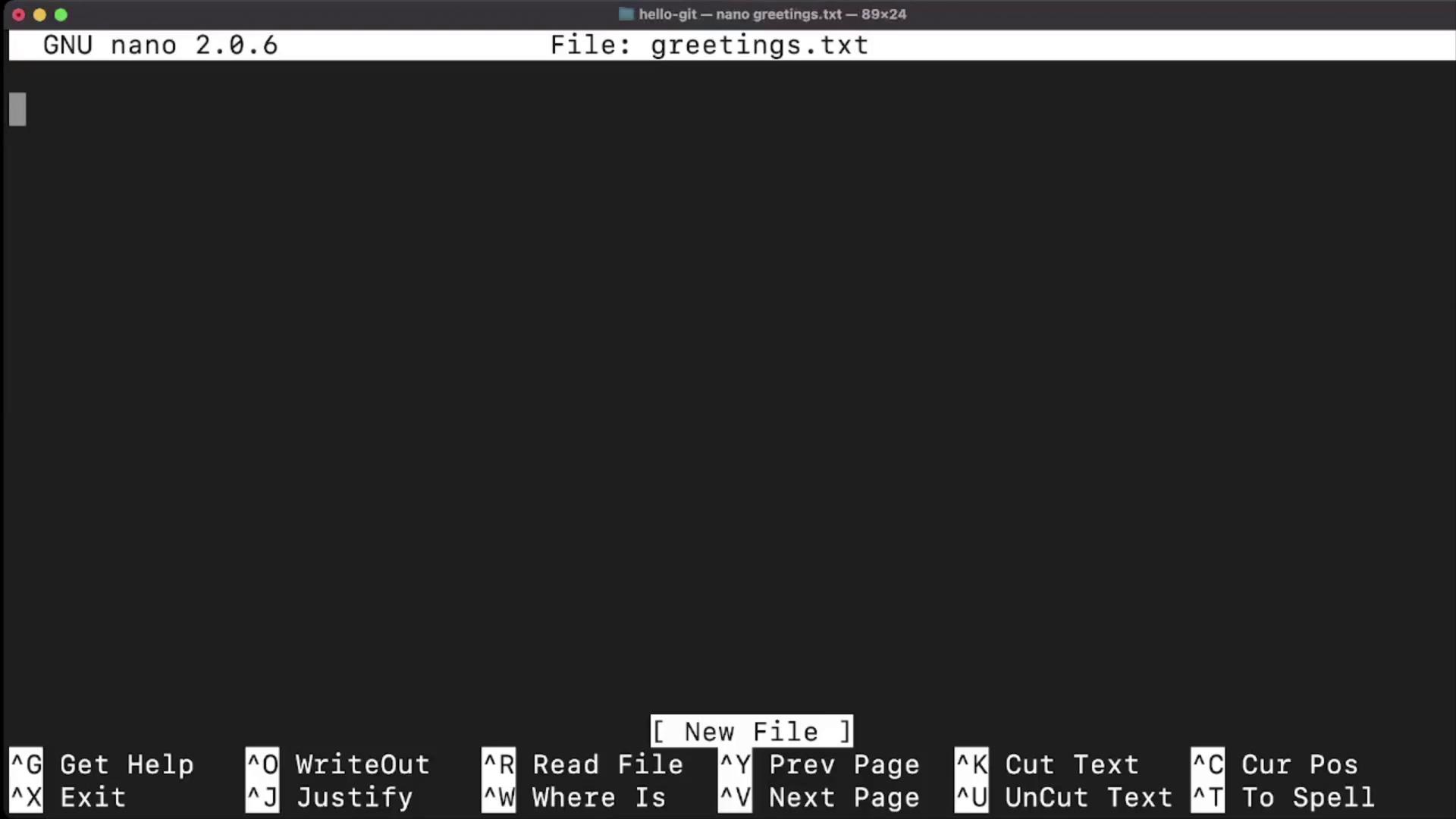
First, create a file named `greetings.txt`:
```bash theme={null}
nano greetings.txt
```
Check the repository status to see untracked files:
```bash theme={null}
git status
```
Sample output:
```git theme={null}
On branch master
No commits yet
Untracked files:
(use "git add ..." to include in what will be committed)
greetings.txt
```
Stage and commit your changes:
```bash theme={null}
git add greetings.txt
git commit -m "Add greetings.txt with initial message"
```
View the commit history:
```bash theme={null}
git log
```
Sample output:
```git theme={null}
commit eafd1cdd14d46c191c7aaf2675b5aef6c418c17 (HEAD -> master)
Author: you
Date: Sat Sep 24 06:15:31 2022 +0530
Add greetings.txt with initial message
```
A clear, descriptive commit message helps you and your team understand the purpose of each change.
***
## 3. Add and Commit `bye.txt`
Repeat the workflow to add a second file:
1. Create `bye.txt`:
```bash theme={null}
nano bye.txt
```
2. Confirm it’s untracked:
```bash theme={null}
git status
```
3. Stage all changes at once:
```bash theme={null}
git add .
```
4. Commit with a message:
```bash theme={null}
git commit -m "Add bye.txt"
```
5. Review the full commit history:
```bash theme={null}
git log
```
You’ll see both commits listed, with the most recent on top.
Always run `git status` before committing to avoid accidentally omitting or including unwanted files.
***
## Quick Reference: Common Git Commands
| Command | Use Case | Example |
| --------------------------- | ----------------------------------------- | ---------------------------------------------- |
| `git init` | Create a new Git repository | Initialize version control in a project |
| `git status` | Show untracked, staged, and changed files | Verify your working directory state |
| `git add ` | Stage changes for the next commit | `git add greetings.txt` |
| `git add .` | Stage all changes | Stage new, modified, and deleted files |
| `git commit -m ""` | Commit staged changes with a message | `git commit -m "Add new feature"` |
| `git log` | View commit history | Display commits in reverse chronological order |
***
## Links and References
* [Git Documentation](https://git-scm.com/doc)
* [Understanding the Git Workflow](https://www.atlassian.com/git/tutorials/what-is-version-control)
* [GitHub Guides](https://guides.github.com/)
Start practicing these commands today to build a solid foundation in version control!