> ## Documentation Index
> Fetch the complete documentation index at: https://notes.kodekloud.com/llms.txt
> Use this file to discover all available pages before exploring further.
# Demo Build Triggers
> Explains how to configure GitLab webhooks to automatically trigger OpenShift BuildConfig Docker builds, with setup steps, troubleshooting, and verification
Welcome — this lesson covers how to automatically trigger OpenShift builds using GitLab webhooks. We'll assume you already have a BuildConfig configured with the Docker build strategy and that the build source is a Git repository (hosted in GitLab for this demo). When you push code changes to the repository, OpenShift can start builds automatically via webhooks instead of requiring manual starts.
## Example application change
Here is a small Flask app update you might push to demonstrate an automatic build trigger:
```python theme={null}
import os
from flask import Flask
app = Flask(__name__)
@app.route("/")
def main():
return "Welcome! Update 1"
@app.route("/how are you")
def hello():
return "I am good, how about you?"
if __name__ == "__main__":
app.run(host="0.0.0.0", port=8080)
```
## Manual build (quick reminder)
To start a build manually from the OpenShift web console: open your BuildConfig and click **Start Build**. The build details will indicate it was triggered manually.
## Set up GitLab webhook to trigger builds automatically
OpenShift BuildConfig objects include a `triggers` section with several webhook options: a generic webhook, a GitHub webhook, and the ability to add GitLab or Bitbucket webhooks. To configure GitLab to notify OpenShift when you push code, follow these steps:
1. In the BuildConfig view in the OpenShift console, go to **Actions → Edit**.
2. Under **Triggers**, click **Add Webhook** and select **GitLab** as the webhook type.
3. You must use a webhook secret to secure the webhook. If you don't have one, click **Create New Webhook** to generate a secret for GitLab, then create it.
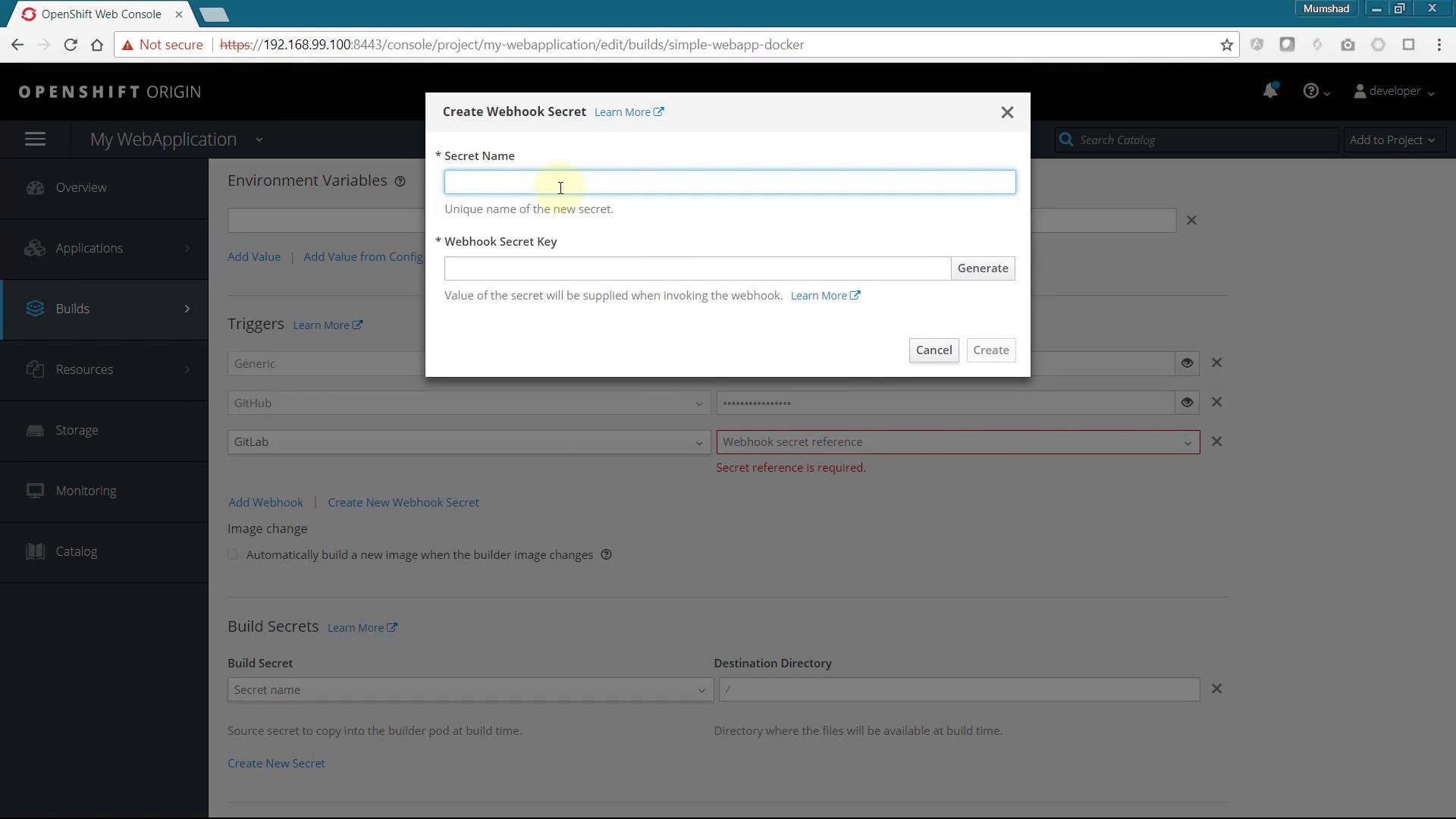 4. Select the newly created webhook and save the BuildConfig. The GitLab webhook URL will now appear in the BuildConfig **Triggers** section — copy that URL.
5. In your GitLab project, go to **Settings → Integrations (or Webhooks)** and paste the webhook URL into the **URL** field. The secret token is embedded in the URL, so you do not need to enter a separate token.
6. For local development without a valid SSL certificate, uncheck **Enable SSL verification** before saving the webhook.
7. Save the webhook and use the **Test** button to verify the connection.
Tip: The webhook URL includes the secret token, so keep it private. For production environments, leave SSL verification enabled and secure the webhook URL.
## Troubleshooting: GitLab blocks requests to the local network
If you test the webhook from a GitLab instance that blocks outbound requests to local network addresses (common in local development), you may see an error in the GitLab logs indicating requests to local network addresses are blocked. Example log excerpt:
```text theme={null}
==> /var/log/gitlab/gitlab-monitor/current <==
2018-04-30_10:42:15.04151 127.0.0.1 - - [30/Apr/2018:10:42:15 UTC] "GET /sidekiq HTTP/1.1" 200 12152
==> /var/log/gitlab/gitlab-rails/production.log <==
Started GET "/root/simple-webapp/hooks/2/test?trigger=push_events" for 192.168.56.1 at 2018-04-30 10:42:16 +0000
Processing by Projects::HooksController#test as HTML
Parameters: {"trigger"=>"push_events", "namespace_id"=>"root", "project_id"=>"simple-webapp", "id"=>"2"}
Completed 500 Internal Server Error in 171ms (ActiveRecord: 3.4ms)
==> /var/log/gitlab/gitlab-rails/production_json.log <==
{"method":"GET","path":"/root/simple-webapp/hooks/2/test","format":"html","controller":"Projects::HooksController","action":"test","status":500,"error":"Gitlab::HTTP::BlockedUrlError: URL 'https://192.168.99.100:8443/oapi/v1/namespaces/my-webapplication/buildconfigs/simple-webapp-docker/webhooks/294583a58edeaed9/gitlab' is blocked: Requests to the local network are not allowed","duration":216.99,"view":0.0,"db":3.38,"time":"2018-04-30T10:42:16.785Z","params":[{"key":"trigger","value":"push_events"},{"key":"namespace_id","value":"root"},{"key":"project_id","value":"simple-webapp"},{"key":"id","value":"2"}],"remote_ip":"192.168.56.1","user_id":1,"username":"root","gitaly_calls":4}
Gitlab::HTTP::BlockedUrlError (URL 'https://192.168.99.100:8443/oapi/v1/namespaces/my-webapplication/buildconfigs/simple-webapp-docker/webhooks/294583a58edeaed9/gitlab' is blocked: Requests to the local network are not allowed):
lib/gitlab/proxy_http_connection_adapter.rb:17:in `rescue in connection'
lib/gitlab/proxy_http_connection_adapter.rb:14:in `connection'
app/services/web_hook_service.rb:73:in `make_request'
app/services/web_hook_service.rb:26:in `execute'
app/models/hooks/web_hook.rb:10:in `execute'
app/services/test_hooks/base_service.rb:22:in `block in execute'
app/services/test_hooks/base_service.rb:19:in `catch'
```
Warning: For GitLab to reach a local OpenShift server, allow outbound requests to local network addresses in GitLab's Admin Area. On the GitLab server go to **Admin Area → Settings → Outbound requests** and check **Allow requests to the local network**. Only enable this in trusted development environments.
After enabling that option in GitLab, retest the webhook in your project. Once the webhook test succeeds, pushes to the repository (or using the Test button) will trigger OpenShift builds automatically.
## Verify the build in OpenShift
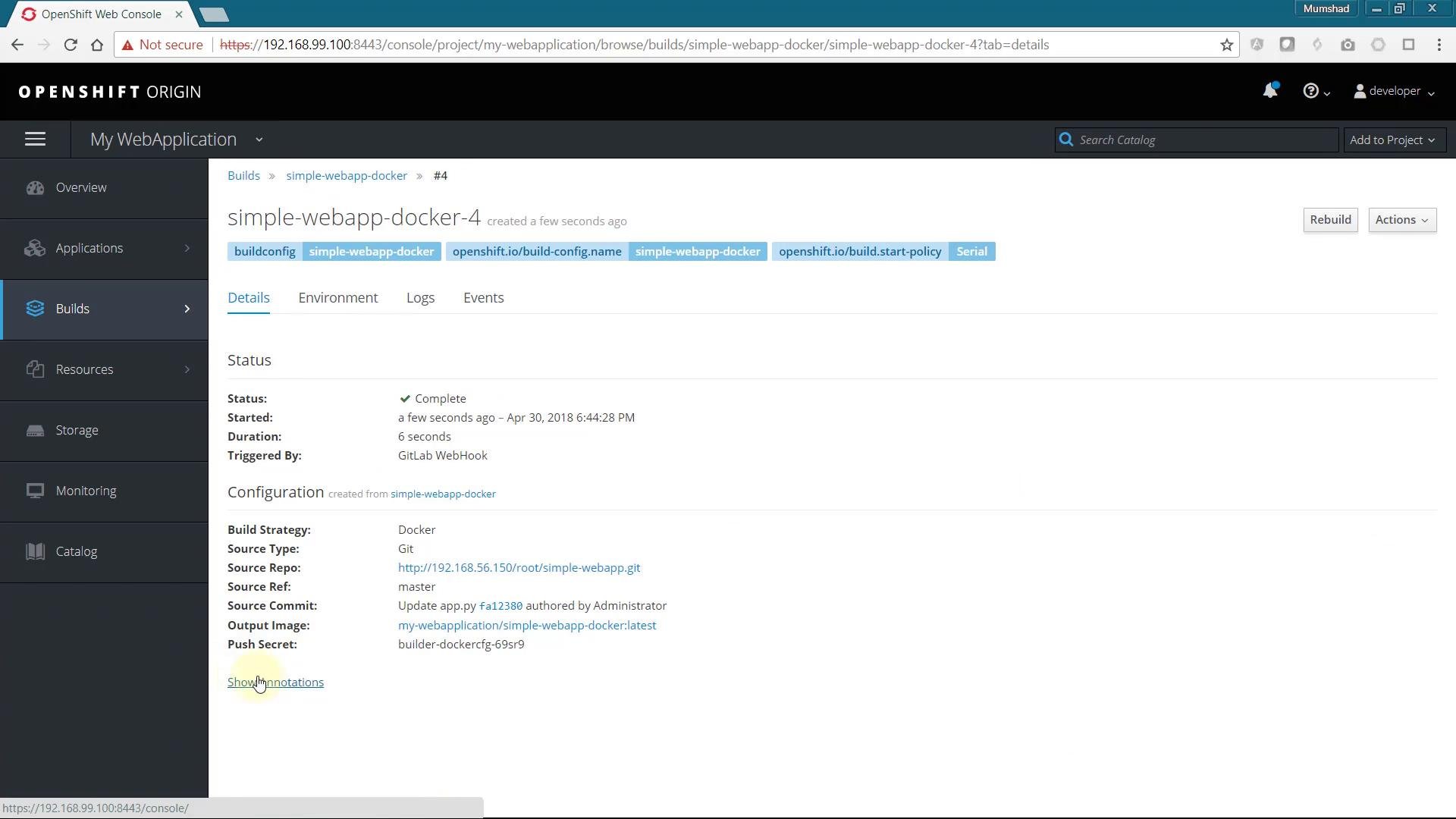
Back in the OpenShift console you can watch the build progress. When it finishes, open the build details to confirm the trigger type — the build record will indicate it was started by a GitLab webhook.
4. Select the newly created webhook and save the BuildConfig. The GitLab webhook URL will now appear in the BuildConfig **Triggers** section — copy that URL.
5. In your GitLab project, go to **Settings → Integrations (or Webhooks)** and paste the webhook URL into the **URL** field. The secret token is embedded in the URL, so you do not need to enter a separate token.
6. For local development without a valid SSL certificate, uncheck **Enable SSL verification** before saving the webhook.
7. Save the webhook and use the **Test** button to verify the connection.
Tip: The webhook URL includes the secret token, so keep it private. For production environments, leave SSL verification enabled and secure the webhook URL.
## Troubleshooting: GitLab blocks requests to the local network
If you test the webhook from a GitLab instance that blocks outbound requests to local network addresses (common in local development), you may see an error in the GitLab logs indicating requests to local network addresses are blocked. Example log excerpt:
```text theme={null}
==> /var/log/gitlab/gitlab-monitor/current <==
2018-04-30_10:42:15.04151 127.0.0.1 - - [30/Apr/2018:10:42:15 UTC] "GET /sidekiq HTTP/1.1" 200 12152
==> /var/log/gitlab/gitlab-rails/production.log <==
Started GET "/root/simple-webapp/hooks/2/test?trigger=push_events" for 192.168.56.1 at 2018-04-30 10:42:16 +0000
Processing by Projects::HooksController#test as HTML
Parameters: {"trigger"=>"push_events", "namespace_id"=>"root", "project_id"=>"simple-webapp", "id"=>"2"}
Completed 500 Internal Server Error in 171ms (ActiveRecord: 3.4ms)
==> /var/log/gitlab/gitlab-rails/production_json.log <==
{"method":"GET","path":"/root/simple-webapp/hooks/2/test","format":"html","controller":"Projects::HooksController","action":"test","status":500,"error":"Gitlab::HTTP::BlockedUrlError: URL 'https://192.168.99.100:8443/oapi/v1/namespaces/my-webapplication/buildconfigs/simple-webapp-docker/webhooks/294583a58edeaed9/gitlab' is blocked: Requests to the local network are not allowed","duration":216.99,"view":0.0,"db":3.38,"time":"2018-04-30T10:42:16.785Z","params":[{"key":"trigger","value":"push_events"},{"key":"namespace_id","value":"root"},{"key":"project_id","value":"simple-webapp"},{"key":"id","value":"2"}],"remote_ip":"192.168.56.1","user_id":1,"username":"root","gitaly_calls":4}
Gitlab::HTTP::BlockedUrlError (URL 'https://192.168.99.100:8443/oapi/v1/namespaces/my-webapplication/buildconfigs/simple-webapp-docker/webhooks/294583a58edeaed9/gitlab' is blocked: Requests to the local network are not allowed):
lib/gitlab/proxy_http_connection_adapter.rb:17:in `rescue in connection'
lib/gitlab/proxy_http_connection_adapter.rb:14:in `connection'
app/services/web_hook_service.rb:73:in `make_request'
app/services/web_hook_service.rb:26:in `execute'
app/models/hooks/web_hook.rb:10:in `execute'
app/services/test_hooks/base_service.rb:22:in `block in execute'
app/services/test_hooks/base_service.rb:19:in `catch'
```
Warning: For GitLab to reach a local OpenShift server, allow outbound requests to local network addresses in GitLab's Admin Area. On the GitLab server go to **Admin Area → Settings → Outbound requests** and check **Allow requests to the local network**. Only enable this in trusted development environments.
After enabling that option in GitLab, retest the webhook in your project. Once the webhook test succeeds, pushes to the repository (or using the Test button) will trigger OpenShift builds automatically.
## Verify the build in OpenShift
Back in the OpenShift console you can watch the build progress. When it finishes, open the build details to confirm the trigger type — the build record will indicate it was started by a GitLab webhook.
 ## Quick reference
| Topic | Recommendation |
| - | - |
| Webhook types available | Generic, GitHub, GitLab, Bitbucket (configure under BuildConfig → Triggers) |
| Webhook secret | Create via **Create New Webhook** in the BuildConfig editor; token is embedded in the webhook URL |
| Local dev SSL | Uncheck **Enable SSL verification** in GitLab webhooks for local testing only |
| GitLab local requests blocked? | Enable **Allow requests to the local network** in GitLab Admin Area for trusted dev setups |
## Links and references
* OpenShift Builds and BuildConfig concepts: [https://docs.openshift.com/](https://docs.openshift.com/)
* GitLab Webhooks documentation: [https://docs.gitlab.com/ee/user/project/integrations/webhooks.html](https://docs.gitlab.com/ee/user/project/integrations/webhooks.html)
* GitLab Admin settings for outbound requests: [https://docs.gitlab.com/ee/administration/settings/outbound\_requests.html](https://docs.gitlab.com/ee/administration/settings/outbound_requests.html)
That’s it — you now have GitLab configured to trigger OpenShift builds automatically when repository changes are pushed.
This documentation is built and hosted on [Mintlify](https://mintlify.com), a developer documentation platform.
## Quick reference
| Topic | Recommendation |
| - | - |
| Webhook types available | Generic, GitHub, GitLab, Bitbucket (configure under BuildConfig → Triggers) |
| Webhook secret | Create via **Create New Webhook** in the BuildConfig editor; token is embedded in the webhook URL |
| Local dev SSL | Uncheck **Enable SSL verification** in GitLab webhooks for local testing only |
| GitLab local requests blocked? | Enable **Allow requests to the local network** in GitLab Admin Area for trusted dev setups |
## Links and references
* OpenShift Builds and BuildConfig concepts: [https://docs.openshift.com/](https://docs.openshift.com/)
* GitLab Webhooks documentation: [https://docs.gitlab.com/ee/user/project/integrations/webhooks.html](https://docs.gitlab.com/ee/user/project/integrations/webhooks.html)
* GitLab Admin settings for outbound requests: [https://docs.gitlab.com/ee/administration/settings/outbound\_requests.html](https://docs.gitlab.com/ee/administration/settings/outbound_requests.html)
That’s it — you now have GitLab configured to trigger OpenShift builds automatically when repository changes are pushed.
This documentation is built and hosted on [Mintlify](https://mintlify.com), a developer documentation platform.