> ## Documentation Index
> Fetch the complete documentation index at: https://notes.kodekloud.com/llms.txt
> Use this file to discover all available pages before exploring further.
# Demo Install Minishift Project
> Guide to installing Minishift and running a local OpenShift cluster with VirtualBox, accessing the web console and oc CLI for development and testing.
Welcome — this guide shows how to install Minishift and bring up a local OpenShift cluster for development and testing. You'll learn how to download Minishift, run it with VirtualBox as the hypervisor, and access the OpenShift web console and CLI.
Minishift runs on Windows, macOS, and Linux. For cross-platform compatibility in this demo we use VirtualBox as the hypervisor. For more details and platform-specific downloads, visit the Minishift site: [https://minishift.io](https://minishift.io).
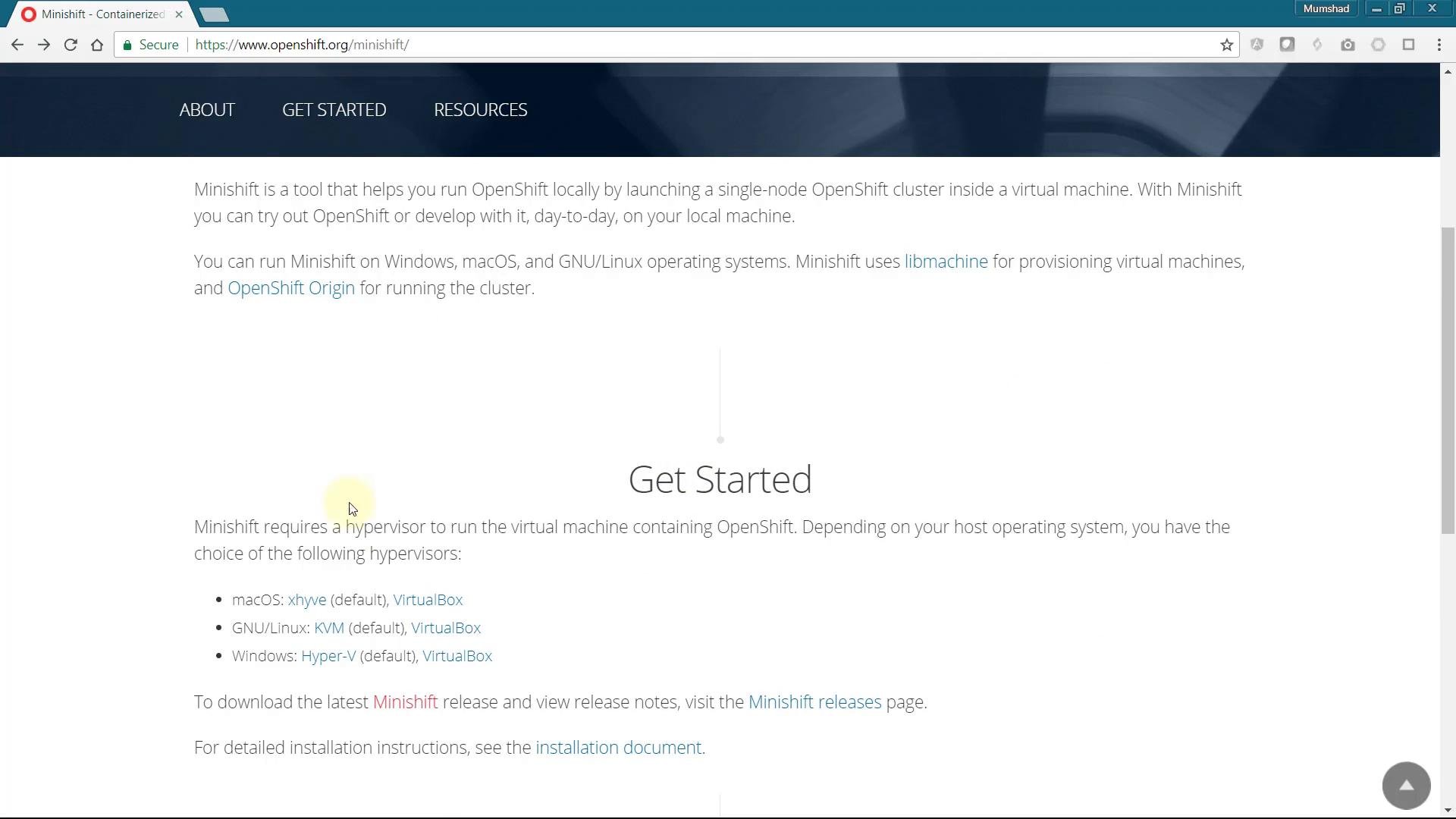 Before you begin: ensure your machine meets the VM and memory requirements for running a local OpenShift cluster. Install VirtualBox (or another supported hypervisor) first, then download the Minishift binary for your OS.
## Prerequisites
* VirtualBox (or another supported hypervisor) installed and working.
* Minishift binary for your OS (download from the Minishift Releases page).
* Command-line access (Terminal on macOS/Linux, PowerShell or Command Prompt on Windows).
Useful links:
* Minishift: [https://minishift.io](https://minishift.io)
* VirtualBox: [https://www.virtualbox.org](https://www.virtualbox.org)
* OpenShift documentation: [https://docs.openshift.com](https://docs.openshift.com)
## Step-by-step: Download and start Minishift
1. Install VirtualBox if it is not already installed. Follow the VirtualBox installer for your platform and reboot if required.
2. Download the Minishift release archive for your platform from the Minishift Releases page and extract it to a folder you control (for example `C:\minishift-\` on Windows).
3. Open a terminal/command prompt, change into the folder where `minishift` (or `minishift.exe`) is located, and start Minishift.
On Windows Minishift may default to Hyper-V if available. To force VirtualBox, include the `--vm-driver=virtualbox` option when starting Minishift. Example Windows session:
```text theme={null}
C:\Users\mmums>cd c:\minishift-1.16.1-windows-amd64
c:\minishift-1.16.1-windows-amd64>dir
Volume in drive C is Windows
Volume Serial Number is 90FB-C176
Directory of c:\minishift-1.16.1-windows-amd64
30-Apr-18 01:44 PM .
30-Apr-18 01:44 PM ..
20-Apr-18 07:39 PM 11,374 LICENSE
20-Apr-18 07:39 PM 15,819,264 minishift.exe
20-Apr-18 07:39 PM 3,328 README.adoc
3 File(s) 15,833,966 bytes
2 Dir(s) 14,840,086,528 bytes free
c:\minishift-1.16.1-windows-amd64>minishift.exe start --vm-driver=virtualbox
```
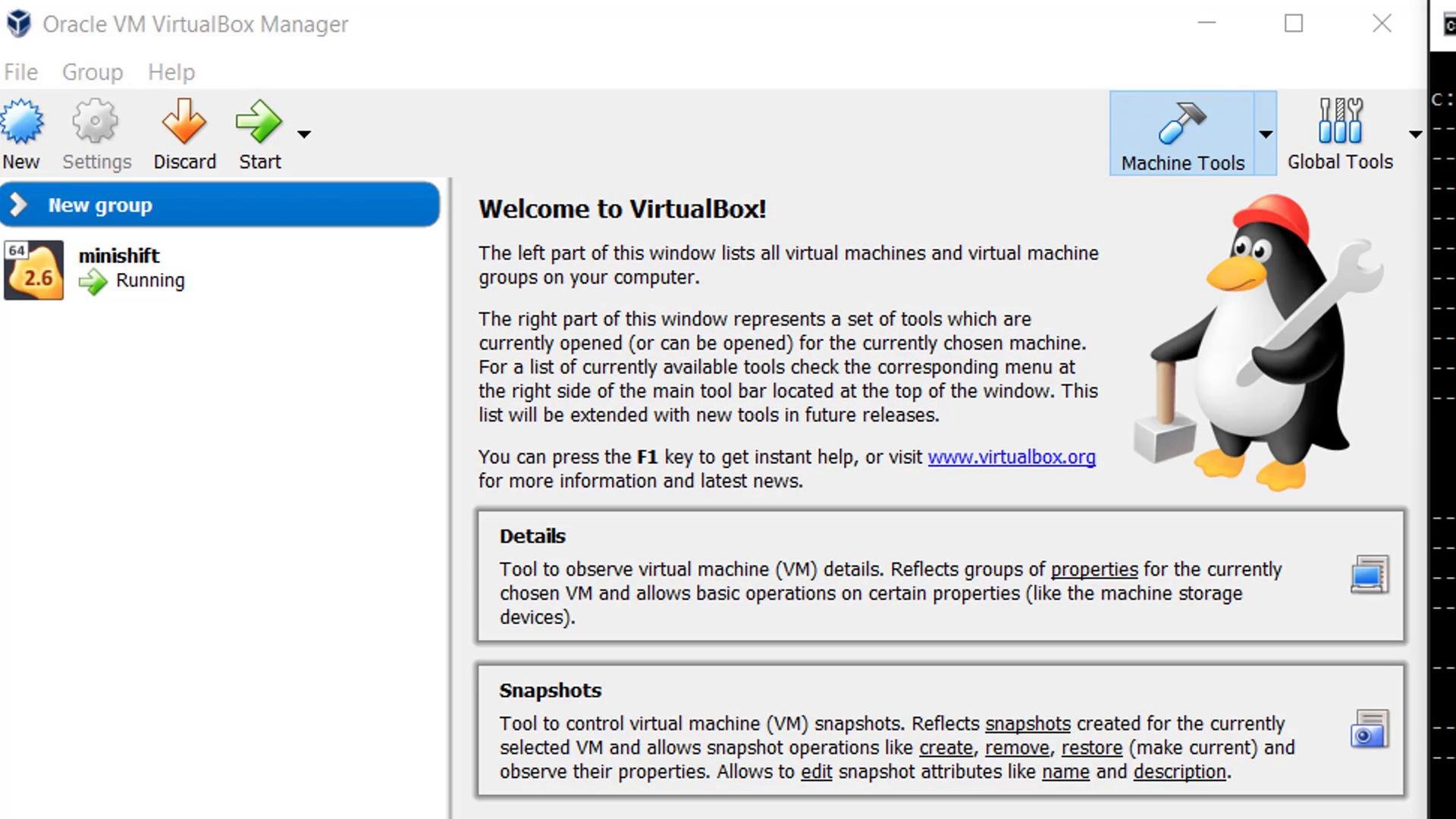
When Minishift starts it downloads the required ISO and container images and creates a VM in VirtualBox. After the startup process completes you should see a running VM named `minishift` in the VirtualBox Manager.
Before you begin: ensure your machine meets the VM and memory requirements for running a local OpenShift cluster. Install VirtualBox (or another supported hypervisor) first, then download the Minishift binary for your OS.
## Prerequisites
* VirtualBox (or another supported hypervisor) installed and working.
* Minishift binary for your OS (download from the Minishift Releases page).
* Command-line access (Terminal on macOS/Linux, PowerShell or Command Prompt on Windows).
Useful links:
* Minishift: [https://minishift.io](https://minishift.io)
* VirtualBox: [https://www.virtualbox.org](https://www.virtualbox.org)
* OpenShift documentation: [https://docs.openshift.com](https://docs.openshift.com)
## Step-by-step: Download and start Minishift
1. Install VirtualBox if it is not already installed. Follow the VirtualBox installer for your platform and reboot if required.
2. Download the Minishift release archive for your platform from the Minishift Releases page and extract it to a folder you control (for example `C:\minishift-\` on Windows).
3. Open a terminal/command prompt, change into the folder where `minishift` (or `minishift.exe`) is located, and start Minishift.
On Windows Minishift may default to Hyper-V if available. To force VirtualBox, include the `--vm-driver=virtualbox` option when starting Minishift. Example Windows session:
```text theme={null}
C:\Users\mmums>cd c:\minishift-1.16.1-windows-amd64
c:\minishift-1.16.1-windows-amd64>dir
Volume in drive C is Windows
Volume Serial Number is 90FB-C176
Directory of c:\minishift-1.16.1-windows-amd64
30-Apr-18 01:44 PM .
30-Apr-18 01:44 PM ..
20-Apr-18 07:39 PM 11,374 LICENSE
20-Apr-18 07:39 PM 15,819,264 minishift.exe
20-Apr-18 07:39 PM 3,328 README.adoc
3 File(s) 15,833,966 bytes
2 Dir(s) 14,840,086,528 bytes free
c:\minishift-1.16.1-windows-amd64>minishift.exe start --vm-driver=virtualbox
```
When Minishift starts it downloads the required ISO and container images and creates a VM in VirtualBox. After the startup process completes you should see a running VM named `minishift` in the VirtualBox Manager.
 ## What the start process does
During `minishift start` you will see status checks (network, hypervisor, image imports) and configuration data (memory, vCPU, disk size). Example trimmed output:
```text theme={null}
-- Starting profile 'minishift'
-- Checking if https://github.com is reachable ... OK
-- Checking if requested OpenShift version 'v3.9.0' is valid ... OK
-- Checking if VirtualBox is installed ... OK
-- Starting local OpenShift cluster using 'virtualbox' hypervisor ...
-- Minishift VM will be configured with ...
Memory: 2 GB
vCPUs : 2
Disk size: 20 GB
-- Starting Minishift VM .......................... OK
-- Checking for IP address ... OK
-- Checking for nameservers ... OK
-- Checking if external host is reachable from the Minishift VM ...
Pinging 8.8.8.8 ... OK
-- Checking HTTP connectivity from the VM ...
Retrieving http://minishift.io/index.html ... OK
-- Checking if persistent storage volume is mounted ... OK
-- Importing 'openshift/origin:v3.9.0' .......... OK
-- Importing 'openshift/origin-docker-registry:v3.9.0' ... OK
-- Importing 'openshift/origin-haproxy-router:v3.9.0' ... OK
-- OpenShift cluster will be configured with ...
Version: v3.9.0
Using Docker shared volumes for OpenShift volumes
Using 192.168.99.102 as the server IP
Starting OpenShift using openshift/origin:v3.9.0 ...
OpenShift server started.
The server is accessible via web console at:
https://192.168.99.102:8443
You are logged in as:
User: developer
Password:
To login as administrator:
oc login -u system:admin
```
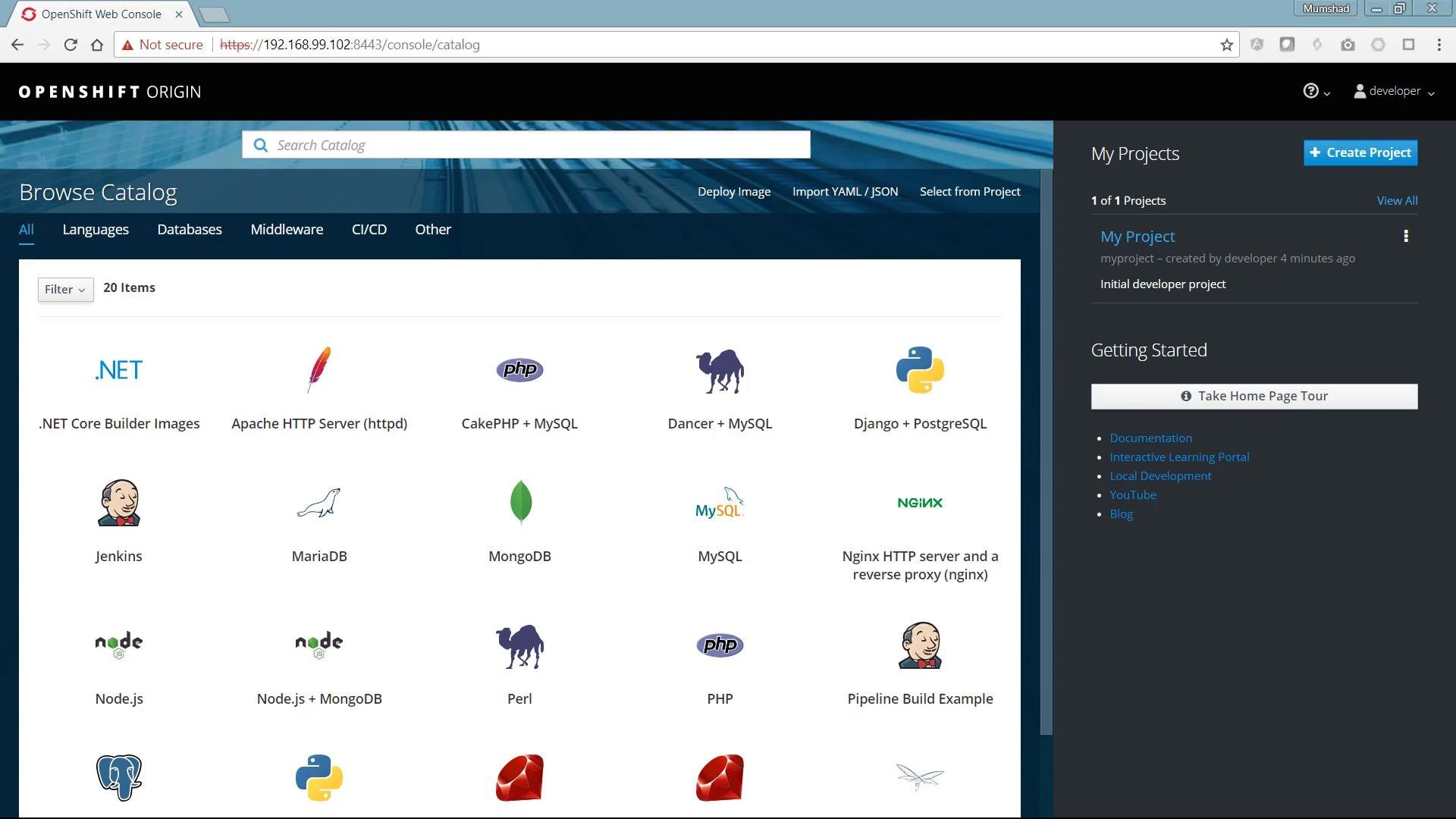
Note the web console URL printed by Minishift (for example `https://192.168.99.102:8443`). Minishift configures a simple, developer-friendly identity provider so you can log in with any username and any password. This authentication mode is meant for local development and testing only.
This demo uses Minishift's developer-friendly authentication. Do not use this authentication mode for production environments.
For the purposes of this demo, log in to the web console as `developer` with any password (for example, `developer`) to explore the cluster.
## Explore the cluster
* Use the web console to browse the catalog, create applications from builder images and templates, and view project resources.
* Use the `oc` CLI for scripted workflows: `oc new-project `, `oc new-app`, `oc get pods`, `oc logs`, etc.
* To log in as the cluster administrator from the CLI run: `oc login -u system:admin` (as shown in the start output).
## What the start process does
During `minishift start` you will see status checks (network, hypervisor, image imports) and configuration data (memory, vCPU, disk size). Example trimmed output:
```text theme={null}
-- Starting profile 'minishift'
-- Checking if https://github.com is reachable ... OK
-- Checking if requested OpenShift version 'v3.9.0' is valid ... OK
-- Checking if VirtualBox is installed ... OK
-- Starting local OpenShift cluster using 'virtualbox' hypervisor ...
-- Minishift VM will be configured with ...
Memory: 2 GB
vCPUs : 2
Disk size: 20 GB
-- Starting Minishift VM .......................... OK
-- Checking for IP address ... OK
-- Checking for nameservers ... OK
-- Checking if external host is reachable from the Minishift VM ...
Pinging 8.8.8.8 ... OK
-- Checking HTTP connectivity from the VM ...
Retrieving http://minishift.io/index.html ... OK
-- Checking if persistent storage volume is mounted ... OK
-- Importing 'openshift/origin:v3.9.0' .......... OK
-- Importing 'openshift/origin-docker-registry:v3.9.0' ... OK
-- Importing 'openshift/origin-haproxy-router:v3.9.0' ... OK
-- OpenShift cluster will be configured with ...
Version: v3.9.0
Using Docker shared volumes for OpenShift volumes
Using 192.168.99.102 as the server IP
Starting OpenShift using openshift/origin:v3.9.0 ...
OpenShift server started.
The server is accessible via web console at:
https://192.168.99.102:8443
You are logged in as:
User: developer
Password:
To login as administrator:
oc login -u system:admin
```
Note the web console URL printed by Minishift (for example `https://192.168.99.102:8443`). Minishift configures a simple, developer-friendly identity provider so you can log in with any username and any password. This authentication mode is meant for local development and testing only.
This demo uses Minishift's developer-friendly authentication. Do not use this authentication mode for production environments.
For the purposes of this demo, log in to the web console as `developer` with any password (for example, `developer`) to explore the cluster.
## Explore the cluster
* Use the web console to browse the catalog, create applications from builder images and templates, and view project resources.
* Use the `oc` CLI for scripted workflows: `oc new-project `, `oc new-app`, `oc get pods`, `oc logs`, etc.
* To log in as the cluster administrator from the CLI run: `oc login -u system:admin` (as shown in the start output).
 ## Quick reference — common commands
| Task | Command / Example |
| - | - |
| Start Minishift (force VirtualBox) | `minishift start --vm-driver=virtualbox` |
| Show OpenShift web console URL | Look for the printed URL in the `minishift start` output (e.g. `https://192.168.99.102:8443`) |
| Login as developer (web) | Username: `developer`, Password: any value |
| Login as admin (CLI) | `oc login -u system:admin` |
| Create a new app from a builder image | `oc new-app nodejs~https://github.com/your/repo.git` |
## Links and references
* Minishift — [https://minishift.io](https://minishift.io)
* VirtualBox — [https://www.virtualbox.org](https://www.virtualbox.org)
* OpenShift documentation — [https://docs.openshift.com](https://docs.openshift.com)
That's it for this demo — you now have a local OpenShift cluster for development and testing with Minishift.
This documentation is built and hosted on [Mintlify](https://mintlify.com), a developer documentation platform.
## Quick reference — common commands
| Task | Command / Example |
| - | - |
| Start Minishift (force VirtualBox) | `minishift start --vm-driver=virtualbox` |
| Show OpenShift web console URL | Look for the printed URL in the `minishift start` output (e.g. `https://192.168.99.102:8443`) |
| Login as developer (web) | Username: `developer`, Password: any value |
| Login as admin (CLI) | `oc login -u system:admin` |
| Create a new app from a builder image | `oc new-app nodejs~https://github.com/your/repo.git` |
## Links and references
* Minishift — [https://minishift.io](https://minishift.io)
* VirtualBox — [https://www.virtualbox.org](https://www.virtualbox.org)
* OpenShift documentation — [https://docs.openshift.com](https://docs.openshift.com)
That's it for this demo — you now have a local OpenShift cluster for development and testing with Minishift.
This documentation is built and hosted on [Mintlify](https://mintlify.com), a developer documentation platform.