> ## Documentation Index
> Fetch the complete documentation index at: https://notes.kodekloud.com/llms.txt
> Use this file to discover all available pages before exploring further.
# Demo Output Variables
> Learn to configure, apply, and manage output variables in OpenTofu using the random provider through a hands-on lab experience.
In this hands-on lab, you’ll learn how to configure, apply, and manage output variables in OpenTofu using the `random` provider. By the end, you’ll be able to expose resource attributes and query them on demand.
## 1. Setup and Resource Configuration
1. Change into the sample project directory:
```bash theme={null}
cd /root/OpenTofu-projects/data
```
2. Examine the HCL files defining nine resources with the *random* provider:
```hcl theme={null}
# random_integer resources
resource "random_integer" "order1" {
min = 1
max = 99999
}
resource "random_integer" "order2" {
min = 1
max = 222222
}
# random_uuid resources
resource "random_uuid" "id1" {}
resource "random_uuid" "id2" {}
resource "random_uuid" "id3" {}
resource "random_uuid" "id4" {}
resource "random_uuid" "id5" {}
resource "random_uuid" "id6" {}
resource "random_uuid" "id7" {}
```
3. Open the accompanying `output.tf` to see how each resource is exposed as an output variable.
## 2. Initialize, Plan, and Apply
Initialize the working directory, preview the plan, and apply the configuration.
| Command | Description |
| ------------ | ---------------------------------------------------- |
| `tofu init` | Download providers and initialize the working folder |
| `tofu plan` | Generate and display the execution plan |
| `tofu apply` | Apply changes to create resources |
```bash theme={null}
tofu init
tofu plan
tofu apply
# Type "yes" to confirm
```
After a successful apply, you should see:
```text theme={null}
Apply complete! Resources: 9 added, 0 changed, 0 destroyed.
Outputs:
id1 = "82b3b221-136c-88c6-88c2-e9f878d86a"
id2 = "9687669a-73d4-9717-52a2-6497826815a1"
id3 = "23982b58-763d-49ae-af62-45a7856ac42c"
id4 = "890c9540-59e1-4b28-8fba-9a4f418c0c86"
id5 = "e2171b2e-1ff0-40a6-8fdb-c472f017c5b5"
id6 = "2212bac2-d5c1-ecac-2490-012bcab1f19a"
id7 = "b4e83b80-46c8-4efb-bd73-3a7865d647d6"
order1 = 16106
order2 = 16106
```
You can learn more about OpenTofu and output variables in the official [Terraform Output Variables documentation](https://developer.hashicorp.com/terraform/language/values/outputs).
## 3. Querying Individual Outputs
Test your understanding:
1. **What is the value of `id2`?**\
From the example above, `id2 = "9687669a-73d4-9717-52a2-6497826815a1"`.
2. **What is the value of `order1`?**\
It is `16106`.
You can also fetch specific outputs:
```bash theme={null}
tofu output id2
tofu output order1
# => 16106
```
## 4. Inspecting a New Configuration
Switch to the second lab directory and review `main.tf`:
```bash theme={null}
cd /root/OpenTofu-projects/data/output
```
In `main.tf`, you’ll find:
```hcl theme={null}
resource "random_pet" "my_pet" {
length = var.length
}
output "pet-name" {
value = random_pet.my_pet.id
description = "Record the value of pet ID generated by the random pet"
}
```
If the image below doesn’t render, use the code snippet above to verify your setup.
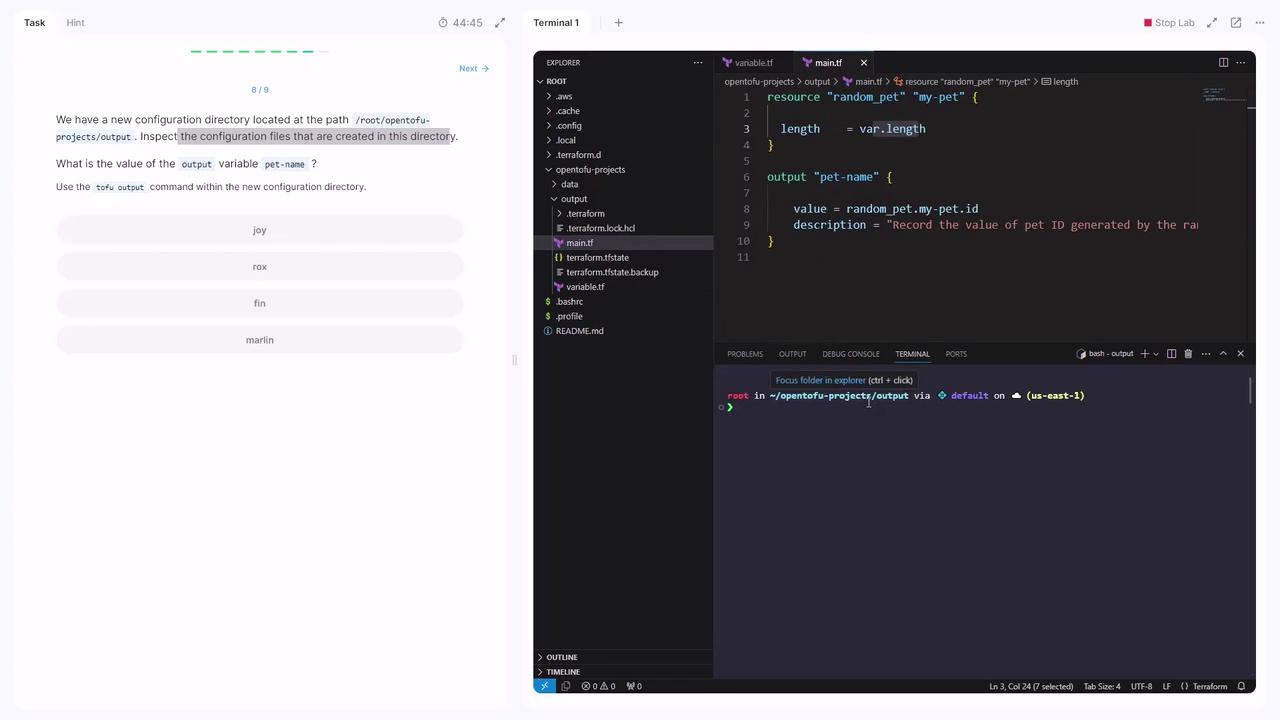
Confirm the output:
```bash theme={null}
tofu output pet-name
# => "marlin"
```
## 5. Adding a New Output Variable
The same `main.tf` defines a `local_file` resource:
```hcl theme={null}
resource "local_file" "welcome" {
filename = "/root/message.txt"
content = "Welcome to Kodekloud."
}
```
Add an output block below it to capture the file’s `content`:
```hcl theme={null}
output "welcome_message" {
value = local_file.welcome.content
}
```
Save your changes, then re-run the workflow:
```bash theme={null}
tofu init
tofu plan
tofu apply
# Type "yes" to confirm
```
Finally, verify the new output:
```bash theme={null}
tofu output welcome_message
# => "Welcome to Kodekloud."
```
Congratulations! You’ve successfully configured and managed OpenTofu output variables.