> ## Documentation Index
> Fetch the complete documentation index at: https://notes.kodekloud.com/llms.txt
> Use this file to discover all available pages before exploring further.
# Demo Remote State
> This tutorial teaches managing Terraform state locally and migrating it to a remote S3-compatible backend using MinIO.
Welcome to the OpenTofu Remote State lab! In this tutorial, you’ll learn how to manage Terraform state locally and then migrate it to a remote S3-compatible backend using MinIO. We’ll walk through creating local state, switching variables, configuring S3 backend, and migrating your state seamlessly.
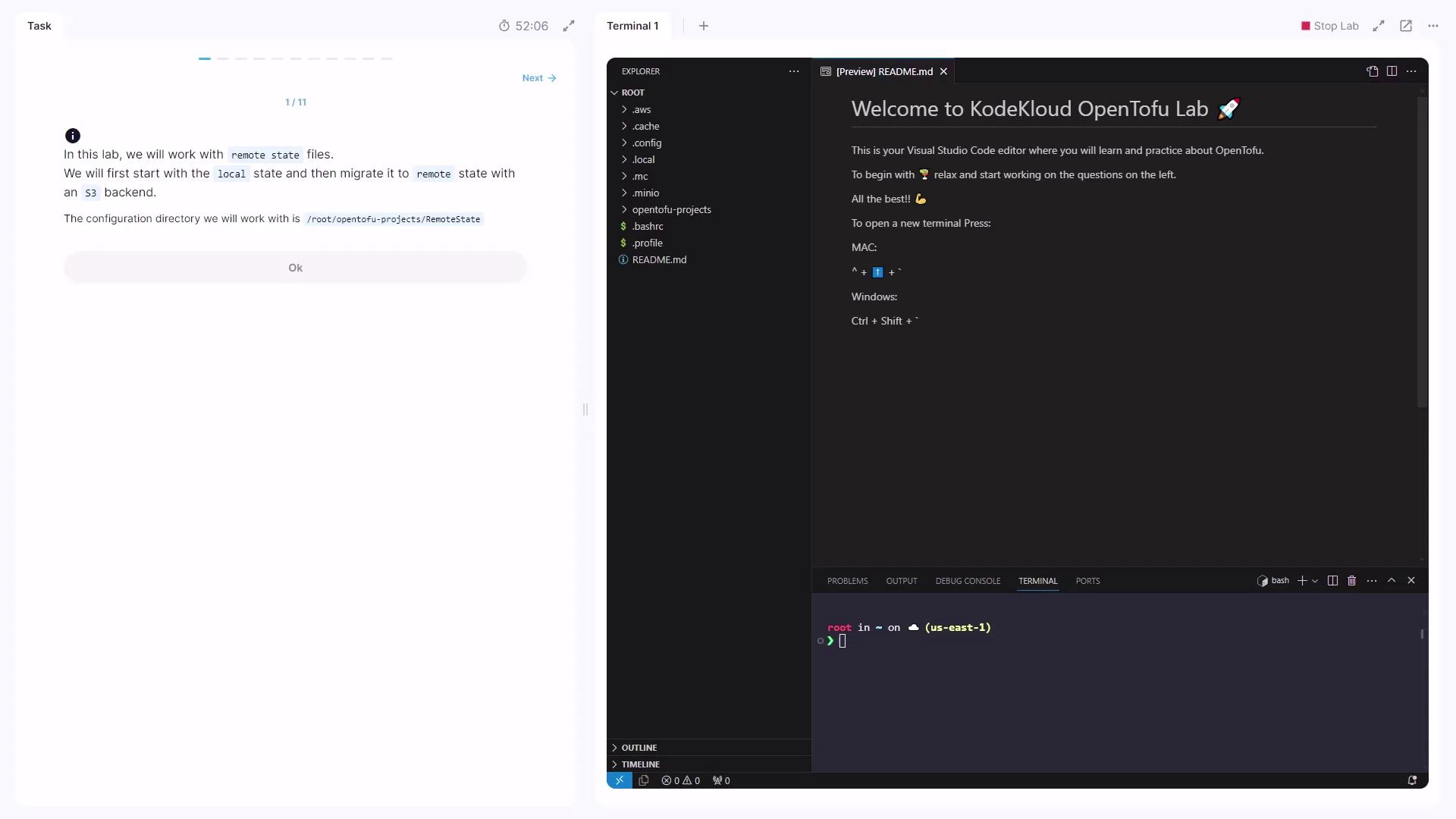
Your working directory is:
```text theme={null}
/root/OpenTofu/projects/remote_state
```
Open it in [Visual Studio Code](https://code.visualstudio.com/).
***
## 1. Define a Local File Resource
Create `main.tf` with a `local_file` resource that writes to a file based on a variable:
```hcl theme={null}
resource "local_file" "state" {
filename = "/root/${var.local_state}"
content = "This configuration uses ${var.local_state} state"
}
```
Declare the variables in `variables.tf`:
| Variable | Type | Default | Description |
| ------------------ | ------ | -------- | -------------------------------- |
| `var.local_state` | string | `local` | Filename when using local state |
| `var.remote_state` | string | `remote` | Filename when using remote state |
Initialize and review:
```bash theme={null}
cd /root/OpenTofu/projects/remote_state
tofu init
tofu plan
```
Apply the configuration:
```bash theme={null}
tofu apply
# Type "yes" at the prompt
```
Confirm the state file:
```bash theme={null}
ls -l
# terraform.tfstate main.tf variables.tf
```
***
## 2. Inspect the Local State Output
After `apply`, view the generated file:
```bash theme={null}
cat /root/local
# This configuration uses local state
```
***
## 3. Set Up MinIO and Identify the Bucket
We’ll use [MinIO](https://min.io/) as our S3-compatible object store. In your browser’s MinIO console, log in with:
* **Access Key**: `foo`
* **Secret Key**: `barbarbar`
Locate the `remote-state` bucket under **Object Browser**.
***
## 4. Switch to the Remote State Variable
Edit `main.tf` to use `var.remote_state`:
```hcl theme={null}
resource "local_file" "state" {
filename = "/root/${var.remote_state}"
content = "This configuration uses ${var.remote_state} state"
}
```
Re-plan and apply:
```bash theme={null}
tofu plan
tofu apply
# confirm with "yes"
```
This destroys `/root/local` and creates `/root/remote`.
***
## 5. Configure the S3 Backend
Create `terraform.tf` with the S3 backend block:
```hcl theme={null}
terraform {
backend "s3" {
bucket = "remote-state"
key = "terraform.tfstate"
region = "us-east-1"
}
}
```
When using MinIO, add these settings under the `s3` backend:
```text theme={null}
endpoint = "http://:"
access_key = "foo"
secret_key = "barbarbar"
```
**Do not** run `tofu init` yet.
***
## 6. Initialize the Backend and Migrate State
If you try to apply, you’ll see:
```plaintext theme={null}
Error: Backend initialization required, please run "tofu init"
```
Run:
```bash theme={null}
tofu init
```
You’ll be prompted:
```plaintext theme={null}
Pre-existing state was found while migrating the previous "local" backend
to the newly configured "s3" backend.
Do you want to copy this state to the new "s3" backend? Enter "yes" to copy...
Enter a value: yes
```
After migration, remove the local state:
```bash theme={null}
rm terraform.tfstate
```
Deleting the local `terraform.tfstate` is irreversible. Ensure the remote copy is present before removal.
***
## 7. Verify Remote State in MinIO
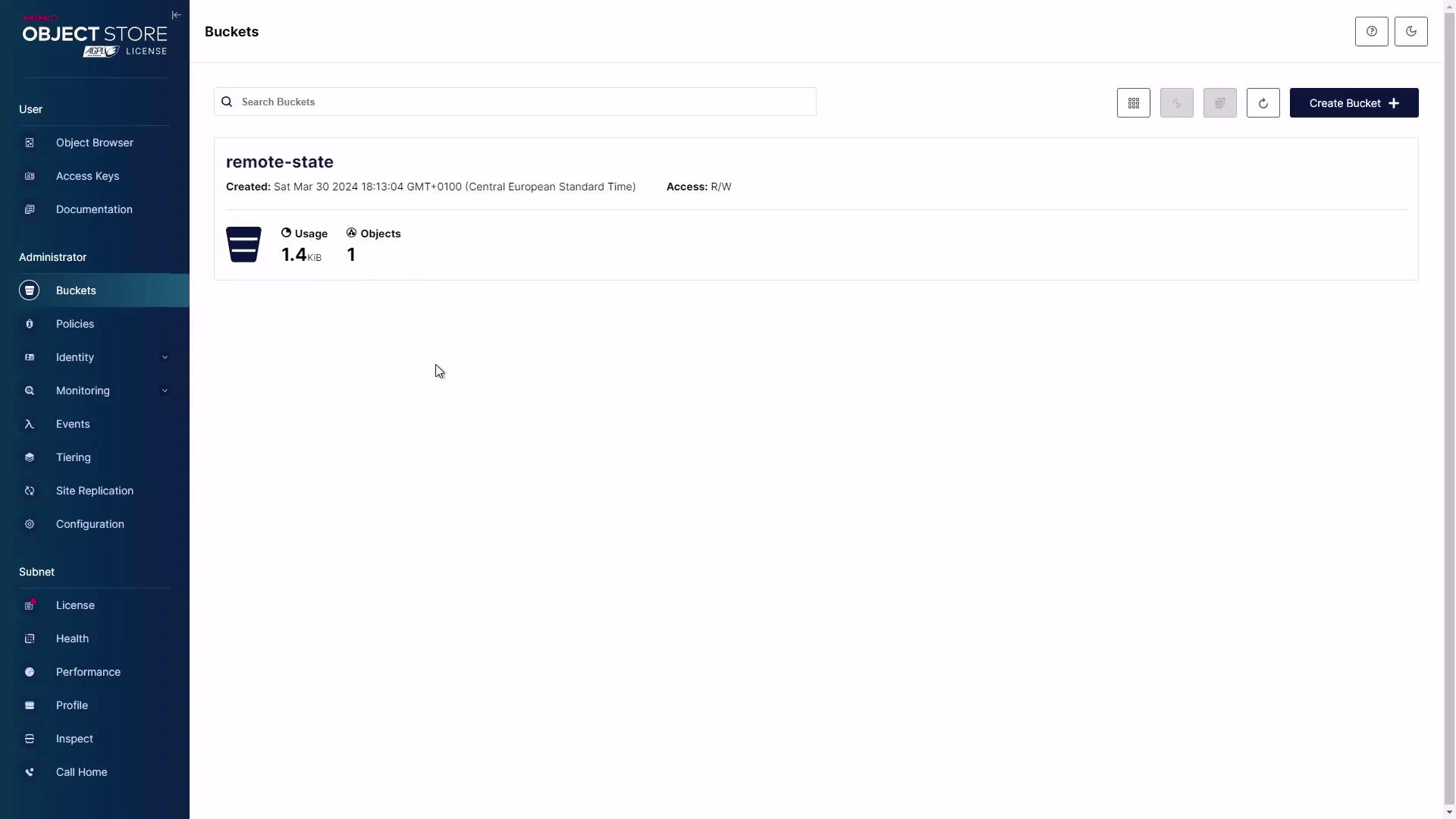
Go back to the MinIO console and open the `remote-state` bucket. You should see `terraform.tfstate` uploaded—confirming your remote backend is working.
***
## Links and References
* [OpenTofu Documentation](https://docs.opentofu.org/)
* [Terraform Remote State](https://developer.hashicorp.com/terraform/language/state/remote)
* [MinIO Quickstart Guide](https://docs.min.io/docs/minio-quickstart-guide.html)
* [AWS S3 Documentation](https://aws.amazon.com/s3/)