> ## Documentation Index
> Fetch the complete documentation index at: https://notes.kodekloud.com/llms.txt
> Use this file to discover all available pages before exploring further.
# File Management Part 1
> Explains files, folders, paths, mounting and common filesystems including FAT32, ExFAT, ext4, NTFS and journaling
We save files all the time — photos, screenshots, essays. But where do these files actually live? And what decides whether you or someone else can open them later?
This lesson explains two core concepts: files and file management. You'll learn where data is stored, how it's organized, and how the operating system (OS) enforces access. We'll cover:
* What a file and folder (directory) actually are
* Paths: absolute vs relative
* How the OS maps names to data (directory tables / metadata)
* Common file systems (FAT32, ExFAT, ext4, NTFS) and their tradeoffs
* Journaling, mounting, and practical choices for formatting drives
Think of the OS as a librarian: it doesn't just dump items on shelves — it catalogs them, places them in the right drawer, and controls who can read or write them.
 ## Basics: files, folders, and paths
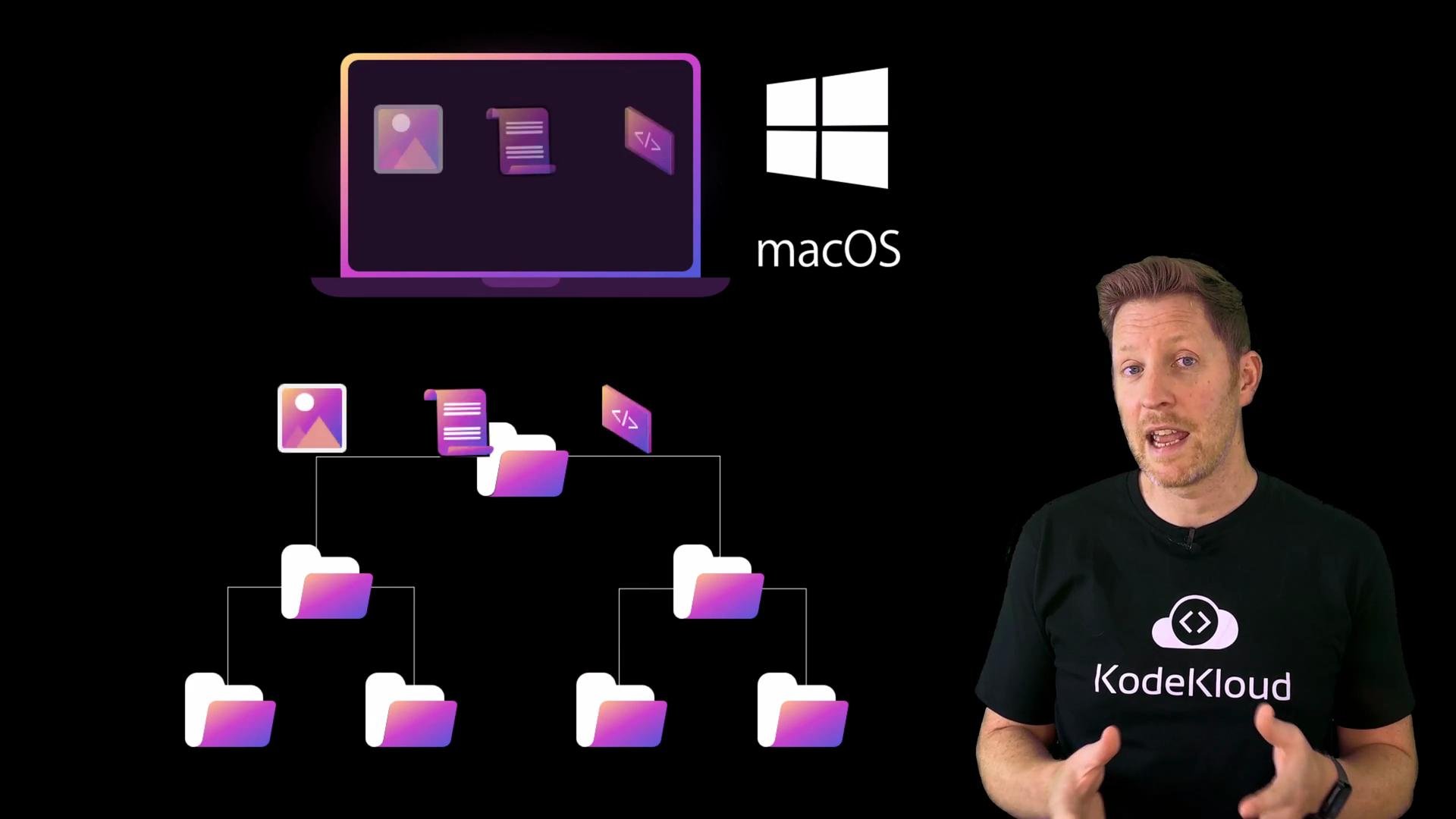
A file is a block of digital data — an image, document, executable, etc. Folders (directories) are entries in the OS’s directory table that group files into a hierarchical structure. At the very top is the root directory:
* Windows root example: `C:\`
* macOS / Linux root: `/`
From the root the OS builds a directory tree. A full (absolute) path shows exactly where a file lives. For example, a photo file:
* Absolute path:
```text theme={null}
/Users/alan/Pictures/kody.png
```
* Relative path (from `/Users/alan`):
```text theme={null}
Pictures/kody.png
```
Command-line examples (macOS / Linux style) demonstrate how you inspect the current location and list files:
```bash theme={null}
cd ~/Pictures
pwd
# Example output:
/Users/alan/Pictures
ls
# Example output:
Camera\ Roll Photo\ Booth\ Library kody.png Photos\ Library.photoslibrary
ls -l kody.png
# Example output:
-rw-------@ 1 alan staff 1210528 Jan 14 15:22 kody.png
```
The `ls -l` output shows important metadata: owner, permissions, size, and timestamps. Behind the scenes, the OS stores this metadata in internal records (directory tables or metadata entries) that map file names to where their data blocks live on storage.
## Basics: files, folders, and paths
A file is a block of digital data — an image, document, executable, etc. Folders (directories) are entries in the OS’s directory table that group files into a hierarchical structure. At the very top is the root directory:
* Windows root example: `C:\`
* macOS / Linux root: `/`
From the root the OS builds a directory tree. A full (absolute) path shows exactly where a file lives. For example, a photo file:
* Absolute path:
```text theme={null}
/Users/alan/Pictures/kody.png
```
* Relative path (from `/Users/alan`):
```text theme={null}
Pictures/kody.png
```
Command-line examples (macOS / Linux style) demonstrate how you inspect the current location and list files:
```bash theme={null}
cd ~/Pictures
pwd
# Example output:
/Users/alan/Pictures
ls
# Example output:
Camera\ Roll Photo\ Booth\ Library kody.png Photos\ Library.photoslibrary
ls -l kody.png
# Example output:
-rw-------@ 1 alan staff 1210528 Jan 14 15:22 kody.png
```
The `ls -l` output shows important metadata: owner, permissions, size, and timestamps. Behind the scenes, the OS stores this metadata in internal records (directory tables or metadata entries) that map file names to where their data blocks live on storage.
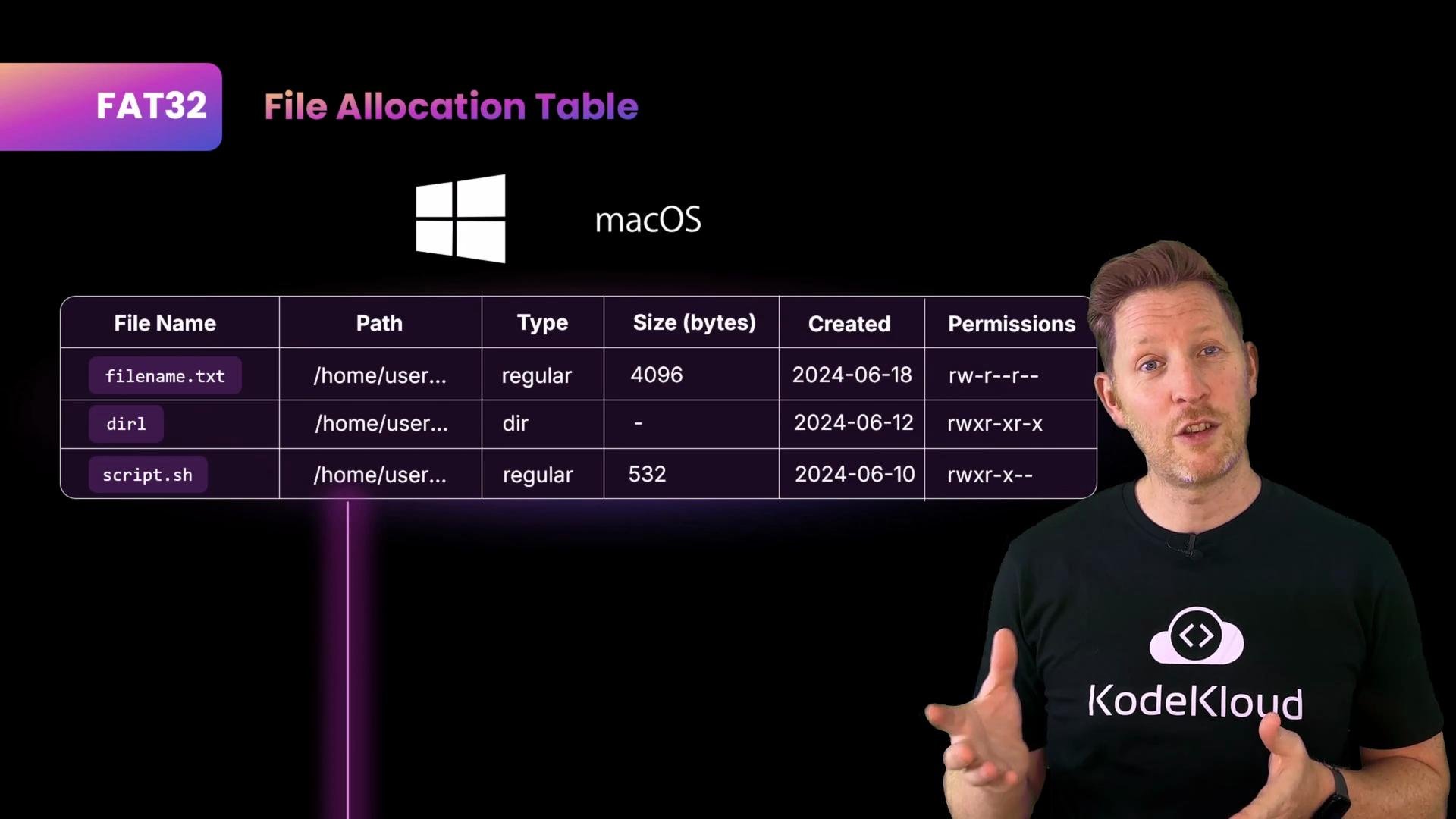
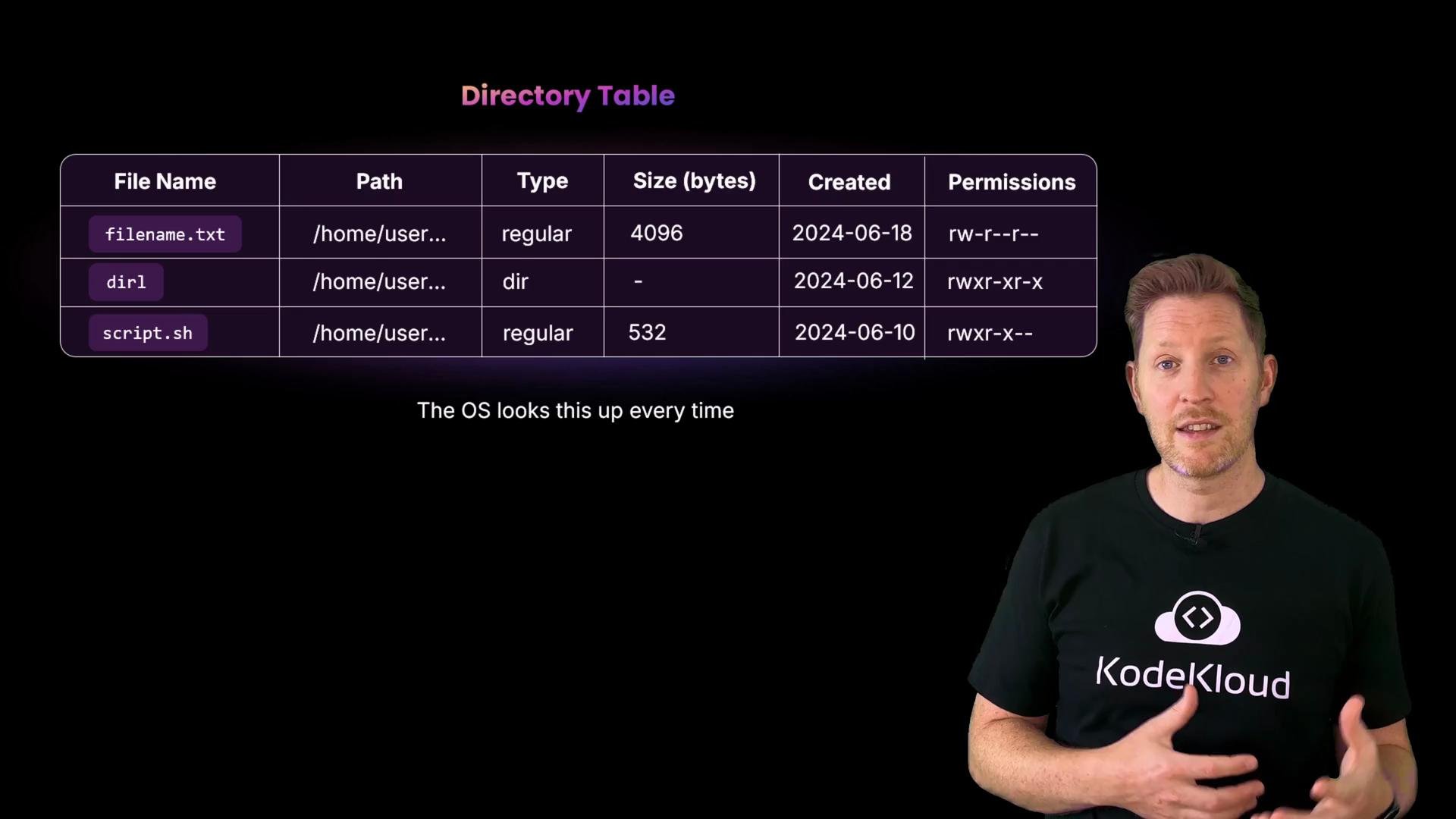 You normally see one row of this table at a time (a filename and its details), but the OS consults the full table to locate and open file data.
Example (simplified directory-table rows):
```text theme={null}
File Name | Path | Type | Size (bytes) | Created | Permissions
---------------------------------------------------------------------------------------
filename.txt | /home/user/... | regular | 4096 | 2024-06-18 | rw-r--r--
dir1 | /home/user/... | dir | - | 2024-06-12 | rwxr-xr-x
script.sh | /home/user/... | regular | 532 | 2024-06-10 | rwxr-x--
```
When you open a file, the OS looks up its directory entry, finds the disk blocks (or extents) that hold the file contents, and reads those blocks into memory for your application.
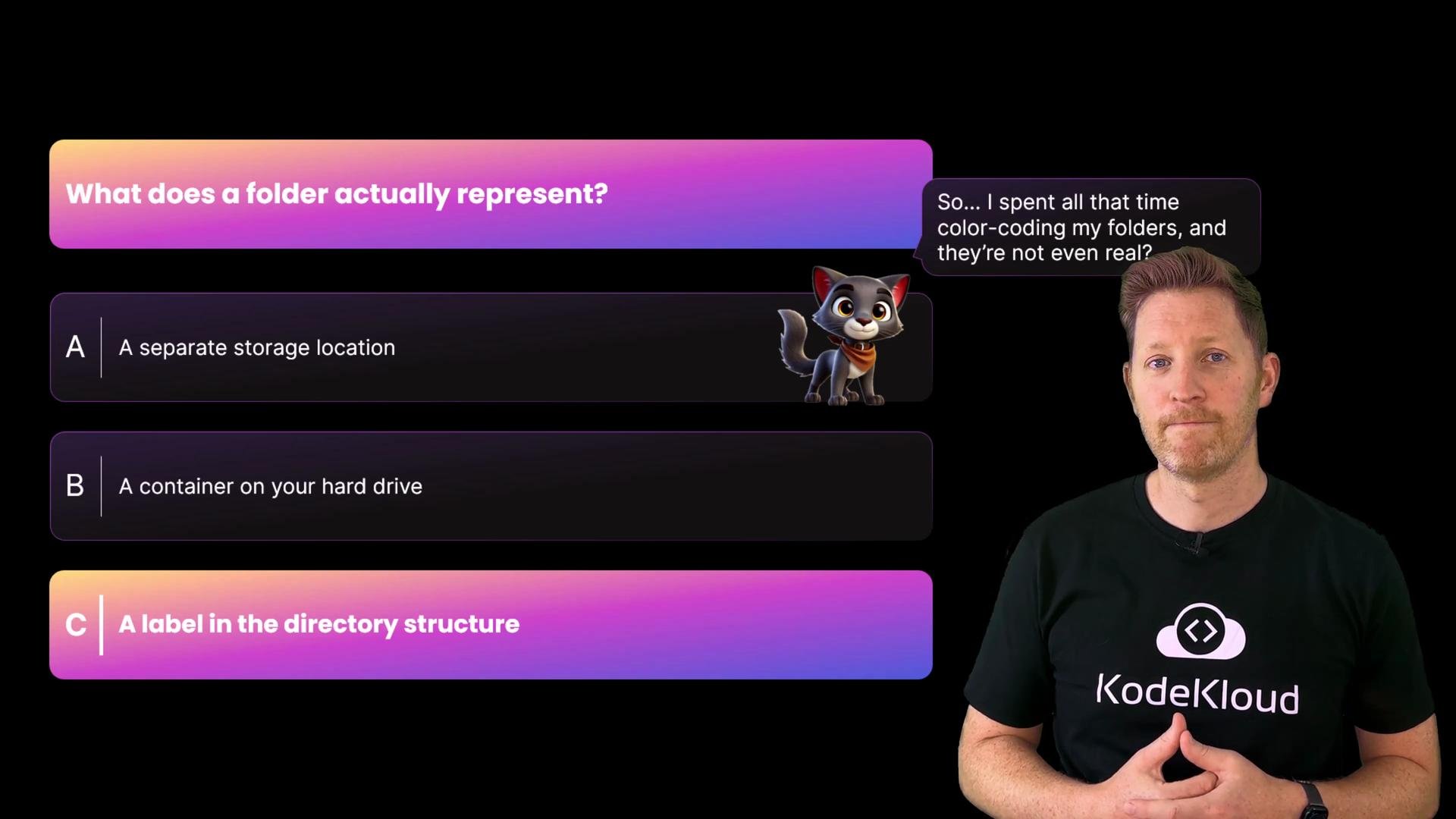
Quick quiz
What does a folder actually represent?
A) A separate storage location\
B) A physical container on the hard drive\
C) A label/entry in the directory table
Correct answer: C — folders are metadata the OS uses to organize files. The icons and colors you see in a file manager are visual aids; to the OS they are directory entries mapping names to storage locations.
You normally see one row of this table at a time (a filename and its details), but the OS consults the full table to locate and open file data.
Example (simplified directory-table rows):
```text theme={null}
File Name | Path | Type | Size (bytes) | Created | Permissions
---------------------------------------------------------------------------------------
filename.txt | /home/user/... | regular | 4096 | 2024-06-18 | rw-r--r--
dir1 | /home/user/... | dir | - | 2024-06-12 | rwxr-xr-x
script.sh | /home/user/... | regular | 532 | 2024-06-10 | rwxr-x--
```
When you open a file, the OS looks up its directory entry, finds the disk blocks (or extents) that hold the file contents, and reads those blocks into memory for your application.
Quick quiz
What does a folder actually represent?
A) A separate storage location\
B) A physical container on the hard drive\
C) A label/entry in the directory table
Correct answer: C — folders are metadata the OS uses to organize files. The icons and colors you see in a file manager are visual aids; to the OS they are directory entries mapping names to storage locations.
 ## File systems: the rule books for storage
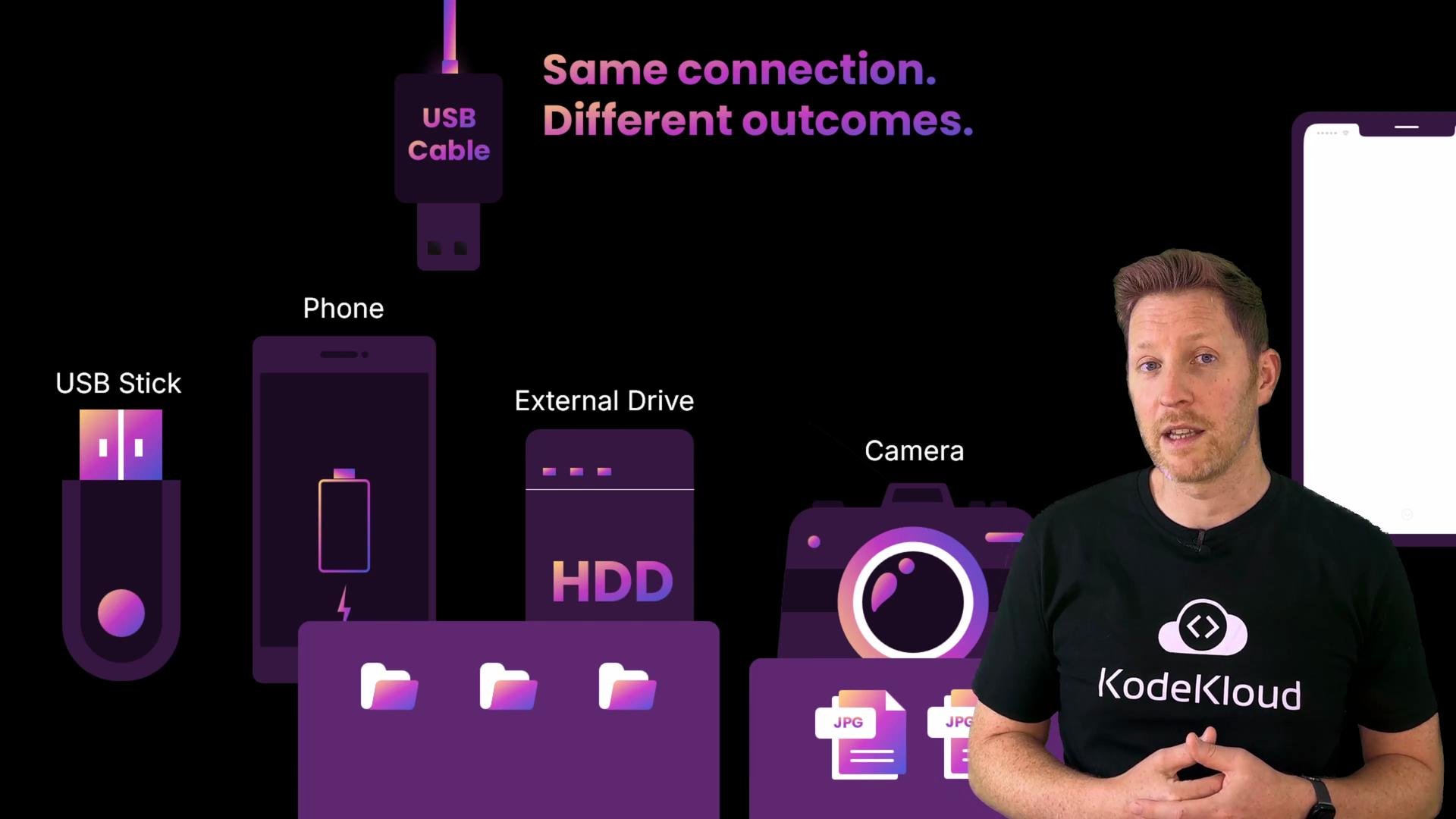
A file system defines the rules the OS uses to name files, place them on storage, and keep track of metadata (owner, permissions, timestamps). If your OS doesn’t understand the file system on a device, it can’t interpret the bits on that device — even when physically connected.
Common file systems differ in features, compatibility, and limits.
## File systems: the rule books for storage
A file system defines the rules the OS uses to name files, place them on storage, and keep track of metadata (owner, permissions, timestamps). If your OS doesn’t understand the file system on a device, it can’t interpret the bits on that device — even when physically connected.
Common file systems differ in features, compatibility, and limits.
 ### Major file systems: FAT32, ExFAT, ext4, NTFS
Below is a quick reference comparison to help choose the right file system for common tasks.
| File System | Typical use case | Pros | Cons |
| ----------- | ---------------------------------------------------- | ------------------------------------------------------------- | --------------------------------------------------------------------------------------- |
| FAT32 | USB sticks, SD cards for maximum compatibility | Very widely supported across devices and OSes | Max file size \~4 GB; limited partition sizes; no journaling or rich permissions |
| ExFAT | Large files on removable media (videos, disk images) | Supports files >4 GB; broad modern OS/device support | No journaling or rich permissions; slightly less ubiquitous than FAT32 on older devices |
| ext4 | Linux internal disks and servers | Journaling, speed, reliability, Linux-native features | Not natively supported on Windows/macOS without drivers |
| NTFS | Windows internal drives and advanced features | Permissions, encryption, journaling, resilient metadata (MFT) | macOS mounts read-only by default; incomplete support on other OSes without drivers |
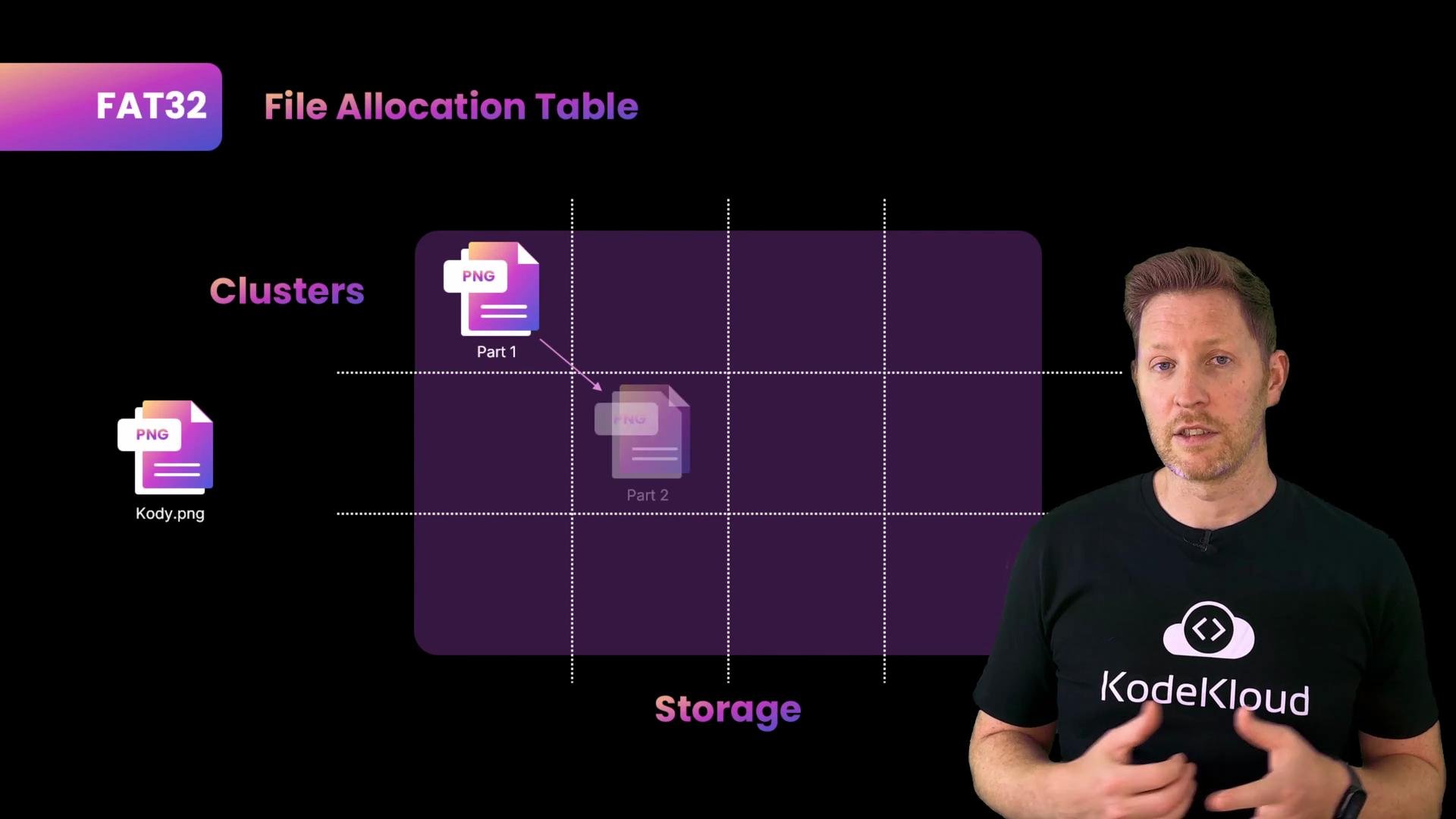
FAT32 (File Allocation Table)
* Breaks storage into clusters. Files may be stored in clusters that are not contiguous.
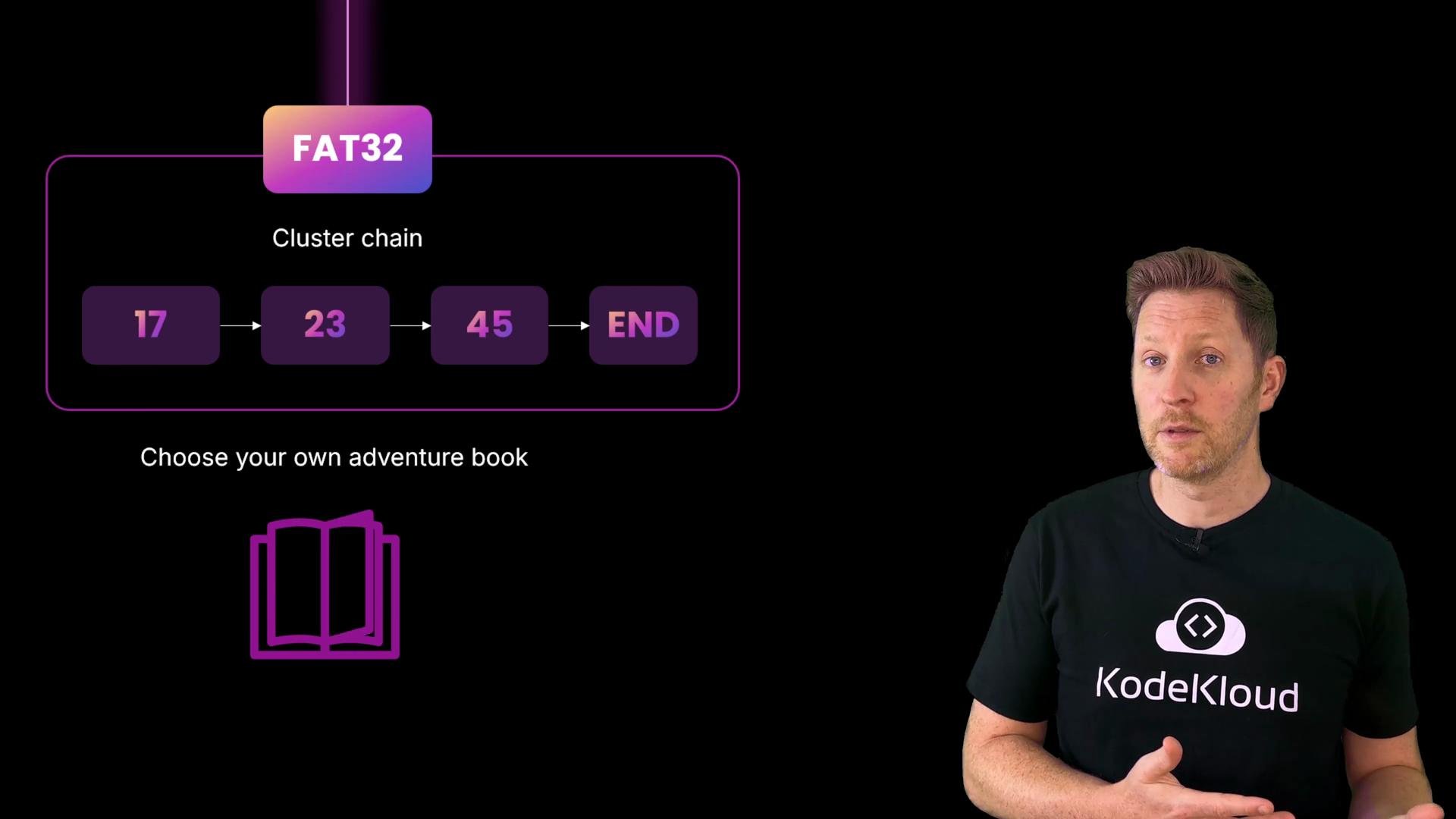
* Directory entries point to the starting cluster, and the FAT (a linked list table) is followed to find subsequent clusters (e.g., 17 → 23 → 45 → END).
* Simple and broadly compatible, but limited to \~4 GB per file.
### Major file systems: FAT32, ExFAT, ext4, NTFS
Below is a quick reference comparison to help choose the right file system for common tasks.
| File System | Typical use case | Pros | Cons |
| ----------- | ---------------------------------------------------- | ------------------------------------------------------------- | --------------------------------------------------------------------------------------- |
| FAT32 | USB sticks, SD cards for maximum compatibility | Very widely supported across devices and OSes | Max file size \~4 GB; limited partition sizes; no journaling or rich permissions |
| ExFAT | Large files on removable media (videos, disk images) | Supports files >4 GB; broad modern OS/device support | No journaling or rich permissions; slightly less ubiquitous than FAT32 on older devices |
| ext4 | Linux internal disks and servers | Journaling, speed, reliability, Linux-native features | Not natively supported on Windows/macOS without drivers |
| NTFS | Windows internal drives and advanced features | Permissions, encryption, journaling, resilient metadata (MFT) | macOS mounts read-only by default; incomplete support on other OSes without drivers |
FAT32 (File Allocation Table)
* Breaks storage into clusters. Files may be stored in clusters that are not contiguous.
* Directory entries point to the starting cluster, and the FAT (a linked list table) is followed to find subsequent clusters (e.g., 17 → 23 → 45 → END).
* Simple and broadly compatible, but limited to \~4 GB per file.
 FAT32 follows a cluster chain:
 ExFAT
* Designed to overcome FAT32’s file-size limit while remaining cross-platform.
* Ideal for large media files on removable drives.
* Does not provide the richer metadata features (permissions, journaling) found in modern internal filesystems.
ext4 (common on Linux)
* Uses inodes: each inode stores metadata and pointers to data blocks (with indirect pointers for large files).
* Supports journaling to reduce corruption risk after crashes.
* Performs well on Linux but requires additional tools or drivers to access natively on Windows/macOS.
ExFAT
* Designed to overcome FAT32’s file-size limit while remaining cross-platform.
* Ideal for large media files on removable drives.
* Does not provide the richer metadata features (permissions, journaling) found in modern internal filesystems.
ext4 (common on Linux)
* Uses inodes: each inode stores metadata and pointers to data blocks (with indirect pointers for large files).
* Supports journaling to reduce corruption risk after crashes.
* Performs well on Linux but requires additional tools or drivers to access natively on Windows/macOS.
 NTFS (Windows default)
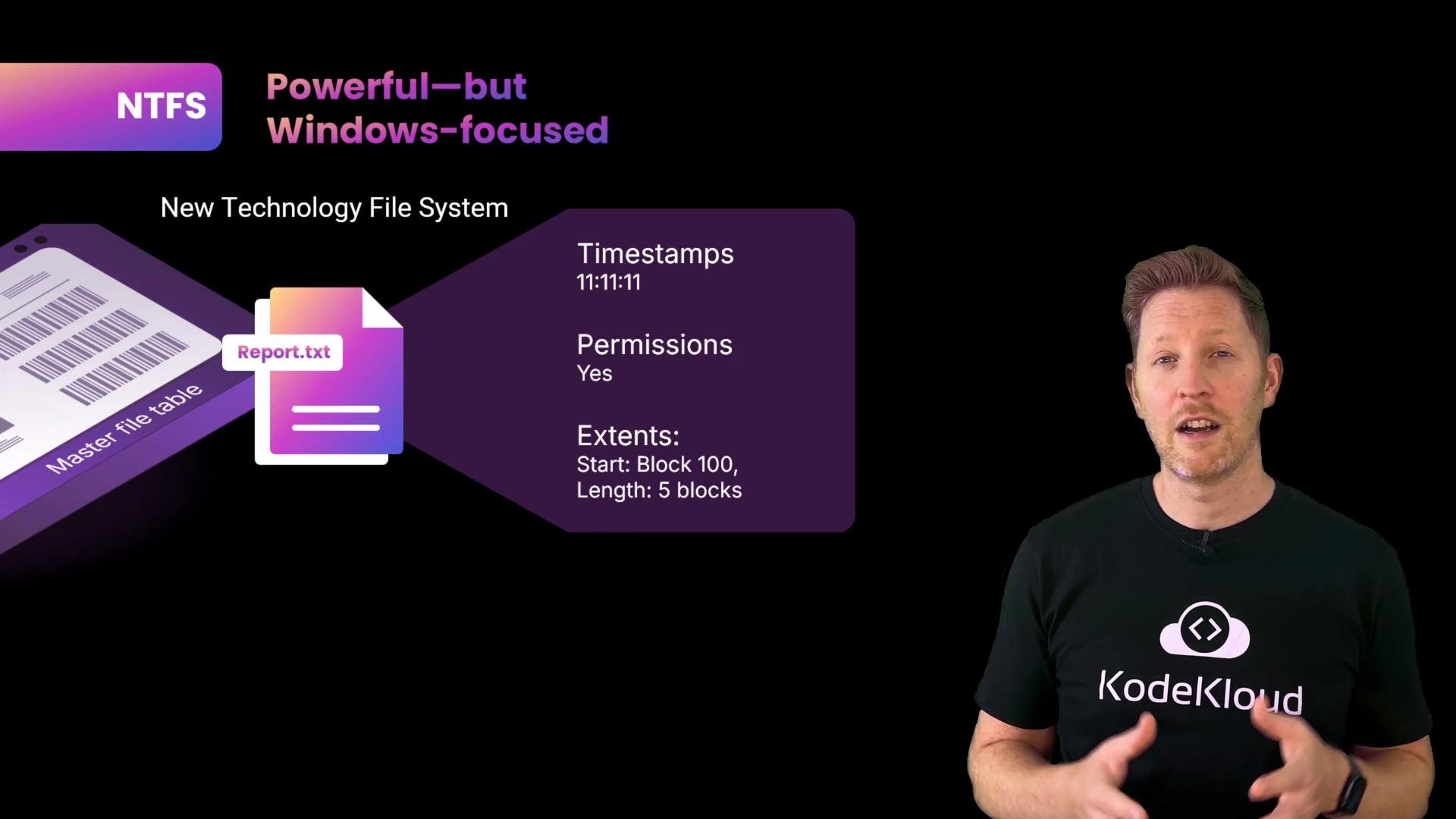
* Uses a Master File Table (MFT): a centralized index where each file’s name, metadata, and storage pointers are recorded.
* Provides advanced features: ACL-based permissions, encryption, compression, and journaling.
* Best for Windows system drives; other OSes may need extra drivers to write reliably.
NTFS (Windows default)
* Uses a Master File Table (MFT): a centralized index where each file’s name, metadata, and storage pointers are recorded.
* Provides advanced features: ACL-based permissions, encryption, compression, and journaling.
* Best for Windows system drives; other OSes may need extra drivers to write reliably.
 ### A short note on journaling
Journaling records pending filesystem operations (a short transaction log). After a crash, the OS replays or rolls back those journal entries to restore consistency, greatly reducing the chance of corruption and improving recovery time.
## Mounting: attaching a device into the directory tree
Even when the OS understands a file system, a device must be mounted to make its files part of the system’s directory tree. Until mounted, a device may only charge or show as an unrecognized format.
Typical mount points by OS:
* Linux/macOS example mount points:
```text theme={null}
/mnt/usb
/Volumes/USB
```
* Windows:
```text theme={null}
D:\
```
Mounting connects the device’s root into the OS directory tree so you can navigate it with the normal path hierarchy.
Formatting a disk erases its data. Always back up important files before reformatting or changing the filesystem on removable or internal drives.
## Quick decision guides
* Need to move a 10 GB video between macOS and Windows? Use `ExFAT`.
* Need rich permissions and journaling for a Linux server disk? Use `ext4`.
* Sharing tiny files with older cameras or very old devices? `FAT32` might still be required.
* Windows system drive or heavy use of ACLs/encryption? `NTFS`.
Final quiz
You're on a Mac and need to format a USB drive to hold a 10 GB video. Which file system should you choose?
A) FAT32\
B) ExFAT\
C) NTFS
Correct answer: B — ExFAT. FAT32 has a \~4 GB file-size limit. NTFS is typically read-only by default on macOS without extra drivers.
## Recap
* Files are blocks of data; folders are directory entries (metadata) used to organize them.
* Paths (absolute and relative) locate files within the directory tree.
* The OS maps filenames to storage locations using directory tables, inodes, or an MFT depending on the filesystem.
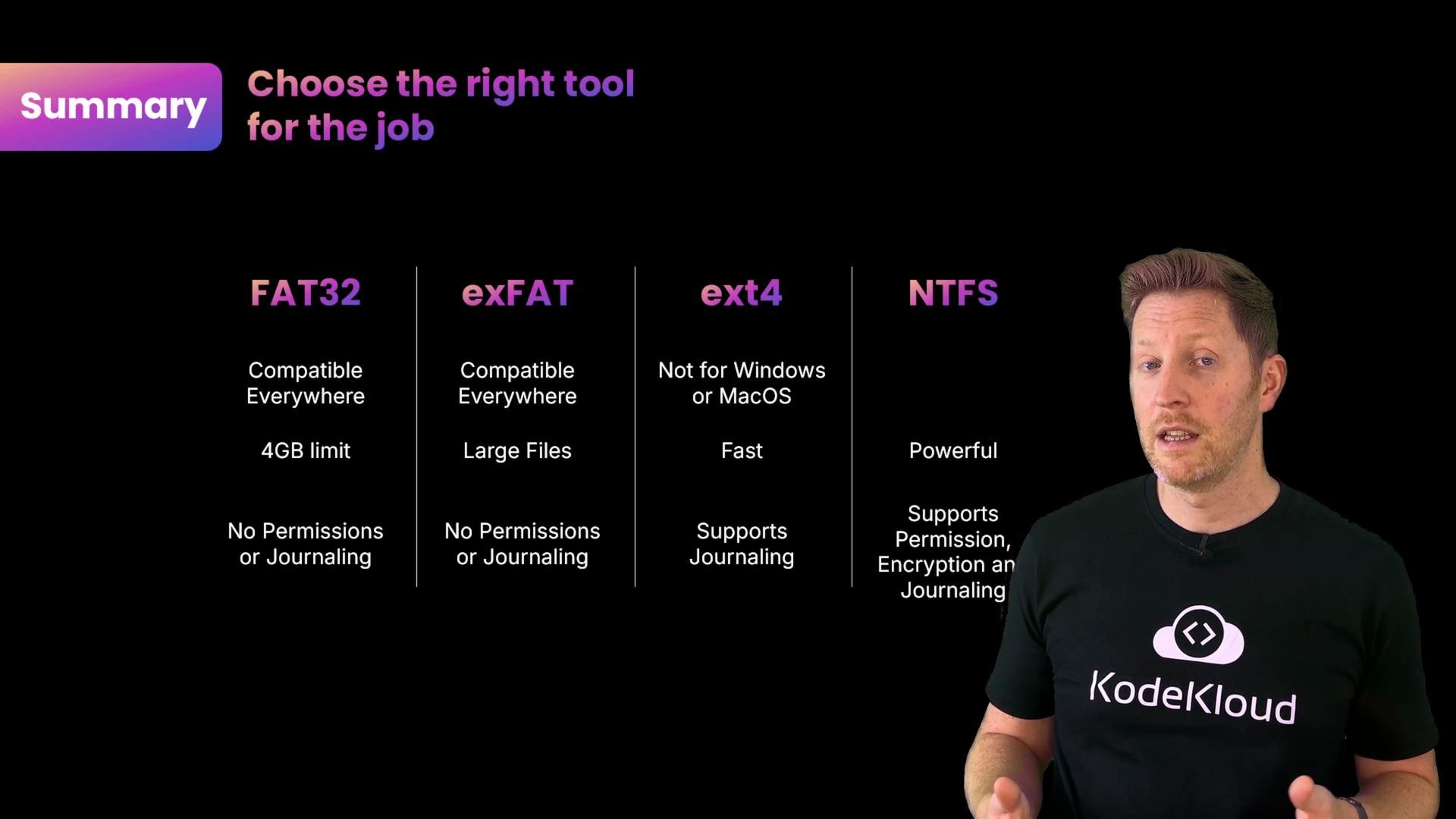
* Common filesystems (FAT32, ExFAT, ext4, NTFS) trade compatibility, maximum file size, permissions, and journaling differently — pick the right one for the job.
* Journaling improves crash recovery; mounting integrates a device’s filesystem into your directory tree so it’s accessible.
### A short note on journaling
Journaling records pending filesystem operations (a short transaction log). After a crash, the OS replays or rolls back those journal entries to restore consistency, greatly reducing the chance of corruption and improving recovery time.
## Mounting: attaching a device into the directory tree
Even when the OS understands a file system, a device must be mounted to make its files part of the system’s directory tree. Until mounted, a device may only charge or show as an unrecognized format.
Typical mount points by OS:
* Linux/macOS example mount points:
```text theme={null}
/mnt/usb
/Volumes/USB
```
* Windows:
```text theme={null}
D:\
```
Mounting connects the device’s root into the OS directory tree so you can navigate it with the normal path hierarchy.
Formatting a disk erases its data. Always back up important files before reformatting or changing the filesystem on removable or internal drives.
## Quick decision guides
* Need to move a 10 GB video between macOS and Windows? Use `ExFAT`.
* Need rich permissions and journaling for a Linux server disk? Use `ext4`.
* Sharing tiny files with older cameras or very old devices? `FAT32` might still be required.
* Windows system drive or heavy use of ACLs/encryption? `NTFS`.
Final quiz
You're on a Mac and need to format a USB drive to hold a 10 GB video. Which file system should you choose?
A) FAT32\
B) ExFAT\
C) NTFS
Correct answer: B — ExFAT. FAT32 has a \~4 GB file-size limit. NTFS is typically read-only by default on macOS without extra drivers.
## Recap
* Files are blocks of data; folders are directory entries (metadata) used to organize them.
* Paths (absolute and relative) locate files within the directory tree.
* The OS maps filenames to storage locations using directory tables, inodes, or an MFT depending on the filesystem.
* Common filesystems (FAT32, ExFAT, ext4, NTFS) trade compatibility, maximum file size, permissions, and journaling differently — pick the right one for the job.
* Journaling improves crash recovery; mounting integrates a device’s filesystem into your directory tree so it’s accessible.