> ## Documentation Index
> Fetch the complete documentation index at: https://notes.kodekloud.com/llms.txt
> Use this file to discover all available pages before exploring further.
# File Management Part 2
> Overview of Unix-like file permissions including roles, read write execute types, inspecting and changing permissions with ls and chmod, plus examples and summaries
Every file and folder on your system has permissions — rules that control who can access them and what actions they can perform. This article explains file permission roles and types on Unix-like systems, demonstrates how to inspect and change permissions, and summarizes the key concepts for quick reference.
## Who controls a file?
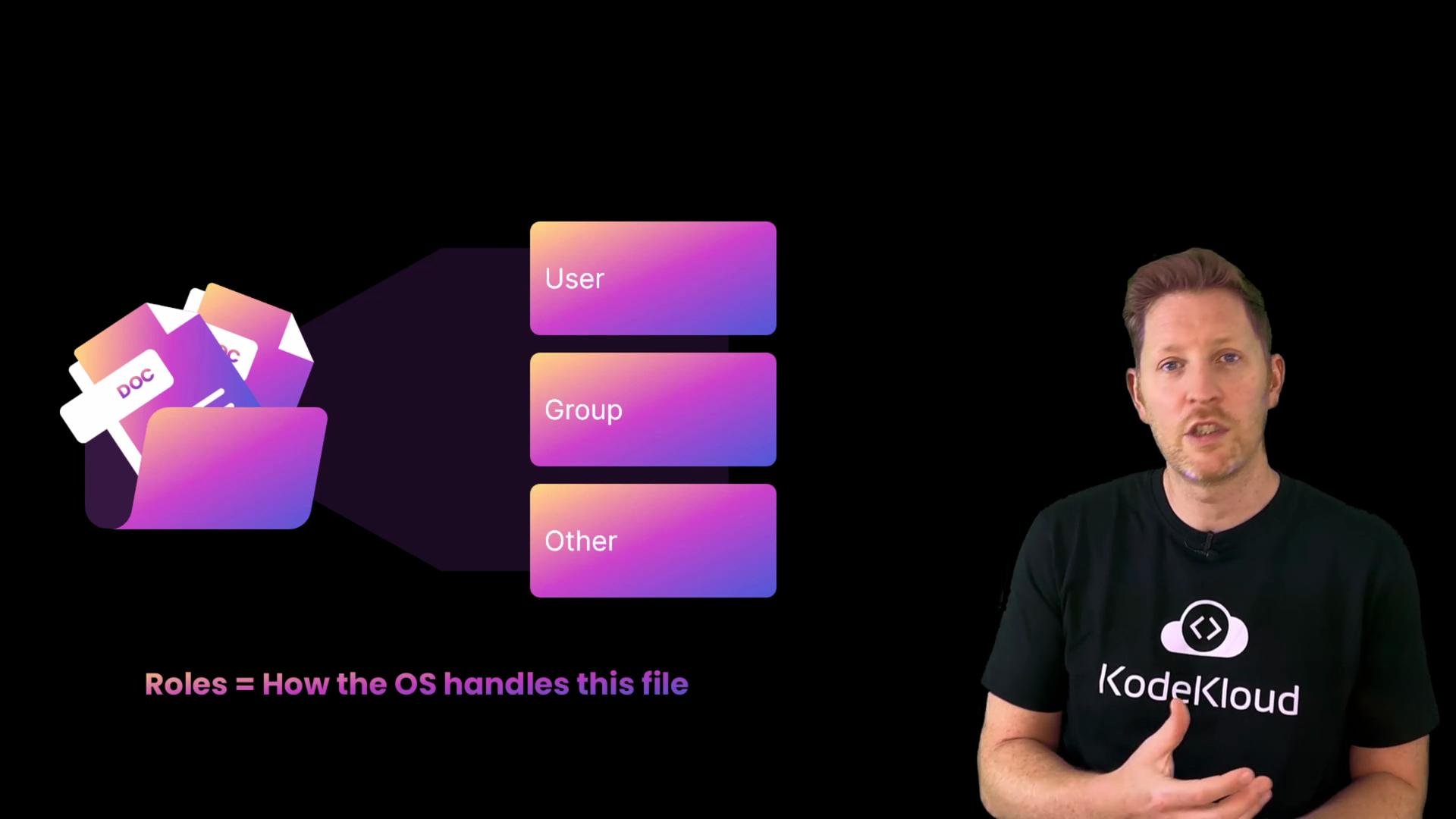
Earlier we covered different user account types: administrators (who can use elevated privileges), standard users (day-to-day accounts), and guests (limited access). The OS maps those accounts to roles for each file:
* user — the file's owner
* group — a set of users that share access
* other — everyone else on the system
 On Windows, permissions are typically handled with Access Control Lists (ACLs), which provide more granular control over individual accounts and groups. Across platforms, the general pattern holds: regular users control their own files, guests are restricted, and administrators (or root) can override restrictions when using elevated privileges (for example, using `sudo` on Unix-like systems).
## What types of permissions exist?
There are three basic permission types:
* Read (`r`): view the file contents
* Write (`w`): modify or delete the file
* Execute (`x`): run the file as a program or script
These three permissions apply separately to the three roles (user, group, other), producing nine permission bits in total. The common textual representation you see from `ls -l` is a ten-character string: the first character indicates file type and the next nine are the permission bits.
The first character in the `ls -l` string indicates the file type (for example, `-` for a regular file, `d` for a directory, `l` for a symlink). The following nine characters appear as three groups of `rwx` corresponding to user, group, and other.
Example permission string:
```text theme={null}
-rwxr-xr--
```
Breakdown:
* Characters 2–4 (`rwx`) — owner's permissions: read, write, execute
* Characters 5–7 (`r-x`) — group's permissions: read and execute (no write)
* Characters 8–10 (`r--`) — others' permissions: read only
If a permission is missing, it is shown as a dash (`-`).
## Permission letters and their numeric (octal) equivalents
Here's a quick mapping between the `rwx` letters and the octal values commonly used with `chmod`.
| Permission letters | Octal value | Description |
| ------------------ | ----------- | ---------------------------------- |
| `rwx` | `7` | read (4) + write (2) + execute (1) |
| `rw-` | `6` | read (4) + write (2) |
| `r-x` | `5` | read (4) + execute (1) |
| `r--` | `4` | read (4) only |
| `---` | `0` | no permissions |
You can set permissions with octal notation, for example `chmod 755 file` sets owner to `7` (`rwx`) and group/other to `5` (`r-x`).
## Quick demo — create a script and set execute permission
Follow this short demo to see permission behavior and how to add execute permission.
```bash theme={null}
# create the script
echo 'echo "Hello, Kody!"' > script.sh
# try to run it (will likely fail if execute bit is not set)
./script.sh
# Example shell output:
# inspect permissions
ls -l script.sh
# Example output:
# add execute permission for the file owner (user)
chmod u+x script.sh
# verify the permission changed
ls -l script.sh
# Example output:
# run the script again
./script.sh
# Output:
# Hello, Kody!
```
Tip: `chmod u+x` adds execute permission only for the file owner (user). `chmod +x` (without a qualifier) adds execute permission for user, group, and other.
Be careful when granting execute permission. Only mark trusted scripts or binaries as executable to avoid running untrusted code.
## Common commands summary
| Task | Command example | What it does |
| -------------------------------- | -------------------- | -------------------------------------------------- |
| List with permissions | `ls -l filename` | Shows file type and permission bits |
| Add execute for owner | `chmod u+x filename` | Adds execute permission for owner only |
| Add execute for all | `chmod +x filename` | Adds execute permission for user, group, and other |
| Set specific permissions (octal) | `chmod 755 filename` | Set owner `rwx`, group `r-x`, other `r-x` |
## Quick quiz
What does `chmod +x` do to a file?\
A) delete the file\
B) make the file executable\
C) change its name
Answer: B — it gives execute permission so the file can be run as a script or program.
## Recap
* Permission types are read (`r`), write (`w`), and execute (`x`).
* Permissions apply separately to user (owner), group, and other.
* The first character in `ls -l` shows file type; the next nine characters are the permission bits.
* Use `chmod` to change permission bits (for example, `chmod u+x` to add execute for the owner, or `chmod 755` to set octal permissions).
Next up: running another OS inside your current one — [Virtualization and Containers](https://learn.kodekloud.com/user/courses/virtualization-and-containers).
On Windows, permissions are typically handled with Access Control Lists (ACLs), which provide more granular control over individual accounts and groups. Across platforms, the general pattern holds: regular users control their own files, guests are restricted, and administrators (or root) can override restrictions when using elevated privileges (for example, using `sudo` on Unix-like systems).
## What types of permissions exist?
There are three basic permission types:
* Read (`r`): view the file contents
* Write (`w`): modify or delete the file
* Execute (`x`): run the file as a program or script
These three permissions apply separately to the three roles (user, group, other), producing nine permission bits in total. The common textual representation you see from `ls -l` is a ten-character string: the first character indicates file type and the next nine are the permission bits.
The first character in the `ls -l` string indicates the file type (for example, `-` for a regular file, `d` for a directory, `l` for a symlink). The following nine characters appear as three groups of `rwx` corresponding to user, group, and other.
Example permission string:
```text theme={null}
-rwxr-xr--
```
Breakdown:
* Characters 2–4 (`rwx`) — owner's permissions: read, write, execute
* Characters 5–7 (`r-x`) — group's permissions: read and execute (no write)
* Characters 8–10 (`r--`) — others' permissions: read only
If a permission is missing, it is shown as a dash (`-`).
## Permission letters and their numeric (octal) equivalents
Here's a quick mapping between the `rwx` letters and the octal values commonly used with `chmod`.
| Permission letters | Octal value | Description |
| ------------------ | ----------- | ---------------------------------- |
| `rwx` | `7` | read (4) + write (2) + execute (1) |
| `rw-` | `6` | read (4) + write (2) |
| `r-x` | `5` | read (4) + execute (1) |
| `r--` | `4` | read (4) only |
| `---` | `0` | no permissions |
You can set permissions with octal notation, for example `chmod 755 file` sets owner to `7` (`rwx`) and group/other to `5` (`r-x`).
## Quick demo — create a script and set execute permission
Follow this short demo to see permission behavior and how to add execute permission.
```bash theme={null}
# create the script
echo 'echo "Hello, Kody!"' > script.sh
# try to run it (will likely fail if execute bit is not set)
./script.sh
# Example shell output:
# inspect permissions
ls -l script.sh
# Example output:
# add execute permission for the file owner (user)
chmod u+x script.sh
# verify the permission changed
ls -l script.sh
# Example output:
# run the script again
./script.sh
# Output:
# Hello, Kody!
```
Tip: `chmod u+x` adds execute permission only for the file owner (user). `chmod +x` (without a qualifier) adds execute permission for user, group, and other.
Be careful when granting execute permission. Only mark trusted scripts or binaries as executable to avoid running untrusted code.
## Common commands summary
| Task | Command example | What it does |
| -------------------------------- | -------------------- | -------------------------------------------------- |
| List with permissions | `ls -l filename` | Shows file type and permission bits |
| Add execute for owner | `chmod u+x filename` | Adds execute permission for owner only |
| Add execute for all | `chmod +x filename` | Adds execute permission for user, group, and other |
| Set specific permissions (octal) | `chmod 755 filename` | Set owner `rwx`, group `r-x`, other `r-x` |
## Quick quiz
What does `chmod +x` do to a file?\
A) delete the file\
B) make the file executable\
C) change its name
Answer: B — it gives execute permission so the file can be run as a script or program.
## Recap
* Permission types are read (`r`), write (`w`), and execute (`x`).
* Permissions apply separately to user (owner), group, and other.
* The first character in `ls -l` shows file type; the next nine characters are the permission bits.
* Use `chmod` to change permission bits (for example, `chmod u+x` to add execute for the owner, or `chmod 755` to set octal permissions).
Next up: running another OS inside your current one — [Virtualization and Containers](https://learn.kodekloud.com/user/courses/virtualization-and-containers).