> ## Documentation Index
> Fetch the complete documentation index at: https://notes.kodekloud.com/llms.txt
> Use this file to discover all available pages before exploring further.
# Introduction to Modules in Python
> This article explains how to use modules in Python for organizing code, focusing on importing and utilizing the built-in math module.
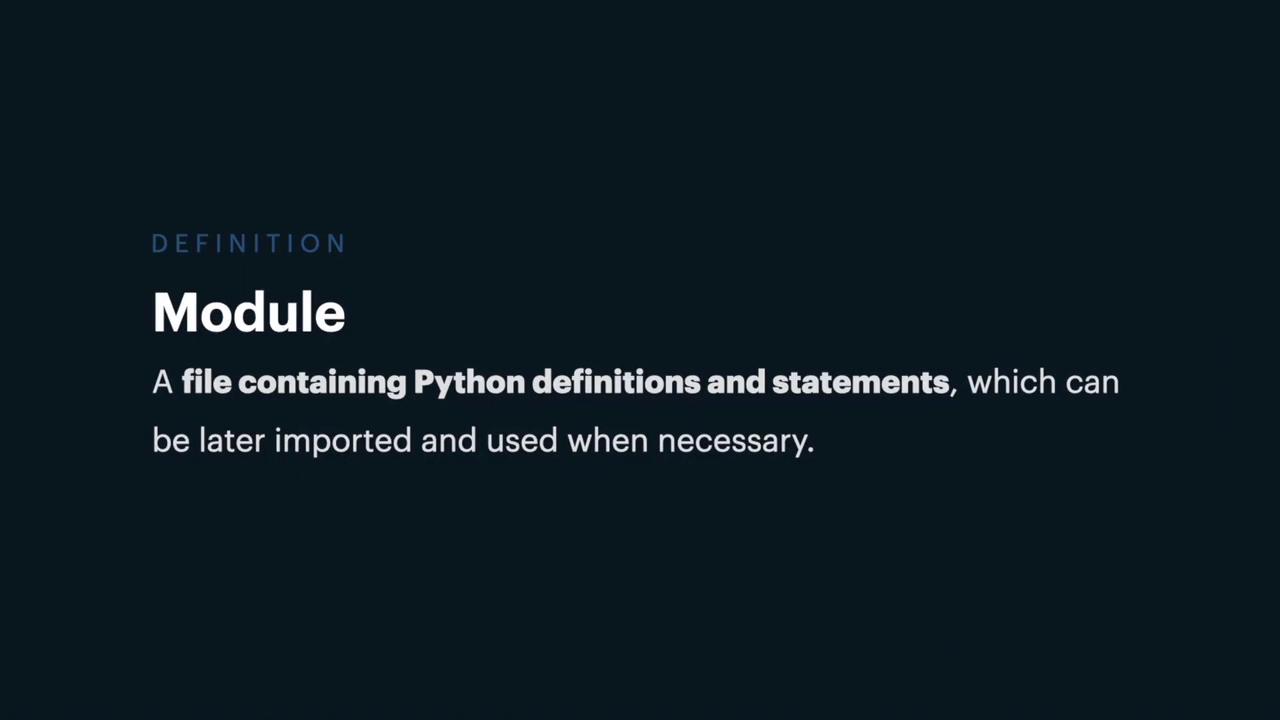
Modules in Python let you organize your code into manageable, reusable parts. A module is simply a file containing Python definitions and statements that can be imported and used in other programs.
You can create your own module, use one developed by someone else, or leverage one of the built-in modules included in the Python Standard Library. In this article, we're focusing on the built-in math module, which provides a variety of functions and constants to perform mathematical operations effectively.
## Importing a Module
To access functions and constants from the math module, you must first import it into your Python script using the `import` keyword. Although the import statement can be placed anywhere in your code, it must appear before you use any functions or variables from the module. Here's how to import and use the math module:
```python theme={null}
import math
print(math.sin(90))
print(math.pi)
```
Remember that the `math.sin` function expects the angle in radians. To compute the sine of 90 degrees, convert the angle using `math.radians`, like so: `math.sin(math.radians(90))`.
In the code above, both `sin` and `pi` are referenced via the `math` namespace, which keeps them separate from your program’s global namespace to avoid any naming conflicts.
## Importing Specific Entities from a Module
If you prefer to avoid using the module prefix each time you call a function or access a constant, you can import specific entities directly into your namespace using the `from` keyword. For example, to import only `pi`:
```python theme={null}
from math import pi
```
This approach adds only `pi` to your namespace. To use other functions like `sin`, you must import them explicitly. You can also import multiple entities by listing them separated by commas:
```python theme={null}
from math import pi, sin
print(pi)
print(sin(90))
```
While this method may make your code look cleaner, it can also increase the risk of naming conflicts if a variable or function with the same name already exists in your program.
## Importing All Entities
Another approach is to import all the names from a module using an asterisk (`*`). This allows you to use the module’s entities without the module name prefix:
```python theme={null}
from math import *
print(pi)
print(sin(90))
```
However, importing everything can lead to name conflicts if your code defines names that clash with those from the math module. It is generally recommended to import only what you need.
## Using Aliases to Avoid Naming Conflicts
If a module's name or an imported entity conflicts with an existing name in your code, or if you prefer a shorter name for ease of use, you can assign an alias using the `as` keyword. For example:
```python theme={null}
import math as m
print(m.pi)
print(m.sin(90))
```
Similarly, you can alias specific entities:
```python theme={null}
from math import pi as p, sin as s
print(p)
print(s(90))
```
With aliasing, you ensure your code remains clear and free from naming conflicts while providing a convenient reference to the module's contents.
That's it for this introduction to modules in Python. Happy coding, and see you in the next lesson!