> ## Documentation Index
> Fetch the complete documentation index at: https://notes.kodekloud.com/llms.txt
> Use this file to discover all available pages before exploring further.
# User Defined Modules
> Learn to create and use Python modules, enhancing code organization and reusability across projects.
In this article, you'll learn how to create and use your own Python modules in addition to the built-in ones. A module in Python is a container for functions, variables, and other code that you can reuse across your projects. When you have multiple modules, you can group them into a package for better organization.
## Creating a Simple Module
Begin by creating a file named `module.py` with the following content:
```python theme={null}
# module.py
print("I like to be a module")
```
When you import this module in your `main.py` file, the print statement in `module.py` executes immediately:
```python theme={null}
# main.py
import module
```
The output will be:
```text theme={null}
I like to be a module
```
This behavior occurs because Python executes the module’s code during the import process. Module initialization happens only once—even if multiple modules import the same module, Python initializes it just once.
## The **name** Variable
Every Python module comes with an extra variable called `__name__` that indicates how the module is being used. If you run `module.py` directly, `__name__` is set to `"__main__"`. However, when you import `module.py` from another file (like `main.py`), `__name__` retains the module's file name (e.g., `"module"`).
Consider the following example:
```python theme={null}
# module2.py
print(__name__)
if __name__ == "__main__":
print("I am not in a module")
```
When executed directly:
```Python theme={null}
$ python module2.py
__main__
I am not in a module
```
When imported from another file:
```text theme={null}
$ python main.py
module2
```
This mechanism allows you to write test code inside the module (protected by an `if __name__ == "__main__":` block) that only runs when executed directly, and not when imported.
## Creating a More Functional Module
Let’s enhance `module.py` by adding a variable and a function. This example illustrates how to define a variable named `counter` accessible via dot notation when the module is imported, and also how to designate private variables by prefixing names with an underscore.
Below is an updated version of `module.py`:
```python theme={null}
#!/usr/bin/env python3
''' module.py - an example of a Python module '''
__counter = 0
def get_sum(numbers):
global __counter
total = 0
for element in numbers:
__counter += 1
total += element
return total
if __name__ == "__main__":
print("I prefer to be a module, but I can do some tests for you.")
nums = [i + 1 for i in range(5)]
print(get_sum(nums) == 15)
```
The shebang (`#!/usr/bin/env python3`) ensures compatibility on Unix-like systems. The `if __name__ == "__main__":` block runs test code only when the module is executed as a standalone script.
To use this module in your main application, you can write:
```python theme={null}
#!/usr/bin/env python3
from module import get_sum
zeroes = [0 for _ in range(5)]
ones = [1 for _ in range(5)]
print(get_sum(zeroes))
print(get_sum(ones))
```
The expected output is:
```Python theme={null}
0
5
```
## Understanding Module Search Paths
When you import a module, Python looks for it in a list of predefined directories stored in `sys.path`. This list includes the current working directory, site-packages, and other Python-specific paths.
You can inspect the module search path with this code:
```python theme={null}
#!/usr/bin/env python3
import sys
for p in sys.path:
print(p)
```
For example, the output may resemble:
```Python theme={null}
/home/runner/PeachpuffAmusedLoaderpi
/opt/virtualenvs/python3/lib/python3.8/site-packages
/usr/lib/python3.8.zip
/usr/lib/python3.8
/usr/lib/python3.8/lib-dynload
```
Python also supports importing modules from zip files, treating them like directories.
## Importing Modules from a Custom Directory
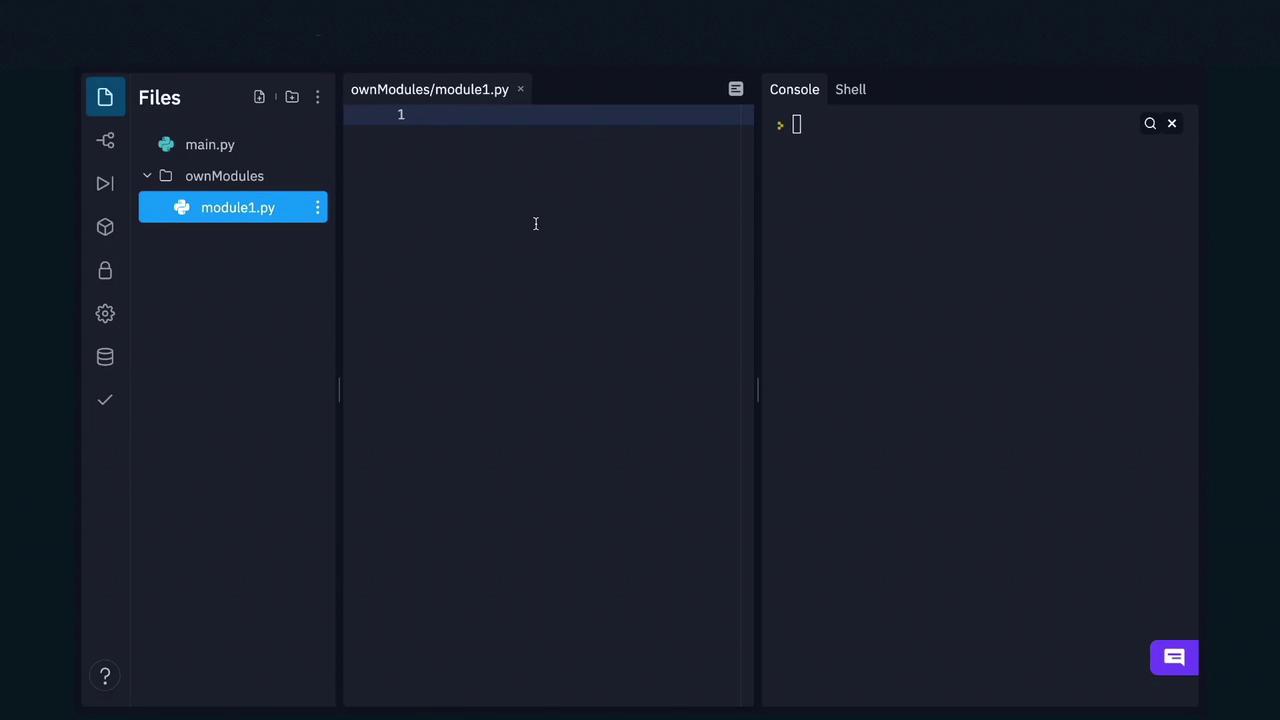
Suppose you have a directory named `ownModules` that contains a module called `module1.py` with the following content:
```Python theme={null}
I am in module 1
```
Note: Although many development environments show a file explorer with project files like `module1.py`, the functionality of module importation does not depend on the visual layout of your project.
To instruct Python to look in this directory, append its path to `sys.path`:
```python theme={null}
#!/usr/bin/env python3
from sys import path
path.append('ownModules')
from ownModules import module1
```
Executing the code above will produce:
```Python theme={null}
I am in module 1
```
## Creating and Using Packages
As your application grows, it’s beneficial to organize related modules into packages. A package is a directory hierarchy containing modules, where the `__init__.py` file is executed when a module from the package is imported. This can be used to initialize package-level variables or to automatically import submodules.
For instance, consider a package with a submodule for basic arithmetic operations. You can import a function from a submodule using its fully qualified name:
```python theme={null}
#!/usr/bin/env python3
from sys import path
path.append('packages')
from science.basic.methods import add
print(add(1, 2))
```
The output will be:
```Python theme={null}
3
```
Alternatively, if your package is distributed as a zip file, you can include it in the module search path like this:
```python theme={null}
#!/usr/bin/env python3
from sys import path
path.append('packages/science.zip')
from science.basic.methods import add
print(add(1, 2))
```
## Conclusion
This article has covered the essentials of creating user-defined modules and packages in Python. You now understand how to:
* Create a simple module and observe its execution during import.
* Use the `__name__` variable to control code execution.
* Enhance modules by adding functions and encapsulated variables.
* Inspect and manipulate the module search path.
* Organize modules into packages for a scalable project structure.
To further solidify your understanding, experiment with these examples and consider integrating them into your own projects.