> ## Documentation Index
> Fetch the complete documentation index at: https://notes.kodekloud.com/llms.txt
> Use this file to discover all available pages before exploring further.
# Demo Rolling vs Recreate
> Demonstrates Kubernetes Deployment RollingUpdate versus Recreate strategies by upgrading a sample app to show how rolling updates preserve availability while Recreate causes downtime
In this hands-on demo you'll see the practical difference between the RollingUpdate and Recreate deployment strategies in Kubernetes. We'll deploy a small HTTP app that returns its version (v1 or v2) and observe behavior during an upgrade. This shows how each strategy affects availability and rollout behavior.
What you'll learn:
* How to deploy a simple Deployment and Service
* How RollingUpdate preserves availability during updates
* How Recreate causes downtime by terminating all pods before creating new ones
Deployment manifest (patterns/release/deployment.yaml)
```yaml theme={null}
apiVersion: apps/v1
kind: Deployment
metadata:
name: app
labels:
app: app-demo
spec:
replicas: 5
selector:
matchLabels:
app: app-demo
template:
metadata:
labels:
app: app-demo
spec:
containers:
- name: app
image: siddharth67/app:v1
imagePullPolicy: IfNotPresent
ports:
- containerPort: 3311
```
Note: The manifest above omits a `strategy` section. Kubernetes defaults to the RollingUpdate strategy when `strategy` is not specified.
If you require zero-downtime updates, RollingUpdate is the default and preferred choice. The Recreate strategy will terminate all existing pods before creating new ones, which causes an interruption in service.
## 1) Clone the repo and apply resources
Run the commands below to prepare the demo namespace and apply the manifests:
```bash theme={null}
# Clone the demos repo
git clone http://localhost:5000/kk-org/cgoa-demos
cd cgoa-demos/patterns/release
# Create namespace and apply deployment + service
kubectl create ns rolling-recreate
kubectl -n rolling-recreate apply -f .
```
Verify the resources were created:
```bash theme={null}
kubectl -n rolling-recreate get all
```
Example output:
```bash theme={null}
NAME READY STATUS RESTARTS AGE
pod/app-8455fbd799-6xwx4 1/1 Running 0 9s
pod/app-8455fbd799-7qzmr 1/1 Running 0 9s
pod/app-8455fbd799-8vmj8 1/1 Running 0 9s
pod/app-8455fbd799-mjphc 1/1 Running 0 9s
pod/app-8455fbd799-nrc9f 1/1 Running 0 9s
NAME TYPE CLUSTER-IP EXTERNAL-IP PORT(S) AGE
service/app-service NodePort 10.106.209.30 80:32431/TCP 9s
NAME READY UP-TO-DATE AVAILABLE AGE
deployment.apps/app 5/5 5 5 9s
```
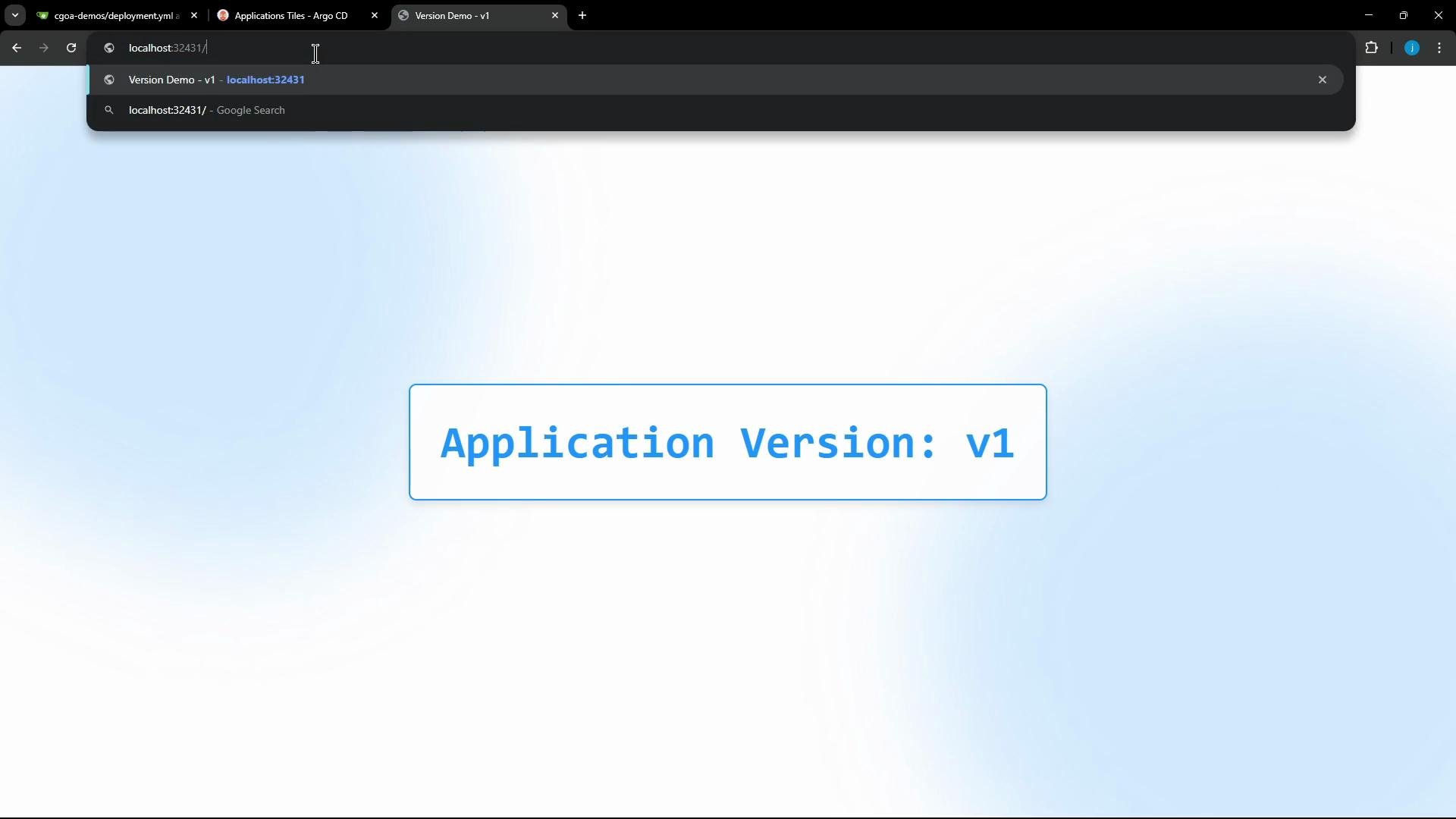
The app exposes a simple endpoint (/app) that returns the version string:
 ## 2) Poll the endpoint continuously to observe updates
Use the following shell loop to poll the NodePort and colorize v1 / v2 responses. Replace the NodePort (32431) if yours differs.
```bash theme={null}
while true; do
echo -n "$(date '+%H:%M:%S') - "
curl -s --max-time 1 http://localhost:32431/app 2>/dev/null | \
awk '{
if (/^Application Version:/) {
if ($0 ~ /v1/) print "\033[34m" $0 "\033[0m";
else if ($0 ~ /v2/) print "\033[33m" $0 "\033[0m";
else print $0;
} else {
print "\033[31mERROR: Service unreachable\033[0m"
}
}'
sleep 1
done
```
Leave the loop running in a terminal. This will make the effect of each update immediately visible.
## 3) Rolling update (no downtime)
Because RollingUpdate is the default strategy, updating the Deployment image will perform a rolling upgrade: new pods are created and traffic shifts gradually from old pods to new pods.
Update the image to v2 using kubectl set image:
```bash theme={null}
kubectl -n rolling-recreate set image deployment/app app=siddharth67/app:v2
```
kubectl will respond:
```bash theme={null}
deployment.apps/app image updated
```
Sample polling output (shows continuous responses transitioning from v1 to v2 without downtime):
```bash theme={null}
16:34:14 - Application Version: v1
16:34:15 - Application Version: v1
...
16:34:32 - Application Version: v2
16:34:33 - Application Version: v2
...
```
Explanation: RollingUpdate creates new pods running v2 while terminating old v1 pods in a controlled manner, maintaining service availability during the rollout.
## 4) Recreate strategy (introduce downtime)
To demonstrate downtime, change the Deployment strategy to Recreate. Edit the deployment:
```bash theme={null}
kubectl -n rolling-recreate edit deployment app
```
Add or modify the `strategy` section in the `spec`:
```yaml theme={null}
strategy:
type: Recreate
```
Save the edit. Confirm the deployment now uses Recreate:
```bash theme={null}
kubectl -n rolling-recreate get deploy app -o yaml
```
You should see:
```yaml theme={null}
spec:
replicas: 5
strategy:
type: Recreate
```
Now update the image again (flip it back to v1 to see downtime):
```bash theme={null}
kubectl -n rolling-recreate set image deployment/app app=siddharth67/app:v1
```
kubectl will report:
```bash theme={null}
deployment.apps/app image updated
```
Behavior: With Recreate, Kubernetes terminates all existing pods immediately and only then creates the new pods. During the gap between pod termination and the new pods becoming Ready, the Service has no ready endpoints and will return timeouts or errors.
Example polling output showing downtime:
```bash theme={null}
16:35:30 - Application Version: v2
16:35:31 - Application Version: v2
16:35:32 - ERROR: Service unreachable
16:35:33 - ERROR: Service unreachable
16:35:34 - Application Version: v1
16:35:35 - Application Version: v1
```
Using the Recreate strategy will cause downtime because all old pods are terminated before new pods are created. Use Recreate only when you must avoid running multiple versions concurrently and can tolerate interruptions.
## Comparison: RollingUpdate vs Recreate
| Strategy | Behavior during update | Use case |
| ------------- | --------------------------------------------------------- | ----------------------------------------- |
| RollingUpdate | Gradually replaces pods; maintains availability | Zero-downtime updates; safe in production |
| Recreate | Terminates all old pods, then creates new ones (downtime) | When concurrent versions must not coexist |
## References
* [Kubernetes Deployments](https://kubernetes.io/docs/concepts/workloads/controllers/deployment/)
* [RollingUpdate vs Recreate](https://kubernetes.io/docs/concepts/workloads/controllers/deployment/#strategy)
* [kubectl set image](https://kubernetes.io/docs/reference/generated/kubectl/kubectl-commands#set)
Summary
* RollingUpdate (default): incrementally updates pods and preserves availability.
* Recreate: shuts down all existing pods first, then starts new ones — which causes downtime.
This concludes the demo showing the practical differences between RollingUpdate and Recreate strategies for Kubernetes Deployments.
## 2) Poll the endpoint continuously to observe updates
Use the following shell loop to poll the NodePort and colorize v1 / v2 responses. Replace the NodePort (32431) if yours differs.
```bash theme={null}
while true; do
echo -n "$(date '+%H:%M:%S') - "
curl -s --max-time 1 http://localhost:32431/app 2>/dev/null | \
awk '{
if (/^Application Version:/) {
if ($0 ~ /v1/) print "\033[34m" $0 "\033[0m";
else if ($0 ~ /v2/) print "\033[33m" $0 "\033[0m";
else print $0;
} else {
print "\033[31mERROR: Service unreachable\033[0m"
}
}'
sleep 1
done
```
Leave the loop running in a terminal. This will make the effect of each update immediately visible.
## 3) Rolling update (no downtime)
Because RollingUpdate is the default strategy, updating the Deployment image will perform a rolling upgrade: new pods are created and traffic shifts gradually from old pods to new pods.
Update the image to v2 using kubectl set image:
```bash theme={null}
kubectl -n rolling-recreate set image deployment/app app=siddharth67/app:v2
```
kubectl will respond:
```bash theme={null}
deployment.apps/app image updated
```
Sample polling output (shows continuous responses transitioning from v1 to v2 without downtime):
```bash theme={null}
16:34:14 - Application Version: v1
16:34:15 - Application Version: v1
...
16:34:32 - Application Version: v2
16:34:33 - Application Version: v2
...
```
Explanation: RollingUpdate creates new pods running v2 while terminating old v1 pods in a controlled manner, maintaining service availability during the rollout.
## 4) Recreate strategy (introduce downtime)
To demonstrate downtime, change the Deployment strategy to Recreate. Edit the deployment:
```bash theme={null}
kubectl -n rolling-recreate edit deployment app
```
Add or modify the `strategy` section in the `spec`:
```yaml theme={null}
strategy:
type: Recreate
```
Save the edit. Confirm the deployment now uses Recreate:
```bash theme={null}
kubectl -n rolling-recreate get deploy app -o yaml
```
You should see:
```yaml theme={null}
spec:
replicas: 5
strategy:
type: Recreate
```
Now update the image again (flip it back to v1 to see downtime):
```bash theme={null}
kubectl -n rolling-recreate set image deployment/app app=siddharth67/app:v1
```
kubectl will report:
```bash theme={null}
deployment.apps/app image updated
```
Behavior: With Recreate, Kubernetes terminates all existing pods immediately and only then creates the new pods. During the gap between pod termination and the new pods becoming Ready, the Service has no ready endpoints and will return timeouts or errors.
Example polling output showing downtime:
```bash theme={null}
16:35:30 - Application Version: v2
16:35:31 - Application Version: v2
16:35:32 - ERROR: Service unreachable
16:35:33 - ERROR: Service unreachable
16:35:34 - Application Version: v1
16:35:35 - Application Version: v1
```
Using the Recreate strategy will cause downtime because all old pods are terminated before new pods are created. Use Recreate only when you must avoid running multiple versions concurrently and can tolerate interruptions.
## Comparison: RollingUpdate vs Recreate
| Strategy | Behavior during update | Use case |
| ------------- | --------------------------------------------------------- | ----------------------------------------- |
| RollingUpdate | Gradually replaces pods; maintains availability | Zero-downtime updates; safe in production |
| Recreate | Terminates all old pods, then creates new ones (downtime) | When concurrent versions must not coexist |
## References
* [Kubernetes Deployments](https://kubernetes.io/docs/concepts/workloads/controllers/deployment/)
* [RollingUpdate vs Recreate](https://kubernetes.io/docs/concepts/workloads/controllers/deployment/#strategy)
* [kubectl set image](https://kubernetes.io/docs/reference/generated/kubectl/kubectl-commands#set)
Summary
* RollingUpdate (default): incrementally updates pods and preserves availability.
* Recreate: shuts down all existing pods first, then starts new ones — which causes downtime.
This concludes the demo showing the practical differences between RollingUpdate and Recreate strategies for Kubernetes Deployments.