> ## Documentation Index
> Fetch the complete documentation index at: https://notes.kodekloud.com/llms.txt
> Use this file to discover all available pages before exploring further.
# Demo simple Workflow using CLI or UI
> Guide to creating, submitting, running, and inspecting a simple Argo Workflow using the Web UI or CLI, including YAML example, flags, and log retrieval.
This lesson shows how to create and run a simple Argo Workflow, either from the Argo Workflows UI or with the Argo CLI. You’ll learn what the workflow YAML declares, how to submit it from the UI, how to submit via the CLI (including common flags), and how to inspect and retrieve logs for the run.
## Overview
* Argo Workflows are Kubernetes custom resources. You submit a Workflow manifest and the Argo controller creates pods to execute the defined steps.
* Workflows are easily submitted from:
* The Argo Web UI — great for exploring templates and visual debugging.
* The Argo CLI — useful for automation and CI/CD pipelines.
## Workflow YAML
Below is a minimal example Workflow. Key fields:
* `apiVersion` / `kind`: identifies the resource as an Argo Workflow.
* `metadata.generateName`: generates a unique name for each run, preventing collisions when rerunning workflows.
* `spec.entrypoint`: the name of the template that should run first.
* `templates`: one or more templates. Each template can be a `container` template and takes the same options a Kubernetes Pod container supports (image, command, args, env, volumeMounts, etc.).
```yaml theme={null}
apiVersion: argoproj.io/v1alpha1
kind: Workflow
metadata:
generateName: cowsay-
spec:
entrypoint: cowsay
templates:
- name: cowsay
container:
image: rancher/cowsay
command: ["cowsay"]
args: ["Losers visualize the penalties of failure, Winners visualize the rewards of success. -Dr.Rob Gilbert"]
```
`generateName` is helpful when running the same workflow repeatedly: it appends a unique suffix so each workflow run gets a distinct name and avoids resource-name collisions.
## Submit from the UI
1. Open the Argo Workflows web UI and click "Submit New Workflow".
2. Paste the YAML above (or select a saved template) into the submission form.
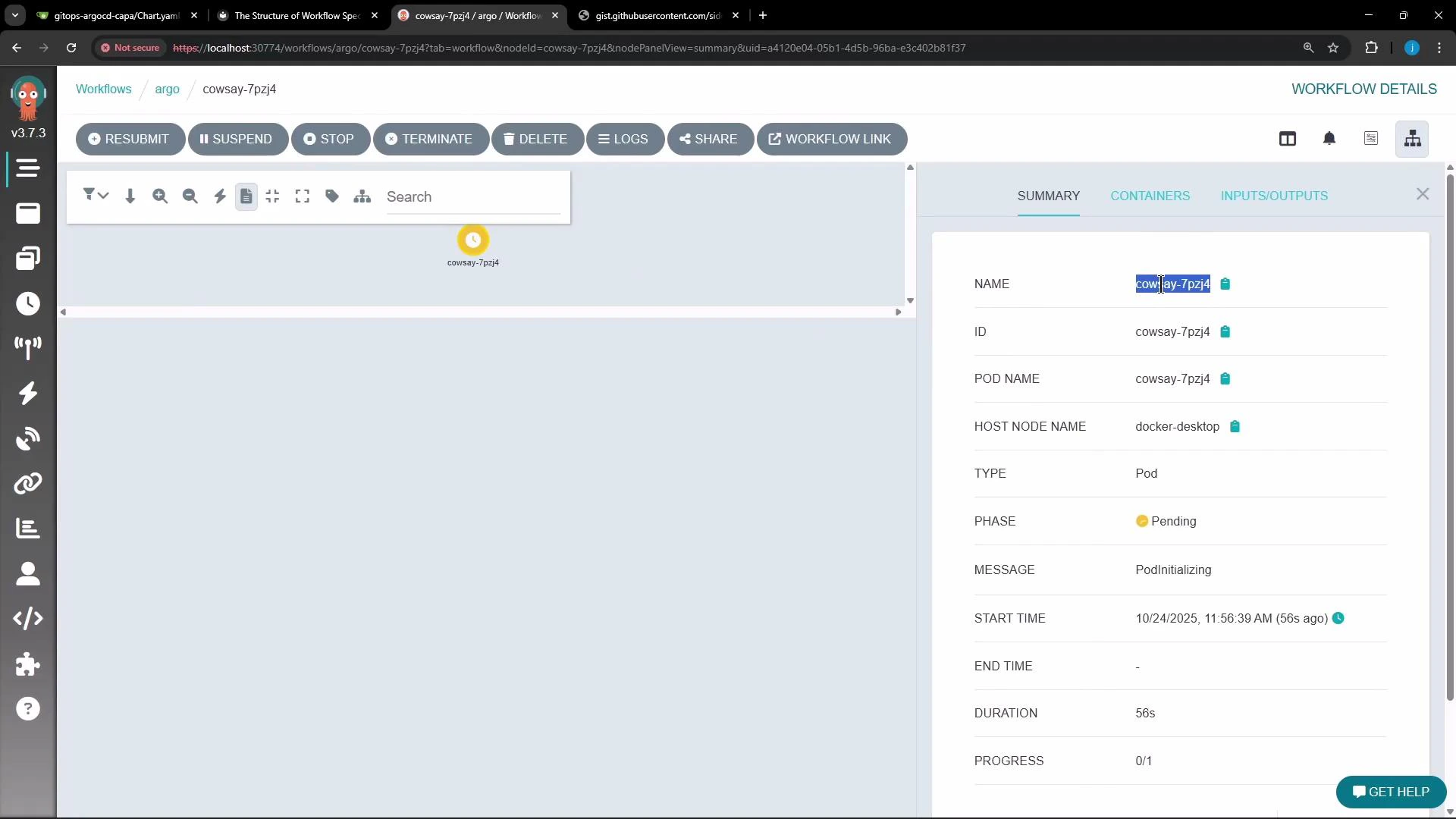
3. Create the workflow. The UI will show a summary (name, pod name, host node, phase, and action buttons like Resubmit, Suspend, Stop, Terminate, Delete).
4. Click into the workflow to view templates, inputs/outputs, and logs.
 ## Submit from the CLI
The Argo CLI supports many flags for connecting and authenticating to the Argo Server. Below is a concise table of common flags and their purpose:
| Flag | Purpose | Example |
| ---------------------------- | --------------------------------------------------- | --------------------------------- |
| `--server` | Address and port of the Argo Server | `--server argo.example.com:2746` |
| `-n, --namespace` | Namespace for the CLI request | `-n argo` |
| `--kubeconfig` | Path to kubeconfig (only needed for out-of-cluster) | `--kubeconfig ~/.kube/config` |
| `--token` | Bearer token for Argo Server authentication | `--token $ARGO_TOKEN` |
| `--username`, `--password` | Basic auth credentials | `--username user --password pass` |
| `-e, --secure` | Use TLS (defaults from env var) | `--secure` |
| `--insecure-skip-tls-verify` | Skip TLS verification (insecure) | `--insecure-skip-tls-verify` |
| `--watch` | Stream workflow progress until completion | `--watch` |
| `-v, --verbose` | Enable verbose logging (debug) | `-v` |
A more complete (version-dependent) list of flags is available from `argo --help`.
Check the Argo components and other pods in your cluster (example using kubectl):
```bash theme={null}
kubectl -n argo get pods
NAME READY STATUS RESTARTS AGE
argo-server-68bc7d7567-468lc 1/1 Running 0 3m59s
httpbin-58d7595979-xndwm 1/1 Running 0 3m59s
minio-5cb4ff75c9-stmmw 1/1 Running 0 3m58s
workflow-controller-5bb95ffc45-rp2fz 1/1 Running 0 3m59s
```
Submit the workflow from a remote URL and stream progress with `--watch`:
```bash theme={null}
argo submit https://gist.githubusercontent.com/sidd-harth/54c1c6e16682ae281650a7d67bf0bf01/raw/7cae878eaad64b84a486841bb9ee484cea83ca45/workflow-1.yml -n argo --watch
```
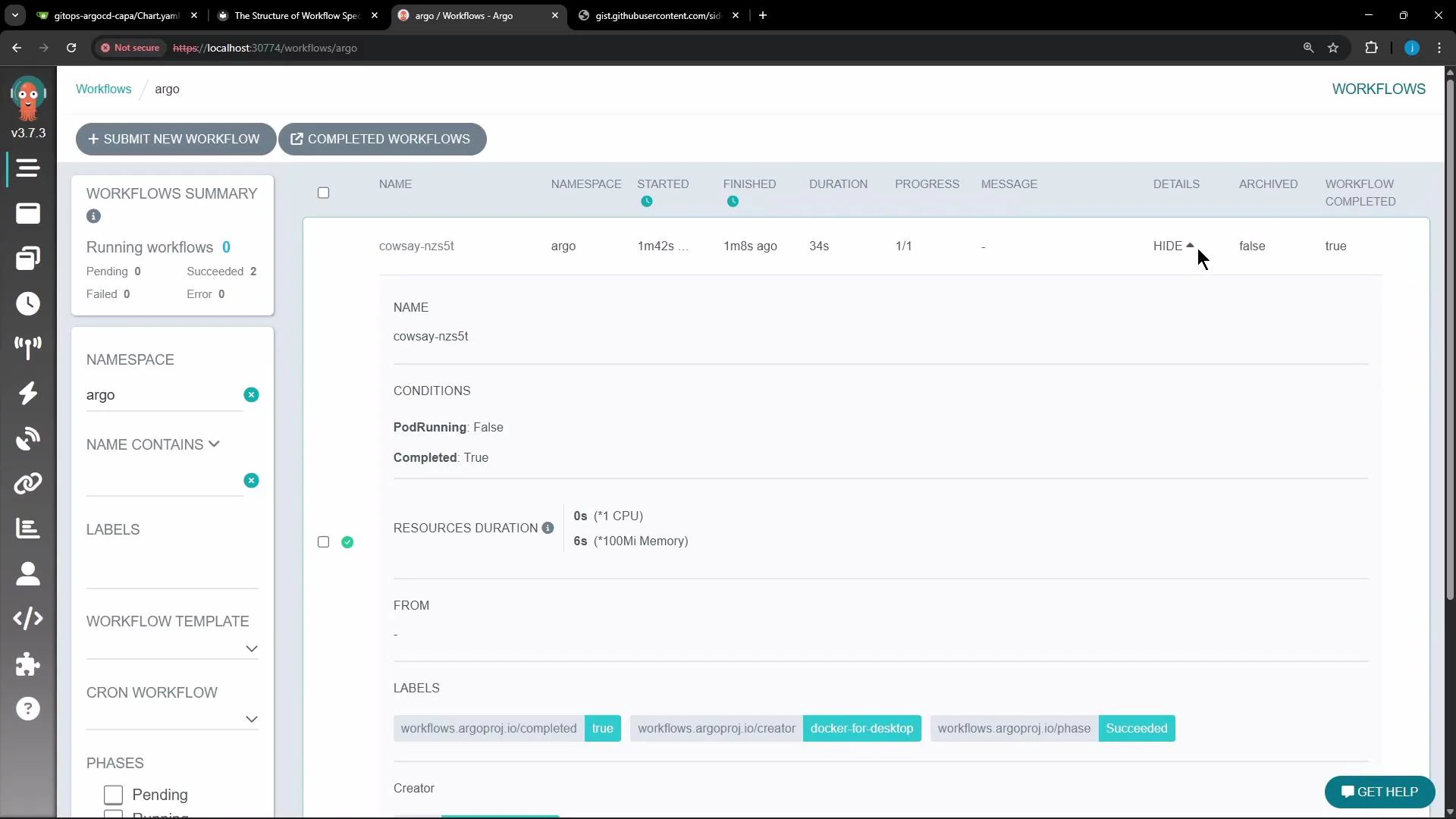
When you submit a workflow using `generateName`, Argo assigns a unique name (for example, `cowsay-nzs5t`). The CLI will stream the workflow progress and show the final status.
## Inspecting the workflow
You can get a concise workflow summary from the CLI (or inspect via the UI). Example `argo get` output (abridged):
```bash theme={null}
Name: cowsay-nzs5t
Namespace: argo
ServiceAccount: default
Status: Succeeded
Conditions:
PodRunning False
Completed True
Created: Fri Oct 24 06:28:18 +0000 (34 seconds ago)
Started: Fri Oct 24 06:28:18 +0000 (34 seconds ago)
Finished: Fri Oct 24 06:28:52 +0000 (now)
Duration: 34 seconds
Progress: 1/1
STEP TEMPLATE PODNAME DURATION MESSAGE
✓ cowsay-nzs5t cowsay cowsay-nzs5t 23s
```
Check pods again to see workflow-created pods and their status:
```bash theme={null}
kubectl -n argo get pods
NAME READY STATUS RESTARTS AGE
argo-server-68bc7d7567-468lc 1/1 Running 0 32m
cowsay-7pzj4 0/2 Completed 0 2m23s
cowsay-nzs5t 0/2 Completed 0 44s
httpbin-58d7595979-xndwm 1/1 Running 0 32m
minio-5cb4ff75c9-stmmw 1/1 Running 0 32m
workflow-controller-5bb95ffc45-rp2fz 1/1 Running 0 32m
```
## Viewing logs
You can retrieve logs using either `kubectl` or the Argo CLI:
kubectl logs (pod):
```bash theme={null}
kubectl -n argo logs cowsay-nzs5t
```
Sample output (kubectl logs):
```bash theme={null}
time="2025-10-24T06:28:37.839Z" level=info msg="capturing logs" argo=true
/ Losers visualize the penalties of \
| failure, Winners visualize the rewards |
\ of success. -Dr.Rob Gilbert /
-----------------------------------------
\ ^__^
\ (oo)\_______
(__)\ )\/\
||----w |
|| ||
time="2025-10-24T06:28:38.841Z" level=info msg="sub-process exited" argo=true error=""
```
argo logs (workflow):
```bash theme={null}
argo -n argo logs cowsay-nzs5t
```
Sample output (argo logs prefixes output with pod name):
```bash theme={null}
cowsay-nzs5t: time="2025-10-24T06:28:37.839Z" level=info msg="capturing logs" argo=true
cowsay-nzs5t:
cowsay-nzs5t: / Losers visualize the penalties of \
cowsay-nzs5t: | failure, Winners visualize the rewards |
cowsay-nzs5t: \ of success. -Dr.Rob Gilbert /
cowsay-nzs5t: -----------------------------------------
cowsay-nzs5t:
cowsay-nzs5t: \ ^__^
cowsay-nzs5t: \ (oo)\_______
cowsay-nzs5t: (__)\ )\/\
cowsay-nzs5t: ||----w |
cowsay-nzs5t: || ||
cowsay-nzs5t: time="2025-10-24T06:28:38.841Z" level=info msg="sub-process exited" argo=true error=""
```
The same logs are available in the Argo UI when you open the workflow and click "Logs".
At this point you should see two workflows in the UI (one created from the UI and one created via the CLI), both producing the same cowsay output when you inspect their logs.
## Submit from the CLI
The Argo CLI supports many flags for connecting and authenticating to the Argo Server. Below is a concise table of common flags and their purpose:
| Flag | Purpose | Example |
| ---------------------------- | --------------------------------------------------- | --------------------------------- |
| `--server` | Address and port of the Argo Server | `--server argo.example.com:2746` |
| `-n, --namespace` | Namespace for the CLI request | `-n argo` |
| `--kubeconfig` | Path to kubeconfig (only needed for out-of-cluster) | `--kubeconfig ~/.kube/config` |
| `--token` | Bearer token for Argo Server authentication | `--token $ARGO_TOKEN` |
| `--username`, `--password` | Basic auth credentials | `--username user --password pass` |
| `-e, --secure` | Use TLS (defaults from env var) | `--secure` |
| `--insecure-skip-tls-verify` | Skip TLS verification (insecure) | `--insecure-skip-tls-verify` |
| `--watch` | Stream workflow progress until completion | `--watch` |
| `-v, --verbose` | Enable verbose logging (debug) | `-v` |
A more complete (version-dependent) list of flags is available from `argo --help`.
Check the Argo components and other pods in your cluster (example using kubectl):
```bash theme={null}
kubectl -n argo get pods
NAME READY STATUS RESTARTS AGE
argo-server-68bc7d7567-468lc 1/1 Running 0 3m59s
httpbin-58d7595979-xndwm 1/1 Running 0 3m59s
minio-5cb4ff75c9-stmmw 1/1 Running 0 3m58s
workflow-controller-5bb95ffc45-rp2fz 1/1 Running 0 3m59s
```
Submit the workflow from a remote URL and stream progress with `--watch`:
```bash theme={null}
argo submit https://gist.githubusercontent.com/sidd-harth/54c1c6e16682ae281650a7d67bf0bf01/raw/7cae878eaad64b84a486841bb9ee484cea83ca45/workflow-1.yml -n argo --watch
```
When you submit a workflow using `generateName`, Argo assigns a unique name (for example, `cowsay-nzs5t`). The CLI will stream the workflow progress and show the final status.
## Inspecting the workflow
You can get a concise workflow summary from the CLI (or inspect via the UI). Example `argo get` output (abridged):
```bash theme={null}
Name: cowsay-nzs5t
Namespace: argo
ServiceAccount: default
Status: Succeeded
Conditions:
PodRunning False
Completed True
Created: Fri Oct 24 06:28:18 +0000 (34 seconds ago)
Started: Fri Oct 24 06:28:18 +0000 (34 seconds ago)
Finished: Fri Oct 24 06:28:52 +0000 (now)
Duration: 34 seconds
Progress: 1/1
STEP TEMPLATE PODNAME DURATION MESSAGE
✓ cowsay-nzs5t cowsay cowsay-nzs5t 23s
```
Check pods again to see workflow-created pods and their status:
```bash theme={null}
kubectl -n argo get pods
NAME READY STATUS RESTARTS AGE
argo-server-68bc7d7567-468lc 1/1 Running 0 32m
cowsay-7pzj4 0/2 Completed 0 2m23s
cowsay-nzs5t 0/2 Completed 0 44s
httpbin-58d7595979-xndwm 1/1 Running 0 32m
minio-5cb4ff75c9-stmmw 1/1 Running 0 32m
workflow-controller-5bb95ffc45-rp2fz 1/1 Running 0 32m
```
## Viewing logs
You can retrieve logs using either `kubectl` or the Argo CLI:
kubectl logs (pod):
```bash theme={null}
kubectl -n argo logs cowsay-nzs5t
```
Sample output (kubectl logs):
```bash theme={null}
time="2025-10-24T06:28:37.839Z" level=info msg="capturing logs" argo=true
/ Losers visualize the penalties of \
| failure, Winners visualize the rewards |
\ of success. -Dr.Rob Gilbert /
-----------------------------------------
\ ^__^
\ (oo)\_______
(__)\ )\/\
||----w |
|| ||
time="2025-10-24T06:28:38.841Z" level=info msg="sub-process exited" argo=true error=""
```
argo logs (workflow):
```bash theme={null}
argo -n argo logs cowsay-nzs5t
```
Sample output (argo logs prefixes output with pod name):
```bash theme={null}
cowsay-nzs5t: time="2025-10-24T06:28:37.839Z" level=info msg="capturing logs" argo=true
cowsay-nzs5t:
cowsay-nzs5t: / Losers visualize the penalties of \
cowsay-nzs5t: | failure, Winners visualize the rewards |
cowsay-nzs5t: \ of success. -Dr.Rob Gilbert /
cowsay-nzs5t: -----------------------------------------
cowsay-nzs5t:
cowsay-nzs5t: \ ^__^
cowsay-nzs5t: \ (oo)\_______
cowsay-nzs5t: (__)\ )\/\
cowsay-nzs5t: ||----w |
cowsay-nzs5t: || ||
cowsay-nzs5t: time="2025-10-24T06:28:38.841Z" level=info msg="sub-process exited" argo=true error=""
```
The same logs are available in the Argo UI when you open the workflow and click "Logs".
At this point you should see two workflows in the UI (one created from the UI and one created via the CLI), both producing the same cowsay output when you inspect their logs.
 ## Links and references
* Argo Workflows documentation: [https://argoproj.github.io/argo-workflows/](https://argoproj.github.io/argo-workflows/)
* Kubernetes documentation: [https://kubernetes.io/docs/](https://kubernetes.io/docs/)
* Argo CLI reference: [https://argoproj.github.io/argo-workflows/argo/commands/argo/](https://argoproj.github.io/argo-workflows/argo/commands/argo/)
* Example workflow used above (gist): [https://gist.githubusercontent.com/sidd-harth/54c1c6e16682ae281650a7d67bf0bf01/raw/7cae878eaad64b84a486841bb9ee484cea83ca45/workflow-1.yml](https://gist.githubusercontent.com/sidd-harth/54c1c6e16682ae281650a7d67bf0bf01/raw/7cae878eaad64b84a486841bb9ee484cea83ca45/workflow-1.yml)
## Links and references
* Argo Workflows documentation: [https://argoproj.github.io/argo-workflows/](https://argoproj.github.io/argo-workflows/)
* Kubernetes documentation: [https://kubernetes.io/docs/](https://kubernetes.io/docs/)
* Argo CLI reference: [https://argoproj.github.io/argo-workflows/argo/commands/argo/](https://argoproj.github.io/argo-workflows/argo/commands/argo/)
* Example workflow used above (gist): [https://gist.githubusercontent.com/sidd-harth/54c1c6e16682ae281650a7d67bf0bf01/raw/7cae878eaad64b84a486841bb9ee484cea83ca45/workflow-1.yml](https://gist.githubusercontent.com/sidd-harth/54c1c6e16682ae281650a7d67bf0bf01/raw/7cae878eaad64b84a486841bb9ee484cea83ca45/workflow-1.yml)