> ## Documentation Index
> Fetch the complete documentation index at: https://notes.kodekloud.com/llms.txt
> Use this file to discover all available pages before exploring further.
# Demo ArgoCD Installation
> Guide to installing and configuring Argo CD on a Kubernetes cluster, exposing the server locally, retrieving initial admin credentials, and updating the default password.
This guide walks through installing Argo CD on a Kubernetes cluster, exposing the Argo CD server for local access, logging into the web UI, and updating the initial admin password. It includes commands, verification steps, example outputs, and screenshots to help you quickly get started with Argo CD.
## Prerequisites
* A working Kubernetes cluster (example uses Docker Desktop with Kubernetes).
* kubectl configured to target the cluster.
* Internet access to fetch the Argo CD manifests from GitHub.
## Install Argo CD (stable)
To install the latest stable release of Argo CD, create the `argocd` namespace and apply the stable install manifest:
```bash theme={null}
kubectl create namespace argocd
kubectl apply -n argocd -f https://raw.githubusercontent.com/argoproj/argo-cd/stable/manifests/install.yaml
```
## Install a specific Argo CD version
If you need a particular release, point to the release tag on GitHub. Below are example commands for installing Argo CD v3.1.5 in either non-HA or HA mode.
```bash theme={null}
# Non-HA
kubectl create namespace argocd
kubectl apply -n argocd -f https://raw.githubusercontent.com/argoproj/argo-cd/v3.1.5/manifests/install.yaml
# High-Availability
kubectl create namespace argocd
kubectl apply -n argocd -f https://raw.githubusercontent.com/argoproj/argo-cd/v3.1.5/manifests/ha/install.yaml
```
Choose the non-HA manifest for single-node or local clusters (quickstart). Use
the HA manifest for production-grade deployments that require multiple
replicas and higher availability.
## Example environment and initial cluster state
This example uses a single-node Docker Desktop cluster (Kubernetes v1.34.1). Use these commands to inspect nodes and namespaces before installing Argo CD:
```bash theme={null}
# Node
kubectl get nodes
# NAME STATUS ROLES AGE VERSION
# Namespaces (before install)
kubectl get ns
# NAME STATUS AGE
# default Active 11h
# kube-node-lease Active 11h
# kube-public Active 11h
# kube-system Active 11h
```
## Install Argo CD (example using v3.1.5 non-HA)
Create the namespace and apply the manifest for the specific version:
```bash theme={null}
kubectl create namespace argocd
kubectl apply -n argocd -f https://raw.githubusercontent.com/argoproj/argo-cd/v3.1.5/manifests/install.yaml
```
The install manifest creates many Kubernetes resources—CRDs, ServiceAccounts, RBAC, ConfigMaps, Secrets, Services, Deployments, StatefulSets, and NetworkPolicies. Example creation output (shortened):
```bash theme={null}
# Selected created resources (example)
namespace/argocd created
customresourcedefinition.apiextensions.k8s.io/applications.argoproj.io created
serviceaccount/argocd-application-controller created
service/argocd-server created
deployment.apps/argocd-server created
statefulset.apps/argocd-application-controller created
# ...many other resources created...
```
### Common resource types created by the Argo CD install
| Resource Type | Use Case |
| ------------------------ | ----------------------------------------------------------------- |
| Namespace | Isolate Argo CD components (`argocd`) |
| CRDs | Define Argo CD custom resources (Applications, AppProjects, etc.) |
| Deployments/StatefulSets | Run controllers, server, repo-server, etc. |
| Services | Expose Argo CD components (ClusterIP by default) |
| Secrets | Store initial admin password and other credentials |
| RBAC (Roles/Bindings) | Grant permissions to Argo CD components |
## Verify pods and services
Watch the resources in the `argocd` namespace as pods start:
```bash theme={null}
kubectl -n argocd get all
# Example (pods may be initializing)
# NAME READY STATUS RESTARTS AGE
# pod/argocd-application-controller-0 0/1 ContainerCreating 0 20s
# pod/argocd-server-xxxxx 0/1 ContainerCreating 0 23s
# ...
```
When controllers finish starting, the Deployments and StatefulSets should show READY:
```bash theme={null}
kubectl -n argocd get deploy,statefulset
# Example final state:
# deployment.apps/argocd-server 1/1 1 1 7m
# statefulset.apps/argocd-application-controller 1/1 1 1 6m
```
## Expose the Argo CD server for local access (NodePort)
By default, the `argocd-server` Service is type `ClusterIP`. For local development you can patch it to `NodePort`:
```bash theme={null}
kubectl -n argocd patch svc argocd-server -p '{"spec": {"type": "NodePort"}}'
# service/argocd-server patched
```
List services to see the assigned NodePorts (example output):
```bash theme={null}
kubectl -n argocd get svc
# NAME TYPE CLUSTER-IP EXTERNAL-IP PORT(S)
# argocd-server NodePort 10.101.182.0 80:31148/TCP,443:30203/TCP
# argocd-repo-server ClusterIP 10.107.211.176 8081/TCP,8084/TCP
# ...
```
How to determine the URL to open:
* If the PORT(S) column shows "80:31148/TCP,443:30203/TCP", use [https://localhost:30203](https://localhost:30203) (HTTPS NodePort mapped to 443).
* If you use the NodePort mapped to port 80, you can use `http://localhost:`.
* On Docker Desktop NodePorts are typically reachable at localhost; on other environments use the node IP or cloud load balancer as appropriate.
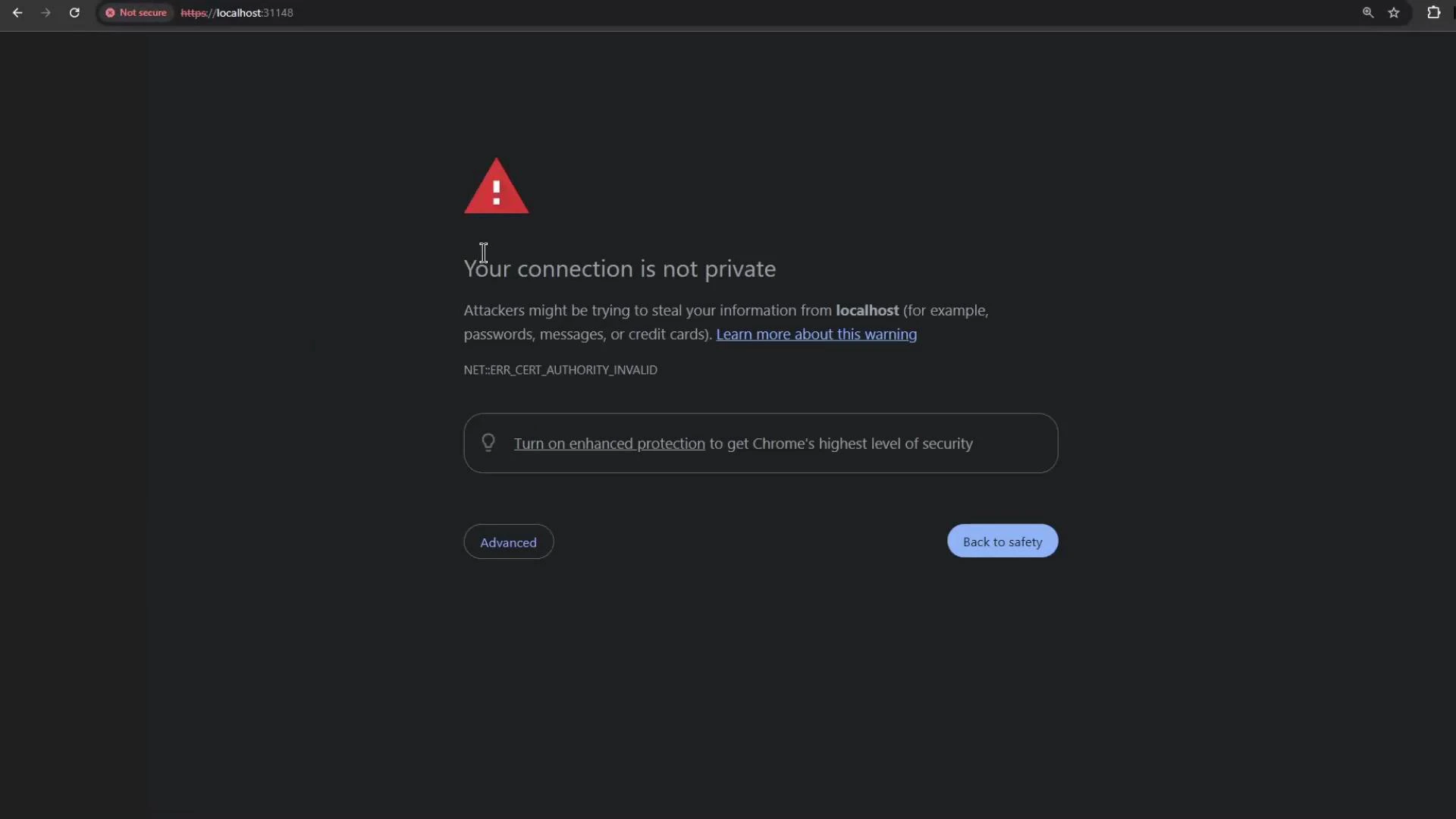
Note: Browsers may show a certificate warning for the self-signed certificate. Accept the warning to proceed to the Argo CD UI.
 ## Retrieve the initial admin password and log in
Argo CD stores the initial admin password in the `argocd-initial-admin-secret` Secret. Decode it with:
```bash theme={null}
kubectl -n argocd get secret argocd-initial-admin-secret -o jsonpath='{.data.password}' | base64 --decode
# prints the initial admin password
```
On macOS the base64 CLI flag may differ—if `--decode` doesn't work try `base64
-D`.
If your installation uses a different secret name or structure, list secrets and inspect the relevant secret:
```bash theme={null}
kubectl -n argocd get secrets
kubectl -n argocd describe secret
```
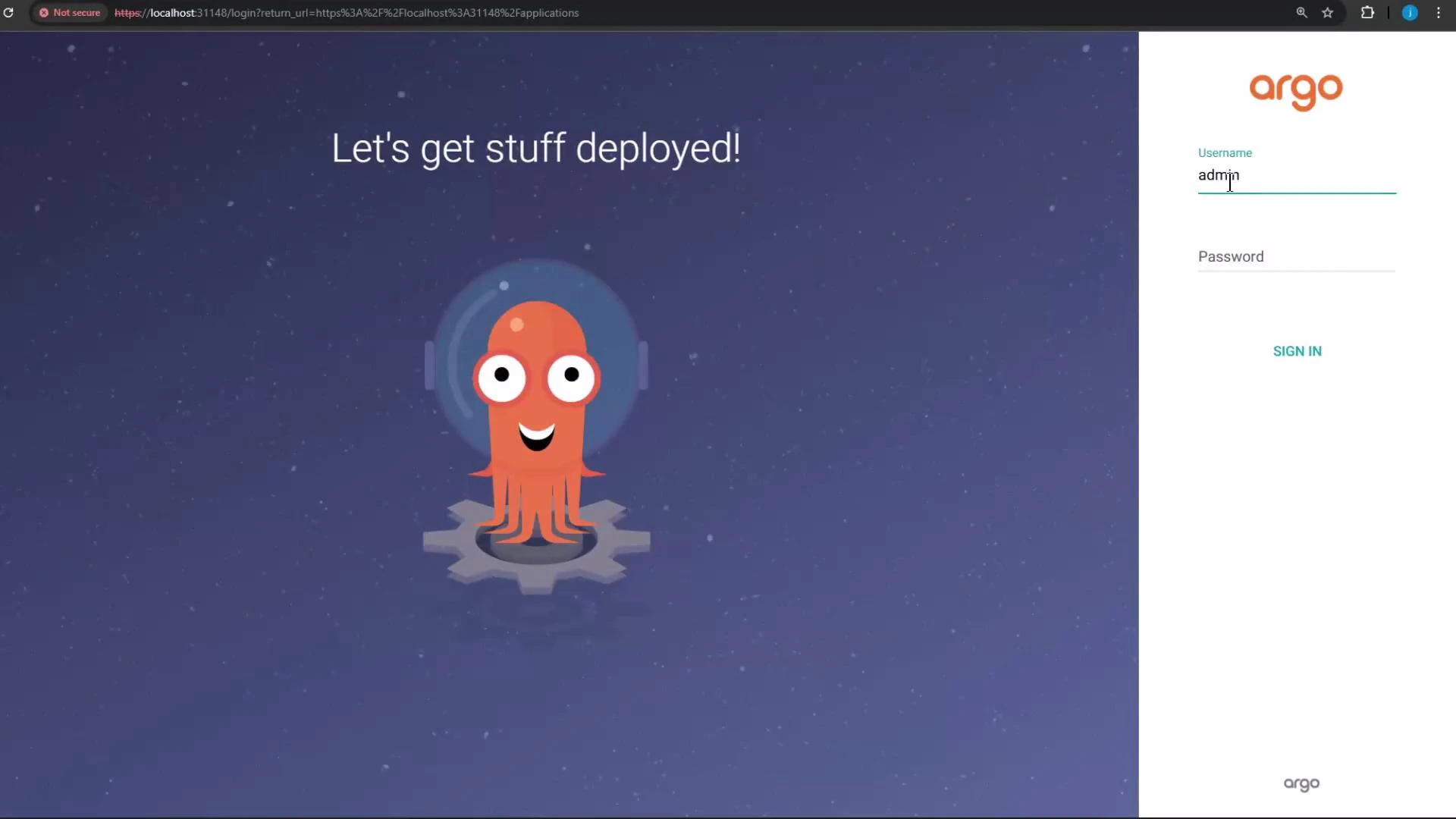
Use username `admin` and the decoded password to sign in to the Argo CD web UI. The default login screen looks like this:
## Retrieve the initial admin password and log in
Argo CD stores the initial admin password in the `argocd-initial-admin-secret` Secret. Decode it with:
```bash theme={null}
kubectl -n argocd get secret argocd-initial-admin-secret -o jsonpath='{.data.password}' | base64 --decode
# prints the initial admin password
```
On macOS the base64 CLI flag may differ—if `--decode` doesn't work try `base64
-D`.
If your installation uses a different secret name or structure, list secrets and inspect the relevant secret:
```bash theme={null}
kubectl -n argocd get secrets
kubectl -n argocd describe secret
```
Use username `admin` and the decoded password to sign in to the Argo CD web UI. The default login screen looks like this:
 ## Update the admin password
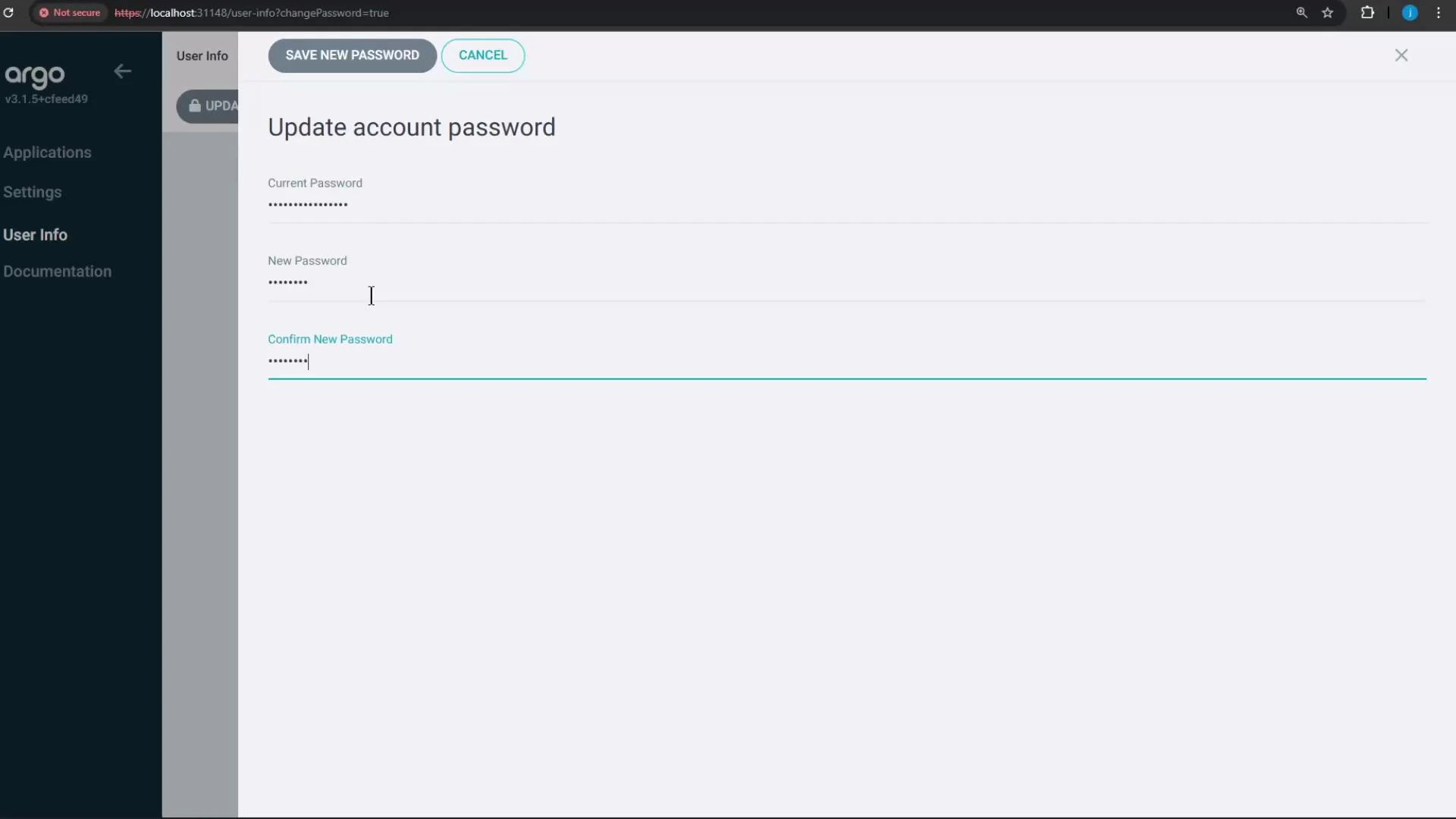
After your first login, immediately change the admin password from the Account Settings -> Update account password dialog. Updating the default password is strongly recommended to secure your Argo CD instance.
## Update the admin password
After your first login, immediately change the admin password from the Account Settings -> Update account password dialog. Updating the default password is strongly recommended to secure your Argo CD instance.
 ## Summary
* Installed Argo CD into the `argocd` namespace (stable or specific version).
* Patched `argocd-server` to NodePort for local access.
* Retrieved and decoded the initial admin password from the Kubernetes Secret.
* Logged into the Argo CD web UI and updated the admin password.
* Next steps: create Argo CD Applications, connect Git repositories, and add clusters for GitOps-based deployments.
## Links and References
* [Argo CD Documentation](https://argo-cd.readthedocs.io/)
* [Argo Project GitHub Release Manifests](https://github.com/argoproj/argo-cd/tree/stable/manifests)
* [Kubernetes Documentation](https://kubernetes.io/docs/)
## Summary
* Installed Argo CD into the `argocd` namespace (stable or specific version).
* Patched `argocd-server` to NodePort for local access.
* Retrieved and decoded the initial admin password from the Kubernetes Secret.
* Logged into the Argo CD web UI and updated the admin password.
* Next steps: create Argo CD Applications, connect Git repositories, and add clusters for GitOps-based deployments.
## Links and References
* [Argo CD Documentation](https://argo-cd.readthedocs.io/)
* [Argo Project GitHub Release Manifests](https://github.com/argoproj/argo-cd/tree/stable/manifests)
* [Kubernetes Documentation](https://kubernetes.io/docs/)